
In an increasingly connected world, every device participating in a network, whether local or global, requires a unique identifier to send and receive information effectively. For your iPhone, this identifier is its Internet Protocol (IP) address. Far from being an obscure technical detail, understanding your iPhone’s IP address is a foundational aspect of troubleshooting connectivity, optimizing network performance, enhancing digital security, and even configuring advanced home network setups. It’s the digital equivalent of a postal address, guiding data packets to their intended destination and enabling your device to communicate seamlessly with websites, apps, and other devices.
This article aims to demystify the concept of an IP address, explain its various forms, provide clear instructions on how to locate it on your iPhone, and, most importantly, shed light on why this seemingly small piece of information holds significant importance in your digital life. We’ll delve into the nuances of local versus public IPs, the role of routers and internet service providers, and the implications for your privacy and security. By the end, you’ll not only know how to find your iPhone’s IP address but also understand the powerful implications behind it, empowering you to navigate your digital world with greater insight and control.
Understanding IP Addresses: The Foundation of Network Communication
At its core, an IP address is the language that allows devices to find each other on the internet and local networks. Without it, your iPhone couldn’t fetch emails, stream videos, or even load a simple webpage. It’s a critical component of the TCP/IP protocol suite, the bedrock of modern networking.
What Exactly is an IP Address?
An IP address is a numerical label assigned to each device connected to a computer network that uses the Internet Protocol for communication. Think of it as your iPhone’s unique identification number within a specific network. Just as a physical address tells the postal service where to deliver a letter, an IP address tells network routers and servers where to send data packets destined for your device.
There are two primary versions of IP addresses in use today: IPv4 and IPv6. IPv4 addresses are typically represented as four sets of numbers separated by dots (e.g., 192.168.1.100), while IPv6 addresses are longer, alphanumeric strings separated by colons (e.g., 2001:0db8:85a3:0000:0000:8a2e:0370:7334). The transition to IPv6 is ongoing due to the exhaustion of IPv4 addresses, which could only support about 4.3 billion unique identifiers – a number long surpassed by the explosion of connected devices.
The Two Faces: Local vs. Public IP Addresses
When discussing IP addresses, it’s crucial to distinguish between two main types: local (or private) IP addresses and public IP addresses. Each serves a distinct purpose and operates within a different scope.
Local IP Address: This is the address assigned to your iPhone within your private home or office network. Your Wi-Fi router acts as the central hub, assigning unique local IP addresses to every device connected to it (your iPhone, laptop, smart TV, etc.). These addresses are not accessible directly from the public internet. Common ranges for local IP addresses include 192.168.x.x, 172.16.x.x to 172.31.x.x, and 10.x.x.x. All devices within your local network can communicate with each other using these private IPs, but for your iPhone to access the internet, its requests must first go through your router.
Public IP Address: This is the address assigned to your entire network by your Internet Service Provider (ISP). It’s the unique identifier that the rest of the internet sees when your iPhone (or any device on your network) communicates with external servers. All outgoing traffic from your local network to the internet appears to originate from this single public IP address. Your router performs Network Address Translation (NAT) to manage this, mapping multiple private IP addresses within your network to a single public IP address. Unlike local IPs, which are typically dynamic (meaning they can change over time), public IPs can be either dynamic or static, depending on your ISP plan. A static public IP address remains constant, which is often beneficial for businesses hosting their own servers or for specific remote access configurations.
Understanding this distinction is key to comprehending how your iPhone connects to both your home network and the vast global internet. Your iPhone’s local IP address allows it to find your printer, while your public IP address allows it to find Google’s servers.
IPv4 vs. IPv6: The Evolving Internet Protocol
The internet as we know it today was largely built on IPv4. However, with the exponential growth of internet-connected devices – from smartphones and smart home gadgets to industrial IoT sensors – the 4.3 billion unique addresses provided by IPv4 have been exhausted. This scarcity has necessitated the widespread adoption of IPv6.
IPv6 addresses are 128-bit numbers, allowing for an astronomical number of unique addresses (approximately 340 undecillion – 3.4 x 10^38). This vast address space ensures that every device, sensor, and even future innovations can have its own unique, public IP address without the need for complex NAT translations. While IPv4 and IPv6 are not directly compatible, modern routers and operating systems (including iOS) support both protocols, often running them simultaneously through a process called “dual-stack” operation. For most users, this transition is largely seamless, but it signifies a critical evolution in how the internet functions and scales for the future. As an iPhone user, your device is equipped to handle both, ensuring compatibility with current and future network infrastructures.
How to Locate Your iPhone’s IP Address: A Step-by-Step Guide
Finding your iPhone’s IP address is a straightforward process, though the specific steps depend on whether you’re looking for your local Wi-Fi IP or your public internet-facing IP.
Finding Your Local IP Address (Wi-Fi)
Your iPhone’s local IP address is assigned by your Wi-Fi router when your device connects to that specific network. This is the IP address most commonly sought for troubleshooting or specific network configurations.
-
Open the Settings App: Tap on the grey “Settings” icon on your iPhone’s home screen.
-
Navigate to Wi-Fi: Scroll down and tap on “Wi-Fi.”
-
Identify Your Connected Network: Ensure your iPhone is connected to the Wi-Fi network you want to check the IP address for. You’ll see a checkmark next to its name.
-
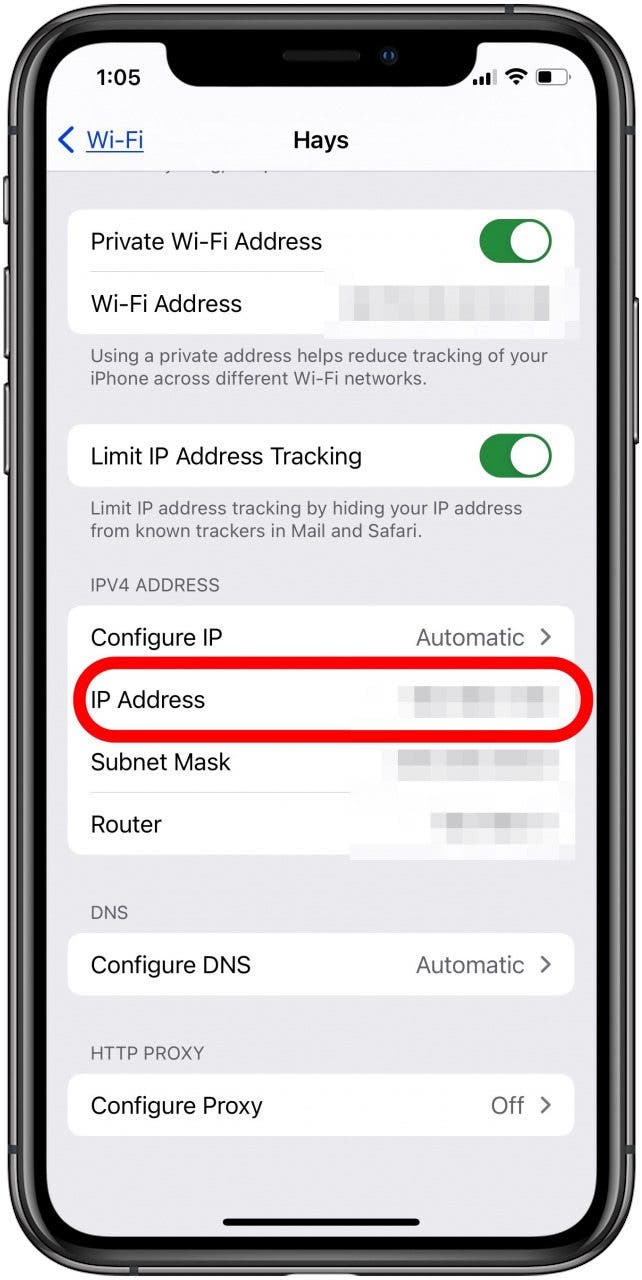
Tap the Information Icon: To the right of your connected Wi-Fi network’s name, you’ll see a blue “i” in a circle. Tap on this icon.
-
Locate the IP Address: On the next screen, under the “IPv4 Address” section, you will find your iPhone’s local IP address listed next to “IP Address.” It typically starts with 192.168.x.x, 10.x.x.x, or 172.16.x.x to 172.31.x.x. You might also see an “IPv6 Address” listed, which is your device’s local IPv6 address if your network supports it.
This method reveals the IP address your iPhone uses to communicate with other devices within your home network.
Identifying Your Public IP Address (Any Connection)
Your public IP address is the one that identifies your entire network to the outside world. It’s assigned by your Internet Service Provider (ISP) to your router, not directly to your iPhone. When your iPhone accesses the internet via your Wi-Fi, it uses your router’s public IP address. If you’re using cellular data, your carrier assigns a public IP address to your device, which is separate from your Wi-Fi network’s public IP.
To find your network’s public IP address (when connected to Wi-Fi):
-
Open Safari or any web browser on your iPhone.
-
Go to an IP address lookup website: Type “what is my IP address” into the search bar, or directly navigate to a site like
whatismyip.com,ipchicken.com, orwhatsmyip.org. -
View Your Public IP: The website will display your current public IP address, which is the IP address of your Wi-Fi network’s internet connection.
It’s important to remember that this is the IP address of your router, through which your iPhone is connected, not a unique public IP address for the iPhone itself when on Wi-Fi.
Checking Your Cellular Data IP Address
When your iPhone switches from Wi-Fi to cellular data, it receives a different IP address assigned by your mobile carrier. This is also a public IP address, allowing your device to access the internet directly through the cellular network.
To check your cellular data IP address:
-
Turn off Wi-Fi: Go to Settings > Wi-Fi and toggle it off. This ensures your iPhone is using cellular data.
-
Open Safari or any web browser.
-
Go to an IP address lookup website: Similar to finding your Wi-Fi public IP, visit a site like
whatismyip.com. -
View Your Public IP: The website will now display the public IP address assigned to your iPhone by your cellular carrier.
Note that cellular IP addresses are typically highly dynamic, meaning they can change frequently (e.g., when you move to a different cell tower, restart your phone, or during carrier network reassignments). This makes them less useful for long-term configurations like port forwarding. Unlike Wi-Fi IPs, your cellular data IP is not displayed directly in your iPhone’s settings.
Why Knowing Your iPhone’s IP Address Matters
Beyond simple curiosity, understanding and locating your iPhone’s IP address can be surprisingly useful in several practical scenarios, ranging from basic troubleshooting to advanced network management and critical security considerations.
Network Troubleshooting and Connectivity Issues
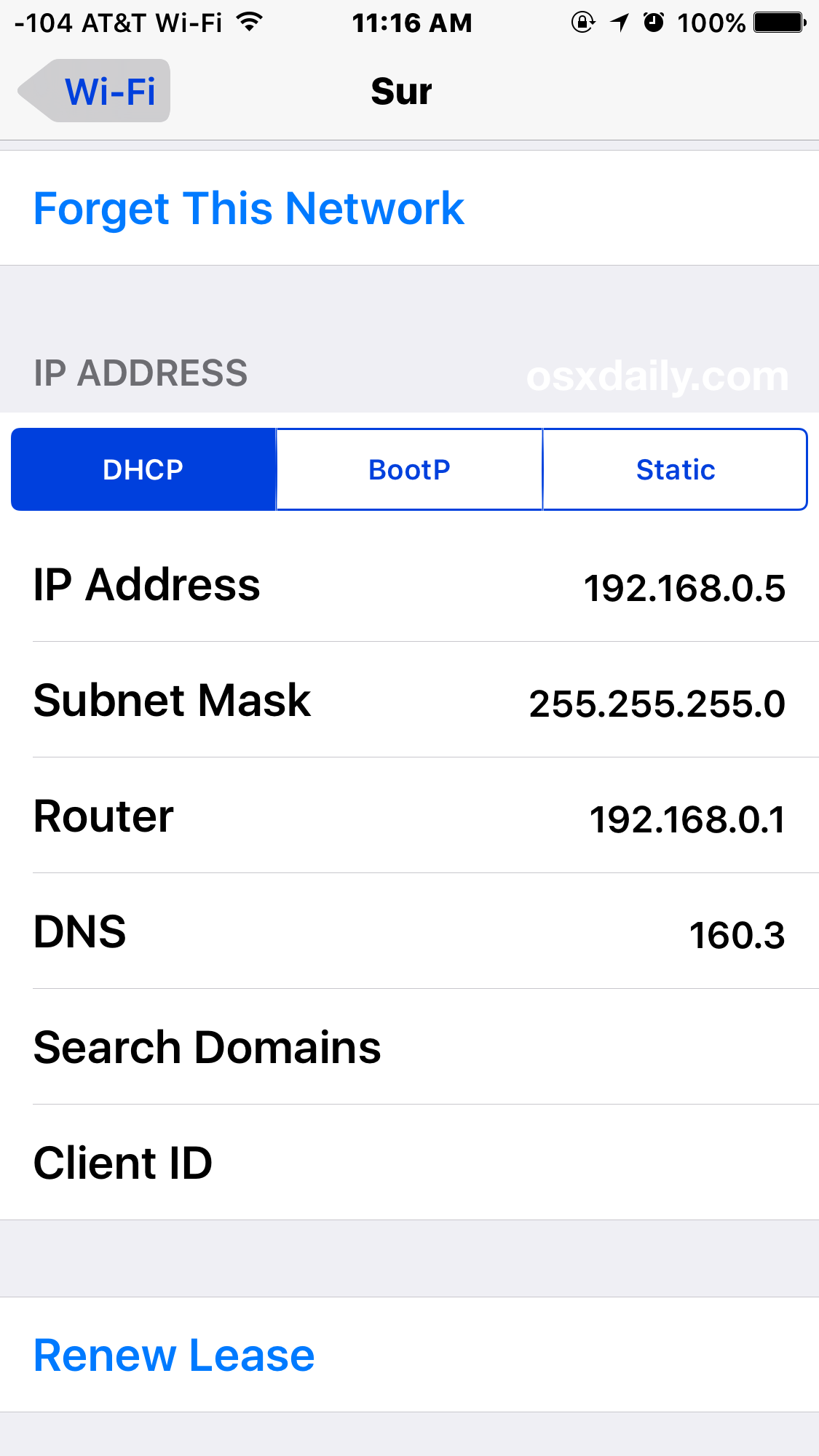
One of the most common reasons to check your iPhone’s local IP address is for diagnosing network problems. If your iPhone is connected to Wi-Fi but can’t access the internet, or if it’s struggling to communicate with other devices on your home network (like a printer or a smart speaker), checking its IP address can provide valuable clues.
-
IP Conflicts: If two devices on your network are accidentally assigned the same IP address, it can lead to intermittent connectivity or complete network failures. Checking your iPhone’s IP can help identify if it’s experiencing such a conflict.
-
Gateway Issues: Your iPhone’s network settings also show the “Router” IP address (your gateway). If this is incorrect or unreachable, your iPhone won’t be able to send data out to the internet.
-
DHCP Failures: If your iPhone isn’t getting an IP address automatically (indicated by a self-assigned IP address like 169.254.x.x), it points to an issue with your router’s DHCP server, which is responsible for assigning IP addresses.
Knowing your IP allows you to systematically troubleshoot and isolate the source of network issues, saving you frustration and potentially a call to technical support.
Advanced Network Configurations
For more tech-savvy users, knowing your iPhone’s IP address, particularly its local one, is crucial for setting up advanced network features.
-
Port Forwarding: If you’re trying to host a game server, access a security camera feed, or use a specific application that requires direct inbound connections to your iPhone (or another device on your network), you might need to configure port forwarding on your router. This involves directing specific internet traffic from your public IP address to a particular local IP address and port on your network. To do this, you need to know the stable local IP of your iPhone or the device you’re targeting.
-
Static IP Assignment: While most iPhones receive dynamic IP addresses (which can change), in rare cases, you might want to assign a static local IP address to your iPhone or other network devices. This ensures that the device always has the same internal IP, which can be useful for devices that rely on consistent network identification, though it’s less common for an iPhone itself. Instead, you might assign static IPs to network-attached storage (NAS) devices or servers that your iPhone connects to.
-
Remote Access: If you’re setting up a VPN server on your home network or trying to remotely access files on your home computer from your iPhone, knowing your home network’s public IP address is essential. While dynamic DNS services can help manage changing public IPs, understanding the underlying IP structure is fundamental.
Security, Privacy, and VPNs
Your IP address is more than just a network identifier; it’s a potential piece of personally identifiable information with significant security and privacy implications.
-
Geolocation: Your public IP address can reveal your approximate geographical location (city, region, and ISP) to websites and online services. This is how streaming services enforce geo-restrictions and how targeted advertising works.
-
Tracking and Profiling: Websites and advertisers can use your public IP address (in conjunction with cookies and other tracking technologies) to build a profile of your online activities and browsing habits.
-
Vulnerability to Attacks (Indirect): While an IP address alone doesn’t grant direct access to your iPhone, it is the first piece of information an attacker needs to begin scanning for vulnerabilities on your network. Knowing your public IP allows someone to identify your network’s presence on the internet.
-
The Role of VPNs: This is where Virtual Private Networks (VPNs) become invaluable. A VPN works by routing your internet traffic through an encrypted tunnel to a remote server operated by the VPN provider. When you use a VPN on your iPhone, your public IP address effectively becomes the IP address of the VPN server, masking your true location and making it much harder for third parties to track your online activities back to your actual public IP. This significantly enhances your privacy and security, especially when using public Wi-Fi networks where your traffic might be vulnerable to interception.
In essence, your IP address is a digital window into your device’s presence on a network. Knowing how to find and understand it empowers you to manage your connectivity, secure your digital footprint, and make informed decisions about your online privacy.
Managing and Protecting Your iPhone’s IP Information
Understanding your iPhone’s IP addresses extends to knowing how they are managed and what steps you can take to protect the privacy associated with them. This involves understanding the dynamic nature of most IP assignments and leveraging tools like VPNs.
DHCP Lease and IP Address Changes
Most IP addresses assigned to devices within a local network, including your iPhone, are dynamic. This means they are automatically assigned by your router’s DHCP (Dynamic Host Configuration Protocol) server for a specific period, known as a “lease time.” Once the lease expires, your iPhone might be assigned a new IP address, even if it’s still connected to the same network.
-
When an IP might change:
-
Router Reboot: Restarting your Wi-Fi router often clears its DHCP lease table, leading to new IP assignments for connected devices.
-
Device Reconnection: Disconnecting and reconnecting your iPhone from a Wi-Fi network can sometimes result in a new IP address from the DHCP pool.
-
Lease Expiry: If your iPhone is disconnected for an extended period beyond its lease time, it will request a new IP upon reconnecting.
-
Network Changes: Connecting to a different Wi-Fi network will always result in your iPhone being assigned a completely new local IP address by that network’s router.
-
Cellular Network Changes: Moving between different cell towers or restarting your device can cause your cellular IP to change.
-
For most casual users, dynamic IP addresses are perfectly fine. However, for specific applications requiring a stable internal address (like connecting to a home media server), you might configure a static IP address reservation in your router’s settings, linking your iPhone’s MAC address to a specific IP, rather than directly setting a static IP on the iPhone itself, which can cause conflicts if not managed properly.
Enhancing Privacy: The Role of VPNs
As discussed, your public IP address is a key identifier that can reveal your location and contribute to online tracking. VPNs are the most effective tool for masking this information on your iPhone.
-
How VPNs Work: When you enable a VPN on your iPhone, all your internet traffic is encrypted and routed through a server operated by the VPN provider. Websites and online services will then see the VPN server’s IP address instead of your true public IP. This effectively hides your original IP, making it much harder to trace your online activities back to you.
-
Benefits:
-
Location Spoofing: Choose a VPN server in a different country to appear as if you’re browsing from there, bypassing geo-restrictions.
-
Enhanced Security on Public Wi-Fi: Encrypts your data, protecting it from snooping on unsecured public networks.
-
Anonymity: Makes it more difficult for ISPs, governments, and advertisers to track your online behavior.
-
-
Choosing a Reliable VPN: When selecting a VPN for your iPhone, look for providers with a strict no-logs policy, strong encryption (like AES-256), a wide range of server locations, and a good reputation for privacy and performance. There are many VPN apps available on the App Store that integrate seamlessly with iOS.
Avoiding IP-Related Security Risks
While your IP address isn’t a direct gateway for hackers to breach your iPhone, being aware of its implications is part of good digital hygiene.
-
Phishing and Social Engineering: Be wary of emails or messages that claim to know your IP address and use it as leverage for scams. While they might genuinely know your public IP (it’s public information), they can’t do much with it without further information or action from you.
-
DoS Attacks: In rare cases, a malicious actor might target your public IP address with a Denial of Service (DoS) attack, overwhelming your network and disrupting your internet access. However, these attacks are typically aimed at businesses or specific online services, not individual iPhone users.
-
General Network Security: The best defense against IP-related risks (and broader cybersecurity threats) is to maintain strong overall network security:
-
Use strong, unique passwords for your Wi-Fi network and online accounts.
-
Keep your iPhone’s iOS software updated to patch known vulnerabilities.
-
Use a firewall (your router has one built-in) and robust antivirus/anti-malware solutions on your network if possible.
-
Be cautious about clicking suspicious links or downloading files from unknown sources.
-
By combining an understanding of IP addresses with best practices for network management and privacy tools like VPNs, iPhone users can significantly enhance their digital security and maintain greater control over their online presence.
Common Misconceptions and FAQs
The world of IP addresses can sometimes be confusing, leading to several common misunderstandings. Let’s clarify some frequently asked questions.
Can Someone Hack My iPhone With My IP Address?
This is a common fear, but the answer is generally no, not directly. Your public IP address is akin to your house’s street address – it tells someone where you are, but it doesn’t give them a key to your front door or tell them what’s inside. To hack your iPhone, an attacker would need to exploit a specific vulnerability in your device’s software (iOS) or an app, or gain access to your network through a weak password.
While an IP address can be a starting point for reconnaissance (allowing an attacker to know your general location and ISP, and potentially scan your network for open ports), it’s not a direct hacking tool. Your router’s firewall acts as a significant barrier, blocking most unsolicited incoming connections. The real risk lies in combining IP knowledge with social engineering or already compromised credentials, not the IP address itself.
Does My IP Address Change When I Use Cellular Data?
Yes, absolutely. When your iPhone is connected to Wi-Fi, it uses a local IP address within your home network and shares your router’s public IP address for internet access. When you switch to cellular data, your iPhone disconnects from the Wi-Fi network and connects directly to your mobile carrier’s network. Your carrier then assigns your iPhone a completely different public IP address for that cellular connection. This IP is distinct from your Wi-Fi’s public IP and is usually dynamic, meaning it can change frequently.
Is My IP Address Unique?
This depends on whether you’re talking about a local or public IP address.
-
Local IP Address: Within your local network (e.g., your home Wi-Fi), your iPhone’s local IP address (e.g., 192.168.1.100) is unique to your device at that moment. No two devices on the same local network should have the exact same local IP address simultaneously, as this would cause an IP conflict.
-
Public IP Address: Your public IP address is unique to your entire network at any given time. However, many devices behind a single router share that one public IP address when communicating with the internet. If you have a dynamic public IP (which most home users do), it can change over time. If you have a static public IP (common for businesses), it remains constant.
So, while your iPhone always has a unique identifier within its immediate network context, that identifier (especially the public one) might be shared by other devices in terms of its internet-facing presentation, or it might change over time.
Why Can’t I Find My Cellular IP in Settings?
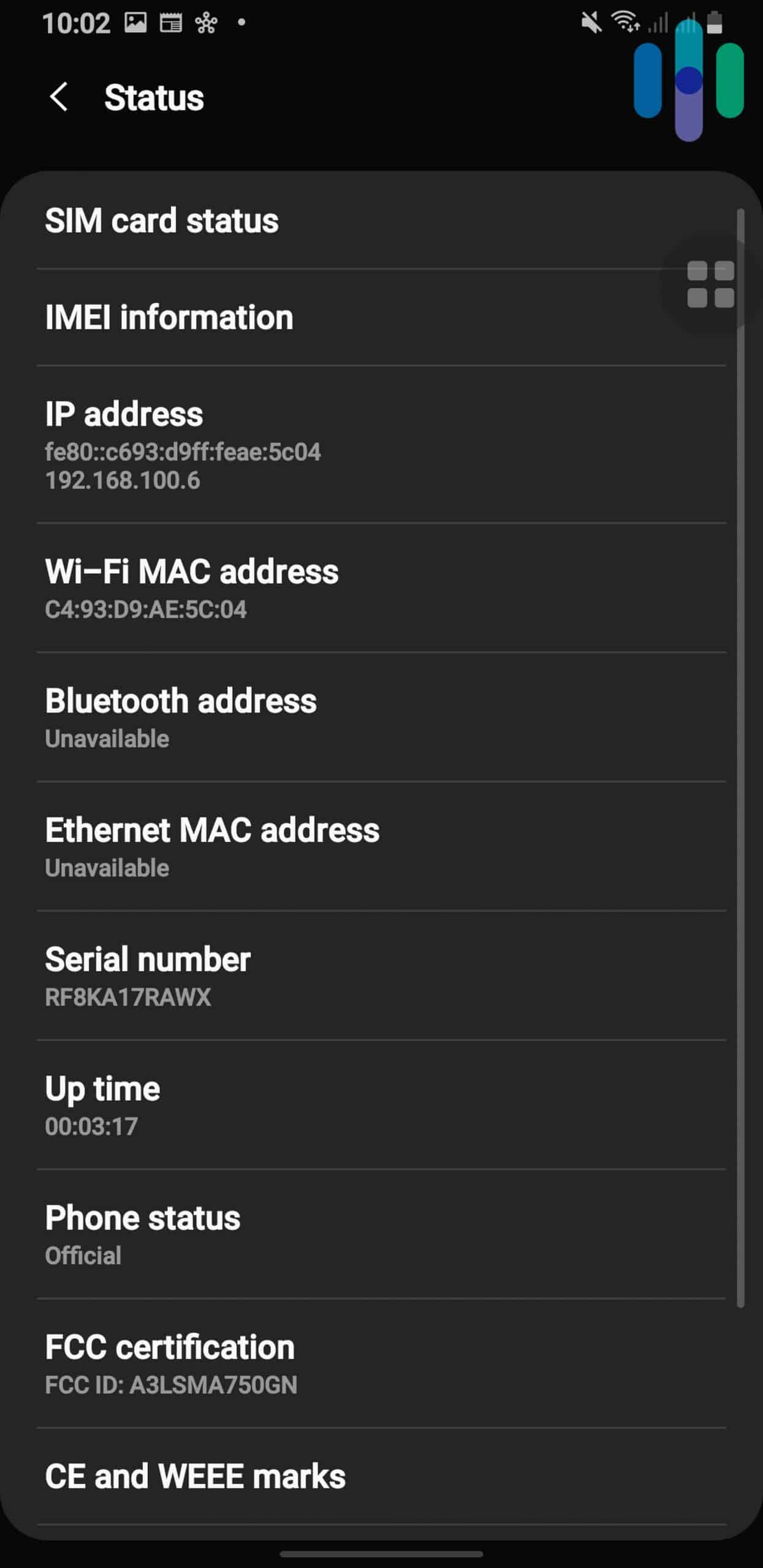
Apple’s iOS settings provide detailed information about your Wi-Fi connection, including your local IP address. However, it does not display your cellular data IP address in the same way. This is primarily because cellular IP addresses are assigned and managed by your mobile carrier, and they are typically highly dynamic, changing much more frequently than local Wi-Fi IPs. The iOS interface focuses on user-configurable settings and stable network identifiers. To find your cellular IP, you need to use an external website like whatismyip.com while connected to cellular data, as demonstrated earlier. This reflects the nature of how cellular networks manage device connectivity, often abstracting away the low-level IP details from the end-user interface.
In conclusion, knowing your iPhone’s IP address is far from an esoteric technicality. It’s a fundamental piece of information that empowers you to troubleshoot, configure, and secure your device in an increasingly interconnected world. By understanding the distinctions between local and public IPs, how to locate them, and their implications for privacy and security, you gain a deeper insight into the digital infrastructure that underpins your daily mobile experience. Armed with this knowledge, you are better equipped to navigate the complexities of modern networking, ensuring a smoother, more secure, and more informed interaction with your iPhone and the internet at large.
aViewFromTheCave is a participant in the Amazon Services LLC Associates Program, an affiliate advertising program designed to provide a means for sites to earn advertising fees by advertising and linking to Amazon.com. Amazon, the Amazon logo, AmazonSupply, and the AmazonSupply logo are trademarks of Amazon.com, Inc. or its affiliates. As an Amazon Associate we earn affiliate commissions from qualifying purchases.