
In an increasingly interconnected world, reliable internet access is no longer a luxury but a fundamental necessity. For most modern devices, especially laptops and smartphones, wireless connectivity is a built-in feature, enabling seamless internet access wherever a Wi-Fi signal is available. However, for many desktop PCs and older laptops, this isn’t always the case, or the existing wireless capabilities might be outdated. This is where the humble yet powerful Wi-Fi adapter for PC steps in, acting as the crucial bridge between your computer and the wireless network that permeates our homes and workplaces.

A Wi-Fi adapter, fundamentally, is a hardware device that enables a computer to connect to a wireless network. Without it, a desktop PC, or even an older laptop with a defunct internal Wi-Fi card, would be tethered to a physical Ethernet cable to access the internet. This article will delve deep into the world of Wi-Fi adapters, exploring their function, the various types available, key considerations for selection, installation processes, and what the future holds for this vital piece of tech.
The Core Functionality: Bridging Your PC to the Wireless World
At its heart, a Wi-Fi adapter serves a singular, critical purpose: to allow your PC to communicate wirelessly with a router or an access point. This communication is based on the IEEE 802.11 standards, commonly known as Wi-Fi.
The Fundamental Problem Solved
Many desktop computers are designed primarily for wired connections, integrating powerful processors and graphics cards but often omitting built-in wireless capabilities to keep costs down or assuming a wired setup in a static office environment. Older laptops, while once equipped with Wi-Fi, might have cards that support outdated standards, leading to slow speeds and unreliable connections on modern networks. The Wi-Fi adapter provides a straightforward, often cost-effective solution to these problems, liberating your PC from the constraints of an Ethernet cable and enabling it to join the wireless revolution. It converts data from your computer into radio signals that can be transmitted over the air to a router, and vice versa, translating incoming radio signals back into data your computer can understand.
How a Wi-Fi Adapter Operates: Antennas, Standards, and Frequencies
A Wi-Fi adapter works by harnessing radio waves to send and receive data. Internally, or externally in the case of USB adapters, it contains an antenna, a transceiver (a device that can both transmit and receive signals), and a chip that processes the Wi-Fi protocol.
-
Antennas: These are responsible for capturing and emitting the radio signals. Some adapters have internal antennas, while others feature external, adjustable antennas for improved signal strength and reception.
-
Wi-Fi Standards: The performance and compatibility of an adapter are largely dictated by the Wi-Fi standard it supports. These standards (e.g., 802.11n, 802.11ac, 802.11ax/Wi-Fi 6, Wi-Fi 6E, Wi-Fi 7) define the technical specifications for wireless communication, including theoretical maximum speeds, frequency bands, and other crucial protocols. An adapter must support a standard that is compatible with your router for optimal performance.
-
Frequency Bands: Wi-Fi operates primarily on two frequency bands: 2.4GHz and 5GHz, with newer standards introducing 6GHz.
-
The 2.4GHz band offers greater range and better penetration through walls but is generally slower and more susceptible to interference from other devices (like microwaves and Bluetooth).
-
The 5GHz band provides significantly faster speeds and less interference but has a shorter range and struggles more with obstacles.
-
The 6GHz band (with Wi-Fi 6E and Wi-Fi 7) offers even wider channels and less congestion, promising ultra-fast speeds and extremely low latency over shorter distances. A good adapter often supports dual-band (2.4GHz and 5GHz) or tri-band (2.4GHz, 5GHz, and 6GHz) operation to leverage the benefits of each.
-
Why You Might Need a Wi-Fi Adapter
The reasons for acquiring a Wi-Fi adapter are diverse, ranging from basic connectivity needs to sophisticated performance enhancements.
Desktop PCs Without Built-in Wi-Fi
This is perhaps the most common scenario. Many budget-friendly or custom-built desktop PCs lack integrated Wi-Fi modules. For users who cannot or prefer not to run an Ethernet cable to their router, a Wi-Fi adapter is the essential component for connecting to the internet, accessing local network resources, and participating in online activities.
Upgrading Older Laptops for Faster Speeds
Even if your laptop has built-in Wi-Fi, it might be an older standard (e.g., 802.11n) that limits your internet speeds, especially if you have a high-speed internet plan and a modern router (e.g., Wi-Fi 5 or Wi-Fi 6). An external Wi-Fi adapter supporting a newer standard can significantly upgrade your laptop’s wireless capabilities, allowing it to fully utilize your network’s potential.
Enhancing Connectivity and Range
Sometimes, the integrated Wi-Fi in a laptop or an all-in-one PC might offer subpar signal strength or range, particularly in larger homes or areas with many obstacles. Many external Wi-Fi adapters, especially those with powerful external antennas, can provide superior reception and extend the effective range of your wireless connection, leading to a more stable and faster experience.
Replacing Faulty Integrated Wi-Fi
Internal Wi-Fi cards can fail. When this happens, rather than opening up a laptop for a potentially complex and costly repair, a simple USB Wi-Fi adapter can serve as an excellent, plug-and-play replacement, restoring wireless connectivity without much hassle.
Types of Wi-Fi Adapters Available
Wi-Fi adapters come in various forms, each suited for different use cases and offering distinct advantages.
USB Wi-Fi Adapters (Dongles)
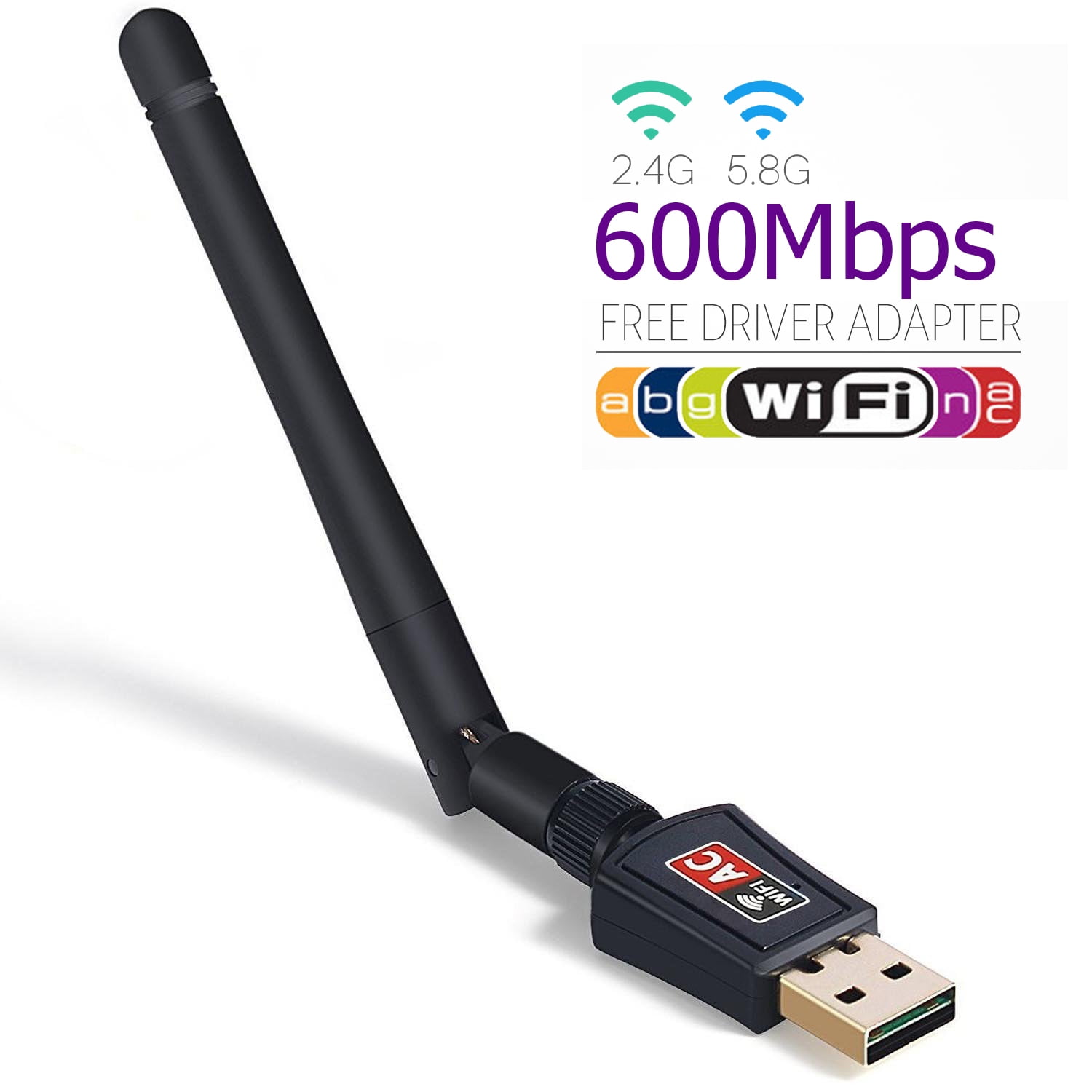
These are the most popular and versatile type due to their ease of use and portability. They plug directly into a USB port on your PC.
- Mini vs. Standard USB Adapters: Mini USB adapters are incredibly compact, often no bigger than a thumb drive, making them ideal for laptops where minimal protrusion is desired. Standard USB adapters are generally larger, may feature external antennas, and often offer better performance and range due to more robust hardware and signal amplification. They are a great choice for both desktops and laptops, particularly for those looking for a quick and simple upgrade. Their plug-and-play nature means installation is usually straightforward.
PCIe Wi-Fi Cards (Internal Adapters)
For desktop PC users seeking the most robust and permanent solution, PCIe Wi-Fi cards are often the preferred choice. These cards install directly into a PCIe slot on the motherboard, much like a graphics card.
- Benefits of Internal Cards: PCIe cards often come with larger, more powerful antennas (sometimes even detachable and extendable via a magnetic base), offer superior signal stability, and integrate more seamlessly with the PC’s power supply, potentially leading to better performance for demanding tasks like online gaming or 4K streaming. They also free up external USB ports, which can be valuable on desktops with limited ports. Many modern PCIe Wi-Fi cards also include Bluetooth functionality, adding further value.
M.2 Wi-Fi Modules (for specific laptops/motherboards)
Less common for general users but significant for specific upgrades are M.2 Wi-Fi modules. These tiny cards are designed for compact spaces, primarily found in modern laptops, mini PCs, and some desktop motherboards that feature an M.2 slot specifically for Wi-Fi/Bluetooth modules. They offer an internal, clean solution but require some technical comfort with opening your device.
Key Considerations When Choosing a Wi-Fi Adapter
Selecting the right Wi-Fi adapter involves understanding several technical specifications and matching them to your needs and existing network infrastructure.

Wi-Fi Standards (802.11ac, 802.11ax/Wi-Fi 6, Wi-Fi 6E, Wi-Fi 7)
Always aim for an adapter that supports at least the same Wi-Fi standard as your router, or preferably a newer one if you plan to upgrade your router soon.
-
802.11ac (Wi-Fi 5): Still common, offers good speeds on the 5GHz band.
-
802.11ax (Wi-Fi 6): Significant improvements in speed, efficiency, and capacity, especially in congested network environments.
-
802.11ax (Wi-Fi 6E): Extends Wi-Fi 6 to the 6GHz band, offering ultra-fast, low-latency connections in supported devices.
-
802.11be (Wi-Fi 7): The latest standard, promising revolutionary speeds and even lower latency with advanced technologies.
Speed and Bandwidth (Mbps)
Adapters are rated by their theoretical maximum speeds (e.g., AC1200, AX3000). A higher number generally indicates faster potential speeds. However, real-world speeds depend on your internet service provider (ISP) plan, router capabilities, network congestion, and distance from the router. Choose an adapter that can handle speeds higher than your internet plan to avoid becoming a bottleneck.
Frequency Bands (2.4GHz vs. 5GHz vs. 6GHz)
As discussed, dual-band (2.4GHz and 5GHz) is standard. Tri-band (adding 6GHz) is for cutting-edge performance. For most users, a good dual-band adapter suffices. For intensive gaming, VR, or future-proofing, a tri-band Wi-Fi 6E or Wi-Fi 7 adapter is ideal, provided your router also supports it.
Antenna Configuration (MIMO, MU-MIMO)
-
MIMO (Multiple-Input, Multiple-Output): Allows multiple antennas to transmit and receive data simultaneously, improving speed and range.
-
MU-MIMO (Multi-User, Multiple-Input, Multiple-Output): An advancement where multiple users can simultaneously receive data streams, greatly enhancing network efficiency, especially in homes with many connected devices. Look for adapters supporting MU-MIMO if your router also has this feature.
Compatibility (Operating System, USB Ports, PCIe Slots)
Ensure the adapter is compatible with your PC’s operating system (Windows, macOS, Linux). For USB adapters, verify you have a free USB port of the correct standard (USB 2.0, 3.0, 3.1, or 3.2 – newer USB standards offer faster throughput). For PCIe cards, confirm your desktop has an available PCIe slot (usually PCIe x1).
Security Protocols (WPA2, WPA3)
Modern adapters should support WPA2 and ideally WPA3, the latest security protocol, which offers stronger encryption and better protection against cyber threats.
Brand Reputation and Reviews
Stick to reputable brands known for their networking hardware (e.g., TP-Link, Netgear, ASUS, D-Link). Read user reviews to gauge real-world performance, driver stability, and customer support.
Installation, Configuration, and Troubleshooting
Getting your Wi-Fi adapter up and running is typically straightforward, but understanding the steps and potential pitfalls can save time.
Step-by-Step Installation (USB vs. PCIe)
-
USB Adapters: Installation is often as simple as plugging the dongle into an available USB port. Windows (and sometimes macOS/Linux) may automatically detect and install the necessary drivers. If not, proceed to driver installation.
-
PCIe Cards:
-
Power Down: Completely shut down your PC and unplug it from the power source.
-
Open Case: Open your PC’s side panel.
-
Locate Slot: Find an available PCIe x1 slot on your motherboard.
-
Install Card: Gently push the card into the slot until it clicks into place and secure it with a screw.
-
Connect Antennas: Screw in the external antennas to the back of the card.
-
Close Case & Power On: Close the case, plug in the PC, and power it on.
-
Driver Installation and Updates
Even if an adapter works with generic drivers, installing the manufacturer’s specific drivers is crucial for optimal performance and stability. These usually come on a mini-CD or can be downloaded from the manufacturer’s website. Always ensure your drivers are up-to-date, as driver updates can fix bugs, improve performance, and add support for new features.
Common Issues and Solutions
-
No Connection/Adapter Not Detected: Ensure the adapter is properly seated (PCIe) or plugged in (USB). Check Device Manager for errors. Reinstall drivers.
-
Slow Speeds: Check your router’s Wi-Fi standard and ensure it matches the adapter. Move closer to the router. Check for interference from other devices. Update drivers.
-
Intermittent Disconnections: Could be due to signal interference, outdated drivers, or power management settings (especially for USB adapters, ensure the PC isn’t turning off the USB port to save power).
Optimizing Your Wi-Fi Adapter’s Performance
-
Placement: For USB adapters with external antennas, try adjusting their position for the best signal. For PCIe cards, ensure antennas are unobstructed.
-
Router Settings: Ensure your router is configured for the optimal channel and Wi-Fi standard.
-
Interference: Minimize interference from other electronics (microwaves, cordless phones, Bluetooth devices).
-
Driver Updates: Regularly check for and install the latest drivers.
The Future of Wireless Connectivity and Wi-Fi Adapters
The evolution of Wi-Fi technology is relentless, driven by the increasing demand for speed, capacity, and reliability. Wi-Fi adapters will continue to adapt and innovate.
The Evolution Towards Wi-Fi 7 and Beyond
With Wi-Fi 7 (802.11be) already emerging, offering unprecedented speeds and extremely low latency, future adapters will fully embrace these capabilities. Expect multi-link operation (MLO) to become standard, allowing devices to use multiple frequency bands simultaneously to enhance throughput and reliability. The focus will be on delivering a “wired-like” experience wirelessly, crucial for applications like cloud gaming, augmented reality (AR), and virtual reality (VR).
Integration and Miniaturization
As technology advances, Wi-Fi capabilities will become even more integrated into motherboards and chipsets, potentially reducing the need for external adapters in new PCs. However, the market for upgrade-focused external adapters will likely persist, catering to legacy systems and users demanding peak performance or specific features not available internally. The form factor of USB adapters will continue to shrink while increasing in power, pushing the boundaries of miniaturization.
Enhanced Security and Mesh Networks
Security protocols will further evolve beyond WPA3, anticipating new threats. Furthermore, adapters will play an integral role in mesh Wi-Fi networks, ensuring seamless roaming and consistent connectivity across larger spaces, enabling more sophisticated smart home ecosystems and robust office environments.
In conclusion, the Wi-Fi adapter for PC is a small but mighty component, empowering countless users to embrace the freedom and flexibility of wireless connectivity. Whether for an old desktop, an aging laptop, or for those seeking to push the boundaries of wireless performance, understanding and choosing the right Wi-Fi adapter remains a critical step in building a modern, interconnected computing experience.
aViewFromTheCave is a participant in the Amazon Services LLC Associates Program, an affiliate advertising program designed to provide a means for sites to earn advertising fees by advertising and linking to Amazon.com. Amazon, the Amazon logo, AmazonSupply, and the AmazonSupply logo are trademarks of Amazon.com, Inc. or its affiliates. As an Amazon Associate we earn affiliate commissions from qualifying purchases.