
In the vast and evolving landscape of digital storage, file systems act as the silent architects, organizing data, managing space, and dictating how devices interact with stored information. Among these, FAT32 (File Allocation Table32) stands as a venerable, albeit sometimes misunderstood, elder statesman, particularly prevalent in the realm of SD cards and other portable media. Understanding what a FAT32 SD card is, its inherent characteristics, and its operational nuances is crucial for anyone navigating the complexities of modern tech, from photographers and drone enthusiasts to users of various embedded systems and retro gaming consoles. This article delves deep into FAT32, exploring its origins, its technical specifications, its enduring relevance, and its limitations in today’s high-capacity storage environment.
The Foundation of Digital Organization: Understanding File Systems
Before dissecting FAT32 specifically, it’s essential to grasp the fundamental concept of a file system. At its core, a file system is a method and data structure that an operating system uses to control how data is stored and retrieved. Without a file system, information would simply be a chaotic blob of bits on a storage device, utterly inaccessible and unusable. It’s the invisible framework that enables us to create, name, store, locate, and retrieve files.
What File Systems Do
A file system performs several critical functions:
-
Organization: It organizes files into directories (folders) and subdirectories, creating a hierarchical structure that is easy for users and applications to navigate.
-
Space Management: It keeps track of which parts of the storage device are free and which are occupied by files, preventing data from being overwritten and efficiently allocating new space.
-
Metadata Storage: It stores metadata about each file, such as its name, size, creation date, modification date, and permissions.
-
Data Integrity: It often includes mechanisms to ensure the integrity of data, protecting against corruption and facilitating recovery in case of power failure or system crash.
-
Device Interoperability: It provides a standardized way for different operating systems and devices to read and write data to the same storage medium.
A Brief History of the FAT Family
The File Allocation Table (FAT) family of file systems has a long and storied history, dating back to the early days of personal computing. Developed by Microsoft, the original FAT file system (often referred to as FAT12) was introduced with MS-DOS in the late 1970s and early 1980s. As storage capacities grew, limitations in FAT12 and its successor, FAT16, became apparent. FAT16, for instance, could only address partitions up to 2GB, which was a significant hurdle as hard drives expanded into multi-gigabyte territories.
Enter FAT32, released with Windows 95 OSR2 in 1996. It was a revolutionary upgrade, designed to overcome the limitations of its predecessors. By using 32-bit values for its cluster entries (hence “FAT32”), it dramatically increased the maximum partition size and the number of clusters, making it suitable for the larger storage devices emerging at the time. This enhanced capacity and its inherent simplicity quickly made FAT32 the de facto standard for removable media, including the nascent SD card format.
The Anatomy of FAT32: Features, Benefits, and Limitations
FAT32’s longevity in the digital storage arena, particularly for SD cards, stems from a combination of its robust (for its time) design and its widespread compatibility. However, its age also means it carries certain limitations that can be significant in a world of terabyte-sized drives and gigabyte-sized files.
Cluster Size and File Allocation Table
The core of FAT32’s operation lies in its “File Allocation Table,” which is essentially a map of how files are laid out on the storage device. The storage device is divided into fixed-size blocks called “clusters.” When a file is stored, it occupies one or more clusters. The FAT records which clusters belong to which file and the order in which they appear. By using 32-bit entries for these clusters, FAT32 can support a significantly larger number of clusters than FAT16, leading to larger partition sizes.
The cluster size itself is a configurable parameter during formatting. A smaller cluster size leads to more efficient use of disk space (less “slack space” or wasted space within a cluster for small files) but can result in a larger, more fragmented File Allocation Table, potentially slowing down access. Conversely, a larger cluster size means fewer entries in the FAT, which can be faster for very large files, but wastes more space when storing many small files. For SD cards, common cluster sizes range from 4KB to 32KB.
The 4GB File Size Limit
One of the most significant and often frustrating limitations of FAT32 is its inability to store individual files larger than 4GB (specifically, 4,294,967,295 bytes). This constraint arises from the design of its file pointers and data structures. In an era where 4K video files, large database backups, and uncompressed media often exceed this threshold, the 4GB limit makes FAT32 unsuitable for storing such content directly. Users often encounter error messages like “file too large” when attempting to transfer such files to a FAT32 formatted SD card.
The 2TB Partition Limit
While a massive improvement over FAT16, FAT32 also has a practical partition size limit of 2 terabytes (TB). Although theoretically, with a 32KB cluster size, FAT32 could support up to 16TB, practical implementations by operating systems (like Microsoft Windows’ own formatting tools) typically cap FAT32 partitions at 2TB. For most SD cards, which rarely exceed this capacity, this isn’t a primary concern, but it’s a critical factor for larger external hard drives or internal storage solutions.
Advantages of FAT32
Despite its limitations, FAT32 offers several key advantages that explain its continued relevance:
-
Ubiquitous Compatibility: This is FAT32’s biggest selling point. Nearly every operating system (Windows, macOS, Linux, Android, iOS), embedded device (digital cameras, smart TVs, car stereos), and gaming console (Nintendo Switch, PS3) can read and write to FAT32 formatted drives. This universal support makes it ideal for sharing data across diverse platforms.
-
Simplicity and Low Overhead: FAT32 is a relatively simple file system, requiring less processing power and memory to operate compared to more complex alternatives like NTFS. This makes it suitable for devices with limited resources.
-
Robustness for Removable Media: For the most common use cases of SD cards (e.g., storing photos and videos from a camera), FAT32 is generally reliable and performs adequately.
Disadvantages of FAT32
Beyond the file and partition size limits, other disadvantages include:
-
No File Permissions/Security: FAT32 lacks features for file-level security and permissions, meaning any user with access to the storage device can typically access any file on it. This makes it less secure for sensitive data compared to file systems like NTFS.
-
No Journaling: FAT32 does not support journaling, a feature found in modern file systems that logs changes before they are committed to the disk. Journaling helps recover data more efficiently and reliably in the event of a system crash or power loss. Without it, data corruption is a higher risk, though tools exist for FAT32 recovery.
-
Fragmentation: Due to its simple allocation scheme, FAT32 is prone to file fragmentation, where parts of a single file are scattered across different areas of the disk. This can lead to slower read/write speeds over time, especially with frequent file modifications.
Why FAT32 Persists: Compatibility Across Devices
The primary reason FAT32 continues to be the default file system for many SD cards, USB drives, and other removable media is its unparalleled compatibility. It acts as a common language that virtually every electronic device can understand, bridging the gap between proprietary operating systems and hardware.
Legacy Device Support
Many older devices, ranging from digital cameras and camcorders to older car infotainment systems and gaming consoles (like the PlayStation 3 or Nintendo Wii), were designed when FAT32 was the predominant standard. These devices often lack the necessary drivers or software to properly recognize and interact with newer file systems like exFAT or NTFS. For these systems, a FAT32 SD card is not just compatible but often the only functional option.
Cross-Platform Utility
In a multi-device household or professional setting, data often needs to be transferred between Windows PCs, Apple Macs, Linux workstations, Android phones, and various other gadgets. While newer file systems offer specific advantages, FAT32 reliably works across all these platforms without requiring third-party drivers or complicated setup processes. This makes it a go-to choice for exchanging documents, photos, and other small-to-medium-sized files.
Simple Implementation for Embedded Systems
Many embedded systems, like those found in drones, action cameras, 3D printers, and microcontrollers (e.g., Raspberry Pi or Arduino with SD card modules), prioritize simplicity and low resource usage. Implementing support for FAT32 is straightforward and lightweight, making it an efficient choice for manufacturers aiming for broad compatibility and minimal overhead in their device firmware.
Working with FAT32 SD Cards: Formatting and Usage Tips
Understanding how to properly format an SD card to FAT32 and knowing when to use it are practical skills that enhance its utility and prevent common issues.
Formatting an SD Card to FAT32 (Windows/macOS/Linux)
The process of formatting an SD card to FAT32 is relatively straightforward across major operating systems:
-
Windows:
-
Insert the SD card into your computer’s card reader.
-
Open “This PC” (or “My Computer”).
-
Right-click on the SD card drive.
-
Select “Format…”
-
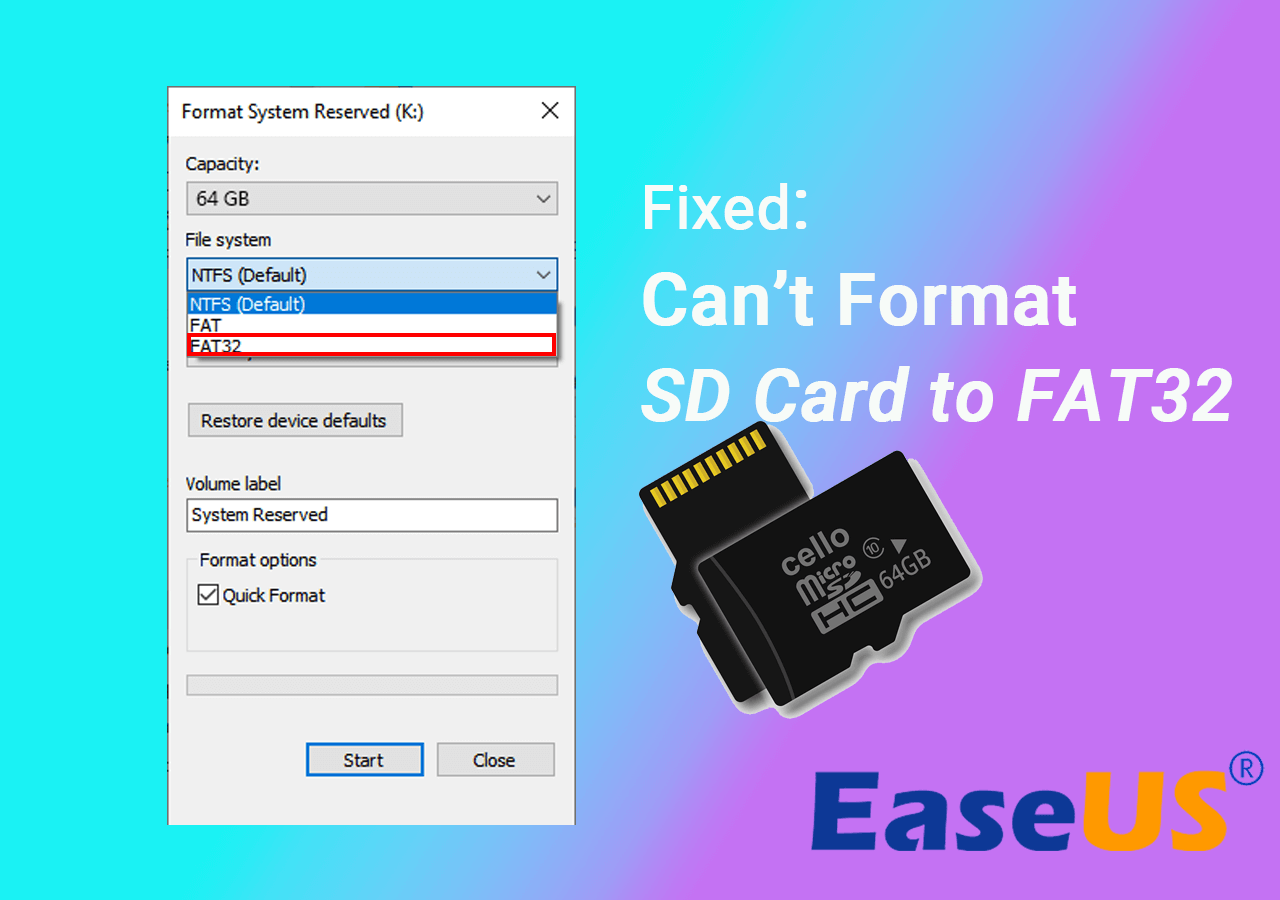
In the File system dropdown, choose “FAT32”.
-
You can leave the “Allocation unit size” (cluster size) as default or choose a specific size (e.g., 16KB or 32KB for larger cards).
-
Enter a “Volume label” (name for the card) if desired.
-
Ensure “Quick Format” is checked (unless you want a full, time-consuming format to check for bad sectors).
-
Click “Start” and confirm the warning.
-
-
macOS:
-
Insert the SD card.
-
Open “Disk Utility” (Applications > Utilities > Disk Utility).
-
Select the SD card from the sidebar (ensure you select the entire device, not just a partition).
-
Click “Erase” from the toolbar.
-
For “Format,” choose “MS-DOS (FAT)”.
-
For “Scheme,” choose “Master Boot Record” (MBR) for maximum compatibility.
-
Enter a “Name” for the card.
-
Click “Erase” and confirm.
-
-
Linux (using GParted or mkfs.fat):
-
Insert the SD card.
-
You can use a graphical tool like GParted: Select the SD card device, unmount any existing partitions, delete them, create a new partition, set its file system to “fat32,” apply the changes.
-
Alternatively, use the terminal:
-
Identify the SD card device (e.g.,
/dev/sdXwhere X is your card’s letter, be very careful here). -
sudo fdisk /dev/sdXto create a new MBR partition table and a primary partition. -
sudo mkfs.fat -F 32 /dev/sdX1(where sdX1 is your first partition on the card).
-
-
When to Choose FAT32
-
For Devices Requiring It: Any camera, drone, gaming console, or embedded system that explicitly states it requires FAT32.
-
Universal Compatibility: When you need to share files between Windows, macOS, Linux, and various other devices without conversion or compatibility issues.
-
Small to Medium Files: For storing photos, documents, and video clips that are individually less than 4GB.
-
Lower Capacity Cards: For SD cards typically 32GB or smaller, FAT32 is often the default and perfectly adequate. For cards above 32GB, Windows will default to exFAT, but you can still force FAT32 if necessary (though it may require third-party tools for capacities above 32GB if you hit Windows’ own formatter limitation).
Troubleshooting Common Issues
-
“File too large” error: This is the tell-tale sign of the 4GB file size limit. You’ll need to either split the file, use a different file system (like exFAT), or use a different storage device.
-
Device not recognizing the card: Ensure the card is indeed formatted to FAT32 if the device is old. Also, check for physical damage or a dirty card slot.
-
Slow performance: This could be due to fragmentation (though less noticeable on flash media than HDDs) or the inherent speed class of the SD card itself, not just the file system.
FAT32 vs. Its Successors: exFAT and NTFS
While FAT32 has served us well, the demands of modern computing and ever-increasing storage capacities have led to the development of more advanced file systems. The two most prominent successors in the consumer space are exFAT and NTFS.
Introducing exFAT
Extended File Allocation Table (exFAT) was introduced by Microsoft in 2006, specifically designed to address FAT32’s limitations for flash memory devices (like SD cards and USB drives).
-
No 4GB File Size Limit: exFAT supports files much larger than 4GB, making it suitable for high-definition video recording and large data transfers.
-
Much Larger Partition Limit: It supports partition sizes up to 128 petabytes, effectively removing the 2TB limit.
-
Improved Performance: Generally offers better performance than FAT32 for large files and capacities.
-
Widespread, but Not Universal, Compatibility: While supported by modern versions of Windows, macOS, Linux (with FUSE drivers), and many newer cameras and smart TVs, it doesn’t have the same universal legacy device support as FAT32. Older devices might not recognize exFAT.
Introducing NTFS
New Technology File System (NTFS) is Microsoft’s primary file system for its Windows operating systems, introduced with Windows NT in 1993.
-
Robust Features: NTFS offers advanced features like journaling, file compression, encryption, disk quotas, and robust file permissions/security.
-
Massive File and Partition Limits: Supports extremely large files and partitions (theoretically up to 16 exabytes).
-
Performance and Reliability: Designed for performance and data integrity on internal hard drives and SSDs.
-
Limited Cross-Platform Support: While Windows uses it natively, macOS can typically only read NTFS drives (writing usually requires third-party software), and Linux requires specific drivers (often read-write but with potential limitations). It’s almost never used for SD cards or USB drives intended for broad compatibility.
Key Differences and Use Cases
| Feature/File System | FAT32 | exFAT | NTFS |
| :—————— | :—————— | :———————- | :——————— |
| Max File Size | 4GB | Virtually Unlimited | Virtually Unlimited |
| Max Partition Size | 2TB (practical) | 128 PB (practical) | 16 EB (theoretical) |
| Compatibility | Universal | Very Good (modern OS) | Windows-centric |
| Journaling | No | No | Yes |
| File Permissions | No | No | Yes |
| Ideal Use Case | Legacy devices, cross-platform small files, low-resource embedded systems | Large removable drives, high-res video recording, modern cross-platform sharing | Primary Windows drives, high-security/performance needs, large internal storage |

Conclusion
The FAT32 SD card, while an aging technology, remains a cornerstone of digital storage for its unparalleled compatibility and simplicity. It is the go-to choice for ensuring data can be accessed across a vast array of devices, especially older ones, and for scenarios where individual file sizes are modest. However, its significant limitations—the 4GB file size barrier and the 2TB partition limit—make it increasingly less suitable for modern, high-capacity storage needs, particularly with the proliferation of 4K video and large media files.
For users dealing with contemporary storage demands, exFAT has emerged as the logical successor for SD cards and USB drives, offering expanded capabilities without sacrificing too much compatibility. Meanwhile, NTFS continues to reign supreme for internal system drives, providing a robust and feature-rich environment for Windows users. Understanding the nuances of each file system allows users to make informed decisions, ensuring their data is stored efficiently, accessibly, and reliably on the right medium, formatted with the correct system for their specific needs. In the world of tech, knowing what a FAT32 SD card is, and when to use it, is a small but vital piece of the digital puzzle.
aViewFromTheCave is a participant in the Amazon Services LLC Associates Program, an affiliate advertising program designed to provide a means for sites to earn advertising fees by advertising and linking to Amazon.com. Amazon, the Amazon logo, AmazonSupply, and the AmazonSupply logo are trademarks of Amazon.com, Inc. or its affiliates. As an Amazon Associate we earn affiliate commissions from qualifying purchases.