
In the realm of enterprise software, terms often carry a depth of meaning beyond their literal definition. “Screen” is one such word, especially when discussed in the context of Workday, the leading cloud-based software vendor for human capital management (HCM) and financial management. While a “screen” might simply refer to the display panel of a device, in Workday’s intricate ecosystem, it signifies much more. It is the interactive gateway through which users engage with critical business processes, manage data, and drive organizational operations. Understanding what a “screen” truly entails in Workday is fundamental to navigating its powerful functionalities effectively, optimizing user experience, and leveraging the platform to its fullest potential.
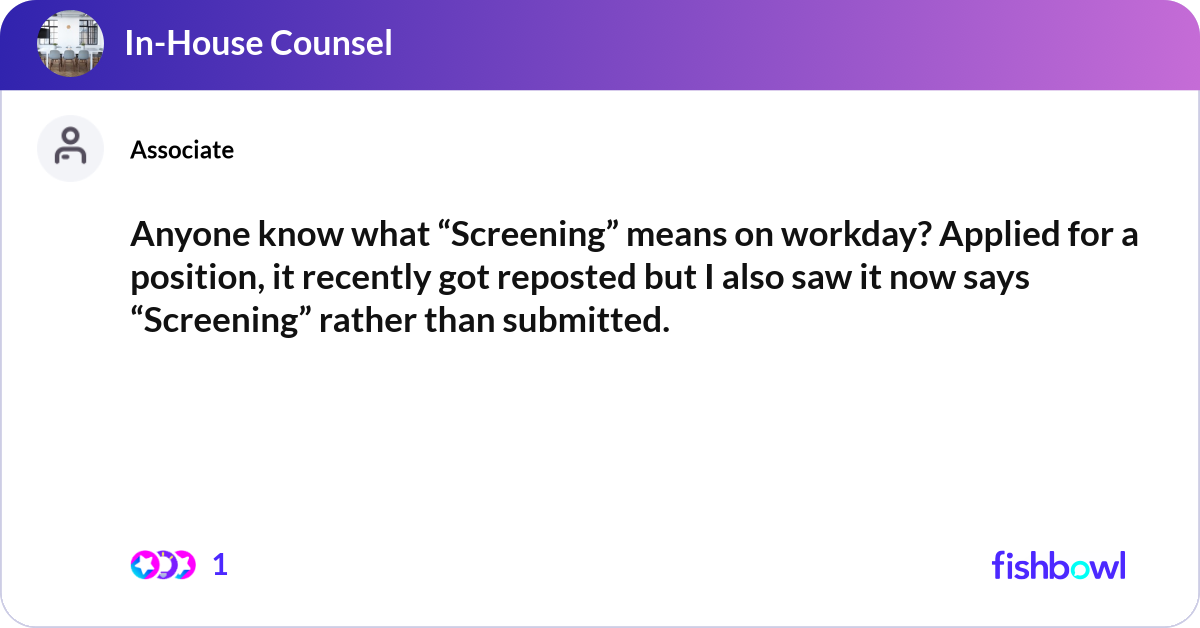
Workday’s architecture is built on a foundation of user-centric design, where every interaction is carefully crafted to facilitate specific tasks. Consequently, what appears on your monitor – the “screen” – is not just a static display but a dynamic, context-aware interface tailored to your role, permissions, and the specific business process you’re executing. This article will delve into the multifaceted meaning of “screen” in Workday, exploring its nature as an interface, its functional purposes, its configurability, and the best practices for maximizing its utility.
Understanding the “Screen” as a Workday Interface
At its core, a “screen” in Workday is a specific view or page within the application that allows users to interact with data, initiate actions, and access information relevant to their roles and responsibilities. It’s the digital canvas upon which Workday’s comprehensive features are presented and manipulated.
The Digital Workspace Defined
Each Workday screen represents a segment of your digital workspace, meticulously designed to support a particular function or step within a broader business process. For an HR administrator, a “hire employee” screen will present all necessary fields for onboarding, while an employee’s self-service screen for “request time off” will display different options. This intelligent design ensures that users are always presented with relevant information and actionable options, reducing cognitive load and streamlining workflows.
Crucially, a Workday screen is an interactive environment. It’s not merely a display of information but a responsive space where users input data, select choices from dropdowns, click buttons to submit or approve actions, and navigate to related tasks or reports. This interactivity is what transforms a simple visual display into a powerful tool for enterprise management.
Key Components of a Workday Screen
Despite the diversity of Workday screens, several common components form their basic structure, enabling consistent user interaction across the platform:
-
Navigation Bar/Menu: Typically located at the top or side, this allows users to search for tasks, access their inbox, view notifications, and navigate to different modules or saved worklets.
-
Worklets and Dashboards: These are customizable widgets often found on the Workday homepage, providing quick access to frequently used tasks, reports, or data summaries (e.g., “My Payslips,” “Team Time Off,” “Open Positions”). Each worklet, when clicked, often leads to a more detailed screen.
-
Data Entry Fields: These are the backbone of any transactional screen, including text boxes, dropdown menus, radio buttons, and checkboxes, allowing users to input or select data (e.g., employee names, dates, amounts, job profiles).
-
Action Buttons: Strategically placed buttons like “Submit,” “Save,” “Approve,” “Deny,” “Edit,” or “Done” drive the progression of business processes and data management.
-
Reporting Grids/Tables: Screens dedicated to reporting or displaying lists of items (e.g., employee directory, expense reports awaiting approval) often feature sortable, filterable tables to organize and present data clearly.
-
Notifications and Alerts: Proactive messages appearing on screens to inform users of pending tasks, system updates, or critical information requiring their attention.
Contextual Nature of Workday Screens
One of Workday’s strengths is its ability to adapt the user interface based on context. A “screen” is not monolithic; its appearance and available functionalities dynamically adjust based on several factors:
-
User Role: An employee’s self-service screen will differ significantly from a manager’s screen, which in turn will differ from an HR partner’s or a finance controller’s screen. Each role is granted specific permissions that dictate what data they can see and what actions they can perform.
-
Task Being Performed: A screen for creating a new position will have different fields and options than a screen for processing payroll or generating an expense report.
-
Data Being Accessed: When viewing an employee’s profile, the screen will present personal, job, and compensation data. When viewing a financial transaction, the screen will display ledger accounts, amounts, and associated projects.
This contextual responsiveness ensures that users are presented with a highly relevant and streamlined experience, preventing information overload and minimizing the chances of errors.
The Functional Purpose of Workday Screens
Beyond being mere interfaces, Workday screens serve critical functional purposes, acting as the primary medium for executing an organization’s HCM and financial strategies. They are the conduits through which business processes flow, data is managed, and insights are derived.
Facilitating Core HR and Finance Processes
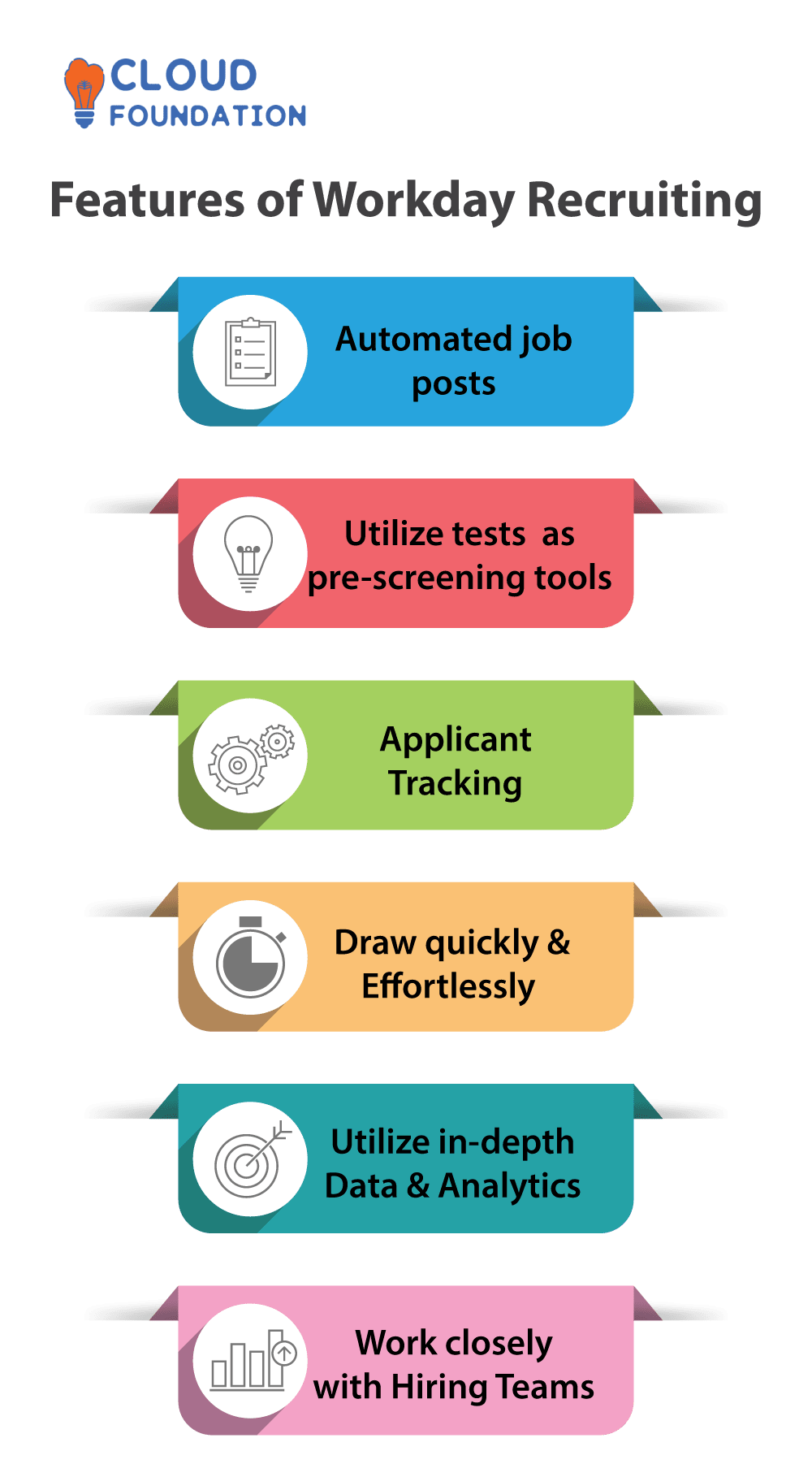
Workday screens are meticulously designed to guide users through complex HR and finance workflows. Each screen represents a logical step within a larger business process. For example, the hiring process might involve screens for:
-
Requesting a New Position: Inputting job details, department, and compensation range.
-
Creating a Job Requisition: Posting the job internally or externally.
-
Reviewing Applicants: Displaying candidate resumes and screening notes.
-
Initiating Offer: Generating an offer letter with compensation details.
-
Onboarding: Collecting new hire information, benefits enrollment, and tax details.
Each screen is purpose-built to collect specific information, allow for review, or prompt an action, ensuring that every step of a process is systematically completed and recorded.
Data Input and Management
Screens are the primary vehicle for entering, updating, and viewing the vast amount of data that resides within Workday. From an employee’s personal details and compensation history to financial transactions, budget allocations, and project expenses, all data interaction happens through a screen. The design of these screens often incorporates validation rules, ensuring data integrity and consistency, which is crucial for accurate reporting and compliance. For instance, a screen might prevent the entry of an invalid date or require specific fields to be populated before submission.
Reporting and Analytics
Workday is renowned for its robust reporting and analytics capabilities. Many screens are dedicated to displaying real-time reports, interactive dashboards, and analytical insights. Users can interact with these screens to filter data, drill down into specific details, export information, or visualize trends. These reporting screens empower decision-makers with immediate access to critical operational data, such as headcount trends, payroll costs, budget vs. actuals, or talent acquisition metrics, all without leaving the Workday environment.
Driving Self-Service and User Empowerment
A significant design philosophy behind Workday screens is to empower employees and managers through self-service. Employee Self-Service (ESS) screens enable employees to:
-
View payslips and tax documents.
-
Request time off and expense reimbursements.
-
Update personal information.
-
Enroll in benefits.
-
Access training materials.
Similarly, Manager Self-Service (MSS) screens allow managers to:
-
Approve time off and expenses.
-
Review team performance.
-
Initiate talent reviews.
-
Manage team schedules.
By shifting these common administrative tasks to the end-users via intuitive screens, Workday significantly reduces the administrative burden on HR and finance departments, improving efficiency and user satisfaction.
Customization and Configuration of Workday Screens
One of Workday’s most powerful features is its flexibility, allowing organizations to tailor screens and processes to align with their unique operational requirements and brand identity. This configurability is a critical aspect of defining what a “screen” means in any given Workday implementation.
Tailoring the User Experience (UX)
Organizations can configure various aspects of Workday screens to optimize the user experience:
-
Field Visibility and Order: Admins can hide irrelevant fields or reorder them on a screen to streamline data entry based on specific business needs.
-
Custom Branding: Screens can be customized with company logos, color schemes, and messaging to provide a cohesive brand experience.
-
Instructions and Guidance: Custom help text and prompts can be added to guide users through complex fields or processes, reducing errors and support requests.

This level of customization ensures that the Workday interface feels familiar and intuitive to employees, fostering greater adoption and reducing the learning curve.
Role-Based Security and Permissions
The “screen” experience is intrinsically linked to Workday’s robust security framework. Every field, action button, and report on a screen is governed by a complex web of security policies. Access to specific screens, or even specific elements within a screen, is determined by a user’s assigned security roles and permissions. For example, a payroll administrator might see compensation details on an employee profile screen that a standard manager cannot. This granular security ensures data confidentiality and compliance, preventing unauthorized access to sensitive information and actions.
Business Process Configuration
Workday screens are often components of larger, configurable business processes. Changes made to a business process – for instance, adding an extra approval step to an expense report process – will directly impact the sequence and appearance of screens presented to the user. This tight integration means that configuring business processes effectively also shapes the user’s journey through various Workday screens.
Impact on User Adoption and Efficiency
A well-configured Workday screen environment directly translates into higher user adoption rates and improved operational efficiency. When screens are clear, relevant, and easy to navigate, users can complete tasks faster and with fewer errors. Conversely, a poorly configured system with cluttered screens or confusing workflows can lead to user frustration, increased training costs, and resistance to adopting the platform. Effective screen configuration is therefore a continuous process, requiring careful planning and ongoing optimization.
Best Practices for Interacting with Workday Screens
To harness the full power of Workday, users must adopt certain best practices when interacting with its screens. This goes beyond mere navigation; it involves understanding the system’s logic and leveraging its features intelligently.
Understanding Your Role and Permissions
Before engaging with any Workday screen, it’s crucial to understand your specific role and the permissions associated with it. This knowledge clarifies what you can and cannot do, preventing attempts to access unauthorized data or perform actions outside your scope. If you encounter restrictions, understanding your role helps you know who to contact for assistance or permission adjustments.
Utilizing Search and Navigation Effectively
Workday’s global search bar is an incredibly powerful tool. Instead of clicking through multiple screens, users should leverage the search function to quickly find tasks, reports, or employee profiles. Additionally, mastering related actions and task lists allows for efficient navigation between connected processes and information, making the “screen” a launchpad for further exploration rather than a dead end.
Data Entry Accuracy and Validation
When interacting with data entry screens, accuracy is paramount. Always double-check information before submitting it. Pay close attention to validation messages, which indicate that certain criteria have not been met (e.g., a required field is empty, or data is in the wrong format). Understanding these messages helps in correcting errors promptly and maintaining data integrity across the system.
Leveraging Personalization Features
Workday allows a degree of personalization. Users can often customize their home screen with favorite worklets, save frequently used reports, and configure notifications to stay informed about relevant updates or pending actions. Leveraging these features can significantly enhance personal efficiency and tailor the Workday experience to individual needs.
Staying Informed with Updates
Workday regularly rolls out updates (typically biannually), which often include enhancements to existing screens, new functionalities, or redesigned user interfaces. Staying informed about these updates through organizational communications or Workday Community resources ensures that users can adapt to changes and take advantage of new features as they become available.
The Evolution of Workday Screens and Future Trends
The concept of a “screen” in Workday is not static; it continually evolves in response to technological advancements, user expectations, and the broader digital landscape. Workday’s commitment to innovation means its interfaces are always being refined.
From Desktop to Mobile
The shift towards mobile accessibility has profoundly impacted Workday screen design. What once was primarily a desktop experience has transformed into a responsive, mobile-first approach. The Workday Mobile App provides a streamlined experience for on-the-go access to critical tasks, reports, and self-service functionalities, ensuring that employees and managers can interact with Workday screens from virtually anywhere.
AI and Machine Learning Integration
Future Workday screens are poised to become even more intelligent with the deeper integration of AI and machine learning. Imagine screens that offer predictive insights (e.g., identifying employees at flight risk), intelligent recommendations (e.g., suggesting learning courses based on career goals), or AI-powered chatbots embedded directly into the interface to assist with queries and task completion. This will transform static forms into dynamic, adaptive assistants.
Enhanced User Experience (UX) Design
Workday consistently invests in user experience (UX) research and design. Future screens will likely feature even more intuitive layouts, minimalist designs, and accessibility enhancements to cater to a diverse user base. The focus will remain on reducing friction, making complex processes feel simple, and delivering highly personalized experiences that anticipate user needs.
The Connected Enterprise
As organizations increasingly rely on a suite of integrated applications, Workday screens will likely evolve to offer more seamless integration points with other enterprise systems. This means that a Workday screen might pull data from a CRM, ERP, or project management tool, providing a more unified and comprehensive view without requiring users to switch between multiple applications. The “screen” will become a window to a broader, interconnected digital ecosystem.
Conclusion
The question “what does screen mean in Workday?” unveils a concept far richer than its superficial definition. A Workday screen is not merely a visual display; it is a meticulously designed interactive interface, a critical component of every business process, a vehicle for data management, and a tool for driving efficiency and empowerment. From facilitating core HR and finance functions to enabling self-service and delivering actionable insights, Workday screens are the primary conduit through which users engage with one of the most powerful enterprise cloud applications.
By understanding the contextual nature of these screens, leveraging their configurability, adhering to best practices, and recognizing their continuous evolution, organizations and individual users can unlock Workday’s full potential. As Workday continues to innovate with mobile capabilities, AI integration, and enhanced UX design, its screens will remain at the forefront of delivering a professional, insightful, and engaging experience for the modern workforce. Mastering these digital workspaces is not just about navigating software; it’s about mastering the operational heart of an organization.
aViewFromTheCave is a participant in the Amazon Services LLC Associates Program, an affiliate advertising program designed to provide a means for sites to earn advertising fees by advertising and linking to Amazon.com. Amazon, the Amazon logo, AmazonSupply, and the AmazonSupply logo are trademarks of Amazon.com, Inc. or its affiliates. As an Amazon Associate we earn affiliate commissions from qualifying purchases.