
Minecraft Bedrock Edition, a cornerstone of modern gaming, offers a seamless, cross-platform experience that connects millions of players worldwide. Unlike its Java counterpart, Bedrock is designed to run across a vast ecosystem of devices, from desktop PCs and consoles to mobile phones. This multi-platform flexibility, while a monumental achievement in game development, often leads to a common user query: “Where exactly is Minecraft Bedrock installed?” The answer, as you might expect, isn’t a single, simple location, but rather a series of context-dependent directories dictated by the operating system and platform architecture. Understanding these installation paths is not merely an exercise in curiosity; it’s crucial for troubleshooting, backing up precious game worlds, managing custom content, and optimizing your gaming experience.
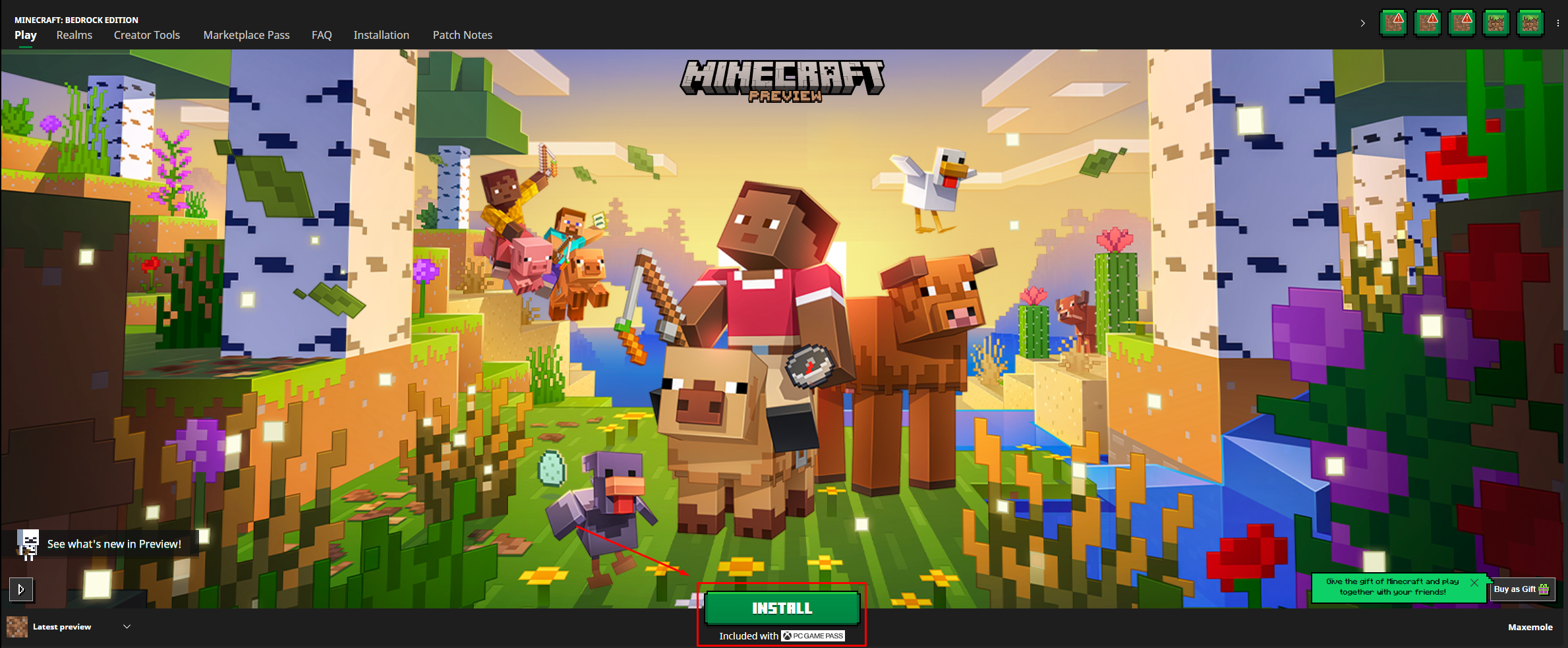
This article delves into the technical intricacies of Minecraft Bedrock’s installation across its primary platforms. We’ll explore the default locations, demystify the logic behind their chosen paths, and provide practical insights into how you can locate and manage your game files, empowering you to take greater control over your Minecraft adventures.
The Multi-Platform Tapestry of Minecraft Bedrock Edition
Before diving into specific file paths, it’s essential to grasp the fundamental nature of Minecraft Bedrock Edition and why its installation strategy differs so significantly across devices. Unlike many traditional PC games that offer a straightforward installation directory, Bedrock is built on a Universal Windows Platform (UWP) framework for Windows and leverages the sandboxed application models of consoles and mobile operating systems. This design choice, while excellent for security and performance, often abstracts the underlying file system from the end-user.
What Differentiates Bedrock from Java Edition?
At its core, Minecraft Bedrock Edition (often referred to simply as “Bedrock”) is a distinct game engine from Minecraft Java Edition. Developed primarily in C++, it offers a highly optimized, single codebase that runs natively on Windows 10/11, Xbox, PlayStation, Nintendo Switch, Android, and iOS. Its key differentiator is the ability for players on these diverse platforms to play together on the same servers, thanks to Xbox Live integration and shared game mechanics.
Java Edition, on the other hand, is exclusive to PC (Windows, macOS, Linux) and runs within a Java Virtual Machine. Its open-ended nature allows for extensive modding via external launchers and direct file manipulation. Bedrock, while supporting “add-ons” and custom content, operates within stricter, more controlled environments inherent to its UWP and console/mobile app design. This fundamental difference directly impacts where and how its files are stored and accessed.
Why Installation Locations Vary So Wildly
The primary reason for the diverse installation locations of Minecraft Bedrock lies in the architecture of the operating systems it runs on. Each platform employs a different approach to application management, security, and user data storage:
-
Windows 10/11 (UWP Apps): Microsoft Store apps, including Bedrock, are installed in highly protected, hidden folders within the
WindowsAppsdirectory. This sandboxed environment enhances security and ensures app integrity but makes direct file access more challenging for users. -
Consoles (Xbox, PlayStation, Switch): These systems are closed ecosystems. Games are installed and managed entirely by the console’s operating system. Users have virtually no direct access to the underlying file system, meaning game installations are largely invisible and immutable from a user perspective.
-
Mobile Devices (Android, iOS): Mobile operating systems like Android and iOS implement strong app sandboxing. Each app gets its own isolated storage area for its core files and data, preventing interference with other apps and enhancing security. While some user-generated content might be accessible, the main game files are typically locked away.
Understanding these platform-specific philosophies is the first step toward effectively locating and managing your Minecraft Bedrock installation, regardless of your device.
Pinpointing Installation Directories on Major Platforms
Navigating to your Minecraft Bedrock installation requires platform-specific knowledge. While the core game is the same, the path to its files differs significantly based on where you’re playing.
Windows 10/11: The Microsoft Store App Package
On Windows 10 and 11, Minecraft Bedrock Edition is a Universal Windows Platform (UWP) app downloaded from the Microsoft Store. UWP apps are designed for security and integrity, which means their installation folders are heavily protected and often hidden.
The primary installation path for Minecraft Bedrock is typically located within the WindowsApps folder:
C:Program FilesWindowsAppsMicrosoft.MinecraftUWP_XXXXX (where XXXXX is a version-specific identifier)
Key considerations for Windows users:
-
Hidden Folder: The
WindowsAppsfolder is hidden by default. To view it, you need to enable “Show hidden files, folders, and drives” in File Explorer’s Folder Options. -
Permissions: Even after unhiding, accessing this folder requires elevated permissions. You’ll often encounter “Access Denied” messages. Microsoft intentionally restricts direct access to prevent tampering with UWP app files, which could compromise system stability or security.
-
User Data vs. Game Files: Crucially, this path primarily contains the core game files. Your user-specific data, such as worlds, resource packs, and settings, are stored in a different location, typically within your user profile, which is much more accessible. We will cover this in the next section.
For most users, directly interacting with the WindowsApps folder is unnecessary and potentially risky. The game manages its core files automatically.
Console Ecosystems: Xbox, PlayStation, and Nintendo Switch
For console players, the concept of an “installation directory” as understood by PC users is largely irrelevant. Consoles are closed systems where the operating system handles all game installations, updates, and data management.
-
Xbox: When you install Minecraft Bedrock on an Xbox One or Xbox Series X/S, the console’s operating system takes care of everything. Games are installed to the internal storage or an external hard drive, but users cannot browse or directly access these files. All interactions happen through the Xbox dashboard (e.g., “My games & apps” for uninstalling, moving, or managing game add-ons).
-
PlayStation: Similar to Xbox, PlayStation consoles (PS4, PS5) manage Minecraft Bedrock’s installation entirely internally. Game data is stored within the console’s proprietary file system, inaccessible to the user. Save data and user settings are managed through the PlayStation’s system menus.
-
Nintendo Switch: The Nintendo Switch follows the same pattern. Games are installed to the console’s internal memory or a microSD card, but the file system is locked down. Players can manage save data and software through the Switch’s System Settings, but direct file browsing is not an option.
In essence, if you’re playing Minecraft Bedrock on a console, the question of “where is it installed?” is answered by “it’s installed internally by the console, and you don’t need to worry about the specific path.” The console handles all the technical heavy lifting, providing a seamless user experience.
Mobile Devices: Android and iOS
Mobile platforms, while offering a degree more user accessibility than consoles, still employ strong app sandboxing to isolate applications and protect user data.
-
Android: On Android devices, Minecraft Bedrock’s core files are installed within the app’s private data directory, typically located in:
Android/data/com.mojang.minecraftpe/(on your internal storage or SD card)This folder is often protected, and access might require a file manager with root permissions, though standard file managers can often access subfolders for user data.
-
iOS (iPhone/iPad): iOS has the strictest app sandboxing. Minecraft Bedrock’s core application files are entirely isolated and inaccessible to the user. Save data, while technically stored within the app’s sandbox, is typically only manageable through the app itself or via iCloud backups/restores. Direct file system access is generally not possible without jailbreaking the device, which is not recommended.
For mobile users, the most relevant locations are usually for user-generated content, which we’ll explore next.
Beyond the Core: Locating User Data and Custom Content
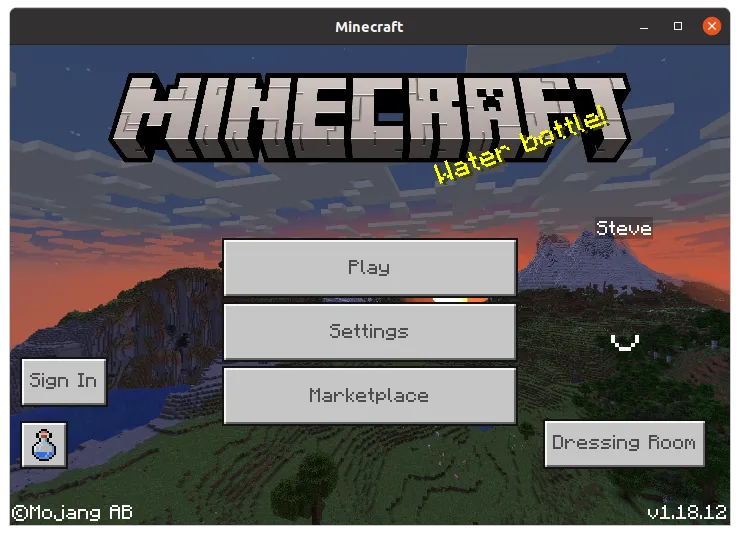
While the core game files might be elusive or entirely inaccessible depending on your platform, your personal creations – your worlds, settings, and custom content – are usually stored in more user-friendly locations. This is where most users will find themselves interacting with Minecraft Bedrock’s file structure.
Game Saves and World Data: Your Digital Creations
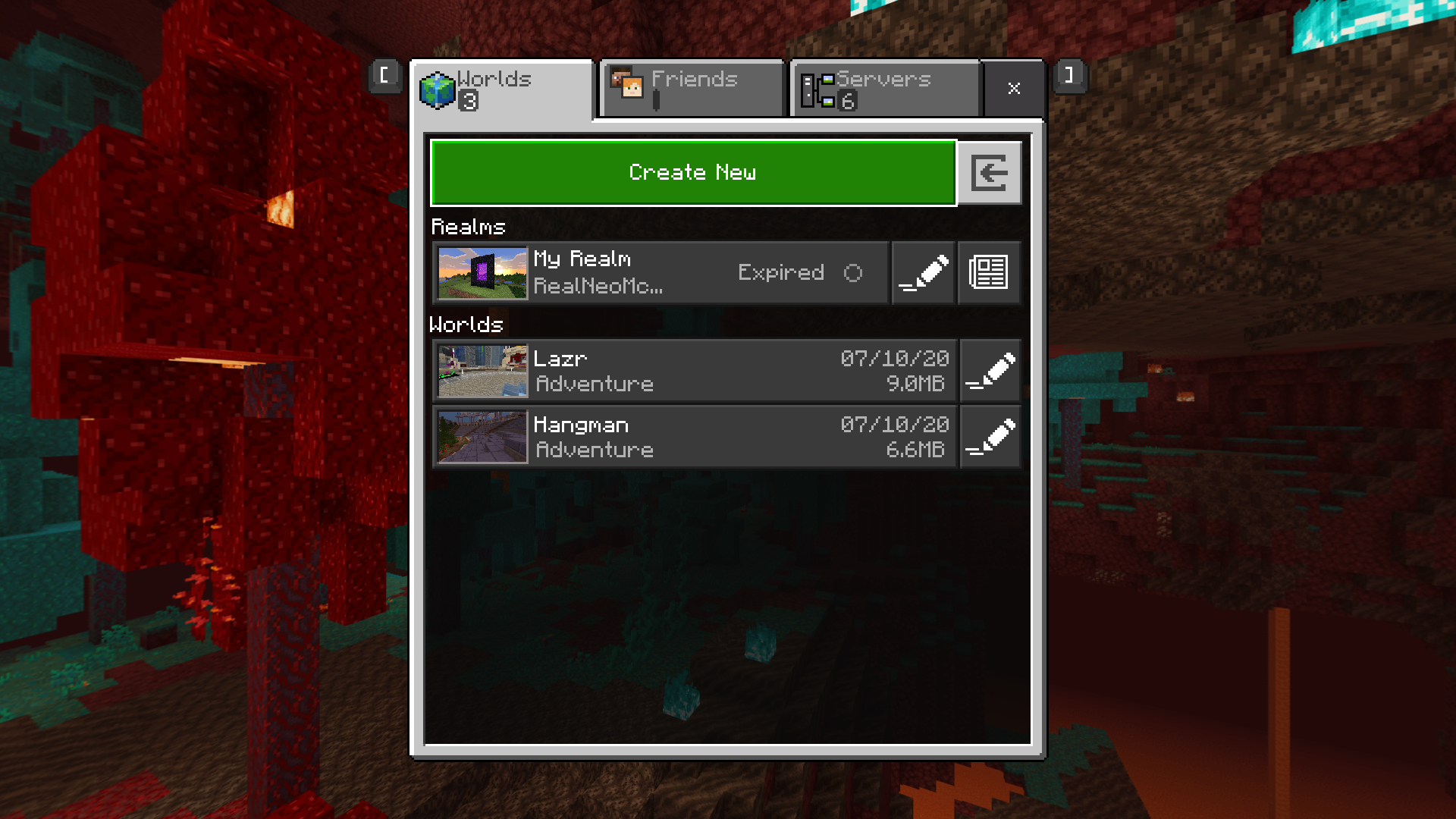
Your Minecraft worlds are arguably your most valuable digital assets in the game. Knowing where they’re stored is vital for backups and transfers.
-
Windows 10/11: This is the most frequently accessed location for Windows users:
C:Users<YourUsername>AppDataLocalPackagesMicrosoft.MinecraftUWP_XXXXXLocalStategamescom.mojangminecraftWorlds-
AppDatais a hidden folder. You’ll need to enable “Show hidden files, folders, and drives” in File Explorer to navigate here. -
Each subfolder within
minecraftWorldsrepresents a unique Minecraft world, identified by a long alphanumeric string.
-
-
Android:
Internal storage/games/com.mojang/minecraftWorlds/(orSD Card/games/com.mojang/minecraftWorlds/)This path is generally accessible using a standard file manager on your Android device.
-
Consoles (Xbox, PlayStation, Switch): World saves are stored internally by the console’s operating system.
-
Xbox: Worlds are automatically synced to Xbox Live Cloud Saves if you have an active internet connection. You can manage them within the “Manage game & add-ons” section for Minecraft, but you cannot browse the raw save files.
-
PlayStation/Switch: Saves are managed internally. While you can back up save data to the cloud (PlayStation Plus, Nintendo Switch Online) or sometimes external storage (PlayStation), direct access to world files is not provided.
-
-
iOS: World saves are stored within the app’s sandboxed data. They can be backed up via iCloud or iTunes. Direct file access to transfer worlds is generally not possible without third-party tools or specific app functionalities.
Resource Packs, Behavior Packs, and Add-ons: Customizing Your Experience
Customizing Minecraft with textures, sounds, and gameplay modifications (add-ons) is a popular aspect of the game. These files also have specific storage locations.
-
Windows 10/11:
-
Resource Packs:
...LocalStategamescom.mojangresource_packs -
Behavior Packs:
...LocalStategamescom.mojangbehavior_packs
These folders are within the same
com.mojangdirectory as your world saves, making them relatively easy to manage. -
-
Android:
-
Resource Packs:
Internal storage/games/com.mojang/resource_packs/ -
Behavior Packs:
Internal storage/games/com.mojang/behavior_packs/
Accessible via a file manager.
-
-
Consoles/iOS: Custom content is typically managed through the in-game Marketplace or specific “Import” functions within the game. Users cannot manually place files into specific directories. Add-ons purchased or downloaded from the Marketplace are integrated by the game itself.
Screenshots and Captures: Documenting Your Adventures
While not strictly part of the game’s installation or data, knowing where your in-game captures go is useful.
-
Windows 10/11: Screenshots taken with the Windows Game Bar (
Win + G) or the print screen key will typically go to:C:Users<YourUsername>VideosCaptures(for Game Bar) or your default image editor/clipboard. -
Consoles: Dedicated screenshot/video capture buttons on controllers save directly to the console’s media gallery, accessible from the dashboard.
-
Mobile Devices: Screenshots are saved to your device’s photo gallery, as with any other app.
Practical Applications: Why Knowing Your Installation Path Matters
Understanding where Minecraft Bedrock’s files are stored isn’t just for advanced users; it has several practical benefits for every player.
Troubleshooting and Reinstallation Strategies
When Minecraft Bedrock acts up, knowing the file locations can be invaluable.
-
Corrupted Saves: If a world is corrupted, navigating to
minecraftWorldsallows you to isolate or delete the problematic world without affecting others. -
Mod Conflicts: If a resource or behavior pack causes issues, you can manually remove it from the
resource_packsorbehavior_packsfolders. -
Clean Reinstallation: For persistent issues, a clean reinstall often means deleting not just the application, but also remnants of user data. Knowing these paths ensures you can truly start fresh. For Windows, this might involve deleting the
Microsoft.MinecraftUWP_XXXXXfolder withinAppDataLocalPackages(after uninstalling the game) to clear all user data.
Backing Up Your Worlds and Data
This is arguably the most critical reason to know your data paths. Accidental deletions, corrupted files, or device failures can lead to the heartbreaking loss of hours of progress.
-
Windows/Android: Simply copy the entire
minecraftWorldsfolder (andresource_packs,behavior_packsif desired) to an external drive, cloud storage, or another safe location. Regularly backing up these folders can save you immense grief. -
Consoles/iOS: Rely on platform-specific cloud save features (Xbox Live Cloud Saves, PlayStation Plus, Nintendo Switch Online, iCloud). Ensure these features are enabled and functioning correctly. Some platforms allow backing up save data to USB drives.
Managing Custom Content and Add-ons
For Windows and Android users, direct access to the resource_packs and behavior_packs folders allows for easy installation, removal, and organization of custom content downloaded from outside the official Marketplace. You can download .mcpack or .mcaddon files, then open them, or manually place the unzipped contents into the correct folders. This offers a level of customization not readily available on closed platforms.
Optimizing and Maintaining Your Bedrock Installation
Beyond just knowing where files are, proactive management of your Minecraft Bedrock installation can enhance performance, prevent issues, and prolong your enjoyment of the game.
Storage Considerations and Performance Tips
-
Disk Space: Minecraft worlds can grow very large, especially if you explore extensively or build complex structures. Regularly check the size of your
minecraftWorldsfolder (on Windows/Android) and consider archiving older, less-played worlds to free up space. -
Drive Speed: On PC, installing Minecraft Bedrock (and especially your user data) on a Solid State Drive (SSD) can significantly improve loading times for worlds and overall game responsiveness compared to a traditional Hard Disk Drive (HDD).
-
Device Health: For mobile devices and consoles, ensure your device has sufficient free storage and is not excessively bogged down by other apps or background processes.
The Importance of Regular Updates
Minecraft Bedrock Edition receives frequent updates that introduce new features, fix bugs, and improve performance.
-
Automatic Updates: On most platforms (Windows Store, console stores, mobile app stores), updates are handled automatically. Ensure this feature is enabled to keep your game current.
-
Manual Checks: Periodically check for updates manually, especially if you encounter new bugs or compatibility issues. An outdated game version can lead to problems with new add-ons or multiplayer servers.
Security Best Practices for Game Files
While Minecraft Bedrock is generally secure, a few practices can help safeguard your game:
-
Antivirus (Windows): Ensure your antivirus software is up-to-date and performing regular scans, especially if you download custom content from third-party websites.
-
Trusted Sources: Only download add-ons and custom content from reputable sources. Malicious files disguised as Minecraft content can compromise your system.
-
Backup Regularly: As mentioned, backing up your worlds is the best defense against data loss. Store backups in multiple locations (e.g., external drive and cloud storage) for maximum safety.
In conclusion, “where is Minecraft Bedrock installed?” is a question with a multi-faceted answer, reflecting the game’s ambitious cross-platform design. While core game files are often hidden or inaccessible on many platforms, understanding the locations of your user data – especially your precious worlds – empowers you with the knowledge needed for effective backup, troubleshooting, and customization. By taking a proactive approach to managing your game files, you ensure a smoother, more secure, and ultimately more enjoyable Minecraft Bedrock experience across all your devices.
aViewFromTheCave is a participant in the Amazon Services LLC Associates Program, an affiliate advertising program designed to provide a means for sites to earn advertising fees by advertising and linking to Amazon.com. Amazon, the Amazon logo, AmazonSupply, and the AmazonSupply logo are trademarks of Amazon.com, Inc. or its affiliates. As an Amazon Associate we earn affiliate commissions from qualifying purchases.