
In the vast and intricate ecosystem of modern computing, device drivers stand as the unsung heroes, silently facilitating communication between your operating system and the myriad hardware components that make up your PC. From your graphics card rendering stunning visuals to your keyboard translating keystrokes, every piece of hardware relies on specific software drivers to function correctly. The health and stability of your system are inextricably linked to the integrity and currency of these drivers. Yet, managing them can often feel like navigating a minefield, with a plethora of tools promising to simplify the process. Among these, Snappy Driver Installer (SDI) has gained considerable traction, lauded for its offline capabilities and extensive driver database. But the critical question remains: is Snappy Driver Installer safe? This comprehensive article aims to dissect SDI, evaluate its safety, and provide a framework for secure driver management in the digital age.
The Critical Role of Device Drivers in System Health
Understanding the function and importance of device drivers is the first step toward appreciating the nuances of their management. These small but mighty software components are indispensable for the smooth operation of any computer system.
What Are Device Drivers and Why Do They Matter?
At its core, a device driver is a piece of software that allows your operating system (like Windows, macOS, or Linux) to communicate with a specific hardware device (like a printer, graphics card, network adapter, or sound card). Think of it as a translator: without the correct driver, your operating system wouldn’t understand how to send commands to the hardware, and the hardware wouldn’t know how to respond.
Properly installed and updated drivers ensure that your hardware performs optimally, accessing all its features and capabilities. They bridge the gap between the generic commands of the OS and the unique instruction sets of individual devices. Without them, your hardware might not work at all, or it might function suboptimally, leading to a frustrating user experience.
The Perils of Outdated or Corrupt Drivers
The consequences of neglected drivers can range from minor annoyances to significant system failures and even security vulnerabilities. Outdated drivers are a common culprit behind a host of PC problems:
-
System Instability and Crashes: Blue Screens of Death (BSODs) are frequently linked to driver conflicts or corruption, especially after major OS updates.
-
Performance Degradation: Graphics cards with old drivers won’t achieve their full gaming or rendering potential, and network adapters might suffer from slow speeds or dropped connections.
-
Hardware Malfunction: Certain features of a device might stop working entirely, or the device itself might become unresponsive.
-
Security Vulnerabilities: Older drivers can have unpatched security flaws that malicious actors could exploit to gain unauthorized access to your system or inject malware. This is a particularly insidious risk, as users often overlook drivers when considering system security.
-
Compatibility Issues: New software or games might require features only available in newer driver versions, leading to crashes or an inability to run.
Traditional Methods of Driver Updates
Historically, users have relied on a few primary methods for updating drivers:
-
Manual Downloads from Manufacturer Websites: This is often considered the safest and most reliable method. Users visit the official website of their hardware manufacturer (e.g., NVIDIA, AMD, Intel, HP, Dell) and download the latest drivers specific to their model and operating system. While thorough, this method can be time-consuming, especially for systems with many different hardware components.
-
Windows Update: Microsoft’s built-in update service often provides critical driver updates alongside OS patches. While convenient, Windows Update drivers are sometimes generic or not the absolute latest versions, and occasionally, a Windows-provided driver can cause more issues than it solves.
-
Device Manager: Windows’ Device Manager allows users to manually update drivers for individual components. This typically involves right-clicking a device and selecting “Update driver,” which then searches online or locally for suitable drivers.
These traditional methods, while generally safe, highlight a need for a more streamlined and automated solution, which is where tools like Snappy Driver Installer come into play.
Understanding Snappy Driver Installer (SDI)
Snappy Driver Installer (SDI) emerged as a compelling alternative for driver management, promising efficiency and comprehensive coverage, particularly for offline scenarios.
What is Snappy Driver Installer and How Does It Work?
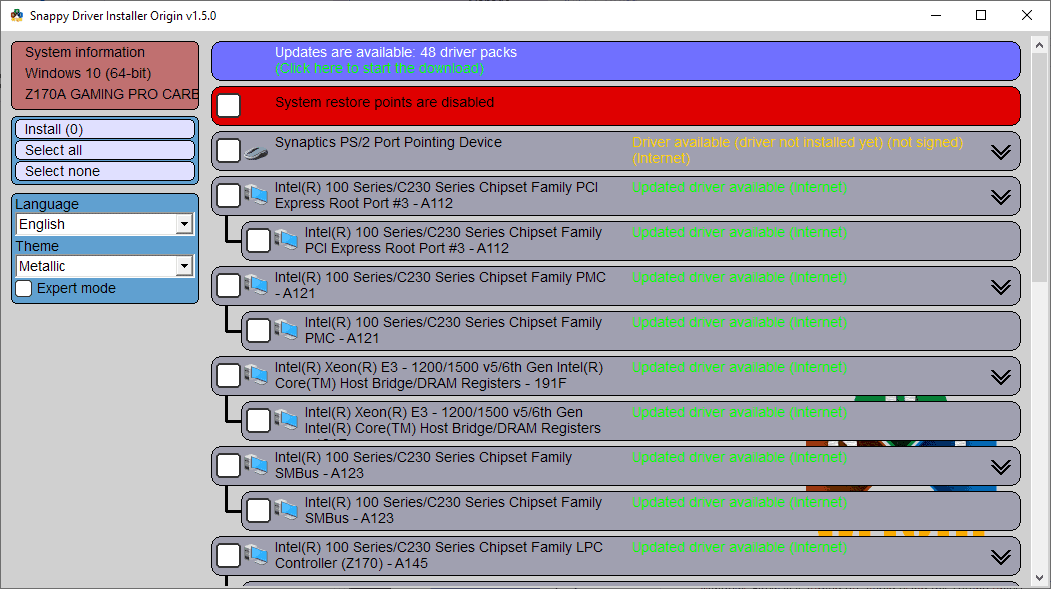
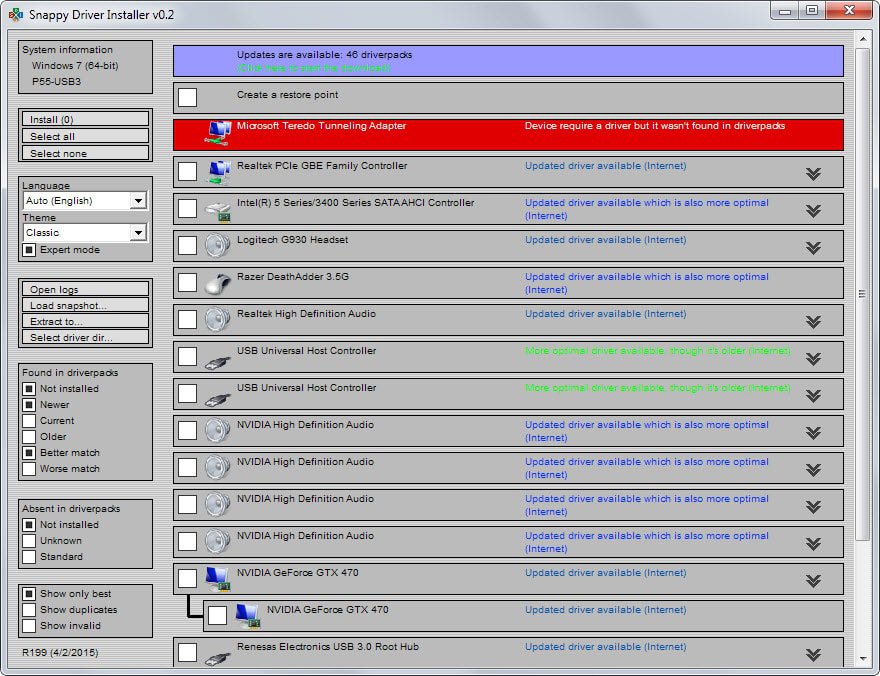
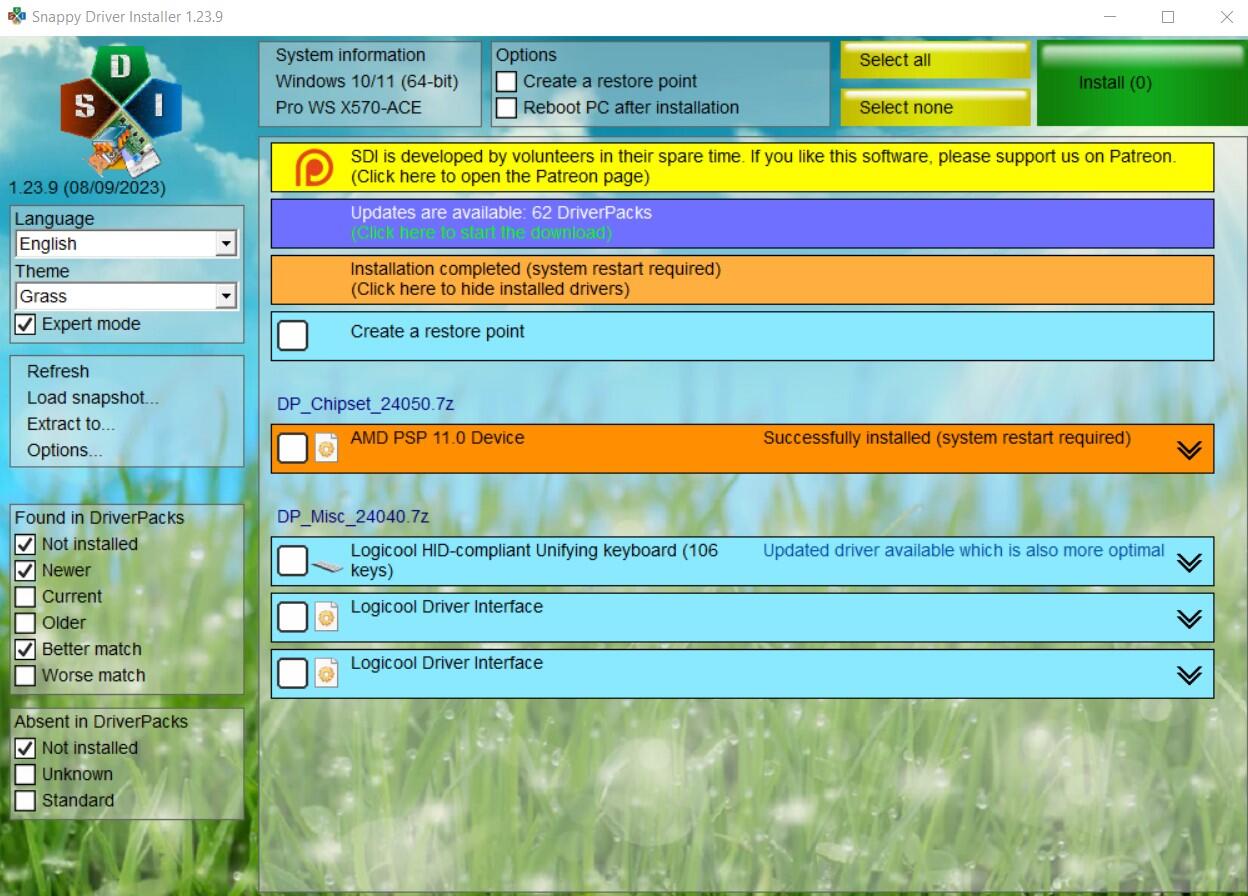
Snappy Driver Installer is a free, open-source, and portable utility designed to find and install missing or outdated drivers on your computer. Unlike many driver updaters that require an active internet connection to download individual drivers, SDI works by downloading massive “driver packs” beforehand. These packs contain a vast collection of drivers for various hardware components, allowing for offline installation—a significant advantage for systems without internet access or for technicians working on multiple machines.
SDI scans your hardware, identifies components that need new or updated drivers, compares them against its local driver packs, and then presents a list of recommended installations. It prioritizes the best match and allows users to select which drivers to install.
Key Features and Benefits
SDI offers several attractive features that have contributed to its popularity:
-
Offline Installation: The most significant advantage. Once driver packs are downloaded, SDI can function completely offline, making it invaluable for fresh OS installations or troubleshooting systems without network connectivity.
-
Comprehensive Database: SDI boasts an extensive collection of drivers for a wide array of hardware, often more current than what Windows Update provides.
-
Portability: It doesn’t require installation and can be run from a USB drive, making it a favorite among IT professionals and power users.
-
Driver Pack Structure: Drivers are organized into packs (e.g., Chipset, Graphics_AMD, Network), allowing users to download only the categories they need.
-
Algorithm for Best Match: SDI employs a sophisticated algorithm to identify the most suitable driver for your hardware, considering various factors.
-
Rollback Options: Though not a built-in “rollback” feature like Windows Device Manager, SDI often allows users to install older driver versions if a new one causes issues, provided those versions are in the downloaded packs.
-
Free and Open Source: Being open source means its code is publicly available for scrutiny, which theoretically enhances transparency and trust.
Potential Risks and Concerns
Despite its benefits, SDI, like any powerful utility, comes with its own set of potential risks and concerns that users must be aware of to ensure safety.
-
Source Verification: While SDI itself is open-source, the driver packs it uses are sourced from various manufacturers. Verifying the integrity and authenticity of every driver within these packs can be challenging.
-
Compatibility Issues: Installing a driver that is not perfectly suited for your specific hardware model, even if it appears to be a match, can lead to instability, conflicts, or even hardware damage.
-
Driver Conflicts: Installing multiple drivers for the same device or incompatible drivers can lead to system crashes or erratic behavior.
-
Potential for Bundled Software/PUPs: A major risk is downloading SDI from unofficial mirror sites or third-party download portals. These often repackage the legitimate software with Potentially Unwanted Programs (PUPs), adware, or even malware.
-
False Positives: Sometimes, SDI might suggest an “update” for a driver that is already perfectly functional or even recommend a generic driver over a more optimized manufacturer-specific one.
-
User Error: The power of SDI lies in its comprehensive options, but this also means a less experienced user might inadvertently install an incorrect driver or disable a crucial component.
Assessing the Safety and Trustworthiness of SDI
The question of SDI’s safety hinges on a nuanced understanding of its nature and how users interact with it. It’s not a simple ‘yes’ or ‘no’ answer.
Open-Source Nature and Community Scrutiny
The open-source nature of Snappy Driver Installer is a double-edged sword when it comes to safety. On one hand, it implies transparency. The code is available for anyone to review, theoretically making it harder for malicious code to hide unnoticed. This community scrutiny can build trust. On the other hand, the open-source model means there isn’t a single corporate entity backing it with formal support channels and rigorous QA testing. While the main project is generally considered safe, there could be forks or unofficial versions circulating that have been tampered with. It requires the user to be diligent in verifying the source.
Official Sources vs. Third-Party Downloads
This is arguably the most critical factor in determining SDI’s safety.
-
Official Source: The only truly safe place to download Snappy Driver Installer is from its official GitHub repository or the project’s official website (if one exists and is clearly linked from GitHub). These sources provide the unaltered, legitimate version of the software.
-
Third-Party Mirrors/Download Sites: Avoid these at all costs. Many download sites host versions of popular software that have been bundled with adware, toolbars, crypto-miners, or even more destructive malware. They often wrap the legitimate installer in their own custom installer that deploys these unwanted programs. Even if the SDI software itself is clean, the process of acquiring it from an untrusted source can compromise your system.
Driver Integrity and Verification
SDI’s methodology involves downloading driver packs that are compiled from various sources. While the project aims to ensure the integrity of these drivers, a few points are important:
-
Digital Signatures: Most legitimate drivers come with digital signatures from the hardware manufacturer, verifying their authenticity and that they haven’t been tampered with. SDI generally respects these signatures. However, there might be cases, especially with older hardware or obscure drivers, where unsigned drivers are present.
-
Driver Quality: The quality of drivers within the packs can vary. While SDI strives for the best, a generic driver, even if digitally signed, might not always be as optimized as a manufacturer’s latest release.
-
User Choice: SDI presents options, and it’s up to the user to choose. Installing a “newer” driver isn’t always “better” if the current one is stable and optimized.
User Responsibility and Best Practices
Ultimately, the safety of using SDI heavily relies on the user’s discretion and adherence to best practices:
-
Create a System Restore Point: Always, always create a system restore point before making any significant driver changes. This provides a safety net, allowing you to revert your system to a previous, stable state if something goes wrong.
-
Back Up Existing Drivers: Consider using a tool or Windows’ built-in options to back up your current drivers before updating, allowing for manual rollback if needed.
-
Scan Downloaded Files: Run antivirus and anti-malware scans on any downloaded SDI executable and driver packs, especially if you have any doubt about the source.
-
Understand What You’re Installing: Don’t blindly click “Install All.” Review the list of suggested drivers, understand which components they are for, and consider if an update is truly necessary. Look for drivers with clear digital signatures from reputable manufacturers.
-
Verify Driver Names: If a driver name seems generic or suspicious, proceed with caution.
Best Practices for Safe Driver Management
Adopting a strategic approach to driver management is key to maintaining a stable and secure system. SDI can be a powerful tool, but it should be part of a broader, informed strategy.
Prioritizing Official Manufacturer Drivers
For critical components like your motherboard chipset, CPU, graphics card, and primary network adapter, always prioritize drivers directly from the component or system manufacturer’s official website. These drivers are specifically tested and optimized for your hardware configuration and are the least likely to cause issues. While SDI can be a convenient alternative, it shouldn’t completely replace this gold standard for essential hardware.
Leveraging Windows Update Effectively
Windows Update is a convenient and generally safe source for many drivers. For less critical peripherals or older hardware where manufacturer support might be lacking, Windows Update often provides stable, albeit sometimes not the latest, drivers. Allow Windows Update to handle basic driver installations, but be prepared to manually update critical components if performance or feature enhancements are needed that Windows Update doesn’t provide. Sometimes, it’s also wise to pause driver updates from Windows Update if you prefer to manage them manually or if a specific update from Microsoft is known to cause problems.
When to Consider Third-Party Tools Like SDI
SDI shines in specific scenarios where traditional methods fall short:
-
Fresh OS Installations: When you’ve just installed a new operating system and lack internet drivers, SDI (with pre-downloaded packs) can get your network card working quickly, allowing you to then download other manufacturer-specific drivers.
-
Offline Systems: For computers that are not connected to the internet, SDI is an indispensable tool for keeping drivers up to date.
-
Older Hardware: If a manufacturer has ceased support for older hardware, SDI’s extensive database might offer a compatible driver when official sources no longer do.
-
IT Professionals and Technicians: Its portability and offline capability make it excellent for diagnosing and repairing multiple client machines.
In these contexts, SDI offers a genuine advantage, but always with the caveats of careful use and source verification.
The Importance of System Restore Points and Backups
This cannot be stressed enough. Before running any driver updater tool, or manually installing any driver, create a system restore point. This built-in Windows feature allows you to revert your system files, including drivers, to a previous state. It’s your primary safety net. Additionally, consider using dedicated driver backup tools or manually saving known good driver installers. If a driver update causes a critical error, having a readily available rollback option can save hours of troubleshooting and potential data loss.
Vigilance Against Malicious Software
Beyond driver installers, general digital hygiene is paramount.
-
Robust Antivirus/Anti-malware: Ensure you have reputable antivirus and anti-malware software active and up-to-date.
-
Safe Browsing Habits: Be wary of suspicious links, pop-ups, and unsolicited downloads. Always check the URL of any website before downloading software.
-
Firewall: A properly configured firewall adds another layer of defense against unauthorized network access.
These practices form a comprehensive defense strategy that complements safe driver management.
Conclusion: A Calculated Approach to Driver Updates
So, is Snappy Driver Installer safe? The answer is a conditional yes, but with significant emphasis on user responsibility, source verification, and careful execution. SDI is not inherently malicious, and its open-source nature provides a level of transparency. However, its power necessitates an informed approach.
Is SDI Inherently Safe?
Used correctly, downloaded from its official GitHub repository, and applied with caution, Snappy Driver Installer is a valuable, legitimate tool. Its safety is compromised not by its design, but by the potential for users to download tampered versions from unofficial sources or to misuse its functionalities without understanding the implications. It offers immense convenience, especially in specific use cases, but that convenience must be balanced with vigilance.
Balancing Convenience and Security
The modern computing landscape often presents a trade-off between convenience and security. Tools like SDI offer great convenience by automating a complex task. However, blindly trusting any automated tool, especially one dealing with core system components like drivers, is a recipe for disaster. The key lies in leveraging the convenience while maintaining a high level of security awareness. This means opting for the safest download sources, understanding what the tool is doing, and having contingency plans (like system restore points).
Empowering Users Through Knowledge
Ultimately, the power to ensure system safety rests with the user. An informed user who understands the role of drivers, the risks associated with their mismanagement, and the best practices for using tools like Snappy Driver Installer is an empowered user. By combining the capabilities of tools like SDI with a solid foundation of digital security principles, you can keep your system running smoothly, securely, and efficiently, free from the pitfalls of outdated drivers or malicious software. Always prioritize security, exercise caution, and when in doubt, default to the official manufacturer’s drivers.
aViewFromTheCave is a participant in the Amazon Services LLC Associates Program, an affiliate advertising program designed to provide a means for sites to earn advertising fees by advertising and linking to Amazon.com. Amazon, the Amazon logo, AmazonSupply, and the AmazonSupply logo are trademarks of Amazon.com, Inc. or its affiliates. As an Amazon Associate we earn affiliate commissions from qualifying purchases.