
In the digital age, efficiency and organization are paramount. Whether you’re a professional managing large project files, a student submitting assignments, or a casual user sharing vacation photos, the need to compress and archive data is universal. Enter the ZIP file format—a ubiquitous standard that allows for the bundling of multiple files into a single, smaller package, making storage, transfer, and sharing significantly more manageable.
While modern operating systems often provide basic built-in capabilities for handling ZIP files, relying solely on these can be akin to using a pocket knife for a complex engineering task. Dedicated ZIP utility software offers a powerful suite of features, including superior compression ratios, robust encryption options, advanced archive management, and support for a wider array of archive formats. This comprehensive guide will walk you through the essential process of installing and leveraging dedicated ZIP software across various operating systems, transforming you from a basic file handler into an archive management maestro. We’ll delve into understanding the ZIP format itself, providing step-by-step installation instructions for popular tools on Windows, macOS, and Linux, exploring advanced functionalities, and offering solutions to common troubleshooting scenarios. Prepare to streamline your digital life and unlock the full potential of file compression.
Understanding ZIP: The Ubiquitous Archiving Format
Before diving into the mechanics of installation, it’s crucial to grasp the fundamental nature and widespread importance of the ZIP file format. Understanding its origins and advantages will illuminate why investing in dedicated archiving software is a valuable endeavor for any tech-savvy individual.
What is a ZIP File?
At its core, a ZIP file is a data compression and archive format designed to reduce the overall size of files and directories, and to bundle multiple items into a single, cohesive unit. Invented by Phil Katz in 1989 for PKWARE, the ZIP format quickly gained popularity due to its open specification and efficiency. When you “zip” files, the software applies a compression algorithm, which intelligently identifies and removes redundant data, resulting in a smaller file size. Simultaneously, it creates an archive, essentially a container that holds all the selected files and folders, maintaining their original structure within the compressed package.
The primary purposes of ZIP files are multifold:
-
Space Saving: Reduced file sizes mean less storage consumption on your hard drive, cloud service, or removable media.
-
Faster Transfers: Smaller files upload and download more quickly, making email attachments, file sharing services, and network transfers more efficient.
-
Simplified Management: Instead of managing dozens or hundreds of individual files, you deal with a single ZIP archive, simplifying organization and reducing clutter.
-
Data Integrity: Archiving can help preserve the structure and relationships between files, especially for complex projects with many interdependent components.
Why Dedicated ZIP Software?
Given that most operating systems—Windows, macOS, and Linux—offer native support for creating and extracting basic ZIP files, one might question the necessity of third-party software. However, built-in tools often represent the bare minimum, lacking the sophistication and power required for more demanding or nuanced archiving tasks. Dedicated ZIP software extends functionality significantly, providing a host of advantages:
-
Superior Compression Algorithms: Third-party utilities often employ more advanced compression techniques, such as LZMA2 (used by 7-Zip) or proprietary methods, which can yield significantly smaller file sizes compared to standard ZIP compression, especially for certain types of data.
-
Broader Format Support: While the focus is on ZIP, many dedicated programs are “universal unpackers,” capable of handling a multitude of other archive formats like RAR, 7z, TAR, GZ, ISO, and more. This eliminates the need for multiple specialized tools.
-
Robust Encryption: For sensitive data, dedicated software offers strong encryption options, typically AES-256, allowing you to password-protect archives and safeguard their contents from unauthorized access. Native tools may offer weaker or no encryption.
-
Archive Management Features: These tools provide capabilities to browse archive contents without full extraction, add or remove files from existing archives, split large archives into smaller, more manageable parts, and even repair corrupted archives.
-
Integration and Automation: Many programs offer deep integration with the operating system’s context menu (right-click options), shell extensions, and command-line interfaces, facilitating quick actions and enabling scripting for automated archiving tasks.
-
Self-Extracting Archives (SFX): Some tools can create self-extracting archives, which are executable files that unpack their contents without requiring the recipient to have any specific unarchiving software installed.
-
Benchmarking and Testing: Advanced features might include tools to benchmark compression performance or verify the integrity of archives after creation or transfer.
In essence, while your OS can handle a simple ZIP, dedicated software provides the comprehensive toolkit needed for efficient, secure, and versatile archive management, making it an indispensable part of any digital toolkit.
Installing ZIP Utilities Across Major Operating Systems
The installation process for ZIP utilities is generally straightforward, but the specifics can vary depending on your operating system and the chosen software. Here, we’ll guide you through setting up popular and highly-regarded archiving tools on Windows, macOS, and Linux.
On Windows: Leveraging Third-Party Power
Windows has offered built-in ZIP support since Windows XP, allowing users to compress and decompress files directly through File Explorer. However, for enhanced features, tools like 7-Zip, WinRAR, and WinZip remain top choices. For this guide, we’ll focus on 7-Zip, a free, open-source, and incredibly powerful utility.
-
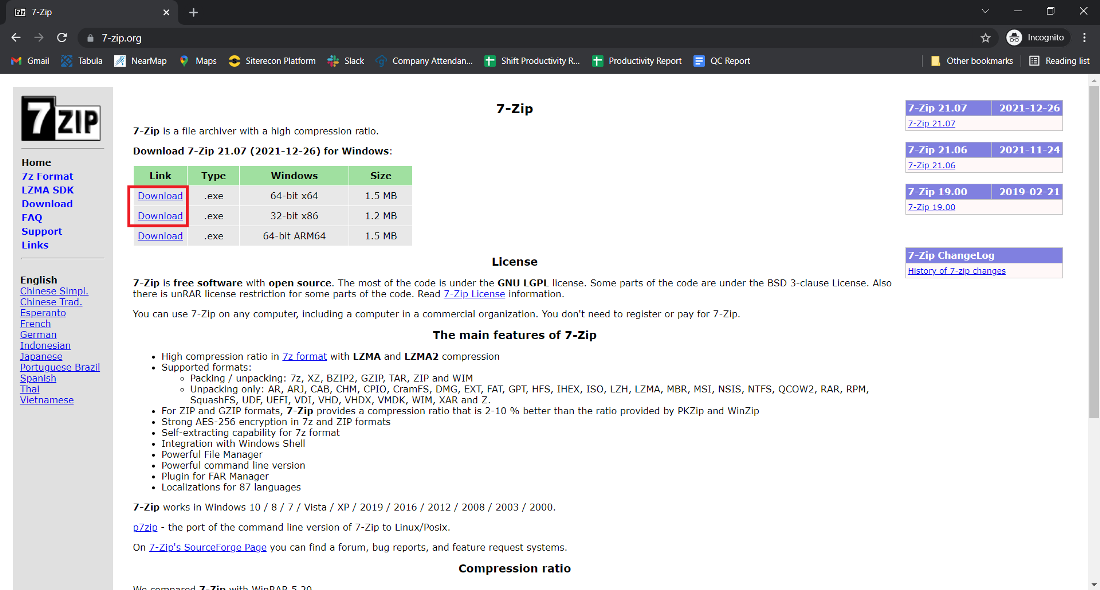
Download 7-Zip: Open your web browser and navigate to the official 7-Zip website:
www.7-zip.org. -
Select Your Version: On the homepage, you’ll see download links for different versions (32-bit and 64-bit) based on your Windows architecture. Most modern systems are 64-bit. If unsure, you can check by right-clicking “This PC” (or “My Computer”) > “Properties.” Download the appropriate
.exeinstaller. -
Run the Installer: Locate the downloaded
.exefile (usually in your “Downloads” folder) and double-click it to start the installation. -
Choose Installation Location: The installer will suggest a default installation folder (e.g.,
C:Program Files7-Zip). You can accept this or click “Browse” to choose a different location. Click “Install.” -
Complete Installation: The installation is very quick. Once finished, click “Finish.”
-
Configure 7-Zip (Optional but Recommended):
-
Open the 7-Zip File Manager (search for “7-Zip” in the Start Menu).
-
Go to “Tools” > “Options.”
-
In the “System” tab, you can associate 7-Zip with various archive formats (e.g., .zip, .rar, .7z) by selecting them. This tells Windows to open these files with 7-Zip by default. Click “Apply” then “OK.”
-
Also, ensure the “Context menu items” in the “7-Zip” tab are configured to your liking for easy right-click access.
-
7-Zip is now installed and ready to use, providing robust compression and decompression capabilities accessible via its File Manager or through the right-click context menu in File Explorer.
On macOS: Enhancing Archive Management
macOS includes a utility called “Archive Utility” that handles basic ZIP and some other archive formats. However, it lacks advanced features like strong encryption, broad format support, or granular compression settings. Popular third-party options include Keka, The Unarchiver, and BetterZip. We’ll use Keka as our example due to its clean interface and comprehensive features.
-
Download Keka: Visit the official Keka website:
www.keka.io. You can also purchase it from the Mac App Store to support the developer, which offers automatic updates, or download it directly from the website for free. -
Download and Open the DMG: If downloading from the website, click the “Download” button. The download will typically be a
.dmgfile. Once downloaded, double-click the.dmgfile to open it. -
Install Keka: A Finder window will open, usually showing the Keka application icon and an “Applications” folder alias. Drag the Keka icon to the “Applications” folder.
-
Eject the Disk Image: After copying, you can eject the Keka disk image from the Finder sidebar by clicking the “Eject” icon next to its name.
-
Launch Keka and Configure:
-
Open Keka from your “Applications” folder. The first time, macOS might ask for confirmation as it’s an app downloaded from the internet. Click “Open.”
-
Keka will open, presenting a simple drop zone for files. To set Keka as your default unarchiver, go to “Keka” (in the menu bar) > “Preferences…” > “General.”
-
Under “Default App,” you can click “Set as default” and select the archive types you want Keka to handle, ensuring it automatically opens ZIP, RAR, 7z, etc.
-
Keka is now installed and ready to provide a more powerful and user-friendly archiving experience on your Mac.
On Linux: Command-Line and GUI Solutions
Linux offers unparalleled flexibility, with powerful command-line tools for ZIP operations available by default or easily installed. For users who prefer a graphical interface, several GUI tools are also available.
Command-Line Tools (zip and unzip):
Most Linux distributions come with zip and unzip pre-installed. If not, you can easily install them using your distribution’s package manager.
-
For Debian/Ubuntu-based systems:
sudo apt update sudo apt install zip unzip -
For Fedora/CentOS/RHEL-based systems:
sudo dnf install zip unzip -
For Arch Linux-based systems:
sudo pacman -Sy zip unzip
Once installed, you can use these commands in your terminal:
-
To create a ZIP archive:
zip -r archive_name.zip /path/to/folder_or_file -
To extract a ZIP archive:
unzip archive_name.zip
Graphical User Interface (GUI) Solutions:
While command-line tools are efficient, GUI tools offer a visual approach. Popular choices include Engrampa (for GNOME desktop environments), Ark (for KDE Plasma), and cross-platform options like PeaZip or Xarchiver. Let’s briefly cover installing a common one.
-
Install a GUI Archiver (e.g., Engrampa on Ubuntu):
sudo apt update

sudo apt install engrampa
(Replace
engrampawitharkfor KDE,peazipif available in repositories, or use generic methods for AppImages/Flatpaks for PeaZip.) -
Launch and Use: Once installed, you can typically find the archiver in your applications menu. You can then right-click on archive files in your file manager (e.g., Nautilus for GNOME, Dolphin for KDE) to extract or compress. The GUI applications usually provide an intuitive interface for managing archives, similar to their Windows or macOS counterparts.
With these tools installed, you’re now equipped to handle ZIP files efficiently, whether you prefer the precision of the command line or the ease of a graphical interface.
Mastering Your ZIP Software: Beyond Basic Extraction
Installing your preferred ZIP utility is just the first step. To truly leverage its power, understanding and utilizing its advanced features is key. Moving beyond simple compression and extraction allows for greater control, security, and efficiency in your digital workflow.
Compressing Files and Folders
Creating a ZIP archive with dedicated software is far more versatile than using basic OS functions. Here’s what you can typically do:
-
Initiate Compression: Usually, you can right-click on the selected files/folders and choose an option like “Add to archive…” or “7-Zip/Keka/etc. > Add to [archive name].zip.” Alternatively, you can open the utility, navigate to the files, and select a “Compress” or “Create Archive” option.
-
Choose Compression Level: Most tools offer various compression levels, from “Store” (no compression, fastest) to “Ultra” or “Best” (maximum compression, slowest). Higher compression reduces file size more but takes longer. Experiment to find the balance between speed and space saving that suits your needs.
-
Select Archive Format: While the article focuses on ZIP, dedicated tools often allow you to choose other formats like 7z, RAR (for creating, though sometimes needs WinRAR), or TAR. 7z often provides superior compression over ZIP.
-
Password Protection and Encryption: This is a crucial security feature. When creating an archive, look for options to “Encrypt archive” or “Set password.” Choose a strong password and ideally select AES-256 encryption, which provides robust protection against unauthorized access. Remember, if you forget this password, the data is typically unrecoverable.
-
Split Archives (Multi-Volume Archives): For very large files, you can split the archive into multiple, smaller parts. This is useful for transferring files on media with size limits (e.g., older USB drives, certain email services) or for cloud storage that performs better with smaller chunks. The software will create
archive.zip.001,archive.zip.002, etc.
Extracting and Managing Archives
Extracting files is just as versatile:
-
Simple Extraction: Right-click on the archive and select “Extract Here,” “Extract to [folder name],” or “7-Zip/Keka/etc. > Extract files…” The latter usually opens a dialog allowing you to specify the destination.
-
Partial Extraction: Most utilities allow you to open the archive and browse its contents. You can then select only specific files or folders you wish to extract, rather than the entire archive. This saves time and disk space if you only need a portion of the content.
-
Browsing Archive Content: You can often “Open” an archive in the utility to view its internal file structure without fully extracting it. This is handy for checking contents quickly or verifying file names before committing to a full extraction.
-
Modifying Archives: Some advanced tools allow you to add new files to an existing archive, delete files from it, or even rename files within the archive without having to extract everything, modify, and re-compress. This is a significant time-saver for ongoing projects.
Advanced Features and Best Practices
To truly master your ZIP software, consider these advanced applications and best practices:
-
Self-Extracting Archives (SFX): Many tools can create SFX archives (e.g.,
.exefiles on Windows). These are archives bundled with a small executable program that allows them to extract their contents automatically when run, even on systems without the archiving software installed. Useful for distributing software or installers. -
Repairing Corrupted Archives: Occasionally, an archive might become corrupted due to incomplete downloads, disk errors, or transfer issues. Some advanced utilities (like WinRAR’s “Repair archive” function, or 7-Zip’s ability to often open slightly damaged archives) offer features to attempt recovery of data from these damaged files.
-
Benchmarking and Performance: Explore your software’s options for benchmarking. This can help you understand the performance implications of different compression algorithms and levels on your system.
-
Verifying Archive Integrity: Before sharing or long-term storage, verify the integrity of an archive. Most tools offer an option to “Test archive,” which checks for errors and confirms that the archive can be extracted successfully.
-
Security Considerations:
-
Source Trust: Always download ZIP utilities from official websites or reputable app stores to avoid malware.
-
Strong Passwords: When encrypting archives, use strong, unique passwords. Consider using a password manager.
-
Key Management: For highly sensitive encrypted archives, ensure you have a secure way to store and retrieve the passwords or encryption keys.
-
By exploring these functionalities, you’ll move beyond basic file compression and extraction, harnessing the full potential of your chosen ZIP utility to manage your digital assets with greater efficiency, security, and control.
Common Issues and Troubleshooting
Even with the most robust software, users can encounter problems. Understanding common issues and their solutions can save time and frustration, ensuring a smooth experience with your ZIP utilities.
“File is Corrupt” or “Invalid Archive” Errors
This is one of the most frustrating errors, preventing you from accessing your data.
-
Causes:
-
Incomplete Download/Transfer: The most common cause. If an archive wasn’t fully downloaded or copied, parts of its data might be missing or truncated.
-
Disk Errors: Bad sectors on a storage drive can lead to corrupted data.
-
Network Issues: Packet loss or unstable connections during transfer can corrupt files.
-
Software Glitches: Rarely, the software that created the archive might have encountered an error.
-
-
Solutions:
-
Re-download/Re-transfer: The first and often most effective step is to download or copy the archive again from its source.
-
Try Different Software: If one utility reports corruption, try opening it with another. For example, if 7-Zip fails, try WinRAR or Keka, as different programs might be more forgiving or have better recovery mechanisms for certain types of damage.
-
Utilize Repair Features: Some advanced utilities (like WinRAR) have a “Repair archive” function. While not always successful, it can sometimes reconstruct portions of the archive.
-
Check Source Integrity: If you created the archive, ensure the original files were not corrupt. If you received it, ask the sender to verify their original file or re-send it.
-
Password-Protected Archives: Forgetting Credentials
Password protection is excellent for security but can become a nightmare if you forget the password.
-
Causes: Forgetting the password used to encrypt the archive.
-
Solutions:
-
Memory and Documentation: Search your memory, notes, or any password manager you use for the correct password. Many people use common passwords, or variations thereof, for non-critical archives.
-
No Universal Recovery: For strongly encrypted archives (e.g., AES-256), there is no “backdoor” or universal recovery method. This is a feature, not a bug, ensuring the security of your data.
-
Ethical Brute-Force/Dictionary Attacks: Only for your own forgotten files and with extreme caution. Specialized password recovery tools exist that can attempt to guess passwords using dictionary attacks or brute-force methods. These are extremely time-consuming, resource-intensive, and rarely successful against strong, random passwords. They should only be considered as a last resort for your legally owned data.
-
Contact Sender: If you received the archive, contact the sender to obtain the password.
-
Installation Failures and System Conflicts
Issues during installation can prevent you from even starting to use the software.
-
Causes:
-
System Requirements: Your system might not meet the minimum requirements (e.g., outdated OS version, insufficient RAM).
-
Permissions: Lack of administrative privileges on Windows or root privileges on Linux can block installation.
-
Antivirus/Firewall Interference: Security software can sometimes incorrectly flag installers as malicious, blocking their execution.
-
Conflicting Software: Rarely, another installed program might conflict with the new utility’s installation.
-
-
Solutions:
-
Check System Requirements: Before downloading, verify your system meets the software’s specifications.
-
Run as Administrator: On Windows, right-click the installer and select “Run as administrator.” On Linux, use
sudofor package installations. -
Temporarily Disable Antivirus: If you trust the source, try temporarily disabling your antivirus/firewall during installation. Remember to re-enable it immediately afterward.
-
Check for Existing Versions: Ensure you don’t have an older, incompatible version of the same software or a conflicting utility already running.
-
Restart System: A simple reboot can sometimes clear temporary system glitches that might interfere with installation.
-
Performance Slowdowns During Compression/Extraction
Large files or numerous small files can sometimes lead to slow archiving processes.
-
Causes:
-
File Size and Quantity: Compressing/extracting very large single files or hundreds of thousands of small files is inherently resource-intensive.
-
Disk I/O Speed: The speed of your hard drive (SSD vs. HDD) significantly impacts performance.
-
CPU Resources: Compression is a CPU-intensive task. An older or less powerful processor will take longer.
-
Memory: Insufficient RAM can lead to slower operations, especially with large files.
-
High Compression Levels: Choosing the highest compression level (“Ultra” or “Best”) trades speed for smaller file sizes.
-
-
Solutions:
-
Lower Compression Level: If speed is critical, select a “Fast” or “Normal” compression level instead of “Best.” The file size reduction might be slightly less, but the process will be much quicker.
-
Use Faster Storage: If frequently archiving large files, consider an SSD.
-
Close Other Applications: Free up CPU and RAM by closing unnecessary programs during intensive archiving tasks.
-
Split Archives: For extremely large files, splitting them into smaller multi-volume archives can sometimes aid performance and manageability, though overall compression time might still be long.
-
Upgrade Hardware: In some cases, if performance is consistently poor, it might indicate a need for hardware upgrades (CPU, RAM, SSD).
-
By familiarizing yourself with these common issues and their respective troubleshooting steps, you can confidently navigate the world of ZIP files, ensuring your data is efficiently managed and securely handled.
Conclusion
The humble ZIP file, a cornerstone of digital data management, plays an indispensable role in how we store, transfer, and organize information in today’s interconnected world. While operating systems offer basic functionalities, installing dedicated ZIP utility software elevates this experience, providing a powerful toolkit for efficiency, security, and versatility. From superior compression algorithms and robust encryption to broad format support and intricate archive management features, tools like 7-Zip, Keka, or Linux’s command-line utilities unlock the full potential of file archiving.
By following the installation guides for Windows, macOS, and Linux, you’ve equipped your system with the necessary power. More importantly, by delving into the advanced features—such as password protection, split archives, partial extraction, and even self-extracting formats—you’ve moved beyond basic operations to become a master of your digital files. Understanding common troubleshooting steps, from dealing with corrupt archives to optimizing performance, further empowers you to maintain a seamless workflow.
In an era where digital clutter and data security are constant concerns, mastering your ZIP software is more than just a technical skill; it’s a commitment to efficiency, organization, and safeguarding your valuable information. Embrace these tools, explore their myriad features, and transform the way you interact with your digital world, ensuring your files are always compact, secure, and precisely where you need them.
aViewFromTheCave is a participant in the Amazon Services LLC Associates Program, an affiliate advertising program designed to provide a means for sites to earn advertising fees by advertising and linking to Amazon.com. Amazon, the Amazon logo, AmazonSupply, and the AmazonSupply logo are trademarks of Amazon.com, Inc. or its affiliates. As an Amazon Associate we earn affiliate commissions from qualifying purchases.