
In the ever-evolving landscape of personal computing, the ability to manage and deploy operating systems efficiently is a fundamental skill. For many users, installing Windows 10 on a flash drive is not just a convenience but a necessity, offering unparalleled flexibility for system repairs, fresh installations, or even running a portable operating environment. This comprehensive guide delves into the rationale, prerequisites, various methods, and post-installation considerations for creating a bootable Windows 10 USB drive, empowering users with a robust tool in their digital arsenal. Whether you’re a seasoned IT professional or a curious enthusiast looking to optimize your computing experience, mastering this process is a valuable endeavor.
Why Create a Bootable Windows 10 USB Drive?
The concept of a bootable USB drive might seem niche to some, but its utility extends across a broad spectrum of scenarios, making it an indispensable tool for anyone who interacts with Windows-based systems. Understanding these core benefits illuminates why investing time in creating such a drive is a wise decision for both proactive system management and reactive troubleshooting.
Portability and Convenience
Gone are the days when optical drives were standard equipment on every PC, requiring bulky DVDs for OS installation. A USB flash drive, compact and lightweight, can easily fit into a pocket, making it incredibly convenient to carry a full Windows 10 installer or recovery environment wherever you go. This portability is invaluable for technicians servicing multiple machines or for users who frequently work on different computers and need a consistent way to manage software. Its small form factor also means it takes up virtually no space, a stark contrast to a stack of installation discs. Furthermore, modern USB 3.0 or 3.1 drives offer significantly faster read/write speeds than optical drives, drastically cutting down installation times and improving the responsiveness of recovery operations.
System Recovery and Troubleshooting
Perhaps the most critical function of a bootable Windows 10 USB drive is its role in system recovery and troubleshooting. When a computer encounters a critical error, fails to boot, or becomes corrupted by malware, the ability to start from an external, known-good source is paramount. A bootable USB can grant access to the Windows Recovery Environment (WinRE), offering tools like System Restore, Startup Repair, Command Prompt, and safe mode options. These tools are often the last line of defense against data loss and system reinstallation, allowing users to diagnose and potentially fix severe operating system issues without needing to wipe the entire drive. It acts as a digital first-aid kit, ready to revive a ailing system.
Fresh Installations and Upgrades
For users looking to perform a clean installation of Windows 10 – whether on a new build, after a drive upgrade, or simply to refresh an old system – a bootable USB is the standard method. It ensures a pristine operating environment, free from accumulated software clutter or potential conflicts. Similarly, if you’re upgrading an older version of Windows to Windows 10, or reinstalling the OS after hardware changes, the USB installer provides a reliable and straightforward path. The wizard-driven setup process guides you through disk partitioning, user account creation, and initial settings, making what could be a complex task remarkably manageable.
OS Testing Environment
Beyond installation and recovery, a bootable USB can also serve as an excellent environment for testing. While not a full “Windows To Go” setup (which requires specific Windows 10 Enterprise/Education editions and hardware), a bootable installer can allow initial boot-up on various hardware configurations. This can be useful for quickly checking hardware compatibility, pre-boot issues, or simply to test the boot process itself on a new machine without committing to a full installation. For developers or IT professionals, this offers a quick way to verify that a system’s basic components are functioning correctly before proceeding with a full deployment.
Essential Prerequisites Before You Begin
Before embarking on the process of creating your bootable Windows 10 USB drive, a few critical preparations are necessary. Overlooking these preliminary steps can lead to frustration, wasted time, or even data loss. Ensuring you have the right tools and information readily available will streamline the entire procedure and guarantee a successful outcome.
Sourcing the Windows 10 ISO File
The cornerstone of your bootable drive is the Windows 10 installation media, typically in the form of an ISO file. This is a complete snapshot of the Windows 10 operating system and its installation files. The most reliable and secure way to obtain this file is directly from Microsoft’s official website. Microsoft offers a “Media Creation Tool” which, aside from directly creating a bootable USB, can also download the ISO file to your computer. It’s crucial to download the correct edition (Home, Pro, etc.) and architecture (32-bit or 64-bit) that matches your intended installation or existing license. Downloading from unofficial sources carries significant risks, including malware or corrupted files, which can compromise the security and stability of your future Windows installation.
Choosing the Right USB Flash Drive
The selection of your USB flash drive is more critical than it might initially appear. Firstly, capacity is key: a minimum of 8GB is generally recommended for Windows 10, though 16GB provides a safer margin for future updates or additional recovery tools. Secondly, speed matters: a USB 3.0 or higher drive will dramatically reduce the time it takes to create the bootable drive and, more importantly, to install Windows 10. While a USB 2.0 drive will work, the performance difference is substantial. Finally, and perhaps most importantly, ensure the USB drive is empty or contains no data you wish to keep. The process of creating a bootable drive involves formatting the drive, which will irrevocably erase all its contents. Always back up any essential files from the USB drive before proceeding.
Reliable Internet Connection and Power Source
Downloading the Windows 10 ISO file (which can be several gigabytes in size) and using the Media Creation Tool requires a stable and reasonably fast internet connection. Interruptions during the download can corrupt the ISO or force you to restart the entire process. Furthermore, the creation of the bootable drive, and certainly any subsequent OS installation, can take a significant amount of time and consumes power. For laptops, it’s absolutely essential to connect to a reliable power source to prevent the device from shutting down mid-process, which could lead to corrupted media or an unbootable system. Desktop users should also be mindful of power stability, perhaps even considering a UPS (Uninterruptible Power Supply) if power outages are a concern.
Understanding System Requirements
Before installing Windows 10, it’s wise to quickly review its minimum system requirements to ensure the target computer can run it effectively. While modern machines will likely exceed these, older systems might struggle. Key requirements include:
-
Processor: 1 GHz or faster compatible processor or System on a Chip (SoC)
-
RAM: 1 GB for 32-bit or 2 GB for 64-bit
-
Hard disk space: 32 GB for 64-bit OS or 16 GB for 32-bit OS
-
Graphics card: DirectX 9 or later with WDDM 1.0 driver
-
Display: 800×600 resolution
Understanding these ensures that your efforts in creating the bootable drive will result in a functional and satisfactory Windows 10 experience on the target hardware.
Step-by-Step Guide to Creating the Bootable Drive
With your prerequisites in order, the next phase involves the actual creation of the bootable Windows 10 USB drive. Several methods exist, each catering to different levels of technical proficiency and specific needs. We will cover the most popular and reliable options, ensuring you have a clear path to success.
Option 1: Using Microsoft’s Media Creation Tool (Recommended for Most Users)
This is Microsoft’s official, user-friendly utility designed to simplify the process for the average consumer.
Downloading the Tool
Navigate to the official Microsoft Windows 10 download page. Look for the “Download tool now” button under the “Create Windows 10 installation media” section. Save the executable file (MediaCreationTool.exe) to your computer.
Running the Tool and Selecting Options
Double-click the downloaded MediaCreationTool.exe to launch it.
-
Accept the license terms.
-
Choose “Create installation media (USB flash drive, DVD, or ISO file) for another PC” and click Next.
-
Select language, architecture, and edition. The tool will usually recommend settings based on your current PC, but you can uncheck “Use recommended options for this PC” to manually select them if you’re preparing for a different system (e.g., 32-bit for an older machine). Ensure you choose the correct edition (e.g., Windows 10 Home/Pro). Click Next.
-
Choose which media to use. Select “USB flash drive” and click Next.
-
Select the USB flash drive. From the list of available drives, select the one you intend to make bootable. Crucially, double-check that you are selecting the correct drive, as all data on it will be erased. Click Next.
Process Completion
The tool will now download the Windows 10 files (if not already downloaded as an ISO) and then write them to the USB drive, making it bootable. This process can take a significant amount of time depending on your internet speed and the speed of your USB drive. Do not remove the USB drive or shut down your computer during this phase. Once completed, a message confirming “Your USB flash drive is ready” will appear. Click Finish, and you can safely remove the drive.

Option 2: Using Rufus (Advanced Users for Specific Needs)
Rufus is a popular third-party utility known for its speed and flexibility, offering more advanced options for partition schemes (MBR/GPT) and target systems (BIOS/UEFI).
Obtaining Rufus
Download the latest version of Rufus from its official website (rufus.ie). It’s a portable application, so no installation is required; simply run the executable.
Configuring Rufus Settings
-
Insert your USB drive. Rufus should automatically detect it and display it in the “Device” dropdown. Again, confirm it’s the correct drive.
-
Select the ISO image. Click the “SELECT” button next to “Boot selection” and browse to your downloaded Windows 10 ISO file.
-
Choose Image option. For a standard Windows 10 installation, “Standard Windows installation” is usually sufficient.
-
Set Partition scheme and Target system. This is where Rufus offers more control.
-
GPT for UEFI: Most modern PCs (post-2012) use UEFI firmware and GPT partition schemes. This is generally the default and recommended choice.
-
MBR for BIOS (or UEFI-CSM): Older PCs (pre-2012) typically use legacy BIOS with MBR partition schemes. Some UEFI systems can also operate in a “Compatibility Support Module” (CSM) mode, which mimics BIOS. Choose this if you’re installing on an older machine.
-
If unsure, check the target PC’s BIOS/UEFI settings or try GPT/UEFI first.
-
-
Volume label: You can give your USB drive a descriptive name (e.g., “Win10 Installer”).
-
File system: NTFS is the default and generally suitable.
-
Leave other options (Cluster size) at their defaults unless you have a specific reason to change them.
Initiating the Creation Process
Click “START.” Rufus will warn you that all data on the USB drive will be destroyed. Confirm to proceed. The process will then begin, displaying progress in the status bar. Once completed, the status will change to “READY,” and you can safely close Rufus and remove the drive.
Option 3: Manual Command Prompt Method (For Technical Enthusiasts)
This method uses Windows’ built-in Diskpart utility and command-line operations, providing full control but requiring precision. This is less common for general users but valuable for those comfortable with the command line.
Diskpart Commands for Preparation
-
Open Command Prompt as an administrator. Search for “cmd,” right-click, and select “Run as administrator.”
-
Type
diskpartand press Enter. -
Type
list diskand press Enter. Identify your USB flash drive by its size. Note its disk number (e.g., Disk 1). Extreme caution here: selecting the wrong disk can lead to data loss on your main drives. -
Type
select disk X(replace X with your USB drive’s disk number) and press Enter. -
Type
cleanand press Enter (this erases all partitions and data). -
Type
create partition primaryand press Enter. -
Type
select partition 1and press Enter. -
Type
activeand press Enter (marks the partition as active). -
Type
format fs=ntfs quick(orfs=fat32 quickfor older BIOS systems, but NTFS is generally preferred for Windows 10) and press Enter. -
Type
assignand press Enter (assigns a drive letter). -
Type
exitand press Enter to leave Diskpart. Keep the Command Prompt window open.
Copying ISO Contents
-
Mount the Windows 10 ISO. In Windows 10, you can simply right-click the ISO file and select “Mount.” It will appear as a virtual DVD drive (e.g., drive E:). Note its drive letter.
-
Identify the drive letter of your newly formatted USB flash drive (e.g., drive F:).
-
In the elevated Command Prompt, type
xcopy E:*.* F: /s /e /f(replace E: with your ISO’s drive letter and F: with your USB’s drive letter) and press Enter. This command copies all files and subdirectories, including empty ones, from the ISO to your USB drive. -
Once the copying is complete, type
exitto close Command Prompt. Your USB drive is now bootable.
Booting from the USB Drive and Installing Windows 10
Once your bootable Windows 10 USB drive is ready, the next step is to use it to initiate the operating system installation or recovery process on your target computer. This typically involves adjusting your computer’s boot sequence.
Accessing Your PC’s Boot Menu or BIOS/UEFI Settings
-
Insert the bootable USB drive into an available USB port on the target computer.
-
Restart or power on the computer. As the computer starts, you’ll need to press a specific key repeatedly to enter the Boot Menu or the BIOS/UEFI Setup utility. Common keys include
F2,F10,F12,Del, orEsc. The exact key often flashes on the screen during startup. -
Boot Menu: If you access the Boot Menu, you’ll see a list of bootable devices (your hard drive, DVD drive, USB drive, etc.). Select your USB drive from this list and press Enter. The computer should then boot directly from the USB.
-
BIOS/UEFI Setup: If you enter the BIOS/UEFI settings, navigate to the “Boot” tab or section. You’ll need to change the “Boot Order” or “Boot Priority” to list your USB drive as the first boot device. Save your changes (often
F10) and exit. The computer will restart and boot from the USB.
Navigating the Windows Setup Wizard
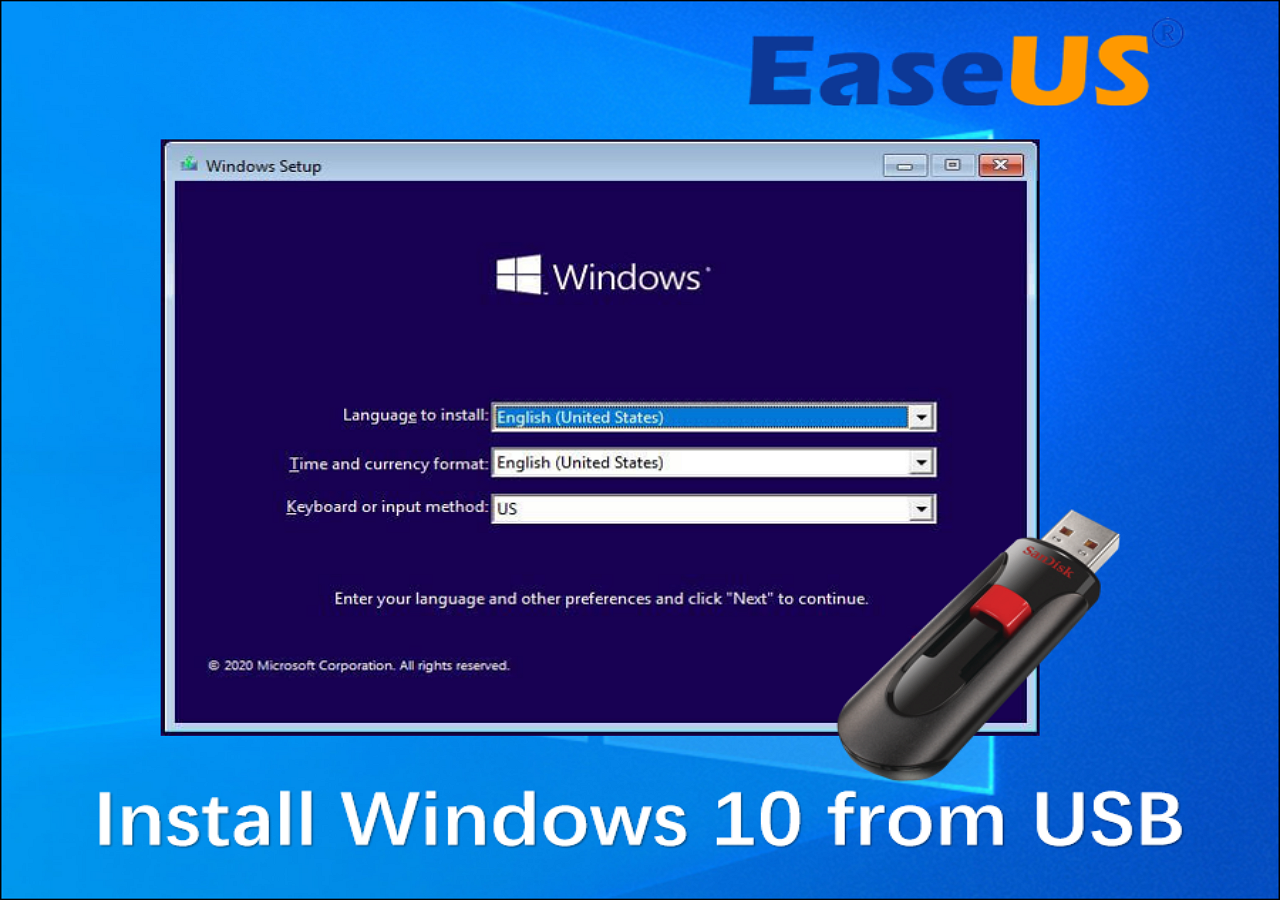
Once the computer boots from the USB drive, you’ll be greeted by the Windows Setup screen.
-
Language, Time, and Keyboard: On the first screen, select your preferred language, time and currency format, and keyboard layout. Click Next.
-
Install Now: Click the “Install now” button to begin the setup process.
-
Activate Windows: If you have a product key, enter it here. If you’re reinstalling Windows 10 on a computer that previously had an activated copy, you can click “I don’t have a product key” and Windows will automatically activate after installation (provided your Microsoft account or hardware ID is linked to a digital license).
-
Choose Operating System: If your ISO contains multiple editions (e.g., Home and Pro), select the one you want to install and click Next.
-
License Terms: Accept the Microsoft Software License Terms and click Next.
-
Type of Installation:
-
Upgrade: Installs Windows and keeps your files, settings, and applications. This is typically only available if you boot from within a running Windows environment.
-
Custom: Performs a clean installation, which is generally recommended for a fresh start or when installing on a new drive. Select “Custom: Install Windows only (advanced).”
-
Partitioning and Drive Selection
This is a critical step, especially during a clean installation.
-
Where do you want to install Windows? This screen shows all available drives and partitions.
-
For a new drive or clean install: You’ll likely see unallocated space. Select it and click “New” to create partitions. You can choose to create a single large partition or divide it into multiple (e.g., one for OS, one for data). Windows will typically create necessary system partitions automatically.
-
For reinstalling on an existing drive: You can select an existing “Primary” partition (where Windows was previously installed) and click “Format” to wipe it clean before installation, or “Delete” to remove it and then create a new one. Be extremely careful not to delete partitions containing data you want to keep.
-
Once you’ve selected or created the desired partition, click Next.
Completing the Installation and Initial Setup
Windows will now begin copying files and installing features. This process involves several restarts. Allow the computer to restart automatically; do not remove the USB drive until the initial setup screens appear.
-
Out-of-Box Experience (OOBE): After the final restart, you’ll go through the OOBE, where you’ll configure region, keyboard layout, connect to a network, sign in with or create a Microsoft account, set up privacy settings, and choose your preferences.
-
Desktop: Once the OOBE is complete, you’ll arrive at the Windows 10 desktop, signifying a successful installation. At this point, you can safely remove the USB drive.
Post-Installation Considerations and Best Practices
Installing Windows 10 from a flash drive is only the first step. To ensure a stable, secure, and fully functional system, several crucial post-installation tasks and best practices should be addressed immediately. These steps optimize performance, enhance security, and prepare your system for long-term use.
Driver Installation and Updates
While Windows 10 includes a broad range of generic drivers, relying solely on them can lead to suboptimal performance and missing functionality, particularly for specialized hardware.
-
Chipset Drivers: Start by installing the latest chipset drivers from your motherboard manufacturer’s website. These are foundational for system stability and communication between components.
-
Graphics Drivers: Download and install the latest drivers for your graphics card (NVIDIA, AMD, or Intel). This is vital for display performance, gaming, and video editing.
-
Network Drivers: If your internet connection isn’t working immediately, you may need to use another device to download the LAN or Wi-Fi drivers from your motherboard or network card manufacturer and transfer them via another USB drive.
-
Other Peripherals: Install drivers for any other specialized hardware like sound cards, printers, scanners, or unique input devices.
-
Device Manager Check: After installing drivers, open Device Manager (Right-click Start -> Device Manager) and check for any devices with yellow exclamation marks, indicating missing or problematic drivers.
Windows Updates and Security
Keeping Windows 10 up-to-date is paramount for security and stability. New installations often start with an older build.
-
Run Windows Update: Go to
Settings > Update & Security > Windows Updateand click “Check for updates.” Download and install all available updates, including cumulative updates, feature updates, and security patches. This process might require several restarts. -
Antivirus Software: While Windows Defender provides robust built-in protection, ensure it’s active and receiving definitions updates. If you prefer a third-party antivirus, install it now.
-
Firewall: Verify that Windows Firewall is enabled and properly configured.
Activating Windows 10
Activating Windows 10 ensures you have a genuine copy and full access to all features.
-
Digital License: If your previous Windows 10 installation was activated and linked to your Microsoft account, or if you’re reinstalling on the same hardware, Windows should automatically activate once connected to the internet.
-
Product Key: If prompted, enter your 25-character product key. This can be found on a sticker on your PC, in an email receipt, or within your Microsoft account.
-
Check Activation Status: You can verify activation by going to
Settings > Update & Security > Activation.
Backup and Recovery Strategies
A fresh installation is the perfect time to establish a robust backup strategy.
-
System Restore Points: Ensure System Protection is enabled (
System Properties > System Protection tab) to allow Windows to create restore points. These can be invaluable for rolling back changes if a future update or software installation causes issues. -
File History: Configure File History (
Settings > Update & Security > Backup) to regularly back up your personal files to an external drive or network location. -
System Image Backup: Consider creating a full system image backup using Windows’ built-in tools or a third-party solution. This allows you to restore your entire operating system, applications, and data to a previous state if your main drive fails or becomes corrupted.
-
Cloud Sync: Utilize cloud storage services (OneDrive, Dropbox, Google Drive) to sync important documents and files, providing an off-site backup.
By diligently following these post-installation steps, you transform a bare Windows 10 installation into a resilient, high-performing, and secure computing environment, ready to tackle any task. The bootable USB drive you created remains a valuable asset, ready for future recovery needs or installations.
aViewFromTheCave is a participant in the Amazon Services LLC Associates Program, an affiliate advertising program designed to provide a means for sites to earn advertising fees by advertising and linking to Amazon.com. Amazon, the Amazon logo, AmazonSupply, and the AmazonSupply logo are trademarks of Amazon.com, Inc. or its affiliates. As an Amazon Associate we earn affiliate commissions from qualifying purchases.