
In the ever-evolving landscape of technology, the ability to experiment with different operating systems without committing to a full system overhaul is an invaluable asset. Virtualization stands as a cornerstone of modern computing, offering a sandbox environment where innovation and learning can flourish. Among the myriad virtualization solutions, Oracle VM VirtualBox has carved out a niche as a free, open-source, and remarkably robust platform for creating and managing virtual machines. Pairing this with Ubuntu, one of the most popular and user-friendly Linux distributions, opens up a world of possibilities for developers, IT professionals, students, and curious enthusiasts alike. This comprehensive guide will walk you through the process of installing Ubuntu within VirtualBox, transforming your host machine into a versatile hub capable of running multiple operating systems simultaneously and seamlessly.
The allure of running Ubuntu within VirtualBox extends beyond mere curiosity. It offers a secure, isolated environment for testing new software, developing applications, or simply familiarizing oneself with the Linux ecosystem without risking the integrity of their primary operating system. Whether you’re looking to explore open-source alternatives, set up a development server, or practice system administration tasks, mastering the art of installing Ubuntu in VirtualBox is a fundamental skill that significantly broadens your technological horizons. This tutorial aims to demystify the process, providing clear, actionable steps that empower you to harness the synergistic power of these two remarkable technologies.
The Synergistic Power of Virtualization: Why Ubuntu on VirtualBox?
The decision to combine Ubuntu with VirtualBox is not arbitrary; it’s a strategic choice driven by a confluence of technical advantages and practical benefits. Understanding the underlying principles of virtualization and the specific strengths of both VirtualBox and Ubuntu illuminates why this pairing is so exceptionally effective for a wide range of computing tasks.
Understanding Virtualization and VirtualBox
At its core, virtualization is the process of creating a software-based, or “virtual,” version of something, whether it’s computing hardware, an operating system, a storage device, or network resources. In the context of this guide, we’re focused on hardware virtualization, where a software layer — the hypervisor — creates and manages virtual machines (VMs) that behave like independent physical computers. Each VM runs its own operating system, known as the “guest OS,” completely isolated from the “host OS” running on the actual hardware.
VirtualBox, developed by Oracle, serves as a Type 2 hypervisor. This means it runs on top of an existing operating system (like Windows, macOS, or Linux) rather than directly on the hardware (Type 1). Its popularity stems from several key attributes: it’s free, open-source, constantly updated, and supports a vast array of guest operating systems. For beginners and seasoned professionals alike, VirtualBox provides an accessible gateway into the world of virtualization, offering a graphical user interface that simplifies complex operations. It allows users to create multiple virtual machines, each with its own allocated resources like CPU cores, RAM, and storage, effectively turning one physical machine into many virtual ones. This capability is invaluable for software testing, application development, and learning new operating systems without altering the host system’s configuration.
Why Ubuntu? A Versatile Linux Distribution
Ubuntu, developed by Canonical, is arguably the most widely recognized and user-friendly Linux distribution available today. Built on the Debian architecture, it offers a robust, secure, and open-source operating system that rivals proprietary alternatives in functionality and stability. Ubuntu’s appeal lies in its commitment to user experience, providing a polished graphical desktop environment (Gnome being the default for its main desktop edition) that is intuitive for those transitioning from Windows or macOS.
Beyond its user-friendliness, Ubuntu boasts an expansive software repository, ensuring that virtually any application or tool a user might need is readily available. It’s a favorite among developers for its strong community support, comprehensive documentation, and a wide array of development tools pre-packaged or easily installable. For system administrators, Ubuntu Server provides a lean, powerful platform for hosting websites, databases, and various network services. Its regular release cycle, including Long Term Support (LTS) versions, guarantees stability and extended security updates, making it a reliable choice for long-term projects and production environments.
Key Benefits of Running Ubuntu in VirtualBox
The combination of Ubuntu and VirtualBox unlocks a plethora of benefits:
-
Isolation and Safety: Experiment with new software, configurations, or even potentially malicious files in an isolated environment without affecting your host system. If something goes wrong, you can simply delete the VM and start fresh.
-
Cost-Effectiveness: Both VirtualBox and Ubuntu are free, eliminating the need for costly software licenses to explore new operating systems.
-
Flexibility and Portability: Virtual machines can be easily backed up, cloned, or moved between different host machines, offering unparalleled flexibility in managing your computing environments.
-
Resource Management: Dynamically allocate CPU, RAM, and storage to your VMs based on your current needs, optimizing your host system’s performance.
-
Learning and Development: Provides an ideal sandbox for learning Linux commands, practicing system administration, or developing and testing applications across different operating systems.
-
Cross-Platform Compatibility: Run Windows applications on Ubuntu, or vice versa, by having both operating systems readily available on the same physical hardware.
Essential Preparations: Setting the Stage for a Smooth Installation
Before embarking on the installation journey, a few critical preparatory steps are necessary. These steps ensure that you have all the required components and that your host system is configured optimally for running virtual machines. Skipping these preparations can lead to frustration and unnecessary troubleshooting down the line.
Gathering Necessary Components: VirtualBox, Ubuntu ISO, and System Requirements
To install Ubuntu in VirtualBox, you’ll primarily need two things:
-
VirtualBox Software: The virtualization platform itself. Ensure you download the correct version for your host operating system (Windows, macOS, or Linux).
-
Ubuntu ISO Image: This is the installation file for the Ubuntu operating system. Think of it as the virtual DVD from which your virtual machine will “boot” to install Ubuntu.
Beyond these software components, it’s crucial to consider your host system’s hardware capabilities. While VirtualBox and Ubuntu are relatively light, running a virtual machine does consume resources.
-
RAM: A minimum of 4GB of RAM on your host system is recommended, with 8GB or more being ideal, especially if you plan to allocate 2GB or more to your Ubuntu VM.
-
CPU: A modern multi-core processor is beneficial. Ensure that hardware virtualization features (like Intel VT-x or AMD-V) are enabled in your computer’s BIOS/UEFI settings. This is often a critical step for good VM performance.
-
Disk Space: You’ll need sufficient free disk space on your host machine – at least 20-30GB for the Ubuntu installation file and the virtual disk, plus extra for any applications you plan to install within Ubuntu.
Configuring Your Host System for Optimal Performance
Enabling hardware virtualization in your computer’s BIOS/UEFI is paramount. This feature allows the hypervisor (VirtualBox) to directly access hardware virtualization capabilities of your CPU, significantly improving the performance of your guest operating systems. The exact steps to enable this vary depending on your computer’s manufacturer and motherboard model, but it typically involves:
-
Restarting your computer.
-
Pressing a specific key (e.g., F2, F10, Del, Esc) repeatedly during startup to enter the BIOS/UEFI setup.
-
Navigating to a section usually labeled “CPU Configuration,” “Virtualization Technology,” “Processor,” or similar.
-
Finding and enabling “Intel VT-x,” “AMD-V,” “Virtualization Technology,” or “SVM Mode.”
-
Saving the changes and exiting the BIOS/UEFI.
Without this enabled, VirtualBox might either refuse to run 64-bit guest operating systems or run them with severely degraded performance.
Downloading VirtualBox and the Ubuntu ISO Image
The first step is to acquire the necessary installation files.
-
Download VirtualBox: Visit the official VirtualBox website (virtualbox.org) and navigate to the Downloads section. Select the appropriate “Platform packages” for your host operating system (e.g., Windows hosts, macOS hosts, Linux distributions). Download the installer and run it, following the on-screen prompts to complete the installation. You might also need to download the “VirtualBox Extension Pack” from the same page, which provides additional features like USB 2.0/3.0 support and remote desktop access.
-
Download Ubuntu ISO: Head over to the official Ubuntu website (ubuntu.com) and go to the “Download” section. For most users, downloading the latest “Ubuntu Desktop” LTS (Long Term Support) version is recommended due to its stability and extended support period. The download will be a large ISO file (typically 3-5 GB), so ensure you have a stable internet connection.
Once both files are downloaded, you are ready to proceed with the virtual machine creation and Ubuntu installation.
Step-by-Step Installation: Bringing Ubuntu to Life in Your Virtual Environment
With VirtualBox installed and the Ubuntu ISO downloaded, the core process of setting up your virtual Ubuntu environment can begin. This section guides you through creating the virtual machine, configuring its resources, and performing the Ubuntu installation.
Creating a New Virtual Machine in VirtualBox
-
Launch VirtualBox: Open the VirtualBox application. You’ll see the VirtualBox Manager window.
-
Click “New”: In the VirtualBox Manager toolbar, click the “New” button (usually a blue star icon) to start the “Create Virtual Machine” wizard.
-
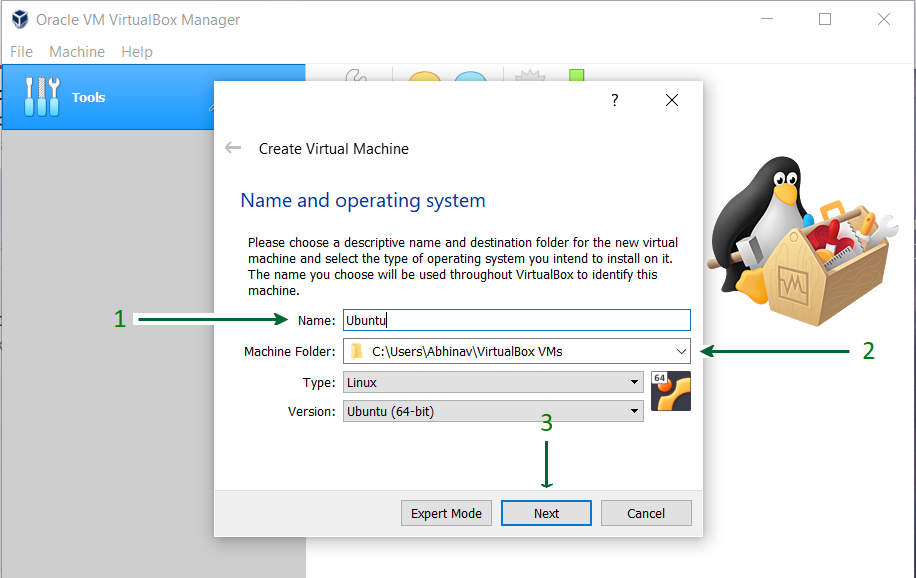
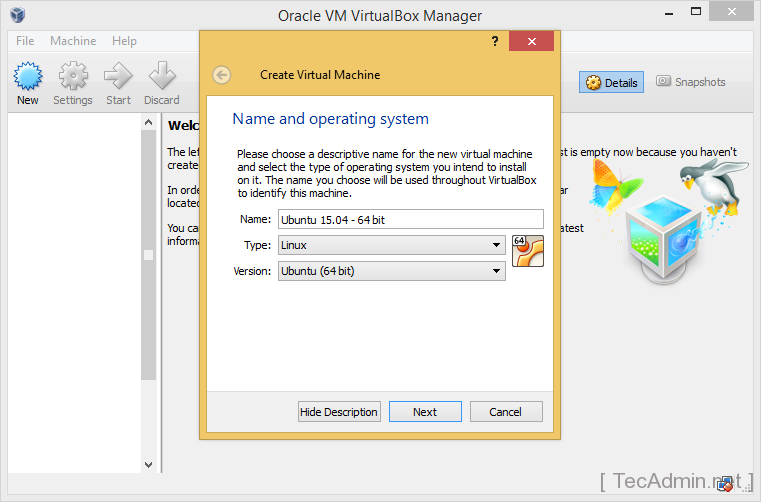
Name and OS Type:
-
Name: Give your virtual machine a descriptive name, like “Ubuntu 22.04 LTS” or “MyUbuntuVM.”
-
Machine Folder: Choose a location on your hard drive where the VM files will be stored. Make sure it has enough free space.
-
Type: Select “Linux.”
-
Version: Select “Ubuntu (64-bit)” (or 32-bit if you specifically downloaded a 32-bit ISO and your system supports it). VirtualBox is usually smart enough to pre-fill these if you name the VM “Ubuntu.”
-
Click “Next.”
-
Allocating Resources: RAM, CPU, and Virtual Disk Space
This is a critical step where you define the virtual hardware for your Ubuntu VM.
-
Memory Size (RAM): Allocate an appropriate amount of RAM. For Ubuntu Desktop, a minimum of 2048 MB (2 GB) is recommended for smooth operation. If your host system has 8 GB or more, you can comfortably allocate 4096 MB (4 GB) for a better experience. Do not allocate more than half of your host system’s RAM to avoid slowing down your host. Click “Next.”
-
Hard Disk:
-
Select “Create a virtual hard disk now.”
-
Click “Create.”
-
Hard Disk File Type: Choose “VDI (VirtualBox Disk Image)” which is the default and recommended for VirtualBox. Click “Next.”
-
Storage on physical hard disk: Select “Dynamically allocated.” This means the virtual disk file will only grow as you use space inside the VM, rather than immediately taking up all the allocated space. This saves host disk space. Click “Next.”
-
File location and size: Specify the maximum size for your virtual hard disk. For Ubuntu, a minimum of 25 GB is recommended. For practical use, 30-50 GB is safer. Choose a location for the
.vdifile, or accept the default. Click “Create.”
-

Your new virtual machine will now appear in the left panel of the VirtualBox Manager.
Mounting the Ubuntu ISO and Initiating Installation
Now, you need to tell your virtual machine to boot from the Ubuntu ISO file you downloaded.
-
Select VM: In the VirtualBox Manager, select your newly created Ubuntu VM.
-
Click “Settings”: Click the “Settings” button in the toolbar.
-
Go to “Storage”: In the settings window, click on “Storage” in the left-hand menu.
-
Empty CD/DVD Drive: Under the “Storage Devices” section, click on the “Empty” CD/DVD icon (under “Controller: IDE”).
-
Choose Disk Image: On the right-hand side, click the small CD icon next to “Optical Drive” and select “Choose/Create a Virtual Optical Disk…” Navigate to where you saved the Ubuntu ISO file, select it, and click “Open.”
-
Confirm: Click “OK” to close the Settings window.
-
Start VM: Back in the VirtualBox Manager, select your Ubuntu VM and click the green “Start” button.
The VM will now power on and attempt to boot from the Ubuntu ISO, initiating the installation process.
Navigating the Ubuntu Installation Wizard
Once the VM starts, you’ll see the Ubuntu boot menu.
-
“Try or Install Ubuntu”: Select “Try or Install Ubuntu” (usually the default) and press Enter. This will boot you into a live session of Ubuntu.
-
Welcome Screen: After a minute or two, the Ubuntu desktop will appear, along with a “Welcome” dialog.
-
Language and Install Ubuntu: Select your preferred language on the left, then click the “Install Ubuntu” button.
-
Keyboard Layout: Choose your keyboard layout. You can use the “Detect Keyboard Layout” feature or manually select it. Click “Continue.”
-
Updates and Other Software:
-
For a standard installation, keep “Normal installation” selected.
-
You can choose to “Download updates while installing Ubuntu” (requires internet connection) and “Install third-party software for graphics and Wi-Fi hardware and additional media formats.” It’s generally recommended to check these boxes for a complete experience, but it will prolong the installation time. Click “Continue.”
-
-
Installation Type: This is important. Since you’re installing in a virtual machine, you will not harm your host system.
-
Select “Erase disk and install Ubuntu.” This option refers to erasing the virtual disk you created, not your physical host disk.
-
Click “Install Now.”
-
A warning will appear about writing changes to disk. Confirm by clicking “Continue.”
-
-
Where Are You? (Time Zone): Click on your location on the map, or type it in. Click “Continue.”
-
Who Are You? (User Setup): Enter your name, choose a username, and set a strong password. You can also choose whether to “Require my password to log in” or “Log in automatically.” Click “Continue.”
The installation process will now begin, copying files and configuring the system. This can take anywhere from 15 to 45 minutes, depending on your host system’s performance and internet speed (if you chose to download updates).
First Boot and Post-Installation Checks
-
Installation Complete: Once the installation finishes, a dialog box will appear stating “Installation Complete.” Click “Restart Now.”
-
Remove Installation Medium: When prompted, “Please remove the installation medium, then press ENTER,” simply press Enter. VirtualBox should automatically eject the virtual ISO. If not, go to
Devices > Optical Drivesand uncheck the Ubuntu ISO. -
First Boot: Your Ubuntu VM will now reboot, and you should be greeted by the Ubuntu login screen (if you chose to require a password) or the desktop directly.
-
Initial Checks:
-
Verify internet connectivity by opening a web browser.
-
Check display resolution. It might be low initially; this will be addressed with Guest Additions.
-
Ensure sound is working (optional, if your host has sound output).
-
Congratulations! You have successfully installed Ubuntu in VirtualBox.
Enhancing Your Virtual Experience: Post-Installation Optimizations
While Ubuntu is now running, there are a few crucial steps to take to ensure a seamless and optimized experience within VirtualBox. These include installing VirtualBox Guest Additions and performing initial system updates.
Installing VirtualBox Guest Additions for Seamless Integration
VirtualBox Guest Additions are a set of device drivers and system applications that improve the performance and usability of guest operating systems. They enable features like:
-
Better Video Support: Higher resolutions, proper aspect ratios, and improved graphics performance.
-
Mouse Pointer Integration: Seamlessly move your mouse pointer between the host and guest without needing to capture/release it.
-
Shared Clipboard: Copy and paste text between your host and guest OS.
-
Drag’n’Drop: Drag files between host and guest.
-
Shared Folders: Easily share files between your host and guest.
-
Time Synchronization: Keep the guest OS’s clock synchronized with the host.
To install them:
-
Start Ubuntu VM: Ensure your Ubuntu VM is running.
-
Insert Guest Additions CD Image: In the VirtualBox VM window menu bar, go to
Devices > Insert Guest Additions CD image... -
Run Installer: A prompt should appear in Ubuntu asking to run the software on the virtual CD. Click “Run” or “OK” and enter your password if prompted.
- If no prompt appears, open the file manager in Ubuntu, navigate to the CD drive (usually labeled “VBoxGAs…”), and double-click
autorun.shor run it from the terminal usingsudo sh /media/your-username/VBox_GAs_*/VBoxLinuxAdditions.run.
- If no prompt appears, open the file manager in Ubuntu, navigate to the CD drive (usually labeled “VBoxGAs…”), and double-click
-
Reboot: After the installation completes (it might involve a terminal window showing progress), reboot your Ubuntu VM for the changes to take effect.
Once rebooted, you should immediately notice improvements in display resolution, mouse integration, and potentially snappier performance.
Updating Ubuntu and Installing Essential Software
After installation and Guest Additions, it’s good practice to update your system and install any necessary software.
-
Update System: Open the terminal (Ctrl+Alt+T) in Ubuntu and run:
sudo apt update

sudo apt upgrade
Enter your password when prompted. This fetches the latest package lists and upgrades all installed packages to their newest versions.
-
Install Common Tools (Optional but Recommended): You might want to install
build-essentialif you plan on compiling software,gitfor version control, orhtopfor a better system monitor.sudo apt install build-essential git htop -
Explore the Software Center: Ubuntu’s “Software” application (found in the applications menu) is an intuitive way to browse and install a vast array of applications, from web browsers to productivity suites and development tools.
Configuring Shared Folders and Clipboard Functionality
With Guest Additions installed, you can now set up shared folders and clipboard functionality for seamless interaction.
-
Shared Clipboard and Drag’n’Drop: In the VirtualBox VM window menu, go to
Devices > Shared Clipboardand select “Bidirectional.” Do the same forDevices > Drag'n'Drop. This allows you to copy/paste text and drag files between your host and guest. -
Shared Folders: To share entire folders:
-
In the VirtualBox VM window menu, go to
Devices > Shared Folders > Shared Folders Settings... -
Click the “Adds new shared folder” icon (green plus sign).
-
Folder Path: Choose the path on your host machine that you want to share.
-
Folder Name: Give it a name (e.g., “shared_docs”).
-
Check “Auto-mount” and “Make Permanent.” “Read-only” is optional.
-
Click “OK.”
-
For the shared folder to be accessible by your user in Ubuntu, you might need to add your user to the
vboxsfgroup. Open a terminal in Ubuntu and run:sudo adduser $USER vboxsfThen, reboot the Ubuntu VM.
-
The shared folder will typically appear in your home directory or
/media/sf_<folder_name>.
-
Troubleshooting Common Issues and Maximizing Your Virtual Workspace
Even with careful preparation, you might encounter minor hurdles. Understanding common issues and best practices can help you maintain a smooth virtual environment.
Addressing Performance Lags and Display Problems
-
Slow Performance:
-
CPU Allocation: In VM
Settings > System > Processor, ensure you’ve allocated at least 2 CPU cores if your host has them. -
RAM: Increase RAM in
Settings > System > Motherboardif your host has ample unused RAM. -
Hardware Virtualization: Double-check that Intel VT-x/AMD-V is enabled in your host’s BIOS/UEFI.
-
Guest Additions: Confirm Guest Additions are installed and working.
-
Host Resources: Close unnecessary applications on your host machine.
-
-
Low Resolution/Poor Graphics:
-
This is almost always due to missing or improperly installed Guest Additions. Reinstall them and reboot.
-
In VM
Settings > Display > Screen, increase “Video Memory” (e.g., to 128 MB or 256 MB) and enable “3D Acceleration” if available.
-
Understanding Network Configurations in VirtualBox
VirtualBox offers several networking modes for your VMs:
-
NAT (Network Address Translation): (Default) The VM can access the internet, but outside networks cannot easily initiate connections to the VM. Good for general browsing and updates.
-
Bridged Adapter: The VM gets its own IP address on your host’s network, appearing as another device on your physical network. Useful if you want the VM to be directly accessible from other devices on your LAN (e.g., for a web server).
-
Host-only Adapter: Creates a private network between your host and VMs, isolating them from the outside world. Good for local development and testing.
You can change the network mode in VM Settings > Network > Adapter 1.
Best Practices for Managing Virtual Machines
-
Snapshots: Use VirtualBox’s snapshot feature (
Machine > Take Snapshot...) to save the state of your VM at a particular point in time. This is invaluable before making major changes or installing risky software, allowing you to revert if anything goes wrong. -
Regular Backups: Periodically back up your entire VM folder (where the
.vdifile is located). -
Update Regularly: Keep both your host OS, VirtualBox, and your Ubuntu guest OS updated to ensure security and performance.
-
Shut Down Gracefully: Always shut down your Ubuntu VM from within Ubuntu (like a physical machine) rather than just closing the VirtualBox window and selecting “Save the machine state,” unless absolutely necessary. A proper shutdown minimizes the risk of file system corruption.
-
Allocate Wisely: Be mindful of the resources you allocate. Over-allocating RAM or CPU to a VM can degrade the performance of your host machine.
Installing Ubuntu in VirtualBox is a straightforward process that unlocks a powerful and flexible computing environment. By following these steps, you’ve not only set up a new operating system but also gained a valuable skill in managing virtualized environments. This foundation will serve you well, whether you’re exploring the nuances of Linux, developing software, or simply expanding your technological repertoire. Embrace the flexibility and control that virtualization offers, and continue to explore the endless possibilities within your new virtual Ubuntu workspace.
aViewFromTheCave is a participant in the Amazon Services LLC Associates Program, an affiliate advertising program designed to provide a means for sites to earn advertising fees by advertising and linking to Amazon.com. Amazon, the Amazon logo, AmazonSupply, and the AmazonSupply logo are trademarks of Amazon.com, Inc. or its affiliates. As an Amazon Associate we earn affiliate commissions from qualifying purchases.