
Building a personal computer is an immensely rewarding endeavor, offering a deeper understanding of the technology that powers our digital lives and the satisfaction of customizing a machine precisely to your needs. At the very heart of any PC build lies the central processing unit (CPU), often called the “brain” of the computer, and its crucial connection to the motherboard, the system’s nervous system. Installing the processor is a delicate but foundational step, one that demands precision, patience, and a methodical approach. This comprehensive guide will demystify the process, equipping you with the knowledge and confidence to correctly install your CPU, laying a solid groundwork for a stable and high-performance system.
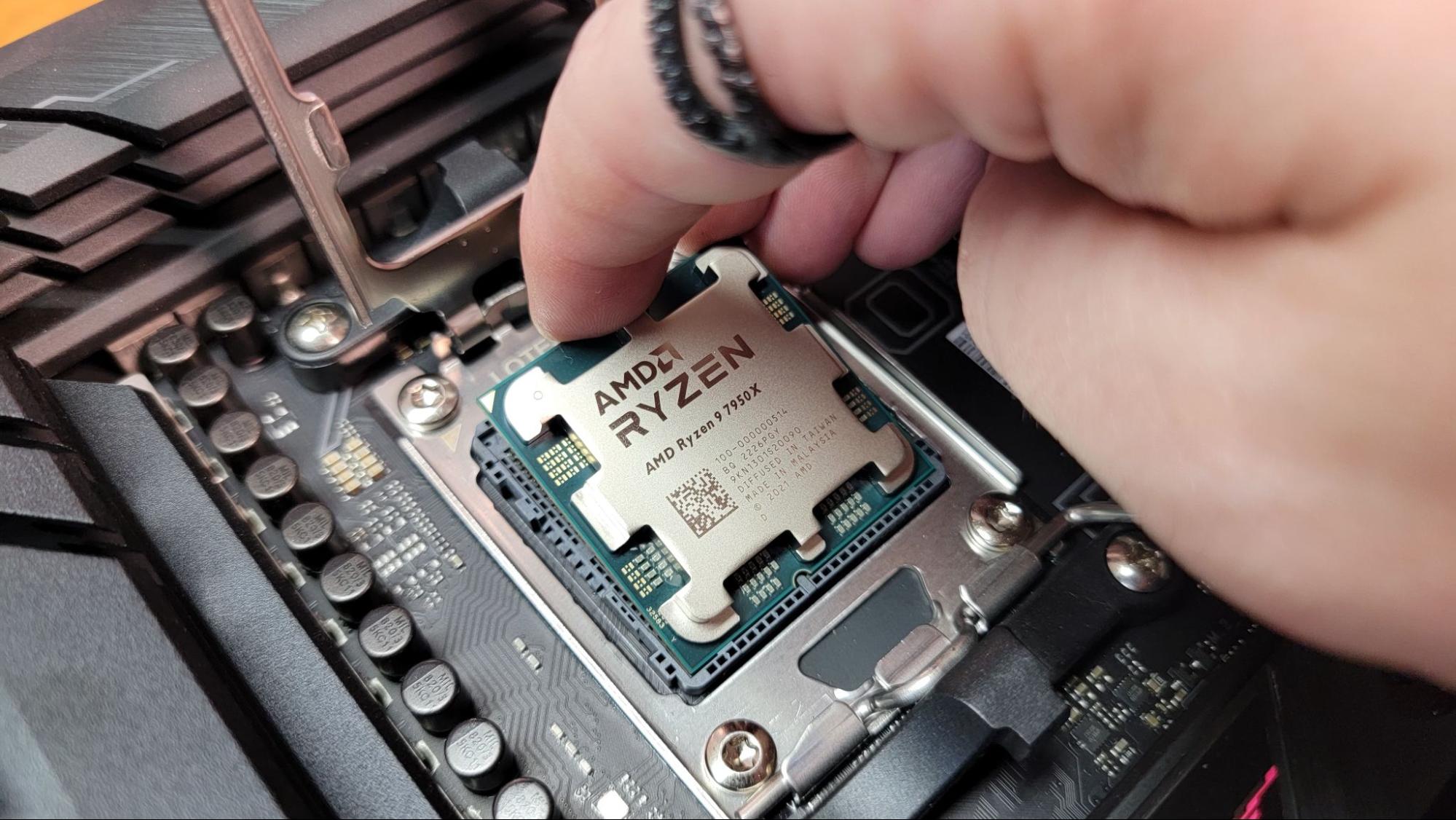
The Critical Role of Your CPU and Motherboard
Before diving into the mechanics of installation, it’s vital to understand the symbiotic relationship between the CPU and the motherboard. Grasping their functions and interdependencies will not only make the installation clearer but also highlight the importance of careful handling.
Decoding the Central Processing Unit (CPU)
The CPU is the primary component that performs most of the processing inside a computer. It executes instructions, performs calculations, and manages the flow of information. From running applications to rendering graphics and browsing the web, virtually every action you take on your computer is orchestrated by the CPU. Its performance, measured in clock speed (GHz) and core count, directly impacts your system’s overall responsiveness and capability to handle complex tasks. There are two main manufacturers, Intel and AMD, each with their own socket types and processor architectures, making compatibility a critical consideration.
The Motherboard as Your System’s Backbone
The motherboard, or mainboard, serves as the central communication hub for all components in your computer. It provides the physical and electrical connections for the CPU, RAM, graphics card, storage devices, and all peripherals. Beyond simply connecting parts, it houses the BIOS/UEFI firmware, which initiates the boot process and manages basic hardware functions. The specific motherboard you choose dictates what CPU, RAM, and expansion cards you can use, as well as the types of ports and connectivity options available.
Compatibility: The Golden Rule
The single most important factor before even purchasing your components is compatibility. A CPU will only fit into a specific type of socket on a motherboard. Intel processors typically use LGA (Land Grid Array) sockets, such as LGA1200 or LGA1700, while AMD processors primarily use PGA (Pin Grid Array) or LGA sockets (like AM4 or AM5). Not only must the socket type match, but the motherboard chipset must also support the specific generation and model of your chosen CPU. Always consult the motherboard manufacturer’s website for their CPU compatibility list (often called a QVL – Qualified Vendor List) to ensure your chosen CPU is fully supported. Installing an incompatible CPU can lead to damage to both the processor and the motherboard.
Essential Preparations Before You Begin
Preparation is key to a smooth and successful CPU installation. Rushing or overlooking critical steps can lead to frustration, potential damage to components, or even necessitate a complete re-installation. Take your time to gather everything you need and set up a safe working environment.
Gathering Your Arsenal: Tools and Workspace
While the CPU installation itself is largely tool-free, having a few items on hand will make the process easier and safer:
-
Phillips Head Screwdriver: Essential for installing the CPU cooler and securing the motherboard.
-
Anti-Static Wrist Strap or Mat: Crucial for preventing electrostatic discharge (ESD) damage.
-
Rubbing Alcohol (99% Isopropyl) and Lint-Free Cloths: For cleaning surfaces or removing old thermal paste.
-
Thermal Paste: If your CPU cooler doesn’t come with pre-applied thermal paste, you’ll need a tube.
-
Your Motherboard Manual: An invaluable resource for specific socket details, cooler installation instructions, and jumper settings.
-
A Clean, Well-Lit, and Spacious Workspace: Minimize clutter and ensure good visibility. A non-carpeted surface is ideal to reduce static electricity.
Safety First: Mitigating Electrostatic Discharge (ESD)
Electrostatic discharge is the silent killer of computer components. A small static shock, imperceptible to humans, can permanently damage sensitive electronics. To prevent ESD:
-
Use an Anti-Static Wrist Strap: Connect one end to your wrist and the other to a grounded metal object, such as an unpainted part of your PC case power supply (ensure the power supply is plugged into a wall outlet but switched off).
-
Work on a Non-Static Surface: Avoid carpeted floors and wear cotton clothing.
-
Ground Yourself Regularly: If you don’t have a wrist strap, frequently touch an unpainted metal part of your PC case before handling components.
-
Handle Components by Edges: Avoid touching pins, connectors, or circuits directly.
Unboxing and Inspection: What to Look For
Carefully unbox your CPU and motherboard.
-
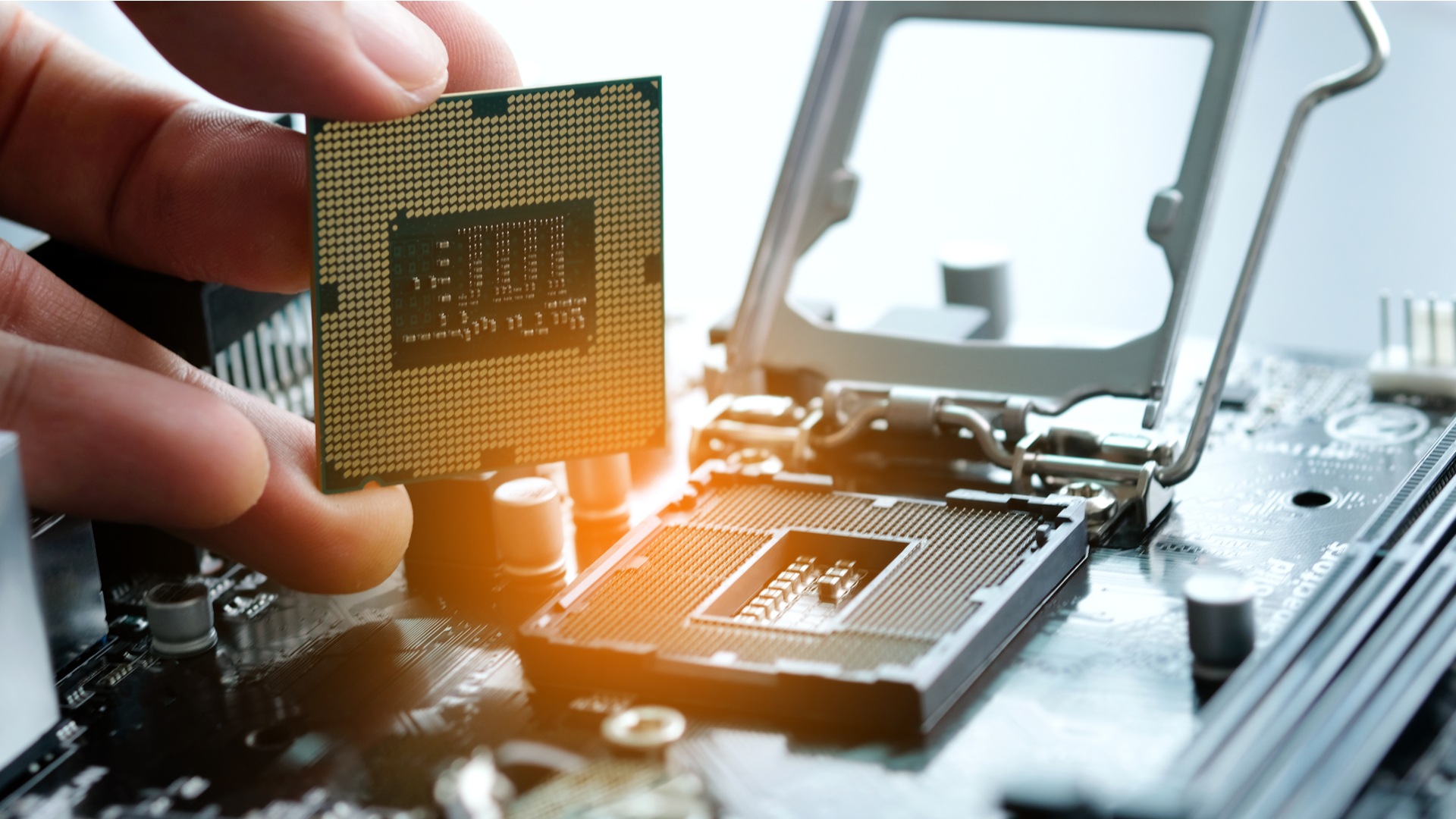
CPU: Inspect the underside of the CPU for any bent pins (PGA sockets, AMD) or debris on the contact pads (LGA sockets, Intel). If you find bent pins, it’s often best to seek professional help or an RMA, as straightening them can be extremely difficult and risky.
-
Motherboard: Check the CPU socket for any bent pins, dust, or foreign objects. The socket mechanism should operate smoothly. Familiarize yourself with the socket lever or latch, as well as any alignment indicators on the socket cover.
A Step-by-Step Guide to CPU Installation
With preparations complete, you’re ready for the main event. Precision and a gentle touch are paramount during this stage. Remember, never force a CPU into its socket. If it doesn’t fit easily, something is wrong.
Preparing the Motherboard Socket
-
Place the Motherboard: Lay your motherboard flat on a clean, anti-static surface or inside your PC case if it’s already mounted (though installing the CPU outside the case is often easier).
-
Open the CPU Socket:
-
Intel LGA Sockets: Locate the metal retention arm on the side of the socket. Push it down and away from the socket to release the load plate. Carefully lift the load plate. You’ll see a plastic cover protecting the pins; this cover will typically eject automatically when you close the load plate with the CPU installed, or you can gently remove it now. Do not touch the gold pins in the socket.
-
AMD AM4/AM5 Sockets: Lift the small metal lever located next to the socket straight up until it is fully open.
-
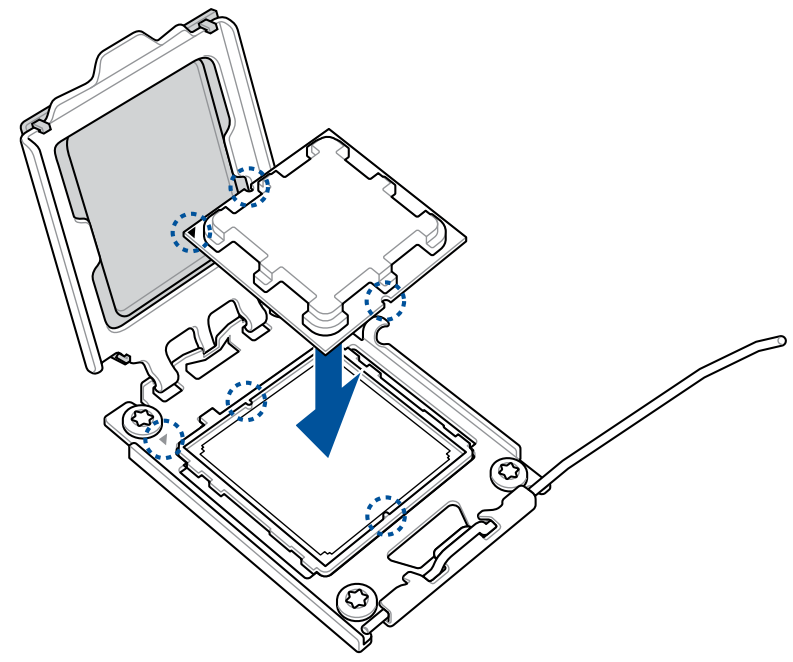
Aligning and Seating the CPU
This is the most critical step. CPUs are designed to fit only one way to prevent incorrect installation.
-
Identify Alignment Indicators:
-
Intel LGA CPUs: Look for a small golden triangle or arrow on one corner of the CPU’s top surface. This must align with a corresponding triangle/arrow on the motherboard socket. There might also be two notches on the sides of the CPU that align with nubs on the socket.
-
AMD PGA CPUs (AM4 and older): Look for a golden triangle or arrow on one corner of the CPU package. This must align with a corresponding triangle/arrow on the motherboard socket.
-
AMD LGA CPUs (AM5): Similar to Intel, align the golden triangle on the CPU with the triangle on the socket.
-
-
Gently Place the CPU: Hold the CPU carefully by its edges. Position it directly over the socket, ensuring the alignment indicators match perfectly.
-
Intel LGA: Lower the CPU straight down into the socket. It should fall into place without any force.
-
AMD PGA: Lower the CPU straight down into the socket. The pins should slide smoothly into the holes. If it doesn’t drop in completely, gently wiggle it a tiny bit, but never apply downward force. If it still doesn’t seat, re-check alignment and for any obstructions or bent pins.
-
Securing the CPU
Once the CPU is perfectly seated:
-
Intel LGA Sockets: Carefully lower the metal load plate back over the CPU. Push the retention arm down and under the small tab until it clicks into place. This will apply pressure and secure the CPU. Don’t be alarmed by the slight resistance; this is normal. The plastic socket cover should pop off as you close the load plate; if not, carefully remove it.
-
AMD AM4/AM5 Sockets: Push the metal lever back down into its closed position. This will lock the CPU into place.
Applying Thermal Paste (If Not Pre-Applied)
Thermal paste is essential for transferring heat efficiently from the CPU’s integrated heat spreader (IHS) to the CPU cooler’s base.
-
Check Your Cooler: Many stock coolers and some aftermarket coolers come with thermal paste pre-applied to their base. If yours does, you can skip this step.
-
Applying New Paste: If not, apply a small, pea-sized dot (or a single line, depending on manufacturer recommendations) of thermal paste directly in the center of the CPU’s IHS. Do not spread it manually; the pressure from the CPU cooler will distribute it evenly. Too much paste is better than too little, but excessive amounts can sometimes cause issues.
Installing the CPU Cooler
The CPU cooler is vital for dissipating the heat generated by the CPU, preventing thermal throttling and damage.
-
Refer to Cooler Manual: CPU coolers vary greatly in their installation methods. Always follow the specific instructions provided with your cooler.
-
Position the Cooler: Align the cooler with the mounting holes around the CPU socket.
-
Stock Coolers (Intel/AMD): Often use push-pins (Intel) or latch mechanisms (AMD) that hook onto plastic tabs.
-
Aftermarket Coolers: Usually involve a backplate that goes behind the motherboard, and then standoffs and screws that secure the cooler from the front.
-
-
Secure the Cooler: Tighten the screws or secure the latches in a diagonal or crisscross pattern to ensure even pressure distribution over the CPU. Tighten until snug, but avoid overtightening, which can damage the motherboard.
-
Connect Fan Header: Plug the CPU cooler’s fan cable into the “CPU_FAN” header on the motherboard. This is crucial for the fan to receive power and for the motherboard to monitor its speed.
Post-Installation Verification and Troubleshooting
Once the physical installation is complete, it’s time to power up and ensure everything is working as expected. This initial boot is often the moment of truth for new builders.
Initial Power-Up and BIOS Check
-
Minimal Setup: For the first boot, connect only the essential components: CPU (with cooler), RAM, graphics card (if your CPU doesn’t have integrated graphics or if you want to use the dedicated card immediately), and the power supply. Connect a monitor, keyboard, and mouse.
-
Power On: With all power cables securely connected, flip the power switch on your PSU, then press the power button on your case.
-
Monitor the Boot: Listen for any POST (Power-On Self-Test) beeps (check your motherboard manual for beep codes, which indicate specific issues). Observe if your monitor receives a signal and displays the motherboard’s logo or BIOS/UEFI setup screen.
-
Enter BIOS/UEFI: Press the designated key (usually DEL, F2, F10, or F12) repeatedly during boot to enter the BIOS/UEFI settings.
-
Verify CPU and Temperatures: In the BIOS, navigate to the system information or hardware monitor section. Confirm that your CPU is recognized correctly (model name, speed) and check the CPU temperature. It should be relatively low at idle (e.g., 25-45°C). If temperatures are alarmingly high (e.g., 60°C+ at idle), immediately power off and recheck your cooler installation and thermal paste application.
Common Installation Pitfalls and Solutions
-
No Display/No Boot:
-
Check Power Cables: Ensure the 24-pin ATX power connector and the 4/8-pin CPU power connector are firmly seated.
-
RAM: Reseat RAM modules. Try booting with only one stick.
-
Graphics Card: Ensure it’s fully seated in its PCIe slot and has power if required. If your CPU has integrated graphics, try removing the dedicated GPU and connecting your monitor to the motherboard’s video output.
-
CPU Cooler Fan: Make sure the CPU_FAN header is connected. Some motherboards won’t boot if it’s missing.
-
Bent Pins: Double-check the CPU socket for any bent pins if you suspect an issue and nothing else works. This is usually a last resort.
-
-
High CPU Temperatures:
-
Cooler Mounting: The most common cause. Ensure the cooler is firmly and evenly seated, and all screws/latches are properly tightened.
-
Thermal Paste: Verify that thermal paste was applied correctly and isn’t too old or dried out. Reapply if necessary after cleaning.
-
Protective Film: Check if you removed the clear protective film from the base of the CPU cooler before installation. This is a common oversight.
-
-
System Instability/Crashes: While this can be a broad issue, after a new build, it might indicate a slightly loose CPU or cooler, or even a subtle compatibility issue not caught initially. Re-check all connections.
Ensuring Optimal Cooling Performance
Proper cooling is paramount for CPU longevity and performance.
-
Monitor Temperatures: Use software like HWMonitor or Core Temp within your operating system to keep an eye on CPU temperatures during both idle and load conditions.
-
Stress Testing: After installing your operating system, run a CPU stress test (e.g., Prime95, AIDA64) for a short period to confirm temperatures remain within safe limits under heavy load. A general guideline for maximum safe load temperature is often below 85-90°C, though this varies by CPU model.
-
Airflow: Ensure your PC case has good airflow, with intake and exhaust fans properly configured, to aid in overall system cooling.
Advanced Tips for a Seamless PC Build
Beyond the basics, a few extra considerations can elevate your PC building experience, contributing to a cleaner, more efficient, and potentially longer-lasting system.
Cable Management and Airflow
While not directly part of CPU installation, effective cable management significantly impacts airflow and aesthetics. Routing cables neatly behind the motherboard tray allows for unobstructed air pathways, preventing hot spots and contributing to lower overall system temperatures. It also makes future upgrades and maintenance much easier. Take the time to tie back unused cables and route power and data cables along the case’s frame.
BIOS/UEFI Configuration Essentials
Once you’ve confirmed your CPU is working, delve deeper into your motherboard’s BIOS/UEFI settings.
-
Enable XMP/DOCP: If you’re using high-speed RAM, enable the XMP (Intel) or DOCP/EXPO (AMD) profile to ensure your RAM runs at its advertised speed, rather than the default JEDEC speeds.
-
Fan Curves: Adjust fan curves to optimize cooling performance and noise levels. You can set fans to spin faster when temperatures rise and slow down when the system is idle.
-
Boot Order: Set your primary boot device (usually your SSD or HDD containing the OS).
-
Firmware Updates: Check your motherboard manufacturer’s website for the latest BIOS/UEFI firmware updates. These can improve stability, add support for newer hardware, and fix bugs. Be cautious and follow instructions precisely when updating BIOS.
Future-Proofing Your System
Consider future upgradeability when installing your components.
-
Thermal Paste Longevity: High-quality thermal paste can last several years, but eventually, it may dry out. If you notice rising temperatures over time, consider reapplying.
-
Socket Longevity: While the socket itself won’t wear out, the CPU architecture it supports will eventually become outdated. Planning for a generation or two of upgrades within the same socket type can extend the life of your motherboard.
-
Documentation: Keep your motherboard manual, CPU box, and any extra accessories. They might be useful for troubleshooting or future sales.
In conclusion, installing a CPU on a motherboard is a precise task that requires attention to detail rather than brute force. By following these steps, understanding the components, preparing thoroughly, and exercising caution, you can successfully install your processor and take a significant leap forward in building a robust and reliable computer system. The satisfaction of powering on a machine you’ve assembled with your own hands is truly unparalleled, opening up a world of possibilities for gaming, productivity, and creative endeavors.
aViewFromTheCave is a participant in the Amazon Services LLC Associates Program, an affiliate advertising program designed to provide a means for sites to earn advertising fees by advertising and linking to Amazon.com. Amazon, the Amazon logo, AmazonSupply, and the AmazonSupply logo are trademarks of Amazon.com, Inc. or its affiliates. As an Amazon Associate we earn affiliate commissions from qualifying purchases.