
In an era increasingly defined by data, the ability to collect, analyze, and visualize information is no longer a luxury but a fundamental necessity for businesses and individuals alike. Microsoft Power BI stands at the forefront of this data revolution, offering a powerful suite of business intelligence tools that transform raw data into actionable insights. From interactive dashboards to compelling reports, Power BI empowers users to make data-driven decisions with unprecedented clarity and speed.
This comprehensive guide will walk you through the process of installing Power BI, focusing primarily on Power BI Desktop, the free and widely used application where much of the data modeling and report creation takes place. We’ll delve into system requirements, provide a detailed step-by-step installation walkthrough, discuss post-installation procedures, and briefly touch upon other integral components of the Power BI ecosystem. By the end of this article, you’ll be well-equipped to get Power BI up and running on your system, ready to embark on your data analytics journey.
Understanding Power BI and Its Significance
Before diving into the technicalities of installation, it’s crucial to grasp what Power BI is and why it has become an indispensable tool in the modern data landscape. This understanding sets the context for appreciating the power you are about to unleash on your machine.
What is Power BI?
Power BI is a collection of software services, apps, and connectors that work together to turn your unrelated sources of data into coherent, visually immersive, and interactive insights. Your data might be an Excel spreadsheet, a cloud-based database, or a combination of various on-premise and cloud data sources. Power BI lets you easily connect to your data sources, visualize what’s important, and share that with anyone or any device.
At its core, Power BI consists of several key components:
-
Power BI Desktop: A free desktop application for Windows where you connect to data, transform it, create data models, and design reports and dashboards. This is where the majority of development work occurs.
-
Power BI Service (SaaS): A cloud-based service (Software as a Service) where users can publish reports from Power BI Desktop, create dashboards, share content, and collaborate with others.
-
Power BI Mobile Apps: Apps for Windows, iOS, and Android devices that allow users to view reports and dashboards on the go.
-
Power BI Report Server: An on-premise server solution for organizations that need to keep their data and reports entirely within their firewall.
Together, these components form a robust platform that caters to a wide range of business intelligence needs, from individual data exploration to enterprise-wide data distribution and governance.
Why Power BI Matters in Today’s Data Landscape
The explosion of data across every industry has created an urgent need for tools that can effectively process and interpret this information. Power BI addresses this need by offering several compelling advantages:
-
Accessibility and Ease of Use: Power BI Desktop is relatively intuitive, especially for those familiar with other Microsoft products like Excel. Its drag-and-drop interface lowers the barrier to entry for data analysis.
-
Comprehensive Data Connectivity: It can connect to hundreds of data sources, both on-premises and in the cloud, including databases (SQL Server, Oracle), cloud services (Azure, AWS), files (Excel, CSV, JSON), and numerous online services (Salesforce, Google Analytics).
-
Powerful Data Transformation: Power Query, an integral part of Power BI Desktop, allows users to clean, transform, and reshape data with remarkable flexibility, ensuring data quality and readiness for analysis.
-
Rich Visualization Capabilities: Power BI boasts an extensive library of interactive visualizations, from basic bar charts to complex geographical maps and custom visuals, enabling users to tell compelling data stories.
-
Interactive Dashboards and Reports: It allows for the creation of dynamic, interactive dashboards and reports that can be drilled down, filtered, and cross-highlighted, providing deeper insights.
-
Scalability and Collaboration: Reports and dashboards can be published to the Power BI Service, facilitating secure sharing, collaboration, and distribution of insights across an organization.
-
Cost-Effectiveness: Power BI Desktop is free, making it an excellent starting point for individuals and small businesses. The cloud service offers various pricing tiers, including a free tier for individual use and Pro/Premium options for advanced features and larger deployments.
In essence, Power BI empowers users to transition from reactive data consumption to proactive data exploration, fostering a culture of informed decision-making across all levels of an organization.
Preparing for Installation: System Requirements and Prerequisites
Before you download and run the installer for Power BI Desktop, it’s essential to ensure your system meets the necessary requirements. This pre-installation check can save you from potential headaches and ensure a smooth setup process.
Minimum Hardware Specifications
While Power BI Desktop is designed to be accessible, performance can significantly vary depending on your hardware. For optimal experience, aim to exceed the minimums.
-
Operating System: Windows 10, Windows 11, Windows Server 2016, Windows Server 2019, or Windows Server 2022. (Note: Power BI Desktop is not available for macOS or Linux, though Mac users can run it via a virtual machine or Boot Camp).
-
Processor: 1.6 GHz or faster (x64 processor required). A multi-core processor is highly recommended for better performance, especially with larger datasets.
-
RAM: Minimum 2 GB, but 4 GB or more is strongly recommended. For serious data modeling and analysis of large datasets, 8 GB or 16 GB of RAM will provide a far superior experience.
-
Hard Disk Space: At least 1.2 GB of available space for the installation. More space will be needed for storing data files and reports. An SSD (Solid State Drive) is recommended over an HDD (Hard Disk Drive) for faster load times and overall responsiveness.
-
Display: A monitor resolution of at least 1440×900 or 1600×900 (16:9) is recommended. Lower resolutions may encounter issues with layout and visibility.
Operating System Compatibility
As mentioned, Power BI Desktop is exclusively a Windows application. Ensure your Windows installation is up to date, as updates often include critical security patches and performance improvements that Power BI can leverage. Running an unsupported or outdated version of Windows may lead to installation failures or functional issues.
Network and Security Considerations
-
Internet Connection: An internet connection is required for downloading the installer, signing in to the Power BI Service, accessing online data sources, and receiving updates. While Power BI Desktop can function offline for report creation, connectivity is essential for its broader ecosystem.
-
Firewall and Proxy Settings: If you are in a corporate environment, your network’s firewall or proxy server might block access to Power BI services. You may need to consult with your IT department to ensure the necessary URLs and ports are whitelisted. Specifically,
*.powerbi.com,*.powerapps.com, andlogin.microsoftonline.comare common endpoints. -
Admin Rights: You will generally need administrative privileges on your computer to install software. If you don’t have these rights, you’ll need to contact your IT administrator to perform the installation.
Taking a few moments to confirm these prerequisites will ensure your installation proceeds smoothly and your Power BI Desktop experience is optimized from the start.
Step-by-Step Guide to Installing Power BI Desktop
With your system prepped and ready, it’s time to proceed with the actual installation of Power BI Desktop. The process is straightforward and typically takes only a few minutes.
Downloading the Power BI Desktop Installer
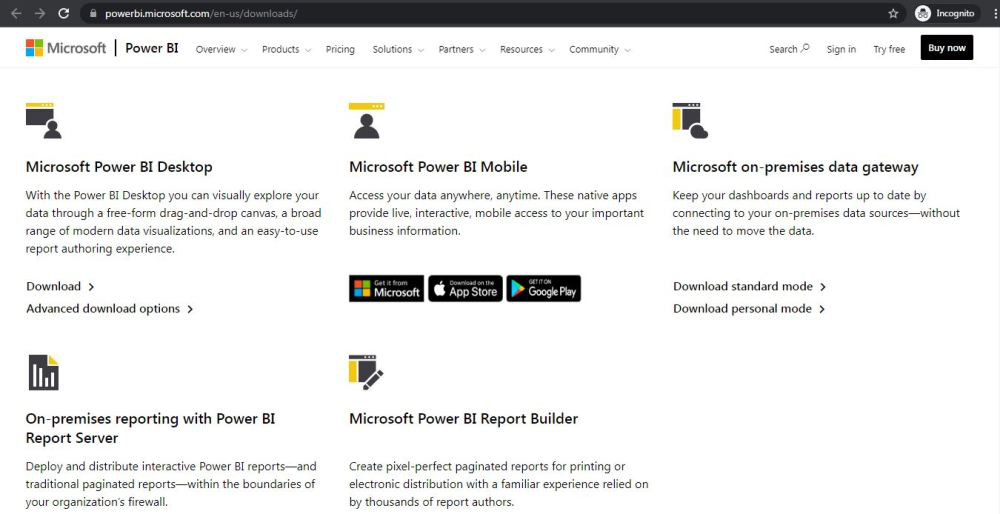
There are two primary ways to download Power BI Desktop:
-
Direct Download from Microsoft Website:
-
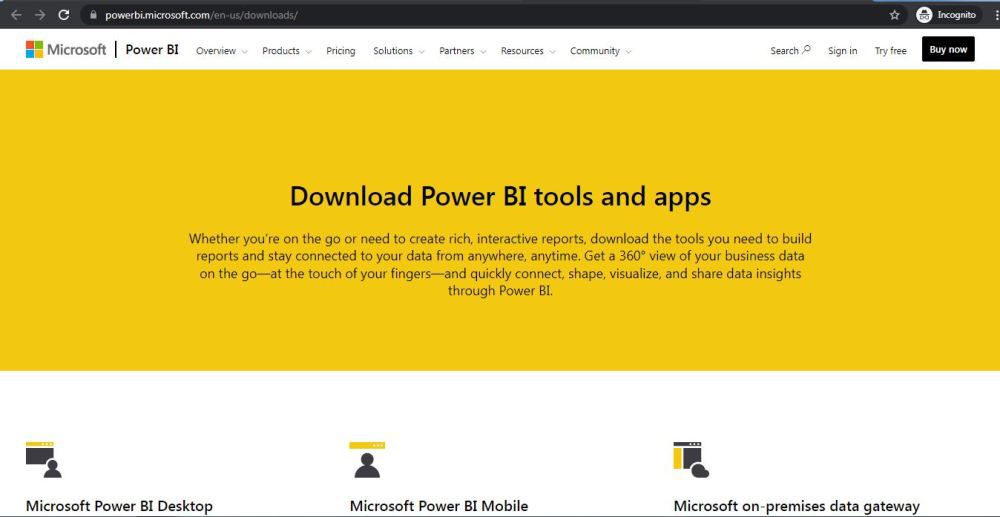
Open your web browser and navigate to the official Microsoft Power BI website. A common URL is
powerbi.microsoft.com/desktop. -
Look for a prominent “Download Free” button or a link that leads to the download page.
-
On the download page, you might see an option to choose your language. Select your preferred language.
-
Click “Download.” You’ll typically be presented with two files:
PBIDesktopSetup.exe(32-bit) andPBIDesktopSetup_x64.exe(64-bit). For modern systems, choose thex64version, as most current Windows installations are 64-bit. If you are unsure, you can check your system type in Windows Settings (System > About). -
Save the installer file to a location on your computer, such as your Downloads folder.
-
-
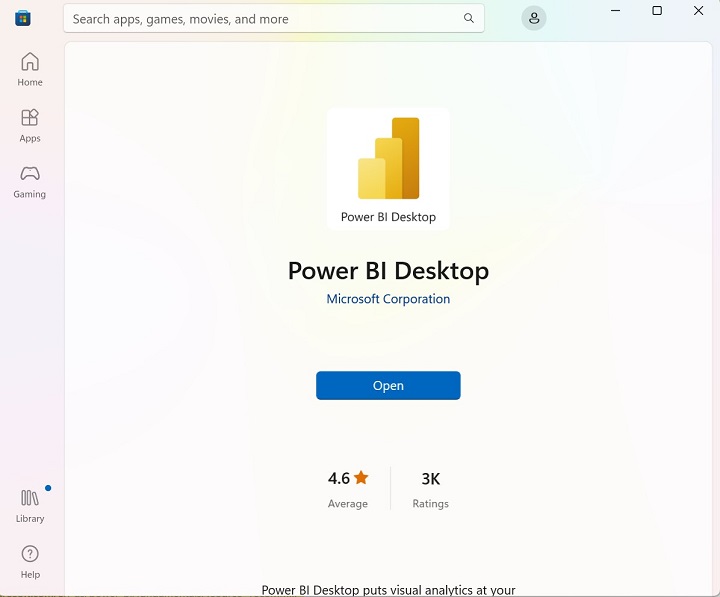
Microsoft Store (Recommended):
-
Open the Microsoft Store application on your Windows machine (search for “Microsoft Store” in the Start Menu).
-
In the search bar at the top right, type “Power BI Desktop” and press Enter.
-
Select the “Microsoft Power BI Desktop” application from the search results. Ensure it’s published by Microsoft Corporation.
-
Click the “Get” or “Install” button.
-
Why the Microsoft Store is often preferred: Installing via the Microsoft Store offers several advantages. It automatically handles updates in the background, ensuring you always have the latest version. It also simplifies the installation process and often requires fewer permissions.
Running the Installation Wizard
Once the installer file is downloaded (if using the direct download method), follow these steps:
-
Locate the Installer: Navigate to the folder where you saved the
PBIDesktopSetup_x64.exefile. -
Launch the Installer: Double-click the installer file. If prompted by User Account Control (UAC), click “Yes” to allow the app to make changes to your device.
-
Language Selection: The Power BI Desktop Setup Wizard will open. The first screen typically asks you to choose the installation language. Select your desired language and click “Next.”
-
Welcome Screen: You’ll see a welcome message for the Microsoft Power BI Desktop Setup Wizard. Click “Next” to continue.
-
License Agreement: Carefully read the Microsoft Software License Terms. To proceed with the installation, you must accept these terms. Check the box “I accept the terms in the License Agreement” and click “Next.”
-
Destination Folder: The wizard will suggest a default installation location (e.g.,
C:Program FilesMicrosoft Power BI Desktop). While you can click “Change…” to select a different folder, the default location is usually sufficient and recommended unless you have specific reasons to change it. Click “Next.” -
Ready to Install: The wizard is now ready to begin the installation. Click “Install.”
Completing the Setup Process
The installation process will now begin, showing a progress bar. This may take a few minutes depending on your system’s speed.
-
Installation Progress: Wait for the installation to complete. You’ll see various files being copied and configurations being set up.
-
Completion: Once the installation is finished, you’ll see a screen indicating that “Microsoft Power BI Desktop has been successfully installed.”
-
Launch Power BI Desktop: By default, the “Launch Microsoft Power BI Desktop” checkbox will be ticked. Leave it checked if you want to open Power BI Desktop immediately after closing the wizard.
-
Finish: Click “Finish” to exit the setup wizard.
Congratulations! Power BI Desktop is now installed on your computer.
Post-Installation: First Launch and Configuration
After successfully installing Power BI Desktop, there are a few initial steps you might want to take to ensure it’s ready for use and kept up-to-date.
Initial Sign-in and Workspace Setup
When you launch Power BI Desktop for the first time, you’ll typically be greeted by a splash screen, followed by a welcome dialog.
-
Dismiss Welcome Dialog: You can close the welcome dialog by clicking the “x” in the top right or by choosing “Don’t show this again” and then closing it.
-
Sign In (Optional but Recommended): In the top right corner of the Power BI Desktop interface, you’ll see a “Sign in” option. Clicking this will prompt you to enter your Microsoft account credentials.
-
If you have an organizational account (e.g.,
yourname@yourcompany.com) associated with Microsoft 365 or Azure, use that. This is essential for publishing reports to the Power BI Service and collaborating with others. -
If you don’t have an organizational account, you can still use Power BI Desktop to create reports, but you won’t be able to publish them to the Power BI Service or share them via Microsoft’s cloud infrastructure. A Pro or Premium license is usually required for full sharing capabilities.
-
-
Blank Canvas: After signing in (or opting not to), you’ll be presented with the main Power BI Desktop canvas, ready for you to start importing data and building reports.
Updating Power BI Desktop
Microsoft frequently releases updates for Power BI Desktop, often on a monthly basis. These updates bring new features, performance enhancements, and bug fixes. Keeping your installation updated is crucial for leveraging the latest capabilities and maintaining security.
-
Microsoft Store Installations: If you installed Power BI Desktop via the Microsoft Store, updates are generally handled automatically in the background, similar to other Store apps. You rarely need to intervene.
-
Direct Download Installations: If you installed using the direct
.exeinstaller, you’ll need to manually download and install new versions periodically.-
When a new version is available, you might see a notification within Power BI Desktop prompting you to update.
-
Alternatively, visit the Power BI Desktop download page (
powerbi.microsoft.com/desktop) once a month to check for and download the latest installer. -
Run the new installer. It will typically detect your existing installation and perform an upgrade without requiring you to uninstall the previous version.
-
Regular updates ensure you have access to the latest data connectors, visualization types, and analytical functions, enhancing your Power BI experience significantly.
Beyond Desktop: Exploring Other Power BI Components
While Power BI Desktop is your primary environment for report creation, understanding its place within the broader Power BI ecosystem is vital for a holistic business intelligence strategy.
Power BI Service (Cloud)
The Power BI Service is the cloud-based component of Power BI, accessible via a web browser. It’s where your reports come to life for collaboration, sharing, and consumption.
-
Publishing Reports: After creating a report in Power BI Desktop, you can publish it to the Power BI Service. This makes the report available online.
-
Dashboards: In the Service, you can create interactive dashboards by pinning visuals from one or multiple reports. Dashboards provide a consolidated view of key metrics.
-
Sharing and Collaboration: The Service allows you to share reports and dashboards with colleagues, create workspaces for team collaboration, and set up data alerts. This typically requires a Power BI Pro or Premium license.
-
Data Gateways: For connecting to on-premises data sources from the cloud-based Power BI Service, you’ll need to install and configure an On-Premises Data Gateway on a server within your network.
Accessing the Power BI Service is straightforward: simply navigate to app.powerbi.com in your web browser and sign in with your Microsoft account.
Power BI Mobile Apps
For viewing and interacting with your reports and dashboards on the go, Microsoft offers dedicated Power BI Mobile apps.
-
Availability: These apps are available for iOS (Apple App Store), Android (Google Play Store), and Windows devices (Microsoft Store).
-
Features: They provide a touch-optimized experience for navigating dashboards, exploring reports, and receiving data alerts directly on your smartphone or tablet.
-
Installation: Simply search for “Microsoft Power BI” in your device’s app store, download, and install the application. Sign in with the same Microsoft account you use for Power BI Desktop and the Service.
Power BI Report Server (On-Premise)
For organizations with strict data residency requirements or those who prefer to keep all their business intelligence assets within their own data centers, Power BI Report Server offers an on-premises solution.
-
Functionality: It provides a subset of the Power BI Service’s capabilities, allowing for the hosting and sharing of Power BI reports (created with a special version of Power BI Desktop optimized for Report Server) and paginated reports (SSRS).
-
Licensing: Power BI Report Server is available as part of Power BI Premium or SQL Server Enterprise Edition with Software Assurance.
-
Installation: Installation is more complex than Power BI Desktop, typically involving server configuration and integration with Active Directory. This is generally handled by IT professionals.
Understanding these components helps you choose the right tools for your specific business intelligence needs and scale your data analysis efforts beyond individual use.
Conclusion
Installing Power BI Desktop is the first significant step on your journey to becoming proficient in business intelligence and data analytics. By following the clear steps outlined in this guide, you should now have a fully functional Power BI environment ready to tackle your data challenges. We’ve covered everything from understanding Power BI’s capabilities and checking system readiness to a precise installation walkthrough and essential post-setup considerations.
The true power of Power BI, however, lies not just in its installation but in its application. Once installed, the world of data connection, transformation, modeling, and visualization opens up. Start by connecting to a simple data source, experiment with different visualizations, and gradually build more complex reports. The community support for Power BI is vast, with numerous tutorials, forums, and resources available to help you along the way. Embrace the continuous learning process, and soon you’ll be transforming raw data into compelling, actionable narratives that drive insightful decision-making. Your data journey starts now!
aViewFromTheCave is a participant in the Amazon Services LLC Associates Program, an affiliate advertising program designed to provide a means for sites to earn advertising fees by advertising and linking to Amazon.com. Amazon, the Amazon logo, AmazonSupply, and the AmazonSupply logo are trademarks of Amazon.com, Inc. or its affiliates. As an Amazon Associate we earn affiliate commissions from qualifying purchases.