
Paint.NET stands as a testament to efficient and powerful image editing, balancing user-friendliness with a robust set of features that often rival more expensive, complex software. While its native capabilities are impressive, a significant part of its enduring appeal lies in its extensibility through plugins. These small, powerful additions can transform Paint.NET from a capable editor into a versatile powerhouse, offering everything from esoteric artistic effects to compatibility with obscure file formats, and even entirely new tools. For anyone looking to push the boundaries of what Paint.NET can do, understanding how to properly install and manage plugins is not just a convenience, but a necessity. This comprehensive guide will walk you through the process, ensuring you can harness the full potential of this exceptional image manipulation tool.
Understanding Paint.NET Plugins and Their Ecosystem
Before diving into the mechanics of installation, it’s crucial to grasp what plugins are, where to find them, and the diverse functions they perform. This foundational knowledge will empower you to make informed choices and ensure a smooth experience.
What are Paint.NET Plugins?
At its core, a Paint.NET plugin is a small software component designed to extend the functionality of the main application. These add-ons are typically developed by third-party programmers, often enthusiasts or power users within the Paint.NET community, who see a need for a specific feature not natively present. They integrate seamlessly into the Paint.NET interface, appearing as new menu options, tools, or file type handlers. Think of them as specialized modules that unlock new capabilities without cluttering the core program with features that not everyone might need.
The benefits are multifold: plugins can introduce unique visual effects, expand the range of supported image formats (allowing you to open or save files like ICO, PSD, or even animated GIFs with more control), add specialized selection or drawing tools, or even provide utility functions that streamline workflows. This modular approach allows users to customize their Paint.NET environment to perfectly suit their individual creative or professional demands, avoiding the bloat often associated with monolithic image editing suites.
Where to Find Reliable Plugins?
The vast ecosystem of Paint.NET plugins is one of its greatest strengths, but it also necessitates a degree of caution. Not all plugins are created equal, and sourcing them from reputable locations is paramount for both security and functionality. The primary and most reliable hub for Paint.NET plugins is undoubtedly the official Paint.NET Forum. Specifically, the “Plugins” section of the forum serves as a curated marketplace where developers share their creations, often accompanied by detailed descriptions, screenshots, version histories, and direct download links. This is also where you’ll find community feedback, bug reports, and support directly from the plugin authors.
Beyond the official forum, individual developer websites or personal blogs may host plugins. While many of these are trustworthy, it’s always advisable to cross-reference them with mentions or links from the official forum to verify their legitimacy. Avoid downloading plugins from generic download sites or untrusted sources, as these can sometimes bundle unwanted software or even malware. When downloading, always look for information on compatibility (which version of Paint.NET the plugin supports) and any specific installation instructions the developer might provide. A little due diligence here can save a lot of frustration later.
Types of Plugins Available
Paint.NET plugins can be broadly categorized based on the functionality they provide, making it easier to search for what you need:
-
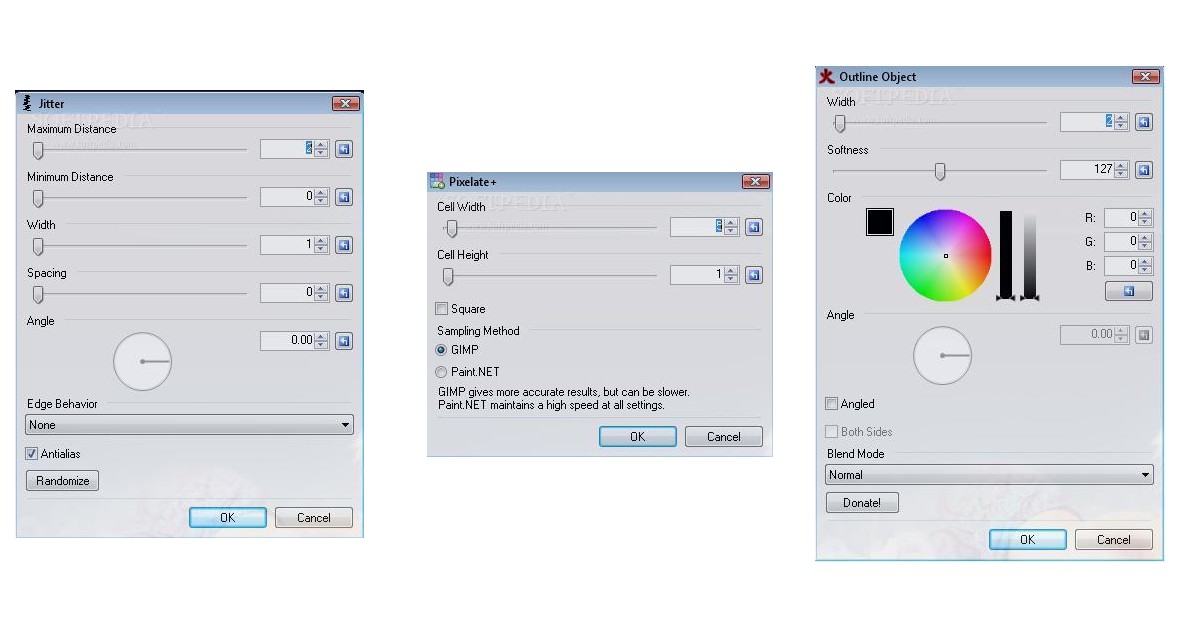
Effect Plugins: These are arguably the most common type, adding new filters, adjustments, or transformations that can be applied to an image or selection. Examples include advanced blurring algorithms, artistic rendering effects (like watercolor or oil paint simulations), gradient generators, or complex geometric distortions. They typically appear under the
Effectsmenu in Paint.NET. -
File Type Plugins: These plugins expand Paint.NET’s ability to open and save various image file formats that are not natively supported. This can include professional formats like Adobe Photoshop’s PSD, icon formats like ICO, or even niche scientific image formats. Once installed, these formats will appear in the “Open” and “Save As” dialogs.
-
Tool Plugins: Less common but equally valuable, tool plugins introduce entirely new tools to Paint.NET’s toolbar. These might be specialized selection tools, advanced drawing instruments, or unique manipulation tools that offer a different way to interact with your image canvas.
-
Utility Plugins: These are a catch-all category for plugins that provide miscellaneous but useful functions, such as batch processing capabilities, advanced clipboard operations, or better integration with system functionalities. They often appear under the
Utilitiesmenu or as standalone dialogs.
Understanding these categories will help you navigate the vast plugin landscape and efficiently locate the specific extensions that will enhance your workflow.
The Core Installation Process: A Step-by-Step Guide
Installing Paint.NET plugins is generally a straightforward process, but precision is key. Placing files in the correct directories is critical for Paint.NET to recognize and load the new functionalities. Follow these steps meticulously to ensure a successful installation.
Locating Your Paint.NET Installation Directory
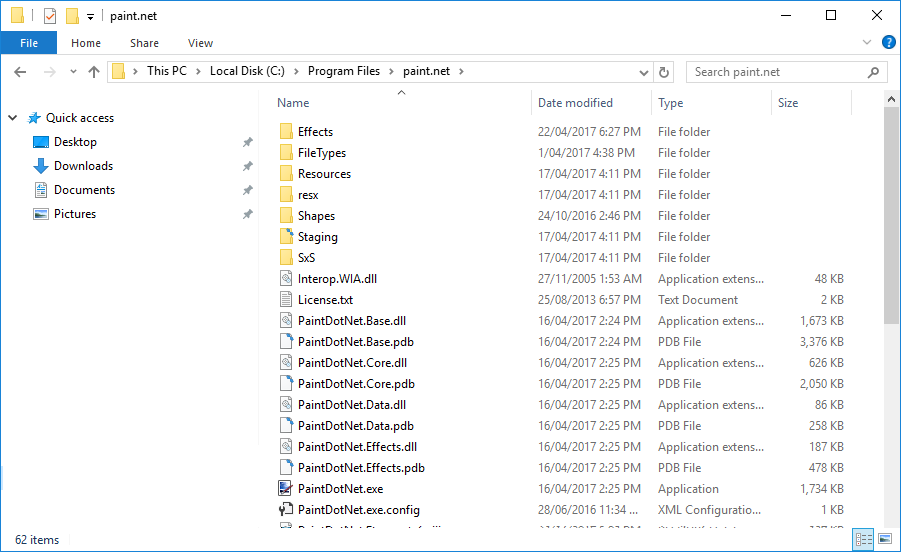
The first and most crucial step is to identify where Paint.NET is installed on your computer. By default, Paint.NET is installed in one of two common locations:
-
For 64-bit Windows installations:
C:Program Filespaint.net -
For 32-bit Windows installations (or older versions):
C:Program Files (x86)paint.net
However, you might have chosen a custom installation path. If you’re unsure, you can easily find it by right-clicking the Paint.NET shortcut (either on your desktop or in the Start Menu), selecting “Properties,” and then clicking “Open File Location.” This will take you directly to the Paint.NET root folder.
Within this directory, you’ll find several subfolders. The two most important ones for plugin installation are:
-
Effectsfolder: This is where nearly all effect plugins (those that add new filters or adjustments) must be placed. -
FileTypesfolder: This is specifically for plugins that enable Paint.NET to open or save new image file formats.
Some older or very specific utility plugins might need to be placed directly in the main Paint.NET directory, but this is less common with modern plugins. Always refer to the plugin’s documentation if it specifies a different location.
Downloading and Extracting Plugin Files
Once you’ve identified the target directories, the next step involves acquiring the plugins. As discussed, always download from reputable sources, primarily the official Paint.NET forum. Most plugins will be packaged in compressed archives, typically ZIP files, but occasionally RAR or 7z.
-
Download the Plugin: Click the download link provided by the developer. Save the file to a temporary location on your computer, such as your
Downloadsfolder or a dedicatedPaint.NET Pluginsfolder you create for organization. -
Extract the Files: Before Paint.NET can use them, the plugin files must be extracted from the archive.
-
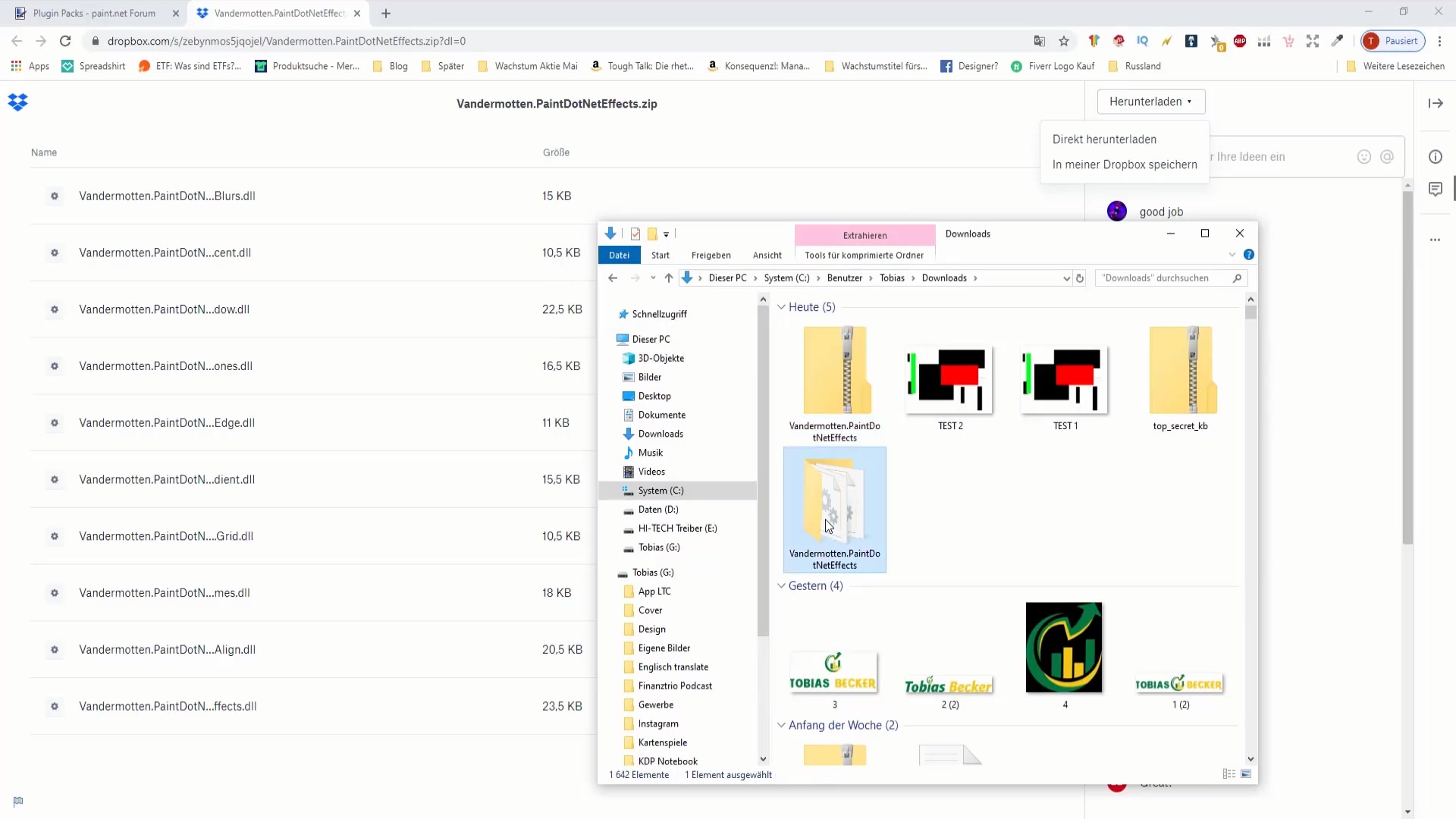
For ZIP files: Right-click the downloaded ZIP file and select “Extract All…” Follow the prompts to extract the contents. You can extract them to the same temporary folder for now.
-
For RAR/7z files: You will need a third-party decompression utility like 7-Zip (free and open-source) or WinRAR. Install one of these if you don’t have it, then right-click the file and choose the appropriate extract option (e.g., “7-Zip > Extract Here” or “Extract files…”).
-
After extraction, you will typically find one or more .dll files (Dynamic Link Libraries) along with possibly a .txt file (readme) or other supporting files. It’s the .dll files that Paint.NET needs.
Placing Plugins in the Correct Folders
This is the most critical step. Incorrect placement is the leading cause of “missing” plugins.
-
Identify the Plugin Type: Determine if the plugin is an effect plugin or a file type plugin. The developer’s description usually specifies this. If unsure, a common rule of thumb is that if it’s not explicitly stated as a file type plugin, it’s likely an effect plugin. File type plugins will often have names that indicate a file format (e.g.,
PsxPlugin.dllfor PSD files). -
Move the
.dllFiles:-
For Effect Plugins: Copy (or cut) the
.dllfile(s) from your temporary extraction folder and paste them into theEffectsfolder within your Paint.NET installation directory. For example, if you downloaded an effect called “Blurry Art,” you would copyBlurryArt.dlltoC:Program Filespaint.netEffects. -
For File Type Plugins: Copy (or cut) the
.dllfile(s) and paste them into theFileTypesfolder within your Paint.NET installation directory. For example,PsxPlugin.dllwould go intoC:Program Filespaint.netFileTypes.
-
-
Handle Multiple Files: Some plugins, especially more complex ones, might consist of multiple
.dllfiles or even an entire subfolder containing related resources. Always place all associated files for a single plugin into the same target folder (EffectsorFileTypes). Do not separate them unless the developer explicitly instructs you to do so.
Restarting Paint.NET to Activate Plugins
After placing the plugin files in their respective folders, Paint.NET needs to be restarted. This is essential because Paint.NET scans these directories for new plugins only when it initializes.
-
Close Paint.NET: If Paint.NET is currently running, close it completely. Save any open work before doing so.
-
Relaunch Paint.NET: Open Paint.NET again from your desktop shortcut or Start Menu.
Upon relaunch, the newly installed effect plugins should appear under the Effects menu (or occasionally the Adjustments menu), and new file types will be available in the “Open” and “Save As” dialogs. If you don’t see them, proceed to the troubleshooting section.
Troubleshooting Common Plugin Installation Issues
Even with careful execution, sometimes plugins don’t behave as expected. Understanding common pitfalls and how to address them can save significant time and frustration.
Plugin Not Appearing in Menus
This is the most frequent issue users encounter.
-
Incorrect Folder Placement: Double-check that the
.dllfiles are in the correct subfolder (EffectsorFileTypes) within the correct Paint.NET installation directory. A common mistake is putting an effect plugin inFileTypesor vice-versa. Also, ensure you haven’t accidentally placed them in a copy of the Paint.NET folder or an older installation. -
Paint.NET Not Restarted: Confirm you have fully closed and relaunched Paint.NET after placing the plugin files.
-
Corrupted Download/Extraction: Try re-downloading the plugin and extracting it again. Corrupted files can prevent Paint.NET from loading them.
-
Incompatible Plugin Version: Some older plugins might not be compatible with newer versions of Paint.NET, or vice-versa. Check the plugin’s documentation or forum thread for compatibility notes. Ensure your Paint.NET is up-to-date, and if the plugin is very old, it might simply not work.
-
Missing Dependencies: Rarely, a plugin might require other
.dllfiles or components (like a specific version of .NET Framework) that are not included or installed on your system. The plugin’s developer notes will usually specify such requirements.
Error Messages During Use
If a plugin appears but throws an error when you try to use it, several factors could be at play:
-
.NET Framework Issues: Paint.NET and its plugins rely heavily on the Microsoft .NET Framework. Ensure your system has the latest compatible version installed. Paint.NET usually bundles what it needs, but sometimes specific plugins might require a slightly different or newer version. Error messages often refer to
System.NullReferenceExceptionorSystem.IO.FileNotFoundException. -
Outdated Plugin: The plugin might be incompatible with your current Paint.NET version. Try searching for an updated version of the plugin.
-
Conflicting Plugins: Very rarely, two plugins might conflict with each other. If you recently installed multiple plugins and one causes an issue, try temporarily removing the others to isolate the culprit.
-
Permissions: Ensure Paint.NET (and thus the plugins) has sufficient permissions to access necessary files or system resources. Running Paint.NET as an administrator temporarily can help diagnose if it’s a permissions issue (though generally not recommended for regular use).
-
Hardware Limitations: Some very resource-intensive plugins might struggle on older hardware, leading to crashes or “out of memory” errors.
Performance Degradation
If Paint.NET becomes slow or unstable after installing plugins, consider:
-
Too Many Plugins: While Paint.NET can handle a large number, an excessive amount can increase startup time and memory usage.
-
Resource-Intensive Plugins: Certain plugins, especially complex effects, can be very demanding on your CPU and RAM. Use them judiciously.
-
System Specifications: Ensure your computer meets the minimum, and preferably recommended, specifications for Paint.NET, especially if you’re working with high-resolution images and many plugins.
Plugin Uninstallation
To remove a plugin, simply navigate to the Effects or FileTypes folder (wherever you placed it) and delete its .dll file(s) and any associated resources. Restart Paint.NET, and the plugin will be gone. This straightforward method makes it easy to manage your collection.
Best Practices for Plugin Management
Effective plugin management goes beyond mere installation. A well-maintained plugin collection can significantly enhance your workflow, while a disorganized one can lead to frustration and performance issues.
Curating Your Plugin Collection
The temptation to download every interesting plugin you come across can be strong, but a bloated collection can hinder more than help.
-
Quality Over Quantity: Prioritize plugins that genuinely enhance your workflow or offer unique, high-quality effects you will actually use.
-
Regular Review: Periodically review your installed plugins. If you haven’t used a particular plugin in months, consider uninstalling it. It’s easy to reinstall if you ever need it again.
-
Keep a List: Maintain a simple text file or spreadsheet listing your favorite plugins, their download sources, and any specific installation notes. This helps if you ever need to reinstall Paint.NET or move to a new system.
Keeping Plugins and Paint.NET Updated
Both Paint.NET and its plugins are actively developed, with updates bringing new features, performance improvements, and crucial bug fixes.
-
Update Paint.NET Regularly: Always ensure you’re running the latest stable version of Paint.NET. New versions often include performance enhancements and bug fixes that can benefit all plugins. Head to
Help > Check for Updateswithin Paint.NET. -
Monitor Plugin Updates: Developers often release updated versions of their plugins to fix bugs, improve compatibility with newer Paint.NET versions, or add new functionalities. Keep an eye on the official forum threads for your favorite plugins for announcements of new versions. Replace old plugin files with new ones when updating.
Backing Up Your Plugins
Protecting your carefully curated plugin collection is a smart move, especially before major system changes or Paint.NET updates.
-
Simple Backup: Simply copy the contents of your
EffectsandFileTypesfolders to a separate backup location (e.g., an external hard drive, cloud storage, or a dedicated backup folder on your main drive). -
Reinstallation Strategy: If you ever need to reinstall Paint.NET or move it to a new computer, you can easily restore your plugins by copying them back into the respective folders in the new installation.
Community Engagement and Support
The Paint.NET community is a vibrant and helpful resource for plugin users.
-
Utilize the Forums: The official Paint.NET forum is not just for finding plugins but also for getting support. If you encounter an issue, search the forum first. Chances are someone else has faced a similar problem. If not, post a clear description of your issue in the relevant plugin thread or a general support section.
-
Discover New Plugins: Engage with the community to discover new and innovative plugins that others recommend. Plugin development is ongoing, and staying connected can keep your toolkit fresh and powerful.
-
Provide Feedback: If you find a plugin particularly useful or encounter a bug, provide constructive feedback to the developer. This helps improve the plugin for everyone.
Conclusion
Installing plugins for Paint.NET is a straightforward process that profoundly expands the capabilities of this already excellent image editor. By carefully following the installation steps, understanding the different types of plugins, and adhering to best practices for management, you can unlock a vast array of new tools, effects, and file format compatibilities. This journey into the plugin ecosystem transforms Paint.NET from a mere image editor into a highly personalized and exceptionally powerful digital art studio, capable of tackling virtually any creative challenge you throw its way. Embrace the power of plugins, experiment with new functionalities, and elevate your image editing endeavors with Paint.NET.
aViewFromTheCave is a participant in the Amazon Services LLC Associates Program, an affiliate advertising program designed to provide a means for sites to earn advertising fees by advertising and linking to Amazon.com. Amazon, the Amazon logo, AmazonSupply, and the AmazonSupply logo are trademarks of Amazon.com, Inc. or its affiliates. As an Amazon Associate we earn affiliate commissions from qualifying purchases.