
The PlayStation 2 (PS2) stands as a monumental console in gaming history, boasting an unparalleled library of critically acclaimed titles that continue to resonate with players worldwide. For many, the desire to revisit these classics on modern hardware without the need for an aging console is strong. This is where PCSX2, a powerful and highly-regarded open-source PlayStation 2 emulator, comes into play. PCSX2 allows enthusiasts to play their beloved PS2 games on a computer, often with significant enhancements like higher resolutions, improved textures, and various quality-of-life features.
This guide will walk you through the entire process of installing and configuring PCSX2, transforming your PC into a portal to a bygone era of gaming excellence. From understanding the core requirements to fine-tuning advanced settings, we’ll cover every essential step to ensure a smooth, enjoyable emulation experience. Whether you’re a seasoned emulator user or a complete novice, this professional and insightful tutorial aims to demystify the process, empowering you to relive the magic of the PS2 library.
Unlocking the PS2 Era: Understanding PCSX2 and Its Requirements
Before diving into the technicalities of installation, it’s crucial to grasp what PCSX2 is and what your system needs to run it effectively. PCSX2 is more than just an application; it’s a sophisticated piece of software designed to emulate the complex hardware architecture of the PlayStation 2 console. This emulation isn’t a simple translation; it involves simulating the PS2’s CPU, GPU, sound processor, and various other components, which can be quite demanding on your computer’s resources.
The development of PCSX2 is an ongoing effort by a dedicated community, constantly striving for improved compatibility, performance, and accuracy. Its open-source nature means it benefits from continuous contributions and refinements, making it the premier choice for PS2 emulation. With PCSX2, features like custom internal resolutions, anti-aliasing, texture filtering, and the ability to use save states become accessible, offering an experience that can often surpass that of the original console.
Essential System Specifications for Optimal Performance
Running PCSX2 smoothly, especially with enhancements, requires a relatively modern computer. While the emulator can run on older hardware, optimal performance and the ability to upscale games demand more robust specifications. Understanding these requirements beforehand will help set realistic expectations and ensure your system is prepared for the task.
-
Operating System: PCSX2 is compatible with Windows (7 64-bit or newer is recommended), various Linux distributions, and macOS. For the best compatibility and performance, Windows 10/11 64-bit is often preferred due to better driver support and DirectX implementations.
-
Processor (CPU): This is arguably the most critical component for emulation. PCSX2 heavily relies on single-thread performance, so a CPU with strong per-core performance is more beneficial than one with many weaker cores.
-
Minimum: Intel Core i3/i5 (3rd generation or newer) or AMD Ryzen 3. Must support SSE4.1 instruction set.
-
Recommended: Intel Core i5/i7 (7th generation or newer) or AMD Ryzen 5/7 (2nd generation or newer). A clock speed of 3.2 GHz or higher is highly beneficial.
-
-
Graphics Card (GPU): A dedicated graphics card is highly recommended, especially if you plan to play games at higher-than-native resolutions. Integrated graphics might suffice for some less demanding titles at native resolution, but dedicated hardware offers significantly better performance and visual fidelity.
-
Minimum: DirectX 11 / OpenGL 3.x compatible GPU. Examples include Nvidia GeForce GTX 750 Ti or AMD Radeon R7 260X.
-
Recommended: Nvidia GeForce GTX 1050 Ti / RTX 3050 or AMD Radeon RX 570 / RX 6600 or better. Modern GPUs also tend to have better driver support for various rendering backends.
-
-
Random Access Memory (RAM):
-
Minimum: 4 GB RAM.
-
Recommended: 8 GB RAM or more for smoother operation, especially when running other applications concurrently or dealing with larger game assets.
-
-
Storage: At least 500 MB of free disk space for the PCSX2 emulator itself. However, you’ll need significantly more space for your game library, as PS2 ISOs can range from 1 GB to over 8 GB per game. An SSD (Solid State Drive) is recommended for faster loading times.
Meeting or exceeding these recommended specifications will ensure a much more enjoyable and stable experience with PCSX2, allowing you to fully appreciate the visual enhancements and fluidity the emulator can offer.
The Pre-Installation Checklist: Gathering Your Essential Components
Before you initiate the PCSX2 installation, there are a couple of critical components you need to acquire. One is straightforward, while the other requires a bit more nuance due to legal considerations. Ensuring you have everything prepared beforehand will streamline the entire setup process.
Acquiring the PCSX2 Emulator
The first step is to download the PCSX2 emulator itself. Always obtain the software from its official source to ensure you are getting the legitimate, virus-free version and the latest stable release.
-
Visit the Official Website: Navigate to the official PCSX2 website. A quick search for “PCSX2 official website” should lead you directly there. Be wary of unofficial mirrors or download sites, as they may offer outdated or malicious versions.
-
Choose Your Operating System: On the downloads page, you’ll find versions for Windows, Linux, and macOS. Select the installer appropriate for your operating system. For Windows users, you’ll typically download an
.exeinstaller. Linux users might find AppImage, Flatpak, or PPA options, while macOS users will look for a.dmgfile. -
Download the Latest Stable Release: While development builds might offer the newest features and fixes, they can also be less stable. For a first-time installation and general use, opt for the latest stable release. This ensures maximum compatibility and fewer unexpected issues.
The Crucial PS2 BIOS: A Legal Imperative
This is the most critical and often misunderstood part of setting up PCSX2. The PlayStation 2 BIOS (Basic Input/Output System) is a proprietary firmware that is essential for the emulator to function correctly. Due to copyright restrictions, PCSX2 does not include the BIOS file with its download. Legally, you are required to dump the BIOS from your own physical PlayStation 2 console.
-
Why it’s essential: Without a BIOS, PCSX2 cannot mimic the PS2’s boot-up sequence and operating environment, making it impossible to load and play games. The BIOS contains essential code that the console uses to initialize hardware, manage memory, and load games.
-
The Legal Aspect: Downloading a BIOS from the internet is generally considered copyright infringement, as it’s proprietary Sony software. While many users may opt for this method for convenience, it’s not legally sanctioned. The official and legal way is to use a homebrew application on a modified PS2 to extract (dump) the BIOS from your own console onto a USB drive.
-
What to look for: A typical PS2 BIOS file will have a
.binextension (e.g.,SCPH-70002_BIOS_v2.00_02-10-2003.bin) and will often be accompanied by.nvmand other related files in a single folder. You will need to place all these files into a specific directory that PCSX2 can access.
Securing the BIOS is non-negotiable for PCSX2 to work. Once you have both the emulator installer and your legally obtained PS2 BIOS files, you’re ready to proceed with the installation.
Step-by-Step Installation and Initial Configuration
With the PCSX2 installer downloaded and your PS2 BIOS files ready, it’s time to install the emulator and perform its initial setup. This section will guide you through the process, focusing on a Windows installation as the primary example, though the general principles apply across operating systems.
Installing PCSX2 on Your System
The installation process for PCSX2 is straightforward and similar to installing any other application.
-
Run the Installer: Locate the downloaded PCSX2 installer (e.g.,
pcsx2-v1.6.0-windows-x64-setup.exe) and double-click it. You may be prompted by User Account Control (UAC) to allow the application to make changes; click “Yes.” -
Choose Installation Type: The installer will present options for installation type (e.g., “Full,” “Portable,” “Custom”). For most users, “Full” is recommended as it installs all necessary components and integrates them properly with your system. A “Portable” installation can be useful if you want to run PCSX2 from a USB drive without leaving files on the host system.
-
Select Components: You’ll be asked to select components to install. Typically, you’ll want to install the main application along with any required redistributables like Visual C++ Runtimes and DirectX End-User Runtimes, if they are offered and not already present on your system. These ensure PCSX2 has all the necessary libraries to function.
-
Choose Installation Path: The installer will suggest a default installation directory (e.g.,
C:Program FilesPCSX2). You can accept the default or choose a custom location. It’s often beneficial to install it in a simple path, especially if you plan to organize your games separately. -
Complete Installation: Click “Install” or “Next” as prompted to begin the installation. Once completed, click “Finish.” PCSX2 is now installed on your system.
First-Time Configuration Wizard: Setting Up the Essentials
Upon launching PCSX2 for the first time, a configuration wizard will appear, guiding you through the initial setup. This wizard is crucial for selecting the correct plugins and, most importantly, locating your PS2 BIOS.
-
Launch PCSX2: Find the PCSX2 shortcut on your desktop or in your Start Menu and launch the application.
-
Language Selection: The first screen of the wizard will ask you to select your preferred language. Choose your language and click “Next.”
-
Plugin Configuration: This is a vital step. PCSX2 uses a plugin-based architecture, meaning different components (graphics, sound, input, CD/DVD drive) are handled by separate plugins.
-
GS (Graphics): This is the Graphics Synthesizer plugin.
GSdxis the most common and recommended choice. You typically won’t need to change its settings here, as detailed configuration will come later. -
PAD (Controller): This handles controller input.
LilyPadis the standard. You’ll configure your gamepad within LilyPad later. -
SPU2 (Sound): This is the Sound Processing Unit plugin.
SPU2-Xis the most widely used and stable option. -
CDVD (Disc Drive): This handles reading game data.
cdvdGigaherzorLinuz Iso CDVDare common choices for reading ISO files. -
USB, FW, DEV9: These are less critical for basic setup and often left at their default settings.
For initial setup, simply ensure the recommended plugins (GSdx, LilyPad, SPU2-X, Linuz Iso CDVD) are selected, then click “Next.”
-
-
BIOS Selection: This is arguably the most critical step.
-
Locate your BIOS folder: PCSX2 will present a list of detected BIOS images. If your BIOS files are not immediately visible, you need to tell PCSX2 where to find them. Click the “Open in Explorer…” button or navigate to the directory where you placed your legally obtained PS2 BIOS files. Ensure all the BIOS files (e.g.,
.bin,.nvm) are in this folder. -
Refresh List: After placing or pointing to the correct folder, click “Refresh List.”
-
Select BIOS: A list of detected BIOS versions will now appear. Select the desired BIOS (e.g., “USA v2.00”). While different regions and versions exist, the most common is a USA or Europe v2.00 BIOS. Click “Finish.”
-
PCSX2 is now basically installed and configured. You’ll be presented with the main emulator window.
Loading Your First PS2 Game
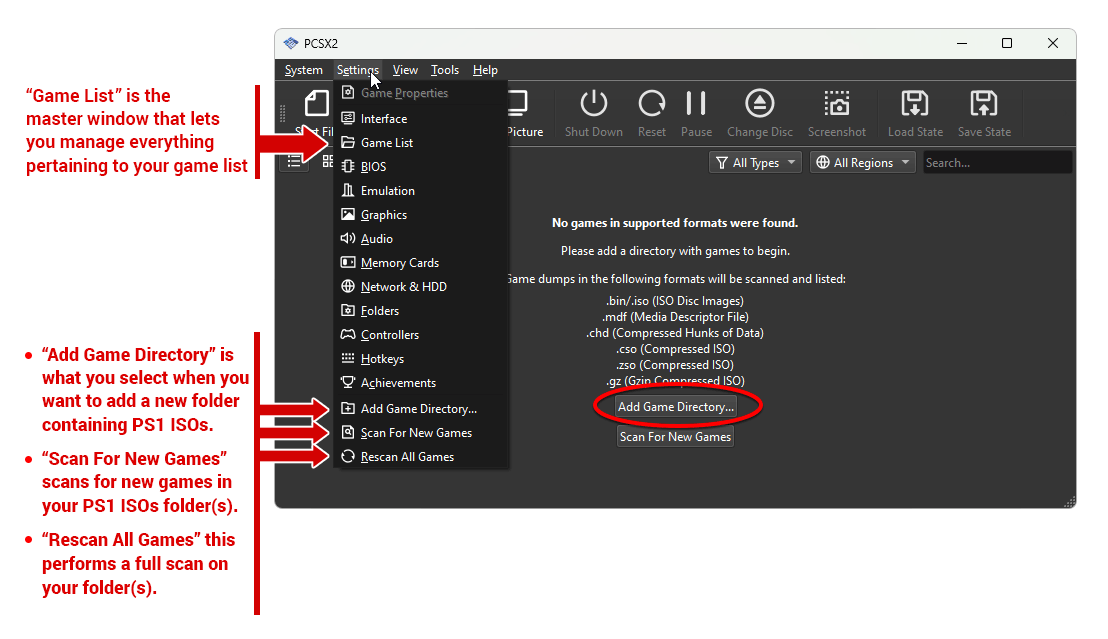
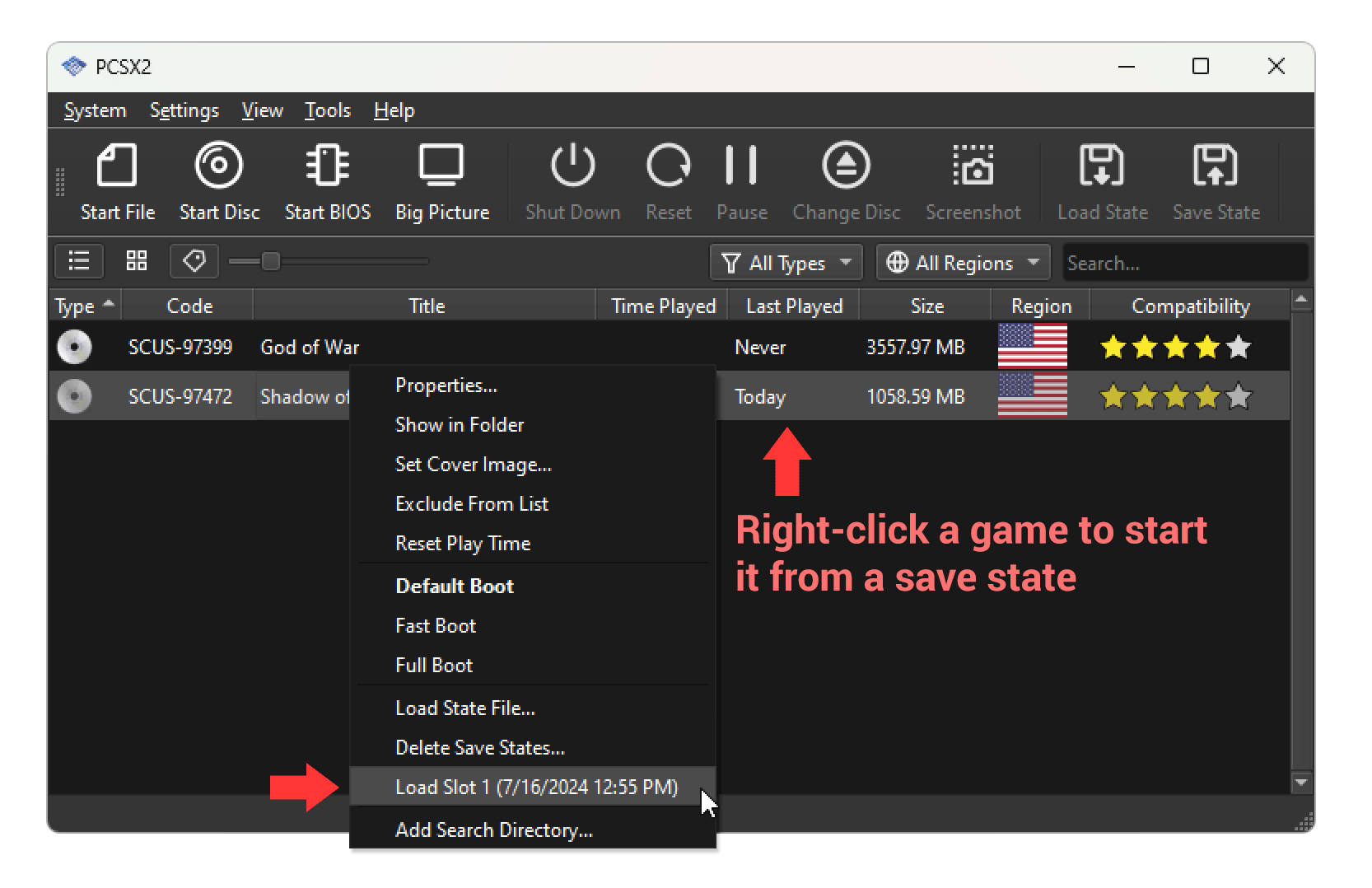
With PCSX2 installed and the BIOS configured, you’re ready to load a game. PS2 games are typically played from ISO image files, which are digital copies of the original game discs.
-
Prepare your ISO: Ensure your PS2 game ISO files are stored in an easily accessible location on your computer.
-
Select ISO: In the PCSX2 main window, go to
CDVD->ISO Selector->Browse.... Navigate to the folder containing your PS2 ISOs and select the game you wish to play. -
Boot Game: Go to
System->Boot CDVD (full)orBoot CDVD (fast).-
Boot CDVD (full)will simulate the PS2’s entire boot-up sequence, including the PlayStation logo and memory card checks, just like on a real console. -
Boot CDVD (fast)will bypass the boot sequence and attempt to load the game directly, saving a few seconds.
-
The game should now start. If you encounter issues, proceed to the troubleshooting section.
Optimizing Your PCSX2 Experience: Fine-Tuning and Troubleshooting
After successfully installing and launching your first game, the next phase involves optimizing PCSX2 for the best possible performance and visual quality, as well as addressing any common issues that might arise. The default settings are a good starting point, but customization can unlock the emulator’s full potential.
Advanced Settings and Performance Optimization
PCSX2 offers a wealth of configuration options that can significantly impact both performance and graphical fidelity. Experimentation is key, as optimal settings often vary by game and system.
-
Graphics Settings (GSdx Plugin):
-
Go to
Config->Video (GS)->Plugin Settings.... -
Renderer: Choose your preferred renderer.
Direct3D 11 (Hardware)orOpenGL (Hardware)are generally recommended for modern GPUs. Experiment with both to see which performs better for your hardware and specific games.Softwaremode is slower but can resolve some graphical glitches. -
Internal Resolution: This is where you can upscale games beyond their native PS2 resolution.
Native (PS2)is the original resolution. Higher multiples (e.g.,2x Native,3x Native,4x Native) will make games look much sharper, but demand more GPU power. Start with2xor3xand increase if your system can handle it. -
Texture Filtering: Enable
Bilinear (PS2)orTrilinearfor smoother textures. -
Anisotropic Filtering: Increase this to
8xor16xfor sharper textures at oblique angles, especially noticeable on ground textures. -
Anti-aliasing (FXAA/MSAA): These post-processing options can smooth jagged edges, but come with a performance cost.
-
-
Emulation Settings:
-
Go to
Config->Emulation Settings.... -
EE/IOP (Emotion Engine / I/O Processor): These settings control the core PS2 CPU emulation. Generally, default settings are fine.
Presetoptions (e.g., “Safest,” “Balanced,” “Aggressive”) can offer quick adjustments. -
VU (Vector Unit): Similar to EE/IOP, usually best left at default.
-
GS Window: Configure window size, aspect ratio (16:9 widescreen patches are common for PS2 games), and VSync.
-
Speedhacks: These are specific optimizations that can boost performance, but may introduce minor glitches in some games.
-
Enable speedhackscheckbox. -
MTVU (Multi-Threaded microVU1): A highly recommended speedhack that significantly improves performance on multi-core CPUs. -
EE Sync Hack,INI Hack: Use sparingly and test thoroughly.
-
-
-
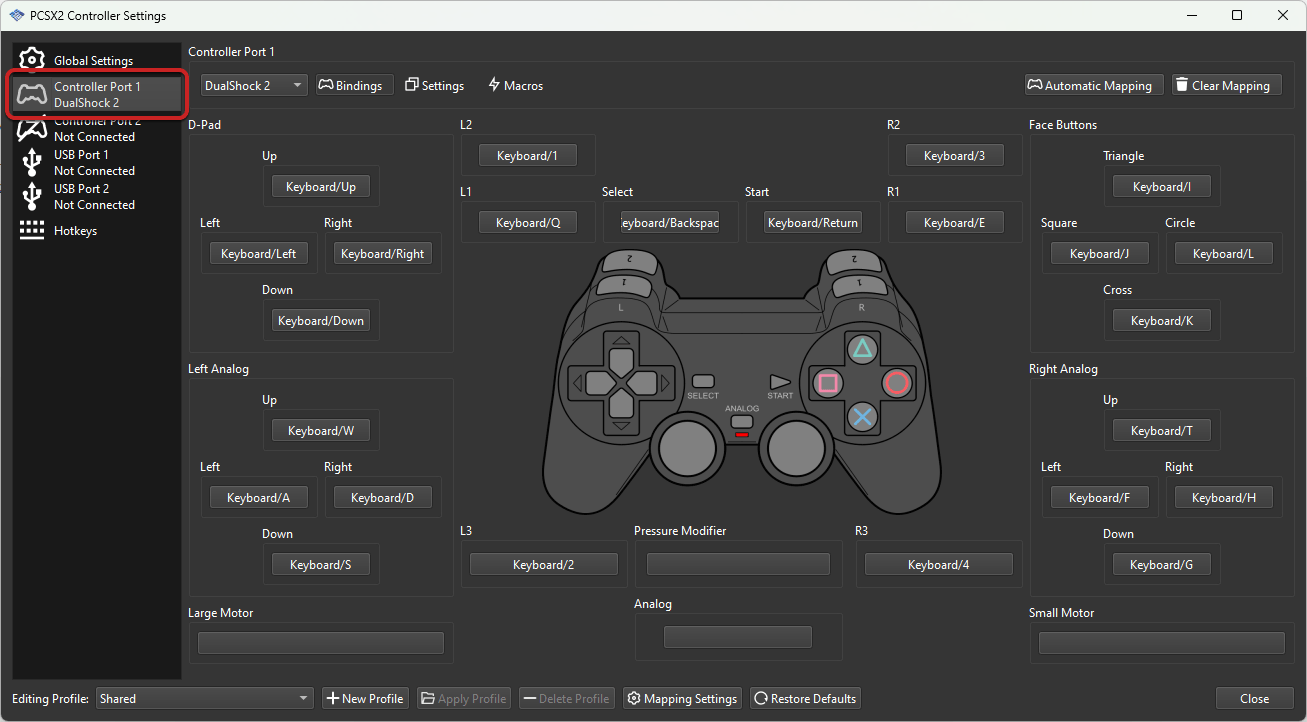
Controller Configuration (LilyPad Plugin):
-
Go to
Config->Controllers (PAD)->Plugin Settings.... -
Select
Pad 1tab. -
Click on each button (e.g.,
Square,Cross,L1,R2,D-Pad Up,Left Analog Stick) and press the corresponding button/direction on your physical gamepad. -
Configure
Analog Sticksfor dead zones and sensitivity if needed. -
Apply your changes.
-
-
Memory Cards:
-
Go to
Config->Memory Cards. -
You can create new virtual memory cards, manage existing ones, and even export/import saves. Ensure memory cards are inserted into “Port 1” for most games.
-
Troubleshooting Common Issues
Despite its maturity, PCSX2 can sometimes present challenges. Here are solutions to common problems:
-
Slow Performance/Low FPS:
-
Check System Specs: Ensure your PC meets or exceeds the recommended requirements.
-
Update Drivers: Make sure your graphics card drivers are up to date.
-
Adjust Graphics Settings: Lower the internal resolution, disable anti-aliasing, reduce anisotropic filtering.
-
Enable Speedhacks: Activate
MTVUin Emulation Settings. Experiment withEE Cycle Rate(reducing it can speed up games but might introduce glitches). -
Renderer: Try switching between
Direct3D 11andOpenGLhardware renderers. -
Power Plan: Ensure your PC is set to “High Performance” power plan.
-
-
Graphics Glitches/Artifacts:
-
Renderer: Switch to
Softwaremode temporarily to see if the issue persists (this confirms it’s a hardware renderer problem). Then, try different hardware renderers or DirectX versions. -
Disable Speedhacks: Turn off any aggressive speedhacks.
-
Scaling Fixes: In GSdx settings, look for “Hardware Fixes” and experiment with options like “Half-pixel Offset,” “Round Sprite,” or “Wild Arms Offset.”
-
Texture Filtering: Try different texture filtering options.
-
Game-specific Patches: Some games require specific patches or settings adjustments, often found in online forums or the PCSX2 Wiki.
-
-
Missing BIOS/BIOS Not Found:
-
Re-check Folder: Double-check that your BIOS files (all of them, typically a
.binand related files) are in the directory you pointed PCSX2 to. -
Legality: Ensure you have legally obtained the BIOS by dumping it from your own console. Do not download it from untrusted sources.
-
-
Controller Not Working:
-
Driver Installation: Ensure your gamepad drivers are correctly installed and the controller is recognized by your operating system.
-
LilyPad Configuration: Re-open
LilyPadsettings (Config->Controllers (PAD)->Plugin Settings...) and re-map all buttons, ensuring no conflicts. -
Port Selection: Ensure your controller is assigned to
Pad 1in LilyPad.
-
-
Audio Problems (Crackling, Skipping, No Sound):
-
SPU2-X Settings: Go to
Config->Audio (SPU2)->Plugin Settings.... Experiment withInterpolationmethods andModuletypes. -
Latency: Increase the
Latencyvalue slightly. -
Update Drivers: Ensure your audio drivers are up to date.
-
Windows Audio Mixer: Check PCSX2’s volume in the Windows audio mixer.
-
By meticulously going through these settings and troubleshooting steps, you can significantly enhance your PCSX2 experience, transforming potential frustration into seamless nostalgic enjoyment.
Conclusion: Reliving the Golden Age of Gaming with PCSX2
The journey through installing and configuring PCSX2 might seem intricate at first, but the rewards are immeasurable. With your system optimized and the emulator fine-tuned, you are now equipped to dive back into the vast and captivating library of PlayStation 2 games, experiencing them with modern enhancements that breathe new life into classic titles.
PCSX2 stands as a testament to the power of open-source development and a community dedicated to preserving gaming history. It offers a portal not just to games, but to memories, allowing both veteran gamers and new enthusiasts to appreciate the innovative design and engaging narratives that defined a generation of consoles. Remember, patience and experimentation are your greatest allies when fine-tuning emulation settings. Embrace the process, explore the rich tapestry of PS2 classics, and enjoy the unparalleled satisfaction of reliving gaming’s golden age, right from your PC.
aViewFromTheCave is a participant in the Amazon Services LLC Associates Program, an affiliate advertising program designed to provide a means for sites to earn advertising fees by advertising and linking to Amazon.com. Amazon, the Amazon logo, AmazonSupply, and the AmazonSupply logo are trademarks of Amazon.com, Inc. or its affiliates. As an Amazon Associate we earn affiliate commissions from qualifying purchases.