
In the realm of digital document creation, the typeface you choose can significantly impact the readability, professionalism, and overall aesthetic appeal of your work. While Microsoft Word comes equipped with a vast library of fonts, there are times when a project demands a unique touch, a specific brand identity, or simply a fresh look that the default options cannot provide. Installing new fonts on your system opens up a world of creative possibilities, allowing you to personalize documents, presentations, and reports to an unprecedented degree. This comprehensive guide will walk you through the process of acquiring and installing custom fonts, ensuring they are readily available for use within Microsoft Word, thereby empowering you to elevate your digital typography.
Understanding Fonts and Their Impact on Your Documents
Before diving into the technical steps of installation, it’s beneficial to understand what fonts are, why they matter, and the different types you might encounter. Fonts are more than just decorative elements; they are critical components of communication design, influencing how your audience perceives and interacts with your content.
The Aesthetic and Functional Value of Custom Typefaces
The choice of font can subtly (or overtly) convey tone, authority, creativity, or playfulness. For professional documents like résumés, business proposals, or academic papers, a clean, highly legible serif or sans-serif font ensures clarity and professionalism. For creative projects, marketing materials, or personal invitations, a more expressive or decorative font can capture the desired mood and stand out. By installing new fonts, you gain the ability to precisely match the visual identity of a brand, adhere to specific design guidelines, or simply express your personal style in your Word documents. This control is invaluable for anyone looking to create compelling and effective written communication. Beyond aesthetics, specialized fonts can also improve accessibility, offering unique advantages for readers with specific visual needs when properly implemented.
Font File Types Explained: TrueType vs. OpenType
When you download fonts, you’ll primarily encounter two main file types: TrueType Fonts (TTF) and OpenType Fonts (OTF). Understanding the distinction can be helpful, though both are widely supported by modern operating systems and applications, including Microsoft Word.
-
TrueType Fonts (TTF): Developed by Apple and Microsoft in the late 1980s, TTF fonts are a long-standing standard. They contain a single file that defines both the screen and print versions of the font. TTF fonts are generally simple, reliable, and widely compatible across various platforms and applications.
-
OpenType Fonts (OTF): Developed jointly by Microsoft and Adobe, OTF fonts are an extension of TTF, offering more advanced typographic features. OTF fonts can include a larger character set (including ligatures, small caps, old-style figures, and alternative glyphs), making them a favorite among professional designers. They can also contain more advanced data for better cross-platform compatibility and printing fidelity.
While OTF fonts offer more sophisticated features, for everyday use in Word, both TTF and OTF files will function perfectly well. Most font packages you download will contain either one or both formats.
Sourcing and Selecting Your Fonts
The first step in expanding your font library is finding new typefaces that meet your needs. The internet is a treasure trove of fonts, ranging from free offerings to premium professional collections. It’s important to source fonts responsibly, paying attention to licensing agreements.
Reputable Free Font Sources
For personal projects or when budget is a concern, many high-quality fonts are available for free. However, “free” doesn’t always mean “free for commercial use,” so always check the specific license.
-
Google Fonts: This is arguably the most popular and reliable source for free, open-source fonts. Google Fonts offers a vast library of web-friendly fonts, all of which are licensed under open-source licenses, typically the SIL Open Font License, allowing for both personal and commercial use. They are easy to browse, preview, and download.
-
DaFont: A massive archive of free downloadable fonts. DaFont categorizes fonts effectively (e.g., fancy, foreign, techno, basic), making it easy to discover new styles. Crucially, always check the license information for each font. Many fonts on DaFont are “free for personal use” but require a purchase or specific permission for commercial projects.
-
Font Squirrel: This site curates high-quality, free fonts that are 100% free for commercial use. Font Squirrel also offers a useful “Font Identifier” tool, allowing you to upload an image of a font you like and find its name.
-
Adobe Fonts (with Adobe Creative Cloud subscription): While not entirely “free” outside of the Creative Cloud ecosystem, if you’re an Adobe subscriber, you have access to thousands of high-quality fonts included with your plan. These fonts can be activated directly from the Adobe Creative Cloud desktop app and are then available in all your desktop applications, including Word.
Premium Font Marketplaces and Professional Collections
For professional projects, unique designs, or when specific typographic features are required, investing in premium fonts is often worthwhile. These fonts typically come with robust licensing and professional support.
-
MyFonts: One of the largest and most well-known marketplaces for commercial fonts. MyFonts offers an extensive collection from various foundries, including top-tier designs suitable for branding, publishing, and demanding design projects. They also offer excellent search and browsing capabilities.
-
Adobe Fonts (for individual purchases): Beyond the included subscription fonts, Adobe also sells individual font licenses through its marketplace, often featuring cutting-edge designs from leading type designers.
-
Fontspring: Known for its “hassle-free licensing,” Fontspring aims to make commercial font licensing straightforward. They offer a diverse range of fonts, often with flexible licensing options for web, print, and apps.
-
Direct from Type Foundries: Many independent type foundries and designers sell their fonts directly from their own websites. This is an excellent way to support specific designers and access unique, often avant-garde, typefaces that may not be available on larger marketplaces. Examples include Grilli Type, Klim Type Foundry, and Colophon Foundry.
When selecting fonts, consider legibility, versatility, and the specific context of your Word document. Don’t overload your system with too many fonts, as this can sometimes impact system performance.
Step-by-Step Installation Guides
Once you’ve found and downloaded your desired fonts, the next step is to install them on your operating system. This makes them available to all applications, including Microsoft Word. The process varies slightly between Windows and macOS.
Installing Fonts on Windows
The process for installing fonts on Windows is straightforward and can be done in a couple of ways.
-
Download and Extract the Font Files:
-
Most downloaded fonts come in a compressed
.zipfile. Locate the downloaded.zipfile (usually in your “Downloads” folder). -
Right-click the
.zipfile and select “Extract All…” or “Extract here.” This will create a new folder containing the font files (e.g.,.ttf,.otf).
-
-
Method 1: Using Windows Font Settings (Windows 10/11):
-
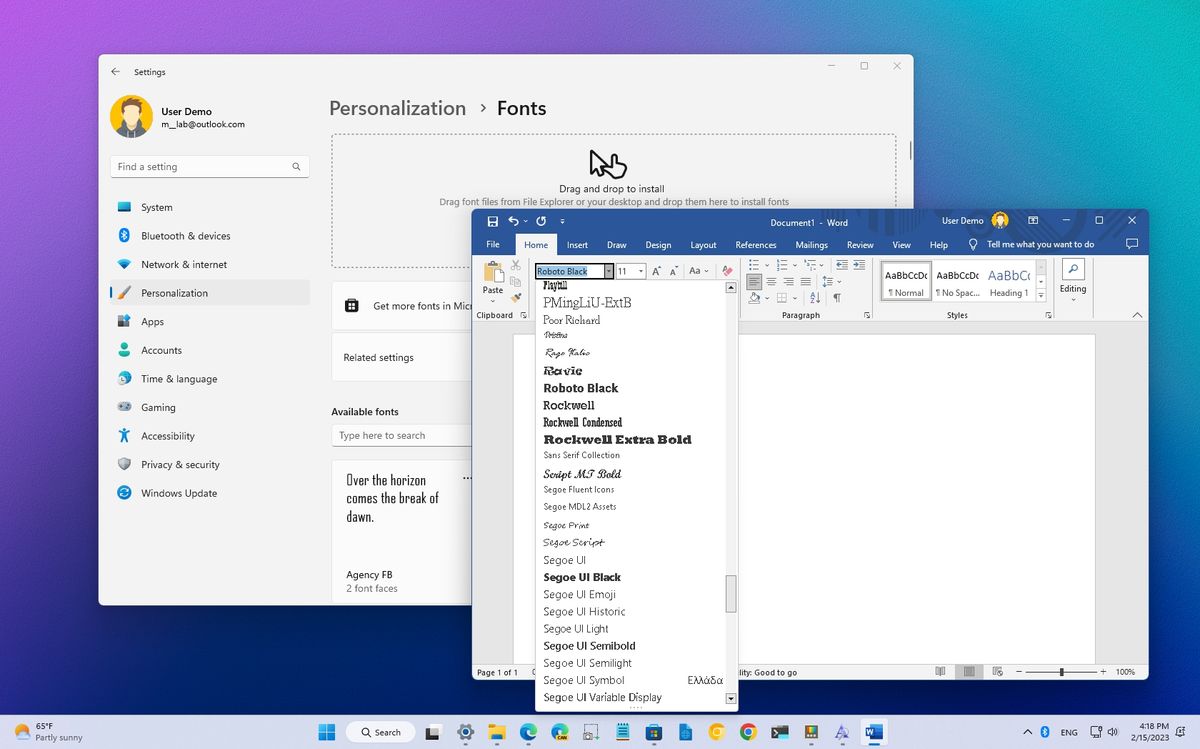
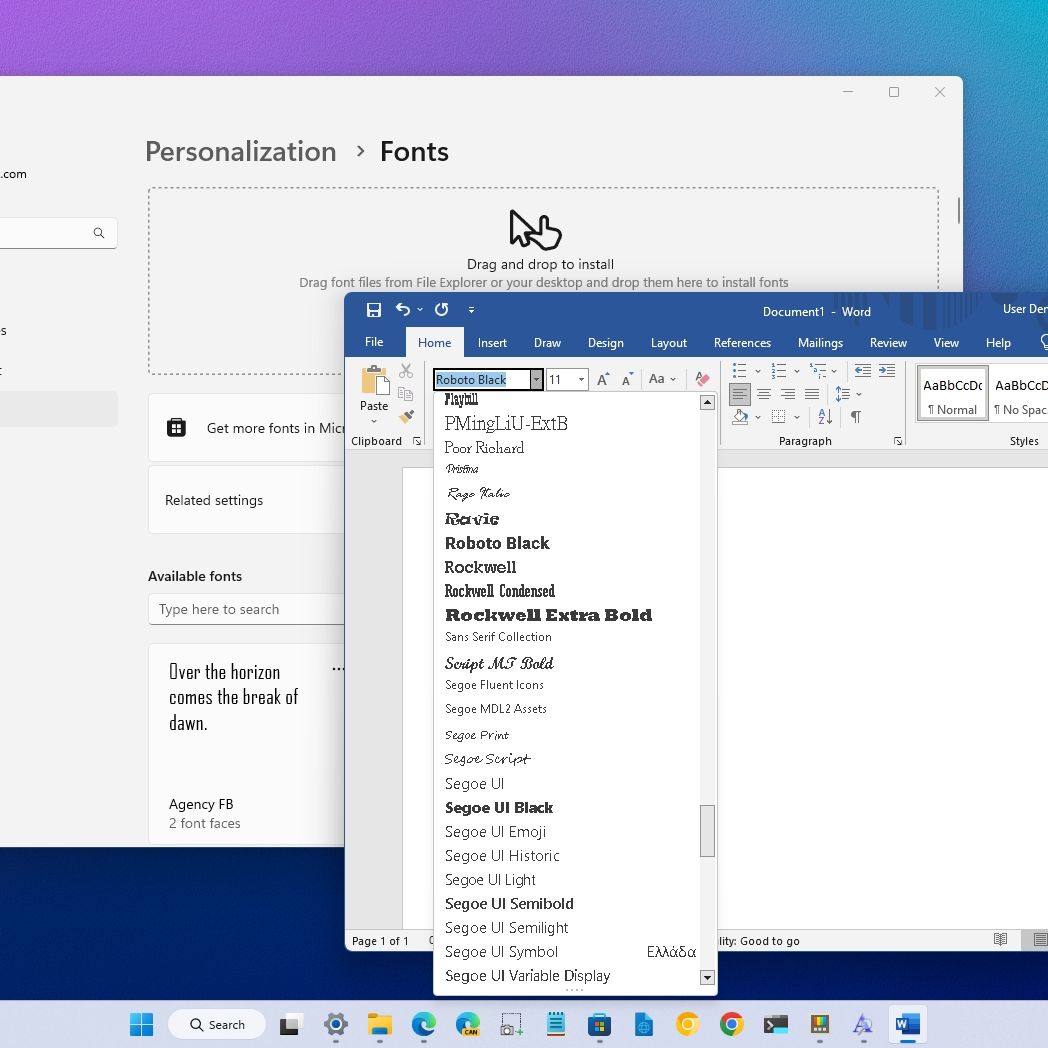
Open Settings (Windows key + I).
-
Navigate to Personalization > Fonts.
-
Drag and drop the extracted font files (e.g.,
.ttf,.otf) directly into the “Drag and drop to install” area in the Fonts settings window. -
Windows will automatically install the fonts. You’ll see a progress bar, and the newly installed fonts will appear in the list.
-
-
Method 2: Right-Click Installation:
-
Navigate to the folder where you extracted the font files.
-
Select the font file(s) you want to install (you can select multiple by holding Ctrl and clicking each file).
-
Right-click on one of the selected font files.
-
From the context menu, choose “Install” or “Install for all users.” “Install for all users” is generally recommended as it ensures the font is available for all user accounts on the computer.
-
Windows will install the fonts. If a font is already installed, you’ll be prompted to replace it.
-
-
Verifying Installation: You can verify the installation by going to Settings > Personalization > Fonts and searching for the font name.
Installing Fonts on macOS
Installing fonts on a Mac is equally simple, primarily using the built-in Font Book application.
-
Download and Extract the Font Files:
- Similar to Windows, downloaded fonts usually come in a
.zipfile. Double-click the.zipfile, and macOS will automatically extract its contents into a new folder.
- Similar to Windows, downloaded fonts usually come in a
-
Method 1: Double-Click the Font File:
-
Navigate to the folder containing the extracted font files (e.g.,
.ttf,.otf). -
Double-click on the font file you wish to install.
-
This will open the Font Book application and display a preview of the font.
-
Click the “Install Font” button in the Font Book window.
-
Font Book will check the font for errors and then install it, making it available system-wide.
-
-
Method 2: Using Font Book Directly:
-
Open Font Book from your Applications folder (or search for it using Spotlight, Cmd + Space).
-
In the Font Book window, click the “Add” button (a plus sign icon in the toolbar), or go to File > Add Fonts….
-
Navigate to the folder where your font files are located, select the files, and click “Open.”
-
Font Book will then install the selected fonts.
-
-
Verifying Installation: You can verify the installation by searching for the font name within the Font Book application.
Integrating and Utilizing Fonts in Microsoft Word
After successfully installing the fonts on your operating system, they should become available in Microsoft Word and other applications automatically.
Verifying Font Availability in Word
-
Restart Word (if it was open): If Microsoft Word was open during the font installation process, you might need to close and reopen it for the new fonts to appear in its font list. This refreshes Word’s font cache.
-
Open a Document: Launch Microsoft Word and open a new or existing document.
-
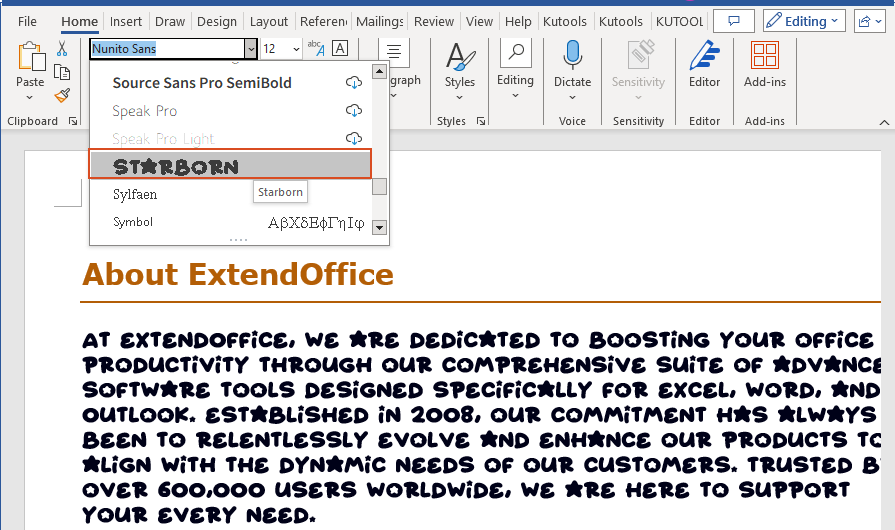
Check the Font Dropdown Menu: Go to the “Home” tab on the Word ribbon. In the “Font” group, click the dropdown arrow next to the current font name (e.g., Calibri). Scroll through the list alphabetically, and you should find your newly installed fonts there.
-
Apply the Font: Select the text you want to change, then choose your new font from the dropdown list.
Advanced Font Usage and Embedding
For collaborative projects or when sharing documents, consider the following:
-
Embedding Fonts: If you share a Word document that uses a custom font, and the recipient doesn’t have that font installed, Word will substitute it with a default font, which can drastically alter your document’s appearance. To prevent this, you can embed the fonts within the Word document itself:
-
Go to File > Options.
-
In the Word Options dialog box, select Save from the left pane.
-
Under “Preserve fidelity when sharing this document,” check “Embed fonts in the file.”
-
You can choose to “Embed only the characters used in the document (best for reducing file size)” or “Embed all characters (best for editing by other people).” The latter will result in a larger file size but allows the recipient to edit the document using your custom font.
-
Click OK.
-
Note: Font embedding depends on the font’s licensing terms. Some fonts prohibit embedding, or only allow it for “print and preview” and not “editable embedding.” Word will usually warn you if a font cannot be embedded.
-
-
Theme Fonts: For consistent branding across multiple documents, consider setting your custom fonts as part of a Word theme. This allows you to quickly apply a predefined set of fonts for headings and body text.
Troubleshooting Common Font Installation Issues
While installing fonts is generally straightforward, you might encounter a few common problems. Here’s how to address them:
Font Not Appearing in Word
-
Restart Word: As mentioned, this is the most common fix. Close Word completely and reopen it.
-
Restart Computer: If restarting Word doesn’t work, try restarting your entire computer. This ensures that the operating system fully registers the new fonts.
-
Check Font File Integrity: Re-download the font file. Sometimes, downloads can be corrupted. Ensure the file extension is
.ttfor.otf. -
Verify Installation in OS: Double-check that the font is correctly installed and listed in your Windows Font Settings or macOS Font Book. If it’s not there, the installation failed, and you need to repeat the steps.
-
Duplicate Fonts: Sometimes, if you have multiple versions of the same font (e.g., regular, bold, italic), or if you already had a problematic version installed, it can cause conflicts. Try uninstalling any existing versions of the font before reinstalling.
-
Application-Specific Cache: Very rarely, some applications might have their own font cache that needs to be cleared. This is less common with Word but can happen with more design-intensive software.
Licensing and Compatibility Concerns
-
Commercial vs. Personal Use: Always review the font’s license. Many free fonts are “free for personal use only.” Using them for commercial purposes (e.g., marketing materials, company reports) without purchasing a commercial license can lead to legal issues.
-
Web Fonts vs. Desktop Fonts: Some fonts are designed primarily for web use and might have specific licensing or technical considerations when used as desktop fonts. Ensure you’re downloading the desktop version.
-
System Compatibility: While rare with TTF/OTF, extremely old or niche font formats might not be fully compatible with the latest operating system versions.
-
Corrupt Fonts: Poorly designed or corrupted font files can cause applications to crash or display text incorrectly. If a specific font is causing issues, try uninstalling it and finding an alternative or a different download source.
By following these troubleshooting steps, you can typically resolve most font-related problems quickly, ensuring your creative and professional endeavors in Microsoft Word are not hindered by technical glitches.
In conclusion, the ability to install and utilize custom fonts in Microsoft Word is a powerful tool for enhancing the visual impact and professionalism of your documents. From selecting the perfect typeface to navigating the installation process on both Windows and macOS, and finally, leveraging these fonts within Word, you now possess the knowledge to unlock a new level of typographic control. Remember to always consider font licensing and practice good font management for a seamless and compliant digital workflow. Empower your communication by making your documents visually distinctive and engaging with a world of custom typography.
aViewFromTheCave is a participant in the Amazon Services LLC Associates Program, an affiliate advertising program designed to provide a means for sites to earn advertising fees by advertising and linking to Amazon.com. Amazon, the Amazon logo, AmazonSupply, and the AmazonSupply logo are trademarks of Amazon.com, Inc. or its affiliates. As an Amazon Associate we earn affiliate commissions from qualifying purchases.