
The .NET Framework, a cornerstone of Microsoft’s development ecosystem for decades, remains an indispensable component for countless Windows applications. From business-critical software to entertainment utilities, many programs rely on specific versions of the .NET Framework to function correctly. Understanding how to properly install and manage this vital component is a fundamental skill for IT professionals, developers, and even end-users who frequently encounter compatibility issues. This comprehensive guide will demystify the installation process, ensuring your system is equipped to run all your essential applications seamlessly.
Despite the emergence of .NET (formerly .NET Core), the .NET Framework continues to be a crucial platform, especially for legacy applications and those built specifically for the Windows environment. Its deep integration with Windows, extensive libraries, and robust features have cemented its place in the computing world. However, its versioning and installation mechanisms can sometimes present challenges, leading to frustrating error messages like “This application requires one of the following versions of the .NET Framework” or “To run this application, you must install the .NET Framework.” By following the insights and steps outlined below, you’ll be able to navigate these complexities with confidence.

Understanding the .NET Framework Ecosystem
Before diving into the installation specifics, it’s crucial to grasp what the .NET Framework is, why it’s so important, and how it differs from its modern counterpart, .NET (Core/5+). This foundational knowledge will empower you to make informed decisions regarding which version to install and why.
What is .NET Framework?
The .NET Framework is a software framework developed by Microsoft that runs primarily on Microsoft Windows. It includes a large class library called the Framework Class Library (FCL) and provides language interoperability (each language can use code written in other languages) across several programming languages. Programs written for the .NET Framework execute in a software environment (as opposed to directly on hardware) called the Common Language Runtime (CLR), which provides services like security, memory management, and exception handling.
Essentially, it’s a runtime environment that developers use to build applications, and end-users need to run those applications. When an application is developed using .NET Framework, it expects a compatible version of the framework to be present on the user’s machine to execute properly.
Why is it Essential?
The necessity of the .NET Framework stems directly from its integral role in the operation of a vast array of Windows-based applications. Without the specific version of the framework an application was built for, that application simply cannot run. This is because the framework provides the underlying services, libraries, and runtime environment that the application’s code relies upon.
For businesses, ensuring the correct .NET Framework versions are installed across all workstations is paramount for maintaining productivity and avoiding software incompatibilities. For individual users, it means being able to run everything from productivity suites and specialized design software to games and utility tools without encountering runtime errors. Its enduring relevance, even as newer technologies emerge, highlights its deep roots in the Windows application landscape.
.NET Framework vs. .NET (Core/5+)
It’s vital to distinguish between the traditional .NET Framework and its successor, .NET (which includes .NET Core, .NET 5, 6, 7, and so on). While both are Microsoft platforms for building applications, they serve different primary purposes and have distinct characteristics:
-
.NET Framework: This is the original, Windows-only version. It’s stable, mature, and deeply integrated with Windows. It supports a wide range of application types, including Windows Desktop (WPF, Windows Forms), ASP.NET Web Forms, and WCF services. Development on .NET Framework is largely feature-complete, meaning new versions typically focus on bug fixes and security updates rather than major new features.
-
.NET (Core/5+): This is the modern, cross-platform, and open-source version. It’s designed to be modular, high-performance, and supports various operating systems (Windows, Linux, macOS). It’s the future of Microsoft’s development platform, suitable for cloud-native applications, microservices, and modern web applications (ASP.NET Core). While it shares some API surface with .NET Framework, it is a fundamentally different runtime and ecosystem.
When an application specifically requests a “.NET Framework” version (e.g., .NET Framework 3.5, 4.0, 4.8), installing .NET Core or .NET 5+ will not satisfy that requirement. You must install the specific .NET Framework version.
Pre-Installation Checks and Considerations
Before you begin the installation process, a few preliminary steps can save you considerable time and prevent potential conflicts. These checks ensure you install the correct version and avoid unnecessary reinstallation.
Identifying Your System Requirements
The first step is always to understand what your application needs. If you’re trying to run a specific piece of software, check its documentation or system requirements. It will explicitly state which .NET Framework version(s) it requires. Common versions you might encounter include 3.5, 4.5, 4.6, 4.7, and 4.8.
Also, consider your operating system. Newer versions of Windows (like Windows 10 and 11) typically come with .NET Framework 4.8 pre-installed or enabled, and often have 3.5 available as an optional feature. Older Windows versions might require manual installation of various frameworks.
Checking for Existing .NET Framework Versions
You might already have the required .NET Framework version installed, or at least a compatible one. Here’s how to check:
-
Windows Features: In Windows 8, 10, and 11, go to “Control Panel” > “Programs” > “Turn Windows features on or off.” This dialog box will list installed .NET Framework versions, typically 3.5 and the latest 4.x version. If a box is checked, it’s enabled. If it’s partially filled, some components are enabled.
-
Registry Editor (Advanced): For a more granular check, especially for specific 4.x sub-versions, you can use the Registry Editor.
-
Press
Win + R, typeregedit, and press Enter. -
Navigate to
HKEY_LOCAL_MACHINESOFTWAREMicrosoftNET Framework SetupNDP. -
Within this path, you’ll see subkeys like
v2.0,v3.0,v3.5,v4, etc. Expanding these will show you the installed versions. Forv4, check theClientandFullsubkeys for theVersionstring value. For .NET Framework 4.5 and later, look intoHKEY_LOCAL_MACHINESOFTWAREMicrosoftNET Framework SetupNDPv4Fulland check theReleaseDWORD value. Microsoft provides a table to mapReleasevalues to specific .NET Framework 4.x versions.
-
-
Third-Party Tools: Several free utilities are available online (e.g., ASoft .NET Version Detector) that can quickly scan your system and list all installed .NET Framework versions.
Determining the Correct Version to Install
It’s crucial to install the specific version an application requests, or a compatible later version.
-
Backward Compatibility: Generally, newer versions of .NET Framework (e.g., 4.8) are backward compatible with applications built for older 4.x versions (e.g., 4.0, 4.5, 4.6). So, if an app needs 4.5, having 4.8 is usually sufficient.
-
Side-by-Side Execution: Different major versions of the .NET Framework (e.g., 2.0, 3.5, 4.x) can coexist on the same machine without conflict. You can have 3.5 and 4.8 installed simultaneously.
-
Specific Dependencies: Be aware that .NET Framework 3.5 includes 2.0 and 3.0. If an application requires 2.0 or 3.0, installing 3.5 will satisfy the dependency.
Only download official installers directly from Microsoft’s website or enable them via Windows Features to avoid security risks.
Step-by-Step Installation Guides
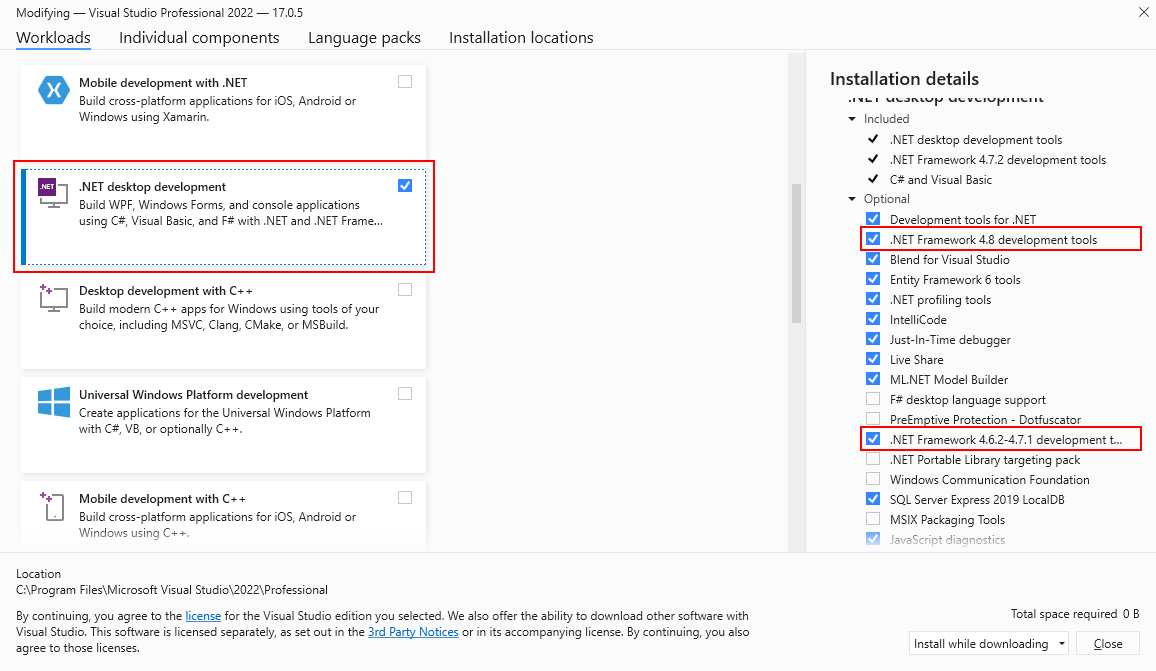
With your pre-installation checks complete, you’re ready to proceed with the installation. The method you choose will largely depend on the specific .NET Framework version required and your system’s configuration.
Installing Via Windows Features (Integrated Versions)
For .NET Framework 3.5 (which includes 2.0 and 3.0) and often the latest 4.x version on Windows 8, 10, and 11, the easiest way to install or enable them is through Windows Features:
-
Open Control Panel: Search for “Control Panel” in the Windows search bar and open it.
-
Navigate to Programs: Click on “Programs” or “Programs and Features.”
-
Turn Windows Features On or Off: On the left-hand pane, click “Turn Windows features on or off.”
-
Enable .NET Framework: In the Windows Features dialog box, locate “.NET Framework 3.5 (includes .NET 2.0 and 3.0)” and “.NET Framework 4.8 Advanced Services” (or the highest 4.x version available).
-
Check the box next to the required version(s). If it’s a partially filled box, click it until it’s fully checked to ensure all components are installed.
-
For .NET Framework 3.5, Windows might prompt you to download files from Windows Update. Ensure you have an internet connection and allow it to proceed.
-
-
Restart if Prompted: Windows might require a restart to complete the installation. Save any open work before proceeding.
Online Installation via Microsoft Download Center
If the version you need isn’t available through Windows Features, or if you need a specific 4.x version not pre-enabled, you’ll need to download it directly from Microsoft.
-
Identify the Exact Version: Confirm the precise .NET Framework version you need (e.g., .NET Framework 4.7.2 Developer Pack).
-
Visit Microsoft’s Download Center: Open your web browser and go to the official Microsoft .NET Framework download page (a quick search for “download .NET Framework [version number]” will usually lead you there).
-
Download the Installer: Locate the correct download link. Ensure you choose the “runtime” package if you’re an end-user, or the “developer pack” if you’re a developer. Pay attention to language and architecture (32-bit or 64-bit, though most modern frameworks are universal or 64-bit).
-
Run the Installer: Once downloaded, double-click the executable file (e.g.,
ndp472-web.exe). -
Follow On-Screen Prompts: Accept the license terms, and follow the installer’s instructions. The process is typically straightforward, involving a few clicks.
-
Restart Your Computer: A restart is often required to finalize the installation and integrate the framework properly with your system.
Offline Installation for Enterprise and Restricted Environments
For environments with limited internet access, or for deploying .NET Framework across multiple machines without repeated downloads, an offline installer is invaluable.
-
Download the Offline Installer: From the Microsoft .NET Framework download page, look for “offline installer” or “full package” options. These files are significantly larger as they contain all necessary components without requiring an internet connection during installation.
-
Transfer the Installer: Copy the downloaded offline installer to the target machine(s) using a USB drive, network share, or deployment tool.
-
Run the Installer: Execute the downloaded
.exefile. -
Follow Installation Wizard: The installation process is similar to the online method, but it will proceed without requiring an active internet connection.
-
Restart as Needed: Reboot the system if prompted.
Verifying Your .NET Framework Installation
After installation, it’s wise to verify that the .NET Framework was successfully installed and is functioning as expected. This step helps confirm that any applications dependent on it will now run without issues.
Using the .NET Framework Setup Verification Tool
Microsoft provides a handy tool specifically for this purpose:
-
Download the Tool: Search for “Microsoft .NET Framework Setup Verification Tool” and download it from a reputable source, preferably the Microsoft GitHub repository or a trusted community site.
-
Run as Administrator: Extract the downloaded archive and run
netfx_setupverifier.exeas an administrator. -
Select Version: In the tool’s interface, select the specific .NET Framework version you just installed (or wish to verify) from the dropdown list.
-
Click “Verify Now”: The tool will perform a series of checks.
-
Review Results: The tool will report whether the selected version is installed correctly. A green “Product verification succeeded!” message indicates a successful installation.
Simple Command Prompt Check
While less comprehensive than the verification tool, a quick check via the command prompt can confirm the presence of certain versions:
-
Open Command Prompt: Press
Win + R, typecmd, and press Enter. -
Execute Command:
-
For 4.x versions, type:
reg query "HKEY_LOCAL_MACHINESOFTWAREMicrosoftNET Framework SetupNDPv4Full" /v Version -
For 3.5, type:
reg query "HKEY_LOCAL_MACHINESOFTWAREMicrosoftNET Framework SetupNDPv3.5"
-
-
Interpret Output: If the version is installed, you will see details about it. If it’s not found, you’ll receive an error message or no output.
Troubleshooting Common .NET Framework Installation Issues
Even with careful planning, installation issues can arise. Understanding common problems and their solutions can help you quickly resolve these frustrating roadblocks.
Installation Errors and Rollbacks
-
Error Codes: Many .NET Framework installation errors come with specific error codes (e.g., 0x800F0922, 0x800F0906, 0x800C0006). A quick search for the specific code on Microsoft’s support site or developer forums will often yield targeted solutions.
-
Windows Update Issues: If you’re enabling .NET Framework 3.5 via Windows Features and it fails to download components, ensure your Windows Update service is running correctly, and there are no Group Policy restrictions preventing access to Microsoft update servers.
-
Corrupted System Files: Sometimes, underlying system file corruption can prevent successful installation. Running the System File Checker (
sfc /scannowin an elevated Command Prompt) can help identify and repair such issues. -
Rollbacks: If an installation fails, Windows might roll back the changes, leaving you in the original state. Check event logs (Event Viewer > Windows Logs > Setup) for detailed error messages.
Compatibility Problems
-
Incorrect Version: The most common compatibility issue is trying to run an application with an incompatible .NET Framework version. Always double-check the application’s requirements against your installed versions.
-
Operating System Limitations: While rare, some very old .NET Framework versions might have limited support on the very latest Windows versions, or vice-versa, some newer frameworks might not install on extremely old operating systems.
-
Multiple Versions: While multiple major versions can coexist, ensure the application is configured to use the correct one, especially in development environments.

Using the .NET Framework Repair Tool
Microsoft provides a dedicated repair tool that can automatically diagnose and fix many common .NET Framework installation and configuration issues:
-
Download the Tool: Search for “Microsoft .NET Framework Repair Tool” and download it from the official Microsoft support page.
-
Run as Administrator: Execute the downloaded
.exefile as an administrator. -
Follow Prompts: The tool will guide you through a series of steps, attempting to identify and resolve problems. It might prompt you to apply fixes or restart your computer.
-
Re-verify: After running the repair tool, re-run the .NET Framework Setup Verification Tool to confirm the issues have been resolved.
Installing the .NET Framework doesn’t have to be a daunting task. By understanding its role, performing thorough pre-installation checks, following the correct installation procedures, and knowing how to troubleshoot common issues, you can ensure your system is perfectly poised to run all your essential Windows applications without a hitch. This foundational technical skill ensures operational stability and enhances your computing experience.
aViewFromTheCave is a participant in the Amazon Services LLC Associates Program, an affiliate advertising program designed to provide a means for sites to earn advertising fees by advertising and linking to Amazon.com. Amazon, the Amazon logo, AmazonSupply, and the AmazonSupply logo are trademarks of Amazon.com, Inc. or its affiliates. As an Amazon Associate we earn affiliate commissions from qualifying purchases.