
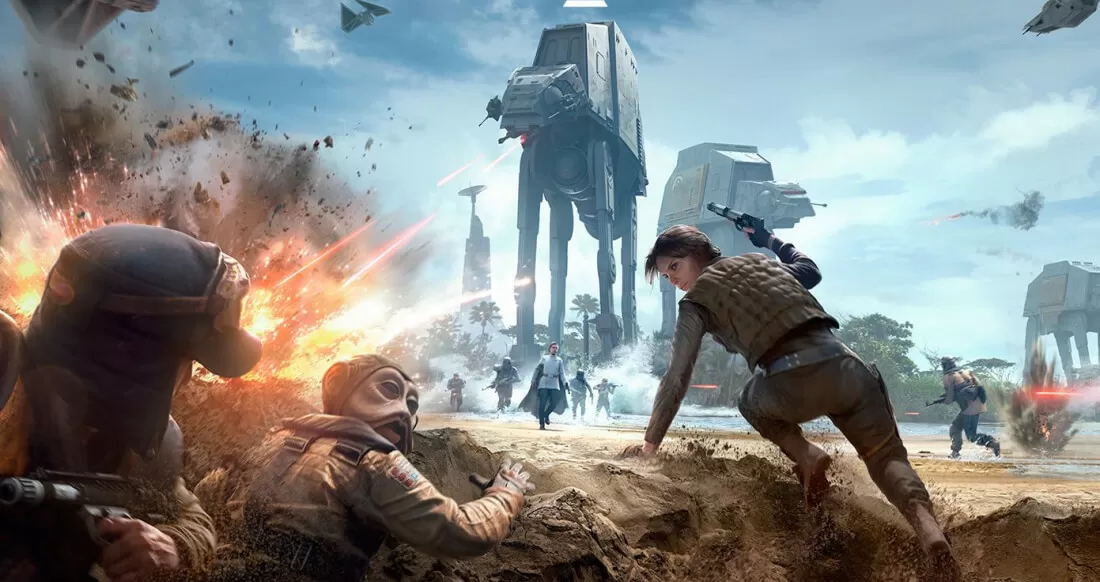
The world of PC gaming offers an unparalleled level of customization and longevity, largely thanks to the dedicated efforts of modding communities. For a game like Star Wars Battlefront 2 (2017), which captivated millions with its stunning visuals and immersive gameplay, mods have been instrumental in extending its lifespan, enriching its content, and tailoring the experience to individual player preferences. From introducing new heroes and villains to revamping graphical fidelity or even adding entirely new game modes, mods transform Battlefront 2 beyond its original scope. This guide delves into the technical intricacies of installing mods for Battlefront 2, providing a professional and insightful roadmap for both novice and experienced users keen to explore the full potential of this stellar title.
Understanding Battlefront 2 Mods and Their Appeal
Before diving into the installation process, it’s crucial to grasp what game mods entail, why they are so popular for Battlefront 2, and the inherent considerations regarding their use.
What are Game Mods?
Game modifications, or “mods,” are user-created alterations to a game’s existing code, assets, or content. These modifications can range from simple texture swaps and UI enhancements to complex additions like new characters, maps, or gameplay mechanics. Mods are a testament to the creativity and technical prowess of a game’s community, allowing players to inject fresh ideas and personal touches into their favorite titles. For Battlefront 2, built on the robust Frostbite engine, modding typically involves manipulating asset bundles and scripts to achieve desired changes.
Why Mod Battlefront 2?
The appeal of modding Battlefront 2 is multifaceted. Firstly, it offers a way to enhance and personalize the game beyond what official updates provide. Players can install high-resolution texture packs, reskin characters to reflect specific lore-accurate appearances, or even introduce entirely new heroes and starfighters that never made it into the official roster. Secondly, mods often address quality-of-life improvements, such as UI tweaks or performance optimizations, which might not be prioritized by the developers. Furthermore, for a game with a passionate fanbase like Star Wars, mods allow players to fulfill their deepest fan fantasies, playing as obscure characters or experiencing battles in unique ways. In essence, modding breathes new life into the game, keeping it fresh and engaging long after official support might have waned.
Legal and Ethical Considerations
While modding is generally embraced by PC gaming communities, it’s important to be aware of the associated legal and ethical considerations. Most game End User License Agreements (EULAs) contain clauses regarding unauthorized modifications. For primarily single-player games, modding is usually tolerated or even encouraged. However, in online multiplayer games like Battlefront 2, where anti-cheat systems are active, using certain types of mods can lead to penalties, including temporary bans or even permanent account suspension. It’s crucial to distinguish between purely cosmetic mods that only affect your client-side experience (and are generally safer) and mods that alter gameplay mechanics or provide an unfair advantage, which are strictly prohibited in multiplayer. Always exercise caution and research the community’s consensus on specific mods before using them in online environments. Single-player modes, like Instant Action or Arcade, are typically safe havens for any mod type.
Essential Tools for Battlefront 2 Modding
To embark on your Battlefront 2 modding journey, you’ll need a few key pieces of software and a reliable source for your desired modifications. The right tools streamline the process and mitigate potential issues.
The Frosty Mod Manager
The cornerstone of Battlefront 2 modding is the Frosty Mod Manager. Developed by the community, Frosty is a robust tool designed specifically for games built on EA’s Frostbite engine. Unlike traditional modding methods that might involve manually altering game files, Frosty provides a safe and efficient way to manage, apply, and remove mods without directly touching the core game installation. It works by creating a virtual layer that applies modifications when the game launches through the manager, leaving your original game files pristine. This non-destructive approach is vital for troubleshooting and ensuring game integrity, making it an indispensable utility for any Battlefront 2 modder.
Nexus Mods and Other Modding Hubs
The primary repository for Battlefront 2 mods, and indeed many other PC games, is Nexus Mods. This platform hosts thousands of user-created mods, complete with descriptions, installation instructions, user ratings, and comment sections. It’s an invaluable resource for discovering new mods, understanding their functionality, and getting support from the modding community. While Nexus Mods is the dominant platform, other communities and forums, such as dedicated Discord servers or Reddit subreddits (e.g., r/BattlefrontModding), also serve as excellent hubs for discussions, mod showcases, and troubleshooting advice. Always download mods from reputable sources to minimize the risk of malware or corrupted files.
Prerequisites and Game Backup
Before you even download your first mod, ensure your Battlefront 2 installation is clean and up-to-date. It’s recommended to have the latest version of the game installed. Additionally, while Frosty Mod Manager is designed to be non-invasive, it’s always a best practice to create a backup of your game’s critical files, especially your save data, if applicable, although Battlefront 2’s progression is server-side. For Frostbite games, a “clean” game state can often be restored by using the “Repair Game” option in your EA App (or Origin) client. This step ensures that any previous issues or minor corruptions are resolved before you introduce new variables with mods.
A Step-by-Step Guide to Mod Installation
With your tools ready and an understanding of the modding landscape, let’s walk through the practical steps of installing mods for Star Wars Battlefront 2. Precision and patience are key here.
Setting Up Frosty Mod Manager
-
Download Frosty Mod Manager: Navigate to a trusted source (e.g., Frosty Tool Suite GitHub or Nexus Mods page for Frosty Mod Manager) and download the latest stable version.
-
Extract the Files: Frosty typically comes as a zipped archive. Extract its contents to a dedicated folder on your hard drive, ideally outside your game directory (e.g.,
C:Program Files (x86)FrostyModManager). -
Launch Frosty: Run
FrostyModManager.exe. The first time you launch it, Frosty will prompt you to locate your Battlefront 2 executable. Navigate to your Battlefront 2 installation folder (e.g.,C:Program Files (x86)EA GamesSTAR WARS Battlefront II) and selectstarwarsbattlefrontii.exe. -
Profile Setup: Frosty will then create a profile for Battlefront 2. You might see a splash screen or a brief loading period as it initializes the game’s manifest files. Once complete, you’ll be presented with the main Frosty interface, ready to accept mods.
Downloading Your First Mod
-
Browse Nexus Mods: Go to Nexus Mods and search for “Star Wars Battlefront 2 (2017)”. Browse through the categories or search for specific mods that pique your interest.
-
Read Mod Descriptions Carefully: Before downloading, thoroughly read the mod’s description page. Pay attention to:
-
Requirements: Does it need other mods to function?
-
Compatibility: Are there known conflicts with other popular mods?
-
Installation Notes: Does the author provide specific instructions beyond the standard Frosty process?
-
Version: Is the mod compatible with the latest game patch?
-
File Type: Most Battlefront 2 mods will be in a
.fbmodformat, which is native to Frosty.
-
-
Download the Mod File: Click the “Files” tab on the mod page, then select “Manual Download” for the desired version. Save the
.fbmodfile to a readily accessible location on your computer.
Importing and Applying Mods in Frosty
-
Import to Frosty: In the Frosty Mod Manager, click the “Import Mods” button (often a folder icon with a plus sign). Navigate to where you saved your
.fbmodfile, select it, and click “Open.” The mod will now appear in your “Available Mods” list on the left panel. -
Enable Mods: To activate a mod, simply drag and drop it from the “Available Mods” list to the “Applied Mods” list on the right panel.
-
Manage Load Order (Crucial for Multiple Mods): If you’re installing multiple mods, their order in the “Applied Mods” list is crucial. Mods lower down in the list take precedence and will overwrite files from mods higher up. If two mods modify the same game asset, the one lower in the list will be the one that takes effect. Mod authors often provide guidance on load order, especially for complex mod packs. Use the up/down arrows in Frosty to adjust the load order as needed.
-
Apply Changes: Once you’ve arranged your desired mods and their load order, click the “Apply Mods” button (often a large green button). Frosty will then process the mods, which may take a few moments depending on the number and size of the modifications.
Launching the Game with Mods
-
Launch via Frosty: To play Battlefront 2 with your installed mods, you must launch the game through the Frosty Mod Manager. Click the “Launch” button within Frosty (usually a play icon).
-
Initial Load Time: The first time you launch the game with a new set of mods, or after a game update, it might take longer than usual to load. This is Frosty injecting the modded assets into the game environment. Be patient.
-
Verify Installation: Once the game loads, check to see if your mods are active. For example, if you installed a new character skin, go to the collection screen or start a match with that character to confirm the change. If a mod isn’t working, revisit the load order, check for compatibility issues, or consult the mod’s description page for troubleshooting tips.
Navigating Common Modding Challenges and Best Practices
Modding, while rewarding, can sometimes present challenges. Understanding common issues and adopting best practices will ensure a smoother, more enjoyable experience.
Troubleshooting Mod Conflicts
Mod conflicts are a frequent hurdle when managing multiple modifications. A conflict occurs when two or more mods attempt to modify the same game asset or script, leading to unpredictable behavior, crashes, or simply one mod overriding another unintentionally.
-
Load Order: As previously mentioned, the load order in Frosty Mod Manager is your primary tool. Place mods that should take precedence lower in the “Applied Mods” list.
-
Conflict Detection: Frosty offers some basic conflict detection, but careful observation is often required. If a mod isn’t working, try disabling other recently added mods one by one to isolate the culprit.
-
Mod Description: Always check the mod description on Nexus Mods for known conflicts or recommended load orders. The community comments section can also be a goldmine for troubleshooting specific issues.
Dealing with Game Updates
Game updates, while bringing new content and fixes, are often the bane of modders. A game patch can render existing mods incompatible, causing crashes or preventing the game from launching.
-
Patience is Key: After a major game update, it’s generally best to disable all mods and launch the vanilla game first to ensure it runs correctly. Then, wait for mod authors to update their creations to be compatible with the new patch. This process can take days or even weeks for complex mods.
-
Frosty Updates: The Frosty Mod Manager itself may also require updates to remain compatible with new game versions. Keep an eye on the Frosty Tool Suite GitHub or Discord for announcements regarding compatibility.
-
Repair Game: If you encounter persistent issues after an update, use the “Repair Game” option in the EA App to restore your game to its original state, then try applying mods again.
Ensuring Game Stability and Performance
While mods enhance the game, they can also impact stability and performance.
-
Resource Management: Installing a large number of high-resolution texture mods or complex character models can put a strain on your system’s VRAM and CPU. Monitor your game’s performance and consider reducing the number of visually intensive mods if you experience stuttering or frame rate drops.
-
Incremental Modding: Introduce mods incrementally rather than installing dozens at once. This makes it easier to identify which mod might be causing instability if issues arise.
-
Clean Uninstallation: If you decide to remove a mod, do so via Frosty Mod Manager (drag it from “Applied Mods” to “Available Mods”) and then re-apply your remaining mods. For complete troubleshooting, consider using Frosty’s “Clear Cache” option or even a full game repair.
Multiplayer Modding Risks
This point cannot be stressed enough: exercise extreme caution when using mods in Battlefront 2’s online multiplayer modes. EA/DICE’s anti-cheat systems are designed to detect unauthorized modifications.
-
Cosmetic vs. Gameplay: Purely cosmetic mods (e.g., character skins, weapon retextures) that only affect your client-side view are generally safer, but not entirely without risk. Mods that alter gameplay, provide an unfair advantage (e.g., increased damage, wallhacks), or modify core game mechanics are highly likely to trigger anti-cheat and result in a ban.
-
Community Consensus: Always check the Battlefront 2 modding community’s current stance on multiplayer modding. There might be specific tools or methods considered safe, but these can change with game updates.
-
Single-Player Sanctuary: If you’re unsure about a mod’s safety for multiplayer, restrict its use to single-player modes like Instant Action, Arcade, or the Campaign. This completely eliminates the risk of account penalties.
Exploring the Vibrant Battlefront 2 Modding Community
The Battlefront 2 modding scene is incredibly active and diverse, offering a treasure trove of content that significantly enhances the game.
Recommended Starting Mods (Examples)
For newcomers, starting with well-regarded and stable mods can provide an excellent introduction:
-
High-Resolution Texture Packs: Mods that upgrade the visual fidelity of planets, characters, and weapons.
-
Lore-Accurate Appearances: Numerous mods correct or add appearances for heroes and troopers to better align with Star Wars canon or fan-favorite designs.
-
Quality-of-Life Improvements: UI tweaks, enhanced sound effects, or improved blaster bolt visuals.
-
Instant Action Enhancements: Mods that add more AI units, hero choices, or custom scenarios for offline play, transforming the Instant Action mode into a truly epic sandbox.
-
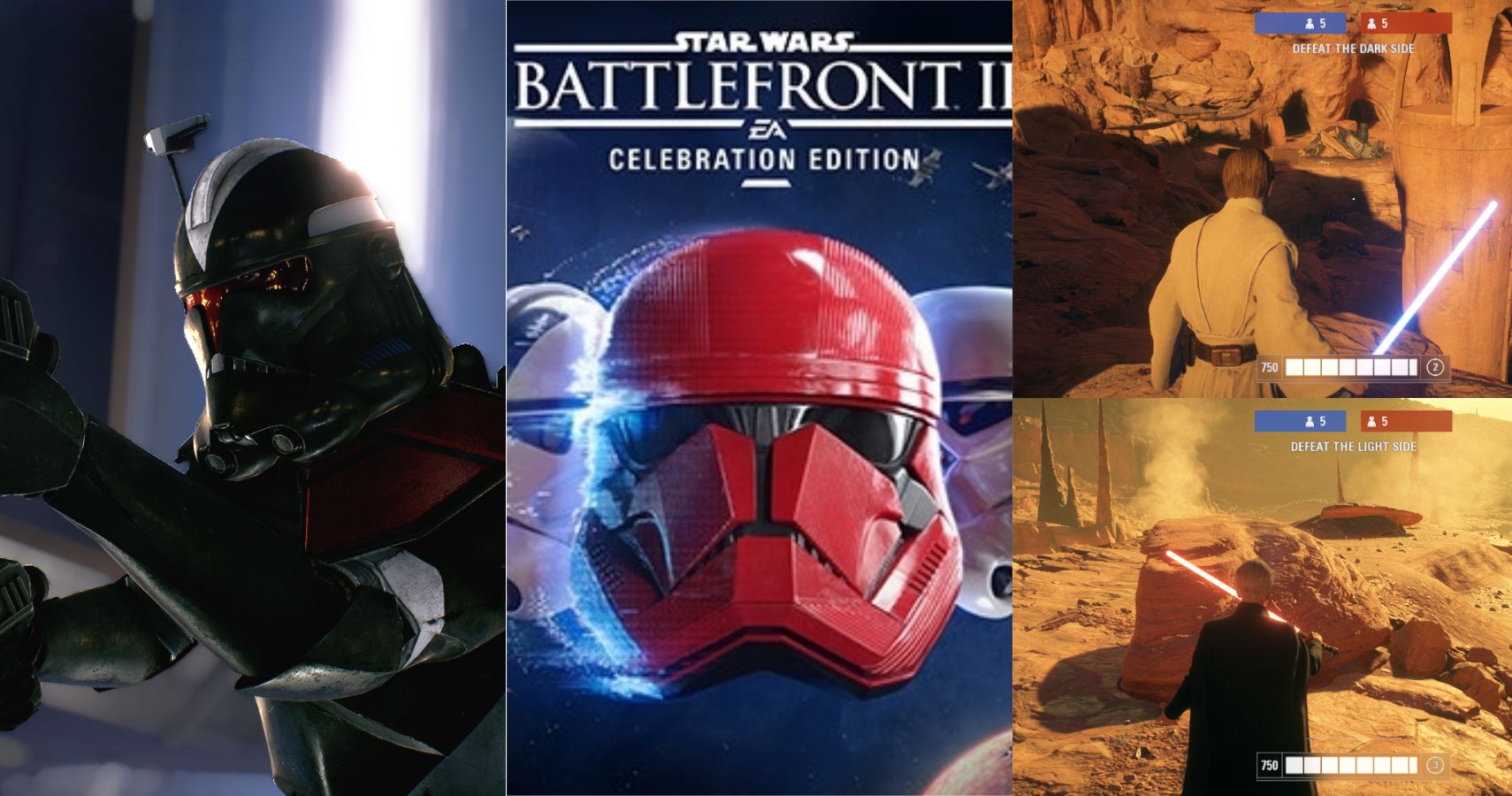
New Playable Characters: Advanced mods that introduce entirely new heroes or villains, often with custom abilities and animations.
Community Forums and Support
Should you encounter any issues or simply wish to engage with fellow modders, several platforms offer robust community support:
-
Nexus Mods: The comments and forums sections for individual mods are excellent places to ask questions directly to mod authors or find solutions posted by other users.
-
Reddit: Subreddits like r/BattlefrontModding are active communities where you can ask for help, showcase your modded game, and stay updated on new releases.
-
Discord Servers: Many mod authors and modding groups host dedicated Discord servers, providing real-time support, discussion channels, and early access to mod development news.
Modding Star Wars Battlefront 2 opens up a galaxy of possibilities, allowing you to tailor your galactic battles precisely to your desires. By understanding the tools, following best practices, and respecting the community guidelines, you can transform your Battlefront 2 experience into something truly unique and spectacular, extending the life and enjoyment of this iconic Star Wars title for years to come.
aViewFromTheCave is a participant in the Amazon Services LLC Associates Program, an affiliate advertising program designed to provide a means for sites to earn advertising fees by advertising and linking to Amazon.com. Amazon, the Amazon logo, AmazonSupply, and the AmazonSupply logo are trademarks of Amazon.com, Inc. or its affiliates. As an Amazon Associate we earn affiliate commissions from qualifying purchases.