
Cyberpunk 2077, CD Projekt Red’s ambitious dystopian RPG, offers an incredibly rich world and deeply engaging narrative. However, like many expansive PC titles, its potential is often amplified exponentially by a dedicated community of mod creators. From visual overhauls and new gameplay mechanics to quality-of-life improvements and bug fixes, mods can transform your Night City experience, tailoring it precisely to your preferences. Diving into modding can seem daunting initially, but with the right guidance and tools, even a novice can revolutionize their game. This comprehensive guide will walk you through the process, ensuring a smooth and stable journey into the enhanced reality of Cyberpunk 2077.
Unlocking Night City’s Full Potential: The World of Cyberpunk 2077 Modding
The allure of modding lies in its ability to customize, optimize, and expand upon the developer’s original vision. For a game as vast and detailed as Cyberpunk 2077, where player experience can vary wildly, mods become an indispensable tool for many enthusiasts. Understanding why and how to approach modding is the crucial first step in this technological endeavor.
Why Mod Cyberpunk 2077?
The reasons players opt for modding are diverse and compelling. For some, it’s about aesthetic enhancement – pushing the graphical fidelity beyond what base game settings allow, introducing new character customization options, or redesigning environments. Others seek gameplay modifications, such as rebalancing combat, introducing new weapons or vehicles, or even implementing completely new quest lines. Quality-of-life improvements, like better UI navigation, enhanced inventory management, or performance optimizations, are also highly sought after. Beyond mere enhancements, mods can sometimes address lingering bugs or introduce features that players feel were missing from the vanilla experience, fostering a truly personalized and often superior gameplay journey. Engaging with the modding community also means staying abreast of innovative creations that breathe new life into a game, ensuring its longevity and replayability for years to come. It transforms a consumer experience into a collaborative one, where players actively shape the digital world around them.
Essential Preparations Before Modding
Before you begin downloading and installing a single mod, meticulous preparation is paramount. Skipping these steps can lead to game instability, corrupted saves, or frustrating troubleshooting sessions. Firstly, ensure your copy of Cyberpunk 2077 is fully updated to the latest version. Mod developers typically build their creations for specific game patches, and outdated game files can cause compatibility issues. Next, back up your save files. While modding is generally safe, unexpected conflicts can sometimes corrupt game data. Your save files are usually located in %USERPROFILE%Saved GamesCD Projekt RedCyberpunk 2077. Copy the entire “Cyberpunk 2077” folder to a safe location on your drive.
It’s also highly recommended to verify the integrity of your game files through your game launcher (Steam, GOG Galaxy, or Epic Games Store). This ensures that your base game installation is clean and free of any existing corruption before you introduce external files. A clean slate minimizes potential conflicts and makes troubleshooting much simpler if issues arise later. Finally, consider creating a restore point for your operating system (Windows users). While less directly related to game files, this can be a safety net if a mod unexpectedly affects system stability, although this is rare. These preliminary steps might seem tedious, but they are foundational to a smooth and enjoyable modding experience, protecting your game progress and sanity in the long run.
The Foundation: Crucial Modding Tools and Dependencies
Effective modding for Cyberpunk 2077 isn’t just about dropping files into folders; it often requires a suite of foundational tools and libraries that enable complex modifications to function. These tools act as interpreters, extenders, or managers, providing the necessary framework for many of the more sophisticated mods you’ll encounter. Understanding and correctly installing these core dependencies is critical before you embark on any significant modding venture.
Cyber Engine Tweaks (CET): The Modding Backbone
At the heart of much of Cyberpunk 2077’s modding scene lies Cyber Engine Tweaks (CET). This isn’t just a mod; it’s a fundamental utility that injects a console and scripting framework directly into the game. Many of the most popular and advanced mods — ranging from UI overhauls to new character abilities and sophisticated bug fixes – depend on CET to function. It allows modders to execute arbitrary code, modify game variables, and create custom scripts that vastly extend the game’s capabilities.
Installing CET is straightforward. You typically download it from Nexus Mods, extract its contents, and place the .dll and configuration files directly into your game’s binx64 folder (e.g., SteamLibrarysteamappscommonCyberpunk 2077binx64). Once installed, pressing a designated hotkey (usually ~ or ') in-game will bring up its console, confirming its successful integration. While you might not directly interact with the console for most mods, its presence is crucial. Ensure you always download the version of CET compatible with your current Cyberpunk 2077 patch, as outdated versions are a common source of crashes.
REDmod: CDPR’s Official Modding Solution
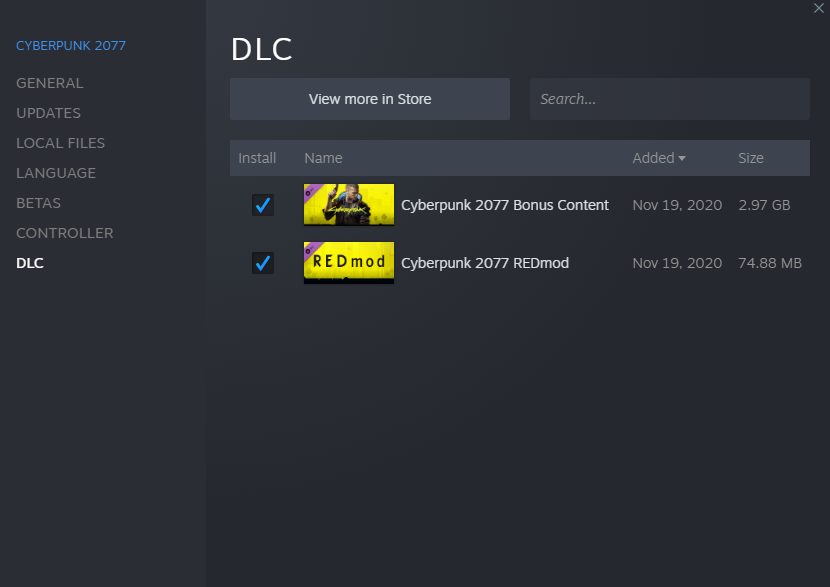
In a significant move to support its modding community, CD Projekt Red officially released REDmod. This is their proprietary modding tool, designed to streamline the creation and implementation of certain types of mods. Unlike CET, which is community-developed, REDmod offers an official framework, primarily for asset-based mods (like new clothing, vehicles, or character models) and potentially future official modding API extensions.
While REDmod isn’t a replacement for CET or other community tools, it works alongside them, providing an official pathway for certain modifications. Some mods will specifically state they require REDmod. Installing it is usually done via your game launcher (Steam, GOG, Epic) as a free DLC or separate install option. Once installed, REDmod creates a dedicated mods folder within your main Cyberpunk 2077 directory. Mods designed for REDmod are typically placed here, allowing the game to load them through its official pipeline. This approach is intended to provide greater stability and potentially fewer conflicts for mods utilizing its framework, distinguishing it from the more general-purpose archivepcmod folder used by many traditional mods.
Core Libraries: ArchiveXL, TweakXL, and Native Settings UI
Beyond CET and REDmod, several other community-developed libraries serve as essential dependencies for various categories of mods. These include ArchiveXL, TweakXL, and Native Settings UI.
-
ArchiveXL: This library is a game-changer for mods that introduce new standalone items, clothing, or assets. Without ArchiveXL, the game struggles to recognize custom assets that aren’t overwriting existing ones. It extends the game’s archive system, allowing new
.archivefiles to be loaded correctly. If you’re installing mods that add new hairstyles, apparel, or weapons rather than replacing vanilla ones, ArchiveXL is almost certainly a prerequisite. -
TweakXL: Complementary to ArchiveXL, TweakXL provides an expanded framework for tweaking game data. It’s often required for mods that alter specific game parameters, modify existing items, or introduce new functionalities through configuration files. Many mods that change aspects like vehicle handling, item stats, or game mechanics rely on TweakXL’s capabilities.
-
Native Settings UI: As the name suggests, this library is crucial for mods that offer in-game configuration options. It allows modders to integrate their mod settings directly into Cyberpunk 2077’s existing settings menu, providing a much more seamless and user-friendly experience than editing
.inifiles manually. If a mod promises an in-game settings panel, Native Settings UI is the underlying technology making that possible.

Installation for these libraries typically involves downloading their files from Nexus Mods and extracting them into the appropriate game folders, often the binx64 directory for .dll files and the archivepcmod folder for .archive components, similar to CET. Always check the specific installation instructions provided by the mod creator on Nexus Mods, as placement can sometimes vary slightly. Correctly installing these foundational tools ensures that the vast majority of Cyberpunk 2077’s modding ecosystem functions without a hitch.
Two Paths to Modification: Manual vs. Mod Manager Installation
Once your game is prepped and core dependencies are installed, you’re ready to integrate actual mods. There are primarily two methods for doing this: manual installation, which offers precise control, and using a mod manager like Vortex, which streamlines the process for complex setups. Each method has its advantages and is suited to different types of mods and user preferences.
Method 1: The Precision of Manual Mod Installation
Manual installation is the most direct approach. It involves downloading mod files, extracting them, and then physically placing them into specific directories within your Cyberpunk 2077 game folder. This method is ideal for smaller mods, single-file tweaks, or when you want absolute control over where every file resides. It’s also essential for understanding the underlying file structure of the game, which can be invaluable for troubleshooting.
The primary locations for manually installed mods are:
-
Cyberpunk 2077archivepcmod: This is the most common destination for.archivefiles, which constitute the bulk of many visual, audio, or item mods. If a mod contains files likemod_myawesomeclothing.archive, they will typically go here. If themodfolder doesn’t exist, you’ll need to create it. -
Cyberpunk 2077binx64: This folder is reserved for executable components,.dllfiles, and configuration files (.ini,.json) for script-based mods, such as Cyber Engine Tweaks itself and its extensions. -
Cyberpunk 2077r6scripts: Some older or highly specific script mods might require files to be placed here. -
Cyberpunk 2077r6tweaks: This folder is often used by mods that make simple text-based data tweaks to the game.
To manually install a mod:
-
Download the mod file from Nexus Mods (or another trusted source).
-
Extract the contents of the downloaded archive (usually a
.zip,.rar, or.7zfile) using a tool like 7-Zip. -
Read the mod’s installation instructions carefully. This is paramount, as mod authors specify the exact destination for their files.
-
Copy the extracted files (e.g., the
.archivefile, thebinfolder, or theredmodfolder) into the correct location within your Cyberpunk 2077 installation directory.
While manual installation provides granular control and can sometimes resolve specific conflicts, it scales poorly with many mods. Tracking numerous files across various folders becomes cumbersome, and uninstalling or updating mods can be a tedious and error-prone process.
Method 2: Streamlining with Vortex Mod Manager
For anyone planning to install more than a handful of mods, a mod manager is indispensable. Vortex Mod Manager, developed by Nexus Mods, is arguably the most popular and robust solution for Cyberpunk 2077. Vortex simplifies the entire modding lifecycle, from downloading and installing to enabling, disabling, and resolving conflicts.
Here’s a general workflow for using Vortex:
-
Download and install Vortex: Get it from the Nexus Mods website.
-
Launch Vortex and set up Cyberpunk 2077: On first launch, Vortex will scan your system for games. If Cyberpunk 2077 isn’t detected, you can manually add it by pointing Vortex to its installation directory.
-
Connect Vortex to Nexus Mods: This allows for direct “Mod Manager Download” links on Nexus Mods pages.
-
Install mods via Vortex:
-
On a mod page on Nexus Mods, click “Mod Manager Download.” Vortex will automatically download and add the mod to its staging area.
-
Alternatively, if you’ve manually downloaded a mod, you can drag and drop the archive file directly into the “Mods” section of Vortex.
-
Once a mod is added, you’ll see it listed in Vortex. Click “Install” to deploy it to your game.
-
-
Enable/Disable and Resolve Conflicts: Vortex provides an intuitive interface to enable or disable mods with a click. Crucially, it has a robust conflict resolution system. If two mods attempt to modify the same file, Vortex will flag the conflict and allow you to set rules (e.g., “Load this mod after that mod,” or “This mod always wins”) to determine which mod’s changes take precedence. This is vital for maintaining game stability with a large mod list.
Vortex creates a virtual file system, meaning mods are installed into a separate staging folder and then “linked” to your game directory. This keeps your actual game files clean, making it incredibly easy to uninstall mods or revert to a vanilla state without damaging your base installation. While there’s a learning curve to understanding Vortex’s interface and conflict resolution, the long-term benefits in terms of stability, ease of management, and time saved are immeasurable for serious modders.
Navigating the Modded Landscape: Best Practices and Troubleshooting
Modding, while incredibly rewarding, isn’t always a flawless process. Issues can arise, from minor visual glitches to full-blown game crashes. Understanding how to prevent these problems and effectively troubleshoot them when they occur is a critical skill for any modder. Adopting best practices from the outset can save you countless hours of frustration and ensure a consistently enjoyable modded experience.
Common Challenges and Their Solutions
The vast majority of modding problems stem from incompatibility or incorrect installation. Here are some common challenges and their typical solutions:
-
Game Crashing on Startup or Load: This is often indicative of a critical mod conflict or a missing dependency.
- Solution: Review recent mod installations. If you just installed several mods, try disabling them one by one (or uninstalling if manual) to isolate the culprit. Ensure all core dependencies (CET, ArchiveXL, etc.) are installed and up-to-date for your game version. Check the mod’s requirements carefully.
-
Performance Drops or Stuttering: While some mods, especially high-resolution texture packs, naturally impact performance, sudden or severe drops usually point to an issue.
- Solution: Reduce graphical settings temporarily. Disable performance-heavy mods. Ensure your GPU drivers are updated. Overlapping texture mods or poorly optimized scripts can sometimes cause this.
-
Visual Glitches (e.g., T-posing, strange textures, missing items): These are usually asset loading errors or conflicts.
- Solution: Verify the game files through your launcher (Steam/GOG/Epic). This will replace any corrupted vanilla files. For mod-related issues, check for conflicting mods that alter the same assets. If using Vortex, revisit conflict resolution for asset mods. Ensure ArchiveXL and TweakXL are correctly installed if the mod adds new items.
-
Mods Not Appearing/Working In-Game: This is a classic sign of incorrect installation or missing prerequisites.
- Solution: Double-check the installation path. Did you place the
.archivefile inarchivepcmod? Are.dllfiles inbinx64? Is the mod enabled in Vortex? Read the mod description again for any specific steps you might have missed, like in-game menu activation or configuration.
- Solution: Double-check the installation path. Did you place the
-
Update Breakage: Game updates often break mods, especially script-heavy ones.
- Solution: Be patient. Most mod authors will update their mods shortly after a game patch. Before updating Cyberpunk 2077, consider backing up your entire modded game directory or disabling all mods. Check Nexus Mods for updates to your installed mods and core dependencies (CET, ArchiveXL) immediately after a game patch.

Maintaining a Stable Modded Game
To minimize troubleshooting and maximize enjoyment, adhere to these best practices:
-
Read Everything: Never install a mod without thoroughly reading its description, installation instructions, requirements, known issues, and user comments on Nexus Mods. This is your primary defense against problems.
-
Install Gradually: Don’t install dozens of mods at once. Add a few at a time, test the game, and ensure everything is working before adding more. This makes identifying problematic mods much easier.
-
Keep Backups: Regularly back up your game saves. If you’re undertaking a major modding overhaul, consider backing up your entire Cyberpunk 2077 installation folder.
-
Stay Updated (Selectively): While keeping mods updated is good, sometimes an older, stable version of a mod works better with your current setup. Be cautious with immediate updates, especially for core dependencies, until the community confirms stability.
-
Use a Mod Manager: For anything beyond a handful of simple mods, Vortex is your best friend. It vastly simplifies installation, uninstallation, and conflict resolution.
-
Understand Dependencies: Always ensure you have all required dependencies for a mod (CET, ArchiveXL, etc.) installed and up-to-date.
-
Join the Community: Websites like Nexus Mods, Reddit’s r/cyberpunkgame, and various Discord servers host active modding communities. These are invaluable resources for asking questions, finding solutions, and discovering new mods.
By embracing these technical strategies and practices, you can navigate the exciting world of Cyberpunk 2077 modding with confidence, transforming Night City into the bespoke cyberpunk playground you’ve always envisioned. The journey may have its technical quirks, but the reward of a truly personalized and enhanced gaming experience is well worth the effort.
aViewFromTheCave is a participant in the Amazon Services LLC Associates Program, an affiliate advertising program designed to provide a means for sites to earn advertising fees by advertising and linking to Amazon.com. Amazon, the Amazon logo, AmazonSupply, and the AmazonSupply logo are trademarks of Amazon.com, Inc. or its affiliates. As an Amazon Associate we earn affiliate commissions from qualifying purchases.