
Minecraft, the globally acclaimed sandbox video game, has captivated millions with its endless creative possibilities, survival challenges, and expansive worlds. For Mac users, getting started with Minecraft is a straightforward process, yet it involves a few critical steps to ensure a smooth installation and optimal gameplay. This guide provides an insightful, step-by-step walkthrough, addressing common queries and offering tips to enhance your experience. Delving into the technicalities of software deployment on macOS, we will navigate everything from system prerequisites to post-installation optimization, ensuring you’re ready to embark on your blocky adventures without a hitch.
Preparing Your Mac for Minecraft Installation
Before you dive into the world of Creepers and crafting tables, it’s crucial to ensure your Mac is adequately prepared. This initial phase involves verifying your system’s specifications and understanding the underlying software requirements, laying a solid foundation for a successful installation. Overlooking these preliminary checks can lead to performance issues or installation failures, making this step paramount for a seamless entry into Minecraft.
System Requirements Check
Minecraft, while not the most graphically intensive game, still requires a minimum set of hardware specifications to run smoothly. The game’s performance heavily relies on your Mac’s processor, RAM, and graphics capabilities. For the Java Edition, which is typically the version Mac users install, the recommended specifications are an Intel Core i5 or equivalent processor, 8GB of RAM, and a dedicated GPU (e.g., AMD Radeon RX series or NVIDIA GeForce 700 series) or an integrated Intel Iris Plus Graphics. While Minecraft can run on lower specifications, adhering to these recommendations ensures a more fluid and enjoyable experience, especially when dealing with complex builds, multiple players, or resource packs. It’s important to note that Apple Silicon Macs (M1, M2, M3 chips) are highly capable of running Minecraft Java Edition through Rosetta 2 translation, with performance often exceeding older Intel Macs, and native versions are continuously being optimized. Always check the official Minecraft website for the most up-to-date system requirements, as these can evolve with game updates.
Java Runtime Environment (JRE) Explained
Minecraft Java Edition, as its name suggests, relies on the Java Runtime Environment (JRE) to function. Java is a programming language and computing platform that was first released in 1995. It is the underlying technology that powers many applications, including Minecraft. While macOS typically comes with some Java components, Minecraft often requires a specific version or a more recent iteration of the JRE to run correctly. The official Minecraft Launcher usually bundles the necessary Java version, simplifying the process. However, understanding its role is important for troubleshooting. If you encounter issues related to Java, manually installing or updating the JRE (specifically OpenJDK, which is the open-source implementation of Java) might be necessary. It’s crucial to download Java from reputable sources like Adoptium (Eclipse Temurin) to avoid security risks. The launcher’s ability to manage its own Java runtime means that most users won’t need to manually configure Java, but awareness can be a valuable asset for advanced users or in case of specific conflicts.
Disk Space and Internet Connectivity
Installing Minecraft, along with its associated game files, requires a reasonable amount of disk space. While the initial download of the launcher is small, the game itself, including textures, sound files, and world data, can expand to several gigabytes. Allocating at least 4-6 GB of free disk space is a good starting point, with more space needed if you plan to install resource packs, mods, or create numerous large worlds. Regularly checking your Mac’s storage (System Settings > General > Storage) can help you manage disk space efficiently. Furthermore, a stable and reliable internet connection is absolutely essential throughout the installation process. The Minecraft Launcher not only downloads the core game files but also frequently checks for updates, downloads new versions, and connects to Mojang’s servers for account verification. A consistent connection ensures uninterrupted downloads and prevents corrupted files, which could necessitate restarting the installation. Post-installation, an internet connection is still required for multiplayer gaming and accessing certain online features, though single-player offline play is generally possible after the initial login.
Acquiring the Minecraft Launcher
With your Mac prepped, the next step is to obtain the official Minecraft Launcher. This is the gateway to all Minecraft versions and features, acting as a central hub for installing, updating, and launching the game. Opting for the official source is paramount for security and functionality.
Official Download Source
The only truly secure and reliable place to download the Minecraft Launcher is from the official Minecraft website. Navigating to minecraft.net and heading to the “Get Minecraft” or “Download” section will present you with options for various platforms. For Mac users, ensure you select the “macOS” option. Downloading from third-party websites, torrents, or unofficial mirrors carries significant risks, including malware, outdated versions, or compromised files. Always verify the URL in your browser to confirm you are on the legitimate Mojang Studios / Minecraft website before proceeding with any downloads. This small precaution can save you from potential security vulnerabilities and ensure you receive an authentic, unadulterated version of the game. The official launcher is designed to be self-contained and manages the installation of game files and Java runtimes automatically, streamlining the entire setup process.
Understanding Account Creation
Before you can download the game, you’ll need a Microsoft account. Mojang Studios (the developers of Minecraft) transitioned from Mojang accounts to Microsoft accounts for all Minecraft players a few years ago. If you don’t already have one, you’ll be prompted to create a free Microsoft account during the purchase process or when you attempt to log in through the launcher. This account serves as your digital identity for Minecraft, storing your game license, progress, and allowing access to multiplayer servers. The process of creating a Microsoft account is standard: providing an email address, setting a password, and verifying your identity. It’s crucial to remember your login credentials, as you’ll need them every time you launch Minecraft and for any future account management. Existing Mojang account holders will have gone through a migration process to link their Minecraft license to a Microsoft account.
Download Process Walkthrough
Once you’ve navigated to the official download page and either logged in or created your Microsoft account, locate the download button specifically for macOS. Clicking this button will initiate the download of the Minecraft Launcher installer, typically a .dmg file. Modern web browsers usually download files to your “Downloads” folder by default. Keep an eye on your browser’s download manager to monitor the progress. The file size of the launcher itself is relatively small, so the download should complete quickly on a decent internet connection. Once downloaded, do not open the .dmg file just yet; this is just the launcher installer. The actual game files will be downloaded after you install and launch the launcher application itself. This two-stage download process ensures that you always have the most up-to-date game version managed efficiently by the launcher.
The Installation Process Explained
With the Minecraft Launcher downloaded, the next phase involves installing the application on your Mac and then allowing it to pull down the core game files. This is where the magic begins, transforming a simple .dmg file into a fully functional gateway to limitless block-based adventures.
Locating the Downloaded File
After the .dmg file for the Minecraft Launcher has finished downloading, navigate to your “Downloads” folder using Finder. You should see a file named something like Minecraft.dmg. This is the disk image containing the launcher application. Double-clicking this .dmg file will mount it as a virtual drive on your desktop, and a Finder window will pop open, typically displaying the Minecraft application icon and an “Applications” folder alias. This presentation simplifies the drag-and-drop installation process, a common method for installing applications on macOS. If the window doesn’t appear automatically, look for a new drive icon on your desktop or in the Finder sidebar, usually labeled “Minecraft.”
Drag-and-Drop Installation
The installation of the Minecraft Launcher on macOS is remarkably straightforward, leveraging the intuitive drag-and-drop mechanism. Within the mounted .dmg window, you will usually see the “Minecraft” application icon and a shortcut to your “Applications” folder. To install, simply click and drag the “Minecraft” application icon directly into the “Applications” folder alias. This action copies the application bundle from the disk image to your Mac’s Applications directory, making it accessible from Launchpad, Finder, and your Dock. Once the copying process is complete, you can safely eject the “Minecraft” disk image by dragging its icon from your desktop to the Trash or by clicking the eject icon next to its name in the Finder sidebar. It’s crucial to perform this drag-and-drop step. Running the application directly from the .dmg file can lead to instability or prevent proper updates.
First Launch and Game Files Download
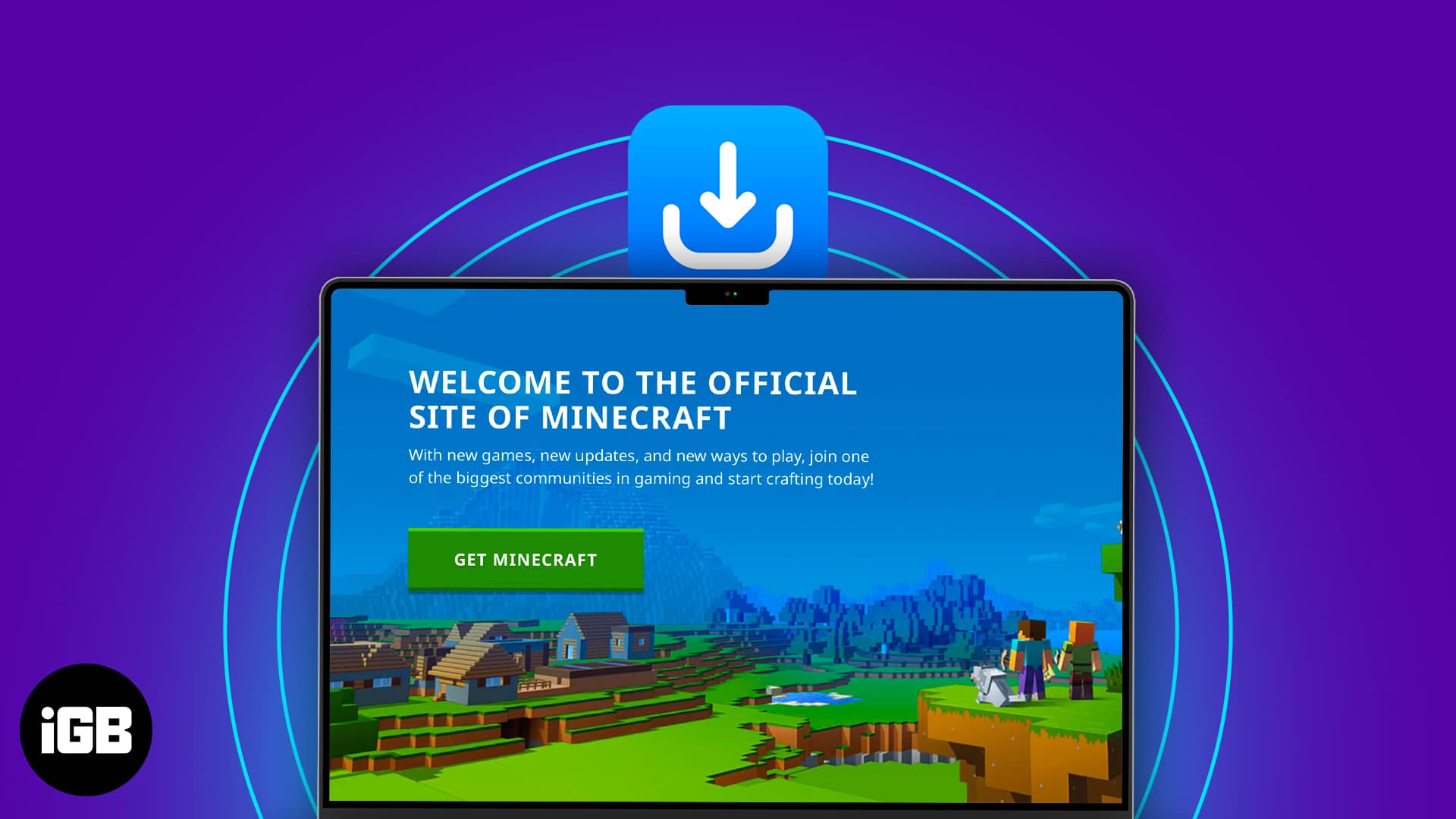
Now that the Minecraft Launcher is installed in your Applications folder, you can launch it. Navigate to your Applications folder in Finder, or find “Minecraft” in Launchpad, and click its icon. The first time you launch it, macOS might prompt you with a security warning stating that the app was downloaded from the internet. Click “Open” to proceed. The launcher will then connect to Mojang’s servers, download any necessary updates for itself, and prompt you to log in with your Microsoft account (if you haven’t already). After successful login, the launcher will begin downloading the actual Minecraft game files. This process can take a significant amount of time depending on your internet speed, as it involves downloading all the game assets, textures, and sound files. A progress bar will indicate the download status. Once complete, a prominent “Play” button will appear, signaling that you are ready to launch Minecraft and begin your adventure.
Troubleshooting Common Installation Issues
Even with a seemingly straightforward installation process, Mac users can occasionally encounter hurdles. Understanding common issues and their resolutions is key to minimizing downtime and maximizing your gameplay. This section addresses frequent problems and provides practical solutions to get you back into the game.
“Unidentified Developer” Warnings
When launching the Minecraft Launcher or even the game itself for the first time, macOS’s Gatekeeper security feature might display a warning message stating, “Minecraft is an application downloaded from the internet. Are you sure you want to open it?” or, more restrictively, “Minecraft can’t be opened because it is from an unidentified developer.” The first warning is standard and usually resolved by clicking “Open.” The second, more stringent warning arises when an application is not signed by an identified developer, or if your security settings are very high. To bypass this, navigate to System Settings > Privacy & Security. Scroll down, and you might see a message indicating that the Minecraft app was blocked, with an “Open Anyway” button next to it. Clicking this button will allow you to launch the application. For persistent issues, ensure your security settings under “Allow applications downloaded from:” are set to “App Store and identified developers.”
Performance Lags and Optimization Tips
Once Minecraft is running, some Mac users might experience performance lags, low frame rates, or general choppiness, especially on older hardware or with more complex worlds. Several strategies can help optimize your experience:
-
Adjust In-Game Video Settings: This is the most effective first step. Access Minecraft’s “Options” > “Video Settings.” Reduce render distance, turn off fancy graphics, set “Graphics” to “Fast,” reduce “Smooth Lighting,” and lower particle effects. Experiment with these settings to find a balance between visual quality and performance.
-
Allocate More RAM (for Java Edition): The Minecraft Launcher allows you to allocate more RAM to the game. In the launcher, go to “Installations,” select your desired game version, click the three dots, then “Edit.” Under “More Options,” you’ll find “JVM Arguments.” Change the
-Xmx2Gvalue to-Xmx4Gor-Xmx6G(depending on your total RAM, never allocate more than half). This can significantly improve performance, especially with mods or large worlds. -
Update macOS and Graphics Drivers: Ensure your macOS is up to date, as system updates often include performance enhancements and graphics driver improvements. While Mac doesn’t have discrete graphics driver updates like Windows, macOS updates encompass these.
-
Close Background Applications: Free up system resources by closing any unnecessary applications running in the background while playing Minecraft.
-
Consider OptiFine: OptiFine is a third-party mod that significantly enhances Minecraft’s performance and offers extensive video settings for optimization. While it’s a mod, it’s widely used and respected within the community for its performance benefits. Install it carefully by following reputable guides.
Network Connectivity Problems
Minecraft often requires an internet connection, particularly for multiplayer. If you’re experiencing issues connecting to servers or downloading updates, consider these troubleshooting steps:
-
Check Your Internet Connection: Ensure your Wi-Fi or Ethernet connection is stable and functional for other applications.
-
Firewall Settings: macOS has a built-in firewall. Go to System Settings > Network > Firewall. Ensure that Minecraft is allowed to accept incoming connections. If it’s blocked, add it to the allowed applications list. Temporarily disabling the firewall (with caution) can help determine if it’s the culprit.
-
Router/Modem Restart: A simple restart of your router and modem can resolve many network-related issues.
-
VPN Interference: If you’re using a VPN, try disabling it to see if it’s interfering with Minecraft’s connection to its servers.
-
Antivirus Software: Some antivirus programs can interfere with network connections. Temporarily disable your antivirus to check if it resolves the issue, but remember to re-enable it afterwards.
Enhancing Your Minecraft Experience on Mac
Once Minecraft is successfully installed and running, the journey is far from over. The game offers a rich ecosystem of customization and additional content that can significantly deepen your engagement. Understanding these avenues can transform your basic gameplay into a truly personalized adventure.
Understanding Minecraft Versions (Java vs. Bedrock)
For Mac users, the primary and most commonly installed version is Minecraft: Java Edition. This version is celebrated for its robust modding community, vast server ecosystem, and cross-play compatibility with other Java Edition players (primarily on Windows, Linux, and other macOS devices). It’s the original version that started it all.
While less common for direct installation on macOS, there’s also Minecraft: Bedrock Edition. This version is designed for cross-platform play across a much broader range of devices, including Windows 10/11, Xbox, PlayStation, Nintendo Switch, iOS, and Android. It typically offers a more unified marketplace for skins and texture packs. Although Mojang/Microsoft have not released a native Bedrock Edition for macOS, Mac users can theoretically run it via virtualization software (like Parallels Desktop running Windows) or through emulation, though this is significantly more complex and resource-intensive than simply installing the Java Edition. For a native Mac experience, Java Edition is the way to go, offering unparalleled flexibility and community content.
Modding and Custom Content
One of the most compelling aspects of Minecraft Java Edition is its vibrant modding scene. Mods are user-created modifications that can add new items, creatures, dimensions, gameplay mechanics, and aesthetic enhancements to the game. From performance-boosting mods like OptiFine to expansive content additions like the Aether or Biomes O’ Plenty, mods can radically alter your Minecraft experience.
Installing mods typically involves using a “mod loader” like Forge or Fabric. These tools modify the Minecraft client to allow third-party code to run. The general process involves:
-
Downloading the mod loader installer.
-
Running the installer to create a new Minecraft profile in the launcher.
-
Downloading desired mods (usually
.jarfiles) from reputable sites like CurseForge. -
Placing these
.jarfiles into themodsfolder located within your Minecraft installation directory (accessible via the “Installations” tab in the launcher).
Resource packs (which change textures and sounds) and data packs (which modify gameplay without needing a mod loader) are also popular ways to customize your game and are generally easier to install, often just requiring them to be dropped into specific folders. Always ensure you download custom content from trusted sources to avoid malware.
Backing Up Your Worlds
After investing countless hours building majestic structures, exploring vast landscapes, and gathering precious resources, the last thing you want is to lose your Minecraft worlds due to a technical glitch, corrupted files, or accidental deletion. Regularly backing up your worlds is a critical habit for any dedicated player.
Minecraft worlds are stored in a specific folder on your Mac. To locate it:
-
Open the Minecraft Launcher.
-
Go to the “Installations” tab.
-
Hover over the game version you play (e.g., “Latest release”), click the folder icon that appears. This will open the Minecraft installation directory.
-
Within this directory, you’ll find a folder named
saves. Thissavesfolder contains all your individual Minecraft worlds, each as its own subfolder.
To back up a world, simply copy its respective subfolder from the saves directory to a safe location, such as an external hard drive, a cloud storage service (iCloud Drive, Dropbox, Google Drive), or another folder on your Mac. You can restore a world by copying its folder back into the saves directory. Implementing a routine backup schedule—perhaps after every major building project or significant exploration—will provide peace of mind and protect your hard-earned progress.
In conclusion, installing Minecraft on a Mac is a straightforward process when approached systematically. By understanding the prerequisites, following the official download and installation steps, and knowing how to troubleshoot common issues, you can ensure a smooth setup. Furthermore, by exploring the rich ecosystem of versions, mods, and diligent backups, you can significantly enhance and safeguard your Minecraft journey, opening up a world of endless creative and adventurous possibilities on your Apple device.
aViewFromTheCave is a participant in the Amazon Services LLC Associates Program, an affiliate advertising program designed to provide a means for sites to earn advertising fees by advertising and linking to Amazon.com. Amazon, the Amazon logo, AmazonSupply, and the AmazonSupply logo are trademarks of Amazon.com, Inc. or its affiliates. As an Amazon Associate we earn affiliate commissions from qualifying purchases.