
In today’s hyper-connected world, a stable and fast internet connection is no longer a luxury but a fundamental necessity. From remote work and online learning to streaming entertainment and smart home management, nearly every facet of modern life relies on reliable access to the digital realm. Setting up internet at home might seem like a daunting task, fraught with technical jargon and tangled cables, but with a clear, step-by-step guide, it’s an entirely manageable process. This comprehensive tutorial will walk you through everything you need to know, ensuring you establish a robust and secure home network with confidence. We’ll delve into the necessary hardware, the intricacies of connection types, and crucial security measures, all within the realm of practical technology implementation.
1. Laying the Foundation: Pre-Installation Essentials
Before you even think about plugging in cables, a thoughtful planning phase is crucial. This initial stage involves understanding your options, selecting the right service, and gathering the necessary components to ensure a smooth setup.
Understanding Your Internet Service Provider (ISP) Options
The first and most critical step is choosing an Internet Service Provider (ISP). ISPs are the companies that provide you with internet access. Researching local providers is essential, as availability and service quality can vary significantly by region. Key factors to consider include:
-
Availability: Not all ISPs serve every area. Start by checking which providers operate in your specific address. Websites like BroadbandNow or your local government’s telecommunications regulator can often help.
-
Speed: Internet speed is measured in megabits per second (Mbps) for downloads and uploads. Consider your household’s usage patterns. A single user primarily browsing and emailing might be fine with 25-50 Mbps. A family with multiple users streaming 4K video, gaming, and working from home might require 200 Mbps or more. Don’t solely focus on download speed; upload speed is crucial for video calls and uploading large files.
-
Pricing and Plans: Compare monthly costs, contract lengths, data caps (if any), and promotional offers. Be wary of introductory rates that jump significantly after a few months.
-
Customer Service and Technical Support: A responsive and knowledgeable support team can be invaluable when issues arise. Check online reviews and ask neighbors for their experiences.
-
Bundling Options: Many ISPs offer bundles that combine internet with TV, phone, or mobile services. While these can sometimes save money, ensure you genuinely need all components of the bundle.
Deciphering Internet Connection Types
The type of internet connection available at your home will dictate the required equipment and potential speeds. Understanding these technologies is vital for making an informed decision:
-
DSL (Digital Subscriber Line): Uses existing telephone lines. Generally slower than cable or fiber, speeds vary significantly based on distance from the ISP’s central office. It’s often a more affordable option and widely available in older or rural areas.
-
Cable Internet: Delivered via coaxial cables, similar to those used for cable TV. Cable internet typically offers faster speeds than DSL and is a popular choice for many households. Speeds are shared among users in a neighborhood, which can lead to slowdowns during peak hours.
-
Fiber Optic Internet: The gold standard for home internet. Fiber optic cables transmit data using light signals, offering incredibly high speeds (gigabit speeds are common) and low latency. It’s less susceptible to interference and distance degradation. However, fiber infrastructure is still expanding, so it might not be available everywhere.
-
Satellite Internet: Primarily used in rural areas where DSL, cable, or fiber are unavailable. It offers broad coverage but typically has higher latency (delay) and lower speeds compared to other options, and can be affected by weather conditions.
-
Fixed Wireless Internet: Uses radio signals to connect to a nearby base station. Similar to satellite, it serves areas lacking wired infrastructure but generally offers better latency and speeds than satellite.
-
5G Home Internet: A newer option leveraging 5G cellular networks. It offers high speeds and low latency, making it a viable alternative in areas with strong 5G coverage, often competing with cable internet.
Your chosen ISP will specify the type of connection they provide, which directly impacts the modem you’ll need.
Assembling Your Connectivity Toolkit
Once you’ve selected your ISP and plan, it’s time to gather the necessary hardware. Your ISP might provide some or all of these, often for a monthly rental fee. You can often save money long-term by purchasing your own compatible equipment.
-
Modem (Modulator-Demodulator): This is the device that translates the internet signal from your ISP’s line (coaxial cable, fiber optic, phone line) into a digital signal that your computer or router can understand. Crucially, the modem must be compatible with your internet connection type (e.g., DOCSIS 3.1 for cable, GPON/EPON for fiber, ADSL/VDSL for DSL).
-
Wi-Fi Router: The router creates your local area network (LAN) and broadcasts the Wi-Fi signal throughout your home, allowing multiple devices to connect wirelessly. It also manages traffic between your devices and the internet. Many ISPs offer a combined modem-router unit, often called a “gateway.” While convenient, separate units can offer more flexibility and potentially better performance.
-
Ethernet Cables: Essential for connecting your modem to your router, and for providing a wired connection from your router to devices like desktop computers, gaming consoles, or smart TVs that benefit from maximum stability and speed. Cat5e or Cat6 cables are standard.
-
Power Adapters: For both your modem and router.
-
Coaxial Cable (for cable internet), Fiber Optic Cable (for fiber internet), or DSL Cable (for DSL internet): These connect your modem to the internet wall jack. Your ISP typically provides these.
-
A Device for Setup: A computer, laptop, or smartphone to access the router’s configuration interface.
2. The Hardware Hookup: Connecting Your Core Devices
With your chosen ISP, plan, and equipment in hand, it’s time for the physical installation. This involves strategically placing and connecting your modem and router to establish the foundational network infrastructure.
Installing the Modem: Your Gateway to the Internet
The modem is your first point of entry to the internet, so its placement and connection are critical.
-
Find the Ideal Location: Choose a central location in your home, preferably near where your internet service enters the building (e.g., a cable outlet, phone jack, or fiber optic terminal). Avoid enclosed spaces, direct sunlight, or areas near large metallic objects or major appliances that can cause interference. Ensure there’s a power outlet nearby.
-
Connect the Internet Line:
-
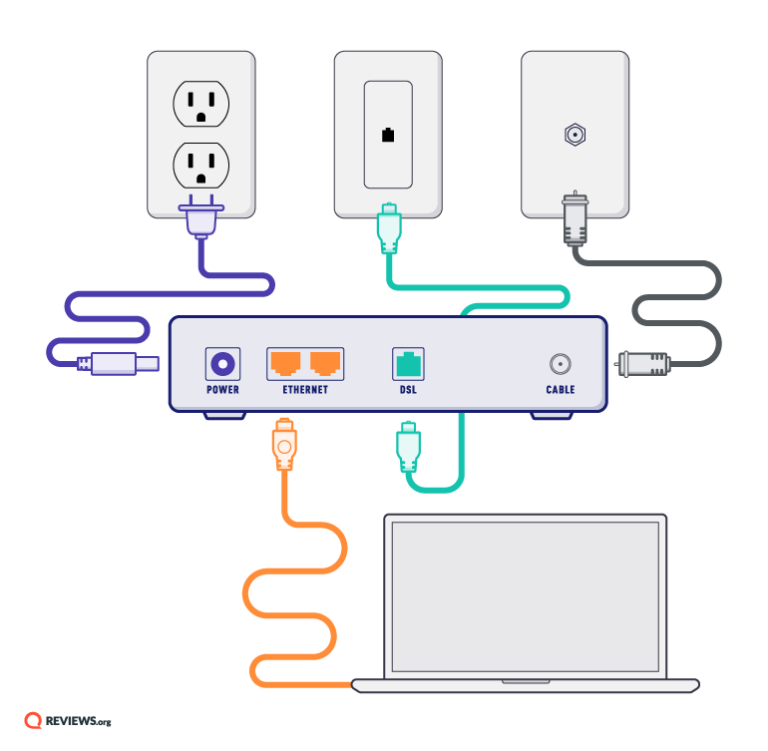
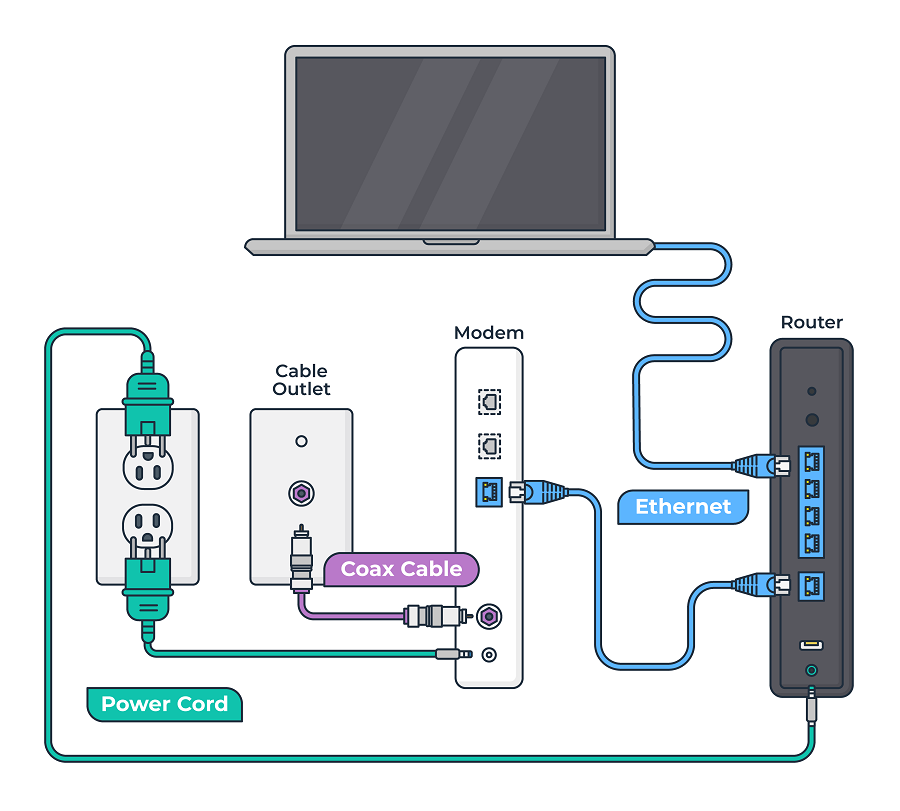
For Cable Internet: Connect one end of the coaxial cable to the cable wall outlet and the other end to the “Cable In” or “RF In” port on your cable modem. Hand-tighten the connectors.
-
For DSL Internet: Connect one end of the DSL cable to the phone wall jack and the other end to the “DSL” port on your DSL modem.
-
For Fiber Optic Internet: This usually involves an Optical Network Terminal (ONT) provided and often installed by the ISP. You’ll then connect an Ethernet cable from the ONT to your router. If your fiber modem is a standalone unit, connect the fiber optic cable carefully as instructed by your ISP, as fiber cables are delicate.
-
-
Connect Power: Plug the modem’s power adapter into the modem and then into a power outlet.
-
Wait for Lights: Allow the modem a few minutes to power on and establish a connection. You should see indicator lights on the modem illuminate and stabilize. These lights typically show power, upstream/downstream connection, and internet status. Refer to your modem’s manual for what each light signifies when working correctly. Generally, you’re looking for solid lights, not blinking ones (except perhaps for data activity).
Setting Up the Wi-Fi Router: Distributing Your Connection
Once your modem is online, the router takes over to distribute that internet connection throughout your home, both wirelessly and via Ethernet ports.
-
Place the Router: Position the router centrally in your home, ideally in an open space, away from obstructions like thick walls, large metal objects, and other electronics (cordless phones, microwaves) that can cause interference. Elevating the router (e.g., on a shelf) can also improve signal dispersion.
-
Connect Modem to Router: Use an Ethernet cable to connect the “Ethernet” or “LAN” port on your modem to the “WAN” (Wide Area Network) or “Internet” port on your Wi-Fi router. The WAN port is usually a different color or clearly labeled.
-
Connect Power: Plug the router’s power adapter into the router and then into a power outlet.
-
Wait for Lights: Give the router a few minutes to power on. You’ll typically see lights for power, internet connectivity (indicating it’s receiving a signal from the modem), and Wi-Fi activity. Again, solid lights usually indicate a stable connection.
Wired Connections: Reliability for Critical Devices
While Wi-Fi is convenient, wired Ethernet connections offer superior speed, stability, and lower latency. For devices like desktop PCs, gaming consoles, smart TVs, or network-attached storage (NAS) devices that demand consistent performance, a direct Ethernet connection to your router is highly recommended.
-
Connect Ethernet Cable: Plug one end of an Ethernet cable into any available LAN port on your router (these are usually labeled 1, 2, 3, 4, etc.).
-
Connect to Device: Plug the other end of the Ethernet cable into the Ethernet port on your device (e.g., computer, console).
-
Verify Connection: Your device should automatically detect the wired connection and gain internet access.
3. Activating Your Service and Configuring Your Network
With the hardware physically connected, the next phase involves activating your internet service and configuring your Wi-Fi network for optimal performance and security.
Initial Service Activation: Getting Online
In most cases, after connecting your modem and router, your ISP service will need to be activated.
-
Automatic Activation: Some ISPs offer plug-and-play activation. Once the modem is connected and powered, it automatically connects to the ISP’s network and provisions your service.
-
Web-Based Activation: Open a web browser on a device connected to your router (either via Wi-Fi or Ethernet). You might be automatically redirected to your ISP’s activation page. Follow the on-screen prompts, which may require your account number or phone number associated with the service.
-
Phone Activation: If automatic or web-based activation fails, you’ll need to call your ISP’s customer service number. They will guide you through the activation process, which might involve providing the modem’s MAC address (Media Access Control address), usually found on a sticker on the modem itself.
Once activated, you should be able to access the internet. Test it by visiting a few websites.
Securing Your Wi-Fi Network: Essential Digital Protection
A fundamental aspect of setting up your home internet is ensuring the security of your Wi-Fi network. An unsecured network is an open invitation for unauthorized users to access your internet connection, potentially slowing down your speeds, consuming your data, and even accessing your networked devices.
-
Access Router Settings: Open a web browser on a device connected to your network. In the address bar, type your router’s IP address (e.g., 192.168.1.1 or 192.168.0.1 – check your router’s manual or a sticker on the router). Enter the default username and password (again, typically found in the manual or on a sticker). Immediately change these default credentials. This is the most crucial security step.
-
Change Default Wi-Fi Network Name (SSID): The Service Set Identifier (SSID) is the name of your Wi-Fi network. Change it from the default (e.g., “TP-LinkXXXX” or “NETGEAR”) to something unique but not revealing personal information (e.g., “HomeNetwork5G” instead of “JohnsHouse”).
-
Choose Strong Encryption: Select the strongest available security protocol for your Wi-Fi. WPA2-PSK (AES) or WPA3 are highly recommended. Avoid WEP or WPA/WPA-PSK (TKIP) as they are outdated and vulnerable.
-
Create a Strong Wi-Fi Password (Passphrase): This is the key to your Wi-Fi network. Use a long, complex passphrase that combines uppercase and lowercase letters, numbers, and symbols. Avoid easily guessable information like birthdays or common words.
-
Disable WPS (Wi-Fi Protected Setup) if not used: While convenient for connecting devices, WPS can have security vulnerabilities. If you don’t use it, consider disabling it in your router settings.
-
Enable a Firewall: Most routers have a built-in firewall. Ensure it’s enabled to provide a basic layer of protection against unauthorized access from the internet.
Optimizing Your Wi-Fi Settings for Performance
Beyond security, tweaking your Wi-Fi settings can significantly impact speed and reliability.
-
Select the Right Wi-Fi Band: Most modern routers are dual-band (2.4 GHz and 5 GHz).
-
2.4 GHz: Offers wider coverage and penetrates walls better but is slower and more susceptible to interference from other devices (microwaves, cordless phones). Best for older devices and those that don’t need high bandwidth.
-
5 GHz: Provides faster speeds and lower latency but has a shorter range and struggles more with obstacles. Ideal for streaming, gaming, and high-bandwidth applications.
-
Many routers allow you to have separate SSIDs for each band, letting you choose which band to connect your devices to.
-
-
Change Wi-Fi Channels: Wi-Fi networks operate on various channels. If multiple networks in your area are using the same channel, it can lead to interference and slower speeds. Use a Wi-Fi analyzer app (available for smartphones) to identify the least congested channels (1, 6, and 11 for 2.4 GHz are non-overlapping) and manually set your router to one of them.
-
Firmware Updates: Regularly check for and install firmware updates for your router. These updates often include performance improvements, bug fixes, and critical security patches.
4. Enhancing Your Home Network: Tips and Troubleshooting
Once your internet is up and running, there are additional steps you can take to optimize performance and effectively address common issues that may arise.
Extending Wi-Fi Coverage: Solutions for Dead Zones
Even with a well-placed router, large homes, multi-story dwellings, or homes with unusual layouts can suffer from Wi-Fi “dead zones” where the signal is weak or nonexistent.
-
Wi-Fi Extenders/Repeaters: These devices capture your existing Wi-Fi signal and re-broadcast it, effectively extending coverage. While easy to set up, they can halve bandwidth and introduce latency.
-
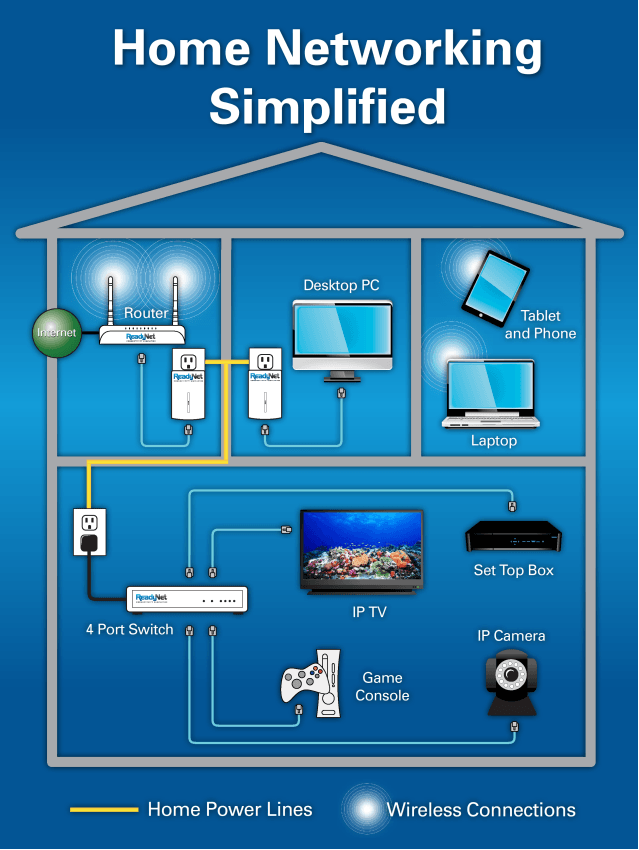
Powerline Adapters: These use your home’s existing electrical wiring to transmit network data. You plug one adapter into an outlet near your router and connect it via Ethernet, then plug a second adapter into an outlet in the dead zone, providing an Ethernet port or even a Wi-Fi hotspot there. Performance depends heavily on the quality of your electrical wiring.
-
Mesh Wi-Fi Systems: The most robust solution for large homes. A mesh system consists of multiple interconnected nodes (a main router and several satellites) that work together to create a single, seamless Wi-Fi network throughout your home. This provides consistent speeds and coverage without the performance drop-off of traditional extenders.
-
Access Points (APs): For those willing to run Ethernet cables, an AP connects to your main router via Ethernet and creates a separate Wi-Fi hotspot. This offers excellent performance as the backhaul connection is wired.
Common Connectivity Issues and Quick Fixes
Even a perfectly installed network can encounter hiccups. Knowing how to diagnose and troubleshoot common problems can save you time and frustration.
-
No Internet Access:
-
Check Cables: Ensure all Ethernet, coaxial, and power cables are securely plugged in.
-
Check Indicator Lights: Verify that your modem and router lights are showing a stable connection (power, internet, Wi-Fi). If the internet light on the modem is off or blinking erratically, the issue might be with your ISP.
-
Reboot Devices: The classic “turn it off and on again.” Unplug both the modem and router for 30 seconds, then plug the modem back in. Wait for it to fully boot (lights stable), then plug in the router and wait for it to boot. This often resolves minor glitches.
-
ISP Outage: Check your ISP’s status page or social media for reported outages in your area.
-
-
Slow Wi-Fi Speeds:
-
Interference: Move your router away from other electronics. Try changing your Wi-Fi channel.
-
Bandwidth Hogs: Identify devices or applications consuming a lot of bandwidth (e.g., 4K streaming, large downloads) and limit their usage if necessary.
-
Distance/Obstacles: Move closer to the router or consider a Wi-Fi extender/mesh system.
-
Outdated Firmware: Update your router’s firmware.
-
Old Hardware: If your modem or router is several years old, it might not be capable of delivering the speeds of your current internet plan. Consider an upgrade.
-
-
Intermittent Connection:
-
Loose Connections: Re-seat all cables.
-
Channel Interference: Change Wi-Fi channels.
-
Firmware Bugs: Update router firmware.
-
Overheating: Ensure your modem and router have adequate ventilation.
-
ISP Issue: If all else fails, contact your ISP.
-
Maintaining Your Network for Long-Term Reliability
A little proactive maintenance goes a long way in ensuring your home internet remains fast and reliable.
-
Regular Firmware Updates: As mentioned, these are critical for security and performance.
-
Periodic Reboots: Rebooting your modem and router once a month can clear temporary glitches and refresh network connections.
-
Physical Cleanliness: Keep your equipment free of dust and ensure proper ventilation to prevent overheating.
-
Password Management: Periodically review and update your Wi-Fi password and router admin credentials, especially if you suspect unauthorized access or haven’t changed them in a long time.
-
Network Audits: Every so often, check the list of connected devices in your router settings to ensure you recognize everything on your network.
-
Monitor Usage: Some routers allow you to monitor internet usage for individual devices, which can help pinpoint bandwidth hogs.
Installing internet at home doesn’t have to be a source of stress. By methodically following these steps, from choosing the right ISP and hardware to securing and optimizing your network, you can confidently set up a fast, reliable, and secure internet connection that serves all your digital needs. Enjoy the seamless connectivity that a well-configured home network provides.
aViewFromTheCave is a participant in the Amazon Services LLC Associates Program, an affiliate advertising program designed to provide a means for sites to earn advertising fees by advertising and linking to Amazon.com. Amazon, the Amazon logo, AmazonSupply, and the AmazonSupply logo are trademarks of Amazon.com, Inc. or its affiliates. As an Amazon Associate we earn affiliate commissions from qualifying purchases.