
In the rapidly evolving world of smart home technology, Home Assistant stands out as a powerful, open-source platform offering unparalleled control and customization over connected devices. However, even with its robust capabilities, a thriving community constantly pushes the boundaries, creating innovative integrations and user interfaces that extend its core functionality. This is where HACS, the Home Assistant Community Store, emerges as an indispensable tool. HACS acts as a gateway to this vibrant ecosystem, simplifying the discovery, installation, and management of thousands of custom components, themes, and frontend elements that are not officially part of Home Assistant’s core.

For both novice and veteran Home Assistant users, HACS transforms the experience, unlocking a universe of possibilities from niche device support to advanced automations and stunning dashboards. Without it, integrating these community-developed enhancements would involve manual file downloads, intricate directory navigation, and complex configuration adjustments—a daunting task that often deters users from exploring the full potential of their smart homes. This comprehensive guide will walk you through the process of installing HACS, preparing you to elevate your Home Assistant setup to new heights of customization and control.
Understanding HACS: A Gateway to Enhanced Home Assistant Customization
Before diving into the installation process, it’s crucial to grasp what HACS is, why it’s so vital for many Home Assistant users, and the significant benefits it brings to the smart home landscape.
What is HACS?
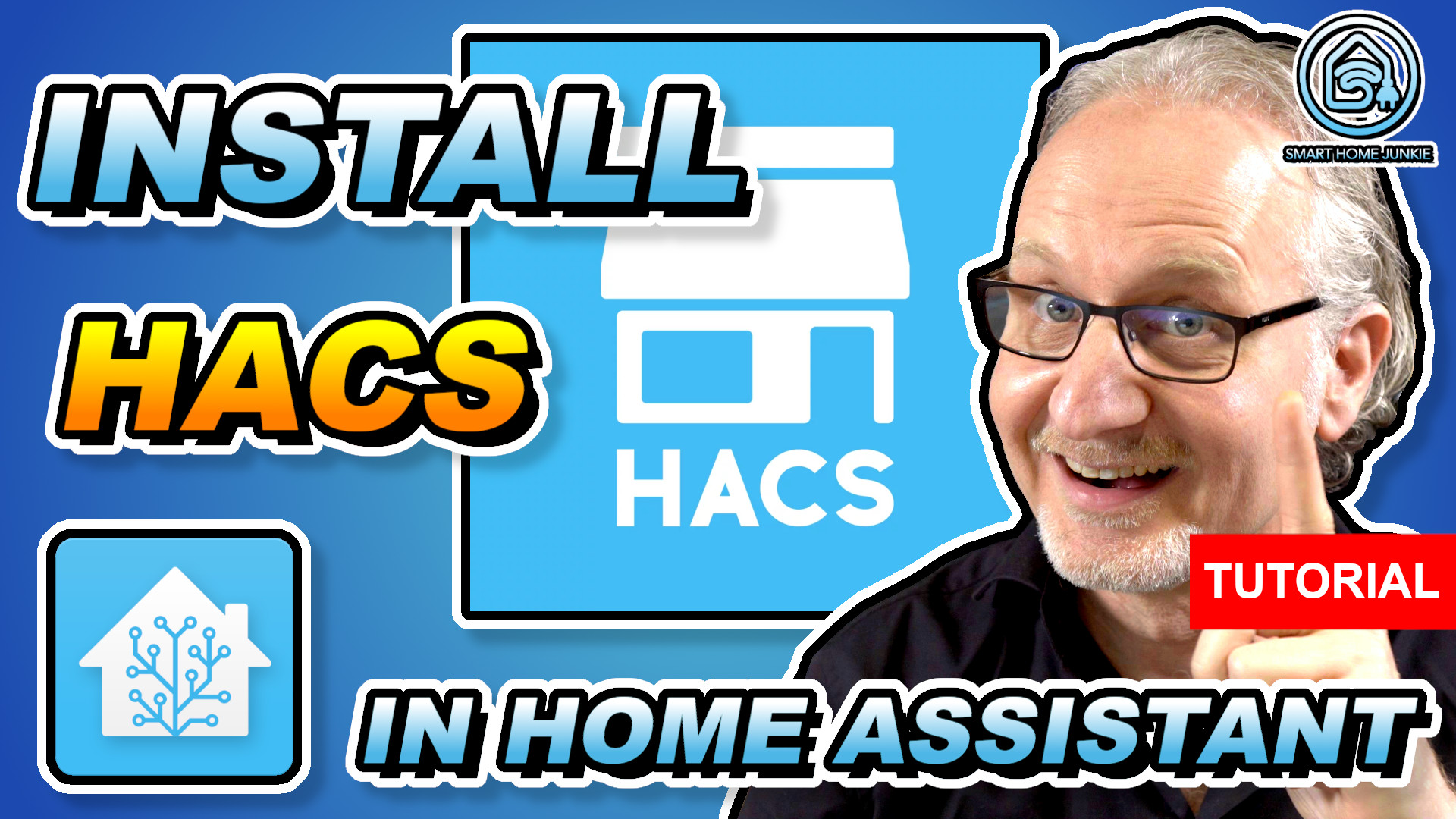
HACS, an acronym for Home Assistant Community Store, is essentially a third-party package manager for Home Assistant. Unlike traditional app stores, HACS specifically curates and manages custom integrations, themes, and plugins (often referred to as ‘frontend lovelace cards’) developed by the Home Assistant community. It does not replace Home Assistant’s official integration repository but rather complements it by providing an organized, user-friendly interface for content that resides outside the core system. Think of it as an app store for all the unofficial, yet incredibly valuable, add-ons that enhance Home Assistant’s capabilities.
HACS is built on top of GitHub, leveraging repositories from developers worldwide. It tracks these repositories, notifying users of updates and simplifying the installation process to just a few clicks. This robust system handles dependencies, versioning, and provides a centralized hub for discovery, making the expansion of your smart home a seamless and enjoyable process.
Why HACS is Indispensable for Home Assistant Users
The primary reason HACS has become almost indispensable for many Home Assistant enthusiasts is its ability to bridge the gap between official support and community innovation. Home Assistant’s core developers cannot possibly integrate every single device or cater to every niche use case. The community, however, fills these gaps with remarkable speed and creativity. From supporting obscure smart plugs to providing advanced energy monitoring dashboards, these community contributions significantly broaden Home Assistant’s utility.
Without HACS, users would be forced to manually download ZIP files, copy folders into specific directories, manually edit YAML configuration files, and painstakingly keep track of updates for each custom component. This manual approach is prone to errors, incredibly time-consuming, and often leads to broken setups when updates are missed or compatibility issues arise. HACS automates this entire lifecycle, from discovery and installation to updates and removal, transforming a potentially frustrating experience into a streamlined one. It empowers users to experiment with new features and integrations confidently, knowing that management is just a few clicks away.
Key Features and Benefits
The advantages of integrating HACS into your Home Assistant environment are multifaceted:
-
Simplified Discovery: Browse thousands of custom integrations, themes, and frontend elements directly within the Home Assistant interface, complete with descriptions, screenshots, and links to documentation.
-
One-Click Installation: Install new custom components with minimal effort. HACS handles the file placement and often assists with initial configuration steps.
-
Effortless Updates: Stay current with the latest versions of your custom components. HACS automatically checks for updates and provides a straightforward mechanism to apply them, reducing compatibility issues and enhancing security.
-
Centralized Management: All your custom integrations are managed from a single, intuitive interface, making it easy to track what’s installed, enable/disable components, or remove them entirely.
-
Access to Cutting-Edge Features: Gain access to experimental features, niche device support, and advanced UI elements often long before they might ever be considered for official Home Assistant integration.
-
Community Support: While HACS itself is a tool, it provides access to a vibrant community. Issues with specific custom components often have solutions readily available from their respective developers or other community members.
-
Enhanced Customization: From visually stunning themes to highly specialized Lovelace cards, HACS allows for an unprecedented level of personalization, tailoring Home Assistant precisely to your aesthetic and functional preferences.
Preparing Your Home Assistant Environment for HACS Installation
A successful HACS installation begins with proper preparation of your Home Assistant instance. Skipping these crucial preliminary steps can lead to complications, including failed installations, configuration errors, or even data loss.
Essential Prerequisites and System Requirements
Before you embark on the HACS installation journey, ensure your Home Assistant setup meets the following fundamental criteria:
-
Home Assistant Installation: You must have a working instance of Home Assistant already installed. HACS supports all common installation methods, including Home Assistant OS, Container, Supervised, and Core.
-
SSH Access or Terminal: You will need a way to execute commands on the system running Home Assistant.
-
Home Assistant OS/Supervised: Install the “SSH & Web Terminal” add-on from the Add-on Store. Enable “Protection mode” if not already.
-
Home Assistant Container/Core: Access your terminal directly on the host system where Home Assistant is running.
-
-
Internet Connectivity: HACS requires active internet access to download files from GitHub and communicate with the HACS backend.
-
Python Knowledge (Minimal): While the installation script automates most of the process, basic familiarity with command-line operations is beneficial.
-
Home Assistant Version: Ensure your Home Assistant instance is running a recent and supported version. HACS typically requires the latest stable releases for full compatibility. Check the HACS documentation for specific version requirements.
-
GitHub Account (Optional but Recommended): While not strictly required for the initial installation, a GitHub account is necessary to fully authenticate HACS and gain access to its full range of features, including personalized repositories and better tracking of updates.
Ensuring a Stable Home Assistant Setup
A stable Home Assistant environment is key to a smooth HACS installation and trouble-free operation afterward.
-
Up-to-Date Home Assistant: Before installing HACS, update your Home Assistant instance to the latest stable version. Navigate to Settings > System > Updates and apply any pending updates. This ensures compatibility and minimizes potential conflicts.
-
Healthy System: Verify that your Home Assistant is running without any major errors or warnings in the logs. Check Settings > System > Logs for any critical issues that need addressing before proceeding. Resolve any existing problems to prevent them from complicating the HACS installation.
-
Sufficient Resources: While HACS itself is lightweight, the custom components you install through it can consume resources. Ensure your Home Assistant host has adequate CPU, RAM, and storage to handle additional integrations.
Backup Best Practices Before Installation
This is perhaps the most critical preparatory step. Modifying core system files or adding third-party components always carries a risk, however small. A comprehensive backup ensures that you can revert to a known good state if anything goes wrong during or after the HACS installation.
-
Home Assistant OS/Supervised: Utilize the built-in snapshot functionality. Go to Settings > System > Backups and create a full backup. Download this backup to an external location for safekeeping.
-
Home Assistant Container/Core: For Docker installations, stop the Home Assistant container and back up your entire configuration directory (
/configor wherever you’ve mapped it). For Home Assistant Core, back up your.homeassistantdirectory. -
Cloud Backups: Consider integrating cloud backup solutions (e.g., Google Drive Backup add-on) for an additional layer of security.
-
Test Your Backup: If possible, briefly test restoring a previous backup to understand the process and confirm its integrity. This preparedness is invaluable in mitigating potential issues.
Step-by-Step Guide to Installing HACS
With your Home Assistant environment prepared and a robust backup in hand, you are ready to proceed with the HACS installation. The process involves a few command-line operations followed by configuration within Home Assistant itself.
Initial Download and Script Execution
The installation of HACS begins by downloading and executing a simple installation script.
-
Access Your Home Assistant Terminal/SSH:
-
If you’re using the SSH & Web Terminal add-on: Open the add-on from the Home Assistant sidebar.
-
If you’re using Home Assistant Container/Core: Connect to your host machine via SSH or open a terminal window.
-
-
Navigate to the Configuration Directory:
-
For Home Assistant OS/Supervised/Container: The configuration directory is typically
/config. You can navigate there usingcd /config. -
For Home Assistant Core: The configuration directory is usually
~/.homeassistant. Usecd ~/.homeassistant. -
Verify you are in the correct directory by listing its contents:
ls. You should see files likeconfiguration.yaml.
-
-
Execute the HACS Installation Script:
-
Paste and run the following command. This command downloads the HACS installation script and executes it using
bash:wget -q -O - https://install.hacs.xyz | bash - -
The
wgetcommand downloads the script, andbash -executes it. The-q -O -flags ensure quiet operation and output the script directly to standard output, which is then piped tobash. -
The script will perform several actions:
-
Create the
custom_components/hacsdirectory within your Home Assistant configuration folder. -
Download all necessary HACS files into this new directory.
-
Provide information about the next steps.
-
-
Once the script completes, you will likely see a message indicating that you need to restart Home Assistant.
-
-
Restart Home Assistant:
- Navigate to Settings > System > Restart and click “Restart Home Assistant”. This is crucial for Home Assistant to detect the newly installed HACS custom component.
Integrating HACS with Home Assistant Configuration
After restarting Home Assistant, HACS needs to be explicitly configured. This involves adding it as an integration and authenticating with GitHub.
-
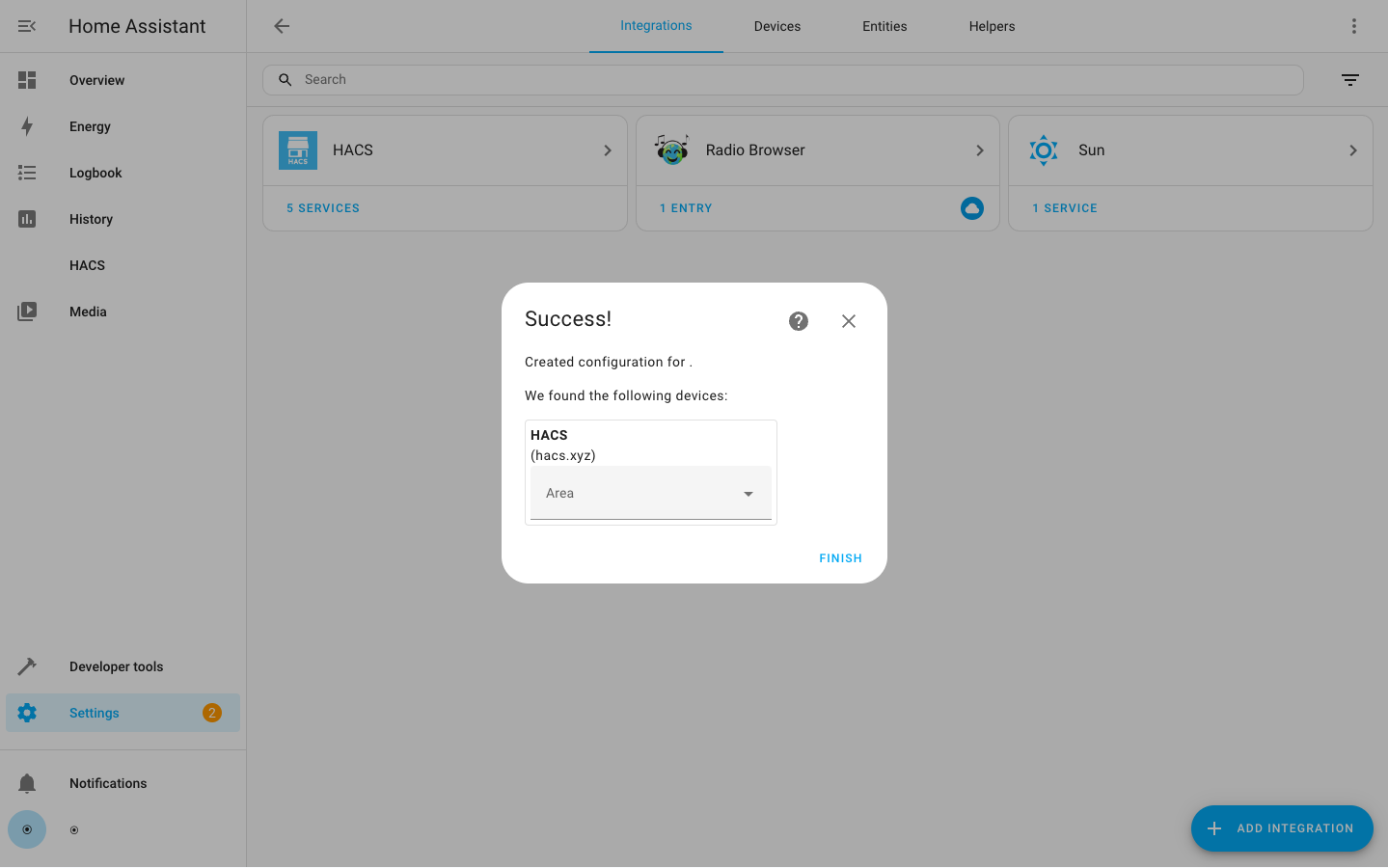
Add HACS as an Integration:
-
Once Home Assistant has restarted, go to Settings > Devices & Services.
-
Click on the ADD INTEGRATION button (usually a blue plus icon in the bottom right).
-
Search for “HACS” in the integration search bar.
-
Click on the “HACS” entry.
-
A dialog box will appear with a series of checkboxes. Read these carefully and check them to confirm you understand the implications of using HACS (e.g., third-party code, potential for issues). Click SUBMIT.
-
-
Authenticate with GitHub:
-
HACS will then present you with a unique device code (e.g.,
A1B2-C3D4). Copy this code. -
A link to
https://github.com/login/devicewill also be provided. Click this link, or open it in a new browser tab. -
On the GitHub device activation page, paste the copied device code into the input field and click Continue.
-
If you are not already logged into GitHub, you will be prompted to do so.
-
GitHub will ask for authorization for HACS to access your account. Review the permissions (HACS primarily needs to read public repository information and create gists) and click Authorize HACS.
-
Once authorized, return to your Home Assistant tab. The HACS integration setup will automatically detect the successful authentication.
-
You may be prompted to select categories for HACS to manage (Integrations, Frontend, etc.). It’s generally safe to leave these as default.
-
Click FINISH.
-
Post-Installation Setup and Initial Configuration
Congratulations! HACS is now installed and integrated into your Home Assistant instance. You’ll find a new “HACS” entry in your Home Assistant sidebar.
-
Explore the HACS Interface:
-
Click on the “HACS” entry in the sidebar. You’ll be presented with a dashboard showing different sections: Integrations, Frontend, Automations, etc.
-
The first time you open HACS, it may take a few moments to synchronize with GitHub and populate its list of available custom components.
-
-
Adjust HACS Settings (Optional):
-
Within the HACS interface, you can access settings (usually via a gear icon or three dots in the top right). Here, you can:
-
Set custom update channels.
-
Exclude specific repositories from appearing.
-
Clear the HACS cache.
-
Re-authenticate with GitHub if needed.
-
-
-
Start Installing Custom Components:
-
To install a new integration or frontend component, navigate to the relevant section (e.g., “Integrations”).
-
Click on the “Explore & Download Repositories” button (or similar).
-
Search for the component you wish to install.
-
Click on the component, then click “Download.” HACS will handle the rest, including placing files in the correct directories.
-
Important: After installing an integration via HACS, you will typically need to restart Home Assistant for the new integration to become available. Some frontend components might only require a browser refresh. Then, you’ll need to add the integration via the standard Home Assistant Settings > Devices & Services > ADD INTEGRATION process, just like official ones.
-
Navigating and Utilizing HACS for Custom Integrations
With HACS successfully installed, your Home Assistant journey takes a significant leap forward. The real power of HACS lies in its ability to streamline the discovery, installation, and maintenance of thousands of custom integrations and frontend elements.
Discovering and Installing Custom Repositories
The HACS interface is designed for intuitive exploration.
-
Browse Categories: The main HACS menu organizes custom content into logical categories: “Integrations” (for backend device support, services, and platforms), “Frontend” (for custom Lovelace cards, themes, and plugins), “Automations,” and “Scripts.” Start by exploring these categories to see what’s available.
-
Search Functionality: If you have a specific integration in mind, use the search bar to quickly find it. HACS provides fuzzy searching, making it easy to locate components even if you don’t know the exact name.
-
Repository Information: Each entry in HACS provides vital information:
-
Description: A brief overview of what the component does.
-
Author: The developer behind the custom component.
-
GitHub Link: A direct link to the component’s GitHub repository, essential for detailed documentation, issue tracking, and further insights.
-
Version Information: Displays the currently installed version and the latest available version, indicating if an update is pending.
-
-
Installation Process:
-
Once you find a desired component, click on its entry.
-
Review its details, especially the documentation on its GitHub page, to understand any specific configuration requirements.
-
Click the “Download” button.
-
HACS will present any specific version options or dependencies. Confirm your choice.
-
Once downloaded, restart Home Assistant if it’s an integration. For frontend elements, a browser refresh might suffice, but a full Home Assistant restart is often recommended for consistency.
-
After restarting, navigate to Settings > Devices & Services > Integrations and click “ADD INTEGRATION.” Search for the newly installed integration and configure it according to its documentation.
-
Managing Updates and Maintenance
One of HACS’s most significant advantages is its robust update management system, ensuring your custom components remain current and secure.
-
Update Notifications: HACS proactively checks for updates to your installed custom components. When an update is available, you’ll see a notification within the HACS interface, typically a badge indicating the number of pending updates.
-
Seamless Updating: To update a component, navigate to the relevant HACS section (Integrations or Frontend), find the component, and click the “Update” button. HACS handles the download and file replacement.
-
Post-Update Actions: After updating, always restart Home Assistant. This is crucial for the system to load the new version of the component correctly. It’s also wise to review the component’s GitHub release notes for any breaking changes or new configuration options.
-
Rollbacks (Manual): While HACS simplifies updates, it doesn’t typically provide a one-click rollback feature. If an update causes issues, you might need to manually install an older version (by downloading specific release files from GitHub and replacing them) or revert to your Home Assistant backup. This highlights the importance of regular backups.
-
Removing Components: To remove a HACS component, go to its entry in HACS, click the three dots/menu icon, and select “Uninstall.” You’ll then need to remove any related configuration entries from your
configuration.yamlor through the Home Assistant UI, and finally, restart Home Assistant.
Troubleshooting Common HACS Issues
While HACS is generally stable, issues can occasionally arise. Here’s how to approach common problems:
-
HACS Not Appearing in Sidebar/Integrations:
-
Check
custom_components/hacs: Ensure thehacsfolder exists in yourconfig/custom_componentsdirectory and contains files. -
Restart Home Assistant: Always restart Home Assistant after the initial script execution and after adding the integration.
-
Clear Browser Cache: Sometimes, cached browser data can prevent the HACS entry from appearing.
-
Home Assistant Logs: Check Settings > System > Logs for any errors related to HACS or
custom_components.
-
-
“GitHub API Rate Limit Exceeded” Error:
- This typically occurs if you make too many requests to GitHub without authentication. Ensure you’ve authenticated HACS with your GitHub account. If the issue persists, wait an hour or two, as the limit usually resets.
-
Specific Custom Component Not Working:
-
Check Component Documentation: Always refer to the specific component’s GitHub page. There might be unique installation steps, configuration requirements, or known issues.
-
Home Assistant Logs: Look for error messages related to that specific component in your Home Assistant logs (Settings > System > Logs).
-
HACS Installation Status: Verify within HACS that the component is marked as “Installed” and does not have pending updates.
-
Configuration Errors: Double-check your
configuration.yamlor UI configuration for typos or incorrect syntax related to the component. -
Developer Issues: Sometimes, a custom component might have a bug. Check the component’s GitHub issue tracker to see if others are reporting similar problems.
-
-
HACS Itself Not Updating:
- HACS updates differently from its managed components. Ensure you are running a supported Home Assistant version. If all else fails, you might consider reinstalling HACS after a full backup.
-
General Advice:
-
Read the
custom_components/hacs/Lovelace/README.mdfile: It often contains crucial information. -
Join the Home Assistant Community: Forums, Discord channels, and subreddits are excellent resources for troubleshooting and getting help from experienced users.
-
Maximizing Your Home Assistant Experience with HACS
HACS is more than just an installer; it’s a foundational tool that unlocks the full potential of Home Assistant. By leveraging it effectively, you can create a truly personalized and advanced smart home.
Exploring Popular HACS Integrations
The sheer volume of available HACS integrations can be overwhelming. Here are categories and examples of popular components that significantly enhance Home Assistant:
-
Advanced Device Support:
-
Broadlink RM4 Pro/Mini: Extends control to IR/RF devices not natively supported by Home Assistant.
-
Xiaomi Miio: Comprehensive support for various Xiaomi devices beyond what’s officially integrated.
-
Tuya Local: Allows local control of Tuya devices, bypassing the cloud for improved responsiveness and privacy.
-
-
Enhanced Frontend UI (Lovelace Cards):
-
Atomic Calendar Revive: Highly customizable calendar card to display events beautifully.
-
Mini Graph Card: Compact, feature-rich graphs for displaying sensor data.
-
Button Card: Extremely versatile button for complex actions and dynamic styling.
-
Browser Mod: Allows Home Assistant to interact with the browser running Lovelace, enabling notifications, camera feeds, and custom pop-ups.
-
-
Utility & Automation Helpers:
-
Scheduler Card/Integration: Provides a powerful GUI for creating time-based automations, far surpassing the built-in scheduler.
-
Plex Assistant: Voice control for Plex media playback.
-
PowerCalc: Estimates power consumption for devices that don’t report it directly, using various sensors and configurations.
-
-
Themes:
- HACS offers a plethora of themes to completely transform the look and feel of your Home Assistant interface, from minimalist designs to vibrant, colorful dashboards.
Regularly browsing the “Integrations” and “Frontend” sections in HACS will keep you abreast of new and trending components, allowing you to discover tools that perfectly fit your unique smart home needs.
Contributing to the HACS Community
The strength of HACS lies in its community. As you benefit from the contributions of others, consider becoming a contributor yourself:
-
Report Issues: If you encounter a bug or have a feature request for a HACS component, report it on the respective GitHub repository’s issue tracker. Provide clear descriptions, steps to reproduce, and relevant logs.
-
Provide Feedback: Share your experiences, positive or negative, with component developers. Constructive feedback helps improve the quality and usability of integrations.
-
Write Documentation: Many community-developed components could benefit from clearer or more comprehensive documentation. If you’ve figured something out, consider contributing to the README or creating a guide.
-
Develop Your Own Components: If you have programming skills (especially Python for integrations or JavaScript for frontend cards), consider developing your own custom components and sharing them with the HACS community. This requires understanding Home Assistant’s architecture and HACS’s development guidelines.
-
Support Developers: Many HACS developers maintain their projects voluntarily. Consider supporting them through GitHub Sponsors or Buy Me a Coffee if their work brings significant value to your smart home.
Future-Proofing Your Smart Home Setup
Integrating HACS effectively means not just adding features but also building a resilient and adaptable smart home:
-
Stay Updated: Regularly update HACS itself and all your installed custom components. Updates often include bug fixes, security patches, and performance improvements.
-
Monitor Home Assistant Releases: Be aware of upcoming Home Assistant core releases. Major updates can sometimes introduce breaking changes that might affect certain HACS components. Read the Home Assistant release notes and the HACS developer blogs for compatibility information.
-
Practice Layered Backups: Maintain a consistent backup strategy. While HACS simplifies management, an unexpected issue with a custom component could still necessitate a rollback.
-
Limit Excessive Components: While tempting to install everything, be mindful of resource consumption and potential conflicts. Only install components you genuinely need and use. A leaner setup is often more stable.
-
Regularly Review Configurations: Periodically review your
configuration.yamland UI configurations, especially after updates or adding new components, to ensure everything is streamlined and error-free.
By embracing HACS, you’re not just installing a tool; you’re joining a movement that continually pushes the boundaries of what a smart home can achieve. It’s a testament to the power of open-source collaboration, transforming Home Assistant from a powerful platform into an infinitely expandable ecosystem tailored to your every desire.
aViewFromTheCave is a participant in the Amazon Services LLC Associates Program, an affiliate advertising program designed to provide a means for sites to earn advertising fees by advertising and linking to Amazon.com. Amazon, the Amazon logo, AmazonSupply, and the AmazonSupply logo are trademarks of Amazon.com, Inc. or its affiliates. As an Amazon Associate we earn affiliate commissions from qualifying purchases.