
The PlayStation 1 (PS1) holds a monumental place in video game history, having introduced countless players to groundbreaking 3D graphics, iconic characters, and genre-defining titles. While its original hardware might be gathering dust, the spirit of PS1 gaming lives on through modern emulation. Among the pantheon of PS1 emulators, DuckStation stands out as a beacon of accuracy, performance, and user-friendliness. Developed with a keen eye for detail and a commitment to delivering an authentic yet enhanced experience, DuckStation has quickly become the go-to choice for enthusiasts looking to revisit their favorite PS1 classics or discover new ones.
This guide aims to provide a comprehensive, step-by-step walkthrough for installing and configuring DuckStation, ensuring that even novices can get up and running smoothly. We’ll delve into the essential prerequisites, navigate the installation process, and explore crucial configuration settings to help you unlock the full potential of this exceptional emulator. Whether you’re chasing nostalgia or simply curious about a foundational era of gaming, DuckStation offers an unparalleled gateway back to the golden age of the PlayStation.
Understanding DuckStation: A Modern Marvel of Emulation
Before diving into the installation process, it’s beneficial to grasp what makes DuckStation such a highly regarded emulator. Unlike some older emulators that might prioritize compatibility over accuracy or vice-versa, DuckStation strives for a perfect balance, leveraging modern computing power to replicate the PS1 hardware’s intricacies with remarkable precision. This commitment to accuracy ensures that games play as they were intended, free from the glitches and inaccuracies that can plague less sophisticated emulators.
Why Choose DuckStation? Features and Advantages
DuckStation isn’t just accurate; it’s also packed with features designed to enhance the gaming experience beyond what the original hardware could ever offer. These include:
-
High-Accuracy Emulation: Near-perfect replication of the PS1 hardware, reducing game-specific bugs and ensuring compatibility with a vast library of titles.
-
Resolution Scaling: Render games at resolutions far exceeding the PS1’s native output (e.g., 4K or higher), resulting in incredibly sharp and detailed visuals.
-
Widescreen Hacks: Many games can be played in a true 16:9 aspect ratio, dynamically expanding the field of view without stretching the image.
-
Texture Filtering and Shaders: Apply various filters and post-processing effects to smooth out jagged textures and enhance visual fidelity.
-
Save States: Save and load your game progress at any point, independent of in-game save systems.
-
Cheats Support: Easily apply GameShark or other cheat codes for an altered gameplay experience.
-
Rewind Feature: Instantly rewind gameplay to correct mistakes or revisit moments.
-
Auto-Updater: Keeps the emulator up-to-date with the latest features and bug fixes.
-
Cross-Platform Compatibility: Available for Windows, macOS, Linux, and Android, making it accessible to a wide audience.
These features collectively transform the classic PS1 experience into something that feels both nostalgic and refreshingly modern, making DuckStation an indispensable tool for retro gaming enthusiasts.
System Requirements for Optimal Performance
While DuckStation is relatively efficient, especially compared to some emulators for more powerful consoles, having adequate hardware will significantly enhance your experience, particularly if you plan on using high-resolution scaling and advanced graphical enhancements.
Minimum Requirements:
-
Operating System: Windows 7 (64-bit) or later, macOS 10.13 (High Sierra) or later, or a modern Linux distribution.
-
CPU: Any modern x86-64 CPU with decent single-core performance (e.g., Intel Core i3 4th Gen or AMD FX-8350 equivalent).
-
GPU: Any GPU with support for Vulkan 1.1 or OpenGL 3.3. Integrated graphics (like Intel HD 4000) might suffice for basic emulation, but a dedicated GPU is recommended for higher resolutions.
-
RAM: 4GB RAM.
Recommended Requirements (for enhanced visuals and higher resolutions):
-
CPU: Intel Core i5 7th Gen / AMD Ryzen 5 1st Gen or newer.
-
GPU: NVIDIA GeForce GTX 970 / AMD Radeon R9 290 or newer, with Vulkan 1.2 or OpenGL 4.5 support.
-
RAM: 8GB RAM or more.
A strong understanding of these requirements ensures you set realistic expectations for performance and can troubleshoot potential bottlenecks later on.
Preparing for Installation: Gathering Your Resources
Before you can begin playing PS1 games, there are a few essential components you need to acquire. These include the DuckStation emulator itself, the PlayStation 1 BIOS files, and, of course, the game ROMs or ISOs you wish to play.
Downloading DuckStation
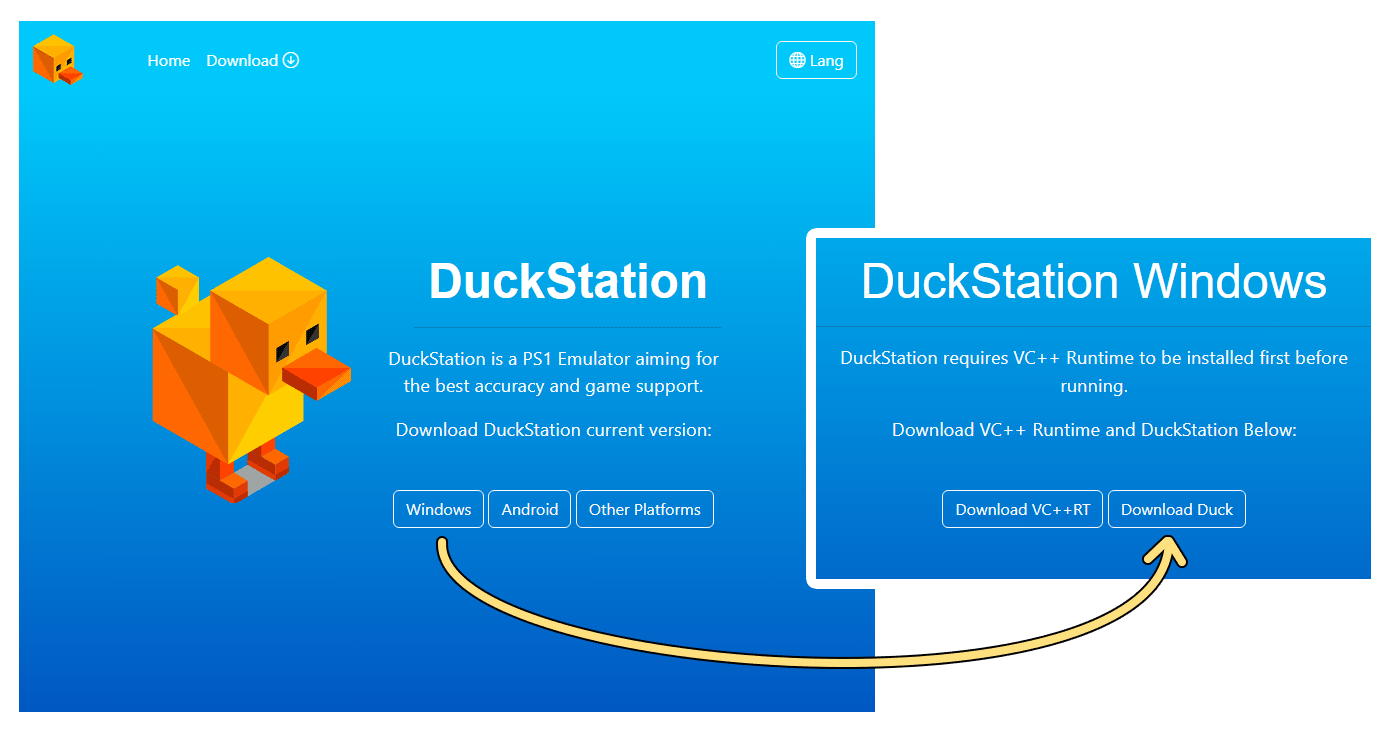
The first step is to obtain the DuckStation emulator. Always download it from the official source to ensure you’re getting a legitimate and up-to-date version.
-
Visit the Official Website: Navigate to the DuckStation GitHub releases page or the official website linked from there.
-
Choose Your Version: You’ll typically find stable releases and sometimes “nightly builds.” For most users, a stable release is recommended as it’s thoroughly tested and more reliable. Nightly builds offer the latest features and fixes but may occasionally introduce new bugs.
-
Select Your OS: Download the appropriate version for your operating system (Windows, macOS, Linux). For Windows, this will usually be a
.zipfile. -
Extract the Archive: Once downloaded, extract the contents of the
.zipfile to a location on your computer where you want to keep your emulator. A dedicated folder likeC:EmulatorsDuckStationor~/Games/Emulators/DuckStationis a good practice. No formal “installation” is required; DuckStation is portable.
Acquiring PlayStation 1 BIOS Files
This is perhaps the most crucial and often misunderstood step. A PlayStation 1 BIOS (Basic Input/Output System) file is a firmware image from an actual PS1 console. DuckStation, like most PS1 emulators, requires these files to accurately simulate the console’s boot-up process and ensure maximum compatibility.
Important Legal Note: BIOS files are copyrighted property of Sony. Legally, you should only obtain BIOS files from a PlayStation console you own. While downloading them from the internet is common, it operates in a legal grey area. This guide assumes you understand and adhere to these legal implications.
-
Identify Required BIOS: DuckStation generally requires a
SCPH-XXXX.binfile. Common and highly compatible BIOS files includeSCPH-5500.bin(Japan),SCPH-5501.bin(USA), andSCPH-5502.bin(Europe). Having multiple regional BIOS files can be beneficial for region-locked games. -
Locate Your BIOS Files: Place your BIOS files into the
biossubfolder within your DuckStation installation directory. If this folder doesn’t exist, create it.
Without correctly placed BIOS files, DuckStation will not function, displaying an error message upon launch.
Sourcing PS1 Game ROMs/ISOs
Game ROMs (or ISOs for disc-based games) are digital copies of your PlayStation 1 games. Similar to BIOS files, the legal standard dictates you should only use ROMs of games you legitimately own.
-
Understand Formats: PS1 games often come in several formats:
-
.bin/.cue: A common format for disc images. The.cuefile contains information about the.bindata track. Both files are essential. -
.iso: A single-file disc image, often for games that don’t use complex audio tracks. -
.chd: Compressed disc images, often preferred for their smaller file size while maintaining data integrity. DuckStation fully supports.chd.
-
-
Organize Your Games: Create a dedicated folder for your PS1 games (e.g.,
C:GamesPS1or~/Games/PS1). Keeping your game library organized will make it easier for DuckStation to scan and display them.
Remember, the quality and integrity of your game files directly impact your emulation experience. Corrupt files can lead to crashes or unplayable games.
Step-by-Step Installation and Initial Configuration
With all prerequisites in hand, it’s time to set up DuckStation and get your first game running.
1. Launching DuckStation and Initial Setup
After extracting the DuckStation archive, navigate to the extracted folder and run the duckstation-qt-x64-Release.exe (Windows) or the appropriate executable for your OS.
The first time you launch DuckStation, it may prompt you to select a default language and set up some initial directories.
2. Configuring BIOS Paths
This is the most critical setup step.
-
Open Settings: Go to
Settings > BIOS. -
Add BIOS Directory: Click the “Add…” button and navigate to the
biosfolder within your DuckStation installation directory where you placed your BIOS files. Select this folder. -
Scan for BIOS: DuckStation will automatically scan the folder and list the detected BIOS files. Ensure your
SCPH-XXXX.binfiles appear with a “Good” status. If they don’t, double-check that the files are correctly named and located in the specified directory. -
Close Settings: Once the BIOS files are correctly identified, close the settings window.
3. Adding Game Directories
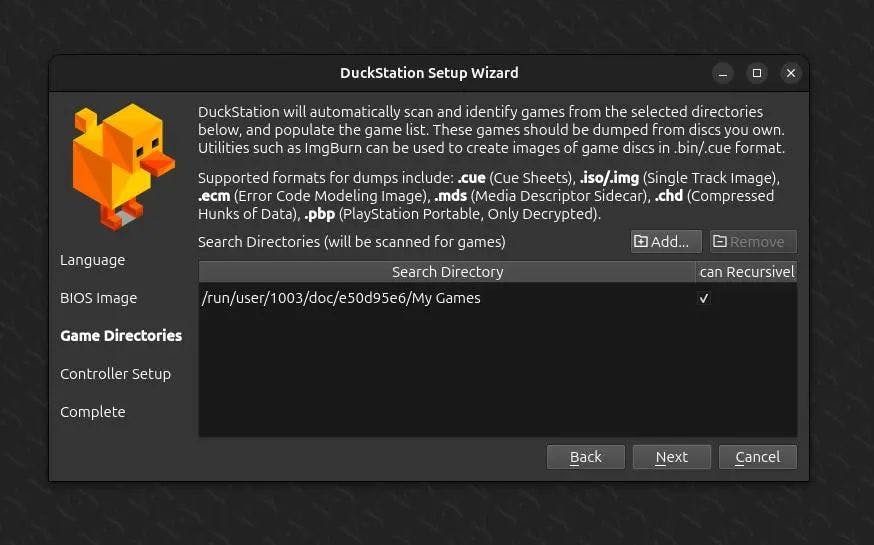
Next, tell DuckStation where to find your game library.
-
Open Settings: Go to
Settings > Game List. -
Add Game Directory: Click “Add…” and navigate to the folder where you store your PS1 game ROMs/ISOs (e.g.,
C:GamesPS1). -
Scan for Games: DuckStation will scan this directory and add your games to its library view. This may take a moment depending on the size of your collection.
-
Display Options: You can customize how games are displayed (list, grid, etc.) from the main DuckStation window.
4. Basic Controller Configuration
Playing games requires a controller. DuckStation offers robust controller support.
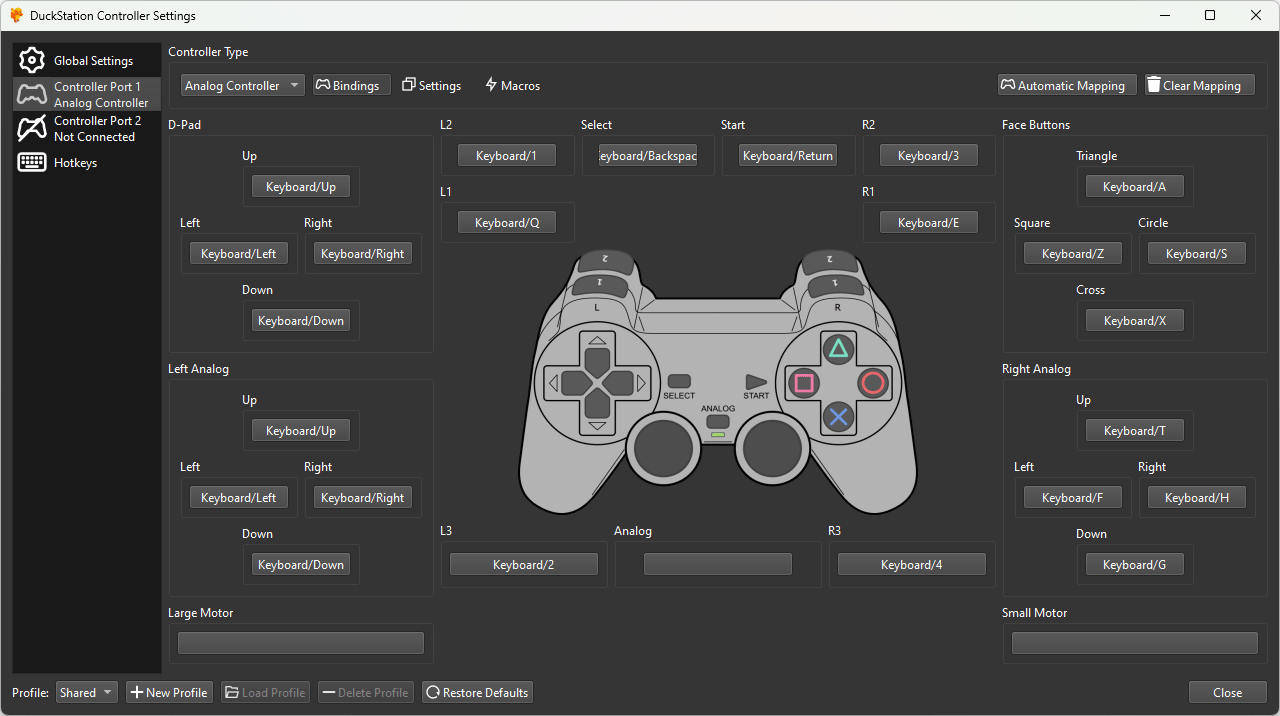
-
Open Settings: Go to
Settings > Controllers. -
Select Port 1: Under “Port 1,” ensure “Controller Type” is set to “DualShock” for optimal compatibility with most PS1 games.
-
Map Inputs: Click “Controller Settings.” A new window will appear. Here, you’ll map your physical gamepad buttons to their virtual PS1 counterparts. Simply click on a PS1 button (e.g., “Up,” “Down,” “Cross,” “Square”) and then press the corresponding button on your physical controller. Repeat this for all necessary inputs.
-
Save Profile: Once done, you can save your controller profile for future use.
5. Initial Graphics and Audio Configuration
For a basic setup, the default graphics and audio settings are usually sufficient, but you can make minor adjustments.
-
Graphics (Settings > Enhancements): For immediate visual improvement, consider increasing the “Internal Resolution Scale” to 2x or 3x. This will make games look much sharper without heavily impacting performance on modern systems.
-
Audio (Settings > Audio): The default settings are generally fine. You can experiment with “Audio Backend” if you experience latency or crackling, but WASAPI or XAudio2 (Windows) are usually good choices.
Once these initial configurations are complete, you’re ready to launch your first game! Double-click a game from the main DuckStation window, and you should be greeted by the familiar PlayStation boot screen.
Optimizing Your DuckStation Experience
While the basic setup gets you playing, delving deeper into DuckStation’s settings can significantly enhance your gaming experience. This is where the emulator truly shines, allowing you to tailor performance and visuals to your exact preferences.
Graphics Settings Deep Dive
DuckStation’s graphics enhancements are arguably its most powerful feature.
-
Internal Resolution Scale: Found under
Settings > Enhancements. This is your primary lever for visual fidelity. Increasing it from 1x (native PS1 resolution) to 2x, 4x, or even 8x will render games at higher resolutions internally, eliminating pixelation and making polygons appear smoother. Experiment to find a balance between visual quality and performance. -
Texture Filtering: Also under
Settings > Enhancements. Options like “Bilinear (Smooth)” can smooth out blocky textures, making them less jarring at higher resolutions. “Nearest Neighbor” retains the original pixelated look. -
PGXP (Precision Geometry, Texture, and Colour): Under
Settings > Emulation. This is an advanced feature that fixes many of the PS1’s inherent wobbling polygon and texture issues.-
PGXP Geometry Correction: Drastically reduces “wobbly” polygons common on the PS1. Enable “Memory Only” or “CPU” for best results.
-
PGXP Texture Correction: Fixes texture alignment issues.
-
PGXP Depth Buffer: Improves rendering accuracy, especially for effects like fog.
Enabling PGXP features can profoundly improve the visual stability of many games, making them look far more modern.
-
-
Post-Processing Shaders: Located under
Settings > Display. Shaders can apply various effects, from CRT scanline simulations (for an authentic retro feel) to advanced sharpening filters. DuckStation includes a wide array of shaders, allowing for extensive customization.
Controller Fine-Tuning and Input Mapping
Beyond basic mapping, DuckStation offers advanced controller features.
-
Per-Game Controller Profiles: If a specific game benefits from a unique controller setup, you can create and save profiles for individual games.
-
Analog Sensitivity: Adjust the sensitivity of analog sticks for games that require precise movement.
-
Rumble Feedback: Ensure your controller’s rumble feature is enabled and working correctly for an immersive experience.
-
Hotkeys: Map hotkeys for common emulator functions like “Toggle Fullscreen,” “Save State,” “Load State,” or “Fast Forward.” This significantly streamlines gameplay.
Enhancing Audio Fidelity
While generally excellent out-of-the-box, minor audio tweaks can further improve the experience.
-
Latency Settings: Under
Settings > Audio. Reducing latency can make audio feel more responsive, but setting it too low can cause crackling or dropouts, especially on slower systems. -
Audio Mix Settings: Experiment with options like “Stereo,” “Mono,” or “Headphone” for spatial audio effects.
-
Volume and Muting: Easily adjust overall volume or mute the emulator as needed.
Save States and Memory Cards Management
DuckStation provides powerful tools for managing your game progress.
-
Save States: Accessible via hotkeys or the
Filemenu. Save states allow you to freeze your game at any exact moment and reload it later. This is incredibly useful for difficult sections, experimentation, or quick play sessions. You can have multiple save state slots. -
Memory Cards: DuckStation emulates PS1 memory cards. You can manage them under
Settings > Memory Cards. You can create multiple virtual memory cards, import/export saves, and even link specific memory cards to individual games, preventing conflicts or accidental overwrites.
Troubleshooting Common Issues and Advanced Tips
Even with the most user-friendly emulators, issues can arise. Knowing how to diagnose and fix common problems will save you time and frustration.
Performance Problems and Lag
-
Check System Requirements: Ensure your system meets or ideally exceeds the recommended specifications, especially for high-resolution scaling.
-
Reduce Internal Resolution: The most common culprit for lag. Lower the “Internal Resolution Scale” under
Settings > Enhancements. -
Disable Advanced Graphics: Turn off features like PGXP, extensive texture filtering, or complex shaders one by one to identify the source of the slowdown.
-
Update Graphics Drivers: Outdated GPU drivers can significantly hinder performance. Always keep them updated.
-
Close Background Applications: Free up CPU and RAM by closing other demanding programs.
-
Check CPU/GPU Usage: Use your system’s task manager or activity monitor to see if your CPU or GPU is maxing out during gameplay.
Controller Not Detected or Malfunctioning
-
Driver Issues: Ensure your controller drivers are installed and up-to-date.
-
Recalibrate/Remap: Go back to
Settings > Controllersand carefully remap all inputs. Sometimes a single missed button can cause issues. -
Try Different USB Port: A faulty USB port can sometimes be the cause.
-
Controller Type: Ensure “DualShock” is selected under “Controller Type” in DuckStation’s settings for Port 1.
-
Restart DuckStation/PC: A simple restart can often resolve minor connectivity glitches.
BIOS Errors and Game Compatibility
-
Incorrect BIOS Files: If DuckStation fails to launch or games don’t start, re-verify your BIOS files. Ensure they are correctly named, placed in the
biosfolder, and recognized as “Good” inSettings > BIOS. -
Region Mismatch: While DuckStation is generally region-free, some older games might have specific requirements. Having BIOS files for different regions (
SCPH-5500.binfor Japan,SCPH-5501.binfor USA,SCPH-5502.binfor Europe) can help. DuckStation typically auto-selects the best BIOS, but you can manually override it inSettings > BIOS. -
Corrupt Game ROMs: If only specific games fail, the ROM itself might be corrupt. Try re-downloading or re-ripping the game.
-
Check Game Database: DuckStation includes a game database. If a game has known issues or requires specific settings, information might be available there.
Keeping DuckStation Updated
DuckStation is actively developed, with frequent updates that bring performance improvements, new features, and bug fixes.
-
In-Emulator Updater: DuckStation often includes an auto-updater feature. Check
Tools > Check for Updatesor look for a prompt on launch. -
Manual Updates: For major version changes or to switch between stable and nightly builds, you might need to manually download the new version and replace your existing DuckStation files (backing up your
settings.iniandmemorycardsfolders first is always a good idea).
By following these installation, configuration, and troubleshooting steps, you’ll be well-equipped to enjoy your favorite PlayStation 1 games with DuckStation, experiencing them in a new, enhanced light. This powerful emulator truly bridges the gap between classic gaming and modern technology, allowing the legacy of the PS1 to thrive for years to come.
aViewFromTheCave is a participant in the Amazon Services LLC Associates Program, an affiliate advertising program designed to provide a means for sites to earn advertising fees by advertising and linking to Amazon.com. Amazon, the Amazon logo, AmazonSupply, and the AmazonSupply logo are trademarks of Amazon.com, Inc. or its affiliates. As an Amazon Associate we earn affiliate commissions from qualifying purchases.