
In the rapidly evolving landscape of software development and deployment, Docker has emerged as an indispensable tool, revolutionizing how applications are built, shipped, and run. By encapsulating applications and their dependencies into portable, self-sufficient containers, Docker streamlines workflows, enhances consistency across environments, and significantly reduces “it works on my machine” syndrome. For developers and system administrators working with Linux distributions, Debian offers a stable, robust, and widely-used platform, making it an excellent choice for hosting Docker environments. This guide will walk you through the process of installing Docker on Debian, from initial setup to running your first container, providing insights into best practices and common pitfalls to ensure a smooth experience.
Understanding Docker and Its Ecosystem on Debian
Before diving into the installation process, it’s crucial to grasp what Docker is, why it’s so pivotal, and what its core components are, especially in the context of a Debian system. This foundational understanding will empower you to utilize Docker more effectively and troubleshoot issues with greater confidence.
What is Docker and Why Debian?
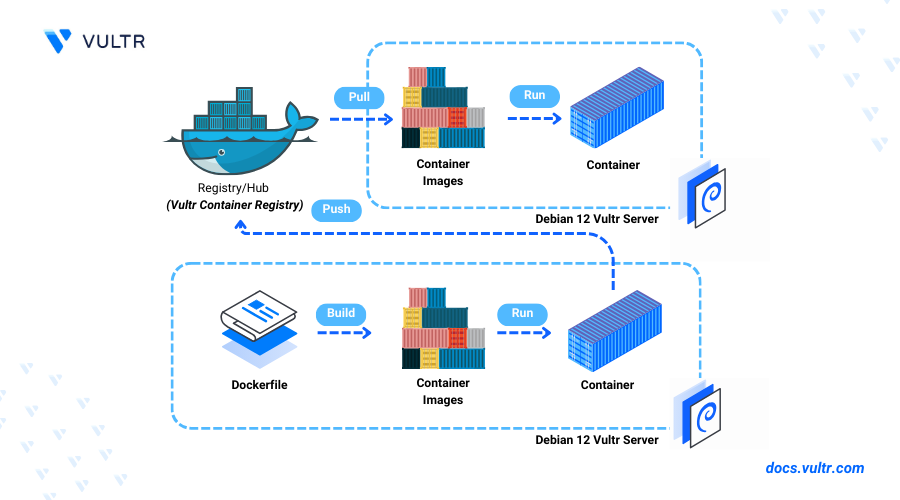
At its heart, Docker is a platform designed to simplify the creation, deployment, and management of applications using containerization. A Docker container bundles an application with all its dependencies—libraries, system tools, code, and runtime—ensuring it runs consistently regardless of the underlying infrastructure. Unlike virtual machines (VMs) which virtualize an entire operating system, containers share the host OS kernel, making them significantly lighter, faster to start, and more resource-efficient.
Debian, a free and open-source operating system known for its stability, security, and vast package repositories, provides an ideal foundation for Docker. Its robust apt package management system simplifies software installation and updates, aligning well with Docker’s philosophy of streamlined operations. For production environments or development setups requiring reliability and a predictable ecosystem, Debian combined with Docker offers a powerful and efficient solution.
The Core Components: Docker Engine, CLI, and Containerd
When you install Docker, you’re not just installing a single piece of software, but rather a suite of tools that work in harmony:
-
Docker Engine: This is the core daemon that runs on your host machine. It’s the server-side component responsible for building, running, and managing Docker containers. It listens for Docker API requests and manages Docker objects like images, containers, networks, and volumes.
-
Docker CLI (Command Line Interface): This is the primary user interface for interacting with the Docker Engine. You issue commands like
docker run,docker build, ordocker psthrough the CLI, which then communicates with the Docker Engine daemon to perform the requested actions. -
Containerd: This is an industry-standard container runtime that sits beneath the Docker Engine. It manages the complete container lifecycle of its host system, from image transfer and storage to container execution and supervision. While users typically interact with Docker Engine and CLI, containerd is crucial for the underlying functionality.
-
Docker Compose: Although not strictly part of the core Docker Engine installation, Docker Compose is an invaluable tool for defining and running multi-container Docker applications. It allows you to configure your application’s services, networks, and volumes in a single YAML file, simplifying the management of complex setups. We’ll touch upon its significance later.
Understanding these components helps demystify the Docker architecture and provides a clearer picture of how your commands translate into action on your Debian system.
Essential Prerequisites Before You Begin
Before initiating the installation, ensure your Debian system meets a few basic requirements and is properly prepared. This preemptive step helps avoid common issues and ensures a smooth installation process.
-
Debian Version: Ensure you are running a supported version of Debian. Docker officially supports Debian Buster 10 (oldstable), Bullseye 11 (stable), and Bookworm 12 (testing/stable). While it might work on older versions, it’s not officially supported.
-
64-bit Architecture: Docker Engine requires a 64-bit version of Debian.
-
Kernel Version: The Linux kernel must be version 3.10 or higher. Modern Debian versions easily satisfy this.
-
Internet Connectivity: You’ll need an active internet connection to download packages from Docker’s repositories.
-
Sudo Privileges: You must have
sudoprivileges or be logged in as therootuser to perform system-level installations. Usingsudois generally recommended for security best practices. -
Update System Packages: It’s always a good practice to update your package lists and upgrade existing packages before installing new software. Open a terminal and run:
sudo apt update

sudo apt upgrade -y
This ensures you have the latest security patches and package dependencies.
Step-by-Step Installation of Docker Engine on Debian
With your system prepared, we can now proceed with the core installation of Docker Engine. The recommended method is to install from Docker’s official repository, ensuring you always get the latest stable version.
Removing Legacy Docker Installations
If you have any older, unofficial, or previously installed versions of Docker (like docker.io or docker-engine), it’s crucial to remove them before installing the official Docker Engine. This prevents potential conflicts and ensures a clean installation.
sudo apt remove docker docker-engine docker.io containerd runc

sudo apt autoremove -y
This command attempts to remove common Docker-related packages. Don’t worry if it reports that some packages are not installed, as it simply means they weren’t present on your system.
Setting Up Docker’s Official APT Repository
To install Docker from its official repository, you first need to add the repository to your system’s apt sources and import the GPG key. This ensures the packages you download are authentic and secure.
-
Install necessary packages:
These packages allow
aptto use repositories over HTTPS.sudo apt install ca-certificates curl gnupg lsb-release -y -
Add Docker’s official GPG key:
Download the official Docker GPG key and add it to your system’s keyring. This verifies the authenticity of Docker packages.
sudo mkdir -p /etc/apt/keyrings curl -fsSL https://download.docker.com/linux/debian/gpg | sudo gpg --dearmor -o /etc/apt/keyrings/docker.gpg -
Set up the repository:
Add the Docker repository to your
aptsources. The$(lsb_release -cs)command automatically detects your Debian codename (e.g.,bullseye,bookworm).echo "deb [arch=$(dpkg --print-architecture) signed-by=/etc/apt/keyrings/docker.gpg] https://download.docker.com/linux/debian $(lsb_release -cs) stable" | sudo tee /etc/apt/sources.list.d/docker.list > /dev/null -
Update the
aptpackage index:After adding the new repository, update your
aptpackage list to include Docker packages.sudo apt update
Installing the Docker Engine Package
Now that the repository is set up, you can install Docker Engine, Containerd, and Docker Compose (CLI plugin) with a single command.
sudo apt install docker-ce docker-ce-cli containerd.io docker-buildx-plugin docker-compose-plugin -y
This command installs:
-
docker-ce: The core Docker Engine (Community Edition). -
docker-ce-cli: The Docker command-line interface. -
containerd.io: The container runtime. -
docker-buildx-plugin: A plugin for extended build capabilities. -
docker-compose-plugin: The Docker Compose CLI plugin.
Verifying Your Docker Installation
After the installation completes, it’s essential to verify that Docker Engine is running correctly and that you can execute Docker commands.
-
Check Docker service status:
The Docker daemon should start automatically after installation. You can verify its status:
sudo systemctl status dockerYou should see output indicating that the service is “active (running)”.
-
Run the
hello-worldcontainer:Execute a simple Docker command to download and run the
hello-worldimage. This confirms that Docker can pull images and run containers.sudo docker run hello-worldIf successful, you will see a message confirming that your Docker installation appears to be working correctly.
Post-Installation Configuration and Initial Usage
While Docker is now installed, a few post-installation steps can enhance usability and security, especially for non-root users. Understanding basic commands is also crucial for your journey into containerization.
Managing Docker as a Non-Root User (Post-Installation Steps)
By default, the Docker daemon binds to a Unix socket, which is owned by the root user. This means you must prepend sudo to every Docker command, which can be cumbersome and presents a minor security risk if not managed carefully. To allow non-root users to run Docker commands, you can add your user to the docker group.
-
Add your user to the
dockergroup:Replace
your_usernamewith your actual username.sudo usermod -aG docker your_username -
Apply the new group membership:
For the changes to take effect, you must either log out and log back in, or restart your system. Alternatively, you can run
newgrp dockerin your current terminal session, though a full re-login is generally more reliable. -
Verify without
sudo:Once logged back in, try running the
hello-worldcontainer again, this time withoutsudo:docker run hello-worldIf it runs successfully, you’ve configured Docker for non-root access.
Configuring Docker to Start on Boot
Docker is usually configured to start on boot by default when installed via the official repository. You can verify and ensure this behavior using systemctl.
sudo systemctl enable docker
This command creates a symlink from the system’s startup directory to the Docker service file, ensuring it launches automatically when your Debian system starts up.
Your First Container: Running “Hello World”
The hello-world container is a great way to confirm your Docker setup. It downloads a tiny image and prints a simple message. Let’s expand on running another simple container to demonstrate more functionality.
Let’s try running an Nginx web server:
docker run -d -p 80:80 --name my-nginx nginx
Here’s what this command does:
-
docker run: The command to run a new container. -
-d: Runs the container in “detached” mode (in the background). -
-p 80:80: Maps port 80 on your host machine to port 80 inside the container. This allows you to access the Nginx web server from your browser. -
--name my-nginx: Assigns a human-readable name to your container. -
nginx: Specifies the Docker image to use (the official Nginx image from Docker Hub).
After running this, open your web browser and navigate to http://localhost. You should see the default Nginx welcome page, confirming your container is up and running.
Basic Docker Commands for Everyday Use
Familiarizing yourself with common Docker commands is essential for managing your containers effectively.
-
docker ps: Lists running containers. Add-a(docker ps -a) to see all containers, including stopped ones. -
docker images: Lists all Docker images downloaded to your local system. -
docker stop <container_name_or_id>: Stops a running container. -
docker start <container_name_or_id>: Starts a stopped container. -
docker rm <container_name_or_id>: Removes a container. You must stop a container before removing it. -
docker rmi <image_name_or_id>: Removes an image. You must remove all containers based on an image before removing the image itself. -
docker pull <image_name>: Downloads an image from Docker Hub (or another registry). -
docker logs <container_name_or_id>: Displays the logs of a container.
These commands form the backbone of daily Docker operations, allowing you to manage the lifecycle of your applications efficiently.
Advanced Considerations and Troubleshooting
As you become more proficient with Docker, you’ll encounter scenarios that require deeper understanding or troubleshooting. Anticipating and preparing for these can save significant time.
Common Installation Issues and Solutions
While the official installation method is generally reliable, you might occasionally face issues.
-
“Permission denied” errors (without
sudo): If you forget to add your user to thedockergroup or haven’t re-logged in, you’ll get permission errors. Solution: Add user todockergroup and re-login (sudo usermod -aG docker your_username). -
apt updatefails due to GPG key issues: Ensure you correctly downloaded and added the GPG key. Double-check thecurlandgpg --dearmorcommands. Sometimes a cached key can cause issues; try removing/etc/apt/keyrings/docker.gpgand re-adding it. -
“Cannot connect to the Docker daemon”: This usually means the Docker service is not running. Check its status (
sudo systemctl status docker) and start it if necessary (sudo systemctl start docker). -
Network conflicts: If you have other services using common ports (like 80 or 443), Docker’s port mapping might conflict. Solution: Use different host ports (
-p 8080:80for Nginx on host port 8080) or stop conflicting services. -
Disk space issues: Docker images and containers can consume significant disk space over time. Regularly prune unused objects:
docker system prune -aThis command removes all stopped containers, all dangling images, all unused networks, and all build cache. Use with caution as it removes a lot!
Optimizing Docker for Performance and Security
To leverage Docker’s full potential and maintain a secure environment, consider these insights:
-
Resource Limits: For production deployments, always define resource limits (CPU, memory) for your containers to prevent a single container from monopolizing host resources. This can be done with
--memoryand--cpusflags duringdocker runor indocker-compose.yml. -
Volume Management: For persistent data, use Docker volumes. Volumes are managed by Docker and are more performant and secure than bind mounts (which directly map host directories into containers) for critical data.
-
Image Security:
-
Use official images: Prioritize images from trusted sources like Docker Hub’s official images.
-
Keep images small: Use slim base images (e.g., Alpine Linux) to reduce the attack surface.
-
Scan for vulnerabilities: Integrate image scanning tools into your CI/CD pipeline.
-
Regularly update images: Rebuild your container images periodically to ensure they use the latest security patches.
-
-
Network Security: Understand Docker networking modes. For production, consider custom bridge networks or overlay networks for multi-host setups, and configure firewalls to control container access.
-
Rootless Docker: For even greater security, explore running Docker in rootless mode. This configuration allows the Docker daemon and containers to run as an unprivileged user, reducing the impact of potential container escapes. It’s a more advanced setup but significantly enhances security.
Expanding Your Docker Journey: Docker Compose and Beyond
Installing Docker on Debian is just the beginning. To truly harness its power for complex applications, you’ll want to explore tools and concepts that build upon this foundation:
-
Docker Compose: As mentioned, Compose is invaluable for defining and running multi-container applications. Learn to write
docker-compose.ymlfiles to orchestrate your application’s services, dependencies, and networking. -
Dockerfile Best Practices: Master writing efficient and secure
Dockerfilesto build your custom application images. Techniques like multi-stage builds and sensible layer caching can drastically improve build times and image sizes. -
Orchestration (Kubernetes/Docker Swarm): For managing containerized applications at scale across multiple hosts, container orchestration platforms like Kubernetes or Docker Swarm become essential. These tools automate deployment, scaling, and management of containerized applications.
-
Continuous Integration/Continuous Deployment (CI/CD): Integrate Docker into your CI/CD pipelines to automate the building, testing, and deployment of your applications, creating a robust and efficient development workflow.
Conclusion: Harnessing the Power of Containerization
Installing Docker on Debian is a foundational step towards modernizing your development and deployment workflows. By following this comprehensive guide, you’ve successfully set up a powerful containerization platform, ready to host everything from simple web applications to complex microservices architectures. The combination of Debian’s stability and Docker’s agility provides a robust and efficient environment for any technology enthusiast, developer, or system administrator.
As you continue your Docker journey, remember that the ecosystem is vast and constantly evolving. Embrace continuous learning, experiment with different tools, and always prioritize security and performance. With Docker on Debian, you’re well-equipped to navigate the future of application deployment with confidence and efficiency.
aViewFromTheCave is a participant in the Amazon Services LLC Associates Program, an affiliate advertising program designed to provide a means for sites to earn advertising fees by advertising and linking to Amazon.com. Amazon, the Amazon logo, AmazonSupply, and the AmazonSupply logo are trademarks of Amazon.com, Inc. or its affiliates. As an Amazon Associate we earn affiliate commissions from qualifying purchases.