
In the rapidly evolving landscape of digital entertainment, users constantly seek streamlined, customizable, and feature-rich platforms to manage and consume their media. Kodi, the open-source media center software, stands as a cornerstone in this quest, offering unparalleled flexibility. However, navigating Kodi’s vast ecosystem of add-ons and configurations can often be a daunting task for newcomers. This is where Kodi builds like Diggz Xenon come into play, transforming the base Kodi experience into a polished, pre-configured media hub designed for immediate enjoyment.
Diggz Xenon is a popular Kodi build renowned for its sleek interface, robust selection of add-ons, and overall user-friendliness. It aggregates a curated list of video add-ons, program add-ons, and visual customizations into a single, cohesive package, making it an ideal choice for users who want a comprehensive media solution without the hassle of individual setup. This article will provide a professional and insightful guide to installing Diggz Xenon, delving into the nuances of its features, the technical steps involved, and best practices for optimization and maintenance. We will explore how this particular build enhances the tech experience, offering a glimpse into the broader trends of media aggregation and personalization that define modern digital consumption.
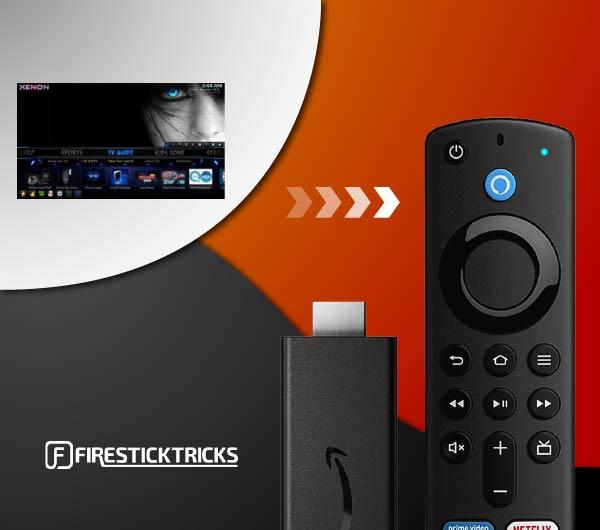
Understanding Diggz Xenon and Its Appeal
At its core, Diggz Xenon is more than just a collection of add-ons; it’s a meticulously crafted environment built atop the powerful Kodi framework. For many users, Kodi’s raw, unconfigured state can be overwhelming. The process of searching for reliable add-ons, installing them, configuring settings, and then arranging them into an intuitive interface demands a significant time investment and a certain level of technical proficiency. Diggz Xenon bypasses these complexities by delivering a ready-to-use system that often requires minimal post-installation tweaking.
What is Diggz Xenon?
Diggz Xenon is essentially a “skin” or “build” for Kodi. In technical terms, it’s a bundled package that includes a specific skin (the visual interface), a collection of pre-selected video add-ons (for movies, TV shows, live TV, etc.), program add-ons (for maintenance, streaming tools), and a pre-configured menu structure. The objective is to provide a comprehensive, functional, and aesthetically pleasing Kodi setup from the moment it’s installed. Unlike individual add-ons that offer specific functionalities, a build aims to create an entire ecosystem within Kodi, making it a one-stop shop for entertainment. Its name, “Xenon,” often evokes a sense of light, speed, and modern design, attributes that the build strives to embody.
Why Choose Diggz Xenon?
The primary allure of Diggz Xenon lies in its promise of convenience and a superior user experience. Here are several compelling reasons why tech enthusiasts and casual users alike gravitate towards this particular build:
-
Pre-configured Excellence: The most significant advantage is the elimination of manual setup. Diggz Xenon comes with popular, functional add-ons already installed and categorized, saving users hours of configuration.
-
Intuitive Interface: The build often features a custom skin that is both visually appealing and easy to navigate. Menus are logically organized, making it simple to find content without digging through multiple layers of settings.
-
Curated Add-on Selection: Rather than overwhelming users with every available add-on, Diggz Xenon typically includes a vetted list of reliable and high-quality streaming sources, reducing the frustration of encountering broken or poorly maintained links.
-
Performance Optimization: Builds like Diggz Xenon are often optimized for performance, with settings adjusted to ensure smoother playback and quicker navigation, even on less powerful devices like TV boxes or Raspberry Pis.
-
Regular Updates: A well-maintained build like Diggz Xenon often receives regular updates, ensuring compatibility with the latest Kodi versions and refreshing its add-on roster to keep pace with changes in the streaming landscape.
-
Community Support: Given its popularity, Diggz Xenon benefits from an active community, offering a wealth of troubleshooting advice and tips.
Kodi: The Foundation
It’s crucial to remember that Diggz Xenon operates within Kodi. Kodi itself is a free and open-source media player software application developed by the XBMC Foundation. It allows users to play and view most streaming media, such as videos, music, podcasts, and videos from the internet, as well as all common digital media files from local and network storage media. Kodi does not provide any content itself; it merely acts as a framework. This distinction is vital for understanding both the power and the limitations of builds like Diggz Xenon. While the build provides the convenience, Kodi provides the robust engine beneath the hood, capable of running on various operating systems and hardware platforms, including Windows, macOS, Linux, Android, iOS, and Raspberry Pi.
Pre-Installation Checklist: Preparing Your System
Before embarking on the installation of Diggz Xenon, proper preparation of your device and Kodi environment is paramount. Skipping these preliminary steps can lead to installation failures, performance issues, or a less-than-optimal user experience. This section outlines the essential prerequisites and considerations for a smooth setup.
Installing Kodi (If Not Already Present)
The first and most obvious prerequisite is having Kodi installed on your target device. If you don’t already have it, download the latest stable version directly from the official Kodi website (kodi.tv). Ensure you select the correct version for your operating system (Windows, Android, macOS, etc.). The installation process for Kodi itself is typically straightforward, following standard application installation procedures for your platform. For Android devices, it’s available on the Google Play Store; for Windows, an executable installer; for Linux, often via a package manager.
Enabling “Unknown Sources”
Kodi, by default, restricts installations from “unknown sources” for security reasons. Since Diggz Xenon is a third-party build and not from Kodi’s official repository, you must enable this option.
-
From the Kodi home screen, click the Settings icon (gear icon).
-
Go to System.
-
Navigate to the Add-ons tab on the left.
-
Toggle “Unknown sources” to the ON position.
-
A warning message will appear; read it carefully and click Yes to proceed.
This step is critical, as without it, Kodi will block the installation of the repository required for Diggz Xenon.
Essential System Requirements and Considerations
While Kodi is designed to be lightweight, a complex build like Diggz Xenon, with its multitude of add-ons and a feature-rich skin, can demand more resources.
-
Storage: Ensure you have ample free storage space. While the initial build might be a few hundred megabytes, cached content and updates can quickly consume gigabytes. A minimum of 4-8 GB of free space is recommended, especially for Android boxes.
-
RAM: Devices with at least 2GB of RAM will offer a smoother experience. Lower RAM can lead to sluggish navigation and buffering, particularly with high-definition content.
-
Processor: A multi-core processor is beneficial for handling the various processes run by a Kodi build. Entry-level single-core devices might struggle.
-
Operating System: Ensure your Kodi version is compatible with your device’s operating system. Older OS versions might not support the latest Kodi or build functionalities.
Ensuring a Stable Internet Connection
A reliable and fast internet connection is non-negotiable for installing and using Diggz Xenon. The installation process involves downloading several hundred megabytes of data. Furthermore, all streaming content relies heavily on bandwidth. A slow or unstable connection will result in extended download times during installation, and frustrating buffering during playback. For optimal streaming, a connection speed of at least 20-30 Mbps is generally recommended, with higher speeds beneficial for 4K content. Consider using a wired Ethernet connection instead of Wi-Fi if possible, to minimize latency and improve stability.
Step-by-Step Installation Process
With the preliminary checks complete, we can now proceed with the technical installation of Diggz Xenon. This process involves adding a source, installing a repository, then a wizard, and finally the build itself. Adhering to these steps precisely will ensure a successful installation.
Adding the Source for Diggz Xenon Repository
The first step is to tell Kodi where to find the Diggz Xenon repository. This is done by adding a custom file source.
-
From the Kodi home screen, click the Settings icon (gear icon).
-
Go to File Manager.
-
Click on Add source on either the left or right pane.
-
In the “Add file source” dialog box, click on
<None>. -
Carefully enter the source URL:
http://diggz1.me/diggzrepo(or the most current URL provided by the official Diggz Xenon sources – always double-check for the latest working URL if experiencing issues). Ensure there are no typos. -
Click OK.
-
In the field labeled “Enter a name for this media source,” type
diggz(or any easily recognizable name) and click OK. -
Click OK again to close the “Add file source” dialog. You should now see “diggz” listed in your File Manager.
Installing the Repository from Zip File

After adding the source, you need to install the actual repository, which acts as a library containing the build wizard.
-
Return to the Kodi home screen and click the Settings icon.
-
Go to Add-ons.
-
Click on Install from zip file.
-
A warning might appear about unknown sources; since we already enabled it, click Yes to proceed.
-
Select the source you named
diggz(or whatever you called it). -
Click on the repository zip file, which will typically be named something like
Diggzrepo.ziporrepository.diggz.zip. (The exact filename might vary slightly with updates.) -
Wait for the “Diggz Repository Add-on installed” notification to appear in the top-right corner. This indicates the repository has been successfully added to Kodi.
Installing The Xenon Wizard
The Diggz Xenon build itself is deployed via a specific wizard that resides within the newly installed repository.
-
From the Add-ons menu (where you clicked “Install from zip file”), click on Install from repository.
-
Select Diggz Repository from the list.
-
Go into Program add-ons.
-
Find and select The Xenon.
-
Click Install.
-
You may be prompted to install additional dependencies; click OK.
-
Wait for the “The Xenon Add-on installed” notification to appear.
Deploying the Diggz Xenon Build
Now that the Xenon Wizard is installed, you can use it to fetch and install the full Diggz Xenon build.
-
Once “The Xenon Add-on installed” notification appears, a pop-up window from the wizard will often appear, asking if you want to proceed to the “Build Menu” or perform other initial setup tasks. If it doesn’t, navigate back to the Kodi home screen, go to Add-ons -> Program add-ons, and launch The Xenon.
-
In The Xenon Wizard, select Builds.
-
You will see a list of available Diggz builds. Choose the latest Diggz Xenon build (e.g., “Diggz Xenon [Kodi Version]” – often indicated with a fresh date or version number).
-
The wizard will then ask if you want to perform a “Fresh Install” or “Standard Install.”
-
Fresh Install (recommended): This wipes your current Kodi configuration clean before installing the build, ensuring a pristine setup and minimizing conflicts.
-
Standard Install: This attempts to install the build over your existing setup, which might retain some of your previous settings but can also lead to issues.
-
For most users, especially first-time installers or those wanting a clean slate, Fresh Install is the best option.
-
-
Confirm your selection. The wizard will begin downloading the build files. This process can take several minutes, depending on your internet speed and the size of the build.
-
Once the download is complete, the wizard will ask you to “Force Close” Kodi to finalize the installation. Click Yes.
Initial Setup and First Run Configuration
After Kodi force-closes, restart it. The first launch after installing Diggz Xenon will take longer than usual. Kodi will be performing initial setup tasks, unpacking files, updating add-ons, and building menus. Do not interrupt this process. You might see various notifications about add-ons being enabled or updated.
Allow several minutes for everything to settle. Once complete, you will be greeted by the Diggz Xenon interface, which will look significantly different from the default Kodi skin. Explore the menus, familiarize yourself with the layout, and try launching some of the pre-installed add-ons. Some add-ons may require initial authorization or configuration on their first run.
Post-Installation: Optimizing and Maintaining Your Build
Installing Diggz Xenon is just the beginning. To ensure a lasting and enjoyable experience, ongoing optimization and maintenance are crucial. Like any sophisticated software, Kodi builds benefit from regular attention to keep them running smoothly and efficiently.
Navigating and Customizing Diggz Xenon
Once installed, take time to explore Diggz Xenon’s interface. Most builds feature intuitive menus for Movies, TV Shows, Live TV, Music, and System settings. You can often customize aspects like the background, widget content, and even the add-ons displayed on the main menu.
-
Menu Exploration: Use your remote or keyboard to navigate through the main menu items. Hovering over certain categories often reveals sub-menus or widgets with popular content.
-
Add-on Access: The build will have a dedicated “Add-ons” section where you can view all installed video, music, and program add-ons. You can launch them directly from here or add shortcuts to your main menu for frequently used ones.
-
Settings Panel: The “System” or “Settings” menu within Diggz Xenon allows for further customization. You might be able to change the skin settings, adjust video playback options, or tweak network configurations specific to the build.
Keeping Your Build Updated
Software is dynamic, and Kodi builds are no exception. Regular updates are released for several reasons:
-
Bug Fixes: Addressing glitches or performance issues.
-
Add-on Updates: Ensuring included add-ons work with the latest streaming sources and Kodi versions.
-
New Features: Introducing enhancements to the build’s functionality or interface.
-
Security Patches: Protecting against potential vulnerabilities.
The Xenon Wizard typically includes an update mechanism. Periodically, launch “The Xenon” program add-on and check for available updates for your installed build. It’s often recommended to perform a “Fresh Install” of an updated build if a significant version change occurs, to avoid potential conflicts with older configurations. Enabling automatic updates for add-ons within Kodi settings (Settings -> Add-ons -> My add-ons -> Program add-ons -> The Xenon -> Configure -> General) can help, but always manually check for major build updates.
Troubleshooting Common Issues
Even with careful installation, users might encounter issues. Here are some common problems and potential solutions:
-
Buffering Issues: Often a network problem. Check internet speed, consider a wired connection, and ensure no other devices are hogging bandwidth. Within Kodi, you can also clear cache data via maintenance tools in “The Xenon” wizard or other program add-ons.
-
Add-ons Not Working: Streaming sources frequently change. If an add-on isn’t working, first ensure the build and the add-on itself are updated. If it persists, it might be a dead link or a defunct add-on. Diggz Xenon updates usually remove broken ones and add new, working alternatives.
-
Build Not Loading Correctly: If Kodi crashes or the build doesn’t appear after a restart, try a fresh installation. Sometimes, corrupt files or an interrupted download can cause issues.
-
Slow Performance: Clear the cache using maintenance tools. Consider disabling add-ons you don’t use. If on a low-spec device, minimize background processes.
Understanding the Risks and Responsibilities
While Kodi and its builds offer immense entertainment value, it’s crucial for users to understand the associated risks and responsibilities.
-
Legality: Kodi itself is legal. However, some third-party add-ons and builds may provide access to copyrighted content without proper authorization. Users are solely responsible for ensuring their usage complies with copyright laws in their jurisdiction. It is always advisable to use a VPN (Virtual Private Network) for privacy and security when streaming via unofficial sources.
-
Security: Relying on third-party repositories and add-ons can expose your system to potential security risks, though reputable builds like Diggz Xenon generally strive for integrity. Keep Kodi updated and be wary of installing add-ons from unknown or unverified sources.
-
Maintenance: Builds are maintained by volunteers. There’s no guarantee that a specific add-on or the build itself will always be available or function indefinitely. The tech landscape is constantly changing, and users should be prepared for potential disruptions.
The Future of Media Streaming: Why Builds Matter
The phenomenon of Kodi builds like Diggz Xenon speaks volumes about the evolving demands of media consumption in the digital age. They represent a significant step beyond basic software, embodying principles of personalization, aggregation, and user-centric design that are driving the broader tech industry.
Beyond Basic Kodi: The Ecosystem of Builds
Kodi’s open-source nature has fostered a vibrant ecosystem where users and developers can extend its functionality. Builds are a testament to this, transforming a versatile media player into a tailored entertainment hub. They address the “paradox of choice” by curating content, and the “complexity barrier” by pre-configuring intricate setups. This trend is mirrored in other areas of technology, where platforms (like app stores) are often enhanced by curated packages (like themed collections or “best of” lists) to simplify user interaction and improve discoverability. Diggz Xenon, in this context, is not just an installation guide but a gateway to understanding how software personalization is becoming a standard expectation.
Personalization and User Experience
In a world saturated with content, the ability to personalize one’s media environment is paramount. Diggz Xenon exemplifies this by offering a ready-made, yet customizable, platform. Users can dive straight into content without the friction of initial setup, and then tweak it to their liking. This focus on immediate gratification coupled with long-term flexibility is a hallmark of successful tech products. It minimizes the learning curve and maximizes the entertainment value, making advanced media management accessible to a broader audience.

The Evolving Landscape of Digital Entertainment
The existence and popularity of builds like Diggz Xenon highlight a broader shift in digital entertainment. As streaming services proliferate and content becomes fragmented across numerous platforms, users seek consolidated solutions. While official aggregators exist, Kodi builds offer a community-driven, often more comprehensive, and highly flexible alternative. They cater to a demographic that values control, customization, and access to a wider array of content sources, pushing the boundaries of what’s possible in home media centers. Understanding how to install and manage such builds is not merely a technical skill but an insight into the future direction of media consumption – a future that is increasingly personalized, aggregated, and driven by user preference.
In conclusion, installing Diggz Xenon is a straightforward process that significantly elevates the Kodi experience. By following the detailed steps and understanding the underlying principles, users can unlock a powerful, pre-configured media hub that stands as a testament to the versatility of open-source software and the innovative spirit of the tech community. It’s a prime example of how thoughtful curation and intelligent integration can transform a basic application into a sophisticated, user-friendly entertainment powerhouse.
aViewFromTheCave is a participant in the Amazon Services LLC Associates Program, an affiliate advertising program designed to provide a means for sites to earn advertising fees by advertising and linking to Amazon.com. Amazon, the Amazon logo, AmazonSupply, and the AmazonSupply logo are trademarks of Amazon.com, Inc. or its affiliates. As an Amazon Associate we earn affiliate commissions from qualifying purchases.