
In the dynamic world of digital design and content creation, the power of typography cannot be overstated. Fonts are not merely characters on a screen; they are visual cues that convey mood, professionalism, and brand identity. For countless designers, hobbyists, and digital artists, platforms like Dafont have become indispensable resources, offering a vast and diverse repository of free and shareware fonts. The ability to seamlessly integrate these unique typefaces into your system and applications is a fundamental skill, unlocking a world of creative possibilities. This guide delves deep into the technical nuances of installing fonts from Dafont, providing a step-by-step walkthrough for various operating systems and offering insights into best practices for font management.
Understanding Dafont and Font Essentials
Before diving into the installation process, it’s crucial to understand what Dafont is, why custom fonts are so valuable, and the fundamental differences between common font file types. This foundational knowledge will empower you to make informed choices and ensure a smooth installation experience.
What is Dafont?
Dafont is a popular online archive of downloadable fonts, serving as a creative hub for designers worldwide. Launched in 2002, it has grown to host tens of thousands of fonts across a myriad of categories, from intricate scripts and futuristic displays to classic serifs and playful sans-serifs. While many fonts on Dafont are free for personal use, it’s important to note that commercial licenses often require direct purchase or permission from the original author. The platform’s intuitive categorization and search functions make it an ideal starting point for anyone looking to personalize their digital projects.
Why Are Custom Fonts Important for Digital Creators?
The default fonts pre-installed on operating systems, while reliable, offer limited scope for personalization and differentiation. Custom fonts provide a unique voice, allowing creators to:
-
Enhance Brand Identity: A distinct typeface can significantly contribute to a brand’s visual identity, making it memorable and recognizable.
-
Improve Readability and User Experience: Specific fonts are better suited for different contexts, such as headlines, body text, or digital interfaces, improving legibility and overall user engagement.
-
Express Creativity: Custom fonts allow designers to convey specific emotions, themes, or styles that align with their creative vision, setting their work apart.
-
Tailor to Specific Projects: From wedding invitations to corporate presentations, the right font can dramatically alter the perception and impact of a design project.
Common Font File Types: TTF vs. OTF
When downloading fonts, you’ll primarily encounter two file extensions: .ttf (TrueType Font) and .otf (OpenType Font). Understanding their differences is key to effective font management:
-
TrueType Font (TTF): Developed by Apple and Microsoft in the late 1980s, TTF is a widely used font standard. It stores both the screen and printer font data in a single file, making it highly compatible across various operating systems and applications. TTF fonts are generally simpler in structure and are excellent for basic text and display purposes.
-
OpenType Font (OTF): A more recent and advanced format, OpenType was developed jointly by Microsoft and Adobe. OTF builds upon TTF, offering greater sophistication in terms of typographic features. This includes support for ligatures, contextual alternates, small caps, old-style figures, and extended character sets (e.g., for different languages). OTF fonts are often preferred by professional designers for their enhanced capabilities and flexibility.
While both formats are widely supported, OTF generally offers more advanced typographic controls, making it a powerful tool for intricate design work. For most users, either format will install and function correctly.
The Universal Download Process from Dafont
The initial steps for acquiring fonts from Dafont are largely consistent, regardless of your operating system. This section guides you through navigating the website, selecting your desired fonts, and preparing them for installation.
Navigating the Dafont Website
Dafont’s interface is user-friendly, designed for easy discovery.
-
Browse Categories: The top navigation bar offers broad categories like “Fancy,” “Basic,” “Script,” “Dingbats,” and “Holiday.” Hovering over these reveals more specific sub-categories (e.g., “Cartoon,” “Retro,” “Handwritten”).
-
Use the Search Bar: If you have a specific font name or style in mind, the search bar at the top right is highly effective.
-
Filter by Options: On the right sidebar, you can filter fonts by “Themes,” “Authors,” “New Fonts,” or “Top Fonts.” Critically, you can also filter by “More options” to view fonts by “Public domain,” “100% Free,” or “Free for personal use.” Always pay attention to the licensing information listed next to each font.
Selecting and Downloading Your Desired Font
Once you’ve found a font that catches your eye:
-
Preview: Dafont allows you to type custom text into a preview box to see how the font looks with your own words. You can also adjust the font size.
-
Check License: Before downloading, carefully read the licensing information, typically displayed next to the download button. “100% Free” means it can be used for both personal and commercial projects without charge. “Free for personal use” means you’ll need to purchase a commercial license for business-related projects.
-
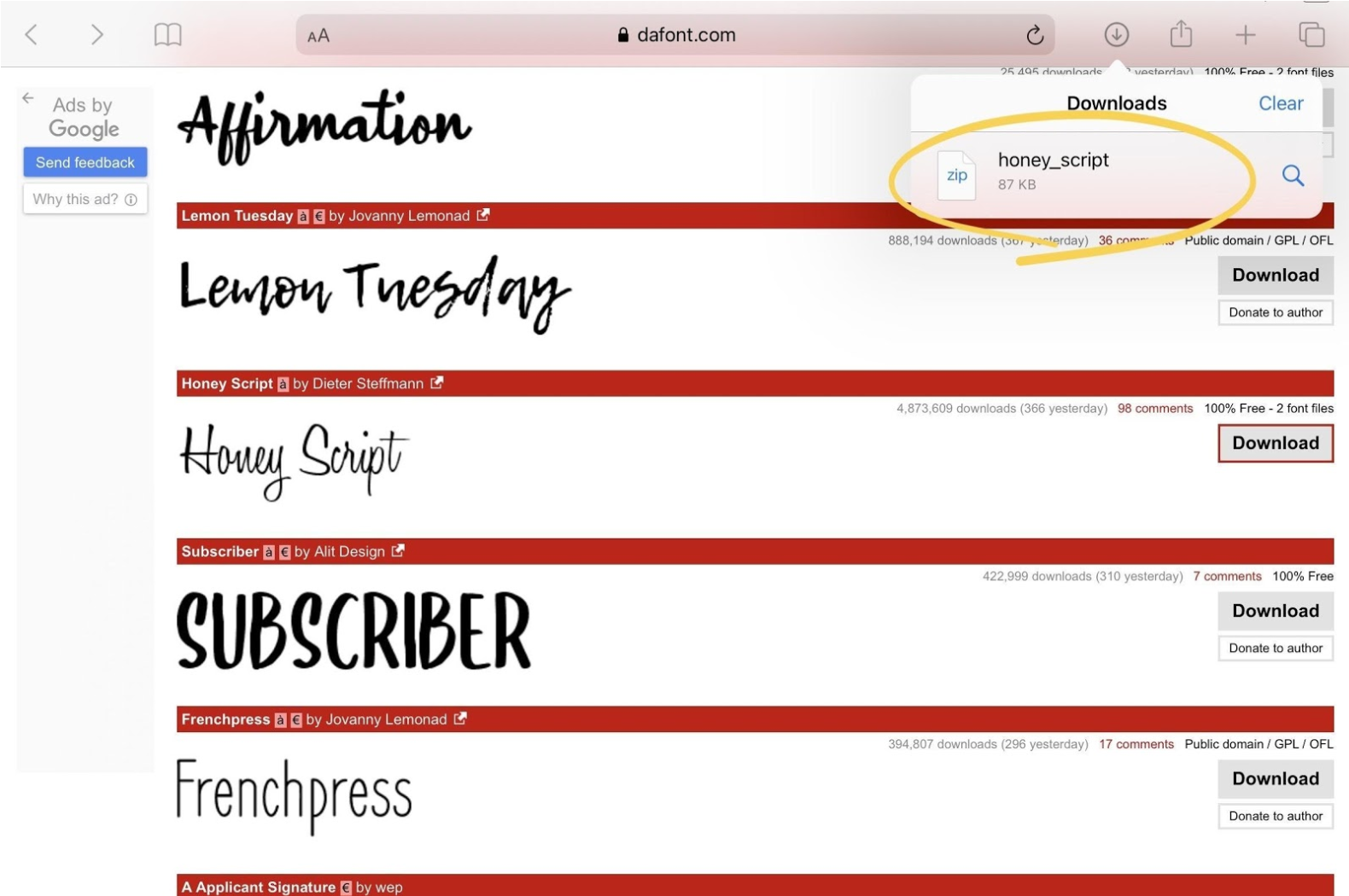
Download: Click the “Download” button to save the font file to your computer. Most browsers will save to your default “Downloads” folder.
Extracting Zipped Font Files
Almost all fonts downloaded from Dafont come compressed in a .zip file. This is done to bundle multiple font variations (e.g., bold, italic, regular) and any accompanying license files or documentation into a single, smaller package.
-
Windows: Locate the
.zipfile, right-click it, and select “Extract All…” Choose a destination folder (e.g., a new folder on your desktop or in your “Fonts” directory) and click “Extract.” -
macOS: Simply double-click the
.zipfile. It will automatically decompress, creating a new folder containing the font files in the same directory as the.zipfile. -
Linux: In most desktop environments, you can right-click the
.zipfile and select “Extract Here” or “Extract to…” Alternatively, use the command line:unzip filename.zip.
After extraction, you will find one or more .ttf or .otf files, which are the actual font files ready for installation.
Platform-Specific Font Installation Guides
The method for installing fonts varies slightly between operating systems. Here, we provide detailed instructions for Windows, macOS, and Linux, ensuring you can integrate your new typefaces seamlessly.
Installing Fonts on Windows
Windows offers a straightforward process for installing fonts, whether it’s through the classic Control Panel or directly from the font file.
Method 1: Install Directly from Font File (Recommended)
-
Locate Font File: Navigate to the folder where you extracted your
.ttfor.otffiles. -
Right-Click & Install: Right-click on the individual font file (e.g.,
MyFont-Regular.ttf) and select “Install” from the context menu. If there are multiple styles (bold, italic), you’ll need to install each one separately. -
User Account Control: If prompted by User Account Control (UAC), click “Yes” to allow the installation.
-
Font Viewer: Alternatively, you can double-click the font file to open the Windows Font Viewer. This window displays a preview of the font and has an “Install” button at the top. Click this button to install the font.
Method 2: Using the Fonts Folder (Control Panel)
-
Open Control Panel: Search for “Control Panel” in the Windows search bar and open it.
-
Navigate to Fonts: Change the “View by” option to “Large icons” or “Small icons” and find “Fonts.” Click on it.
-
Drag and Drop: A new window will open displaying all your installed fonts. Simply drag the extracted
.ttfor.otffiles from their folder directly into this “Fonts” window. Windows will automatically install them.
Once installed, the font will be available in most applications that support custom fonts (e.g., Microsoft Word, Photoshop, GIMP, Figma). You may need to restart certain applications for the new fonts to appear in their font lists.
Installing Fonts on macOS
macOS provides an intuitive and centralized application called Font Book for managing and installing fonts.
-
Locate Font File: Go to the folder where you extracted your
.ttfor.otffiles. -
Double-Click Font File: Double-click on the individual font file (e.g.,
MyFont-Regular.otf). -
Font Book Preview: Font Book will open, displaying a preview of the font.
-
Install Font: Click the “Install Font” button at the bottom of the Font Book window.
-
Validation: Font Book will quickly validate the font. If there are any issues (e.g., duplicates, corrupted files), it will alert you.
-
Repeat for all styles: If a font family includes multiple styles (bold, italic), repeat this process for each
.ttfor.otffile.
Alternatively, you can drag and drop font files directly into the Font Book application window, specifically into the “All Fonts” or “User” collection. Fonts installed this way are typically available immediately in applications like Pages, Keynote, Adobe Creative Suite, and other design software.
Installing Fonts on Linux
Linux distributions generally offer flexibility in font installation, often through graphical user interfaces or command-line methods. The exact steps can vary slightly depending on your desktop environment (e.g., GNOME, KDE, XFCE).
Method 1: Using the Font Viewer/Installer (Most Desktop Environments)
-
Locate Font File: Navigate to the folder where you extracted your
.ttfor.otffiles. -
Double-Click Font File: Double-click on the individual font file. Most desktop environments will open a font viewer application.
-
Install Button: Look for an “Install” or “Install Font” button within this viewer and click it. You might be prompted for your user password.
Method 2: Manual Installation (for all users or specific users)
For system-wide installation (available to all users):
-
Create Directory (if needed): Open a terminal and use
sudo mkdir /usr/local/share/fonts/my_new_font_folder(replacemy_new_font_folderwith a descriptive name). -
Copy Fonts: Copy your
.ttfor.otffiles into this new directory:sudo cp /path/to/extracted/fonts/*.ttf /usr/local/share/fonts/my_new_font_folder/ -
Update Font Cache: Run
sudo fc-cache -fvto rebuild the font cache.
For user-specific installation (available only to your user):
-
Create Directory (if needed): In your home directory, create a hidden fonts folder:
mkdir -p ~/.local/share/fonts -
Copy Fonts: Copy your
.ttfor.otffiles into this folder:cp /path/to/extracted/fonts/*.ttf ~/.local/share/fonts/ -
Update Font Cache: Run
fc-cache -fv.
After installation, restart any applications you intend to use the fonts in for them to appear in the font selection menus.
Mastering Font Management and Troubleshooting
Installing fonts is only the first step. Effective management ensures your system remains optimized, and knowing how to troubleshoot common issues can save valuable time and frustration.
Accessing Your New Fonts in Applications
Once a font is successfully installed, it should appear in the font lists of most applications that utilize system fonts.
-
Text Editors: Word processors like Microsoft Word, Google Docs (requires local installation for desktop app), LibreOffice Writer.
-
Design Software: Adobe Creative Suite (Photoshop, Illustrator, InDesign), Affinity Designer/Photo/Publisher, GIMP, Inkscape, Figma (desktop app), Sketch.
-
Presentation Software: PowerPoint, Keynote.
If a font doesn’t appear, try restarting the application. In some cases, a full system restart might be necessary, though this is less common with modern operating systems.
Managing Your Font Library
A sprawling font collection can quickly become unwieldy. Consider these tips for efficient font management:
-
Font Managers: Tools like Font Book (macOS), NexusFont (Windows), or FontBase (cross-platform) offer advanced features for organizing, previewing, activating, and deactivating fonts, preventing system slowdowns.
-
Categorization: Group fonts logically by style, project, or license type.
-
Deactivate Unused Fonts: Install only the fonts you actively use. Deactivating fonts not currently in use can improve system performance, especially in applications that render font lists.
Common Installation Issues and Solutions
While font installation is generally straightforward, issues can arise:
-
Font Not Appearing in Apps:
- Solution: Restart the application. If that doesn’t work, restart your computer. Verify the font is installed correctly in your OS’s font directory/manager.
-
“Font Corrupted” or “Invalid Font” Error:
- Solution: The downloaded file might be damaged. Re-download the font from Dafont. Ensure your system’s font viewer/installer is up to date.
-
Duplicate Fonts:
- Solution: Font managers often detect and allow you to resolve duplicate fonts. In macOS Font Book, duplicates are flagged, and you can choose to disable or remove the older version. On Windows, installing a duplicate will often simply overwrite it.
-
Slow System Performance:
- Solution: Too many active fonts can bog down your system and applications. Use a font manager to deactivate fonts you don’t frequently use.
Best Practices for Font Usage and Licensing
Beyond the technical installation, understanding the implications of font usage, particularly concerning licensing, is critical for all digital creators. Adhering to these best practices ensures ethical and professional conduct.
Understanding Font Licenses
The most common oversight with downloaded fonts is neglecting their licensing terms.
-
Personal Use: Many Dafont fonts are “Free for personal use.” This means you can use them for non-commercial projects, like personal greeting cards, school assignments, or personal blog posts without generating income.
-
Commercial Use: For any project that directly or indirectly generates revenue (e.g., client work, products for sale, business logos, advertisements), a commercial license is almost always required.
-
Public Domain / 100% Free: These fonts can generally be used for both personal and commercial projects without restriction.
-
“Donationware”: Some authors request a donation if you use their font, especially for commercial purposes. While not legally binding as a purchase, it’s good practice to support creators.
Always check the text file included in the .zip download (often named Read Me.txt or license.txt) or refer to the author’s notes on the Dafont page for definitive licensing information. Misusing a font commercially without the proper license can lead to legal issues.
Organizing Your Font Collection
A well-organized font collection is an asset.
-
Dedicated Font Folder: Maintain a central folder for all your downloaded font
.zipfiles and their extracted contents. This makes backups easier. -
Naming Conventions: Consider consistent naming for your font folders, perhaps
[FontName] - [Author] - [LicenseType]. -
Backup: Regularly back up your font collection. Fonts are intellectual property, and losing them can be costly in terms of time and potential re-licensing.
Optimizing System Performance with Fonts
While a rich font library is desirable, an excessive number of active fonts can consume system resources.
-
Activate on Demand: Use a font manager to activate fonts only when they are needed for a specific project. This keeps your system lean.
-
Avoid Over-Installation: Only install font variations (bold, italic) that you actually intend to use.
-
Regular Cleanup: Periodically review your installed fonts and remove any that are no longer relevant or were installed for a one-off project.
By following this comprehensive guide, from the initial download to advanced management and ethical considerations, you can confidently expand your creative toolkit with the vast array of fonts available on Dafont. Mastering these technical skills not only streamlines your workflow but also elevates the professional quality and distinctiveness of your digital projects.
aViewFromTheCave is a participant in the Amazon Services LLC Associates Program, an affiliate advertising program designed to provide a means for sites to earn advertising fees by advertising and linking to Amazon.com. Amazon, the Amazon logo, AmazonSupply, and the AmazonSupply logo are trademarks of Amazon.com, Inc. or its affiliates. As an Amazon Associate we earn affiliate commissions from qualifying purchases.