
In the dynamic world of presentations, where clarity, confidence, and engagement are paramount, a often-underestimated tool lies quietly within the familiar interface of Microsoft PowerPoint: speaker notes. Far more than just a digital Post-it note, speaker notes are an indispensable feature designed to empower presenters, ensuring they deliver their message with precision, professionalism, and impact. For anyone who has ever stood before an audience, whether a small team or a large conference, the challenge of remembering every detail, statistic, or transition point while maintaining eye contact and an engaging demeanor is palpable. This is precisely where speaker notes step in, acting as a presenter’s private script, a safety net, and a strategic guide all rolled into one.
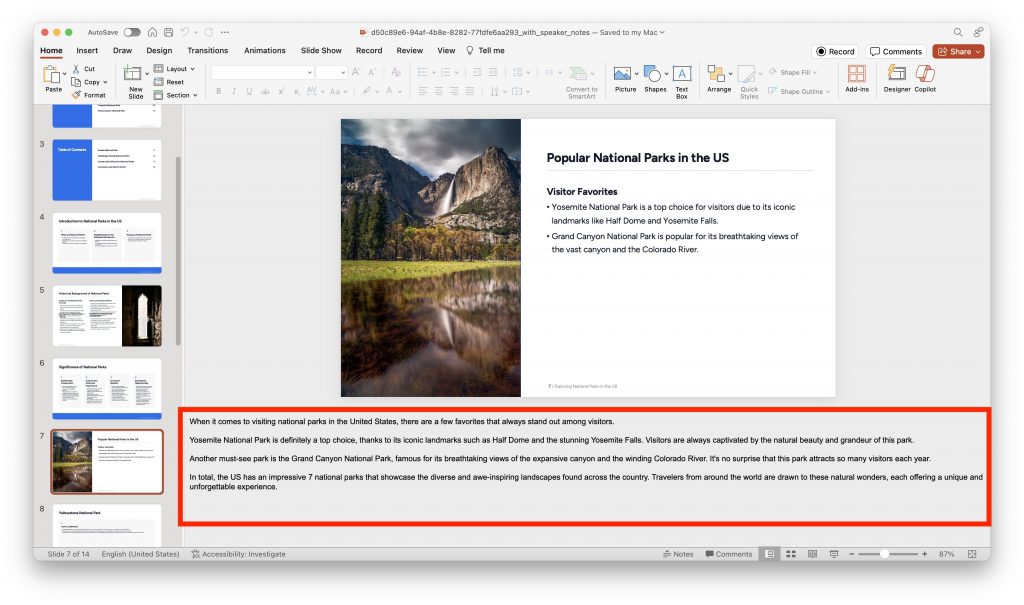
At its core, a speaker note is a textual reminder or expanded script associated with an individual slide in a PowerPoint presentation. Unlike the content displayed on the main slide, which is designed for audience consumption – typically concise, visually driven, and high-level – speaker notes are exclusively for the presenter. They reside in a dedicated section below each slide in the editing view and are only visible to the presenter during the actual slideshow, usually through a separate “Presenter View” screen. This distinct separation allows presenters to elaborate on slide content, include detailed explanations, anecdotes, key statistics, cues for audience interaction, or even personal reminders, all without cluttering the visual experience for their audience. Understanding and effectively utilizing this powerful feature can transform a good presentation into a truly memorable and impactful one.
The Essential Role of Speaker Notes in Effective Presentations
The true value of speaker notes extends far beyond a simple memory aid. They are a foundational element of robust presentation preparation, directly contributing to a presenter’s confidence, the fluidity of their delivery, and ultimately, the audience’s understanding and engagement.
Beyond Memorization: A Speaker’s Secret Weapon
Many believe that a great presenter must have their entire script memorized word-for-word. While familiarity with content is crucial, rote memorization can often lead to a stiff, unnatural delivery, where the presenter is focused more on recalling text than on connecting with their audience. Speaker notes free presenters from this burden. Instead of trying to commit lengthy paragraphs to memory, presenters can use notes to store keywords, key phrases, complex data points, or a logical flow of ideas. This allows for a more spontaneous, conversational, and authentic delivery, where the presenter can speak around their notes rather than from them. They act as a prompt, nudging the presenter’s memory and ensuring all critical points are covered without the need for verbatim recall. This subtle support elevates the presenter’s confidence, as they know they have a reliable backup for any potential blank moments.
Enhancing Audience Engagement Through Preparedness
An engaged audience is often a direct reflection of a prepared presenter. When a speaker is confident, articulate, and able to transition smoothly between topics, the audience is more likely to stay tuned in. Speaker notes contribute significantly to this seamless experience. They allow the presenter to maintain eye contact with the audience rather than constantly glancing at the screen or fumbling through physical cue cards. By having key points and transitions readily available in their private view, presenters can navigate their narrative effortlessly, maintaining a consistent pace and flow. Furthermore, notes can be used to plan specific moments of audience interaction, such as asking rhetorical questions, prompting discussions, or inviting feedback, all cued at the opportune moment to maximize engagement. This level of preparedness signals professionalism and respect for the audience’s time, fostering a more receptive environment.
A Lifeline for Complex Information
Certain presentations, particularly in technical, scientific, or financial fields, involve a wealth of complex data, nuanced arguments, or intricate processes. Presenting such information effectively requires precision and clarity, often with little room for error. Speaker notes become an invaluable lifeline in these scenarios. They provide a space to store specific statistics, acronyms, technical definitions, citations, or even detailed steps that would be too cumbersome or distracting to include on the main slide. For instance, a slide might display a high-level graph, while the speaker notes contain the specific data points, the methodology used to derive them, or the implications of the trends observed. This ensures accuracy and allows the presenter to delve into necessary details without overwhelming the audience with a visually cluttered slide. It also serves as an authoritative reference, allowing the presenter to respond to specific questions with confidence and factual backing.
How Speaker Notes Work in PowerPoint
Understanding the mechanics of speaker notes within PowerPoint is key to harnessing their full potential. The software offers an intuitive system for adding, managing, and utilizing these private prompts.
Accessing and Adding Notes
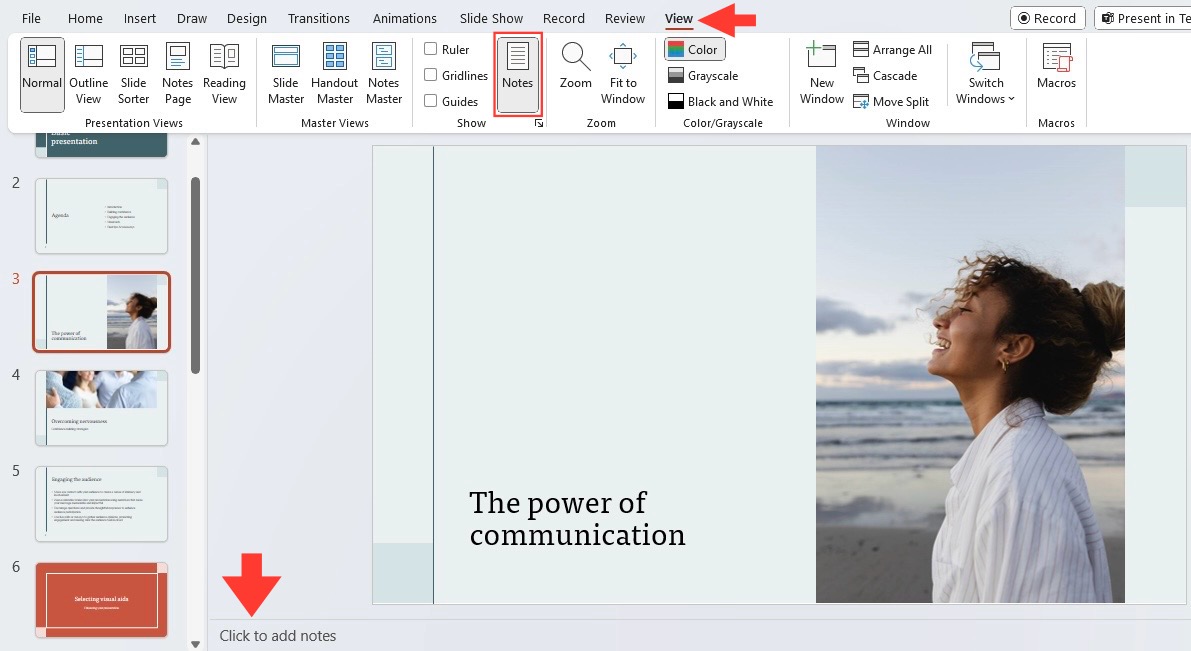
Integrating speaker notes into your presentation is a straightforward process within PowerPoint. When you open a presentation in the normal editing view, you’ll typically see a “Click to add notes” section beneath the main slide pane. If it’s not visible, you can usually activate it by going to the “View” tab on the ribbon and selecting “Notes Page” or simply clicking the “Notes” button on the status bar at the bottom of the window. In this dedicated notes area, you can type, paste, and format your text just as you would in any other text editor. Each slide has its own independent notes section, ensuring that your reminders are directly associated with the relevant visual content. This contextual linking is crucial for seamless delivery during the presentation.
The Presenter View: Your Private Dashboard
The magic of speaker notes truly comes alive with PowerPoint’s “Presenter View.” This specialized display mode is activated when you run your slideshow on a projector or external monitor while keeping your laptop screen for yourself. Presenter View provides a dashboard exclusively for you, the speaker. On your private screen, you’ll see the current slide prominently displayed, the upcoming slide in miniature, a timer to help you manage your pace, and most importantly, a large, easily readable pane containing the speaker notes for the current slide. This setup is incredibly powerful, allowing you to glance at your notes without turning your back to the audience, maintaining engagement, and ensuring a smooth flow of information. The ability to see what’s coming next also helps you prepare for transitions and manage your time effectively.
Synchronizing Notes with Slides
The beauty of PowerPoint’s design is the inherent synchronization between notes and slides. As you advance through your presentation, the notes displayed in Presenter View automatically update to correspond with the slide currently visible to your audience. This eliminates the need to manually scroll or search for notes, creating a fluid and uninterrupted delivery experience. The logical progression from slide to slide naturally brings up the associated notes, reinforcing the notion that your notes are an integrated part of your overall presentation strategy, not an afterthought. This seamless integration allows presenters to focus on their delivery and interaction, knowing that their private prompts will always be there, perfectly aligned with the visual content.
Best Practices for Utilizing Speaker Notes
While the mechanics are simple, effective use of speaker notes requires thoughtful planning and adherence to certain best practices to maximize their impact on your delivery.
Keep it Concise and Keyword-Rich
Resist the temptation to write your entire speech in the speaker notes section. This often leads to reading directly from the screen, which can sound monotonous and disengaging. Instead, focus on conciseness. Use bullet points, short phrases, keywords, and action verbs that trigger your memory. Think of them as signposts guiding you through your narrative, not the narrative itself. Highlight key statistics, names, dates, or concepts that are easy to forget. This approach encourages natural speech and allows for improvisation and audience interaction.
Focus on Key Messages and Anecdotes
Each slide should ideally convey one or two core messages. Your speaker notes should expand upon these messages, providing context, examples, or deeper insights. This is also an excellent place to jot down a memorable anecdote, a relevant case study, or a personal story that illustrates your point. These human elements make your presentation more relatable and impactful, and having them cued in your notes ensures you don’t miss an opportunity to connect with your audience on a deeper level.
Integrating Visual Cues and Reminders
Beyond just text, consider adding visual cues or reminders within your notes. Use bold text, italics, or different colors (if your Presenter View supports it effectively) to highlight crucial points, audience interaction prompts (e.g., “ASK QUESTION,” “PAUSE FOR Q&A”), or specific actions you need to take (e.g., “CLICK ANIMATION,” “REFER TO HANDOUT”). You might also include time markers like “[2 MIN]” to help you manage your pace for each slide, especially during longer presentations. These visual prompts make scanning your notes quick and efficient during live delivery.
Rehearsal and Refinement
Speaker notes are not a substitute for rehearsal; they are a tool that enhances it. Practice your presentation multiple times with your notes. During rehearsal, you’ll discover if your notes are too sparse or too verbose, if they cue the right information, and if the flow makes sense. Refine your notes based on these practice sessions. The goal is to become so familiar with your content that you only need to glance at your notes occasionally, using them as a gentle guide rather than a crutch. Rehearsal helps internalize the material while building confidence in your ability to use the notes effectively.
Advanced Tips and Alternative Uses
Speaker notes, while primarily for live presentation delivery, also offer versatility for various other scenarios and collaborative workflows.
Printing Notes for Handouts or Personal Reference
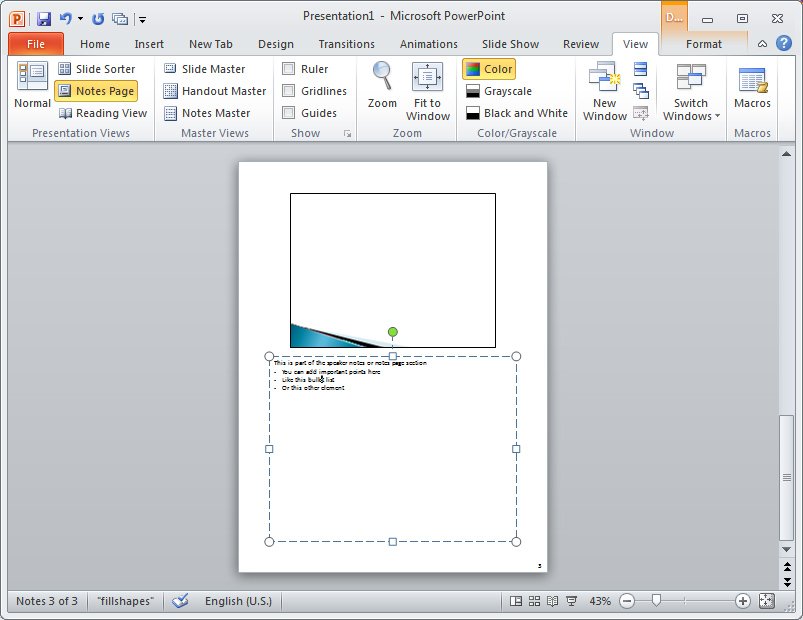
PowerPoint provides an option to print your slides with the associated notes. This can be incredibly useful for several reasons. You can create detailed handouts for your audience, offering them a more comprehensive version of your presentation content. Alternatively, you can print the “Notes Pages” for your own personal reference during a presentation where a secondary screen for Presenter View isn’t available, or simply as a physical backup. The Notes Page layout typically shows a smaller version of the slide at the top and the full notes text below it, providing a complete overview.
Collaborating on Notes with Teams
In a collaborative environment, speaker notes can serve as a shared script or commentary space. Multiple team members working on a presentation can contribute to the notes section, adding their specific insights, data points, or speaking points for their respective sections. This ensures consistency in messaging and provides a comprehensive script that all presenters can reference, even if different people are delivering different parts of the presentation. It becomes a central repository for all verbal content and supporting details, streamlining the preparation process for group projects.
Accessibility Considerations
Speaker notes can also play a role in making presentations more accessible. For individuals who may have visual impairments and rely on screen readers, the detailed text within speaker notes can provide a richer, more descriptive version of the slide content than what is visually displayed. While not a primary accessibility feature, thoughtful use of notes can complement other accessibility strategies, ensuring that the full context of the presentation is available in a textual format. Additionally, if a presentation needs to be shared asynchronously, the notes can provide essential context for those viewing the slides without a live presenter.
Common Pitfalls to Avoid
While speaker notes are powerful, their misuse can detract from your presentation. Being aware of common pitfalls is crucial for effective utilization.
Reading Directly from Notes
This is perhaps the most common and damaging mistake. When a presenter reads verbatim from their notes, they sound robotic, unenthusiastic, and disengaged. Eye contact with the audience is lost, and the natural rhythm of speech is replaced by a monotonous drone. The audience quickly perceives that the presenter is merely reciting a script rather than genuinely communicating. Always aim to speak your presentation, using notes as prompts, not as a teleprompter.
Over-Reliance and Loss of Spontaneity
Excessive reliance on notes can strip a presentation of its spontaneity and dynamism. A presenter who constantly refers to their screen or notes will struggle to react to audience cues, answer impromptu questions effectively, or adjust their delivery based on the room’s energy. Over-reliance suggests a lack of mastery over the subject matter, undermining credibility. The goal is to be comfortable enough with your material that the notes are a fallback, not the primary source of your words.
Neglecting Audience Feedback
When engrossed in notes, a presenter might miss crucial non-verbal feedback from the audience – puzzled looks, nods of understanding, or signs of disinterest. Paying attention to these cues allows a presenter to adapt their pace, re-explain a point, or move on if the audience has clearly grasped a concept. Notes should support your interaction with the audience, not hinder it. A good presenter always prioritizes connection over strictly adhering to a script.
Empowering Your Presentation Delivery
Speaker notes in PowerPoint are far more than a convenience; they are a strategic asset for any presenter aiming for clarity, confidence, and connection. By providing a private, contextualized script, they empower you to deliver complex information with precision, engage your audience effectively, and present with an authentic, confident voice. Mastering their use involves understanding their mechanics, applying best practices for conciseness and strategic content, and diligently avoiding common pitfalls. In an era where effective communication is paramount, leveraging every tool at your disposal, including the humble speaker notes, is key to transforming your presentations from ordinary to truly exceptional. They are the unseen backbone of a compelling performance, enabling you to focus on what truly matters: delivering your message with impact and inspiring your audience.
aViewFromTheCave is a participant in the Amazon Services LLC Associates Program, an affiliate advertising program designed to provide a means for sites to earn advertising fees by advertising and linking to Amazon.com. Amazon, the Amazon logo, AmazonSupply, and the AmazonSupply logo are trademarks of Amazon.com, Inc. or its affiliates. As an Amazon Associate we earn affiliate commissions from qualifying purchases.