
In the landscape of modern technology, the ability to perform rapid calculations is often taken for granted. Whether you are a developer optimizing a budget for a software project, a data analyst interpreting growth metrics, or a student navigating the complexities of computational science, the percentage remains one of the most fundamental mathematical concepts. While the mathematical formula for a percentage is static, the technical methods used to arrive at that number vary significantly across different devices and software environments. Understanding how to calculate the percentage of a number on a calculator requires a dive into hardware interfaces, mobile software UI, and the underlying logic of digital computation.
Navigating the Hardware: Physical and Scientific Calculators
The traditional handheld calculator remains a staple in professional and educational environments due to its tactile reliability and focused utility. However, not all physical calculators are programmed with the same input logic. To calculate a percentage effectively, one must distinguish between standard four-function calculators and more advanced scientific or graphing devices.
The Standard Multi-Step Method
On a basic electronic calculator, the most reliable way to find a percentage is to use the raw mathematical formula: (Number × Percentage) / 100. For example, to find 15% of 250, the sequence of physical button presses would be:
-
Input the base number (250).
-
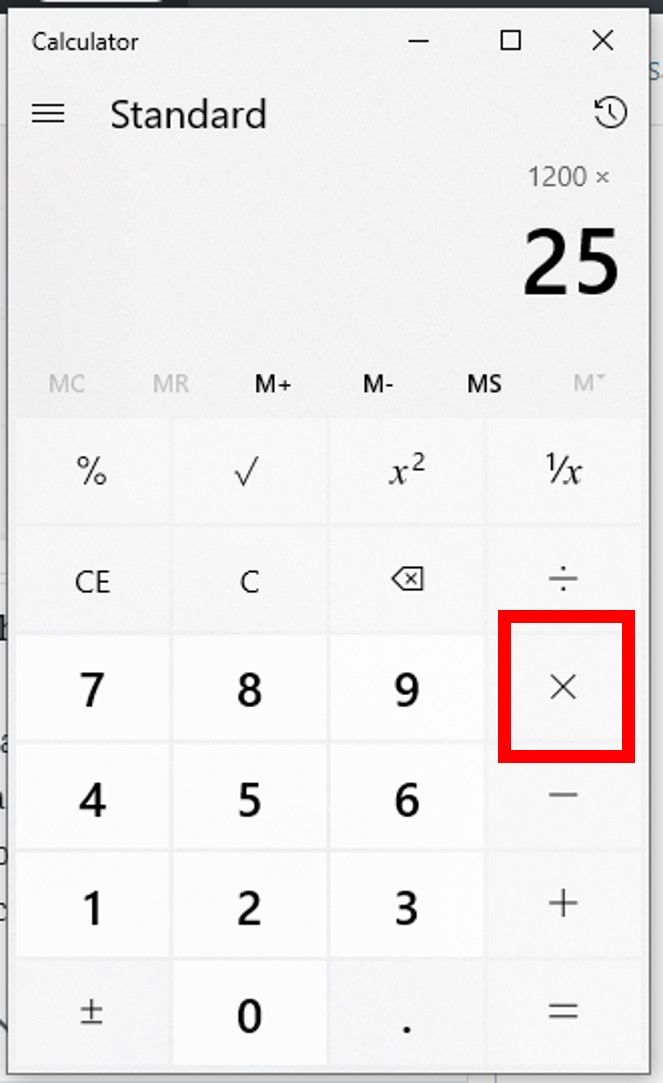
Press the multiplication operator (×).
-
Input the percentage amount (15).
-
Press the division operator (÷).
-
Input 100.
-
Press the equals sign (=).
This method is universally compatible with every digital calculating device ever manufactured because it relies on basic arithmetic operators rather than specialized functions. From a technical standpoint, this is the safest way to ensure accuracy when you are unsure of how a specific device handles shortcut keys.
Utilizing the Dedicated Percentage Key
Most standard desk calculators include a dedicated % key. This key is designed as a software shortcut that automatically divides the preceding input by 100. Using the same example (15% of 250), the workflow changes:
-
Input the base number (250).
-
Press the multiplication operator (×).
-
Input the percentage amount (15).
-
Press the percentage key (%).
On most modern hardware, pressing the % key immediately displays the result without needing to press the equals sign. However, some legacy devices or specific brands (like certain Casio models) may require a slightly different sequence, such as pressing the equals sign after the percentage key or using the percentage key for specific markup/markdown functions. Understanding the internal logic of your hardware’s firmware is essential for professional efficiency.
Scientific and Graphing Calculators
High-end hardware like the TI-84 Plus or Casio Prism series often treats percentages as a “secondary” function or requires them to be entered as decimals. On these devices, the percentage symbol is frequently found in a sub-menu or accessed via a “Shift” or “2nd” key. Because these tools are built for complex engineering and calculus, they prioritize algebraic entry. A tech-savvy user on these platforms often skips the percentage button entirely, opting to multiply the number by its decimal equivalent (e.g., 250 × 0.15), which is more efficient for writing long-form strings of code or complex equations.
Percentage Logic in Mobile and Desktop Operating Systems
As we move away from dedicated hardware, the calculation of percentages becomes a matter of software design and user experience (UX). Every major operating system—iOS, Android, macOS, and Windows—features a native calculator app, each with its own nuances in how it processes percentage logic.
The iOS and Android Experience
On mobile devices, the calculator app is often the most frequently used utility tool. On an iPhone (iOS), the percentage key is visible in the standard portrait view. It functions as a post-fix operator. If you type 250 × 15%, the app instantly converts the “15%” into “0.15” before you even hit the equals sign.
Android’s native Google Calculator operates similarly but provides a more transparent history tape. This allows users to see exactly how the software interpreted the percentage. For tech professionals, the “history” feature in mobile apps is critical for auditing calculations during live meetings or on-the-go troubleshooting.

Windows and macOS: Pro and Scientific Modes
Desktop operating systems offer much more robust calculation environments. The Windows 10 and 11 Calculator app, for instance, has evolved into a multi-functional tool that includes “Standard,” “Scientific,” and “Programmer” modes.
-
Standard Mode: Functions like a desk calculator. The
%key is used for quick calculations. -
Scientific Mode: Removes the dedicated
%key in favor of more advanced functions. Here, users are expected to understand decimal conversion (multiplying by 0.15) or use parentheses to define order of operations. -
Programmer Mode: Focuses on hex, decimal, octal, and binary. Percentage calculations here are often bypassed in favor of bitwise operations, but the standard arithmetic logic still applies.
Levering Spreadsheets and Web-Based Computational Engines
In a professional tech environment, calculations are rarely done in isolation. They are often part of a larger dataset managed within spreadsheet software like Microsoft Excel or Google Sheets, or through sophisticated web engines.
Syntax in Excel and Google Sheets
Spreadsheets treat percentages as a formatting layer over a decimal value. If you type “15%” into a cell, the software stores the value as 0.15. To calculate 15% of a value in cell A1, you would write the formula:
=A1 * 15%
or
=A1 * 0.15
The technical advantage of using the percentage symbol in a spreadsheet formula is readability. When sharing a technical document with stakeholders, =A1 * 15% is far more intuitive than =A1 * 0.15, even though the software processes them identically. Furthermore, these platforms allow for “Percent of Total” calculations using absolute cell references (e.g., =B2 / $B$10), which is the backbone of data visualization and tech reporting.
Advanced Computational Search Engines
For complex queries, tech professionals often turn to WolframAlpha or Google Search’s built-in calculator. These tools use Natural Language Processing (NLP) to interpret mathematical intent. Typing “what is 15% of 250” into a browser address bar triggers a specialized widget.
The underlying technology here is significantly more complex than a standard calculator. The engine must parse the string, identify the “percentage” intent, extract the numeric constants, and return the result in a UI-friendly format. This represents the intersection of mathematics and search technology, providing a friction-less experience for users who prefer typing over clicking buttons.
Troubleshooting Precision and Syntax Errors
Even with advanced technology, percentage calculations can result in errors if the user does not understand the device’s logic or the limitations of digital precision.
The Order of Operations (BODMAS/PEMDAS)
In scientific calculators and programming environments, the order of operations is strictly enforced. A common mistake occurs when calculating percentage increases or decreases. For example, if you want to increase 250 by 15%, typing 250 + 15% might yield different results on different devices.
-
A “smart” calculator might interpret this as
250 + (250 * 0.15) = 287.5. -
A “strict” scientific calculator might interpret this as
250 + 0.15 = 250.15.
To avoid these errors, tech-literate users utilize parentheses to explicitly define the logic: 250 * 1.15. This ensures that regardless of the software environment, the calculation remains consistent.
Floating-Point Arithmetic Issues
In the realm of software development and high-level computation, it is important to remember that computers represent numbers in binary. This can occasionally lead to “floating-point” errors where a simple percentage calculation results in a long string of decimals (e.g., 37.50000000004). While these are usually rounded off in the UI of a calculator app, they can cause bugs in financial software or data scripts if not handled with proper rounding functions. When building tools that involve percentage calculations, always implement a rounding method (like Math.round() in JavaScript) to ensure the technical output matches human expectations.

The Evolution of Calculation Technology
The transition from the abacus to the mechanical calculator, and finally to the AI-integrated digital environments of today, marks a massive leap in human productivity. Calculating a percentage is no longer just about the “how”—it is about choosing the right tool for the specific technical context.
As we look toward the future, we see the rise of AI-driven computation where “calculators” are becoming conversational. Large Language Models (LLMs) can now perform these calculations through chat interfaces, though they sometimes struggle with mathematical logic compared to traditional symbolic processors. For the modern tech professional, the calculator is not just a device; it is a suite of tools ranging from a simple % key on a desk to a complex formula in a cloud-based spreadsheet. Mastering the use of these tools ensures precision, efficiency, and clarity in an increasingly data-driven world.