
In the intricate world of financial markets, understanding the mechanics of a powerful trading platform like thinkorswim is as crucial as understanding market dynamics. For many, the initial foray into live trading can be daunting, fraught with the risk of costly errors. This is where paper trading, specifically thinkorswim’s robust PaperMoney platform, becomes an indispensable technological asset. It offers a sophisticated, risk-free environment to familiarize oneself with the software’s extensive features, test strategies, and hone execution skills without committing real capital. This article serves as a comprehensive guide for anyone looking to leverage thinkorswim’s paper trading functionality, delving into the technical steps, interface navigation, and best practices for maximizing this digital sandbox.

Understanding Paper Trading: Your Digital Sandbox for Strategy Refinement
Before diving into the mechanics of switching, it’s essential to grasp what paper trading entails from a technological standpoint and why thinkorswim’s implementation stands out. This isn’t just a basic simulation; it’s a meticulously engineered digital replica of the live trading environment.
What is Paper Trading?
At its core, paper trading is a simulated trading environment that mirrors real-time market conditions. Within the context of a platform like thinkorswim, it’s a dedicated module or “account mode” where users can place trades using virtual money. Every aspect, from order entry to position management, charting, and analysis tools, functions identically to its live counterpart. The underlying technology ensures that market data, bid/ask spreads, and even commission simulations reflect the real world as closely as possible, providing an authentic testing ground for the user’s interaction with the software. It’s a digital parallel universe where the consequences of technical missteps or untested strategies are purely educational, not financial.
The Technological Edge of thinkorswim’s PaperMoney
thinkorswim, developed by TD Ameritrade (now part of Charles Schwab), is renowned for its advanced features, professional-grade tools, and deep customization capabilities. Its PaperMoney platform is not an afterthought but an integral component designed with the same technological rigor. What sets it apart is its seamless integration with the live platform’s data feeds, charting packages, scanning tools, and order management systems. Users experience the full breadth of thinkorswim’s analytical power—from complex options chains to multi-asset charting and sophisticated technical indicators—all within a simulated context. This technological fidelity means that practicing in PaperMoney isn’t just about learning to click buttons; it’s about mastering a highly sophisticated piece of software, understanding its responsiveness, and exploring its full spectrum of capabilities under realistic data loads. The platform allows for testing complex algorithmic strategies, exploring obscure order types, and even practicing multi-leg options spreads, all of which demand a deep understanding of the software’s operational nuances.
Why Utilize a Simulated Environment?
From a tech-centric perspective, leveraging a simulated environment like PaperMoney serves several critical purposes:
-
Software Exploration and UI Familiarity: It provides a safe space to explore every menu, button, and feature of the thinkorswim platform without the pressure of live market exposure. Users can experiment with different layouts, hotkeys, and customization options to optimize their workspace.
-
Feature Testing: Thinkorswim offers an overwhelming array of tools—from complex drawing tools on charts to advanced scanners and strategy backtesters. PaperMoney allows users to test these features, understand their parameters, and confirm they function as expected before relying on them in a live setting.
-
Understanding Order Types and Execution Flow: Mastering the various order types (market, limit, stop, OCO, OTO, etc.) and understanding how they interact with market conditions is paramount. PaperMoney lets users practice placing these orders, observing their execution, and understanding potential pitfalls like slippage or partial fills in a simulated context, thereby building confidence in their technical execution skills.
-
Platform Stress Testing: For users considering advanced trading strategies, PaperMoney allows them to stress-test the platform’s ability to handle rapid order entry, simultaneous position management, and the execution of complex multi-leg trades under fluctuating market conditions.
The Step-by-Step Guide: Activating PaperMoney on thinkorswim
Switching to paper trading on thinkorswim is a straightforward process, designed to be intuitive across its various platform versions. The core mechanism remains consistent, though the visual cues might slightly differ between the desktop, web, and mobile applications.
Accessing the thinkorswim Platform
First, ensure you have the thinkorswim application installed on your desktop, or access it via your web browser or mobile device. While the mobile app offers a streamlined experience, the desktop platform provides the most comprehensive feature set for detailed exploration. For this guide, we’ll primarily focus on the desktop application, which typically offers the most distinct “switch” mechanism.
Locating the PaperMoney Toggle
The primary method for switching to PaperMoney is usually located at the login screen or directly within the live trading platform, often at the top right corner.
-
From the Login Screen (Desktop Application): When you launch the thinkorswim desktop application, before entering your username and password, you’ll typically see a dropdown menu or a toggle switch, often labeled “Live Trading” or “PaperMoney.” Simply select “PaperMoney” from this option. Once selected, log in with your standard thinkorswim credentials. The platform will then load into your simulated environment.
-
Within the thinkorswim Platform (Desktop Application): If you are already logged into a live account, look for a prominent “PaperMoney” or “Live Trading” button/toggle, usually located in the upper right-hand corner of the application window. Clicking this will typically initiate a switch. The platform may prompt you to confirm the switch and might require a brief restart or refresh of the data feed to transition fully into the simulated mode.
-
thinkorswim Web and Mobile Applications: On the web platform, the option to switch is often available near your account number or a similar dropdown menu in the top navigation bar. For mobile, it’s frequently found within the main menu or settings, often appearing as a simple toggle between “Live” and “Paper.” The principle is identical: select the PaperMoney option and proceed.
Confirmation and Initial Setup
After successfully switching, the platform will display visual cues indicating you are in PaperMoney mode. The account number displayed will typically be followed by “PaperMoney” or similar text. Your account balances will reflect a substantial virtual amount (e.g., $100,000 or $200,000), which is your simulated capital. It’s crucial to confirm these visual indicators to ensure you’re not inadvertently placing live trades. You might also notice a slight change in the theme color or a banner across the top indicating “PaperMoney” for immediate identification.
Switching Back to Live Trading

The process of returning to live trading is the reverse. Locate the “PaperMoney” indicator or toggle (usually in the same spot you found the switch) and select “Live Trading.” The platform will again prompt for confirmation, and you might experience a brief reload as it reconnects to the live market data and your real account balances. Always double-check your account details and balance after switching back to confirm you are in your live trading environment.
Mastering the PaperMoney Interface: Features and Customization
Once you’ve successfully transitioned to PaperMoney, the real technical exploration begins. This simulated environment is designed to be a mirror image of the live platform, providing access to all its sophisticated tools and customizable features.
Exploring the PaperMoney Account Overview
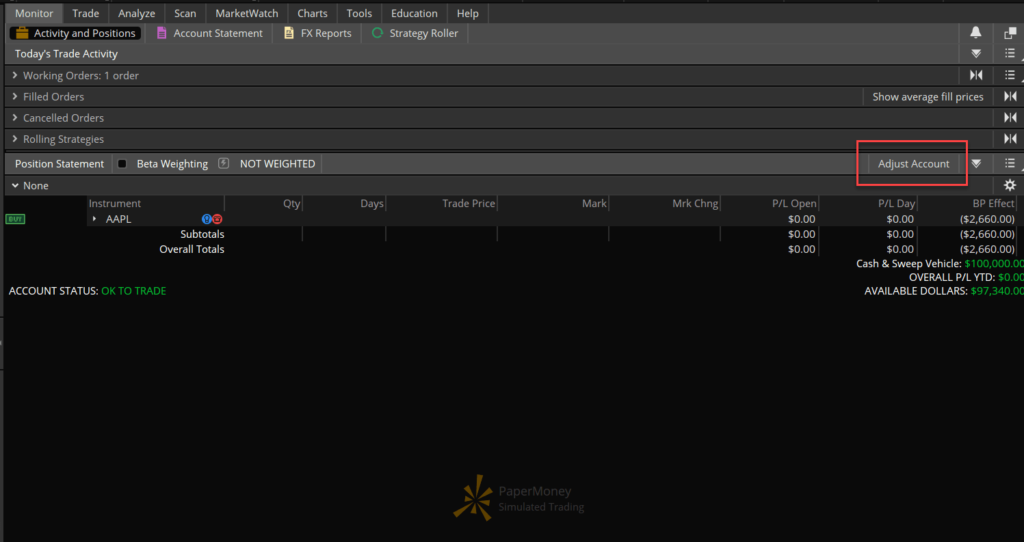
Your PaperMoney account will present a comprehensive overview of your simulated portfolio. This includes virtual cash balances, current virtual P&L (Profit & Loss), open positions, order history, and account statements—all reflecting hypothetical activity. Pay attention to how the platform updates these figures in real-time based on your simulated trades. This is an excellent opportunity to understand how the platform processes and displays complex financial data, ensuring you can quickly interpret critical information when trading live. Experiment with different reporting views and learn how to extract specific data sets for post-trade analysis.
Executing Trades in Simulation
This is where you practice the technical mechanics of trade execution. Use PaperMoney to:
-
Place Various Order Types: Master market orders, limit orders, stop orders, trailing stops, OCO (One Cancels Other), and OTO (One Triggers Other) orders. Observe how the platform handles these entries, modifications, and cancellations. Understand the visual feedback the platform provides for each order status (e.g., working, filled, cancelled).
-
Experiment with Advanced Order Routing: If thinkorswim offers specific routing options, test them out. Learn how to specify exchanges or routing preferences, understanding that while simulated, the interface mechanics are identical to live trading.
-
Practice Multi-Leg Strategies: For options or futures traders, use PaperMoney to practice entering and managing complex multi-leg strategies like iron condors or credit spreads. This ensures you understand the precise sequence of clicks, data entry, and confirmation required by the platform for such sophisticated trades.
Analyzing Performance with PaperMoney Tools
thinkorswim’s analytical suite is expansive. In PaperMoney, you can confidently use:
-
Charting and Technical Indicators: Apply every available technical indicator (moving averages, MACD, RSI, Bollinger Bands, etc.) to charts. Practice customizing their parameters, understanding their visual representation, and how they interact with price action within the platform’s charting engine.
-
Scanning and Filtering: Utilize thinkorswim’s powerful stock hacker, options hacker, or other scan tools to find hypothetical trade setups based on technical criteria. Understand how to build and save custom scans, and how the platform processes vast amounts of data to present relevant results.
-
Strategy Backtesting: Some features allow for backtesting strategies against historical data. Even if not directly part of the “PaperMoney” module, familiarity with how to input parameters and interpret results within the platform’s analytical ecosystem is a valuable tech skill.
Customizing Your Simulated Workflow
The thinkorswim platform is highly customizable. Use PaperMoney to:
-
Create and Save Custom Layouts: Design your ideal workspace with specific charts, watchlists, order entry modules, and news feeds. Save these layouts for quick access, ensuring your live trading environment will be optimized from day one.
-
Set Up Alerts: Practice setting price alerts, technical indicator alerts, or news alerts. Understand how the platform notifies you and how to manage these alerts effectively.
-
Develop Keyboard Shortcuts (Hotkeys): Many advanced traders use hotkeys for rapid order entry. PaperMoney is the perfect place to set up and practice these shortcuts, making your interaction with the platform faster and more efficient.
Maximizing Your Digital Practice: Best Practices for thinkorswim’s Simulator
To truly benefit from thinkorswim’s PaperMoney, it’s not enough just to switch it on. A disciplined, tech-focused approach to using the simulator will yield the greatest mastery of the platform.
Treating PaperMoney Like Live Trading
While the money isn’t real, the technical process should be. Approach every simulated trade with the same diligence you would a live one. This means:
-
Using Realistic Capital: If you plan to trade with $10,000 live, reduce your virtual PaperMoney balance to reflect that. This forces you to manage position sizing and risk within the platform’s parameters as you would with real funds.
-
Documenting Your Trades: Utilize the platform’s internal logging features or an external spreadsheet to record every simulated trade, including the rationale, entry/exit points, and order types used. This helps in analyzing your technical execution and understanding how effectively you are utilizing the software.
-
Adhering to a Trading Plan (for Platform Familiarity): Even if your primary goal is platform mastery, having a hypothetical plan (e.g., “I will only trade options on SPY with this strategy”) provides a structured environment to test specific features relevant to that plan.
Utilizing Advanced Features
Don’t shy away from thinkorswim’s more complex offerings. PaperMoney is the ideal environment to:
-
Experiment with Futures and Forex: If these asset classes are part of your long-term plan, use the simulator to understand the unique margin requirements, contract specifications, and order entry processes within the thinkorswim platform.
-
Explore Options Matrix and Spreads: The options matrix on thinkorswim is incredibly powerful. Spend time understanding its interface, how to build multi-leg spreads, and how to analyze their risk profiles directly within the platform.
-
Practice with Active Trader and Level II Data: If you’re considering fast-paced trading, use PaperMoney to become proficient with the Active Trader interface for rapid order entry and to interpret Level II data displays for order flow analysis.
Logging and Reviewing Simulated Trades
thinkorswim’s platform often provides detailed trade logs and reporting for PaperMoney accounts. Regularly review these logs:
-
Analyze Execution Quality: Did your limit orders fill where you expected? Were there any rejections or unexpected behaviors? This helps you understand the platform’s order management system.
-
Identify Interface Errors: Did you accidentally select the wrong order type or misinterpret a data point? Reviewing your trade history can highlight common user interface errors you might be making.
-
Refine Workflow: Based on your review, identify areas where your interaction with the software could be more efficient. Perhaps a different layout, new hotkeys, or a better understanding of a specific module could improve your workflow.
Staying Updated with Platform Enhancements
thinkorswim, like any advanced software, receives regular updates and new features. Use your PaperMoney account to safely explore these enhancements. When a new version is released, switch to PaperMoney first to test out any new tools, revised interfaces, or updated functionalities before relying on them in your live trading. This proactive approach ensures you remain proficient with the cutting-edge capabilities of the platform.
By methodically engaging with thinkorswim’s PaperMoney environment, traders can not only build confidence but, more importantly, develop a deep, technical mastery of one of the industry’s most sophisticated trading platforms. This digital preparation is invaluable, ensuring that when the time comes for live trading, the software itself is a trusted ally, not a source of confusion or error.
aViewFromTheCave is a participant in the Amazon Services LLC Associates Program, an affiliate advertising program designed to provide a means for sites to earn advertising fees by advertising and linking to Amazon.com. Amazon, the Amazon logo, AmazonSupply, and the AmazonSupply logo are trademarks of Amazon.com, Inc. or its affiliates. As an Amazon Associate we earn affiliate commissions from qualifying purchases.