
For small to medium-sized businesses, QuickBooks Desktop has long been the gold standard for managing finances, streamlining accounting processes, and providing crucial insights into financial health. As technology evolves, so too do the tools we rely on. Upgrading your QuickBooks Desktop software to the latest 2024 version isn’t merely about getting a new year on the label; it’s a strategic move to leverage enhanced features, bolster security, and maintain optimal performance in a rapidly changing digital landscape. This guide will walk you through everything you need to know about making this essential transition smoothly and efficiently, ensuring your business accounting remains robust and up-to-date.
Understanding the Importance of Upgrading QuickBooks Desktop
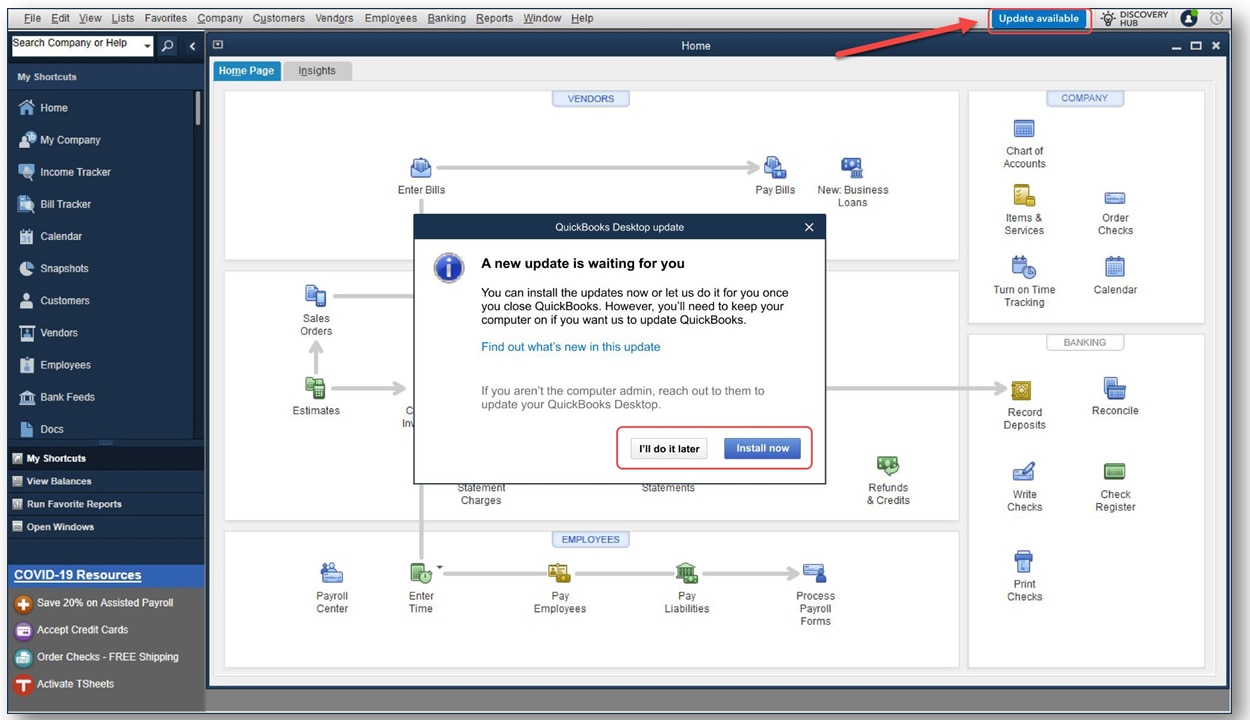
Ignoring software updates can feel like coasting, but in reality, it’s more like slowly drifting into obsolescence. For a critical application like QuickBooks Desktop, staying current is paramount for several reasons, touching upon functionality, security, and long-term operational viability.
Accessing New Features and Enhancements
Each new iteration of QuickBooks Desktop brings a suite of improvements designed to make your financial management more efficient and insightful. QuickBooks Desktop 2024 is no exception. It often includes refinements to the user interface, introducing new reports that offer deeper analytical capabilities, and automating previously manual tasks. For instance, recent versions have focused on improving bank feed experiences, offering more robust reporting customization, and enhancing payment processing integrations. These additions can significantly cut down on time spent on routine tasks, allowing you and your team to focus on strategic financial planning rather than data entry. Businesses that upgrade can unlock tools that directly impact their bottom line, from better inventory management features to more streamlined invoice processing, all contributing to a more agile and responsive financial operation.
Ensuring Data Security and Compliance
In an era of increasing cyber threats, the security of your financial data cannot be overstated. Older software versions are often more vulnerable to exploits because they no longer receive critical security patches. Upgrading to QuickBooks Desktop 2024 ensures you benefit from the latest security protocols and bug fixes implemented by Intuit, designed to protect your sensitive financial information from unauthorized access and data breaches. Furthermore, financial compliance is a constantly moving target. Tax regulations, reporting standards, and payroll compliance often change annually. New QuickBooks versions are updated to reflect these changes, helping businesses stay compliant with local and federal laws, preventing costly penalties, and simplifying end-of-year tax preparations. This proactive approach to security and compliance is not just a best practice; it’s a business imperative.
Maintaining Compatibility and Performance
Software exists within an ecosystem. As your operating system (e.g., Windows), hardware, and other business applications evolve, your accounting software must keep pace to ensure seamless integration and optimal performance. Older versions of QuickBooks may begin to experience compatibility issues with newer Windows updates, modern hardware configurations, or essential third-party applications you rely on. This can lead to crashes, data corruption, or simply slow, inefficient operation. QuickBooks Desktop 2024 is engineered to run optimally on current operating systems, utilizing modern hardware capabilities to deliver a smoother, faster, and more reliable user experience. This means less downtime, fewer technical glitches, and a more productive accounting environment overall.
End-of-Life for Older Versions
Intuit implements an “End-of-Life” policy for older QuickBooks Desktop versions, typically discontinuing support for versions three years after their release. This means that if you’re running, say, QuickBooks Desktop 2021 or older, you’re likely already past or approaching its end-of-life. When a version reaches its end-of-life, Intuit stops providing critical security updates, technical support, and essential service updates (like payroll and merchant services). This puts your business at significant risk. Without support, troubleshooting becomes difficult, security vulnerabilities remain unaddressed, and crucial functionalities tied to online services (like bank feeds or payment processing) may cease to work, effectively crippling your ability to manage your finances effectively. Upgrading ensures you always have access to Intuit’s comprehensive support and the full suite of integrated services.
Pre-Upgrade Checklist: Preparing for a Smooth Transition
A successful software upgrade, especially for mission-critical applications like QuickBooks, is built on thorough preparation. Skipping crucial preparatory steps can lead to headaches, data loss, or significant downtime.
Backing Up Your Company Files
This is arguably the single most important step in the entire upgrade process. Before you touch anything related to the new installation, create multiple, verified backups of your current QuickBooks company files. This includes not just your primary .QBW file but also any related files like templates, letters, and custom reports.
-
Method: Use QuickBooks’ built-in backup utility (File > Create Backup) and save it to a local drive, an external hard drive, and a cloud storage service.
-
Verification: Attempt to open one of your backup files (using your current QuickBooks version) to ensure it’s not corrupted. This step is often overlooked but is absolutely critical. A backup that can’t be restored is useless.
Having redundant backups ensures that if anything goes wrong during the upgrade, you can always revert to your previous state with minimal data loss.
Checking System Requirements
QuickBooks Desktop 2024, while designed for efficiency, will have specific minimum system requirements that may differ from your older version. Before upgrading, verify that your computer hardware and operating system meet these specifications.
-
Operating System: Typically, the latest versions of Windows are required (e.g., Windows 10 or 11).
-
Processor: A multi-core processor is generally recommended for optimal performance.
-
RAM: Adequate RAM is crucial, especially for larger company files or multi-user environments (often 8GB or more).
-
Disk Space: Ensure you have enough free hard drive space for the new installation and for the potentially larger data files.
You can usually find the detailed system requirements on Intuit’s official website for QuickBooks Desktop 2024. Running QuickBooks on an underpowered system will lead to frustration and hinder productivity.
Reviewing Existing Integrations and Third-Party Apps
Many businesses extend QuickBooks’ functionality through third-party applications for inventory, CRM, e-commerce, or specialized reporting. Before upgrading, identify all such integrations.
-
Compatibility: Contact the vendors of these third-party apps to confirm their compatibility with QuickBooks Desktop 2024. Some may require an update to their own software, while others might offer a specific patch or a new version.
-
Reconnection: Be prepared to re-establish connections between QuickBooks 2024 and your integrated apps after the upgrade. This often involves re-authenticating accounts or reconfiguring settings.
Proactively addressing these integrations will prevent unexpected disruptions to your workflow after the upgrade.
Notifying Users and Scheduling Downtime
If multiple users access your QuickBooks Desktop files, clear communication is vital.
-
Notification: Inform all users about the impending upgrade, its purpose, and the anticipated benefits.
-
Downtime: Schedule a specific window for the upgrade, preferably during non-business hours or a period of low activity, to minimize disruption. Ensure all users are logged out of QuickBooks before you begin the upgrade process. This ensures no data is being actively written or locked, preventing potential data corruption during migration.
Proper scheduling and communication can prevent user frustration and ensure a smoother rollout.
Deactivating Older Licenses (if applicable)

In some scenarios, particularly when moving QuickBooks to an entirely new machine or performing a clean install, you might need to deactivate the license of your older QuickBooks version. This frees up your license count and prevents issues with activating the new version. Check Intuit’s support documentation for specifics on license management, as policies can vary. Generally, Intuit’s license agreement allows installation on one primary computer and one portable computer (laptop) for the same user. If you’re moving to a new primary machine, you’ll want to ensure the old one no longer counts against your activations.
Step-by-Step Guide to Upgrading QuickBooks Desktop to 2024
Once your preparations are complete, you’re ready to dive into the upgrade process itself. Follow these steps carefully to ensure a seamless transition.
Purchasing and Downloading QuickBooks Desktop 2024
The first step is to acquire the QuickBooks Desktop 2024 software.
-
Source: Purchase it directly from the official Intuit website or through an authorized Intuit reseller. This ensures you receive a legitimate copy and a valid license key.
-
Download: Once purchased, you’ll typically receive an email with download instructions and your product license number and product code. Download the installer file to a readily accessible location on your computer. Make sure your internet connection is stable during the download process to avoid corrupted files.
Avoid downloading from unofficial sources, as these may contain malware or be outdated.
Installing the New Version
With the installer downloaded and your license details in hand, you can begin the installation.
-
Run Installer: Locate the downloaded installer file (it usually ends with .exe) and double-click it to start the installation wizard.
-
Follow Prompts: The wizard will guide you through the process. You’ll need to accept the license agreement, enter your license number and product code when prompted.
-
Installation Type: You’ll typically be given options for “Express” or “Custom and Network” install.
-
Express: This is the quickest option and suitable for single-user installations or if you’re not planning to host your company file on a network server.
-
Custom and Network: Choose this if you’re installing QuickBooks in a multi-user environment, on a server, or if you want to customize the installation location. If you are installing on a network, ensure the “I’ll be using QuickBooks on this computer, and I’ll be storing our company file here” option is selected on the server, and “I’ll be using QuickBooks on this computer” on the workstations.
-
-
Reboot: You might be prompted to restart your computer after installation. Do so to ensure all changes take effect properly.
Migrating Your Company Files
This is the most critical part of the data transfer process. QuickBooks Desktop 2024 cannot directly open company files created in much older versions (e.g., 2018 or older). However, it can usually automatically upgrade files from the past few versions (e.g., 2021, 2022, 2023).
-
Open Company File: After installing and launching QuickBooks Desktop 2024, go to “File” > “Open or Restore Company.”
-
Browse for File: Select “Open a company file” and navigate to the location of your old company file (e.g.,
MyCompanyFile.QBW). -
Conversion Prompt: QuickBooks 2024 will recognize that the file is from an older version and prompt you to upgrade it. It’s crucial to follow the prompts carefully.
-
Backup Before Upgrade: QuickBooks will strongly recommend (and often require) creating a backup of your existing file before it converts it. Do not skip this step, even if you’ve already backed up manually.
-
Save New File: Once the conversion is complete, QuickBooks will ask you to save the new, upgraded company file. It’s highly recommended to save this new file with a slightly different name (e.g.,
MyCompanyFile_2024.QBW) or in a new folder to clearly distinguish it from your old version. This prevents accidentally overwriting your old, unconverted file.
Verifying the Upgrade and Data Integrity
Once your company file is converted and opened in QuickBooks Desktop 2024, don’t just assume everything worked perfectly. Rigorous verification is essential.
-
Run Reports: Open key financial reports such as the Balance Sheet, Profit & Loss (P&L), and Accounts Receivable/Payable Aging reports. Compare these reports against the same reports generated from your old QuickBooks version before the upgrade. Look for any discrepancies in totals, individual transactions, or account balances.
-
Check Key Data: Navigate through your Customer Center, Vendor Center, Chart of Accounts, and Item List. Ensure all your customers, vendors, accounts, and inventory items are present and correct.
-
Test Transactions: Create a dummy invoice, bill, or journal entry to ensure that the input and saving processes work as expected.
-
Multi-user Access: If you operate in a multi-user environment, ensure all users can log in, access the company file, and perform their tasks without issues.
Addressing any discrepancies immediately is crucial. If you find significant issues, you may need to restore from a backup and reattempt the conversion.
Post-Upgrade Best Practices and Troubleshooting
The upgrade isn’t truly complete until you’ve optimized your new environment and addressed any lingering issues.
Updating Third-Party Integrations
Now that QuickBooks Desktop 2024 is up and running, revisit your list of third-party integrations.
-
Re-establish Connections: Follow the instructions from your integration vendors to reconnect or reconfigure their software with your new QuickBooks 2024 file. This might involve updating API keys, re-authenticating users, or downloading new connector applications.
-
Test Functionality: Thoroughly test each integration to ensure data flows correctly between QuickBooks and the external application. For example, if you integrate with an e-commerce platform, make sure orders are syncing properly.
Training Users on New Features
While QuickBooks generally maintains a familiar interface, 2024 likely includes new features or workflow changes that could benefit your team.
-
Identify New Features: Review the “What’s New” guides provided by Intuit for QuickBooks Desktop 2024.
-
Conduct Training: Provide brief training sessions or circulate internal memos highlighting new functionalities. This empowers your team to leverage the full power of the updated software and improves overall efficiency. Encouraging exploration and offering a channel for questions can greatly aid adoption.
Common Upgrade Issues and Solutions
Even with careful preparation, issues can arise. Knowing how to troubleshoot common problems can save you time and stress.
-
Installation Errors: If the installation fails, ensure your system meets requirements, temporarily disable antivirus software (remember to re-enable it!), and try running the installer as an administrator.
-
Company File Conversion Errors: If your file won’t convert, try restoring the backup from your old version and running QuickBooks’ “Rebuild Data” utility (File > Utilities > Rebuild Data) on the old file before attempting conversion again. Sometimes data corruption in the old file prevents a clean conversion.
-
Licensing Issues: If you face activation problems, double-check your license number and product code. If problems persist, you may need to use Intuit’s “Clean Install Tool” (available on their support site) to completely remove all traces of previous installations, then reinstall.
-
Performance Problems: If QuickBooks 2024 runs slowly, check your system resources (Task Manager) to see if you’re maxing out RAM or CPU. Ensure your hard drive has plenty of free space. For network installations, verify network speed and server health.
-
Contact Support: If you encounter persistent or complex issues, do not hesitate to contact Intuit’s official support channels. They have specialized tools and knowledge to diagnose and resolve unique problems.
Ongoing Maintenance and Updates
The upgrade to 2024 is a significant step, but it’s part of an ongoing process.
-
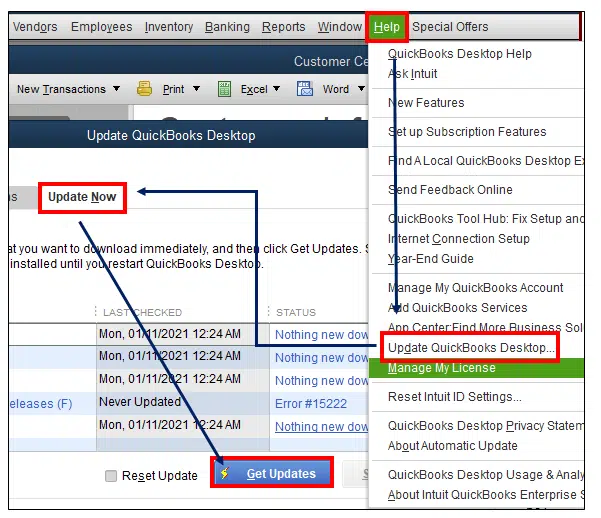
Regular Patch Installations: Keep your QuickBooks Desktop 2024 installation updated with the latest patches and maintenance releases. QuickBooks typically notifies you of these updates, or you can check manually via “Help” > “Update QuickBooks Desktop.”
-
Periodic Data Verification: Regularly run the “Verify Data” utility (File > Utilities > Verify Data) to check for potential data integrity issues.
-
Consistent Backups: Maintain a robust schedule of daily or weekly backups of your company files.
Conclusion
Upgrading QuickBooks Desktop to the 2024 version is more than just a routine update; it’s an investment in the future of your business’s financial health. By embracing the latest features, fortifying your data security, and ensuring compatibility, you position your accounting operations for efficiency and resilience. While the process requires careful planning and execution, following this comprehensive guide will help ensure a smooth transition, allowing you to quickly harness the full power of QuickBooks Desktop 2024 to manage your finances with confidence and clarity. Don’t delay—make the move to 2024 and empower your business with cutting-edge financial management capabilities.
aViewFromTheCave is a participant in the Amazon Services LLC Associates Program, an affiliate advertising program designed to provide a means for sites to earn advertising fees by advertising and linking to Amazon.com. Amazon, the Amazon logo, AmazonSupply, and the AmazonSupply logo are trademarks of Amazon.com, Inc. or its affiliates. As an Amazon Associate we earn affiliate commissions from qualifying purchases.