
In today’s digital landscape, streaming services have become an integral part of our entertainment consumption, offering vast libraries of content at our fingertips. Among the leading contenders is Paramount Plus, a robust platform that brings together an impressive array of movies, original series, live sports, and news from across the CBS, Showtime, Comedy Central, MTV, Nickelodeon, and Paramount Pictures families. For new subscribers and existing users alike, the initial step to unlocking this treasure trove of entertainment is often the most fundamental: signing in. While seemingly straightforward, the process can sometimes present minor hurdles depending on the device or specific account circumstances.
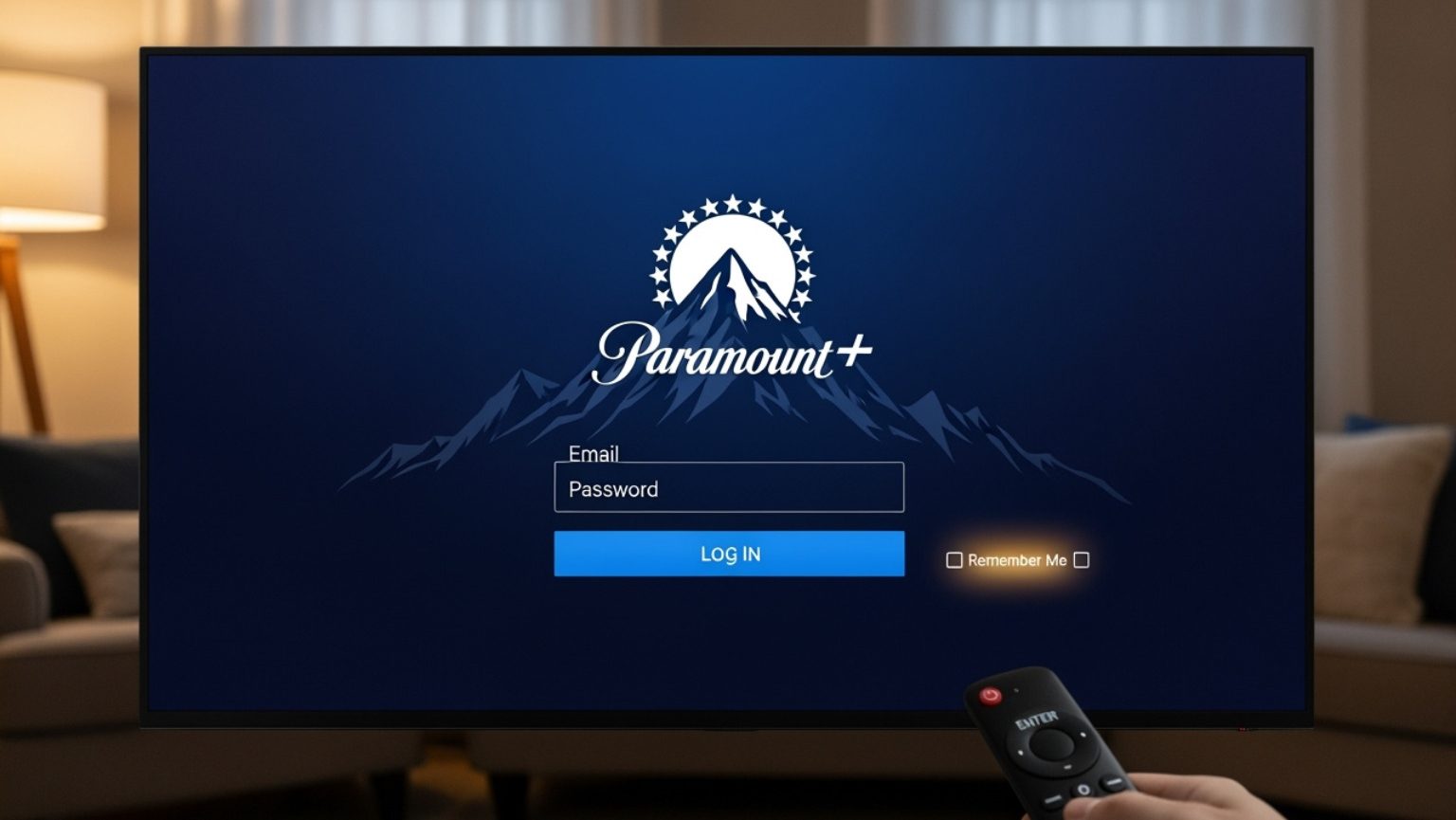
This comprehensive guide is designed to demystify the sign-in process for Paramount Plus, ensuring a smooth and uninterrupted journey from launching the app to enjoying your favorite shows. We’ll delve into the necessary prerequisites, walk through step-by-step instructions for various devices, address common troubleshooting scenarios, and offer insights into managing your account for an optimal viewing experience. By the end of this article, you’ll be equipped with all the knowledge needed to access Paramount Plus effortlessly, allowing you to dive straight into a world of compelling stories and live events.
Understanding Paramount Plus Account Management
Before diving into the specifics of signing in, it’s crucial to grasp the foundational aspects of managing your Paramount Plus account. This understanding will not only facilitate a smooth sign-in but also empower you to troubleshoot effectively should any issues arise. Paramount Plus, like any modern streaming platform, operates within a sophisticated digital ecosystem that requires specific user actions to grant access.
The Ecosystem of Paramount Plus
Paramount Plus is more than just an app; it’s a comprehensive digital service accessible across a multitude of devices. This includes web browsers on computers, dedicated apps on mobile smartphones and tablets (iOS and Android), smart TVs (Samsung, LG, Vizio, etc.), streaming media players (Roku, Amazon Fire TV, Apple TV, Chromecast), and even gaming consoles (PlayStation, Xbox). Each platform might have a slightly different interface or a unique activation method, but the core principle of using your credentials remains consistent. The service offers a diverse content library spanning genres from blockbuster movies and critically acclaimed original series like “1923” and “Yellowjackets” to live sports from the NFL and UEFA Champions League, and 24/7 news via CBSN. Knowing the breadth of content available reinforces the value of smooth access.
Prerequisites for Sign-In
To ensure a seamless sign-in experience, a few essential prerequisites must be met. Firstly, you must have an active Paramount Plus subscription. This means you’ve completed the initial sign-up process, typically involving selecting a plan and providing payment information. Secondly, a stable internet connection is non-negotiable, as streaming requires continuous data transfer. Thirdly, you need a compatible device with the Paramount Plus app installed or an up-to-date web browser. Most importantly, you must have your account credentials readily available: the email address associated with your subscription and your correct password. Jotting these down or using a secure password manager can save considerable frustration.
Differentiating Sign-In from Sign-Up
It’s important for users, particularly those new to streaming, to understand the distinction between “signing up” and “signing in.” “Signing up” refers to the initial process of creating a new Paramount Plus account, choosing a subscription plan, and entering billing details. This is a one-time process. “Signing in,” conversely, is the act of accessing an existing account using your established username (email) and password. New users sometimes get stuck trying to sign up again when they simply need to sign in. If you’ve already created an account and paid for a subscription, your next step is always to sign in.
Step-by-Step Guide to Signing In on Various Devices
The beauty of Paramount Plus lies in its widespread availability. However, this also means the exact sign-in steps can vary slightly depending on the device you’re using. Below, we’ve outlined the most common methods for accessing your account across different platforms.
Web Browser Access
Signing in via a web browser on a desktop or laptop computer is often the most straightforward method.
-
Open your web browser: Launch Chrome, Firefox, Safari, Edge, or your preferred browser.
-
Navigate to the Paramount Plus website: Type
www.paramountplus.cominto the address bar and press Enter. -
Click “Sign In”: Look for a “Sign In” button, usually located in the top right corner of the homepage.
-
Enter your credentials: You’ll be prompted to enter the email address and password associated with your Paramount Plus account.
-
Click “Sign In” again: After entering your details, click the sign-in button on the form. You should now be logged in and able to browse content.
Mobile Devices (iOS & Android)
For smartphones and tablets, the process involves using the dedicated Paramount Plus app.
-
Download and open the app: If you haven’t already, download the Paramount Plus app from the Apple App Store (for iOS) or Google Play Store (for Android). Once installed, open it.
-
Locate the “Sign In” option: Upon opening, the app might offer a “Sign In” or “Already a Subscriber?” option. Tap on it.
-
Enter your email and password: Input your registered email address and password.
-
Tap “Sign In”: Confirm your credentials to access your account.
Smart TVs & Streaming Devices (Roku, Fire TV, Apple TV, etc.)
Many smart TVs and streaming sticks require an activation code method for sign-in, making it easier than typing with a remote.
-
Open the Paramount Plus app: Launch the Paramount Plus app on your smart TV or streaming device.
-
Select “Sign In”: On the app’s welcome screen, choose the “Sign In” option.
-
Note the activation code: The app will display a unique, typically 6-8 character alphanumeric code. Keep this screen open.
-
Go to the activation website: On a separate web browser (on a computer or phone), navigate to
paramountplus.com/activate. -
Enter the code: Input the activation code displayed on your TV screen into the website and click “Activate.”
-
Log in on the website: If you’re not already logged in on the web browser, you’ll be prompted to enter your Paramount Plus email and password there.
-
Confirm activation: Once successfully logged in on the website, your TV or streaming device app should automatically refresh and log you in.
Gaming Consoles (PlayStation, Xbox)
Signing in on gaming consoles generally follows the same activation code method as smart TVs.
-
Launch the Paramount Plus app: Find and open the Paramount Plus app from your console’s dashboard.
-
Choose “Sign In”: Select the sign-in option presented on the app’s initial screen.
-
Retrieve the activation code: A unique code will appear on your console screen.
-
Activate via web browser: Using a computer or mobile device, go to
paramountplus.com/activate. -
Input the code and log in: Enter the code from your console and then sign in with your Paramount Plus account credentials on the website. Your console app will then synchronize and grant access.
Troubleshooting Common Sign-In Issues
Even with clear instructions, technology can sometimes be temperamental. Encountering sign-in issues can be frustrating, but many common problems have simple solutions. Understanding these can save you a call to customer support and get you back to streaming faster.
Forgotten Password Recovery
This is arguably the most common sign-in hurdle.
-
Look for “Forgot Password?”: On the sign-in screen (either web or app), there’s typically a “Forgot Password?” or “Reset Password” link. Click or tap on it.
-
Enter your email: You’ll be asked to enter the email address associated with your Paramount Plus account.
-
Check your inbox: An email with instructions to reset your password will be sent to that address. Ensure you check your spam or junk folders if it doesn’t appear in your main inbox within a few minutes.
-
Follow the reset link: Click the link in the email and create a new, strong password. Remember to use a combination of uppercase and lowercase letters, numbers, and symbols.
-
Try signing in again: Use your newly created password to sign in.
Incorrect Credentials/Invalid Login Errors
If you’re repeatedly getting an “invalid username or password” error, despite being confident in your details:
-
Double-check for typos: It’s easy to mistype an email address or password, especially on touchscreens or with a remote. Ensure correct spelling, capitalization (passwords are case-sensitive), and numbers.
-
Keyboard layout: Confirm your keyboard’s language or layout isn’t inadvertently inserting different characters.
-
Caps Lock: Ensure your Caps Lock key isn’t accidentally on.
-
Multiple accounts: If you have multiple email addresses, confirm you’re using the one linked to your active Paramount Plus subscription.
Account Not Found/Subscription Issues

If the system claims your account doesn’t exist or flags a subscription problem:
-
Verify email address: Are you absolutely sure this is the email you used to sign up? Try any alternative email addresses you might have used.
-
Check subscription status: Log in to your Paramount Plus account via a web browser (if you can) or check your bank statements/email confirmations to ensure your subscription is active and not lapsed. Sometimes, payment method issues can cause a subscription to be suspended.
-
Contact support: If you’re certain your details are correct and your subscription should be active, it’s time to contact Paramount Plus customer support for assistance.
Device Activation Errors
When the paramountplus.com/activate method isn’t working:
-
Refresh the code: On your TV or device, try going back to the sign-in screen and restarting the process to generate a new activation code. Codes are often time-sensitive.
-
Clear browser cache: On your computer or phone’s web browser, clear your cache and cookies, then try accessing
paramountplus.com/activateagain. -
Try a different browser/device: If one browser or phone isn’t working for activation, try another.
-
Network stability: Ensure both your streaming device and the device you’re using to activate have stable internet connections.
Internet Connectivity Problems
A stable internet connection is paramount (pun intended) for streaming.
-
Check your router/modem: Ensure your router and modem are on and functioning correctly. Try restarting them.
-
Test other apps: See if other internet-dependent apps or websites are working on your device.
-
Network settings: On your streaming device, double-check that it’s connected to the correct Wi-Fi network.
Enhancing Your Paramount Plus Experience Post-Login
Once you’ve successfully logged into Paramount Plus, the journey doesn’t end there. The platform offers several features and settings that allow you to customize and enhance your viewing experience, making it more personal, secure, and tailored to your preferences. Understanding these post-login options is key to getting the most out of your subscription.
Managing Profiles for Personalized Viewing
Paramount Plus allows for the creation of multiple user profiles within a single account, similar to other major streaming services. This feature is invaluable for households with different viewing preferences.
-
Navigate to Profile Settings: Once logged in, look for your profile icon (often in the top right corner on web/mobile, or a dedicated “Profiles” section on TVs).
-
Add/Edit Profiles: You can create new profiles for family members, giving each person their own watch history, recommendations, and resume-watching lists.
-
Switching Profiles: Easily switch between profiles from the main menu or profile selection screen to ensure personalized content experiences. This prevents one person’s viewing habits from influencing another’s recommendations.
Parental Controls and Account Security
For families, parental controls are an essential tool to ensure children only access age-appropriate content.
-
Access Parental Control Settings: Usually found within the main account settings or specific profile settings.
-
Set PIN and Rating Restrictions: You can set up a four-digit PIN that must be entered to watch content above a certain maturity rating. This provides a crucial layer of protection against accidental or unauthorized viewing of mature content by minors.
-
Protecting Your Account: Beyond parental controls, always ensure your account is secured with a strong, unique password. Avoid sharing your credentials, and be wary of suspicious emails attempting to phish your login details.
Updating Account Information and Subscriptions
Life changes, and so might your payment methods or desired subscription plans. Paramount Plus makes it easy to manage these aspects.
-
Access Account Settings: Log in via a web browser (this is typically the most comprehensive way to manage billing and personal info).
-
Manage Subscription Plan: Here you can upgrade or downgrade your plan (e.g., from Essential to Premium), or even cancel your subscription if needed.
-
Update Payment Method: Change your credit card information, update expiration dates, or switch to a different payment method.
-
Change Email/Password: You can also update your primary email address or reset your password directly from these settings if you know your current one.
Optimizing Streaming Quality and Data Usage
Streaming high-definition content consumes significant bandwidth. Paramount Plus often allows you to adjust streaming quality to match your internet speed or manage data usage.
-
Look for Playback Settings: These might be found in the general account settings or sometimes accessible during active playback.
-
Adjust Video Quality: Options typically range from standard definition (SD) to high definition (HD) and sometimes even 4K. Lowering the quality can reduce buffering issues on slower connections or conserve mobile data.
-
Download Options (Mobile): For mobile users, some content might be available for download, allowing offline viewing without using data. This is an excellent feature for travel.
Advanced Features and Digital Security Best Practices
Beyond basic sign-in and account management, a deeper understanding of Paramount Plus’s technical features and general digital security best practices can significantly enhance your user experience and safeguard your personal information. In an era where digital security is paramount, being proactive is key.
Device Management
Many streaming services, including Paramount Plus, have limits on the number of devices that can stream simultaneously or be logged into an account. Managing your authorized devices is crucial for maintaining control and ensuring access.
-
Locate Device Management: Within your account settings (typically accessed via a web browser), there will often be a section dedicated to “Manage Devices” or “Connected Devices.”
-
Review and Remove Devices: Here, you can see a list of all devices currently logged into your Paramount Plus account. If you see an unfamiliar device, or if you’ve sold/given away a device, you can remotely log it out and remove its access, bolstering your account security. This is particularly useful if you suspect unauthorized access.
-
Forced Log Out: Some platforms offer a “log out all devices” option, which can be a nuclear option to secure your account if you suspect a compromise, forcing everyone to sign back in.
Understanding Multi-Device Streaming Limits
Paramount Plus, like many streaming services, imposes a limit on the number of simultaneous streams permitted under a single account.
-
Typical Limits: The standard limit for Paramount Plus is usually three simultaneous streams. This means up to three different devices can be watching content at the exact same time using the same account credentials.
-
Impact on Households: This is an important consideration for larger households or individuals who frequently share their accounts (though sharing outside your household often violates terms of service). If you encounter an error message about too many simultaneous streams, you’ll need to stop playback on one device before starting on another. This limit is separate from the number of profiles you can create; profiles are for personalization, not concurrent access.
Protecting Your Account: Strong Passwords and Vigilance
Digital security is not just about the platform; it’s also about user habits.
-
Unique and Strong Passwords: Always use a unique, complex password for your Paramount Plus account, different from any other online service. This prevents “credential stuffing” attacks where hackers use stolen passwords from one site to try logging into others. A strong password includes a mix of uppercase and lowercase letters, numbers, and symbols, and is at least 12 characters long.
-
Password Managers: Consider using a reputable password manager (e.g., LastPass, 1Password, Bitwarden) to generate and store strong, unique passwords for all your online accounts.
-
Beware of Phishing: Be extremely cautious of emails or messages claiming to be from Paramount Plus asking for your login credentials or personal information. Always navigate directly to the official website (
paramountplus.com) if you need to access your account or verify information, rather than clicking on links in suspicious emails.
When to Contact Paramount Plus Support
While this guide covers many common issues, there are times when direct intervention from Paramount Plus customer support is necessary.
-
Persistent Billing Problems: If you have ongoing issues with payments, unexpected charges, or difficulties updating your billing information despite following instructions.
-
Technical Glitches Beyond Troubleshooting: For persistent app crashes, content not loading, or other technical malfunctions that aren’t resolved by basic troubleshooting (restarting app/device, checking internet).
-
Account Compromise: If you suspect your account has been hacked or accessed by unauthorized individuals, contact support immediately to secure your account and report the incident.
-
Unresolved Sign-In Issues: After attempting all relevant troubleshooting steps for sign-in, if you still cannot gain access, their support team can investigate account-specific problems.
You can usually find links to Paramount Plus customer support on their official website, often in a “Help” or “Contact Us” section, where they typically offer FAQs, live chat, email support, or phone numbers.

Conclusion
Navigating the world of streaming services, while generally user-friendly, can sometimes present minor technical challenges. Signing in to Paramount Plus, the gateway to a vast ocean of premium entertainment, is a fundamental step that, armed with the right knowledge, can be executed effortlessly across all your devices. From understanding the core principles of account management to troubleshooting common issues and leveraging advanced features, this guide has equipped you with a comprehensive toolkit for a smooth and secure Paramount Plus experience.
By following these professional and insightful instructions, you can minimize downtime and maximize your enjoyment of Paramount Plus’s diverse content library. Remember to keep your credentials secure, be mindful of device management, and utilize the platform’s features to tailor your streaming environment. Now that the technical hurdles are behind you, sit back, relax, and immerse yourself in the compelling stories, thrilling live sports, and breaking news that Paramount Plus has to offer. Happy streaming!
aViewFromTheCave is a participant in the Amazon Services LLC Associates Program, an affiliate advertising program designed to provide a means for sites to earn advertising fees by advertising and linking to Amazon.com. Amazon, the Amazon logo, AmazonSupply, and the AmazonSupply logo are trademarks of Amazon.com, Inc. or its affiliates. As an Amazon Associate we earn affiliate commissions from qualifying purchases.