
The landscape of retail commerce has undergone a radical transformation over the last decade, shifting from physical currency and magnetic stripe cards to the seamless, encrypted world of mobile wallets. At the forefront of this evolution is Apple Pay, a technology that leverages sophisticated hardware and software integration to turn your iPhone or Apple Watch into a secure payment terminal. While the convenience of tapping a device against a reader is evident, the underlying technology and the specific steps required to master this digital tool represent a significant leap in consumer tech. Understanding how to use Apple Pay in-store is not just about convenience; it is about embracing a more secure, private, and efficient way to interact with the global marketplace.

The Technology Powering Apple Pay: NFC and Secure Enclaves
To understand how to pay in-store with Apple Pay, one must first understand the “how” behind the hardware. Apple Pay utilizes Near-Field Communication (NFC), a short-range wireless technology that allows two devices to exchange data when they are within a few centimeters of each other. Unlike Bluetooth, which requires a pairing process, NFC creates an instant connection, making it ideal for the fast-paced environment of a checkout line.
The Role of the Secure Element and Tokenization
One of the most common misconceptions about Apple Pay is that it transmits your actual credit or debit card number to the merchant. From a technical and security standpoint, this is false. Within the iPhone and Apple Watch is a dedicated, industry-standard certified chip called the Secure Element (SE). When you add a card to Apple Pay, the SE creates a unique Device Account Number. This number is encrypted and isolated from the rest of the iOS or watchOS operating system, and it is never stored on Apple’s servers.
When you initiate a payment, the Secure Element provides the Device Account Number along with a transaction-specific dynamic security code. The merchant never sees your name, your card number, or your CVV. This process, known as tokenization, ensures that even if a retailer’s database is breached, your financial information remains useless to hackers.
Biometric Authentication: Face ID and Touch ID
Security is further bolstered by Apple’s biometric frameworks. Apple Pay requires a successful “handshake” between the NFC controller and the device’s biometric sensors—either Face ID or Touch ID. This adds a layer of physical security that traditional plastic cards lack. If you lose your phone, a stranger cannot use Apple Pay without your biological signature. This integration of hardware-level encryption and biometric software makes Apple Pay one of the most secure payment methods currently available to consumers.
Setting Up Your Digital Wallet for In-Store Success
Before you can walk into a store and tap to pay, you must properly configure the Wallet app. This software acts as the hub for all your digital credentials, including credit cards, debit cards, transit passes, and even loyalty cards.
Adding Cards to your iPhone
To begin, open the Wallet app on your iPhone and tap the plus (+) icon. The software uses the device’s camera and sophisticated Optical Character Recognition (OCR) to scan your physical card’s details. Once the card information is captured, it is sent to your bank or card issuer. Most banks require a secondary verification step, such as a code sent via SMS or an automated phone call, to ensure the person adding the card is the authorized owner.
Once verified, the card becomes a “digital token” within the Secure Element. You can add multiple cards and select a “Default Card” in your settings, which will be the primary account used when you trigger Apple Pay at a terminal.
Configuring the Apple Watch
For many users, the Apple Watch offers the ultimate convenience for in-store payments. However, the Watch maintains its own Secure Element separate from the iPhone. This means you must add your cards specifically to the Watch via the “Watch” app on your iPhone. Navigate to “Wallet & Apple Pay” and select the cards you wish to mirror on your wrist. Because the Apple Watch uses “Wrist Detection,” it remains authenticated as long as it stays on your arm after you’ve entered your passcode. This allows for near-instantaneous payments without the need to pull out a phone.
Step-by-Step Instructions: How to Use Apple Pay at the Checkout
Once your hardware is configured, the actual process of paying in-store is designed to be frictionless. However, the method varies slightly depending on which generation of Apple device you are using.
Paying with Face ID (iPhone X and Newer)

If you have an iPhone with Face ID, the process is streamlined for speed.
-
Initiate: Double-click the side button on the right of your iPhone. This activates the Wallet app and prepares the NFC chip.
-
Authenticate: Glance at your screen to authenticate with Face ID. If you are wearing a mask or Face ID fails, you can enter your device passcode.
-
Connect: Once the screen says “Hold Near Reader,” bring the top of your iPhone within a few centimeters of the contactless symbol on the payment terminal.
-
Confirm: Hold the device steady until you feel a haptic vibration and hear a subtle “ping.” The screen will display a checkmark and the word “Done.”
Paying with Touch ID (iPhone SE and Older Models)
For devices equipped with a Home button, the process utilizes the fingerprint sensor.
-
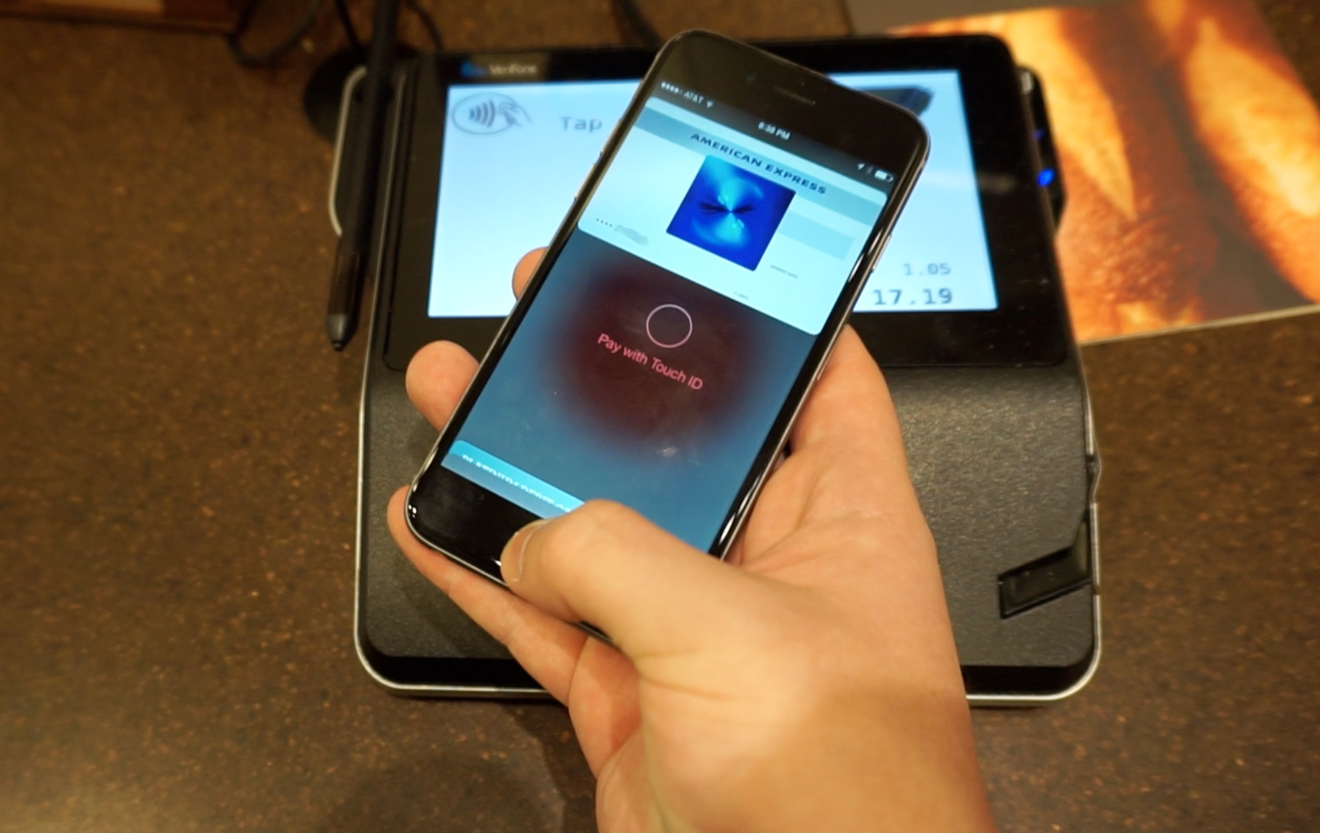
Proximity: You do not necessarily need to wake the phone first. Simply rest your finger on the Touch ID sensor (the Home button) and hold the top of your iPhone near the terminal’s contactless reader.
-
Automatic Detection: The NFC field will automatically trigger the Wallet app, and your fingerprint will provide the necessary authentication simultaneously.
-
Completion: Similar to the Face ID method, a haptic pulse and a checkmark on the screen indicate a successful transaction.
The Apple Watch Experience
Using the Apple Watch is arguably the most efficient method for in-store payments, especially when your hands are full.
-
Trigger: Double-click the flat side button (not the Digital Crown). Your default card will appear on the screen.
-
Proximity: Hold the display of your Apple Watch near the contactless reader.
-
Feedback: You will feel a distinct tap on your wrist and hear a chime, confirming the payment data has been sent. Because the Watch is already authenticated while on your wrist, no further biometric scan is required at the moment of purchase.
Troubleshooting Common Issues and Maximizing Efficiency
While Apple Pay is remarkably reliable, users may occasionally encounter hurdles at the point of sale. Understanding the nuances of retail technology can help you navigate these situations.
Identifying Compatible Terminals
Not every payment terminal supports NFC technology, though the vast majority of modern systems do. To identify if a store accepts Apple Pay, look for the universal Contactless Symbol (a series of curved lines resembling a Wi-Fi signal) or the Apple Pay logo on the terminal’s screen or the physical unit itself. If a terminal only has a slot for “chipping” or a magnetic stripe “swipe,” Apple Pay will not work.
Handling Transaction Limits and PIN Prompts
In some regions or with specific card issuers, you may be asked to provide a PIN or a signature on the merchant’s terminal for transactions over a certain amount. This is not a failure of Apple Pay but a requirement of the merchant’s bank or the local regulatory environment. Even in these cases, using Apple Pay is still more secure than a physical card because the Device Account Number is used rather than the actual card number.
Connectivity and Battery Considerations
A common tech-related question is whether Apple Pay requires an active cellular or Wi-Fi connection to work. The answer is no. Because the Secure Element handles the transaction data and the NFC chip handles the transmission, your iPhone or Apple Watch does not need internet access at the moment of purchase. This makes it ideal for use in underground transit systems or remote areas. Furthermore, on newer iPhone models, a feature called “Express Mode” with power reserve allows you to use certain transit cards and keys for up to five hours even after your iPhone’s battery has run out.
The Future of Digital Identity and the Apple Wallet Ecosystem
As we look toward the future of technology, Apple Pay is merely the first step in a broader move toward a completely cardless society. The “Tech” behind the Wallet app is expanding to include much more than just financial instruments.
Beyond Payments: Digital Keys and IDs
The same NFC and Secure Element technology used for Apple Pay is now being utilized for digital car keys, home locks, and corporate employee badges. With “HomeKit” enabled locks, you can tap your iPhone to enter your house using the same gesture you use at a grocery store. Furthermore, Apple is working with various government agencies to integrate digital Driver’s Licenses and State IDs directly into the Wallet app. This transition suggests a future where the physical wallet is entirely obsolete, replaced by an encrypted, biometric-locked digital vault.
The Impact on the Retail Experience
For retailers, the adoption of Apple Pay represents a shift toward “invisible” payments. As the software matures, we are seeing integrations with loyalty programs where your rewards card is automatically applied during the Apple Pay transaction. This reduces the number of steps at the checkout and creates a data-rich, yet privacy-preserving, ecosystem.
The transition to paying in-store with Apple Pay is a clear indicator of where consumer technology is headed. By moving away from the vulnerabilities of physical plastic and toward the encrypted, biometric-verified world of NFC transactions, we are entering an era of unprecedented security and convenience. Whether you are using an iPhone or an Apple Watch, the process is a masterclass in how sophisticated software and hardware can work in harmony to simplify a fundamental human activity: the exchange of value.
aViewFromTheCave is a participant in the Amazon Services LLC Associates Program, an affiliate advertising program designed to provide a means for sites to earn advertising fees by advertising and linking to Amazon.com. Amazon, the Amazon logo, AmazonSupply, and the AmazonSupply logo are trademarks of Amazon.com, Inc. or its affiliates. As an Amazon Associate we earn affiliate commissions from qualifying purchases.