
The Graphics Processing Unit (GPU) is the cornerstone of modern visual computing, serving as the primary engine for everything from high-fidelity gaming and 3D rendering to complex artificial intelligence workloads and everyday video playback. While the physical silicon of a graphics card determines its theoretical performance ceiling, the software that bridges the gap between the hardware and the operating system—the GPU driver—dictates how much of that potential is actually realized.
Keeping your GPU drivers updated is not merely a task of routine maintenance; it is a critical optimization step that ensures system stability, unlocks new software features, and provides essential security patches. In an era where software updates for major titles and creative suites occur weekly, understanding the nuances of driver management is an essential skill for any technology enthusiast or professional.

The Fundamental Importance of Graphics Drivers
A GPU driver is a specialized piece of software that allows the operating system (OS) and specific applications to communicate with the graphics hardware. Without a functional driver, the OS would treat the GPU as a generic display device, limiting resolution, disabling hardware acceleration, and rendering resource-heavy tasks impossible.
Performance Optimization and Game Readiness
For gamers, driver updates are often synonymous with “Game Ready” releases. Manufacturers like NVIDIA and AMD work closely with game developers during the final months of a high-profile title’s creation. These collaborations result in drivers that include specific optimizations for the game’s engine, often providing double-digit performance gains, reducing input lag, and eliminating visual artifacts that might occur on older software versions. These updates also introduce support for new technologies, such as AI-driven upscaling (DLSS, FSR, or XeSS) and hardware-accelerated ray tracing.
Stability and Security
Beyond performance, drivers are essential for system reliability. A corrupted or outdated driver is one of the most common causes of the infamous “Blue Screen of Death” (BSOD) or application crashes. As operating systems like Windows 11 evolve, the driver model—Windows Display Driver Model (WDDM)—receives updates that require hardware manufacturers to release compatible software. Furthermore, GPU drivers are not immune to security vulnerabilities. Hackers can occasionally exploit driver flaws to gain kernel-level access to a system. Regular updates ensure that these security loopholes are patched, protecting your data and your hardware.
Enhancing Creative Workflows
For professionals in video editing, 3D modeling, and data science, drivers are the gatekeepers of productivity. Modern creative applications like Adobe Premiere Pro, DaVinci Resolve, and Blender rely on GPU acceleration (via CUDA, OpenCL, or OptiX) to handle heavy rendering tasks. Outdated drivers can lead to “render failures” or slow export times. Hardware manufacturers often offer specialized “Studio” or “Pro” drivers that undergo more rigorous testing with creative software suites, prioritizing stability over the aggressive performance tuning seen in gaming-centric drivers.
Preparing Your System: Identifying Hardware and Software Versions
Before initiating an update, it is crucial to know exactly what hardware you are running and which driver version is currently installed. Attempting to install the wrong driver can, at best, lead to an error message and, at worst, cause significant system instability.
Using the Windows Device Manager
The quickest way to identify your GPU is through the Windows Device Manager. By right-clicking the Start button and selecting “Device Manager,” you can expand the “Display adapters” section. This will list the specific model of your GPU, such as an “NVIDIA GeForce RTX 4070” or “AMD Radeon RX 7800 XT.” By right-clicking the device and selecting “Properties,” then navigating to the “Driver” tab, you can see the driver provider, date, and version number.
Utilizing the DirectX Diagnostic Tool
For a more detailed technical overview, the DirectX Diagnostic Tool (DxDiag) is invaluable. Press Win + R, type dxdiag, and hit enter. The “Display” tab provides a comprehensive look at the driver’s feature levels, its WDDM version, and the total amount of VRAM available. This tool is particularly useful for verifying if your system supports specific APIs like DirectX 12 Ultimate.
Distinguishing Between Integrated and Discrete Graphics
Many modern laptops and some desktop processors come with two GPUs: integrated graphics (built into the CPU) and discrete graphics (a separate chip). It is a common mistake to update one while neglecting the other. For optimal performance, especially in power-saving modes or multi-monitor setups, both the integrated driver (usually Intel or AMD) and the discrete driver (NVIDIA or AMD) should be kept current.
The Update Process: Manufacturer-Specific Protocols
While Windows Update can technically install GPU drivers, it often distributes older, generic versions that lack the full suite of control panels and performance optimizations provided by the manufacturer. To get the best results, you should use the official channels provided by NVIDIA, AMD, or Intel.
NVIDIA: GeForce Experience and the NVIDIA App
NVIDIA users have two primary paths. The most user-friendly method is through GeForce Experience (or the newer, unified NVIDIA App). These applications automatically notify you when a new driver is available. With a single click, the software downloads the package and initiates the installation.
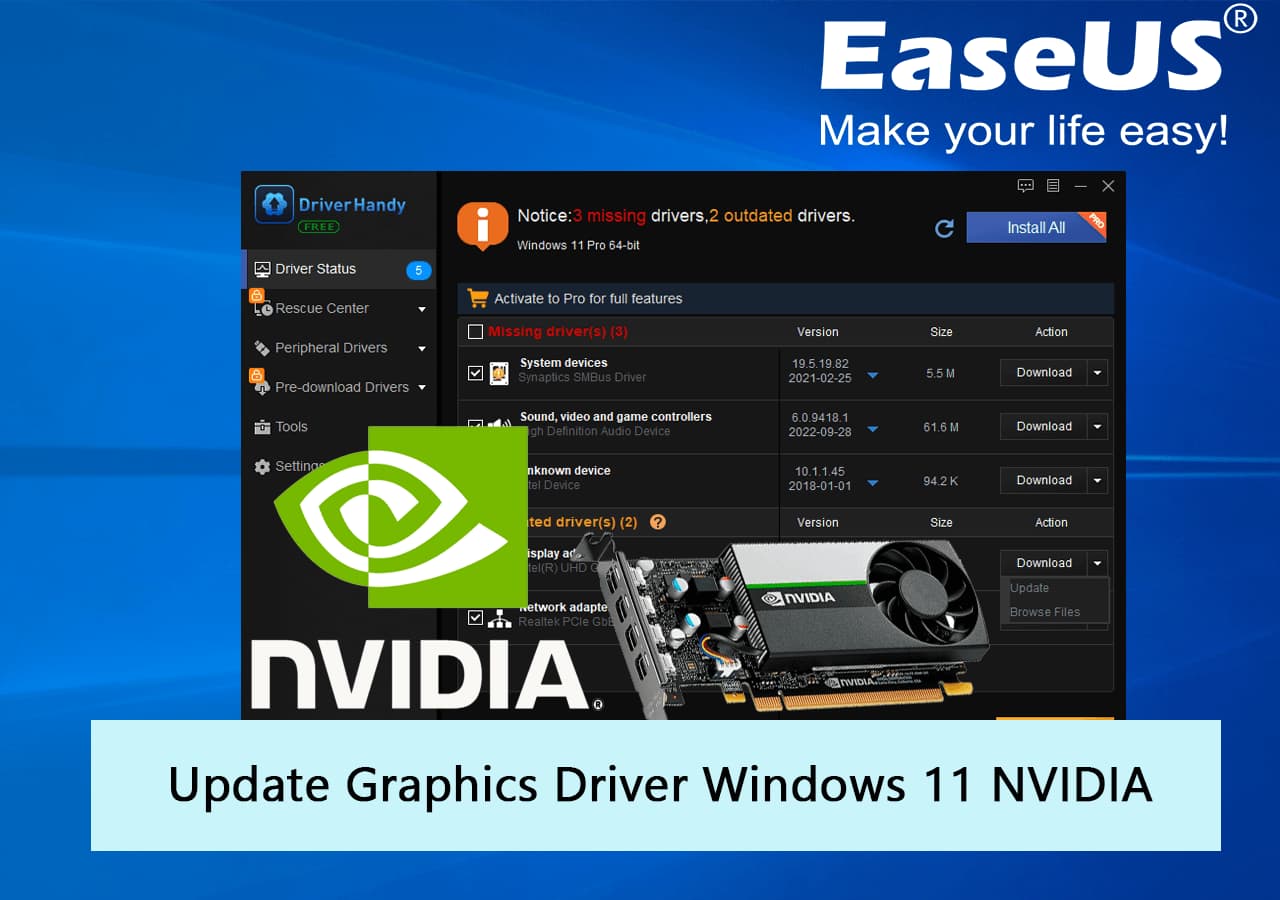
For those who prefer a manual approach, NVIDIA’s website allows users to select their specific product series and operating system to download a standalone installer. This is often preferred by power users who wish to avoid creating a login account or who want to keep background processes to a minimum. When installing, NVIDIA provides an “Express” or “Custom” option. Choosing “Custom” allows you to select “Perform a clean installation,” which wipes previous settings and can resolve many common software conflicts.
AMD: Adrenalin Edition
AMD’s software suite, Radeon Adrenalin, is known for its robust feature set, including built-in overclocking and recording tools. Updating through the Adrenalin interface is straightforward: the “Home” or “System” tab will display the current version and offer an “Update” button if a newer one exists.
AMD drivers offer a unique “Factory Reset” option during installation. This is particularly useful when upgrading from an older generation of AMD cards to a newer one, as it ensures that legacy configurations do not interfere with the new architecture. AMD also provides a “Minimal Install” option for those who only want the driver without the extensive utility suite.
Intel: Arc and Iris Xe
As Intel enters the high-performance gaming market with its Arc series, its driver cadence has increased significantly. The Intel Driver & Support Assistant (IDSA) is a browser-based utility that scans your system and suggests the latest drivers for both graphics and Wi-Fi/Bluetooth components. For Arc GPU owners, Intel frequently releases “Beta” drivers that offer significant performance uplifts for newly released games; these can be found on the Intel download center and are often worth installing if you are experiencing issues with the stable branch.
Mastering the Clean Install with Display Driver Uninstaller (DDU)
Sometimes, a standard update is not enough. If you are experiencing persistent flickering, crashes, or are switching from one GPU brand to another (e.g., moving from NVIDIA to AMD), residual files from the previous driver can cause severe conflicts. This is where a “Clean Install” using Display Driver Uninstaller (DDU) becomes necessary.
The DDU Workflow
DDU is a third-party utility that is widely considered the industry standard for driver removal. It does not just uninstall the software; it scrubs the Windows Registry and the file system of every trace of the driver.
To use DDU effectively:
-
Download the latest drivers for your new or current GPU and save them to your desktop.
-
Download DDU and extract the application.
-
Boot Windows into Safe Mode. This is a critical step, as it prevents the OS from loading the GPU driver while you are trying to delete it.
-
Run DDU, select your GPU manufacturer, and choose “Clean and shutdown.”
-
Install the new driver after the system restarts in normal mode.
This process ensures that the new driver is installed on a “blank slate,” eliminating variables that could lead to performance degradation or errors like “Code 43” in Device Manager.
Beyond the Update: Optimizing Performance and Troubleshooting
Once the driver is successfully updated, the work is not necessarily finished. New drivers often reset certain settings or introduce new features that require manual activation.
Configuring Control Panel Settings
After an update, it is wise to visit the NVIDIA Control Panel or AMD Adrenalin settings. Key optimizations include ensuring your monitor’s refresh rate is set to its maximum (e.g., 144Hz instead of 60Hz) and verifying that G-Sync or FreeSync is enabled. For laptop users, check the “Power Management” settings to ensure the GPU is set to “Prefer maximum performance” when plugged in, which prevents the driver from downclocking the hardware during intensive tasks.
Troubleshooting Common Post-Update Issues
Occasionally, a new driver version may introduce a bug that was not present in the previous version—this is known as a “regression.” If you notice decreased performance or new visual glitches after an update, the best course of action is to “Roll Back” the driver. In Windows Device Manager, you can select the “Roll Back Driver” option under the device properties to return to the previously installed version.
Alternatively, you can visit the manufacturer’s driver archive to download the specific version that worked best for your system. It is always helpful to monitor community forums like Reddit’s r/nvidia or r/AMD, where users frequently post “megathreads” discussing the stability of new driver releases.

The Role of OEM Drivers in Laptops
A final note for laptop owners: while getting drivers directly from NVIDIA or AMD is usually fine, some laptops (especially high-end workstations) utilize custom “OEM drivers” provided by the manufacturer (Dell, ASUS, Lenovo). These drivers are sometimes tuned for the specific thermal and power limits of the laptop’s chassis. If the generic manufacturer drivers cause issues with screen brightness control or sleep modes, reverting to the drivers hosted on the laptop manufacturer’s support page is often the solution.
By maintaining a proactive approach to GPU driver management, you ensure that your hardware remains secure, stable, and capable of delivering the highest possible performance for years to come. Whether you are chasing the highest frame rates or the fastest render times, the driver is the key that unlocks the true power of your silicon.
aViewFromTheCave is a participant in the Amazon Services LLC Associates Program, an affiliate advertising program designed to provide a means for sites to earn advertising fees by advertising and linking to Amazon.com. Amazon, the Amazon logo, AmazonSupply, and the AmazonSupply logo are trademarks of Amazon.com, Inc. or its affiliates. As an Amazon Associate we earn affiliate commissions from qualifying purchases.