
In the modern computing landscape, the Graphics Processing Unit (GPU) has evolved from a simple component that renders windows and icons into the beating heart of high-performance gaming, creative professional workflows, and artificial intelligence development. Whether you are an enthusiast pushing for the highest frame rates in the latest AAA title or a video editor rendering complex 4K timelines, your NVIDIA hardware is only as capable as the software that instructs it.
Keeping your NVIDIA drivers up to date is not merely a matter of routine maintenance; it is a critical practice for ensuring system stability, security, and access to the latest technological breakthroughs. From the implementation of DLSS 3.5 to the refinement of ray-tracing algorithms, driver updates serve as the bridge between your hardware’s raw power and the software’s demands. This guide provides a deep dive into the various methodologies for updating your NVIDIA GPU drivers, troubleshooting common hurdles, and optimizing your settings for a seamless digital experience.
The Critical Importance of GPU Driver Maintenance
A driver is essentially a specialized piece of software that acts as a translator between your operating system (Windows or Linux) and your hardware (the NVIDIA GPU). Without a functional and updated driver, the operating system cannot efficiently communicate tasks to the graphics card, resulting in degraded performance, visual artifacts, or total system crashes.
Performance Optimization and Day-Zero Support
NVIDIA frequently releases “Game Ready” drivers. These are specifically timed to coincide with the launch of major software titles. These updates often contain specific optimizations that can increase performance by double-digit percentages on day one. Without these updates, users often experience stuttering, lower-than-expected frame rates, or compatibility issues with the latest graphics engines like Unreal Engine 5.
Security and Stability
Beyond performance, drivers are crucial for system security. Vulnerabilities in graphics software can occasionally be exploited by malicious actors to gain unauthorized access to a system. NVIDIA’s engineering teams continuously patch these loopholes. Furthermore, as Windows receives its own periodic updates, driver updates ensure that the GPU remains compatible with changes in the OS kernel, preventing the dreaded “Blue Screen of Death” (BSOD).
Unlocking New Features
NVIDIA is known for introducing revolutionary features via software rather than just hardware iterations. Technologies like NVIDIA Reflex (which reduces system latency), RTX Broadcast (which uses AI to clean up audio and video), and various iterations of Deep Learning Super Sampling (DLSS) are often refined through driver packages. To utilize the latest version of Frame Generation or Ray Reconstruction, an up-to-date driver is mandatory.
Method 1: Automated Updates via NVIDIA GeForce Experience
For the majority of users, the most efficient and user-friendly way to manage drivers is through NVIDIA’s proprietary software suite, GeForce Experience. This application automates the detection of your hardware and provides a streamlined interface for one-click updates.
Initial Setup and Account Integration
To begin, you must have GeForce Experience installed. Most modern pre-built systems and laptops come with this pre-installed, but it can also be downloaded directly from the NVIDIA website. Once installed, you will need to log in. While some users find the account requirement tedious, it allows the software to cloud-sync your game settings and provide personalized driver alerts based on your specific GPU model.
The Update Process
-
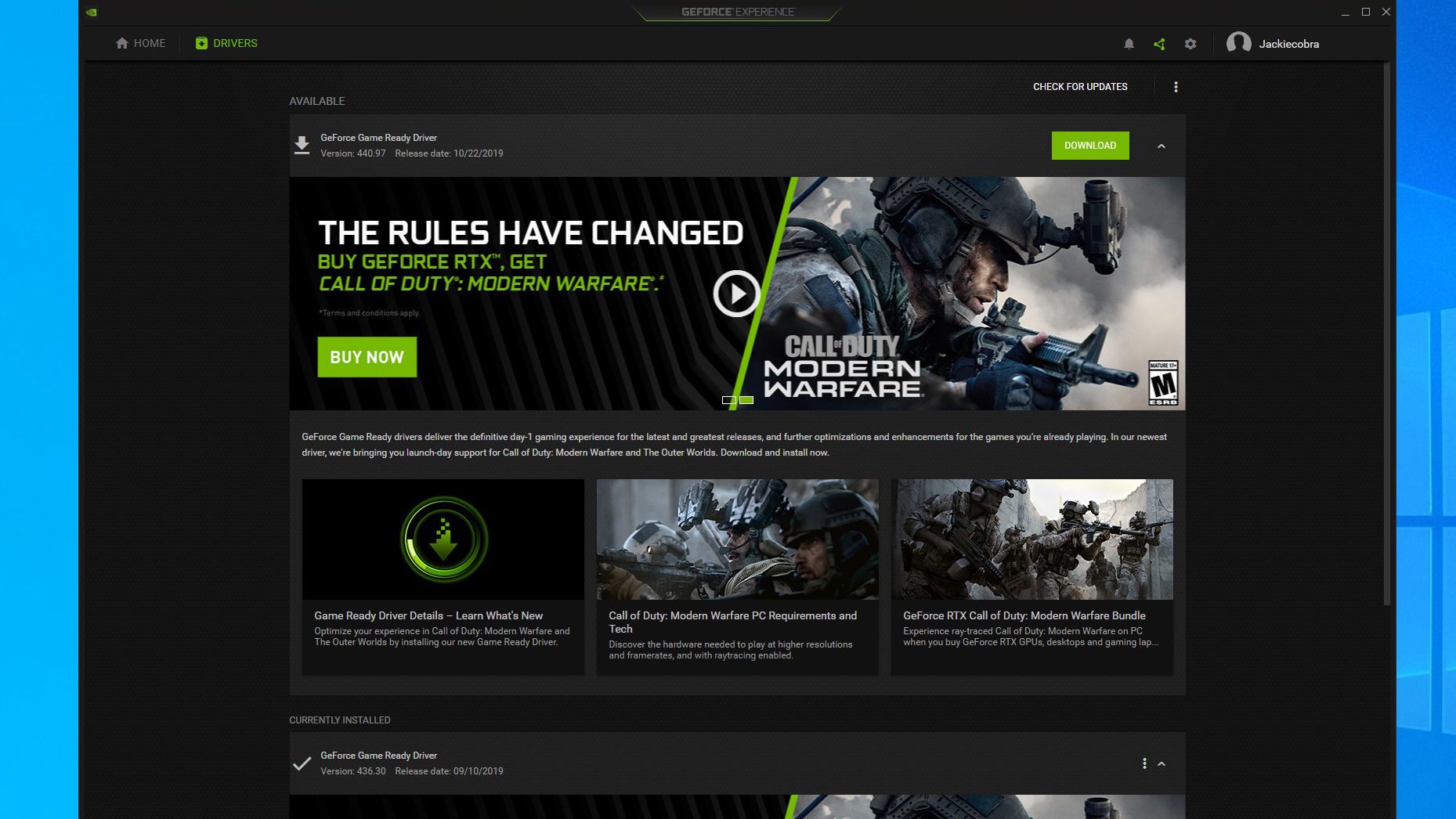
Navigate to the Drivers Tab: Once the application is open, look for the “Drivers” tab in the top-left corner.
-
Check for Updates: Click the button labeled “Check for Updates.” The software will ping NVIDIA’s servers to see if a newer version exists for your specific architecture (e.g., Turing, Ampere, or Ada Lovelace).
-
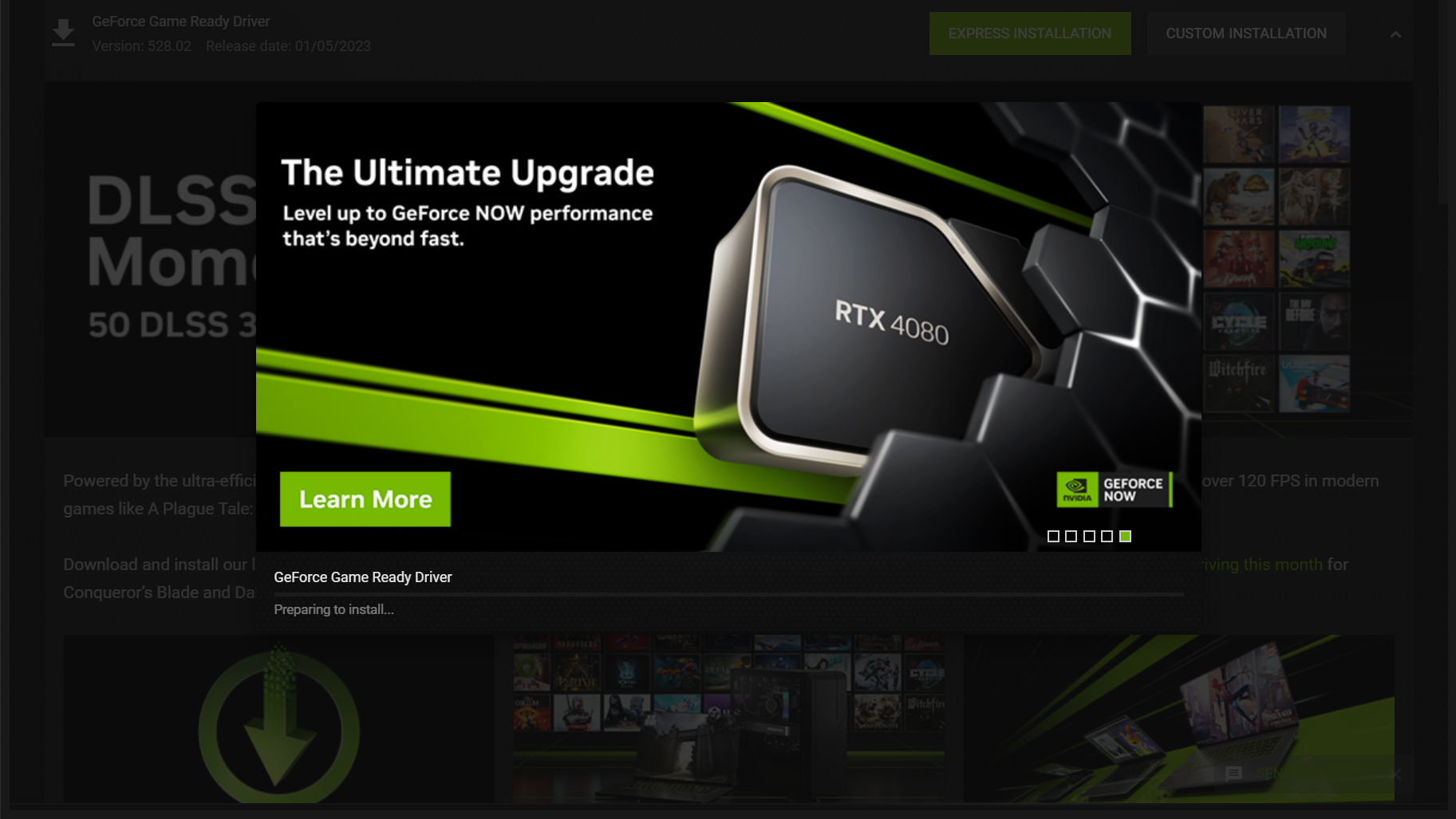
Download and Install: If an update is available, a green “Download” button will appear. Once the download is complete, you will be presented with two choices: “Express Installation” and “Custom Installation.”
-
Express Installation: This is the recommended path for most users. It installs all necessary components and keeps your current settings intact.
-
Custom Installation: Choose this if you wish to deselect certain components like the HD Audio driver or the USB-C driver, or if you wish to perform a “Clean Installation” (which restores all settings to default).
Game Ready vs. Studio Drivers
One of the most powerful features of the GeForce Experience interface is the ability to choose your “Driver Preference.”
-
Game Ready Drivers (GRD): These are optimized for the latest games and are released frequently.
-
Studio Drivers (SD): These are intended for creative professionals using applications like Adobe Premiere Pro, Blender, and Maya. They undergo more rigorous testing across creative suites to ensure maximum uptime and stability, though they may not include the very latest game-specific optimizations. You can switch between these by clicking the three vertical dots next to the “Check for Updates” button.
Method 2: Manual Installation via the NVIDIA Portal
There are scenarios where an automated tool is not ideal. Perhaps you are working in an enterprise environment with restricted internet access, or you are troubleshooting a specific bug that requires an older driver version. In these cases, manual installation is the preferred route.
Identifying Your Hardware
Before navigating to the NVIDIA download portal, you must know your exact GPU model. If you are unsure, right-click the Windows “Start” button, select “Device Manager,” and expand the “Display adapters” section. This will list your specific card (e.g., NVIDIA GeForce RTX 4080).
Navigating the Download Page
Visit the official NVIDIA Driver Downloads page. You will encounter a series of dropdown menus:
-
Product Type: Typically “GeForce” for consumer cards.
-
Product Series: Ensure you select the correct series (e.g., “GeForce RTX 40 Series” vs. “GeForce RTX 40 Series Notebooks” for laptops).
-
Operating System: Match your current version (Windows 10 64-bit, Windows 11, etc.).
-
Download Type: Choose between Game Ready and Studio Drivers as discussed previously.
The Installation Wizard
Once you download the executable (.exe) file, run it with administrative privileges. The installer will first extract its files to a temporary folder. During the process, your screens may flicker or temporarily turn black; this is normal as the system detaches the old driver and initializes the new one. Once the process is finished, a system reboot is highly recommended to ensure all registry changes are fully committed.
Advanced Troubleshooting: Performing a Clean Installation
Sometimes, driver updates fail. You might encounter an “Installation Failed” error, or you might notice that performance has actually decreased after an update due to corrupted configuration files or “driver sludge” (residue from years of overwriting drivers). In these instances, a “Clean Install” is necessary.
The Role of Display Driver Uninstaller (DDU)
While NVIDIA’s installer offers a “Clean Installation” checkbox, it is sometimes not thorough enough for complex issues. The gold standard for enthusiasts is a third-party utility called Display Driver Uninstaller (DDU). DDU completely wipes every trace of the NVIDIA driver, including registry keys, folders, and cached files that the standard uninstaller might leave behind.
Step-by-Step Clean Removal
-
Download DDU and the New Driver: Have your new driver package ready on your desktop before starting, as you may lose internet connectivity or high-resolution display capabilities during the process.
-
Boot into Safe Mode: This is crucial. Safe Mode prevents Windows from loading the GPU driver, allowing DDU to delete files that would otherwise be “in use.”
-
Run DDU: Select “GPU” and “NVIDIA” from the dropdown menus. Click “Clean and restart.”
-
Install the New Driver: Once the system reboots into normal Windows, run the NVIDIA installer you downloaded earlier. This ensures that the new driver is being written to a completely “blank canvas,” eliminating conflicts with previous versions.
Post-Update Optimization and Verification
Updating the driver is only the first step. To truly benefit from the update, you should verify the installation and potentially tweak your settings.
Verification
To confirm the update was successful, you can check the driver version in the NVIDIA Control Panel. Right-click your desktop, select “NVIDIA Control Panel,” and click on “System Information” in the bottom-left corner. Match the version number there with the version you intended to install.
Adjusting Settings for Maximum Performance
After a clean installation, your settings in the NVIDIA Control Panel will be reset. Key settings to review include:
-
Power Management Mode: Set this to “Prefer maximum performance” if you are on a desktop and want the GPU to maintain high clock speeds during gaming.
-
Vertical Sync: Many gamers prefer to manage this in-game or set it to “Fast” to reduce input lag while preventing screen tearing.
-
Texture Filtering – Quality: Setting this to “High Performance” can provide a small boost on older hardware without significantly impacting visual fidelity.
-
Configure Surround, PhysX: Ensure that your PhysX processor is set to your GPU rather than “Auto-select” to ensure the load is handled by the dedicated hardware.
By following these procedures, you ensure that your NVIDIA GPU operates at its theoretical peak. Whether through the convenience of GeForce Experience or the precision of a manual DDU-assisted installation, maintaining your drivers is the single most effective way to protect your hardware investment and enhance your digital experience. In an era where software evolves as fast as hardware, staying updated is no longer optional—it is the foundation of modern computing.
aViewFromTheCave is a participant in the Amazon Services LLC Associates Program, an affiliate advertising program designed to provide a means for sites to earn advertising fees by advertising and linking to Amazon.com. Amazon, the Amazon logo, AmazonSupply, and the AmazonSupply logo are trademarks of Amazon.com, Inc. or its affiliates. As an Amazon Associate we earn affiliate commissions from qualifying purchases.