
In the modern computing landscape, the Graphics Processing Unit (GPU) has evolved from a simple component responsible for rendering text and basic windows into a powerhouse of parallel processing. Whether you are a creative professional rendering 4K video, a data scientist utilizing CUDA cores for machine learning, or a gamer seeking the highest possible frame rates, your GPU is the heart of your visual experience. However, the hardware is only as capable as the software that instructs it. This software—the graphics driver—acts as the vital translator between your operating system, your applications, and the silicon itself.

Understanding how to find, identify, and manage your graphics driver is more than a troubleshooting step; it is a fundamental aspect of system maintenance. An outdated or incorrect driver can lead to system instability, reduced performance, and even security vulnerabilities. This guide provides an in-depth technical exploration of how to locate your graphics driver across various platforms and how to interpret the data you find.
The Critical Link Between Hardware and Software
To appreciate why you need to find your graphics driver, one must first understand its architecture. A driver is a specialized set of files that allows a hardware device to communicate with a computer’s operating system. Without a driver, the OS cannot send instructions to the hardware to display an image or perform a calculation.
In the realm of graphics, drivers are particularly complex because they must support various Application Programming Interfaces (APIs) such as DirectX, Vulkan, and OpenGL. These APIs provide a standardized way for software developers to access the GPU’s power. When a developer updates a game or a high-end design suite like AutoCAD, they often rely on the latest driver optimizations to utilize new hardware features. Consequently, knowing exactly which version of a driver you are running is the first step in ensuring that your software and hardware are in perfect synchronization.
Furthermore, the “graphics driver” is rarely a single file. It is a package that includes the display driver itself, audio drivers for HDMI/DisplayPort output, and often a management utility like the NVIDIA Control Panel or AMD Software: Adrenaline Edition. Finding the driver version allows you to verify if you have the “Game Ready” or “Studio” variants, which are tuned for different workloads.
Locating Your Graphics Driver on Windows Systems
Windows remains the most common environment for high-performance graphics tasks. Because of its vast hardware ecosystem, Microsoft has built several layers of tools to help users identify their hardware and driver versions.
Using the Device Manager
The Device Manager is the most direct way to view hardware-level driver information. It provides a raw look at what the operating system sees.
-
Right-click the Start button and select Device Manager.
-
Locate the section labeled Display adapters and click the arrow to expand it.
-
Here, you will see your GPU(s) listed. Many laptops will show two: an integrated Intel or AMD chip and a discrete NVIDIA or AMD GPU.
-
Right-click your primary GPU and select Properties.
-
Navigate to the Driver tab. This screen displays the “Driver Provider,” “Driver Date,” and “Driver Version.”
The “Driver Version” found here is often a long string of numbers. For NVIDIA users, the last five digits usually correspond to the version number found on the manufacturer’s website (e.g., a Windows version of 31.0.15.4633 corresponds to NVIDIA driver 546.33).
The DirectX Diagnostic Tool (DxDiag)
For a more comprehensive report that includes API support and memory details, the DirectX Diagnostic Tool is invaluable.
-
Press
Windows Key + Rto open the Run dialog. -
Type
dxdiagand press Enter. -
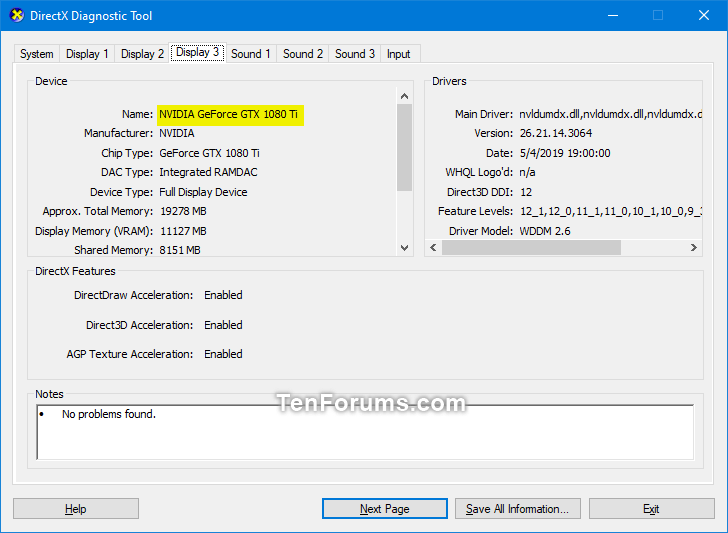
Navigate to the Display tab (or Display 1 and Display 2 if you have multiple GPUs).
-
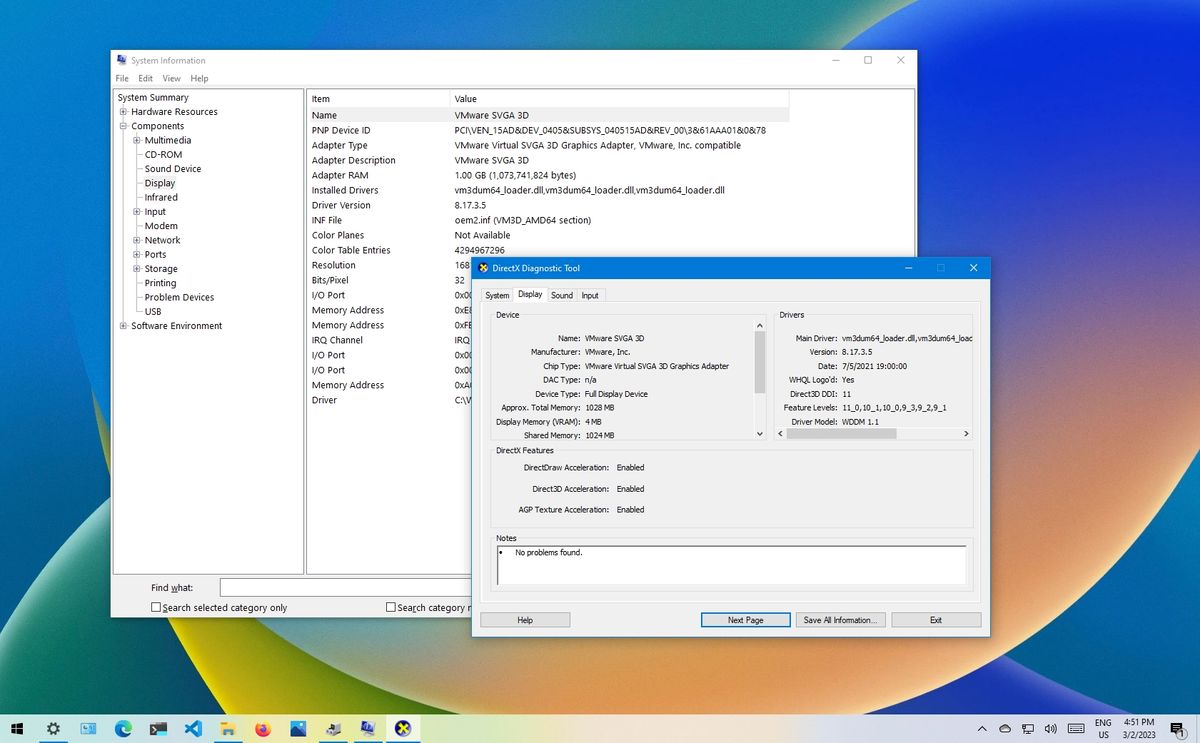
The “Drivers” section on the right side provides the version, date, and “Feature Levels,” which tell you which versions of DirectX your driver currently supports.
Windows Task Manager
For a quick glance without diving into menus, the modern Windows Task Manager provides essential GPU data. By pressing Ctrl + Shift + Esc and navigating to the Performance tab, you can select “GPU.” At the bottom of this window, Windows displays the driver version and the driver date, alongside real-time utilization and temperature metrics.
Identifying Drivers on macOS and Linux Environments
While Windows offers a variety of GUI tools, macOS and Linux require different approaches due to their unique architectures and driver distribution models.
macOS: The Integrated Approach
Apple’s ecosystem is vertically integrated, meaning drivers are bundled directly into macOS updates. Users do not typically download drivers from a manufacturer’s website.
-
Click the Apple Menu in the top-left corner and select About This Mac.
-
For a more detailed view, click More Info… (or System Report on older versions).
-
In the sidebar, under the “Hardware” section, select Graphics/Displays.
-
This pane identifies the chipset, the amount of VRAM, and the “EFI Driver Version.” On macOS, if you are experiencing graphical issues, the solution is almost always a system-wide OS update rather than a standalone driver installation.
Linux: The Command Line Power
In the Linux world, drivers can be open-source (like the Mesa drivers for AMD and Intel) or proprietary (like the NVIDIA binary blobs). Finding your driver version usually involves the terminal.
-
For General Info: Running
lspci -nnk | grep -iA3 vgawill show you the graphics controller and the kernel driver currently in use. -
For Detailed Versioning: If you are using the Mesa stack, the command
glxinfo | grep "OpenGL version"will reveal the driver version and the supported OpenGL standard. -
For NVIDIA Users: The command
nvidia-smiis the industry standard. It provides a clean table showing the driver version at the top, along with GPU power usage and memory consumption.
Leveraging Manufacturer-Specific Management Tools
While operating system tools provide the version number, manufacturer-specific software offers a deeper look into the “why” and “how” of your graphics performance. These applications are designed to bridge the gap between a passive driver and an active user interface.
NVIDIA Control Panel and GeForce Experience
NVIDIA provides two primary interfaces. The NVIDIA Control Panel is a legacy-style interface that allows for granular control over 3D settings and resolution. Clicking “System Information” in the bottom-left corner of this panel provides a detailed breakdown of the driver version and the specific components included in the package.
Conversely, GeForce Experience is a modern, cloud-connected app. The “Drivers” tab in this application not only shows your current version but also compares it to the latest available release. It provides “Release Notes” which explain what specific games or software suites the current driver is optimized for.
AMD Software: Adrenaline Edition
AMD has unified its driver and management software into a single, cohesive interface. By opening the AMD Software and navigating to Settings (the gear icon) > System, users can see their current driver version, the “Driver Path,” and the “Provider.” AMD also distinguishes between “Recommended” and “Optional” (beta) drivers, allowing users to choose between maximum stability and the latest cutting-edge features.
Intel Graphics Command Center
With the release of Arc discrete GPUs and the continued dominance of Iris Xe integrated graphics, Intel has moved to the Intel Graphics Command Center. Found in the “Support” tab, this tool provides the driver version and a “System Report” feature that can be exported for technical support queries.
Maintaining System Health Through Driver Management
Finding your graphics driver is often the precursor to a more important task: maintenance. The “if it ain’t broke, don’t fix it” mentality has some merit in enterprise environments, but in the fast-paced tech world, staying updated is generally the safer bet.
When to Update
You should check your driver version and look for updates in three specific scenarios:
-
New Software Launches: If you are using a new professional application or a major game release, “Day 0” drivers are often released specifically to fix bugs discovered during the software’s development.
-
Performance Degradation: If you notice stuttering, “artifacts” (strange visual glitches), or crashing, the driver is the first place to look.
-
Security Vulnerabilities: Modern GPUs are complex enough to be targets for exploits. Driver updates frequently include patches for security flaws that could allow unauthorized code execution.
The Clean Install Strategy
Sometimes, finding that you have the “correct” driver version isn’t enough; the installation itself might be corrupted. In technical circles, using a tool like Display Driver Uninstaller (DDU) is recommended for a “clean install.” DDU removes every trace of the old driver from the Windows Registry and system folders, allowing the new driver to be installed on a blank slate. This is a crucial step when switching brands (e.g., moving from an AMD card to an NVIDIA card) or when a standard update fails to resolve persistent visual bugs.
In conclusion, the ability to find and identify your graphics driver is a vital skill in the digital age. Whether you utilize the built-in transparency of the Windows Device Manager, the streamlined reports of macOS, or the powerful command-line tools of Linux, knowing your driver version empowers you to take control of your system’s performance and security. By regularly monitoring these drivers and utilizing manufacturer management software, you ensure that your hardware remains a reliable tool for whatever digital tasks you undertake.
aViewFromTheCave is a participant in the Amazon Services LLC Associates Program, an affiliate advertising program designed to provide a means for sites to earn advertising fees by advertising and linking to Amazon.com. Amazon, the Amazon logo, AmazonSupply, and the AmazonSupply logo are trademarks of Amazon.com, Inc. or its affiliates. As an Amazon Associate we earn affiliate commissions from qualifying purchases.