
In the dynamic world of PC gaming, performance, visual fidelity, and seamless experiences are paramount. Gamers constantly seek an edge, not just through powerful hardware, but also through intelligent software that can unlock their system’s full potential. Enter NVIDIA GeForce Experience – a pivotal application designed to complement your NVIDIA GeForce graphics card, offering a suite of tools that elevate your gaming experience from mundane to magnificent. From automatically optimizing game settings and keeping your drivers updated to capturing and sharing your most epic moments, GeForce Experience is an indispensable utility for any NVIDIA GPU owner.
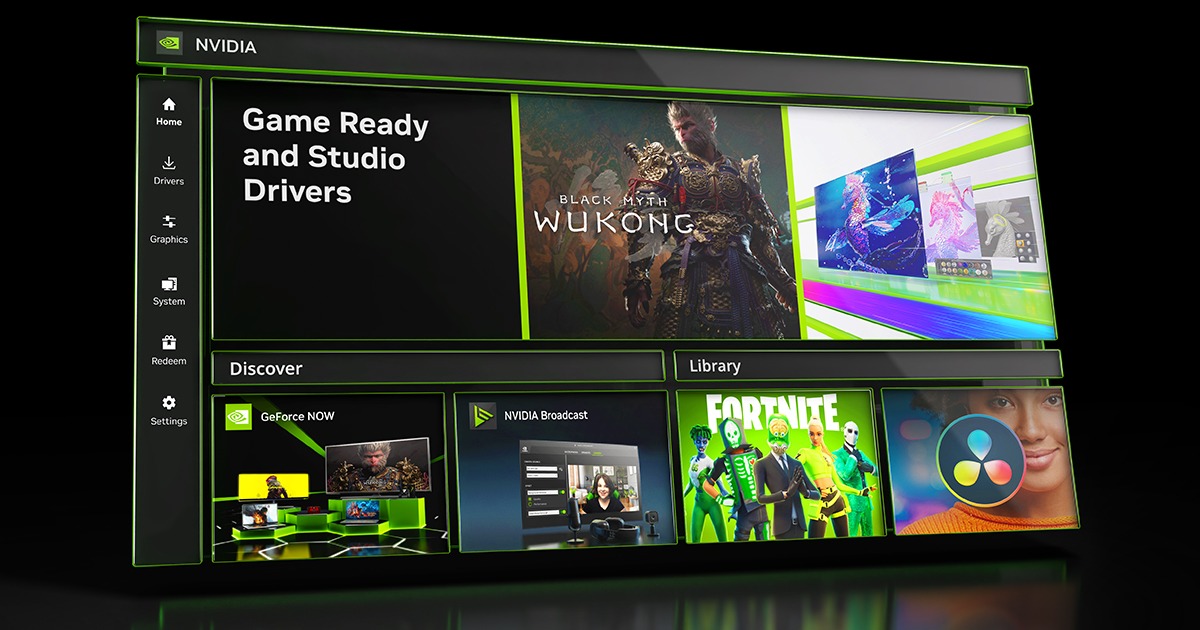
This comprehensive guide will walk you through the entire process of downloading and installing GeForce Experience, ensuring you’re well-equipped to harness its capabilities. We’ll delve into its core features, pre-installation considerations, a detailed step-by-step installation walkthrough, and essential post-installation practices to help you make the most of this powerful software. Prepare to transform your gaming setup into a finely tuned machine, delivering buttery-smooth frame rates and stunning visuals, all with minimal effort.
Understanding GeForce Experience: More Than Just a Download
Before diving into the mechanics of downloading and installation, it’s crucial to grasp what GeForce Experience is and why it has become a cornerstone of the PC gaming ecosystem for NVIDIA users. It’s not merely another piece of software; it’s an intelligent companion that streamlines crucial aspects of your gaming life.
What is GeForce Experience?
At its heart, NVIDIA GeForce Experience is a free application developed by NVIDIA that acts as a central hub for optimizing your gaming rig. It leverages NVIDIA’s vast database of game profiles and system configurations to automatically tailor settings for hundreds of PC games, ensuring you get the best balance of performance and visual quality for your specific hardware. Beyond mere optimization, it’s a feature-rich platform offering a myriad of functionalities:
-
Game Optimization: Automatically configures in-game settings for optimal performance and image quality based on your system’s specifications, allowing you to launch games directly with these enhanced settings.
-
Driver Updates: Keeps your GeForce Game Ready Drivers up-to-date, ensuring you always have the latest performance enhancements, bug fixes, and support for new game titles. This is critical for both stability and peak performance.
-
NVIDIA Share (ShadowPlay): An incredibly powerful tool for recording and broadcasting gameplay. ShadowPlay allows you to instantly replay your last 30 seconds to 20 minutes of gameplay, record high-quality videos without significant performance impact, take high-resolution screenshots, and even broadcast live to platforms like Twitch and YouTube.
-
NVIDIA Ansel: A revolutionary in-game photography tool that lets you compose stunning, professional-grade screenshots from unique perspectives, apply post-process filters, capture 360-degree panoramas, and even high-dynamic-range photos.
-
NVIDIA Freestyle: Allows you to apply real-time post-processing filters to your games, customizing the look and feel of your gameplay experience with options for color, contrast, depth of field, and more.
-
GameStream: If you own an NVIDIA SHIELD device, GameStream allows you to stream your PC games to your SHIELD device, playing them from the comfort of your couch.
Why Every PC Gamer Needs It
For anyone running an NVIDIA GeForce graphics card, GeForce Experience isn’t just a convenience; it’s a near necessity. Its value proposition extends across several critical areas:
-
Unleashed Performance: By keeping drivers updated and automatically optimizing game settings, GFE ensures your system consistently delivers the best possible frame rates and visual fidelity. This translates to smoother gameplay and a more immersive experience, especially in demanding AAA titles.
-
Time-Saving Convenience: Gone are the days of manually tweaking dozens of in-game settings for each new title. GFE does the heavy lifting, freeing you up to spend more time playing and less time configuring. The automatic driver updates also save you from manually searching and installing new releases.
-
Creative Freedom: For content creators and casual gamers alike, ShadowPlay and Ansel offer unparalleled tools for capturing and sharing gaming moments. Whether it’s a clutch play, an epic boss battle, or a breathtaking vista, GFE makes it easy to preserve and showcase your achievements.
-
Future-Proofing: As new games and technologies emerge (like Ray Tracing and DLSS), NVIDIA consistently updates GeForce Experience to support and optimize for these advancements. This ensures your gaming rig remains at the forefront of graphical innovation.
-
Enhanced Stability: Outdated drivers are a common cause of crashes and performance issues. GFE’s driver update feature proactively mitigates these risks, leading to a more stable and reliable gaming environment.
Preparing for a Smooth Download and Installation
Before you initiate the download and embark on the installation process, a few preparatory steps can help ensure a seamless experience. Addressing these factors beforehand can prevent common roadblocks and lead to a more efficient setup.
System Requirements Checklist
GeForce Experience is specifically designed for NVIDIA GeForce graphics cards, so having one is the absolute prerequisite. Here’s a detailed checklist of what your system needs:
-
NVIDIA GeForce GPU: You must have a GeForce GTX 600 series or newer desktop GPU, or a GeForce GTX 600M series or newer notebook GPU. Older cards may not be supported.
-
Operating System: Windows 7, 8, 8.1, 10, or 11 (64-bit versions only). It is highly recommended to have the latest service packs and updates installed for your OS.
-
CPU: Intel Pentium G Series, Core i3, i5, i7 or higher; or AMD FX, Ryzen 3, 5, 7, Threadripper or higher. The CPU doesn’t need to be top-tier, but a modern multi-core processor is beneficial.
-
RAM: 2GB of system memory is the minimum, but 4GB or more is recommended for optimal performance, especially when using features like ShadowPlay.
-
Disk Space: At least 200MB of free hard disk space for the application itself, plus additional space for game recordings if you plan on using ShadowPlay extensively.
-
Internet Connection: A stable internet connection is required for downloading the application, driver updates, and accessing online features.
Pre-Installation Best Practices
Even with the correct system requirements, a few simple actions can prevent potential headaches during installation:
-
Ensure a Stable Internet Connection: A dropped connection during a large download can corrupt files, requiring you to restart.
-
Temporarily Disable Antivirus/Firewall: While rarely necessary, some overly zealous security software can interfere with software installations. Temporarily disabling them (and remembering to re-enable them afterward) can resolve unforeseen conflicts.
-
Close Unnecessary Applications: Ensure no demanding applications or games are running in the background. This frees up system resources and prevents potential conflicts.
-
Update Your Operating System: Make sure your Windows installation is fully updated. This ensures compatibility and reduces the likelihood of system-level issues.
-
Check for Existing NVIDIA Software: If you have a very old version of GeForce Experience or NVIDIA drivers, sometimes a clean uninstall using a tool like Display Driver Uninstaller (DDU) followed by a fresh install is recommended, though generally GFE installation handles updates smoothly.
Step-by-Step Guide to Downloading and Installing GeForce Experience
With your system prepped and ready, it’s time to initiate the core process: downloading and installing GeForce Experience. Following these steps carefully will ensure a smooth and successful setup.
Locating the Official Download Source
The most crucial step is to always download software from its official source to avoid malicious third-party versions. For GeForce Experience, this is NVIDIA’s official website.
-
Open your preferred web browser.
-
Navigate to the official NVIDIA GeForce Experience download page. You can typically find this by searching “download GeForce Experience” on Google, or by directly visiting
www.nvidia.com/geforce/geforce-experience/. -
Locate the “Download Now” or “Download” button. This button is usually prominently displayed on the page. Click it to begin the download. The file will be an executable (.exe) file, typically named something like
GeForce_Experience_vX.X.X.exe.
Executing the Installer
Once the download is complete, the next step is to run the installer.
-
Locate the downloaded file in your browser’s download folder or the location you saved it to.
-
Right-click on the installer file and select “Run as administrator.” This is an important step to ensure the installer has the necessary permissions to make system-level changes.
-
Confirm the User Account Control (UAC) prompt if it appears. Click “Yes” to allow the installer to run.
Installation Options: Express vs. Custom
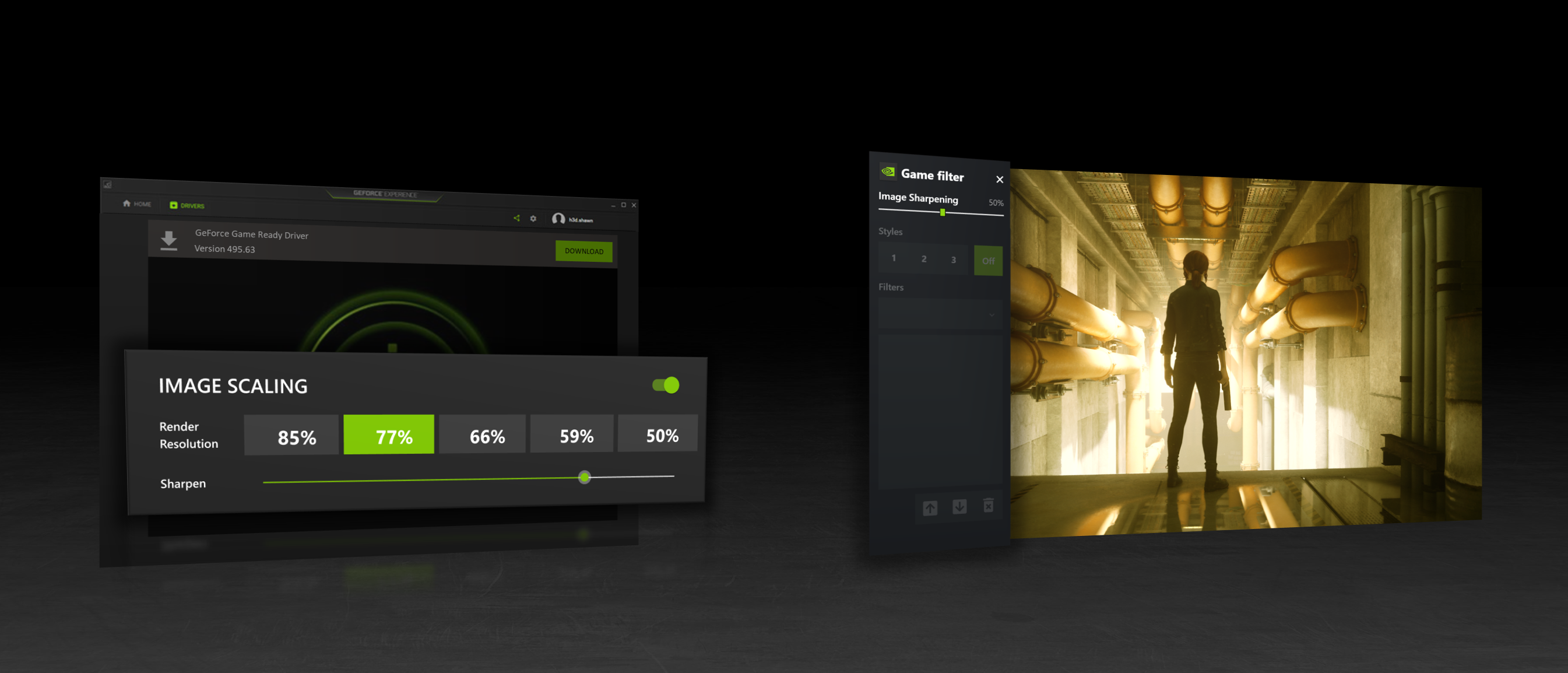
The installer will then guide you through a few initial screens. You’ll usually be prompted to agree to the NVIDIA Software License Agreement. Read it if you wish, then accept and continue. The next critical choice will be between an “Express Installation” and a “Custom Installation.”
-
Express Installation (Recommended for Most Users): This option automatically installs GeForce Experience along with the latest Game Ready Driver, overwriting any existing NVIDIA drivers and components. It’s the quickest and easiest path and is recommended for the vast majority of users who want a hassle-free setup.
-
Custom Installation: This option allows you to select which components to install (e.g., just GeForce Experience, or specific driver components), and it also offers a “Clean Installation” checkbox. A clean installation performs a complete removal of previous NVIDIA driver files and settings before installing new ones. This is useful for troubleshooting driver issues or ensuring a completely fresh start. Unless you have a specific reason or are troubleshooting, Express is generally sufficient.
Choose your preferred installation method and click “Install.”
Initial Setup and Account Creation
The installation process will proceed, which may take several minutes depending on your system speed. Your screen might flash or temporarily go black as new display drivers are installed – this is normal. Once the installation is complete:
-
Launch GeForce Experience: The installer may automatically launch it, or you can find it via your desktop shortcut or the Start Menu.
-
NVIDIA Account Login: You will likely be prompted to log in or create an NVIDIA account. This is highly recommended as it enables full functionality, including cloud-based game settings, access to giveaways, and enhanced driver management. You can often sign in using existing Google or Facebook accounts for convenience, or create a new NVIDIA account.
-
Scan for Games: Upon successful login, GeForce Experience will typically scan your system for installed games. Allow it to complete this process to begin optimizing your titles.
Post-Installation: Unleashing GeForce Experience’s Full Potential
Downloading and installing GeForce Experience is just the beginning. The real magic happens when you start utilizing its features. Here’s how to get the most out of your newly installed software.
Optimizing Your Game Settings
This is arguably the most celebrated feature of GeForce Experience.
-
Navigate to the “Games” tab within GeForce Experience.
-
Wait for the scan to complete (if it hasn’t already). It will list all detected games.
-
Select a game from the list. GeForce Experience will display your current in-game settings versus its recommended optimal settings.
-
Click the “Optimize” button. GFE will automatically apply the recommended settings, tailoring graphics options like resolution, texture quality, anti-aliasing, and shadow detail to best suit your GPU, CPU, and monitor.
-
For advanced users, you can click the “Wrench” icon next to the “Optimize” button to fine-tune specific settings manually or drag a slider to prioritize performance over quality, or vice-versa.
-
Launch the game directly from GFE to experience the optimized settings.
Keeping Your Drivers Up-to-Date
Maintaining current drivers is paramount for performance and compatibility.
-
Go to the “Drivers” tab in GeForce Experience.
-
GFE will automatically check for new Game Ready Drivers. If an update is available, it will be displayed prominently.
-
Click “Download” to fetch the latest driver.
-
Once downloaded, you’ll again have the option for an “Express Installation” or “Custom Installation.” For drivers, “Express” is typically fine, but a “Custom” and “Clean Installation” can be beneficial if you’re experiencing driver-related issues.
-
Follow the on-screen prompts to complete the driver update. A system restart may be required.
Mastering NVIDIA ShadowPlay and Other Features
These tools empower you to capture and customize your gaming experience.
-
Open the in-game overlay by pressing Alt+Z (the default hotkey).
-
Instant Replay: Enable this feature to continuously record gameplay in the background. Press Alt+F10 to save the last 30 seconds (or more, configurable) of gameplay.
-
Record: Manually start and stop recording your gameplay by pressing Alt+F9.
-
Broadcast: Set up live streaming to Twitch or YouTube by configuring your stream settings.
-
Screenshots: Press Alt+F1 to take a standard screenshot. For advanced Ansel screenshots, access it through the Alt+Z overlay within supported games.
-
Freestyle: Within a game, press Alt+F3 to open the Freestyle filters menu and apply real-time visual effects.
Experiment with the settings for each feature within the Alt+Z overlay’s settings gear icon to customize hotkeys, recording quality, overlay indicators, and more.
Troubleshooting Common Issues
While generally stable, you might occasionally encounter issues:
-
GeForce Experience won’t open/start: Try restarting your PC. If that doesn’t work, uninstall and reinstall GFE. Ensure your NVIDIA Display Driver service is running in Windows Services.
-
Games not detected: Ensure your games are installed in common locations. You can manually add game folders to GFE’s scan paths in settings (Settings > Games & Apps > Scan Location).
-
Driver installation failed: Ensure you have enough disk space. Temporarily disable antivirus. Try a “Custom” and “Clean Installation.” If problems persist, use DDU (Display Driver Uninstaller) in Safe Mode to completely remove all NVIDIA drivers, then perform a fresh installation.
-
ShadowPlay not recording: Check if “Instant Replay” or “Record” is enabled in the Alt+Z overlay. Ensure you have sufficient disk space for recordings. Verify your GPU supports ShadowPlay (GTX 600 series or newer).
The Future of Gaming with GeForce Experience
GeForce Experience isn’t a static product; it’s a constantly evolving platform that adapts to the latest gaming technologies and user feedback. NVIDIA’s commitment to enhancing the PC gaming ecosystem ensures that GFE will continue to play a crucial role in shaping how we interact with our games.
Continual Evolution and Updates
NVIDIA regularly pushes updates to GeForce Experience, adding new features, improving existing ones, and addressing bugs. These updates often coincide with major game releases or new hardware launches, ensuring that the software remains cutting-edge. Expect continued improvements in AI-driven optimization, user interface refinements, and expanded support for capturing and sharing gaming content.
Integrating New Technologies
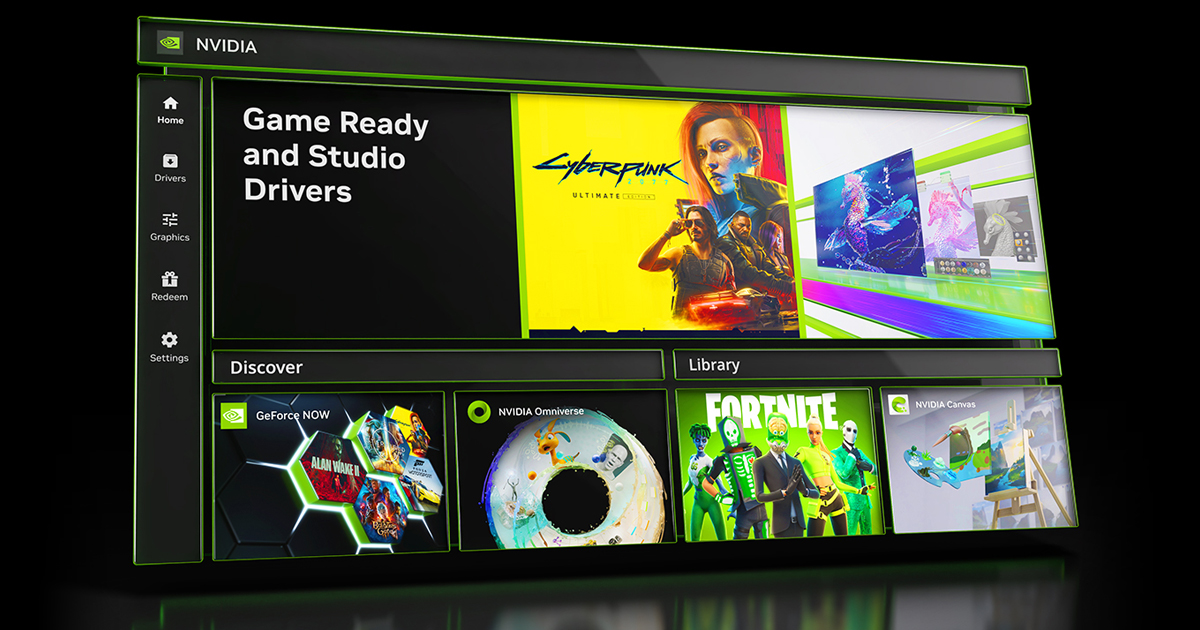
As NVIDIA introduces groundbreaking technologies like Deep Learning Super Sampling (DLSS), NVIDIA Reflex, and advanced Ray Tracing techniques, GeForce Experience seamlessly integrates these into its optimization and driver update processes. GFE serves as a conduit, helping users configure and benefit from these complex innovations without needing deep technical knowledge. It democratizes access to high-end features, making them accessible and easy to manage for the average gamer. This ongoing integration ensures that your gaming system remains future-proofed, always ready to embrace the next generation of visual fidelity and performance.
Conclusion
Downloading and installing NVIDIA GeForce Experience is more than a simple software installation; it’s an investment in a superior PC gaming experience. By acting as a centralized hub for game optimization, driver management, and powerful content creation tools like ShadowPlay and Ansel, GFE transforms your NVIDIA-powered rig into a highly efficient, high-performance gaming machine.
From the moment you complete the installation and log in, GeForce Experience immediately goes to work, ensuring your games run at their absolute best, your drivers are always current, and your most memorable gaming moments are easily captured and shared. Embracing this essential utility means spending less time tweaking settings and more time immersed in the worlds you love. So, take the leap, download GeForce Experience today, and unlock the full potential of your NVIDIA graphics card – your optimized, seamless, and visually stunning gaming journey awaits.
aViewFromTheCave is a participant in the Amazon Services LLC Associates Program, an affiliate advertising program designed to provide a means for sites to earn advertising fees by advertising and linking to Amazon.com. Amazon, the Amazon logo, AmazonSupply, and the AmazonSupply logo are trademarks of Amazon.com, Inc. or its affiliates. As an Amazon Associate we earn affiliate commissions from qualifying purchases.