
SiriusXM represents a pinnacle of modern broadcast technology, bridging the gap between traditional terrestrial radio and high-bandwidth digital streaming. Whether delivered via a fleet of geostationary satellites or through a localized internet protocol (IP) stream, the service relies on a delicate handshake between complex backend servers and consumer-grade hardware. When this connection falters—resulting in “Loading” screens, missing channels, or total signal loss—a reset is often the only path to restoration.
Understanding how to reset a SiriusXM radio requires a look into the various layers of the technology. From the physical receiver in your vehicle’s dashboard to the software-defined parameters of a mobile application, each component requires a specific approach to troubleshooting. This guide provides a deep dive into the technical methods for resetting SiriusXM systems, ensuring your hardware and software remain in peak operational condition.
The Signal Refresh: Executing a Software-Level Reset
The most common “reset” required for SiriusXM is not a physical reboot of the hardware, but a software-level authorization refresh. SiriusXM receivers operate using a unique identifier known as an Electronic Serial Number (ESN) or a Radio ID. This ID acts as a digital fingerprint, allowing the satellite network to target your specific device with encrypted data packets.
Why a Signal Refresh is Necessary
Over time, a receiver may lose its “authorization keys” if it has been powered off for an extended period or if there was an interruption during a routine firmware update. When this happens, the hardware is functional, but the software refuses to decrypt the satellite stream. A signal refresh essentially forces the SiriusXM satellites to broadcast a “wake-up” command specifically to your Radio ID.
Technical Steps for a Remote Refresh
To initiate this process, you must first locate your Radio ID. This is typically done by tuning the receiver to Channel 0. Once the alphanumeric code is retrieved, the reset can be triggered via the SiriusXM online portal or the mobile app.
When the refresh command is sent, the satellite network broadcasts a burst of data across the entire North American footprint. For the reset to be successful, the receiver must have a clear line of sight to the sky. This is a critical technical requirement; being in a garage or under heavy tree cover will prevent the hardware from capturing the authorization packet, rendering the reset attempt useless.
Troubleshooting the “Activation Stuck” Loop
Occasionally, a radio may get stuck in an “Acquiring Signal” or “Activation Required” loop even after a refresh. This often indicates a cache error within the receiver’s internal memory. In such cases, a secondary reset method—cycling the accessory power of the vehicle—is required to clear the temporary volatile memory (RAM) and allow the hardware to re-scan the frequency bands.
Resetting Integrated Vehicle Infotainment Systems
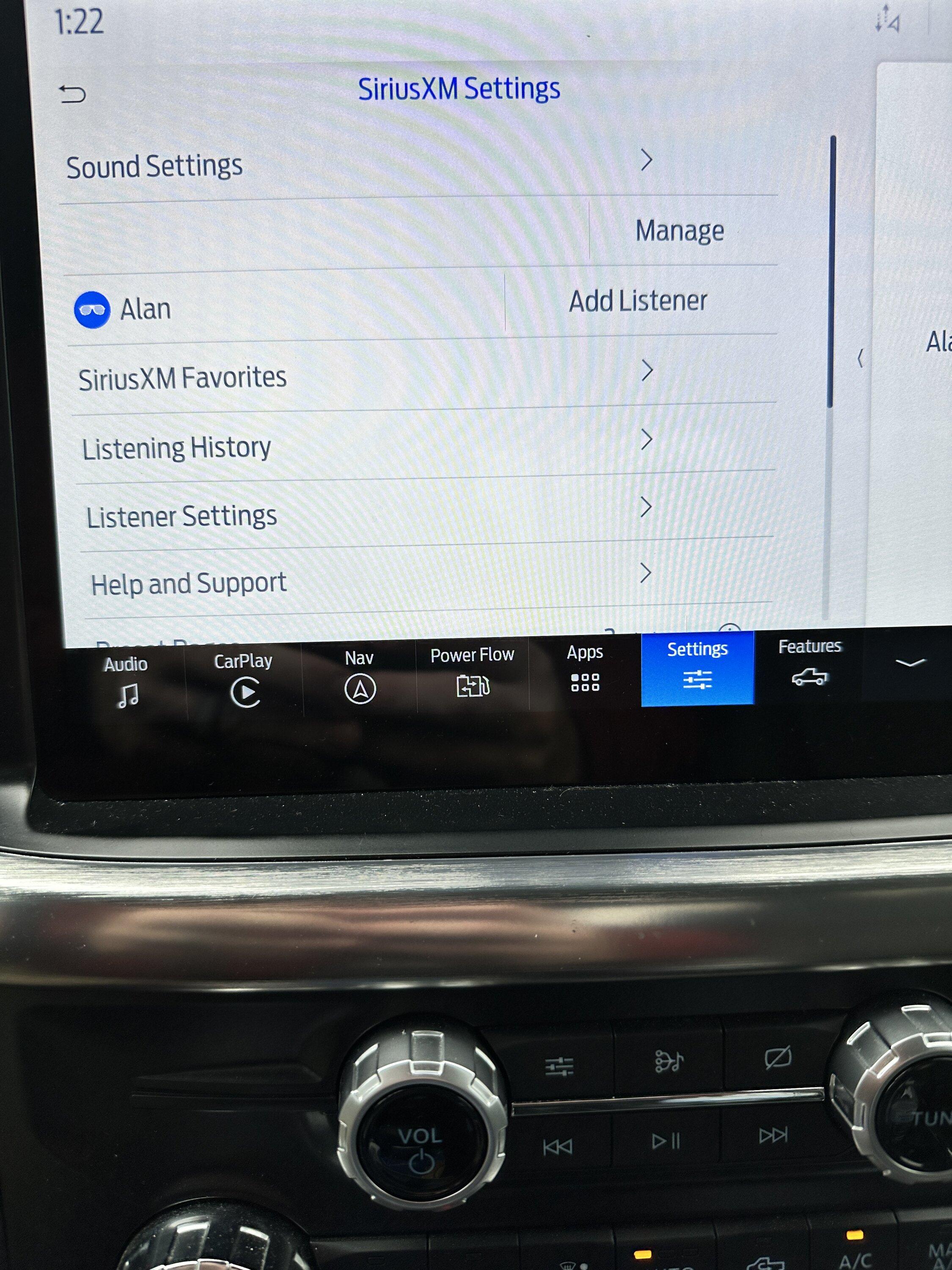
Modern automotive technology has moved away from standalone radio units toward integrated infotainment “head units.” These systems are essentially specialized computers running operating systems like Linux, QNX, or Android Automotive. Resetting SiriusXM within these environments often involves more than just pushing a button; it requires navigating the software architecture of the vehicle itself.
The Soft Reboot Strategy
For many vehicles, a dedicated SiriusXM reset button does not exist. Instead, users must perform a “soft reboot” of the entire infotainment stack. On many systems, this is achieved by holding down the power button and the “Forward” or “Tune” button simultaneously for ten to fifteen seconds. This forces the operating system to kill all active processes, including the SiriusXM background daemon, and restart the software environment from scratch.
Factory Resets and Data Integrity
In scenarios where the SiriusXM app within the car is crashing or freezing, a more drastic “Factory Data Reset” may be necessary. This is found within the system settings of the vehicle’s touchscreen.
Warning: Performing a factory reset will wipe all user data, including navigation favorites, paired Bluetooth devices, and saved EQ settings. However, from a technical perspective, this is the most effective way to eliminate corrupted software files that may be preventing the SiriusXM module from communicating with the vehicle’s antenna array.
Dealing with Module Communication Errors
If the radio displays a “Check Tuner” or “No Signal” message that persists after a software reset, the issue may be hardware-based. In modern cars, the SiriusXM tuner is often a separate physical module connected to the head unit via a high-speed data bus (such as CAN-bus or MOST). Resetting the hardware in this instance might require disconnecting the vehicle’s battery for 30 minutes to fully discharge the capacitors in the tuner module, forcing a cold boot of the hardware.

Troubleshooting Portable Receivers and Dock-and-Play Devices
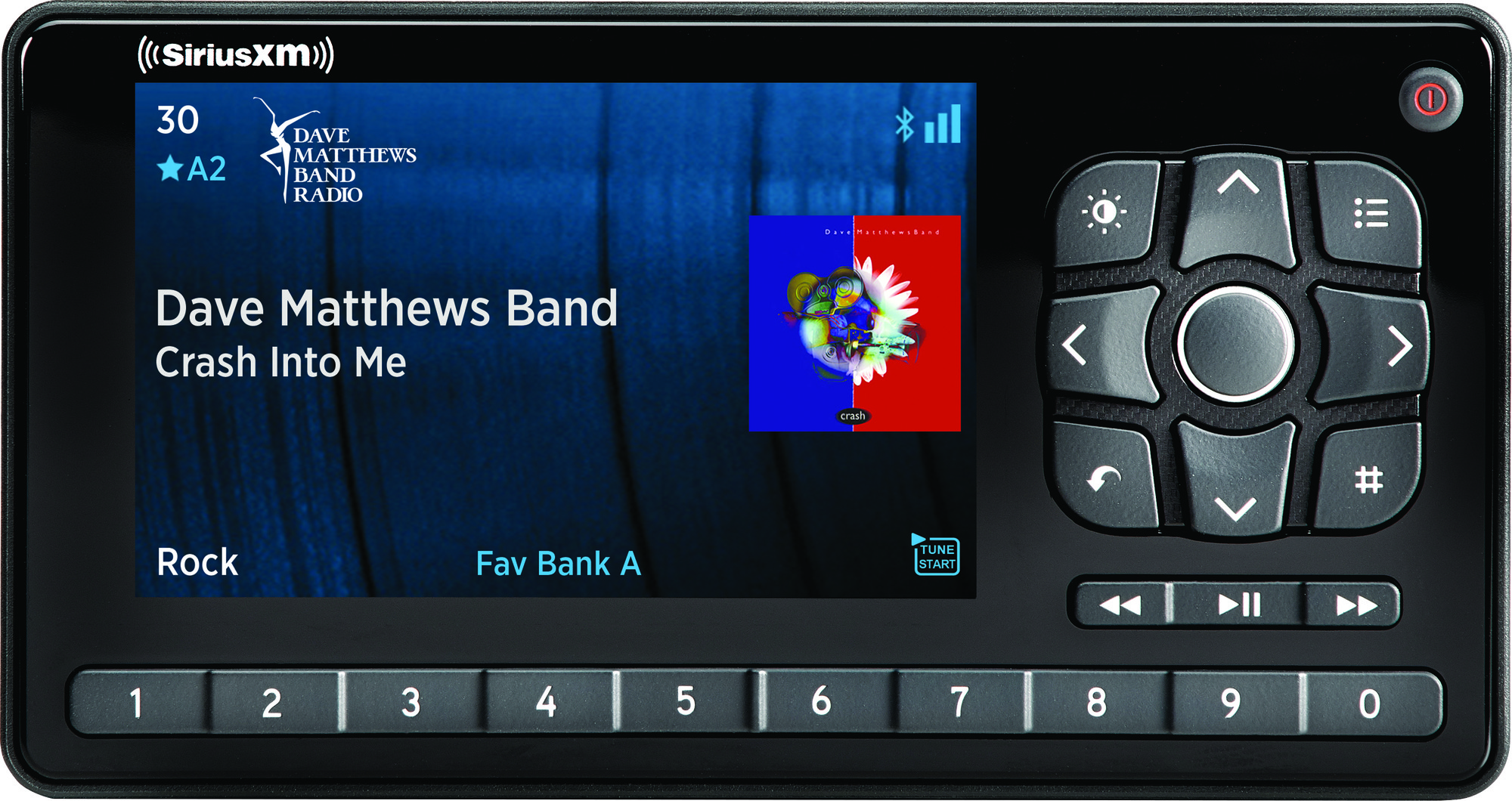
While integrated systems are common, many enthusiasts still utilize standalone “Dock-and-Play” receivers like the SiriusXM Onyx, Edge, or Tour. These devices have their own internal firmware and physical interfaces that require a different approach to resetting.
Hard Resetting Standalone Units
Most portable SiriusXM receivers feature a “Factory Reset” option buried deep within the “Settings” or “Setup” menu. Navigating to Menu > System Setup > Factory Reset will restore the device to its original out-of-the-box state. This is particularly useful if the device is experiencing “lag” in the user interface or if the channel list has become desynchronized from the current satellite map.
The Power Cycle Method
If the device is completely frozen and the menu is inaccessible, a physical power cycle is the next step. For dock-and-play units, this involves:
-
Removing the device from the cradle.
-
Disconnecting the power adapter from the wall or DC outlet.
-
Waiting 60 seconds to allow internal memory to clear.
-
Re-seating the device and powering it back on.
This process clears any “bit-rot” in the device’s temporary storage and forces the firmware to re-initialize the bootloader.
Firmware Updates and Latency
Standalone receivers often require periodic firmware updates to stay compatible with new compression codecs used by SiriusXM. If a reset does not fix performance issues, check the device’s “About” section to see the current firmware version. Some older models can be connected to a PC via USB to sideload updated software, which acts as a permanent “reset” to the device’s operational logic.
Resetting the SiriusXM Streaming App and Digital Security
In the modern tech ecosystem, SiriusXM is as much a streaming service as it is a satellite service. Resetting the experience on a smartphone, tablet, or smart speaker involves managing digital certificates, cache files, and authentication tokens.
Clearing App Cache and Data
On Android and iOS, the SiriusXM app stores significant amounts of data locally to reduce latency and allow for “Start Now” features. If the app is stuttering or failing to log in, a manual reset of the app’s storage is often more effective than a simple restart.
-
On Android: Navigate to
Settings > Apps > SiriusXM > Storageand select “Clear Cache” and “Clear Data.” -
On iOS: The most effective way to reset the app is to uninstall it, restart the device, and then reinstall it from the App Store.
This process ensures that any corrupted tokens—digital keys used to keep you logged in—are deleted and replaced with fresh, secure credentials.
Authentication and Digital Security Resets
If you are unable to access the service across multiple devices, the “reset” needed is likely at the account level. Changing your password or updating your streaming credentials acts as a security reset, forcing all active sessions to terminate. This is a vital step if you suspect your account has been compromised or if you are experiencing a “Too Many Streams” error, which occurs when the backend server incorrectly believes your account is active on more devices than permitted.
Smart Speaker and Third-Party Integration
For users who listen via Amazon Alexa, Google Assistant, or Sonos, resetting the SiriusXM connection requires “unlinking” the service within the respective third-party app. By removing the SiriusXM “Skill” or “Service” and then re-authorizing it, you reset the API handshake between the two platforms. This frequently resolves issues where the voice assistant claims the service is unavailable despite a valid subscription.
Conclusion: Maintaining a Healthy Signal
Resetting a SiriusXM radio is a multi-faceted process that ranges from simple satellite “pings” to deep-level hardware power cycles. In an era where hardware is increasingly defined by its software, staying informed about these technical procedures is essential for any power user.
By understanding the difference between a signal refresh, a factory reset, and a cache clear, you can effectively troubleshoot almost any issue that arises. Whether you are dealing with a classic satellite receiver or a cutting-edge streaming interface, the principles of technology remain the same: when the data flow breaks, a clean reset is the most reliable bridge to restoration. Keep your Radio ID handy, ensure your firmware is updated, and always maintain a clear line of sight to the southern sky to ensure your SiriusXM system operates at peak performance.
aViewFromTheCave is a participant in the Amazon Services LLC Associates Program, an affiliate advertising program designed to provide a means for sites to earn advertising fees by advertising and linking to Amazon.com. Amazon, the Amazon logo, AmazonSupply, and the AmazonSupply logo are trademarks of Amazon.com, Inc. or its affiliates. As an Amazon Associate we earn affiliate commissions from qualifying purchases.