
In the vast digital landscape of social media, Instagram stands as a colossal platform, connecting billions of users worldwide. With such immense scale comes the inevitable need for robust customer support, yet navigating the complexities of contacting a tech giant can often feel like searching for a needle in a digital haystack. From technical glitches and account security breaches to content disputes and policy violations, users frequently encounter situations that necessitate direct communication with Instagram’s support team. This article serves as a comprehensive guide, demystifying the process of messaging Instagram support, ensuring you know precisely how to report issues, seek assistance, and effectively advocate for your account. Understanding these pathways is not just about troubleshooting; it’s about safeguarding your digital presence and ensuring a seamless experience on one of the internet’s most influential applications.
Understanding Instagram’s Support Philosophy and Channels
Before diving into the “how-to,” it’s crucial to grasp Instagram’s overarching approach to user support. Like many large tech companies, Instagram processes an astronomical number of daily interactions and potential issues. Direct, personalized support for every single query would be an impossible logistical feat. Consequently, their strategy is designed to be efficient, scalable, and primarily self-service-oriented.
The Self-Service First Approach
Instagram’s primary line of defense against support overwhelm is its comprehensive Help Center. This vast repository of articles, FAQs, and troubleshooting guides is meticulously designed to empower users to find solutions independently. Topics range from basic account management and privacy settings to complex security protocols and community guideline explanations. The rationale is simple: if a user can resolve their issue by reading a guide, it saves both the user time and Instagram’s support resources. This system is efficient for common problems but can be frustrating when facing unique or complex issues that require human intervention. Therefore, knowing when and how to escalate past self-service is key.
Overview of Available Communication Channels
While direct messaging Instagram support in the traditional sense (like an email inbox or live chat) isn’t readily available for all issues, Instagram does provide several structured channels for reporting problems and seeking help. These can broadly be categorized into:
-
In-App Reporting: Features built directly into the Instagram application for immediate issue submission.
-
Help Center Website Forms: Dedicated web pages with specific forms for various problems, often for more severe or specialized concerns.
-
Account Recovery & Security Portals: Specialized pathways for urgent issues like hacked accounts.
-
Indirect/Community Support: Leveraging public forums or social media for widespread issues or peer-to-peer advice.
Each channel is tailored for different types of problems, and understanding which to use for your specific situation is the first step toward effective resolution.
Navigating the Instagram In-App Help Center
For many common issues, your first point of contact will be directly within the Instagram app itself. These in-app tools are designed for quick reporting and often gather essential diagnostic information automatically.
Reporting a Problem: The Most Direct In-App Method
The “Report a Problem” feature is perhaps the most versatile and frequently used in-app support option. It’s intended for reporting bugs, technical glitches, or any unexpected behavior you encounter while using the app.
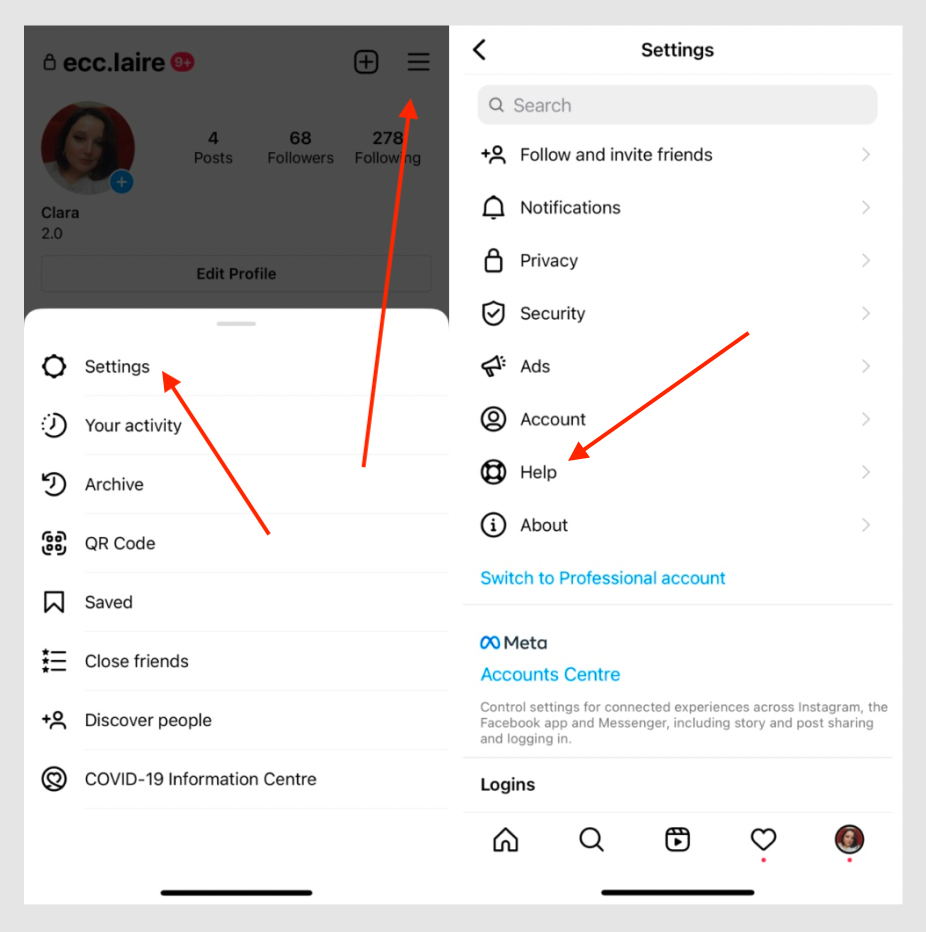
How to access it:
-
Open the Instagram app.
-
Go to your Profile.
-
Tap the three horizontal lines (hamburger menu) in the top right corner.
-
Select “Settings and privacy.”
-
Scroll down to “More info and support” and tap “Help.”
-
Tap “Report a Problem.”
Using the feature effectively:
Upon tapping “Report a Problem,” you’ll usually be given two options: “Report a technical problem” or “Report spam or abuse.” For technical issues, select the former. You will then be prompted to describe your issue. This is where clarity and detail are paramount.
-
Be Descriptive: Clearly explain what happened, what you were trying to do, and what you expected to happen versus what actually occurred.
-
Include Screenshots/Screen Recordings: The app often automatically attaches a screenshot of your current screen, but you can also choose to add more from your gallery or record your screen. Visual evidence is invaluable for support teams to understand the context of your problem.
-
Provide Context: Mention your device model, operating system version, and Instagram app version if known. These details help diagnose device-specific or software-related bugs.
Instagram’s system will gather logs and diagnostic information when you submit a report this way, which significantly aids their technical teams in understanding and replicating the issue.
Account Security and Privacy Issues
While “Report a Problem” can cover some basic annoyances, critical security and privacy concerns often have dedicated, more urgent pathways. These are designed to protect users from immediate harm.
-
Reporting Hacked Accounts: If your account has been compromised, do not use the general “Report a Problem.” Instead, navigate to
instagram.com/hackedin a web browser. This dedicated portal walks you through steps to recover your account, including verifying your identity and resetting your password. -
Reporting Impersonation: If someone is impersonating you or another user, you can report their profile directly from the app. Visit the impersonating profile, tap the three dots, select “Report,” and then “Report account,” followed by “It’s pretending to be someone else.” You’ll be asked to specify if it’s pretending to be you or someone you know.
-
Reporting Intellectual Property Infringement: Instagram provides specific forms for reporting copyright and trademark infringements. These are typically found within the Help Center website, as they require detailed legal information.
-
Reporting Abusive Content or Spam: Similar to impersonation, you can report specific posts, comments, stories, or profiles directly. Tap the three dots near the content, select “Report,” and follow the prompts. Instagram takes reports of harassment, hate speech, nudity, and spam very seriously.
Leveraging External and Alternative Support Pathways
Sometimes, the in-app tools aren’t sufficient, or the nature of your problem requires a more formal submission process. This is where external resources become essential.
The Instagram Help Center Website: A Knowledge Hub
The Instagram Help Center website (help.instagram.com) is your most comprehensive resource outside the app. While it prioritizes self-help, it also houses various forms and specific contact options for issues that cannot be resolved through generic troubleshooting.
Exploring the Help Center:
-
Search Functionality: Use the search bar to look for keywords related to your problem (e.g., “account disabled,” “recover password,” “copyright appeal”).
-
Categorization: The site is organized into broad categories like “Privacy & Security,” “Managing Your Account,” “Using Instagram,” and “Troubleshooting.” Delving into these sections can lead you to relevant articles and, crucially, direct links to contact forms.
-
Finding Specific Forms: For certain issues, like appealing a disabled account, requesting data, or reporting specific legal infringements, the Help Center will link to dedicated forms that require more detailed information than the in-app “Report a Problem” feature. Always check for these specific forms as they are designed to route your issue to the correct specialized team.
Utilizing Community Forums and Social Media (Indirect Support)
While Instagram does not officially operate public user forums for direct support, community-driven platforms and social media can sometimes offer indirect assistance, especially for widespread issues or peer advice.
-
Unofficial Forums and Reddit: Platforms like Reddit (e.g., r/instagram or r/techsupport) have active communities where users discuss issues and offer solutions. While not official Instagram support, you might find that others have experienced and solved the exact problem you’re facing. Always exercise caution and critical thinking when receiving advice from unofficial sources.
-
Twitter: If there’s a widespread outage or a major bug, Instagram’s official Twitter accounts (e.g., @Instagram or @MetaNewsroom) might post updates. Additionally, some users attempt to reach out via Twitter, though official responses usually direct users back to the Help Center or a specific form. It’s more effective for visibility of a widespread issue than for individual account-specific problems.
-
Developer Forums: For developers working with the Instagram API, there are dedicated developer support channels, but these are not for general user issues.
It’s important to manage expectations with these indirect channels. They are rarely a path to direct, personalized support from Instagram staff but can be valuable for diagnosing common problems or confirming if an issue is affecting many users.
Best Practices for Effective Communication with Instagram Support
When you do manage to get your issue in front of Instagram’s support teams, the way you present your problem can significantly impact the speed and effectiveness of the resolution.
Be Specific and Detailed
Ambiguity is the enemy of efficient problem-solving. When filling out forms or describing an issue:
-
Provide Your Username: Always include the exact username of the account in question.
-
Exact Date and Time: If the issue occurred at a specific time, provide the date and time, including the time zone.
-
Steps to Reproduce: If it’s a bug, list the exact steps you took that led to the problem. “I opened Instagram, went to my profile, tapped ‘Edit Profile’, changed my bio, and then the app crashed.”
-
Device Information: Mention your device type (e.g., iPhone 15 Pro Max, Samsung Galaxy S23 Ultra), operating system version (e.g., iOS 17.4, Android 14), and Instagram app version.
-
Clear Subject Line (if applicable): If you’re using a form with a subject line, make it concise and informative (e.g., “Account Hacked – [Your Username]”, “App Crash When Uploading Story”).
Provide Evidence
A picture (or video) is worth a thousand words, especially in technical support.
-
Screenshots: Capture screenshots of error messages, unexpected behaviors, or the specific part of the app that isn’t working correctly.
-
Screen Recordings: For dynamic issues or bugs that involve a sequence of actions, a short screen recording can be incredibly helpful for the support team to understand the exact problem.
-
Relevant Links: If you’re reporting content, include direct links to the profiles, posts, or comments in question.
Be Patient and Persistent (Respectfully)
Given the sheer volume of support requests Instagram receives, response times can vary significantly.
-
Avoid Multiple Identical Reports: Submitting the same report multiple times will not speed up the process; it can actually clog the system and delay your resolution. Submit once, accurately.
-
Follow Up If Necessary: If you don’t hear back within a reasonable timeframe (which can range from a few days to a few weeks for less critical issues), you might consider following up, but refer to your original report ID if one was provided.
-
Maintain Professionalism: Even if frustrated, keep your communication polite and factual. Aggressive language is counterproductive.
Understand Instagram’s Policies
Familiarizing yourself with Instagram’s Community Guidelines and Terms of Use can significantly help. If your issue involves a content violation or an account suspension, knowing the rules helps you frame your appeal or report accurately. It also sets realistic expectations about what Instagram can and cannot do. For instance, if your account was suspended for violating terms, understanding those terms is crucial for a successful appeal.
Common Scenarios Requiring Instagram Support
Understanding the most frequent reasons users seek support can help pinpoint the correct channel and approach.
Account Recovery and Login Issues
This is perhaps the most critical and common category.
-
Hacked Accounts: As mentioned,
instagram.com/hackedis the first stop. This includes unauthorized password changes, email changes, or activity. -
Forgotten Passwords: Use the in-app “Forgot password?” link on the login screen.
-
Two-Factor Authentication Problems: If you lose access to your 2FA device or codes, there are specific recovery steps or forms within the Help Center to regain access.
-
Disabled Accounts: If your account has been disabled (often for policy violations), the login screen will typically display a message with an option to “Learn More” or “Appeal.” Follow these links to submit an appeal with detailed reasoning.
Technical Glitches and App Functionality
For everyday annoyances or broken features:
-
App Crashes: The “Report a Problem” feature is ideal here, especially with screen recordings.
-
Features Not Working: If DMs aren’t sending, Stories aren’t loading, or filters aren’t appearing, use “Report a Problem” with specific details.
-
Loading Errors/Performance Issues: Describe the slow loading times, freezing, or general poor performance, including your internet connection type.
Content and Policy Violations
For ensuring a safe and respectful environment:
-
Reporting Offensive Content: Use the in-app reporting tools for posts, comments, or profiles that violate Community Guidelines (hate speech, harassment, graphic violence, nudity, etc.).
-
Copyright/Trademark Infringement: Utilize the specific forms on the Help Center website for detailed legal submissions.
-
Account Suspensions/Bans: If an appeal link is provided upon login, use it. Otherwise, search the Help Center for “account disabled” to find the relevant appeal form.

Privacy Concerns
Managing your data and personal information:
-
Data Requests: Instagram allows users to download their data. If you have issues with this process, the Help Center has troubleshooting steps.
-
Privacy Settings Issues: If you’re unable to change your privacy settings or believe there’s a bug, use “Report a Problem.”
-
Unwanted Contact: Blocking users or reporting harassment are primary in-app solutions. For severe or persistent issues, “Report a Problem” or specific Help Center forms may be necessary.
In conclusion, while Instagram’s support system is designed with scale in mind, it provides numerous avenues for users to address issues. The key lies in understanding which channel is appropriate for your specific problem, approaching your communication with clarity and detail, and utilizing all available tools, from in-app reports to dedicated Help Center forms. By adopting these best practices, you can significantly improve your chances of a timely and effective resolution, ensuring your Instagram experience remains secure and enjoyable. Always remember to prioritize official channels and be wary of unofficial “support” that may request sensitive information, as this could be a scam.
aViewFromTheCave is a participant in the Amazon Services LLC Associates Program, an affiliate advertising program designed to provide a means for sites to earn advertising fees by advertising and linking to Amazon.com. Amazon, the Amazon logo, AmazonSupply, and the AmazonSupply logo are trademarks of Amazon.com, Inc. or its affiliates. As an Amazon Associate we earn affiliate commissions from qualifying purchases.