
Amazon Prime Video has cemented its position as a global entertainment powerhouse, offering a vast library of films, TV shows, and original content accessible to millions of subscribers worldwide. For many, navigating a new streaming platform can seem daunting, but unlocking the full potential of Prime Video is a straightforward process that promises endless hours of cinematic enjoyment. This comprehensive guide will walk you through every step, from initial setup to advanced viewing features, ensuring you maximize your Amazon Prime film-watching experience. Whether you’re a seasoned streamer or new to the digital entertainment landscape, understanding the nuances of Prime Video is key to transforming your device into a personal cinema.

Getting Started with Amazon Prime Video: Your Gateway to Entertainment
Embarking on your cinematic journey with Amazon Prime Video begins with understanding the foundational requirements and initial setup steps. The platform is designed for broad accessibility, but a few core elements are essential to get you up and running.
Understanding Amazon Prime Membership
The gateway to Amazon Prime Video is an active Amazon Prime membership. This isn’t just about streaming; a Prime membership is a comprehensive subscription service that bundles various Amazon benefits, including expedited shipping, exclusive deals, and access to Prime Music, Prime Reading, and, crucially, Prime Video. If you’re not already a Prime member, you can sign up for a free trial period, typically 30 days, which offers full access to Prime Video’s included content. Post-trial, a monthly or annual subscription fee applies. It’s important to differentiate between merely having an Amazon account (which is free) and an Amazon Prime account; only the latter grants access to the Prime Video library without additional per-title purchases for “Prime-included” content. Confirming your Prime membership status is the first vital step before you can dive into the film collection.
Accessing Prime Video on Various Devices
One of Prime Video’s strengths lies in its extensive device compatibility, allowing you to watch films virtually anywhere, anytime. The platform is accessible across a multitude of devices, providing flexibility and convenience.
-
Smart TVs: Most modern smart TVs (Samsung, LG, Sony, Vizio, Roku TVs, Fire TV Edition TVs) come with the Prime Video app pre-installed or readily available for download from their respective app stores.
-
Streaming Media Players: Devices like Amazon Fire TV Stick, Roku, Apple TV, Chromecast, Nvidia Shield, and others offer dedicated Prime Video apps.
-
Gaming Consoles: PlayStation (PS4, PS5) and Xbox (One, Series X/S) consoles feature the Prime Video app, allowing for a seamless transition from gaming to film watching.
-
Mobile Devices: The Amazon Prime Video app is available for both iOS and Android smartphones and tablets, offering offline downloads for viewing without an internet connection.
-
Computers: You can watch films directly through a web browser (Chrome, Firefox, Safari, Edge) by visiting the Amazon Prime Video website.
To access Prime Video on any of these devices, you’ll need to download the app (if not pre-installed) and sign in using your Amazon Prime account credentials. The first time you sign in on a new device, you might be prompted to enter a code shown on your TV screen into a web browser on another device, linking it securely to your account.
Setting Up Your Profile and Parental Controls
For households with multiple viewers, especially children, setting up individual profiles and robust parental controls is crucial for a personalized and safe viewing experience. Prime Video supports multiple user profiles within a single Prime account, allowing each family member to maintain their watch history, recommendations, and watchlists independently.
To create profiles: Navigate to the “Profiles” section, usually found in the main menu or by clicking your profile icon. Here, you can add new profiles, assign names, and even set up a dedicated “Kids Profile” which automatically filters content to be child-friendly.
Parental controls allow you to restrict access to content based on age ratings and prevent unauthorized purchases. You can set a PIN that must be entered to watch content above a certain rating or to make purchases. This is managed within the “Settings” or “Account & Settings” section of the Prime Video app or website. Defining these settings upfront ensures that younger viewers are only exposed to appropriate content and that unexpected charges are avoided.
Navigating the Prime Video Interface: Discovering Content
Once you’re signed in, the next step is to master the interface to effectively discover the vast array of films available. Prime Video’s design prioritizes ease of discovery, but understanding its layout and search functionalities can significantly enhance your browsing experience.
Exploring the Home Screen and Recommendations
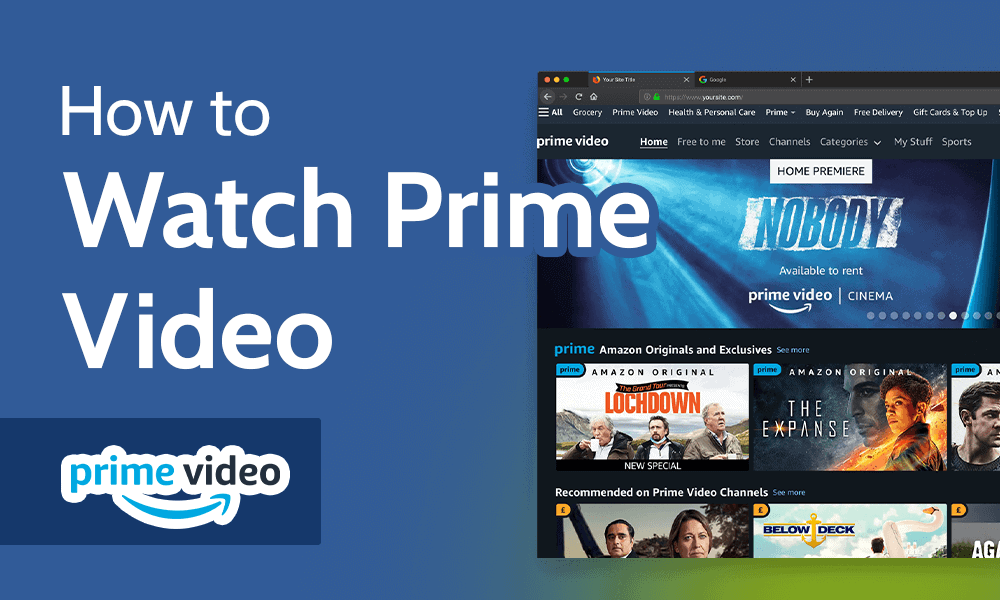
The Prime Video home screen is your primary hub for content discovery. It’s dynamically generated, showcasing a mix of new releases, popular titles, trending films, and personalized recommendations based on your viewing history and preferences.
-
Carousels and Banners: Large banners at the top typically highlight new Prime Originals or major new additions. Below this, various carousels categorize films by genre (e.g., Action & Adventure, Comedy, Drama), theme (e.g., Award Winners, Critically Acclaimed), or curated lists (e.g., What’s New, Trending Now).
-
“Included with Prime”: Pay close attention to sections explicitly labeled “Included with Prime.” These films are available at no additional cost as part of your membership. Other sections might feature titles available for rent or purchase, which incur extra charges.
-
Continue Watching: A prominent “Continue Watching” row ensures you can easily pick up where you left off on any device.
-
Your Watchlist: This section displays films you’ve manually added to your personal watchlist for future viewing, acting as your curated queue.
Spend some time browsing the home screen to get a feel for the breadth of content. The more you watch, the more refined Prime Video’s recommendation engine becomes, tailoring suggestions closer to your tastes.
Utilizing Search and Filter Functions Effectively
While browsing is great for serendipitous discovery, specific search and filter functions are indispensable when you have a particular film in mind or a genre preference.
-
Search Bar: Located prominently, usually at the top of the interface, the search bar allows you to type in film titles, actor names, directors, or even general genres. As you type, suggestions often appear, streamlining your search.
-
Genre and Category Filters: Beyond the home screen carousels, dedicated “Categories” or “Genres” sections offer a more structured way to explore. Here, you can drill down into specific genres (e.g., Sci-Fi, Horror, Documentary) and often apply additional filters like release year, IMDb rating, or even specific languages.
-
“Included with Prime” Filter: When browsing categories, always look for an option to filter specifically for “Included with Prime” content. This helps you avoid inadvertently browsing films that require additional payment. This filter is particularly useful when you’re looking for something new without incurring extra costs.
Mastering these tools will significantly cut down on browsing time and help you pinpoint the films you want to watch with greater efficiency.
Understanding Categories, Genres, and Watchlists
Prime Video categorizes its content to aid navigation. Beyond broad genres, you’ll find more granular categories and curated lists.
-
Originals & Exclusives: A dedicated section for Amazon’s critically acclaimed original productions and exclusive licensed content.
-
Channels: These are optional, paid subscriptions to other streaming services (e.g., STARZ, AMC+, Paramount+) directly through Prime Video, consolidating your subscriptions in one place. Films from these channels are not included with your base Prime membership.
-
My Stuff/Watchlist: As mentioned, your Watchlist is a vital organizational tool. When you find a film you’re interested in but don’t want to watch immediately, simply add it to your Watchlist. This keeps a running tally of films you intend to view, making it easy to return to them later. You can add films to your Watchlist from their detail pages.
Regularly curating your Watchlist can save you time and ensure you don’t forget about interesting titles you’ve stumbled upon.
Optimizing Your Viewing Experience: Settings and Features
Beyond finding films, Prime Video offers several settings and features designed to enhance your viewing pleasure, from picture quality to interactive content.
Managing Streaming Quality and Data Usage
The quality of your streaming experience is largely dependent on your internet connection. Prime Video automatically adjusts streaming quality based on your bandwidth to minimize buffering, but you can also manually control it.
-
Automatic Quality: The default setting, which dynamically adjusts quality from SD to HD or even 4K Ultra HD (if supported by your device and internet speed).
-
Manual Adjustment: On some devices (especially mobile), you can set a preferred streaming quality. This is particularly useful if you have a limited data plan or are on a slower Wi-Fi connection. Lowering the quality (e.g., to SD) will consume less data but result in a less crisp image.
-
Download Quality (Mobile): For offline viewing on mobile devices, you can pre-download films. The app allows you to choose the download quality, which directly impacts storage space used and download time. Opt for “Good” for standard viewing, or “Best” for higher resolution if space isn’t an issue.
-
Data Saver Mode: On mobile, you can enable a “Data Saver” mode in the app’s settings, which automatically limits streaming quality when using cellular data.
For the best possible experience, ensure a stable broadband connection. For 4K UHD streaming, Amazon recommends a minimum download speed of 15-25 Mbps.
Customizing Subtitles and Audio Tracks
Accessibility and language options are robust on Prime Video. You can easily customize subtitles and switch between available audio tracks.
-
Subtitles/Closed Captions: During playback, look for an icon that resembles a speech bubble or “CC.” Clicking this will bring up options to enable subtitles. You can often choose from multiple languages, and some titles also offer “Closed Captions” (CC), which include descriptions of non-speech audio (like “[door slams]”). In the settings, you can often customize subtitle appearance (font size, color, background).
-
Audio Tracks: Similarly, the same icon or an adjacent one might allow you to switch audio tracks. Many films offer multiple language dubs or director’s commentaries. For those with hearing impairments, subtitles are invaluable, while multiple audio tracks enhance the experience for multilingual viewers.
-
Audio Description: Some titles offer Audio Description, providing narration of visual elements for viewers who are blind or have low vision. This is usually selectable under the audio track options.
Taking advantage of these features can significantly improve comprehension and enjoyment, especially for non-native speakers or viewers with specific accessibility needs.
Exploring X-Ray, IMDb Integration, and Bonus Content
Prime Video offers unique interactive features that deepen your understanding and appreciation of the films you watch.
-
X-Ray: This standout feature, powered by IMDb (which Amazon owns), provides real-time, context-sensitive information about the film you’re watching. During playback, simply tap or click the screen, and an overlay will appear, showing:
-
Cast: Who is on screen at that exact moment.
-
Music: The song playing.
-
Trivia: Interesting facts about the scene or production.
-
Goofs: Noticed errors in the film.
-
Scene Selections: Easy navigation to specific scenes.
X-Ray is an invaluable tool for film buffs and casual viewers alike, offering insights without interrupting the flow of the movie.
-
-
IMDb Integration: Beyond X-Ray, every film page on Prime Video features direct links to its IMDb page, where you can delve into comprehensive cast and crew lists, reviews, user ratings, plot summaries, and more detailed production information. This seamless integration enhances the discovery process and provides a richer context for the content.
-
Bonus Content: Many films, especially new releases or Prime Originals, come with bonus content such as behind-the-scenes footage, deleted scenes, bloopers, and interviews. These are typically found on the film’s detail page, often in a separate “Extras” section. Exploring these additions can offer a fascinating glimpse into the filmmaking process.
These interactive elements transform passive viewing into an engaging, informative experience, setting Prime Video apart from many other streaming services.
Beyond the Included: Renting, Buying, and Channels
While your Prime membership unlocks a vast library, not every film is “included with Prime.” Understanding the ecosystem of paid content and channels is crucial for a complete picture of what Prime Video offers.
Differentiating Prime-Included from Paid Content
This distinction is perhaps the most important for managing your budget and expectations.
-
Included with Prime: Films in this category are available to stream as many times as you like, at no extra cost, as long as your Prime membership is active. These titles are typically marked with a “Included with Prime” banner or a Prime logo.
-
Available for Rent/Buy: Many new releases, blockbuster hits, and older titles not part of the Prime library are available for individual purchase or rental.
-
Renting: You pay a one-time fee to watch the film within a specific timeframe (e.g., 30 days to start watching, and 48 hours to finish once started). After this period, the rental expires.
-
Buying: You pay a higher one-time fee to own a digital copy of the film, which you can then stream indefinitely through your Prime Video library. This is similar to purchasing a digital DVD.
-
Always check the listing carefully. If a film requires payment, the price will be clearly displayed, along with options to “Rent” or “Buy.” There’s no separate subscription needed for these, just the individual transaction.
The Process of Renting or Buying Films
The process for renting or buying is intuitive:
-
Navigate to the Film: Find the film you wish to rent or buy through search or browsing.
-
View Detail Page: On the film’s detail page, you’ll see the “Rent” and/or “Buy” options with their respective prices.
-
Select Option: Choose your preferred option.
-
Confirm Purchase: You’ll be prompted to confirm the transaction using your Amazon account’s payment method. A PIN might be required if parental controls are enabled for purchases.
-
Start Watching: Once confirmed, the film will be added to your “Purchases & Rentals” section (often under “My Stuff”) and will be immediately available for streaming. For rentals, the countdown period begins when you initiate playback.
It’s important to be mindful of these transactions, as they are separate from your Prime membership fee and can add up if not tracked.
Subscribing to Amazon Prime Video Channels
Prime Video Channels offer a way to consolidate your streaming subscriptions. These are optional, paid add-ons to your existing Prime membership, allowing you to subscribe to third-party streaming services directly through Amazon.
-
Consolidated Billing: All your channel subscriptions appear on your Amazon bill, simplifying payment management.
-
Single App Access: You can watch content from all your subscribed channels within the Prime Video app, eliminating the need to jump between multiple applications.
-
Examples: Popular channels include Max, Starz, Showtime, Paramount+, and many more, each offering its own unique library of films and shows.
To subscribe, navigate to the “Channels” section within Prime Video, browse available options, and select the ones you want. Each channel typically offers a free trial before its monthly subscription fee begins. Remember, these are separate subscriptions on top of your Prime membership.
Troubleshooting Common Issues and Maximizing Enjoyment
Even with a robust platform like Prime Video, occasional technical glitches can occur. Knowing how to troubleshoot and applying a few best practices can ensure a smooth, enjoyable viewing experience.
Resolving Playback and Buffering Problems
The most common issues users face are related to playback quality and buffering.
-
Check Internet Connection: The vast majority of streaming problems stem from a slow or unstable internet connection. Run a speed test to ensure you’re meeting Amazon’s recommended bandwidth. Try resetting your router and modem.
-
Close Other Applications: If you have many apps or browser tabs open, they might be consuming bandwidth or system resources. Close unnecessary applications.
-
Clear Cache/Restart App: On smart TVs, streaming devices, or mobile, try closing and restarting the Prime Video app. If problems persist, clear the app’s cache through your device settings. On a web browser, clear your browser’s cache and cookies.
-
Restart Device: A simple restart of your streaming device, computer, or smart TV can often resolve minor software glitches.
-
Update App/Browser: Ensure your Prime Video app is updated to the latest version. For browser viewing, ensure your web browser is current.
-
Reduce Quality: If all else fails, temporarily lowering the streaming quality in the playback settings can often resolve persistent buffering, albeit at the cost of resolution.
Device Compatibility and App Updates
Keeping your devices and applications updated is crucial for optimal performance and security.
-
Operating System Updates: Ensure your smart TV, streaming device, phone, or computer’s operating system is running the latest stable version. Older OS versions might not fully support the latest Prime Video app features or even prevent it from running.
-
Prime Video App Updates: Enable automatic updates for the Prime Video app on your mobile devices and streaming players. For smart TVs, check your TV’s app store for manual updates. Updates often include performance enhancements, bug fixes, and new features.
-
Check System Requirements: If you’re using an older device, double-check Amazon’s minimum system requirements for Prime Video to ensure your hardware is still supported.
Neglecting updates can lead to compatibility issues, reduced performance, and potential security vulnerabilities.
Tips for Discovering New Films and Curating Your Library
Beyond the initial “how-to,” here are some pro tips for truly making Prime Video your own:
-
Explore Prime Originals: Amazon heavily invests in its original content. Many Prime Original films are critically acclaimed and offer high production values.
-
Utilize IMDb Watchlist: While Prime Video has its own watchlist, leveraging your IMDb watchlist (if you use it) can help you keep track of films across platforms. Many films on your IMDb watchlist will eventually appear on Prime Video.
-
Read Reviews: Before committing to a film (especially a rental or purchase), take a moment to read user reviews and ratings on Prime Video or IMDb.
-
Set Reminders: For upcoming releases, you can often set reminders on Prime Video to be notified when the film becomes available.
-
Use the “Free to Me” Filter: When browsing, actively look for and apply any “Free to Me” or “Included with Prime” filters to quickly identify content that doesn’t require additional payment.
-
Download for Offline Viewing: If you travel frequently or have unreliable internet, download films to your mobile device or tablet in advance. This is a game-changer for long flights or commutes.
By understanding these features and troubleshooting techniques, you can transform your Amazon Prime Video experience from simply watching films to curating a personalized, high-quality entertainment hub. The platform offers incredible depth and flexibility, and with a little knowledge, you’re well-equipped to enjoy countless hours of cinematic bliss.
aViewFromTheCave is a participant in the Amazon Services LLC Associates Program, an affiliate advertising program designed to provide a means for sites to earn advertising fees by advertising and linking to Amazon.com. Amazon, the Amazon logo, AmazonSupply, and the AmazonSupply logo are trademarks of Amazon.com, Inc. or its affiliates. As an Amazon Associate we earn affiliate commissions from qualifying purchases.