
The transition from traditional cable television to on-demand streaming services has fundamentally altered the digital landscape. Among the leaders of this revolution is Amazon Prime Video, a platform that has integrated itself into the hardware of almost every modern smart device. However, as the ecosystem of hardware expands—ranging from proprietary operating systems like Samsung’s Tizen to open-source platforms like Android TV—the process of authentication and synchronization can occasionally present technical hurdles. This guide provides an in-depth exploration of how to log into Prime Video on your TV, troubleshooting common connectivity issues, and optimizing your setup for the best possible streaming performance.

Understanding the Prime Video Device Ecosystem
Before initiating the login process, it is essential to understand the underlying architecture of the Prime Video application. Amazon has developed its software to be cross-platform, but the user interface (UI) and the authentication protocols can vary slightly depending on the operating system of your television.
Modern smart TVs generally fall into three categories: dedicated streaming OS (like Roku or Fire TV), manufacturer-specific platforms (like LG’s webOS or Samsung’s Tizen), and universal platforms (like Android TV or Google TV). Each of these systems utilizes a secure handshake protocol to link your TV hardware to your Amazon account. This process ensures that your subscription data, viewing history, and parental controls are synced across all devices while maintaining high levels of encryption to protect your login credentials.
Device Compatibility and Software Requirements
To ensure a smooth login process, your device must meet specific firmware requirements. Most Prime Video apps require the TV’s operating system to be updated to the latest version to support the latest security certificates. If your TV is more than five or six years old, you might find that the native app no longer receives updates. In such cases, using an external streaming stick—such as a Fire TV Stick, Chromecast, or Apple TV—is the most effective way to maintain access to the service. These external devices often have more robust processors and better RAM management than built-in smart TV interfaces, leading to a snappier login experience and faster video buffering.
Step-by-Step Methods for Authentication
There are two primary ways to log into Prime Video on a television. The first involves using a secondary device, such as a smartphone or laptop, to register the TV via a unique code. The second is the traditional method of entering your email and password directly into the TV interface using a remote control.
Method 1: The “Register on Website” Approach (Recommended)
This is the most efficient method, as it bypasses the frustration of typing long passwords into a non-QWERTY TV interface.
-
Launch the App: Open the Prime Video app on your Smart TV or streaming device.
-
Select Sign In: On the welcome screen, select “Sign In” or “Register Your Device.”
-
Note the Registration Code: The screen will display a unique 5-to-6-character alphanumeric code. Keep this screen active.
-
Access the Amazon Registration Page: On your computer or mobile device, open a web browser and navigate to
amazon.com/mytv(or the specific URL displayed on your TV screen). -
Authenticate Your Account: If you aren’t already logged in on your browser, you will be prompted to enter your Amazon email and password.
-
Enter the Code: Once authenticated, a field will appear asking for the code displayed on your TV. Type the code in and click “Register Device.”
-
Confirmation: Within a few seconds, the TV screen will automatically refresh, and you will be logged into your Prime Video profile.
Method 2: Direct Manual Login
For users who do not have a secondary device nearby, manual entry remains an option.
-
Select Manual Entry: Within the app, look for an option that says “Sign in with your Amazon account” or “Use your remote to sign in.”
-
Input Credentials: Using the on-screen keyboard, enter your email address and click next. Then, enter your password.
-
Two-Factor Authentication (2FA): If you have 2FA enabled on your Amazon account—which is highly recommended for digital security—you will receive a notification on your phone or an email with a one-time password (OTP). You must enter this code on the TV to complete the login process.
Method 3: QR Code Synchronization
Many newer smart TV models now display a QR code alongside the alphanumeric registration code. By opening the camera app on your smartphone and scanning this code, you will be redirected straight to the Amazon authentication page with the code pre-filled. This is the fastest technical shortcut currently available for device synchronization.
Troubleshooting Common Login Failures
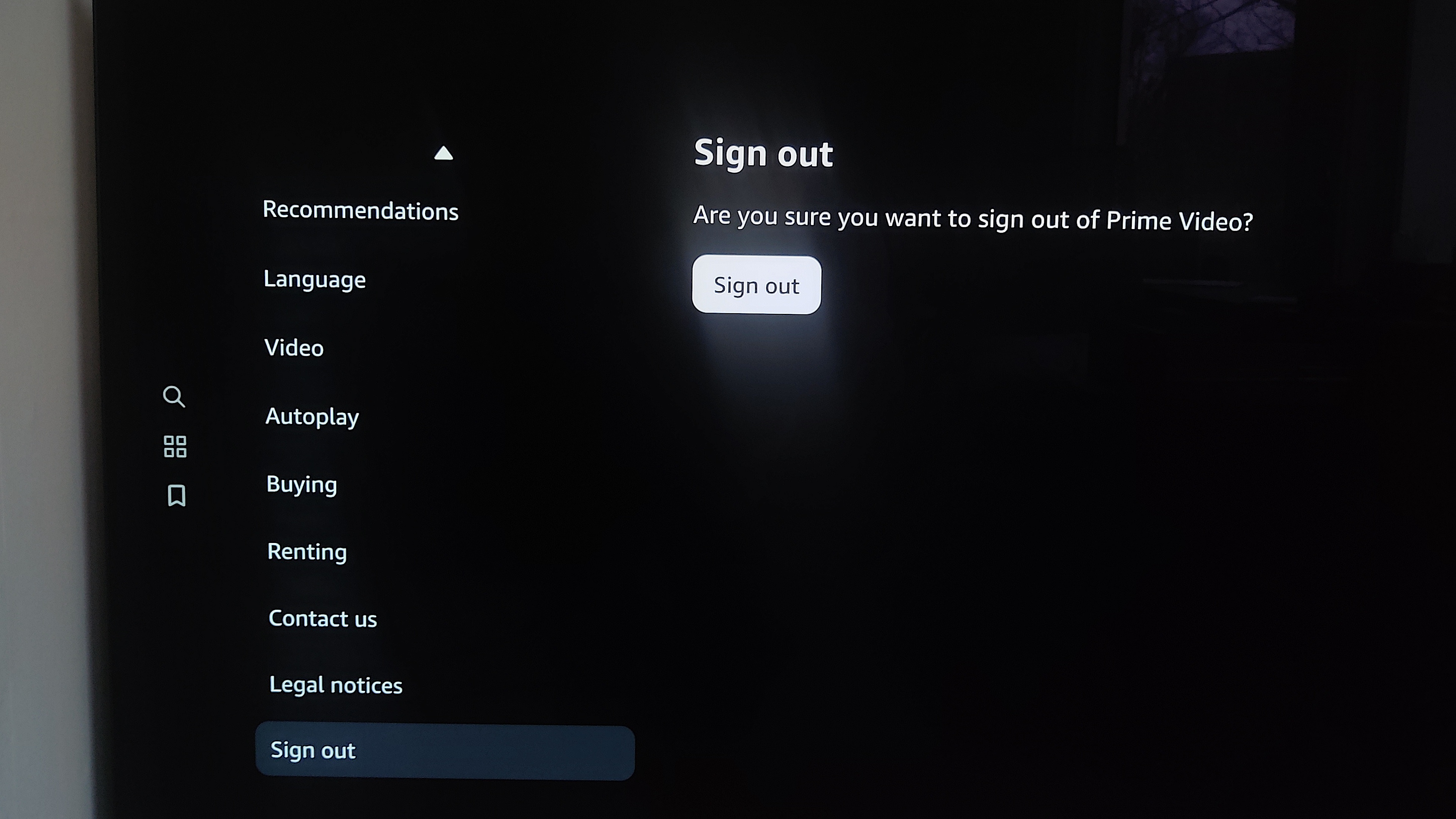
Even with a streamlined process, technical glitches can occur. These usually stem from network latency, firmware mismatches, or localized data corruption.
Connectivity and Network Latency
If the registration code fails to appear or the app hangs on the “Sign In” screen, the issue is likely related to your local area network (LAN). Prime Video requires a stable handshake with Amazon’s servers. If your ping is too high or your DNS is failing to resolve primevideo.com, the authentication will time out.
- Solution: Restart your router and ensure your TV is connected via a 5GHz Wi-Fi band or, ideally, an Ethernet cable. A wired connection significantly reduces the jitter that can cause login tokens to expire before they are processed.
Clearing App Cache and Data
On Android-based TVs, the Prime Video app stores “temporary files” or “cache” that can become corrupted over time. This corruption can prevent the login screen from functioning or cause the app to “forget” your credentials every time you turn off the TV.
- Solution: Navigate to your TV’s Settings > Apps > Prime Video. Select “Clear Cache” and then “Clear Data.” This resets the app to its factory state, allowing for a clean login attempt.
Time and Date Synchronization
A common but overlooked technical error is a mismatch between the TV’s system clock and the actual time. Encryption protocols and security certificates (SSL/TLS) rely on synchronized timestamps. If your TV’s date is set incorrectly, the Amazon servers will reject the login attempt as a security precaution.
- Solution: Go to your TV’s system settings and ensure “Automatic Date and Time” is enabled, synced via the network.
Optimizing the Prime Video Experience Post-Login
Once you have successfully logged in, the next step is to configure the software to maximize the hardware capabilities of your television.
Adjusting Video Quality and Bitrate
While Prime Video automatically adjusts resolution based on your internet speed, you can manually influence how the app handles data. In the app settings, look for “Streaming Quality.” If you are on a high-speed fiber connection, ensuring this is set to “Best” will force the app to pull the highest possible bitrate, which is crucial for 4K Ultra HD and HDR (High Dynamic Range) content. Higher bitrates result in fewer compression artifacts in dark scenes, providing a truly cinematic experience.
Managing Profiles and Parental Controls
Digital households often share a single Amazon Prime account. To maintain an organized “Watch Next” list, it is vital to set up individual profiles. You can create or edit these profiles directly within the TV app settings. Furthermore, if you have children, you should navigate to the “Restrictions” or “Parental Controls” menu. Here, you can set a PIN for purchases and age-restrict certain content tiers. These settings are stored server-side, meaning once you set them on the TV, they will apply to that profile across all other devices.
Audio Passthrough and Language Settings
For those with a home theater system or a soundbar, checking the audio settings is essential. Prime Video supports Dolby Atmos on select titles. Ensure that your TV’s digital audio output is set to “Bitstream” or “Passthrough” rather than “PCM” to allow your external audio processor to handle the decoding. Within the Prime Video app itself, you can also set your preferred “Default Audio Language” and “Subtitle Appearance” to ensure your viewing experience is consistent without needing to adjust settings every time a new video starts.
Security Best Practices for Connected Devices
Logging into a smart TV essentially creates a persistent access token on that hardware. From a digital security perspective, it is important to manage these tokens, especially if you are logging in at a vacation rental, hotel, or a shared living space.
Managing Registered Devices
Amazon provides a comprehensive dashboard for managing your digital footprint. If you ever lose access to a TV or want to ensure you are logged out of all devices, navigate to the “Manage Your Content and Devices” section on the Amazon website. Under the “Devices” tab, you can see every piece of hardware that has an active Prime Video token. Clicking “Deregister” will remotely log out the app on that specific TV, ensuring your account and payment methods remain secure.

The Importance of Two-Factor Authentication (2FA)
As TVs become more integrated with shopping features—allowing users to rent or buy movies with a single click—protecting your Amazon account is more critical than ever. Enabling 2FA ensures that even if someone manages to intercept your password, they cannot gain access to your account on a new device without physical access to your smartphone. This layer of security is the gold standard in modern tech hygiene and should be considered mandatory for any user utilizing a high-value subscription service like Prime Video.
By understanding the technical nuances of the registration process and the underlying software requirements, you can ensure a seamless integration of Prime Video into your home entertainment setup. Whether you are troubleshooting a connection error or optimizing for 4K playback, these steps provide the technical foundation necessary for a superior streaming experience.
aViewFromTheCave is a participant in the Amazon Services LLC Associates Program, an affiliate advertising program designed to provide a means for sites to earn advertising fees by advertising and linking to Amazon.com. Amazon, the Amazon logo, AmazonSupply, and the AmazonSupply logo are trademarks of Amazon.com, Inc. or its affiliates. As an Amazon Associate we earn affiliate commissions from qualifying purchases.