
In the sprawling landscape of digital entertainment, Amazon Prime Video stands as a colossal hub, offering an extensive array of films, series, and exclusive content. While a Prime subscription grants access to a vast catalog of included titles, many users seek to expand their personal digital libraries by purchasing individual movies. This not only provides permanent access to cherished films but also unlocks new releases and premium content that might not be included with a standard subscription. Navigating the purchase process can seem daunting for the uninitiated, but with a clear understanding of the platform’s features and a step-by-step approach, securing your favorite cinematic masterpieces is straightforward and rewarding. This guide will meticulously walk you through the technical intricacies of acquiring movies on Amazon Prime, ensuring a seamless and optimized experience for every digital cinephile.
Understanding Amazon Prime Video’s Purchase Ecosystem
Before diving into the mechanics of a purchase, it’s crucial to grasp the fundamental distinctions within Amazon Prime Video’s content delivery model. The platform is designed to offer flexibility, catering to various viewing preferences and ownership aspirations. Recognizing these options is the first step towards making informed decisions about expanding your digital collection.
Prime Video’s Dual Content Model: Included vs. Paid
At its core, Amazon Prime Video operates on a hybrid content model. A significant portion of its library is “included with Prime,” meaning subscribers can stream these titles at no additional cost beyond their monthly or annual Prime membership fee. This library is constantly refreshed, with titles rotating in and out based on licensing agreements. However, alongside this complimentary content exists a vast selection of films and shows that require an additional payment to access. These “paid” titles often include the latest theatrical releases, blockbuster hits, premium independent films, and titles from specific studios that are not part of the Prime subscription bundle. Understanding this distinction prevents confusion and directs users to the appropriate search and purchase pathways. The interface typically makes this clear, prominently displaying “Watch with Prime” or “Buy/Rent” options.
The Difference Between Renting and Buying
When you encounter a paid title on Amazon Prime Video, you’ll generally be presented with two primary transaction options: renting or buying. Each serves a different purpose and comes with distinct technical implications for access and ownership.
-
Renting: Opting to rent a movie provides temporary access. Once rented, you typically have a specific window (e.g., 30 days) to start watching the film. Once you begin playback, you usually have a shorter window (e.g., 24-48 hours) to finish watching it as many times as you like. After this period, the rental expires, and the film is no longer accessible from your library without another rental or purchase. This option is ideal for films you want to watch once or test out before committing to a purchase. It’s a consumption model focused on immediate, short-term enjoyment.
-
Buying: Purchasing a movie grants you permanent digital ownership. Once bought, the movie is added to your “Video Library” indefinitely. There are no time limits on when you can watch it, how many times you can watch it, or how long it remains accessible. This digital ownership is tied to your Amazon account, meaning you can stream it from any compatible device linked to that account. This option is perfect for films you anticipate rewatching multiple times, desire to have as part of a personal collection, or want assured long-term access to without worrying about licensing changes affecting the Prime-included catalog.
Accessing Your Purchased Content Across Devices
One of the significant advantages of digital purchases on Amazon Prime Video, deeply rooted in its technological infrastructure, is the cross-device compatibility. Once a movie is purchased, it is tethered to your Amazon account, not a specific device. This means you can seamlessly access your entire purchased library from a multitude of platforms:
-
Web Browsers: Via the Amazon Prime Video website.
-
Mobile Devices: Through the Prime Video app on iOS and Android smartphones and tablets.
-
Smart TVs & Streaming Devices: On dedicated Prime Video apps available on smart TVs (Samsung, LG, Sony, etc.), streaming sticks (Fire TV Stick, Roku, Apple TV, Chromecast), and gaming consoles (PlayStation, Xbox).
-
Amazon Fire Tablets & Fire TV devices: Fully integrated for a native experience.
This ubiquitous access is facilitated by cloud synchronization, ensuring that your digital library is always up-to-date and available wherever you log in with your credentials.
Step-by-Step Guide to Purchasing a Movie
The process of purchasing a movie on Amazon Prime Video is designed to be intuitive, yet a detailed walkthrough ensures no steps are missed, providing confidence to even the least tech-savvy user. Whether you’re using a web browser, a mobile app, or a smart TV, the core sequence remains consistent.
Navigating the Prime Video Interface (Web, App, Smart TV)
The journey begins by accessing the Amazon Prime Video platform on your preferred device.
-
Web Browser: Open your browser, go to
primevideo.comoramazon.com/primevideo, and sign in with your Amazon account. -
Mobile App: Download and open the “Amazon Prime Video” app from your device’s app store (Google Play Store for Android, Apple App Store for iOS), then sign in.
-
Smart TV/Streaming Device: Locate and open the “Prime Video” app on your device’s home screen or app launcher. You may need to link your device to your Amazon account by visiting a provided URL and entering a code.
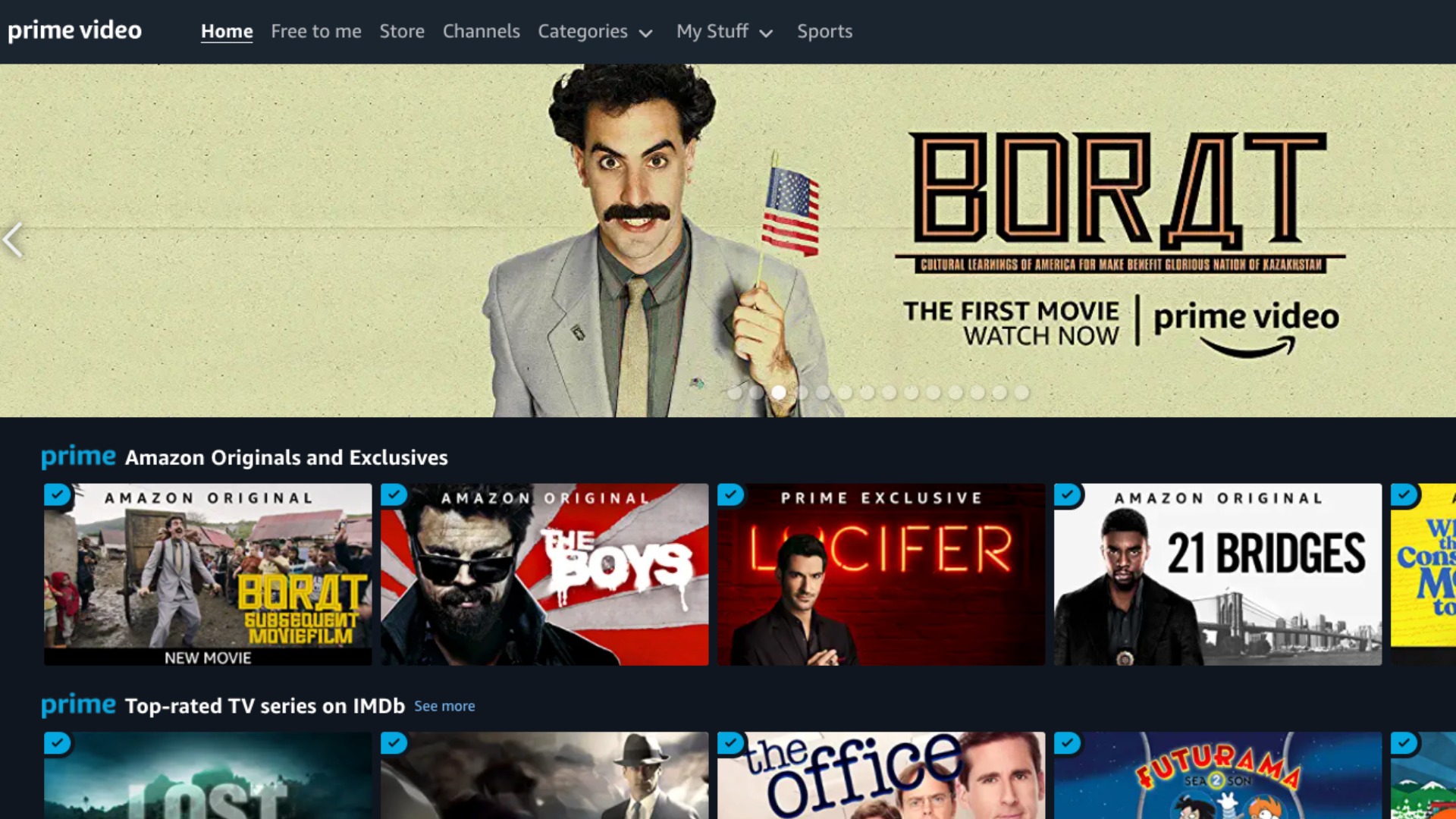
Once logged in, you’ll be presented with the main interface, featuring curated content, categories, and a search bar.
Locating Your Desired Movie
There are several efficient ways to find the movie you wish to purchase:
-
Search Bar: This is the most direct method. Use the search icon (often a magnifying glass) and type in the movie title, actor’s name, or director.
-
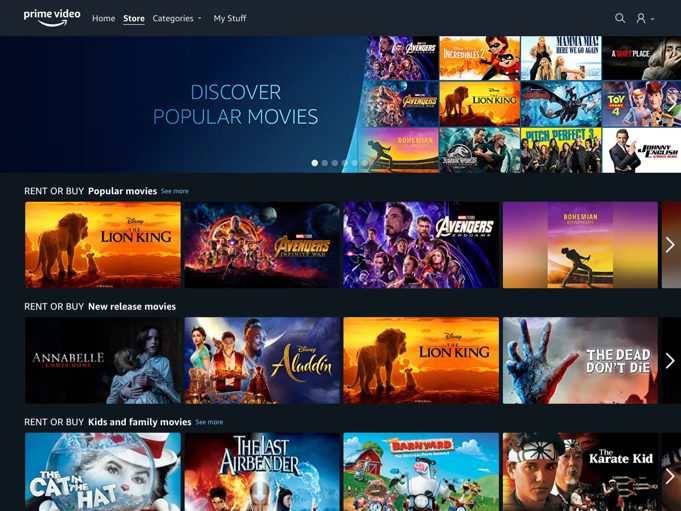
Browse Categories: Explore genres, new releases, trending titles, or specific collections by navigating through the interface. Many sections will highlight “new to buy or rent.”
-
Watchlists: If you’ve previously added a movie to your watchlist, you can navigate to your “My Stuff” or “Watchlist” section to easily find it.
Once you’ve found the movie, click or tap on its thumbnail to open its dedicated product page.
Reviewing Purchase Options and Pricing
On the movie’s product page, you’ll find comprehensive details, including a synopsis, cast information, ratings, and crucially, the purchase and rental options.
-
Look for buttons clearly labeled “Buy Movie” and/or “Rent Movie.”
-
Adjacent to these buttons, you’ll see the respective prices for standard definition (SD), high definition (HD), and sometimes ultra high definition (UHD/4K) versions. Higher definitions typically come with a slightly higher price point. Consider your device’s capabilities and internet speed when choosing a definition.
-
Ensure the option selected is “Buy Movie” to secure permanent ownership.
Carefully review the chosen definition and price before proceeding.
Completing the Transaction
After selecting “Buy Movie” (and your preferred definition), you’ll be prompted to confirm your purchase.
-
Payment Method: Amazon will typically use your default payment method on file. You’ll usually have an option to change this if needed. Ensure your payment information is up-to-date.
-
One-Click Settings: If you have Amazon’s “1-Click” purchasing enabled, the transaction might complete with just one click/tap. Otherwise, you may need to confirm again or enter a password.
-
Confirmation: Follow any on-screen prompts to finalize the purchase. This might involve a final “Confirm Purchase” button.
Confirming Your Purchase and Playback
Immediately after a successful purchase, you will receive a confirmation.
-
On-Screen Confirmation: The platform will usually display a message confirming the purchase and offering options to “Watch Now” or “Go to Your Video Library.”
-
Email Confirmation: Amazon will also send a purchase confirmation email to the address associated with your account, detailing the transaction.
-
Accessing Your Library: Your newly purchased movie will instantly appear in your “Video Library” (sometimes labeled “My Stuff” or “Purchases”). From there, you can stream it instantly or download it for offline viewing on compatible devices.
Maximizing Your Digital Movie Collection Experience

Purchasing a movie is just the beginning. Amazon Prime Video offers several features that enhance the ownership experience, allowing you to manage, organize, and enjoy your digital library to its fullest potential. Leveraging these tools transforms a simple purchase into a rich, personalized entertainment hub.
Leveraging Watchlists and Wishlists
While distinct from your owned library, watchlists and wishlists are invaluable organizational tools. Use your “Watchlist” for movies you intend to rent or stream soon, and a “Wishlist” specifically for titles you plan to purchase at a later date. Many users curate a “Buy List” within their Amazon shopping wishlists to track movies they want to own, often waiting for price drops or special offers. This proactive organization helps streamline future purchases and ensures you don’t forget titles you’re keen to add to your collection.
Understanding Digital Rights Management (DRM) and Offline Viewing
Digital Rights Management (DRM) is the technology that protects copyrighted digital content. For your purchased movies on Prime Video, DRM dictates how the content can be accessed and used. While it ensures your permanent access, it also means the content is tied to your Amazon account and cannot be freely copied or shared outside the platform.
A key benefit of digital ownership, facilitated by DRM, is offline viewing. On mobile devices (smartphones, tablets) and some Fire TV devices, you can download purchased movies directly to the device. This is particularly useful for travel or locations with limited internet access. Simply navigate to the movie in your library within the app, and you’ll typically see a “Download” icon. Once downloaded, the movie remains accessible on that device even without an internet connection, though the app may periodically require an online connection to verify your account and licenses.
Exploring Bonus Features and Enhanced Content
Many digitally purchased movies on Amazon Prime Video come with bonus features, similar to what you’d find on a physical DVD or Blu-ray. These can include:
-
Behind-the-scenes documentaries
-
Deleted scenes
-
Cast and crew interviews
-
Commentaries
-
Trailers
-
Outtakes
To access these, look for a “Bonus Features” or “Extras” section on the movie’s product page or within its details in your video library. These additions enhance the value of your purchase, offering deeper insights into the filmmaking process and extending the entertainment beyond the main feature.
Managing Your Library: Deleting and Re-downloading
Your “Video Library” can grow quite large over time. While you cannot permanently “delete” a purchased movie from your account (as you own the digital rights), you can remove it from device storage if you’ve downloaded it, freeing up space. If you ever need to watch it again, you can simply re-download it from your library. On most interfaces, there isn’t an option to ‘hide’ purchases, but the library is usually sortable and searchable to help you navigate your collection. This flexible management ensures your devices aren’t bogged down by content you’re not actively watching, while preserving your ownership indefinitely.
Troubleshooting and Best Practices for Digital Purchases
Even with a streamlined process, occasional issues can arise, and adopting best practices ensures a smooth, secure, and enjoyable digital purchasing experience on Amazon Prime Video. Proactive measures and knowledge of common fixes are essential for any tech-driven activity.
Common Purchase Issues and Solutions
-
Payment Failure: Double-check your payment method on Amazon. Ensure the card is not expired, has sufficient funds, and that the billing address matches the card details.
-
“Content Not Available” Error: This could be a temporary licensing glitch or a region-specific issue. Try restarting the app/browser or checking Amazon’s help pages for region availability.
-
Slow Streaming/Download Issues: Verify your internet connection speed. For streaming, a stable broadband connection is crucial for HD/UHD content. For downloads, ensure you have adequate storage space on your device.
-
Purchase Not Appearing in Library: Give it a few minutes. Sometimes, it takes a short period for the purchase to propagate across all Amazon servers and appear in your library. Log out and back in, or refresh the page/app. If it persists, contact Amazon Customer Service.
-
Accidental Purchase: Amazon usually has a refund policy for accidental digital content purchases, often within a short window if the content hasn’t been watched. Check their refund policy for digital videos and contact customer service immediately.
Ensuring Account Security for Transactions
Given that your Amazon account is linked to payment methods, maintaining robust security is paramount.
-
Strong Passwords: Use a unique, complex password for your Amazon account.
-
Two-Factor Authentication (2FA): Enable 2FA on your Amazon account. This adds an extra layer of security, requiring a code from your phone or another trusted device in addition to your password during login from new devices.
-
PIN for Purchases: Set up a Prime Video PIN in your account settings. This PIN will be required before any purchase can be completed on certain devices, adding an important safeguard against unauthorized buying, especially useful if multiple people use the same device.
-
Review Account Activity: Regularly check your Amazon order history for any suspicious transactions.
Optimizing Your Viewing Experience (Internet Speed, Device Compatibility)
The quality of your digital movie experience is heavily dependent on your technological setup.
-
Internet Speed: For HD streaming, a minimum of 5 Mbps is recommended, and 25 Mbps or higher for 4K/UHD. If your internet is slow or unstable, consider downloading movies for offline viewing instead of streaming.
-
Device Compatibility: Ensure your TV, streaming device, or monitor supports the resolution (HD, 4K) of the movie you purchase to fully enjoy the quality. HDR-enabled TVs are required for HDR content.
-
Audio Setup: For the best immersive experience, connect your device to a soundbar or home theater system, especially if the movie supports surround sound formats like Dolby Digital or Dolby Atmos.
-
Software Updates: Keep your Prime Video app and device operating system updated to ensure optimal performance and access to the latest features and security patches.
When to Buy vs. When to Rent: A Tech-Driven Decision
The choice between renting and buying is often driven by personal preference, but technology plays a significant role in this decision.
-
Buy if: You anticipate multiple rewatches, desire permanent access without worrying about content rotation, want bonus features, or intend to download for long-term offline access on multiple devices.
-
Rent if: You want to watch a new release once, prefer to sample content before committing to ownership, or have limited digital storage and don’t want to maintain a vast purchased library.
Ultimately, the decision balances the perceived value of permanent digital rights against the cost-effectiveness of temporary access, factoring in your typical viewing habits and storage considerations.
The Future of Digital Movie Ownership on Amazon Prime
As technology continues to evolve, so too will the experience of purchasing and owning digital movies on platforms like Amazon Prime Video. The future promises greater integration, more advanced features, and a continually refined user experience that further solidifies the digital library as a cornerstone of modern entertainment.
Evolving Features and User Interface Updates
Amazon continuously refines its Prime Video platform. We can expect ongoing updates to the user interface, making discovery and playback even more intuitive. Future features might include more sophisticated recommendation engines, personalized digital extras unique to purchased content, or enhanced social viewing functionalities that allow shared experiences of owned titles. The platform’s responsiveness to user feedback and technological advancements will dictate the speed and direction of these changes, all aimed at enriching the digital ownership journey.
Integration with Other Amazon Services
The Amazon ecosystem is vast. Future developments could see deeper integration between purchased Prime Video content and other Amazon services. Imagine voice commands via Alexa not just to play your purchased movies but also to suggest related merchandise or books from your owned collection. Integration with Amazon Photos could allow for personalized movie poster art, or perhaps even greater cross-platform compatibility with other Amazon-owned content services, creating a more cohesive digital media universe for the user.
The Digital Library as a Lasting Asset
In an era where physical media is gradually receding, the digital library is emerging as a critical personal asset. Amazon’s commitment to account-bound digital ownership means your purchased films are more than just temporary streams; they are part of a curated collection designed to last. As cloud storage becomes more robust and internet speeds increase globally, the accessibility and reliability of these digital assets will only improve. Investing in a digital library on Amazon Prime Video is, therefore, not just a transaction but an investment in a durable, accessible, and evolving personal entertainment archive. Understanding how to navigate this ecosystem empowers users to build and cherish a personalized cinematic legacy for years to come.
aViewFromTheCave is a participant in the Amazon Services LLC Associates Program, an affiliate advertising program designed to provide a means for sites to earn advertising fees by advertising and linking to Amazon.com. Amazon, the Amazon logo, AmazonSupply, and the AmazonSupply logo are trademarks of Amazon.com, Inc. or its affiliates. As an Amazon Associate we earn affiliate commissions from qualifying purchases.