
Accessing Amazon’s vast ecosystem of entertainment, commonly referred to by users as “Amazon TV,” involves navigating a sophisticated intersection of hardware, software, and cloud-based services. Whether you are looking to transform a standard television into a smart powerhouse or you want to integrate Amazon’s streaming capabilities into your existing digital architecture, understanding the technical requirements is essential. This guide breaks down the process of obtaining and configuring Amazon’s television services through various hardware interfaces and software applications.
Understanding the Ecosystem: Fire TV vs. Prime Video
Before diving into the “how-to,” it is crucial to distinguish between the two primary components of Amazon’s television offering: Fire TV and Prime Video. While often used interchangeably, they represent different layers of the technology stack.

Fire TV: The Hardware and Operating System
Fire TV refers to the line of physical media players and the proprietary operating system (Fire OS) developed by Amazon. Fire OS is a fork of Android, optimized for a television interface and remote control navigation. When you “get” a Fire TV device, you are acquiring a dedicated hardware gateway that centralizes all your streaming apps, live TV, and smart home controls.
Prime Video: The Software Application
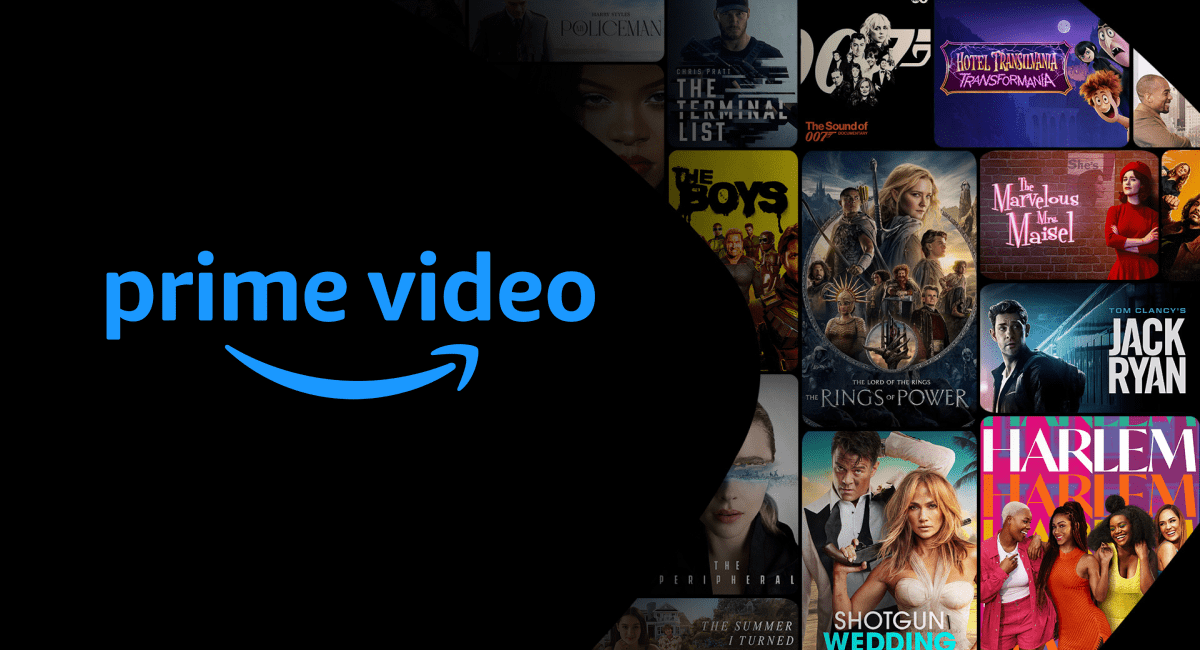
Prime Video is the software application (app) that houses Amazon’s streaming content library. This app can exist independently of Fire TV hardware. You can find the Prime Video app on a multitude of third-party platforms, including smart TVs from other manufacturers, gaming consoles, and mobile devices. If your goal is simply to watch Amazon’s content without purchasing new hardware, the software-only route is your primary objective.
Hardware Selection: Choosing Your Gateway to Amazon TV
If you do not currently own a smart TV or if your current smart TV’s interface is sluggish, purchasing dedicated hardware is the most robust way to get Amazon TV. Amazon offers a tiered lineup of devices designed to meet various technical needs and budget constraints.
The Fire TV Stick Series
The Fire TV Stick is a dongle-style device that plugs directly into an HDMI port on your television.
-
Fire TV Stick Lite & Standard: These are entry-level devices capable of 1080p Full HD streaming. They are ideal for older secondary televisions where 4K resolution is not a requirement.
-
Fire TV Stick 4K & 4K Max: These represent the high-performance tier. The 4K Max, in particular, supports Wi-Fi 6 or 6E (depending on the generation), providing higher bandwidth and lower latency for 4K Ultra HD streams. They also support advanced metadata formats like Dolby Vision, HDR10+, and immersive audio via Dolby Atmos.
The Fire TV Cube
For users seeking the pinnacle of Amazon’s hardware, the Fire TV Cube is a hybrid device that combines a high-end streaming media player with a full-featured Alexa smart speaker. Technically, it is the fastest device in the lineup, featuring an octa-core processor that ensures the user interface remains fluid even when multitasking. It also features an HDMI input, allowing you to route other devices (like a cable box) through it to unify your interface.
Fire TV Integrated Smart TVs
Several manufacturers, including Toshiba, Insignia, and Amazon themselves (under the “Omni” and “4-Series” branding), produce televisions with Fire OS built-in. In this scenario, you do not need an external dongle. The television’s primary firmware is the Amazon TV interface, providing the most seamless experience for users who are already deep within the Amazon ecosystem.
Software Installation Across Different Platforms
If you prefer to use your existing hardware, “getting” Amazon TV is a matter of software installation and account synchronization.
Smart TVs and Streaming Players
Most modern smart TVs (post-2015) from brands like Samsung (Tizen OS), LG (webOS), and Sony (Google TV/Android TV) come with the Prime Video app pre-installed.
-
Navigate to your TV’s App Store or Content Store.
-
Search for “Prime Video.”
-
Select Download or Install.
-
Once installed, launch the app to begin the registration process.
Gaming Consoles
The Prime Video app is available on major gaming platforms, including the PlayStation 4, PlayStation 5, Xbox One, and Xbox Series X/S. Using a console can often provide a faster UI experience than a budget smart TV due to the superior processing power and GPU capabilities of gaming hardware.
Mobile and Tablet Integration
To take Amazon TV on the go, the app is available via the Apple App Store for iOS/iPadOS and the Google Play Store for Android devices. On tablets like the Amazon Fire Tablet, the service is integrated at the system level and does not require a separate download.

The Step-by-Step Setup and Configuration Process
Once you have chosen your hardware or installed the app, the technical setup process begins. This ensures your device is properly linked to your digital identity and optimized for your home network.
Initial Device Registration
When you first launch a Fire TV device or the Prime Video app, you will be prompted to sign in. Amazon utilizes a simplified “Code Activation” method to avoid typing complex passwords via a remote control.
-
A six-character code will appear on your TV screen.
-
On a smartphone or computer, navigate to amazon.com/code.
-
Log in to your Amazon account and enter the code displayed on the TV.
-
The TV will automatically refresh and sign you in.
Network Optimization
For 4K Ultra HD streaming, Amazon recommends a minimum download speed of 15-25 Mbps. To ensure a stable connection:
-
Use the 5GHz Band: If using Wi-Fi, connect to the 5GHz band of your router rather than the 2.4GHz band to reduce interference from household electronics.
-
Ethernet Connection: For the Fire TV Cube or a Fire TV Stick with an Ethernet adapter, a hardwired connection is always preferable for consistent bitrates and to prevent buffering.
-
HDMI Placement: If your Fire TV Stick is tucked too far behind a large metal TV chassis, it may struggle with Wi-Fi reception. Use the included HDMI extender cable to give the device more “breathing room” for its internal antennas.
Configuring Your Device for Optimal Performance
Getting Amazon TV is only the first step; configuring the settings is what defines the quality of the experience.
Display and Sound Calibration
Navigate to Settings > Display & Sounds on your Fire TV or within the app settings on other devices.
-
Match Original Frame Rate: Enabling this allows the device to output at the native frame rate of the content (e.g., 24fps for movies), eliminating “judder.”
-
Dynamic Range Settings: Ensure “Always HDR” is turned off if you want the device to only trigger HDR mode when the content actually supports it. This prevents “fake HDR” from washing out the colors of standard HD content.
Managing Profiles and Parental Controls
Amazon TV allows for the creation of up to six user profiles. This is essential for maintaining individual watchlists and personalized recommendations. In the Settings > Parental Controls menu, you can set a PIN for purchases and content ratings (G, PG, 14+, etc.), ensuring that younger viewers only access age-appropriate material.
Data Usage Monitoring
If you are on a metered internet connection, you can manage how much data the Amazon TV service consumes. Under Settings > Preferences > Data Monitoring, you can choose between “Good,” “Better,” and “Best” quality. The “Good” setting significantly reduces data consumption by capping the bitrate and resolution, which is useful for mobile hotspots or restricted data plans.
Troubleshooting and Advanced Digital Security
To maintain a high-quality “Amazon TV” experience, you must occasionally perform technical maintenance and ensure your digital security is up to date.
Firmware and App Updates
Fire OS devices typically update in the background during idle periods. However, if you encounter bugs or performance lag, you can manually trigger an update by going to Settings > My Fire TV > About > Check for Updates. Keeping the firmware current ensures you have the latest security patches and codec support for new streaming formats.
Clearing Cache and Managing Storage
Like any computer, streaming devices can accumulate “junk” data. If a specific app is crashing:
-
Go to Settings > Applications > Manage Installed Applications.
-
Select the problematic app (e.g., Prime Video or Netflix).
-
Select Clear Cache.
This often resolves playback issues without requiring a full factory reset.
Digital Security and Privacy
Streaming devices are endpoints on your home network and should be secured.
-
Disable Ad Tracking: Go to Settings > Preferences > Privacy Settings and turn off “Interest-based Ads.” This limits the amount of data Amazon shares with third parties regarding your viewing habits.
-
Use a VPN: For users concerned about ISP throttling or those looking to secure their connection on public Wi-Fi (in the case of mobile streaming), installing a reputable VPN app from the Amazon Appstore can encrypt your traffic and protect your digital footprint.
By following these technical pathways—selecting the appropriate hardware, installing the necessary software, and optimizing the network configuration—you can effectively “get” Amazon TV on virtually any screen in your home. The transition from a traditional viewing setup to an integrated Amazon-powered ecosystem offers not just content, but a sophisticated platform for modern digital entertainment.
aViewFromTheCave is a participant in the Amazon Services LLC Associates Program, an affiliate advertising program designed to provide a means for sites to earn advertising fees by advertising and linking to Amazon.com. Amazon, the Amazon logo, AmazonSupply, and the AmazonSupply logo are trademarks of Amazon.com, Inc. or its affiliates. As an Amazon Associate we earn affiliate commissions from qualifying purchases.