
In an increasingly digital world, streaming services have become the cornerstone of home entertainment, offering an unparalleled library of movies, TV shows, and original content at our fingertips. Among the giants of this landscape, Amazon Prime Video stands out as a robust and feature-rich platform, often bundled as a significant perk of an Amazon Prime membership. For many, the allure of award-winning Amazon Originals, blockbuster films, and beloved TV series makes “getting Amazon Prime TV” a top priority. This guide will demystify the process, walking you through everything you need to know to unlock and optimize your Amazon Prime Video experience across a multitude of devices.
Whether you’re a tech novice or a seasoned streamer looking to fine-tune your setup, understanding the steps involved in accessing this vast entertainment library is key. From understanding the core service to navigating device compatibility and troubleshooting common issues, we’ll cover all bases to ensure you can enjoy your favorite content with ease and efficiency.
Understanding Amazon Prime Video: More Than Just Entertainment
Before diving into the “how-to,” it’s crucial to grasp what Amazon Prime Video actually is and what it offers. It’s much more than just a streaming service; it’s a significant component of the broader Amazon Prime ecosystem, designed to provide comprehensive value to its subscribers.
What is Amazon Prime Video?
At its core, Amazon Prime Video is Amazon’s video on-demand streaming service. It offers a vast library of films, TV series, documentaries, and Amazon Originals – exclusive content produced or acquired by Amazon Studios. Unlike standalone streaming services, Prime Video is intrinsically linked to an Amazon Prime membership. If you have an active Amazon Prime subscription (which includes benefits like free expedited shipping, Prime Music, Prime Reading, and more), you automatically have access to the included Prime Video content at no additional charge. However, it is also possible to subscribe to Prime Video as a standalone service in some regions, separate from a full Prime membership, though this often means missing out on the other bundled benefits.
Key Features and Content Library
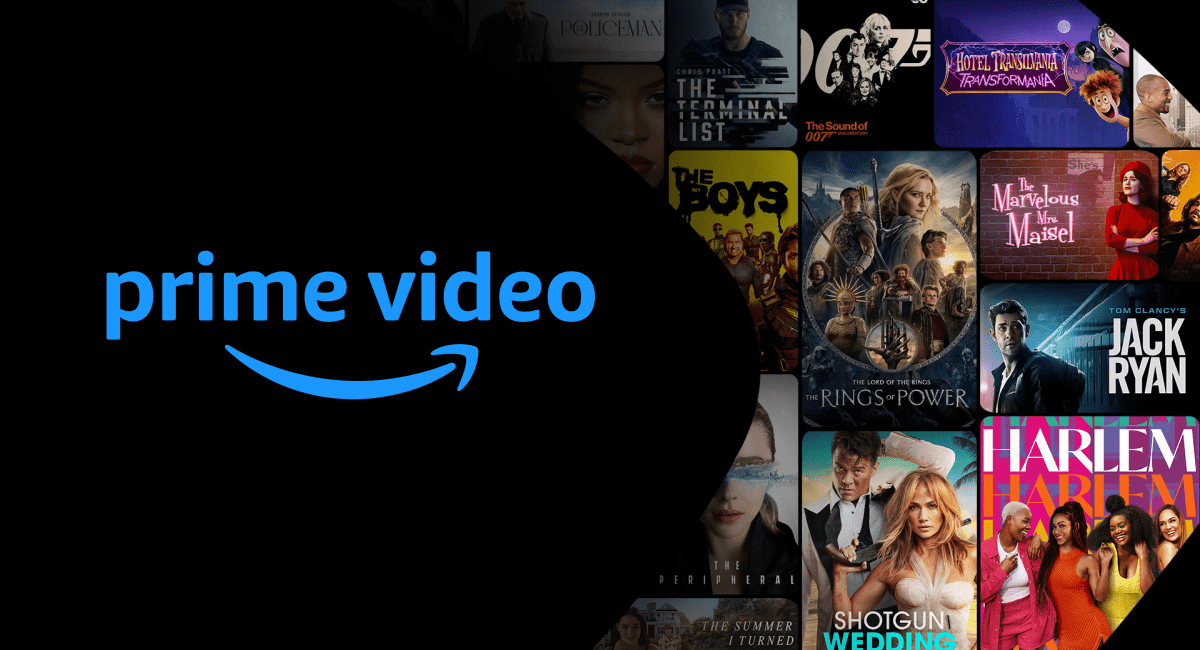
Amazon Prime Video boasts an impressive array of features and an ever-expanding content library. Subscribers gain access to a diverse catalog that ranges from critically acclaimed Amazon Originals like “The Marvelous Mrs. Maisel,” “The Boys,” and “Lord of the Rings: The Rings of Power,” to an extensive collection of licensed movies and TV shows from major studios. Beyond the included content, Prime Video also serves as a digital storefront where users can rent or purchase thousands of additional titles, often before they are available on other streaming platforms.
Furthermore, it offers Prime Video Channels, an optional add-on service that allows subscribers to subscribe to third-party streaming channels (like HBO, Showtime, Starz, etc.) directly through the Prime Video interface. This simplifies billing and access, consolidating multiple subscriptions into one convenient platform. Features like 4K Ultra HD and HDR streaming, offline downloads for mobile viewing, and X-Ray (powered by IMDb) – which provides instant access to cast, crew, soundtrack, and trivia during playback – significantly enhance the viewing experience.
Why Choose Amazon Prime Video?
The decision to choose Amazon Prime Video often comes down to its compelling value proposition. For existing Amazon Prime members, it’s an essentially “free” bonus that adds significant entertainment value to their subscription. For others, the strength of its original content, the convenience of Prime Video Channels, and its widespread device compatibility make it an attractive standalone option. Its robust technical features, including high-quality streaming and user-friendly interface, position it as a serious contender in the competitive streaming market.
The Prerequisites: What You Need to Get Started
Accessing Amazon Prime Video is straightforward, but a few foundational elements are necessary to ensure a smooth and enjoyable streaming experience. These prerequisites form the backbone of your “Amazon Prime TV” setup.
An Active Amazon Prime Membership
The primary requirement for unlocking the full suite of Amazon Prime Video content is an active Amazon Prime membership. If you don’t already have one, you’ll need to sign up. Amazon typically offers a free 30-day trial for new members, allowing you to explore the benefits before committing. The registration process involves creating an Amazon account (if you don’t have one), providing payment details, and agreeing to the membership terms. Once your membership is active, your Prime Video access is immediately enabled.
Compatible Devices
Amazon Prime Video is designed for broad accessibility, meaning it supports a vast array of devices. To watch, you’ll need a compatible device capable of running the Amazon Prime Video app or accessing its website. These include:
-
Smart TVs: Most modern smart TVs (Samsung, LG, Sony, Vizio, Panasonic, Hisense, TCL, etc.) come with the Prime Video app pre-installed or available for download from their respective app stores.
-
Streaming Media Players: Devices like Amazon Fire TV Stick/Cube, Roku devices, Apple TV, Google Chromecast, and Nvidia Shield TV are fully supported.
-
Gaming Consoles: PlayStation (PS4, PS5) and Xbox (One, Series X/S) consoles all have dedicated Prime Video apps.
-
Mobile Devices & Tablets: Android phones and tablets, iPhones, and iPads can download the Prime Video app from their respective app stores (Google Play Store, Apple App Store).
-
Computers: Any desktop or laptop computer can access Prime Video through a web browser (Chrome, Firefox, Safari, Edge, etc.) by visiting amazon.com/primevideo.
-
Set-top Boxes: Various cable and satellite TV boxes in some regions also integrate the Prime Video app.
Ensuring your device is compatible and has sufficient internal storage for app downloads is a crucial first step.
A Reliable Internet Connection
Streaming high-quality video requires a stable and reasonably fast internet connection. The recommended minimum speeds vary depending on the desired video quality:
-
Standard Definition (SD): 1.5 Mbps
-
High Definition (HD): 3.5 Mbps (for 720p), 5 Mbps (for 1080p)
-
Ultra High Definition (4K/UHD): 15 Mbps (a minimum of 25 Mbps is often recommended for a smoother experience)
For optimal performance and to avoid buffering, a wired Ethernet connection is generally preferred over Wi-Fi, especially for 4K streaming. If using Wi-Fi, ensure your router is modern, positioned centrally, and that other devices aren’t saturating your bandwidth during peak streaming times.
Step-by-Step: Accessing Amazon Prime Video on Various Devices
Once your prerequisites are met, the next step is to install the app and log in. The process is largely similar across devices, but with minor variations.
On Smart TVs
-
Locate the App: On your smart TV, navigate to the home screen or app launcher. Look for the “Amazon Prime Video” or simply “Prime Video” app. It might be pre-installed or found in your TV’s app store (e.g., Samsung Smart Hub, LG Content Store).
-
Download and Install: If not pre-installed, search for “Prime Video” and select “Download” or “Install.”
-
Open the App: Launch the Prime Video app.
-
Sign In: You’ll be prompted to sign in. Most smart TV apps offer two common methods:
-
On-screen keyboard: Enter your Amazon Prime email address and password directly using your TV remote.
-
Activation Code: The app will display a unique activation code and a website address (e.g.,
amazon.com/mytvorprimevideo.com/ontv). Go to that website on a computer or mobile device, sign in to your Amazon Prime account, and enter the activation code. This is often easier than typing with a remote.
-
-
Start Watching: Once signed in, you’ll have access to the Prime Video library.
Using Streaming Devices (Fire TV, Roku, Apple TV, Chromecast)
The process for dedicated streaming devices is very similar to smart TVs:
-
Connect and Power On: Ensure your streaming device is connected to your TV and powered on.
-
Navigate to App Store: Go to your device’s home screen and find its app store (e.g., Amazon Appstore on Fire TV, Roku Channel Store, Apple TV App Store).
-
Search and Install: Search for “Prime Video” and install the app. (Note: Amazon Fire TV devices usually have Prime Video deeply integrated or pre-installed).
-
Open and Sign In: Launch the Prime Video app and follow the on-screen prompts to sign in, typically using the activation code method for convenience.
-
Enjoy: Once authenticated, you’re ready to stream.
For Google Chromecast, the process is slightly different:
-
Install on Mobile Device: Ensure the Prime Video app is installed on your smartphone or tablet.
-
Cast: Open the Prime Video app on your mobile device. When playing content, look for the “Cast” icon (a small rectangle with Wi-Fi waves). Tap it and select your Chromecast device. The content will then play on your TV, controlled from your mobile device.
Via Gaming Consoles (PlayStation, Xbox)
-
Access Store: Go to the PlayStation Store (PS4/PS5) or Microsoft Store (Xbox One/Series X/S) from your console’s dashboard.
-
Search and Download: Search for “Prime Video” and download the app.
-
Launch and Sign In: Open the app and sign in using your Amazon Prime credentials, likely via the activation code method.
-
Game On (and Watch): You can now switch between gaming and streaming seamlessly.
On Mobile Devices & Tablets (iOS, Android)
-
Download App: Open the Apple App Store (for iPhone/iPad) or Google Play Store (for Android). Search for “Amazon Prime Video” and download the official app.
-
Open and Sign In: Launch the app. You’ll be prompted to sign in with your Amazon Prime email and password. Since you’re on a mobile device, typing is generally easier than on a TV.
-
Mobile Streaming: Browse content, stream directly on your device, or download titles for offline viewing.
Through Web Browsers (Desktop/Laptop)
-
Open Browser: Launch your preferred web browser (Chrome, Firefox, Safari, Edge, etc.).
-
Go to Prime Video Website: Type
primevideo.comoramazon.com/primevideointo the address bar and press Enter. -
Sign In: Click on the “Sign In” button, usually located in the top right corner. Enter your Amazon Prime email address and password.
-
Stream: Once logged in, you can browse the entire Prime Video library and start streaming directly from your browser. Full-screen mode is typically available for an immersive viewing experience.
Optimizing Your Prime Video Experience
Simply getting access is the first step. To truly enhance your “Amazon Prime TV” journey, understanding how to optimize settings and features is essential.
Managing Profiles and Parental Controls
Prime Video allows you to create multiple user profiles, much like other streaming services. This ensures each family member has a personalized viewing experience, with their own watch history and recommendations.
-
Create Profiles: On most devices, go to the “Who’s Watching?” screen or the profile icon (usually a circle with an avatar) in the top menu. Select “Add Profile” or “Manage Profiles.”
-
Set Up Parental Controls: Within profile settings, you can set up parental controls. This involves creating a PIN to restrict access to certain content ratings (e.g., R-rated movies) or prevent purchases without the PIN. This is crucial for households with children.
Understanding Data Usage and Quality Settings
Streaming quality directly impacts data consumption. While Prime Video typically defaults to the best quality your connection can handle, you might want to adjust this:
-
Adjust Streaming Quality: In the Prime Video app settings (often under “Stream & Download” or “Playback”), you can select your preferred streaming quality (e.g., “Good,” “Better,” “Best”). Lower quality uses less data but sacrifices visual fidelity.
-
Monitor Data Usage: For mobile users, keep an eye on your data plan. Prime Video allows you to set limits on data usage for streaming over cellular networks, and downloading content over Wi-Fi is always recommended to save mobile data.
Exploring X-Ray and Bonus Features
X-Ray is a unique Prime Video feature powered by IMDb (which Amazon owns). When watching content, particularly Amazon Originals, you can often pause or tap the screen to bring up X-Ray information. This provides instant details about:
-
Cast & Crew: Who’s on screen, their other works.
-
Soundtrack: What music is playing and where to buy it.
-
Trivia: Behind-the-scenes facts, goofs, and more.
-
Scene Selections: Easily navigate to specific moments or chapters.
Additionally, some titles include bonus features like director commentaries, deleted scenes, or behind-the-scenes documentaries, similar to DVD/Blu-ray extras.
Troubleshooting Common Issues
Even with a perfect setup, occasional glitches can occur. Here are quick fixes for common problems:
-
Buffering or Poor Quality:
-
Check your internet speed (use an online speed test).
-
Restart your router/modem.
-
Close other apps or devices using bandwidth.
-
Lower the streaming quality in Prime Video settings.
-
Try a wired Ethernet connection if possible.
-
-
App Crashing/Freezing:
-
Close and restart the Prime Video app.
-
Restart your device (Smart TV, streaming stick, phone).
-
Clear the app’s cache (in device settings, under “Apps” or “Storage”).
-
Ensure the app and your device’s operating system are up to date.
-
-
Login Issues:
-
Double-check your Amazon Prime credentials.
-
Reset your Amazon password if unsure.
-
Ensure your Prime membership is active and hasn’t expired.
-
Try the activation code method on
amazon.com/mytvif logging in on a TV or console.
-
Beyond the Basics: Enhancing Your Prime Video Journey
Once you’re comfortable with the core functionality, you can explore advanced options to further enrich your streaming experience.
Prime Video Channels
As mentioned, Prime Video Channels allow you to subscribe to additional premium content providers directly within the Prime Video app. This includes popular services like Max, Paramount+, Starz, AMC+, and more. This centralizes your subscriptions, often offering free trials for new channels and simplifying billing through your Amazon account. To add a channel, navigate to the “Channels” section within the Prime Video app or website and browse the available options.
Renting and Buying Content
Not every movie or TV show on Amazon’s platform is included with your Prime membership. Many newer releases, digital versions of Blu-rays, or specific series are available for rent or purchase.
-
Renting: Gives you access to a title for a limited time (typically 24-48 hours once you start watching), usually at a lower cost.
-
Buying: Grants you permanent digital ownership of the content, allowing you to watch it as many times as you like.
These options are clearly marked on the title’s detail page, distinguishing them from “Included with Prime.”
Offline Viewing
For those who travel frequently or have inconsistent internet access, Prime Video offers the invaluable feature of offline downloads. This is primarily available on mobile devices and tablets:
-
Select Content: Browse for movies or TV shows that have the “Download” icon (a down arrow).
-
Choose Quality: Select your preferred download quality (which affects storage space used).
-
Download: Tap the download icon, and the content will be saved to your device.
-
Watch Offline: You can then watch these downloaded titles without an internet connection, perfect for flights or commutes.
Accessibility Features
Amazon Prime Video is committed to accessibility, offering features to cater to diverse needs:
-
Subtitles and Closed Captions: Available for most content, with customizable font size, color, and background.
-
Audio Descriptions: For select titles, an audio track describes visual elements of the scene for visually impaired viewers.
-
Language Options: Multiple audio and subtitle languages are often available, allowing you to watch content in its original language or with preferred dubbing.
These settings are typically found during playback, often by clicking a “speech bubble” or “settings” icon on the player control bar.
By understanding these features, you can tailor your Prime Video experience to your personal preferences and needs, making your “Amazon Prime TV” setup truly your own.

Conclusion
Getting “Amazon Prime TV” is a straightforward process that opens the door to a vast world of entertainment. By ensuring you have an active Amazon Prime membership, a compatible device, and a stable internet connection, you can quickly dive into thousands of movies, TV shows, and award-winning Amazon Originals. From the simple act of downloading an app and logging in to mastering advanced features like multiple profiles, parental controls, and offline viewing, Prime Video offers a flexible and robust streaming experience.
Whether you’re cozying up with a blockbuster on your smart TV, catching up on a series on your tablet during a commute, or exploring new genres through Prime Video Channels, the platform is designed for seamless access and personalized viewing. Armed with this comprehensive guide, you are now well-equipped to navigate the technological landscape of Amazon Prime Video and unlock its full potential, transforming your device into a powerful entertainment hub. Happy streaming!
aViewFromTheCave is a participant in the Amazon Services LLC Associates Program, an affiliate advertising program designed to provide a means for sites to earn advertising fees by advertising and linking to Amazon.com. Amazon, the Amazon logo, AmazonSupply, and the AmazonSupply logo are trademarks of Amazon.com, Inc. or its affiliates. As an Amazon Associate we earn affiliate commissions from qualifying purchases.