
The landscape of live television has undergone a seismic shift over the last decade. The transition from traditional coaxial cable infrastructure to Over-the-Top (OTT) streaming services has redefined how consumers interact with linear media. Among the titans of this industry, YouTube TV has emerged as a dominant force, leveraging Google’s robust cloud infrastructure and high-speed delivery networks to provide a seamless viewing experience. However, as the digital marketplace becomes increasingly fragmented with the rise of niche streaming platforms and fluctuating subscription costs, many users find themselves needing to audit their digital expenses.

Ending a YouTube TV subscription is more than just a matter of “turning off the TV.” It involves navigating a specific software ecosystem, understanding billing cycles, and managing cloud-stored data. This guide provides a comprehensive technical breakdown of how to terminate your membership across various platforms, while also exploring the data implications of your departure.
Navigating the Cancellation Process Across Different Platforms
YouTube TV is designed to be cross-platform, which means the method you use to cancel depends heavily on how you originally subscribed. Because Google integrates its billing across various APIs and third-party partnerships, the steps can vary significantly between a standard web browser, a mobile device, or a third-party billing agent.
Canceling via Desktop Web Browser
The most reliable method to manage any Google-based subscription is through a desktop environment. This provides the most granular control over account settings and avoids the limitations often found in mobile application wrappers.
-
Authentication: Navigate to the YouTube TV web portal and ensure you are logged into the primary household account. In the hierarchical structure of YouTube TV “Families,” only the family manager has the administrative privileges required to terminate the billing cycle.
-
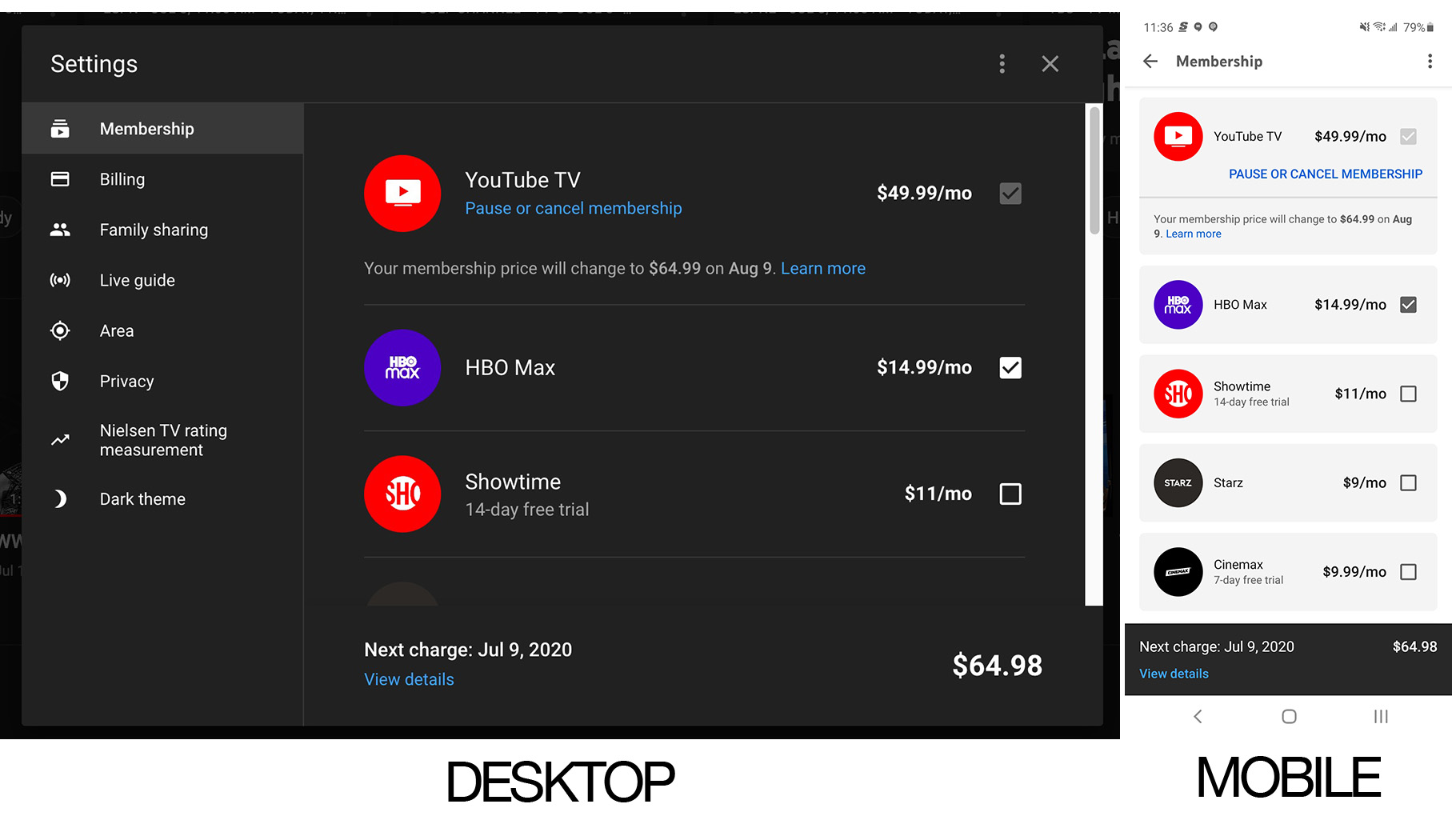
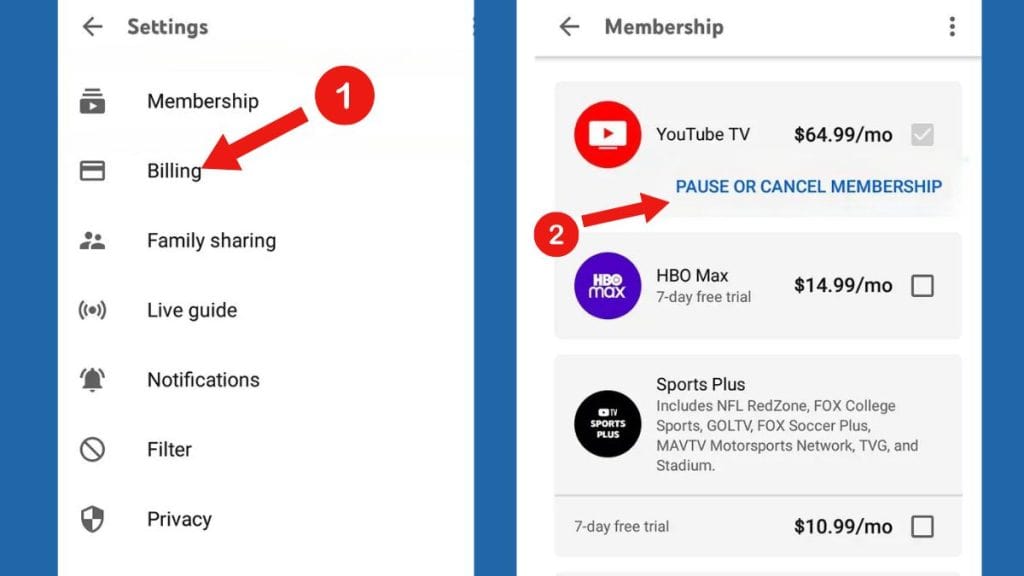
Accessing Membership Settings: Click on your profile avatar in the upper right corner and select “Settings.” From the side navigation menu, select the “Membership” tab.
-
The “Decline” Workflow: You will see your current base plan and any active add-ons (such as 4K Plus or Sports Plus). Click the “Manage” button next to your base plan. YouTube TV will present you with two options: “Pause” or “Cancel.”
-
Finalizing the Request: Upon selecting “Cancel,” the system will likely prompt a short survey regarding your reason for leaving. This is part of Google’s churn-analysis metadata collection. Once submitted, you must confirm the cancellation once more to finalize the request.
Mobile Device Management: Android vs. iOS
On Android devices, the process is integrated directly into the YouTube TV app via the Google Play Store’s billing API. You can follow the same steps as the desktop version within the app settings.
However, iOS users face a different technical hurdle. Due to the long-standing disputes regarding “Apple Tax” (the 30% commission on in-app purchases), many users who signed up through the Apple ecosystem must manage their subscription through the iOS “Subscriptions” menu in their iPhone system settings, rather than within the YouTube TV app itself. If you do not see a “Manage” button in the iOS app, you must navigate to Settings > [Your Name] > Subscriptions on your Apple device to terminate the service.
Third-Party Billing Integrations
Many users bundle YouTube TV with internet service providers like Frontier, Verizon, or T-Mobile. In these instances, Google does not hold the billing token. The “Membership” section in your YouTube TV settings will indicate that your subscription is managed by a third party. To end the service, you must log into the respective ISP’s customer portal or contact their support technical team to decouple the service from your monthly utility bill.
The Technical Distinction Between Pausing and Canceling
One of the most innovative features of the YouTube TV software suite is the “Pause Membership” function. From a technical perspective, this is a sophisticated state-management tool that allows users to halt billing without purging their account data.
How Pausing Works
When you choose to pause your membership, you can set a duration ranging from four weeks to six months. During this period, the following occurs:
-
Billing Suspension: The recurring billing trigger is disabled in the Google Payments system.
-
State Preservation: Your custom channel lineups, “Live” guide configurations, and household “Family Group” permissions remain stored in the cloud.
-
Library Retention: Perhaps most importantly, your recorded content (DVR) is preserved.
The Metadata Trade-off
It is vital to understand the limitations of the cloud DVR. YouTube TV offers unlimited storage, but each recording has a “time-to-live” (TTL) of nine months from the date of the broadcast. Even if your account is paused, the nine-month clock continues to tick. If you pause your account for six months, any recordings older than three months at the start of the pause will likely have expired by the time you resume.
In contrast, full cancellation eventually leads to a purge of this data. While Google typically retains your preferences for a short window in case of immediate reactivation, a permanent cancellation will result in the loss of your “Library” and personalized recommendation algorithms over time.
Data Privacy and Post-Cancellation Security
Once you have successfully terminated the billing cycle, there are several technical housekeeping steps you should take to ensure your digital footprint is minimized and your Google Account remains secure.
Revoking Third-Party Access
If you utilized third-party apps or “Smart Home” integrations (such as linking YouTube TV to a Nest Hub or a third-party remote management system), it is prudent to review your Google Account permissions. Navigate to the “Security” tab of your Google Account and check the “Third-party apps with account access” section. Removing unnecessary permissions ensures that no external APIs are still attempting to ping the defunct service for data.
Clearing Cache and Search History
YouTube TV’s recommendation engine is built on your viewing habits. This data is synced across your broader Google profile, impacting what you see on the standard YouTube platform and even Google Search. If you are canceling the service for privacy reasons or because you wish to “reset” your digital profile, you should manually clear your YouTube TV search and watch history within the “Privacy” settings of the app. This prevents the defunct subscription data from influencing your future metadata profile.
Hardware De-authorization
If you have logged into YouTube TV on public hardware, such as a smart TV in a hotel or a rental property, canceling the subscription does not always automatically log you out of those devices. You should use the “Devices” management tool in your Google Account settings to “Sign Out” of any recognized television hardware. This ensures that even if someone manages to bypass a device’s local security, they cannot access your account details or attempt to reactivate the service using your stored credentials.
Evaluating the Software Landscape: What Comes After YouTube TV?
The decision to end a subscription is often the first step in migrating to a different software stack. The OTT market is currently defined by different technical priorities, and understanding these can help you choose your next platform.
Performance and Bitrate Considerations
If you are leaving YouTube TV due to perceived video quality issues, it is worth noting the technical specifications of competitors. YouTube TV utilizes VP9 and H.264 codecs, generally streaming at a bitrate of 8-10 Mbps for 1080p content. Services like FuboTV often cater more toward sports enthusiasts, offering a different compression algorithm that some find better for high-motion content. Hulu + Live TV, on the other hand, integrates more deeply with the Disney+ and ESPN+ libraries, offering a unified UI for those already invested in the Disney software ecosystem.
The Rise of “Skinny Bundles” and Niche Apps
Many tech-savvy users are moving away from all-in-one live TV replacements in favor of “skinny bundles” like Sling TV, which allows for a more modular approach to channel selection. Alternatively, the “Fast” (Free Ad-supported Streaming TV) market, including platforms like Pluto TV and Tubi, offers a zero-cost entry point. From a technical standpoint, these services often have lower barrier-to-entry requirements and simpler user interfaces, as they do not need to manage complex DVR permissions or multi-user “Family” billing tiers.
The Home Media Server Alternative
For the ultimate “Tech” solution post-YouTube TV, many users are turning to self-hosted environments. Using hardware like a HDHomeRun tuner combined with software like Plex or Channels DVR, you can create your own private streaming service. This allows you to capture over-the-air (OTA) broadcasts, store them on local NAS (Network Attached Storage), and bypass monthly subscription fees entirely. While this requires a higher level of technical proficiency, it offers unparalleled control over your media, data, and privacy.
Final Summary of the Cancellation Lifecycle
Ending your YouTube TV subscription is a straightforward technical process, provided you understand the entry point of your billing. Whether you are navigating the desktop interface, managing an iOS subscription via system settings, or decoupling a bundle through an ISP, the key is to confirm the termination of the billing token.
Beyond the immediate financial relief, the cancellation process serves as a moment to audit your digital life. By understanding the nuances of “pausing” versus “canceling,” managing your cloud DVR metadata, and securing your Google Account post-departure, you maintain sovereignty over your digital presence. As the streaming wars continue to evolve, the ability to fluidly move between platforms—carrying your data when possible and purging it when necessary—is an essential skill for the modern digital consumer.
aViewFromTheCave is a participant in the Amazon Services LLC Associates Program, an affiliate advertising program designed to provide a means for sites to earn advertising fees by advertising and linking to Amazon.com. Amazon, the Amazon logo, AmazonSupply, and the AmazonSupply logo are trademarks of Amazon.com, Inc. or its affiliates. As an Amazon Associate we earn affiliate commissions from qualifying purchases.