
The transition from traditional linear cable to Over-the-Top (OTT) streaming services has revolutionized how we consume media. YouTube TV stands at the forefront of this digital shift, offering a robust cloud-based DVR and a massive lineup of live channels. However, while the service is native to mobile devices and browsers, the true viewing experience is realized on a large screen. Understanding the technical nuances of “casting”—the process of sending content from a smaller device to a television—is essential for any modern tech enthusiast or cord-cutter looking to optimize their home theater setup.
The Architecture of Casting Technology
Casting is often misunderstood as simple screen mirroring, but the underlying technology is far more sophisticated. To master the process, one must understand the protocols that allow a handheld device to communicate with a television or streaming dongle.
How the Google Cast Protocol Works
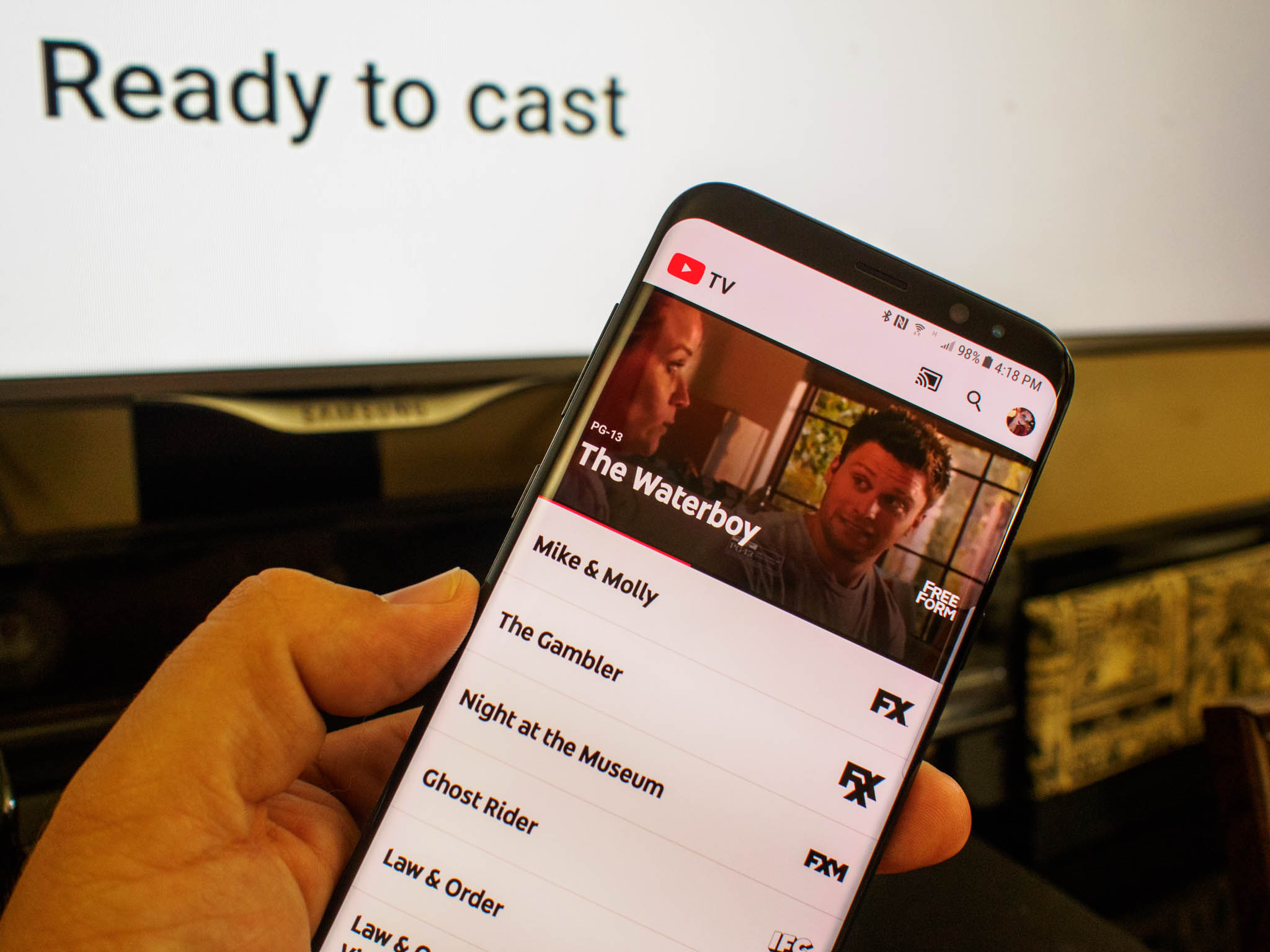
At the heart of the YouTube TV experience is the Google Cast protocol. Unlike basic Bluetooth streaming or Miracast (which often relies on peer-to-peer Wi-Fi Direct), Google Cast utilizes a “discovery and launch” (DIAL) mechanism. When you tap the cast icon in the YouTube TV app, your phone does not actually send the video file to the TV. Instead, it sends a set of instructions—a URL and authentication tokens—to the receiving device.
The receiving device, such as a Chromecast or a Smart TV with built-in Google Cast, then opens its own native YouTube TV receiver application and fetches the stream directly from the cloud. This architecture is technically superior because it offloads the processing power and battery drain from the mobile device to the TV. It also allows the mobile device to be used for other tasks, or even powered off entirely, without interrupting the playback.
Hardware Requirements for Seamless Streaming
To initiate a cast, you need a hardware handshake between two compatible devices. On the receiving end, you require one of the following:
-
Chromecast Ultra or Chromecast with Google TV: These devices support 4K and HDR, essential for users subscribed to the YouTube TV 4K Plus add-on.
-
Smart TVs with Built-in Chromecast: Many modern displays from Sony, Vizio, and Sharp come with the casting protocol integrated directly into the firmware.
-
Gaming Consoles and Set-Top Boxes: While devices like the Nvidia Shield TV are built on Android TV, they also act as powerful casting targets.
On the sending end, you need a device running the YouTube TV app (Android or iOS) or a computer running the Google Chrome browser. Both devices must be logged into the same Google account and, most importantly, reside on the same Local Area Network (LAN).
Step-by-Step Guide: Casting from Mobile and Tablet Devices
Mobile devices are the most common controllers for YouTube TV. Whether you are using an Android or an iOS device, the integration is designed to be frictionless, though the technical permissions required by each operating system vary.
Casting via Android (The Native Experience)
Android devices offer the most integrated experience with YouTube TV because both are part of the Google ecosystem.
-
Network Verification: Ensure your Android phone is connected to the same Wi-Fi SSID as your Chromecast or Smart TV.
-
App Initiation: Open the YouTube TV app. Upon launch, the app scans the network using the mDNS (Multicast DNS) protocol to find available receivers.
-
The Cast Icon: Look for the “Cast” icon (a rectangle with Wi-Fi waves in the corner) in the top right of the interface.
-
Device Selection: Tap the icon and select your TV from the list. Once connected, the TV will display a splash screen, and your phone’s interface will shift to a remote-control layout.
In the background, Android manages the “Local Network” permissions automatically, ensuring that the handshake between the app and the hardware is instantaneous.
Casting via iOS (Bridging the Ecosystems)
Casting from an iPhone or iPad to a Google-based ecosystem requires a few extra technical hurdles due to Apple’s privacy protocols.
-
Local Network Permissions: Since the release of iOS 14, Apple requires users to manually grant apps permission to “find and connect to devices on your local network.” If this is disabled in the iOS Settings, the YouTube TV app will never see your Chromecast.
-
Initiating the Stream: Once permissions are granted, the process mirrors the Android experience. Open the app, tap the Cast icon, and select your device.
-
The AirPlay Alternative: It is important to note that if you are using an Apple TV rather than a Chromecast, you will use the AirPlay protocol instead of Google Cast. While the button looks similar, AirPlay often uses different compression algorithms and can sometimes result in higher latency if the network is congested.
Leveraging Desktop Power: Casting from a Computer
For power users who prefer the desktop interface of YouTube TV, the Google Chrome browser serves as a powerful bridge to the big screen. This method is particularly useful for those who want to manage multiple tabs or use keyboard shortcuts while watching live sports or news.
Using Google Chrome for Full-Screen Casting
The Chrome browser has the Google Cast protocol baked into its core engine. This allows for two distinct types of casting:
-
App Casting: When you visit the YouTube TV website and click the cast icon within the video player, Chrome sends the direct stream link to the TV. This provides the highest resolution and lowest frame drops.
-
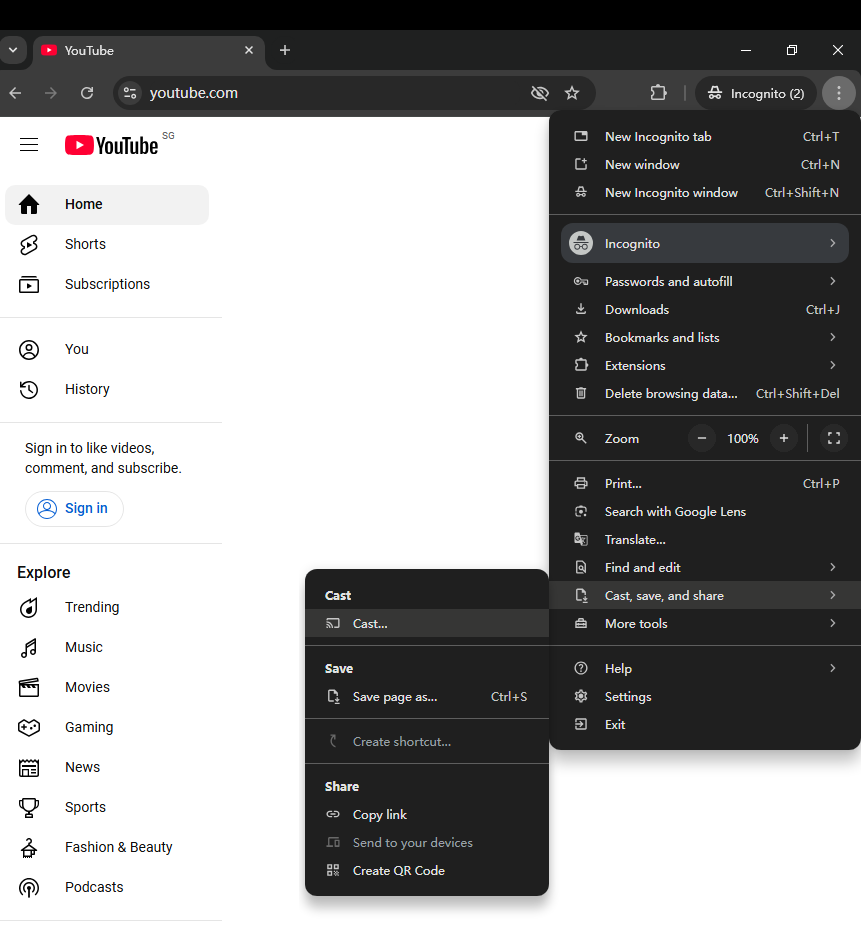
Tab Casting: If the native cast button is not appearing, you can click the three dots in the top right corner of Chrome and select “Save and Share” -> “Cast.” This mirrors the entire browser tab. While versatile, tab casting is more resource-intensive for your CPU and may result in slight lag or “stuttering” if your hardware is older.
YouTube TV Web Interface Controls
Once the cast is active, the desktop interface provides a “Remote” overlay. This allows you to browse the Live Guide, adjust the DVR queue, and toggle closed captions without interrupting the feed on the TV. Technically, the browser maintains a persistent WebSocket connection with the TV to ensure that any action you take on your laptop is reflected instantly on the screen.
Solving Common Connectivity Issues
Technological friction is inevitable in complex home networking environments. If the cast icon does not appear or the connection drops, the issue usually lies within the network configuration rather than the app itself.
Network Optimization and Bandwidth Allocation
YouTube TV recommends a minimum download speed of 3 Mbps for standard definition, 7 Mbps for a single HD stream, and 25 Mbps for 4K content. However, casting adds an extra layer of internal network traffic.
-
Dual-Band Interference: Most routers broadcast on both 2.4GHz and 5GHz. If your phone is on the 2.4GHz band and your TV is on 5GHz, some routers struggle to bridge the two, making the TV “invisible” to the phone. Forcing both devices onto the 5GHz band often solves discovery issues.
-
AP Isolation: Many guest networks or public Wi-Fi setups have “Access Point Isolation” enabled. This security feature prevents wireless devices from communicating with each other. For casting to work, AP Isolation must be disabled in the router settings.
Device Discovery and SSID Mismatches
The most common reason for casting failure is an SSID mismatch. If you have a Wi-Fi extender or a mesh network, your phone might be connected to a node that hasn’t successfully propagated the mDNS signal to the node where the TV is connected. Power cycling the router and the casting device forces a fresh “handshake,” clearing the DNS cache and often restoring the connection.
Advanced Features and Optimization for 4K Playback
As 4K broadcasting becomes more prevalent on YouTube TV—especially for major sporting events—the technical requirements for casting become more stringent.
Enhancing Resolution with Ethernet Adapters
Wi-Fi is susceptible to electromagnetic interference from household appliances. For a truly professional setup, using an Ethernet adapter for your Chromecast or Smart TV is highly recommended. By wiring the receiving device directly to the router, you eliminate the jitter and packet loss associated with wireless signals. This ensures that when you cast a 4K stream, the bit rate remains high and the HDR metadata is processed correctly by the display’s engine.
Voice Command Integration via Google Home
A sophisticated way to initiate a cast is through voice commands. By linking your YouTube TV account to the Google Home app, you can bypass the mobile device entirely. Using the Google Assistant, you can say, “Hey Google, play ESPN on the living room TV.”
Behind the scenes, the Assistant identifies the request, authenticates your YouTube TV credentials, locates the “living room TV” on your network, and triggers the YouTube TV receiver app to launch that specific channel. This is the pinnacle of the “Internet of Things” (IoT) integration, combining cloud-based media, AI-driven voice recognition, and local network protocols into a single, seamless action.
By understanding these technical layers—from the DIAL protocol and network frequency bands to the specific OS permissions of Android and iOS—you can ensure that your YouTube TV casting experience is not just functional, but optimized for the highest possible fidelity.
aViewFromTheCave is a participant in the Amazon Services LLC Associates Program, an affiliate advertising program designed to provide a means for sites to earn advertising fees by advertising and linking to Amazon.com. Amazon, the Amazon logo, AmazonSupply, and the AmazonSupply logo are trademarks of Amazon.com, Inc. or its affiliates. As an Amazon Associate we earn affiliate commissions from qualifying purchases.