
In the modern era of cord-cutting, YouTube TV has emerged as a premier leader in the live-streaming space. Offering a robust lineup of local channels, sports networks, and on-demand content, it provides a flexible alternative to traditional cable. However, the seamless nature of digital streaming relies heavily on a functioning and up-to-date payment infrastructure. Because YouTube TV is integrated deeply into the broader Google ecosystem, managing your subscription requires an understanding of how Google handles digital transactions and security.
Whether you have received a new credit card, switched banks, or simply wish to change your primary funding source to a different digital wallet, knowing how to navigate the settings menu is essential to prevent a lapse in service. This guide provides an in-depth technical walkthrough on updating your payment details across various platforms while exploring the security protocols that keep your financial data safe.
Understanding the YouTube TV Billing Ecosystem
Before diving into the step-by-step instructions, it is important to understand that YouTube TV does not operate its own independent payment gateway. Instead, it utilizes Google Pay—the unified payment platform for all Google services. This integration means that when you update your payment method for YouTube TV, you are often interacting with your global Google account settings.
Integration with Google Pay and the Google Account
Your YouTube TV subscription is tethered to a specific Google Account. Any credit card, debit card, or PayPal account you add to YouTube TV is stored within your Google Pay profile. This technical architecture allows for a centralized location to manage subscriptions across YouTube, Google One, and the Google Play Store. When you initiate a change in the YouTube TV interface, the system makes an API call to Google Pay to verify the new credentials and establish a recurring billing agreement.
Identifying Your Billing Source: Direct vs. Third-Party
A common technical hurdle for users is attempting to update payment information through the YouTube TV app when their subscription is actually managed by a third party. If you signed up for YouTube TV through a mobile service provider like T-Mobile, or a hardware ecosystem like Apple (via the App Store) or Roku, your billing information is not managed through Google.
To check your billing source, navigate to the “Membership” section in your YouTube TV settings. If the billing is handled by a third party, the interface will direct you to that specific provider’s portal. For those billed directly by Google, the following steps will allow you to modify your financial data with precision.
Step-by-Step Guide to Updating Payment Details
Updating your information varies slightly depending on the device you are using. Because of the different operating system requirements—especially the distinction between Android’s native integration and iOS’s browser-based requirements—it is vital to follow the path specific to your hardware.
Updating via Web Browser (PC or Mac)
For most users, the web browser offers the most comprehensive view of account management. This method is recommended for its stability and ease of navigation.
-
Access the Portal: Open your preferred web browser and navigate to
tv.youtube.com. Ensure you are signed into the Google Account associated with your subscription. -
Navigate to Settings: Click on your profile icon in the top-right corner of the screen and select “Settings” from the dropdown menu.
-
Billing Management: In the left-hand sidebar, select “Billing.” This page displays your current primary payment method and your next billing date.
-
Update Method: Click on the “Update” button next to your payment method. This will trigger a secure pop-up window connected to Google Pay.
-
Add or Edit: You can choose to “Add credit or debit card” or “Link PayPal.” If you are updating an existing card (such as a new expiration date), click “Edit” on the specific card entry.
-
Verification: Enter the new card number, CVV, and billing zip code. Google may perform a small temporary authorization hold (usually $0.00 or $1.00) to verify that the account is active.
Updating via the Android and iOS Apps
On Android devices, the YouTube TV app is deeply integrated with the Google Play Store billing system. To update your payment method:
-
Open the YouTube TV app.
-
Tap your profile photo and select “Settings,” then “Billing.”
-
Tap “Update payment method.” This will likely redirect you to the Google Play Store “Payment & Subscriptions” menu, where you can modify your saved cards.
On iOS (iPhone/iPad), Apple’s “App Store Tax” has historically complicated direct subscription management within apps. Consequently, you may find that the YouTube TV app on iOS does not allow for direct payment updates. In this case, use the mobile Safari or Chrome browser to visit the YouTube TV website and follow the web browser steps outlined above.
Managing Payment for Family Group Members
YouTube TV allows for family sharing with up to five additional household members. It is a common technical misconception that family members can manage the payment method. Only the “Family Manager”—the person who originally purchased the subscription—has the technical permissions to update the billing information. If a sub-account user attempts to access billing settings, they will typically see a restricted view or a notice directing them to contact the account owner.
Troubleshooting Common Billing and Payment Issues
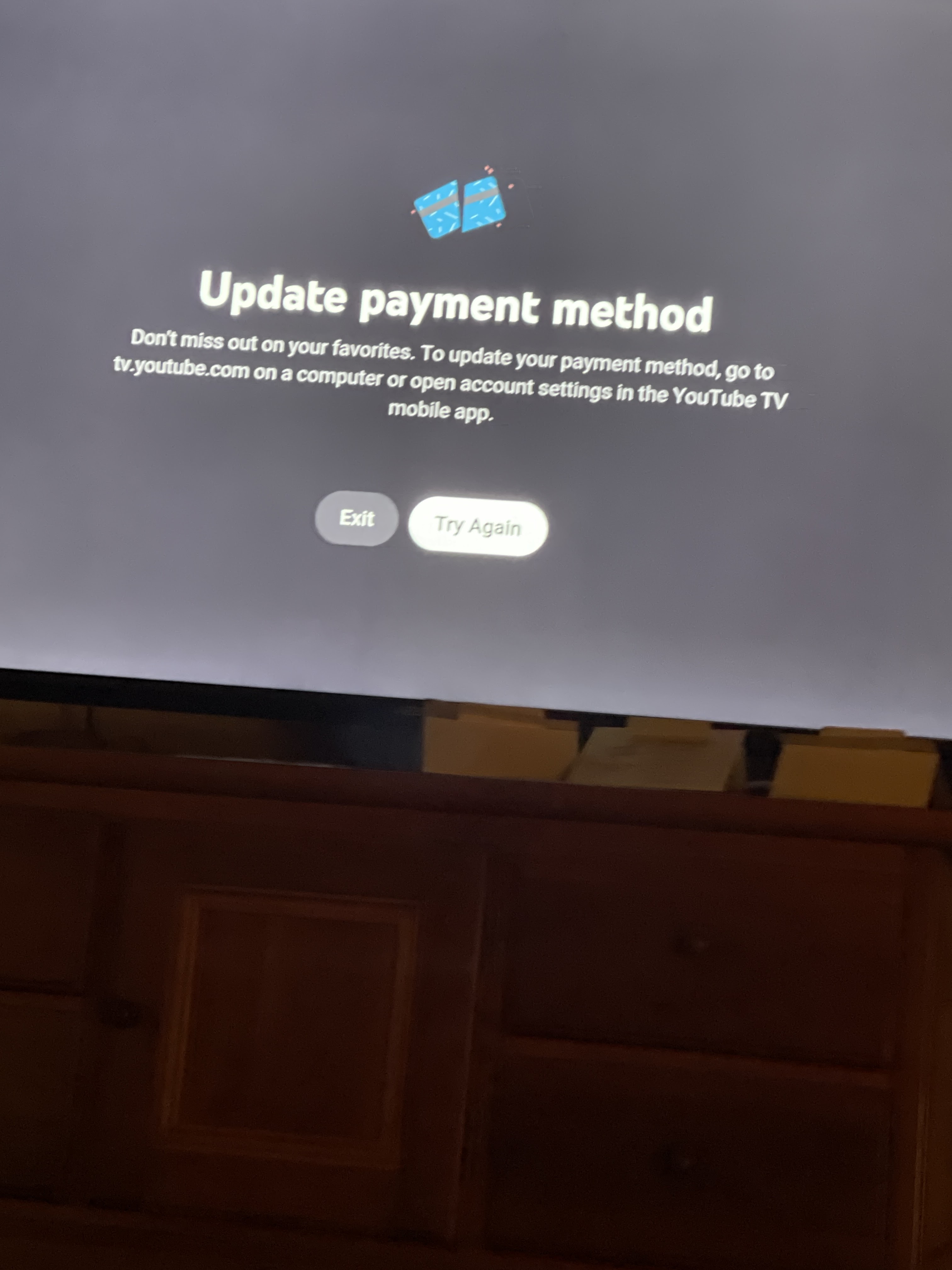
Even with the correct steps, technical glitches can occur during the payment update process. Understanding the “why” behind these errors can help you resolve them quickly.
Resolving Payment Declined Errors
If you have updated your information but the payment is still being declined, the issue often lies with the issuing bank’s security filters. Digital subscriptions are frequent targets for fraud, and banks may flag a sudden change in recurring billing patterns.
-
Check the CVV: A common error is entering the correct card number but failing to update the CVV (the three-digit security code) when a new physical card is issued.
-
Zip Code Mismatch: Google Pay cross-references the billing zip code entered in the YouTube TV interface with the data held by your bank. Ensure these match exactly.
-
Insufficient Funds: If the update occurs on the day of billing, ensure the account has sufficient headroom for the total subscription cost, including any local taxes or add-on fees (such as 4K Plus or Sports Plus packages).
Managing Backup Payment Methods
One of the most effective technical safeguards against service interruption is the “Backup Payment Method” feature. Within the Google Pay/YouTube TV billing menu, you can designate a secondary card or a PayPal account. If the primary method fails due to an expired card or a bank decline, the Google billing engine will automatically attempt to charge the backup method. This happens instantaneously, preventing your account from entering a “Grace Period” or “Suspended” state.
Updating Expired Cards and Security Codes
Credit cards typically expire every three to five years. While some modern banking institutions participate in the “Automatic Account Updater” service—which informs merchants like Google of your new card details automatically—many do not. If your card has expired, you must manually enter the new expiration date and security code. Simply changing the expiration date on an old entry may not work; it is often cleaner to delete the old card profile and add the new one as a fresh entry to ensure the metadata is correctly cached by Google’s servers.
Security Best Practices for Digital Subscriptions
When updating financial information, security is paramount. YouTube TV handles sensitive data, and as a user, you should leverage the built-in security features of the Google ecosystem to protect your assets.
Two-Factor Authentication and Account Security
Since your payment method is tied to your Google Account, any compromise of your login credentials could lead to unauthorized changes or access to your financial data. Ensure that Two-Factor Authentication (2FA) is enabled on your Google Account. When you go to update your payment method on a new device, Google will challenge the login, requiring a code from your phone or a hardware security key. This ensures that only authorized users can modify the billing details of the YouTube TV subscription.
Recognizing Official Billing Communications vs. Phishing
Phishing remains a significant threat to digital subscribers. You may receive emails claiming that your “YouTube TV payment has failed” and providing a link to “log in and update your details.” To stay secure:
-
Check the Sender: Official emails will come from a
@google.comor@youtube.comdomain. -
Avoid Direct Links: Instead of clicking a link in an email, manually type
tv.youtube.cominto your browser to access your account. -
Encryption Verification: Always ensure the website shows the padlock icon in the address bar, indicating a secure SSL/TLS connection.
Optimizing Your Subscription Management
Updating your payment method is also an excellent time to audit your subscription to ensure you are getting the most value for your money.
The Impact of Payment Changes on Promotion and Trial Periods
If you are currently on a promotional rate or a free trial, changing your payment method generally does not affect the duration of the promotion. However, if your payment fails and the subscription is canceled, you may lose access to “Grandfathered” pricing or specific introductory offers. Maintaining a valid payment method is the only way to lock in these specialized rates.
Consolidating Payments with Google Play Balance
For those looking to streamline their digital spending, you can use Google Play Gift Cards or earned credits to pay for YouTube TV. By adding these to your Google Play balance, you can set the balance as your primary payment source. This is a popular option for users who want to budget their entertainment expenses strictly or who prefer not to have a direct link to their primary bank account on the platform.
By understanding the technical bridge between YouTube TV and Google Pay, you can manage your subscription with confidence. Keeping your payment information current is more than just a clerical task; it is a vital part of maintaining your digital lifestyle and ensuring that your access to live news, sports, and entertainment remains uninterrupted.
aViewFromTheCave is a participant in the Amazon Services LLC Associates Program, an affiliate advertising program designed to provide a means for sites to earn advertising fees by advertising and linking to Amazon.com. Amazon, the Amazon logo, AmazonSupply, and the AmazonSupply logo are trademarks of Amazon.com, Inc. or its affiliates. As an Amazon Associate we earn affiliate commissions from qualifying purchases.