
The evolution of digital media has fundamentally shifted the way we consume video content. While YouTube began as a platform for short-form, low-resolution clips viewed on desktop monitors, it has matured into a global powerhouse of high-definition cinematography, educational long-form content, and live broadcasting. To fully appreciate the 4K resolutions and HDR color grading offered by modern creators, the transition from small mobile screens to large-format televisions is essential. Connecting YouTube to a TV is no longer a matter of simple plug-and-play hardware; it involves a sophisticated interplay of networking protocols, software ecosystems, and hardware compatibility.
Leveraging Built-in Casting Protocols: Chromecast and AirPlay 2
The most seamless method for bridging the gap between a handheld device and a television is through wireless casting protocols. These technologies allow a smartphone, tablet, or computer to act as a sophisticated remote control, offloading the actual data stream to the TV’s hardware.
Google Cast: The Gold Standard for Android and iOS
Originally introduced with the Chromecast dongle, the Google Cast protocol (often simply referred to as “casting”) is now integrated into the vast majority of smart TVs running Android TV or Google TV, as well as units from manufacturers like Sony, Vizio, and Hisense.
To initiate a connection, both the source device and the TV must reside on the same Wi-Fi network. When the YouTube app is opened on a mobile device, a “Cast” icon—a rectangle with signal waves in the corner—appears. Upon selection, the mobile device sends a signal to the TV to launch its native YouTube receiver app. Unlike screen mirroring, casting does not “push” the video from the phone; instead, it sends a URL and timestamp to the TV, which then pulls the stream directly from YouTube’s servers. This preserves battery life on the mobile device and ensures the highest possible resolution, independent of the phone’s screen capabilities.
Apple AirPlay 2: Seamless Integration for the Apple Ecosystem
For users within the Apple ecosystem, AirPlay 2 provides a similar experience, albeit with different underlying architecture. Many modern smart TVs from LG, Samsung, and Sony now support AirPlay 2 natively. When viewing a video on an iPhone, iPad, or Mac, users can select the AirPlay icon to beam content to the TV.
One technical advantage of AirPlay 2 in a home theater environment is its multi-room audio synchronization and its ability to handle system-level metadata more effectively than basic mirroring. When connecting YouTube via AirPlay, the TV handles the rendering, allowing the user to use their phone for other tasks without interrupting the playback. However, for the most stable 4K experience, using the native YouTube app on the TV via the “Link with TV Code” or casting method is often preferred over AirPlay for YouTube specifically, due to how the platform optimizes bitrates for its own proprietary receiver.
Connecting via the YouTube TV App and Pairing Codes
While wireless casting is convenient, it relies heavily on local network discovery protocols (like mDNS), which can occasionally fail due to router configurations or guest network restrictions. In these instances, the “Link with TV Code” method offers a robust, manual alternative that bypasses the need for automatic discovery.
The “Link with TV Code” Method for Older Hardware
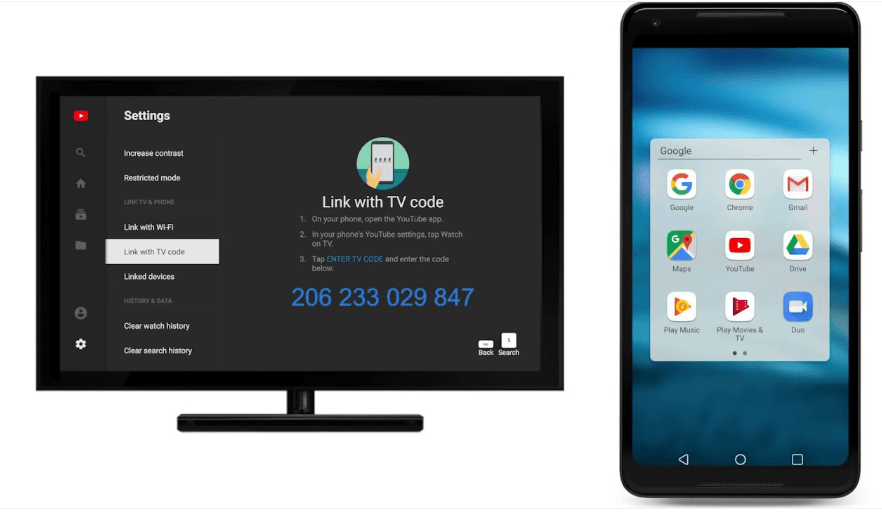
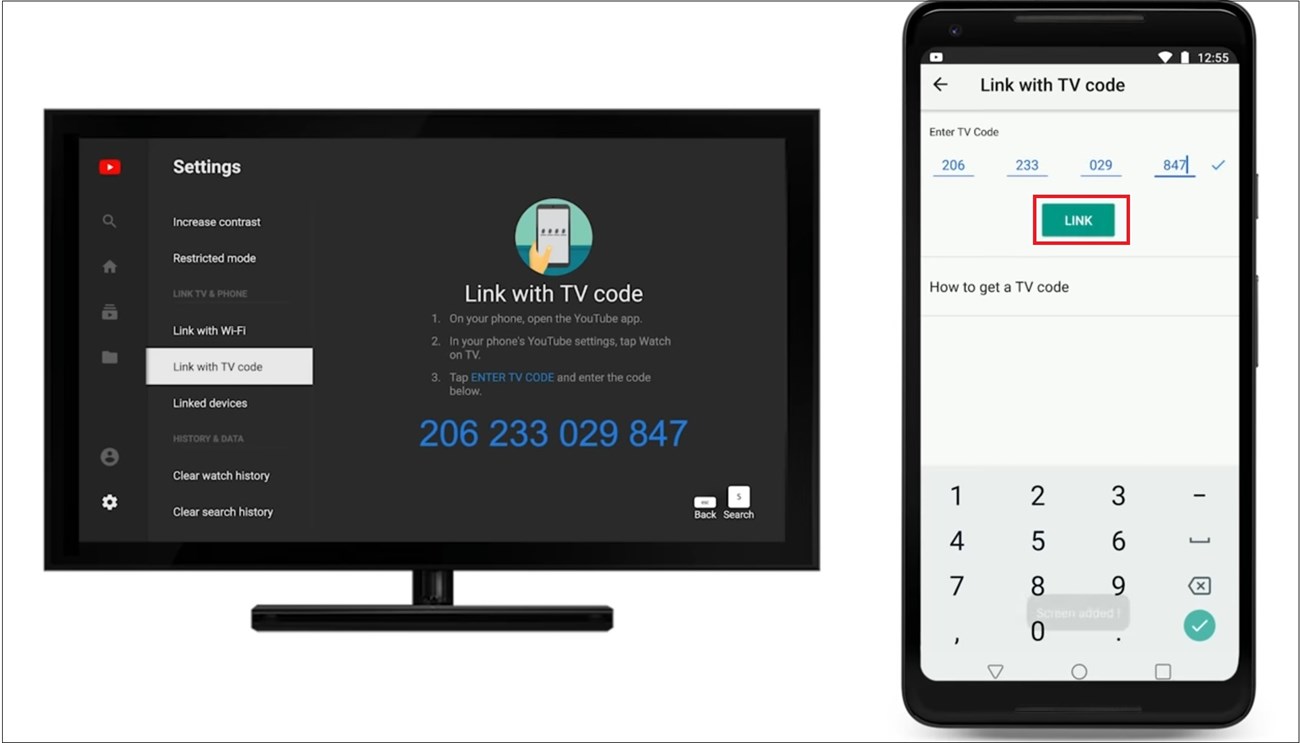
This method is particularly useful for older smart TVs or situations where the mobile device and TV are on different subnets of the same network. To use this feature, a user navigates to the “Settings” menu within the YouTube app on their TV and selects “Link with TV Code.” A unique 12-digit alphanumeric string is generated.
On the mobile device, the user enters the YouTube app settings, selects “Watch on TV,” and then “Enter TV Code.” Once the code is validated, the two devices are cryptographically paired. This pairing remains persistent even if the devices are rebooted. It provides a dedicated “handshake” that allows for a stable control interface, making it an ideal solution for environments with complex network architectures, such as university dorms or offices.
Direct Sign-in and Profile Management
For the most integrated experience, signing directly into the YouTube app on the TV remains the most efficient long-term solution. Modern Smart TV interfaces utilize “Leanback” UI, designed specifically for D-pad navigation. By signing in, users gain access to their personalized recommendations, subscribed channels, and history.
The technical benefit here is the utilization of the TV’s onboard processor for UI rendering. Furthermore, for households with multiple users, the YouTube TV app supports easy profile switching. This ensures that the algorithm-driven “Home” feed remains relevant to the specific viewer, preventing a mix-up between a child’s cartoons and an adult’s technical tutorials.

Hardware-Specific Solutions: Consoles, Set-Top Boxes, and PCs
In many home theater setups, the TV itself may not be the primary “smart” device. Instead, users often rely on external hardware that offers superior processing power and more frequent software updates.
Gaming Consoles as Media Hubs (PS5 and Xbox Series X)
The PlayStation 5 and Xbox Series X/S are not just gaming machines; they are high-performance media servers. The YouTube apps on these consoles are often more optimized than those found on budget smart TVs. They support high-bitrate 4K output and, in some cases, sophisticated HDR mapping. Connecting is as simple as downloading the app from the console’s store. A notable technical advantage of using a console is the use of a physical Ethernet connection, which many users prioritize for gaming, providing a jitter-free YouTube streaming experience that Wi-Fi can rarely match.
External Streaming Devices: Roku, Fire Stick, and Nvidia Shield
Dedicated streaming sticks and boxes—such as the Amazon Fire TV Stick, Roku Premiere, or the Nvidia Shield TV—serve as an intermediary layer. These devices plug directly into an HDMI port. For users with older “dumb” TVs or smart TVs with sluggish operating systems, these gadgets offer a significant performance boost.
The Nvidia Shield, in particular, is favored in tech circles for its AI-enhanced upscaling. When viewing a 1080p YouTube video, the Shield uses neural networks to reconstruct details, making the image appear closer to native 4K. This is a prime example of how hardware choice can significantly impact the visual fidelity of YouTube content.
Wired Connections: The Reliability of HDMI
For the ultimate in stability and zero-latency control, a direct HDMI connection from a laptop or desktop PC to the TV is the professional’s choice. By using an HDMI 2.1 cable, a user can output YouTube at 4K resolution at 120Hz (if the TV supports it), with full chroma subsampling (4:4:4). This turns the TV into a secondary monitor. This method is particularly effective for “YouTube Live” events or educational sessions where the user may want to have the video on the big screen while keeping the chat or a taking-notes application open on the laptop screen.
Optimizing the Viewing Experience: Resolution, Audio, and Network Stability
Successfully connecting YouTube to a TV is only the first step; optimizing the stream for the best possible quality requires an understanding of bandwidth and hardware limitations.
Managing 4K and 8K Bitrates
YouTube utilizes the VP9 and AV1 video codecs to deliver high-resolution content. AV1, specifically, is a more efficient codec that provides higher quality at lower bitrates, but it requires hardware-level decoding support. When streaming 4K content, a stable downstream of at least 25 Mbps is recommended. Users should check their TV’s “Stats for Nerds” (an option in the YouTube app settings) to monitor dropped frames and the current “Connection Speed.” If the speed is fluctuating, switching from a 2.4GHz Wi-Fi band to a 5GHz band—or better yet, a wired Cat6 cable—can eliminate buffering.
Audio Passthrough and Surround Sound Setup
While YouTube’s primary focus is video, its audio capabilities have expanded. Many videos now support 5.1 surround sound. To take advantage of this, the TV or streaming device must be configured for “Bitstream” or “Passthrough” via HDMI ARC/eARC to an external soundbar or AV receiver. In the YouTube app settings on the TV, ensuring that “5.1 audio” is toggled on will allow the hardware to decode the spatial audio data, providing an immersive auditory experience that matches the visual scale of a large TV.
Troubleshooting and Future Trends in Smart Display Technology
As the ecosystem becomes more complex, technical hurdles are inevitable. Understanding the underlying causes of connectivity issues is key to maintaining a functional home theater.
Common Connectivity Hurdles and Fixes
Most connection issues between a phone and a TV stem from network isolation. Many modern routers feature “AP Isolation,” which prevents wireless devices from communicating with one another for security purposes. This must be disabled for casting to function. Additionally, clearing the cache of the YouTube app on the TV can resolve “hanging” screens or login errors. If a device is not appearing in the cast list, a “cold boot” of the TV (unplugging it from power for 30 seconds) often clears the system memory and restarts the necessary network discovery services.
The Role of AI and Matter in Future Home Entertainment
Looking forward, the process of connecting YouTube to a TV is set to become even more automated through the adoption of the “Matter” smart home standard. Matter aims to unify how devices communicate, potentially allowing for cross-platform casting that doesn’t care if you are using an Apple, Google, or Amazon device.
Furthermore, AI-driven content handoff is on the horizon. Imagine walking into your living room with a video playing on your phone, and the TV—recognizing your presence via Ultra-Wideband (UWB) technology—automatically prompts you to move the stream to the big screen with a single gesture. As YouTube continues to integrate deeper into the fabric of the smart home, the “connection” will transition from a manual task to a contextual, ambient service that follows the user from device to device seamlessly.
aViewFromTheCave is a participant in the Amazon Services LLC Associates Program, an affiliate advertising program designed to provide a means for sites to earn advertising fees by advertising and linking to Amazon.com. Amazon, the Amazon logo, AmazonSupply, and the AmazonSupply logo are trademarks of Amazon.com, Inc. or its affiliates. As an Amazon Associate we earn affiliate commissions from qualifying purchases.