
The transition from traditional linear broadcasting to Internet Protocol Television (IPTV) has fundamentally altered the landscape of home entertainment. Among the frontrunners of this digital revolution is YouTube TV, a service that leverages Google’s robust cloud infrastructure to deliver a seamless cable-free experience. Subscribing to the service is not merely a financial transaction; it is a technical setup that requires an understanding of digital ecosystems, hardware compatibility, and network optimization.
As cord-cutting becomes the standard for modern viewers, understanding the mechanics of how to initialize and optimize your YouTube TV subscription is essential. This guide provides a comprehensive walkthrough of the subscription process through a technical lens, ensuring that your transition to cloud-based television is efficient and high-performing.

Understanding the Infrastructure of YouTube TV
Before initiating the subscription process, it is vital to understand the technical requirements that allow YouTube TV to operate. Unlike traditional cable, which relies on coaxial lines and QAM (Quadrature Amplitude Modulation) signals, YouTube TV uses adaptive bitrate streaming to deliver content over the internet.
Hardware Requirements and Device Compatibility
YouTube TV is a platform-agnostic service, but the quality of the user interface (UI) and the fluidity of the stream depend heavily on the processing power of your hardware. The service is compatible with a wide range of devices, including:
-
Smart TVs: Modern displays running Android TV, Google TV, Samsung Tizen OS, and LG webOS.
-
Streaming Media Players: Chromecast with Google TV, Roku (Ultra, Premiere, Stick), Amazon Fire TV Stick, and Apple TV 4K.
-
Mobile Devices: Android and iOS smartphones and tablets.
-
Web Browsers: High-performance browsers such as Google Chrome, Mozilla Firefox, and Safari.
For the most stable experience, using a device with a dedicated GPU and at least 2GB of RAM is recommended. This ensures that the application’s heavy metadata—such as live previews and rapid channel switching—does not cause the interface to lag.
Network Optimization for 4K Streaming
The efficiency of your subscription depends on your local area network (LAN). YouTube TV recommends a minimum download speed of 3 Mbps for standard definition, but for a high-fidelity experience, the requirements are more stringent:
-
720p/1080p High Definition: 13 Mbps or higher is required for consistent playback without buffering.
-
4K Plus Content: If you opt for the 4K add-on during the subscription process, you will need a stable 25 Mbps connection dedicated solely to the stream.
To optimize the technical setup, it is advisable to connect your primary streaming device via an Ethernet (RJ45) cable. If Wi-Fi is necessary, utilizing the 5GHz band rather than the 2.4GHz band is critical to avoid interference from other household devices and to ensure higher data throughput.
Step-by-Step Subscription Process via Web and Mobile Apps
The subscription workflow for YouTube TV is designed to be streamlined, integrating directly with the Google account ecosystem. This Single Sign-On (SSO) approach simplifies the authentication process but requires careful management of your digital identity.
Creating and Linking Your Google Account
To begin, you must have a valid Google account. When you navigate to the YouTube TV website or open the app on your mobile device, the system will prompt you to log in. It is important to note that YouTube TV cannot be subscribed to using a “Brand Account” or certain G Suite/Google Workspace accounts that have administrative restrictions on media services.
-
Authentication: Visit
tv.youtube.comon a web browser. Ensure you are logged into the specific Google account you wish to use as the primary “Family Manager.” -
Initial Setup: Click the “Try it Free” or “Sign Up” button. The system will use your IP address to detect your “Home Area.” This is a crucial technical step, as the service uses geolocation data to determine which local broadcast networks (ABC, NBC, CBS, FOX) will be included in your channel lineup.
-
Zip Code Verification: If your browser’s location services are disabled, you will be prompted to enter your zip code manually. This sets your permanent local market.
Navigating the Payment Interface and Security Protocols
Once the location is established, you move into the tier selection and payment phase. YouTube TV utilizes Google Pay as its underlying financial engine, which provides a layer of encryption and security for your transaction data.
-
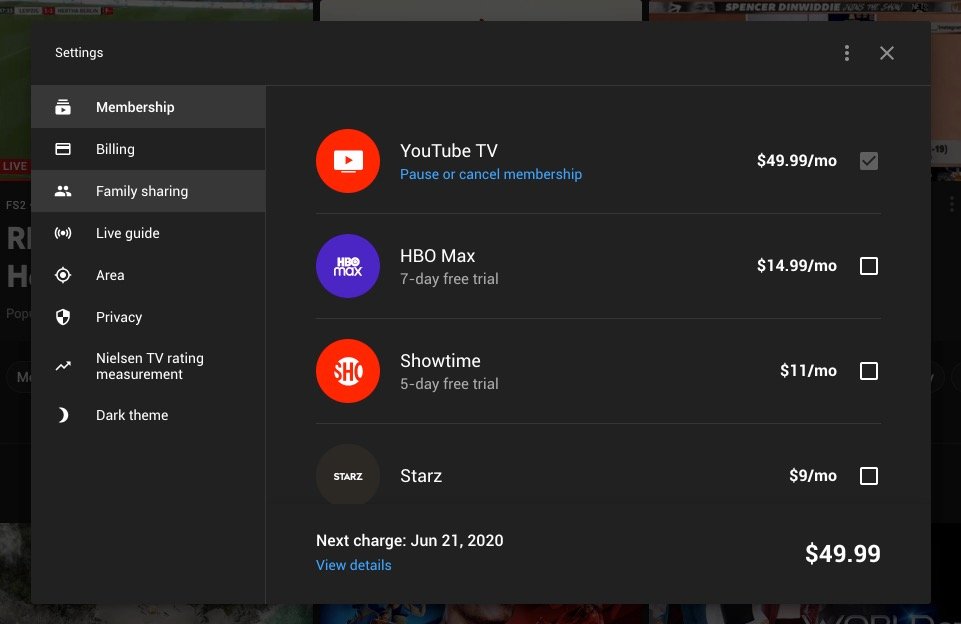
Base Plan vs. Add-ons: The subscription interface will present the base plan, followed by a series of “add-on” modules. These include premium networks like HBO Max or specialized technical packages like “4K Plus,” which allows for offline viewing and unlimited simultaneous streams at home.
-
Payment Authorization: You must provide a valid credit card or link a PayPal account. Google will perform a small temporary authorization hold to verify the validity of the payment method.
-
Finalizing the Transaction: After reviewing the terms of service, clicking “Purchase” activates the subscription. Because this is a cloud-based service, the activation is near-instantaneous across all devices logged into that account.
Maximizing the User Interface and Software Features
Once the subscription is active, the focus shifts to configuring the software settings to maximize the utility of the platform. YouTube TV’s software architecture is built around a “Live, Home, and Library” philosophy, driven by sophisticated recommendation algorithms.
Configuring the Unlimited Cloud DVR
One of the most significant technical advantages of YouTube TV over traditional cable is its Cloud DVR. Unlike physical DVRs that are limited by hard drive capacity, YouTube TV offers unlimited storage.
-
Server-Side Recording: When you “add” a show to your library, you aren’t actually downloading data to your device. Instead, the YouTube TV servers flag that broadcast for your account. This allows you to access your recordings from any device with zero impact on your local storage.
-
Metadata Tagging: The software uses advanced metadata tagging to identify new episodes versus reruns, ensuring your library remains organized without manual intervention.
Customizing the Live Guide and Channel Sorting
The default “Live Guide” is often cluttered. To improve the UI efficiency, you can access the “Custom” view settings within the web interface. This allows you to reorder channels based on your viewing habits or hide channels that you do not watch. This custom configuration is saved to your profile and syncs across the cloud to your Smart TV and mobile devices automatically.
Integrating YouTube TV into Your Smart Home Ecosystem
A modern subscription is rarely used in isolation. Integrating YouTube TV into a broader smart home network enhances the user experience through automation and voice control.
Voice Control Integration with Google Assistant
For users within the Google Home/Nest ecosystem, YouTube TV offers deep integration. By linking your subscription within the Google Home app, you can utilize voice commands such as “Hey Google, play ESPN on the Living Room TV.” This triggers a handoff protocol where the Google Assistant sends a signal to the Chromecast or Smart TV to launch the YouTube TV app and tune to the specific stream.
Family Sharing and Multi-User Profile Management
A single YouTube TV subscription allows for up to six individual profiles. Each profile maintains its own unique Library, DVR recordings, and recommendation engine.
-
Family Group Management: The “Family Manager” can invite members via email. Each member must have their own Google account.
-
Privacy and Isolation: Crucially, from a technical standpoint, the viewing history and DVR of one profile are completely isolated from the others. This ensures that the machine-learning algorithms providing “Home” recommendations remain accurate for each individual user.
Troubleshooting Common Subscription and Connectivity Issues
Even with a high-end technical setup, users may encounter hurdles. Understanding how to troubleshoot these issues is key to maintaining a consistent viewing experience.
Resolving Billing Discrepancies and Trial Management
If you are using a free trial, the transition to a paid subscription happens automatically at the end of the term. Users often encounter “payment declined” errors if their Google Pay settings are outdated. To fix this, you must navigate to the “Billing” section of the YouTube TV settings to refresh your payment credentials.
Geographic Restrictions and Location Permissions
Because YouTube TV relies on regional licensing agreements, “Location Permissions” are the most common source of technical friction.
-
The 90-Day Rule: The service requires you to “check in” from your Home Area at least once every 90 days to maintain access to local programming.
-
VPN Interference: Using a Virtual Private Network (VPN) often breaks the YouTube TV authentication flow. The service employs sophisticated detection methods to block known VPN IP addresses to comply with regional broadcasting rights. If you encounter a “Playback Error,” disabling your VPN and refreshing your location permissions is the first step in troubleshooting.
By following these technical guidelines and understanding the software-driven nature of the service, you can ensure that your YouTube TV subscription provides a high-quality, reliable, and integrated entertainment experience. The shift to streaming is as much about the technology as it is about the content, and a well-configured setup is the foundation of modern digital viewing.
aViewFromTheCave is a participant in the Amazon Services LLC Associates Program, an affiliate advertising program designed to provide a means for sites to earn advertising fees by advertising and linking to Amazon.com. Amazon, the Amazon logo, AmazonSupply, and the AmazonSupply logo are trademarks of Amazon.com, Inc. or its affiliates. As an Amazon Associate we earn affiliate commissions from qualifying purchases.