
In the modern digital landscape, the consumption of video content has shifted dramatically from traditional linear broadcasting to on-demand digital platforms. YouTube, as the world’s largest video-sharing site, has transitioned from a mobile and desktop-centric service to a dominant force in the living room. Watching YouTube on a television offers an immersive experience, leveraging high-definition displays and superior sound systems that smartphones simply cannot match. However, the method of accessing this content varies significantly depending on your hardware, software ecosystem, and network infrastructure.
This guide explores the diverse technical pathways available to bring YouTube to your big screen, ranging from native smart TV applications to external hardware solutions and wireless casting protocols.
Leveraging Built-In Smart TV Platforms
The most direct way to watch YouTube on a television is through a built-in Smart TV platform. Most modern televisions manufactured in the last decade—including those from Samsung, LG, Sony, and Vizio—come pre-equipped with a dedicated operating system designed to host streaming applications.
Native App Installation and Setup
For users with a Smart TV, the YouTube app is often pre-installed. If it is not visible on the home screen, it can typically be found within the manufacturer’s app store (e.g., the LG Content Store, Samsung Smart Hub, or the Google Play Store on Sony TVs).
To ensure the best experience, it is critical to sign in to your Google account. This synchronizes your subscriptions, watch history, and personalized recommendations across all devices. Most TV interfaces utilize a “Sign in with a browser” feature, where the TV displays a code that you enter on your smartphone or computer. This bypasses the tedious process of typing complex passwords using a TV remote.
Optimizing Performance through System Updates
A common technical hurdle with native Smart TV apps is software obsolescence. Manufacturers frequently update their firmware to improve security and app compatibility. If the YouTube app is lagging or failing to load, the first step is to check for a system-wide firmware update in the TV’s settings menu.
Furthermore, Smart TVs rely heavily on local cache storage. Over time, the YouTube app may accumulate temporary data that slows down the interface. Navigating to the application settings to clear the cache or performing a “cold boot” (unplugging the TV for 30 seconds) can often resolve performance bottlenecks and playback errors.
External Streaming Devices: The Power of Dedicated Hardware
While Smart TVs are convenient, their internal processors can become outdated quickly, leading to a sluggish user experience. Dedicated streaming devices offer superior processing power, more frequent software updates, and a more refined user interface. These devices connect via HDMI and effectively turn any screen into a high-performance media hub.
Google TV, Roku, and Amazon Fire Stick
The most popular entry-level devices are HDMI sticks. These are compact and powered by the TV’s USB port or an external wall outlet.
-
Google TV (Chromecast): This offers the most integrated YouTube experience. Since YouTube is a Google product, the interface on Google TV is highly optimized, featuring voice search via Google Assistant and deep integration with your YouTube library.
-
Roku: Known for its agnostic approach, Roku provides a clean, simple interface. The YouTube app on Roku is robust and supports 4K playback on compatible hardware like the Roku Streaming Stick 4K.
-
Amazon Fire TV: While Amazon and Google historically had disputes regarding app availability, the official YouTube app is now fully supported on all Fire TV devices. It supports Alexa voice commands, allowing users to search for content hands-free.
High-End Options: Apple TV and Nvidia Shield
For enthusiasts seeking the highest possible fidelity, premium streaming boxes are the preferred choice.
-
Apple TV 4K: The YouTube app on tvOS has seen significant improvements, now supporting 4K playback and high frame rates. The Apple TV’s powerful A-series chips ensure that navigating through long playlists and high-resolution thumbnails is fluid and instantaneous.
-
Nvidia Shield TV: Running on Android TV, the Nvidia Shield is perhaps the most powerful streaming device on the market. It utilizes AI-enhanced upscaling to make standard 1080p YouTube videos look sharper on 4K displays. It also supports various codecs that ensure smooth playback of high-bitrate content.

Casting and Mirroring: Wireless Connectivity
If you prefer to browse YouTube on your smartphone or tablet but want to view the video on your TV, wireless casting protocols provide a seamless bridge. This method utilizes your local Wi-Fi network to transmit data or commands from a mobile device to the television.
The YouTube “Cast” Protocol
The “Cast” icon (a rectangle with a Wi-Fi signal in the corner) is a staple of the YouTube mobile app. This uses a protocol called DIAL (Discovery-and-Launch). When you tap the Cast icon and select your TV, your phone does not actually “send” the video file to the TV. Instead, it sends a link to the YouTube app on the TV, which then streams the video directly from the internet. This preserves battery life on your phone and allows you to use your device for other tasks while the video plays on the screen.
AirPlay and Screen Mirroring
For users in the Apple ecosystem, AirPlay 2 allows for easy sharing of content from an iPhone, iPad, or Mac to an AirPlay-compatible TV. Unlike direct casting, screen mirroring replicates the entire display of your device onto the TV. While this is useful for showing photos or apps that don’t have a TV version, it is generally less efficient for YouTube playback than using the built-in Cast function, as it can lead to higher latency and lower resolution.
Android users have access to Miracast or “Smart View” (on Samsung devices), which functions similarly to AirPlay by mirroring the screen. However, for the best video quality, the dedicated YouTube casting feature is always recommended over general screen mirroring.
Gaming Consoles and Alternative Hardware
For many households, the gaming console is the primary media center. Modern consoles are designed with high-end GPUs and CPUs, making them exceptionally capable of handling 4K HDR video streams.
PlayStation and Xbox as Media Hubs
Both the PlayStation 5 and Xbox Series X/S feature dedicated “Media” sections where the YouTube app can be downloaded. These versions of the app are specifically mapped to controller inputs, making navigation fast. On the Xbox, users can even use the “Suspend and Resume” feature to jump back into a video after playing a game. On the PlayStation, the dedicated Media Remote accessory can be purchased to provide a more traditional TV-viewing experience without needing to use a DualSense controller.
The PC-to-TV Connection (HDMI)
For the ultimate level of control, connecting a laptop or desktop PC directly to a TV via an HDMI cable remains a powerful option. By setting the TV as a secondary monitor, you can use the desktop version of YouTube. To make this more “couch-friendly,” users can navigate to “YouTube.com/tv” (though this web-based “Leanback” interface has been restricted in recent years in favor of dedicated apps). Alternatively, a wireless keyboard with a built-in trackpad allows for full control of the browser from a distance.
Maximizing Your YouTube TV Experience
Simply getting the app to run is only half the battle. To truly enjoy YouTube on a TV, one must understand the technical settings that govern video quality and security.
Resolution, Bitrate, and Codecs
To watch YouTube in 4K, you need three things: a 4K television, a device that supports 4K output, and a stable internet connection of at least 25 Mbps. In the YouTube app settings on your TV, you can often check the “Stats for Nerds” overlay. This provides real-time data on the current resolution, the codec being used (such as VP9 or AV1), and any dropped frames. If you notice a blurry image despite having a 4K TV, it is likely that the “Auto” quality setting has scaled down due to a fluctuating Wi-Fi signal. Hardwiring your TV or streaming box via an Ethernet cable is the most effective way to ensure consistent 4K playback.
Audio Configurations and External Sound
YouTube on TV supports various audio formats. While most content is in stereo, the platform has been expanding its support for 5.1 surround sound on compatible devices and videos. If you have a soundbar or a home theater receiver, ensure your TV’s audio output is set to “Bypass” or “Bitstream” in the digital audio settings. This allows the external audio hardware to decode the signal, providing a much richer soundstage than the TV’s built-in speakers.
Privacy and Security on Shared Screens
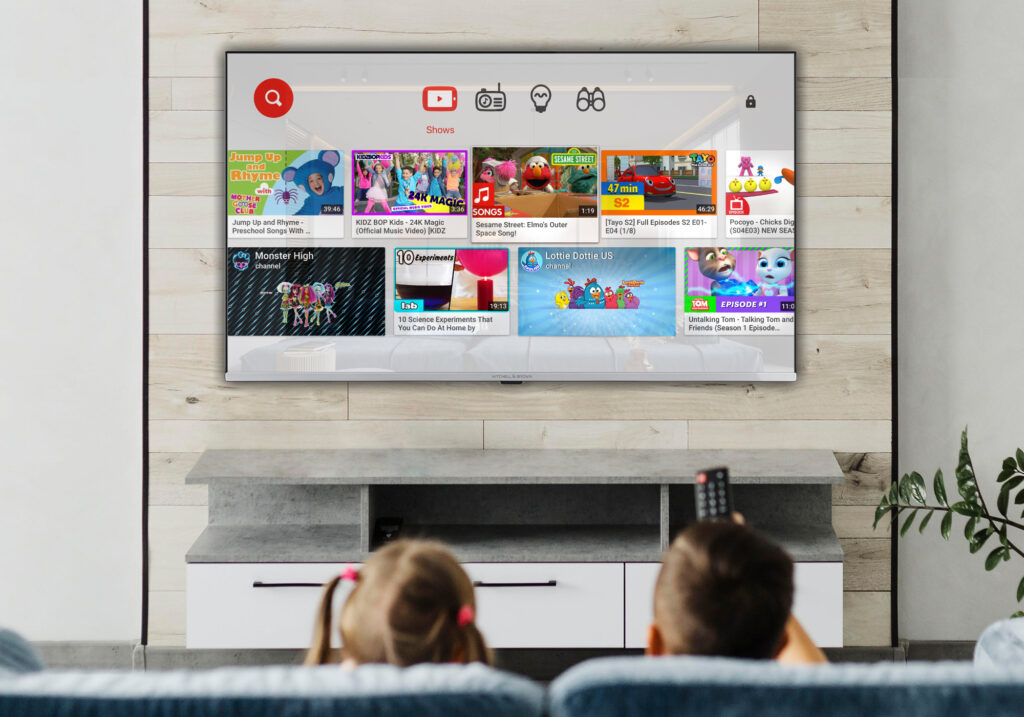
Since the TV is often a shared device in a household, privacy is a technical consideration. YouTube for TV allows for multiple profiles. It is advisable to set up individual profiles for different family members to keep recommendations separate. Additionally, if you are logged into YouTube on a TV in a public place or a rental (like an Airbnb), remember to navigate to your Google Account security settings on a mobile device to remotely sign out and revoke access once your stay is over. This prevents unauthorized access to your account and protects your viewing data.
aViewFromTheCave is a participant in the Amazon Services LLC Associates Program, an affiliate advertising program designed to provide a means for sites to earn advertising fees by advertising and linking to Amazon.com. Amazon, the Amazon logo, AmazonSupply, and the AmazonSupply logo are trademarks of Amazon.com, Inc. or its affiliates. As an Amazon Associate we earn affiliate commissions from qualifying purchases.