
The evolution of home entertainment has undergone a radical transformation over the last decade. While the early days of internet video were confined to the small, tethered screens of desktop computers, the modern digital landscape has prioritized the “lean-back” experience. Bringing YouTube to the television is no longer just a luxury for the tech-savvy; it is a fundamental expectation of the modern smart home. Whether you are seeking to watch high-fidelity 4K cinematography, educational documentaries, or live streams, understanding the various technical avenues for viewing YouTube on a TV is essential for optimizing your hardware investment.
Hardware Ecosystems and Native Integration
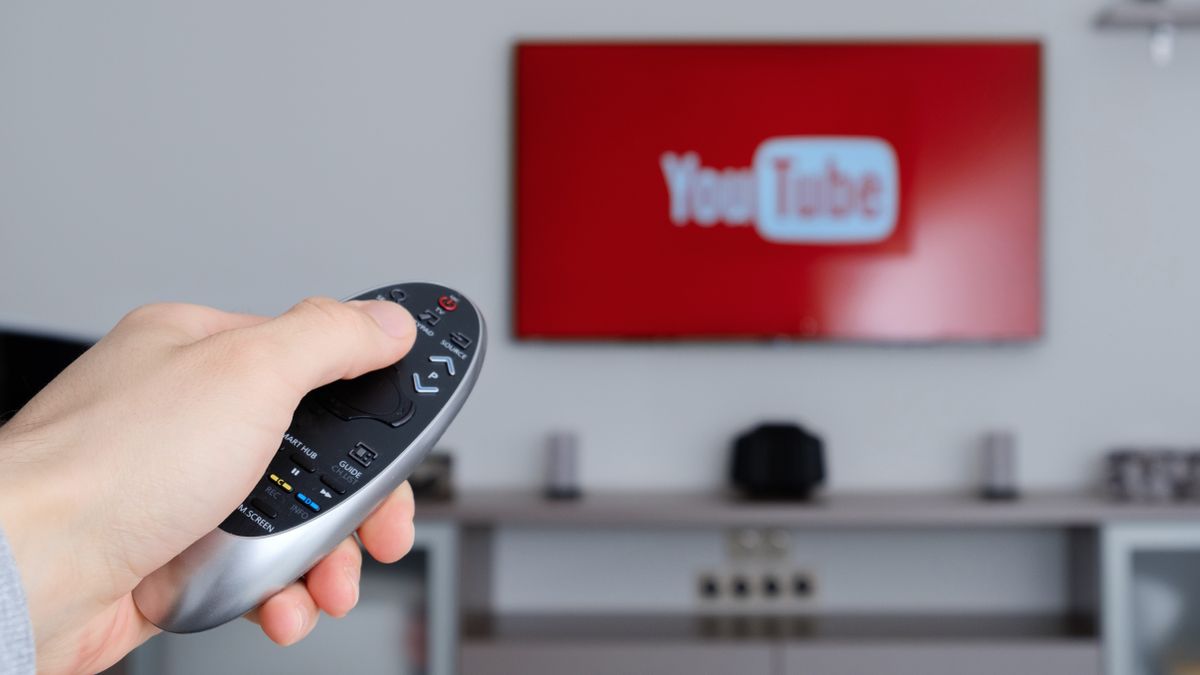
The most direct method of viewing YouTube on a television involves utilizing the native applications built into the hardware itself. As televisions have evolved into complex computing devices, the integration of streaming software has become standardized across almost all major manufacturers.
Smart TV Operating Systems
Most contemporary televisions from brands such as Samsung (Tizen OS), LG (webOS), and Sony (Google TV/Android TV) come pre-loaded with a dedicated YouTube application. These apps are specifically engineered for the “Leanback” interface, designed to be navigated via a standard infrared or Bluetooth remote control rather than a mouse and keyboard. The technical advantage of using a native app is the optimization between the software and the television’s internal display processor. This often results in better handling of High Dynamic Range (HDR) metadata and more stable 4K playback, as the hardware decoder is specifically tuned for the app’s output.
External Streaming Media Players
For users with older “dumb” TVs or smart TVs with sluggish interfaces, external streaming media players offer a powerful alternative. Devices such as the Apple TV 4K, Roku Ultra, Amazon Fire TV Stick, and Chromecast with Google TV provide a dedicated processor to handle video decoding. This often leads to a more responsive user interface and faster load times. From a technical standpoint, these devices connect via HDMI—preferably HDMI 2.0 or 2.1—to ensure sufficient bandwidth for high-bitrate video streams. The Apple TV, for instance, utilizes its A-series chips to provide a fluid UI that often outperforms the built-in processors found in mid-range televisions.
Gaming Consoles
Gaming hardware represents another robust pillar for YouTube integration. The PlayStation 5 and Xbox Series X/S are more than just gaming machines; they are high-performance media hubs. Because these consoles are designed to handle intense graphical loads, they offer some of the most stable YouTube experiences available. They support high frame rates and sophisticated audio pass-through options, making them ideal for users who have their TV connected to a high-end multi-channel sound system.
Wireless Casting Protocols: Chromecast vs. AirPlay
In many scenarios, the most convenient way to view YouTube on a TV is by using a secondary device, such as a smartphone or tablet, as a controller. This is achieved through wireless casting protocols that bridge the gap between mobile and stationary screens.
The Google Cast Protocol
Originally popularized by the standalone Chromecast dongle, the Google Cast protocol is now built into millions of TVs and set-top boxes. When you tap the “Cast” icon in the YouTube app on your phone, you are not actually “sending” the video from the phone to the TV. Instead, the phone sends a command to the TV’s YouTube app, instructing it to fetch the specific video URL from the cloud.
This is a critical technical distinction: your phone does not need to stay awake or even stay connected to the internet once the video starts. The TV takes over the heavy lifting of downloading and decoding the stream. This method preserves the battery life of your mobile device and allows for higher resolution playback, as the stream is direct from YouTube’s servers to the television hardware.
Apple AirPlay 2
For those within the Apple ecosystem, AirPlay 2 offers a similar functionality. Unlike Google Cast, AirPlay can operate in two modes: mirroring and streaming. When using the YouTube app with AirPlay, the system typically defaults to streaming, where the video is handed off to the Apple TV or AirPlay-compatible Smart TV. AirPlay 2 also supports multi-room audio, allowing you to sync the audio of a YouTube music video across multiple speakers throughout your home while the video plays on the main screen.
DIAL (Discovery and Launch)
Underpinning much of the “second screen” experience is a protocol called DIAL. Developed by Netflix and Google, DIAL allows a client device (like your phone) to discover and launch apps on a server device (like your TV). This is why you might see your TV appear in the YouTube cast list even if you haven’t explicitly paired them; as long as both devices are on the same Wi-Fi network, the DIAL protocol facilitates that handshake.
Manual Syncing and Cross-Device Control

While wireless casting is the gold standard for convenience, there are situations where network configurations—such as guest Wi-Fi or complex subnets—prevent automatic discovery. In these instances, YouTube provides a manual syncing method known as “Link with TV Code.”
Linking with a TV Code
This feature allows you to bypass the need for both devices to be on the same local network discovery layer. By navigating to the “Settings” menu within the YouTube app on your TV and selecting “Link with TV Code,” a 12-digit numeric string is generated. On your mobile device or laptop, you can enter this code within the YouTube settings.
This creates a persistent handshake between your account and the television. This method is particularly useful in hotel environments or dormitories where AP (Access Point) Isolation is enabled, preventing devices from “seeing” each other over Wi-Fi. Once linked, your mobile device acts as a remote, allowing you to queue videos, adjust volume, and search for content using a physical keyboard, which is significantly faster than using an on-screen TV keyboard.
Managing Profiles and Multi-User Support
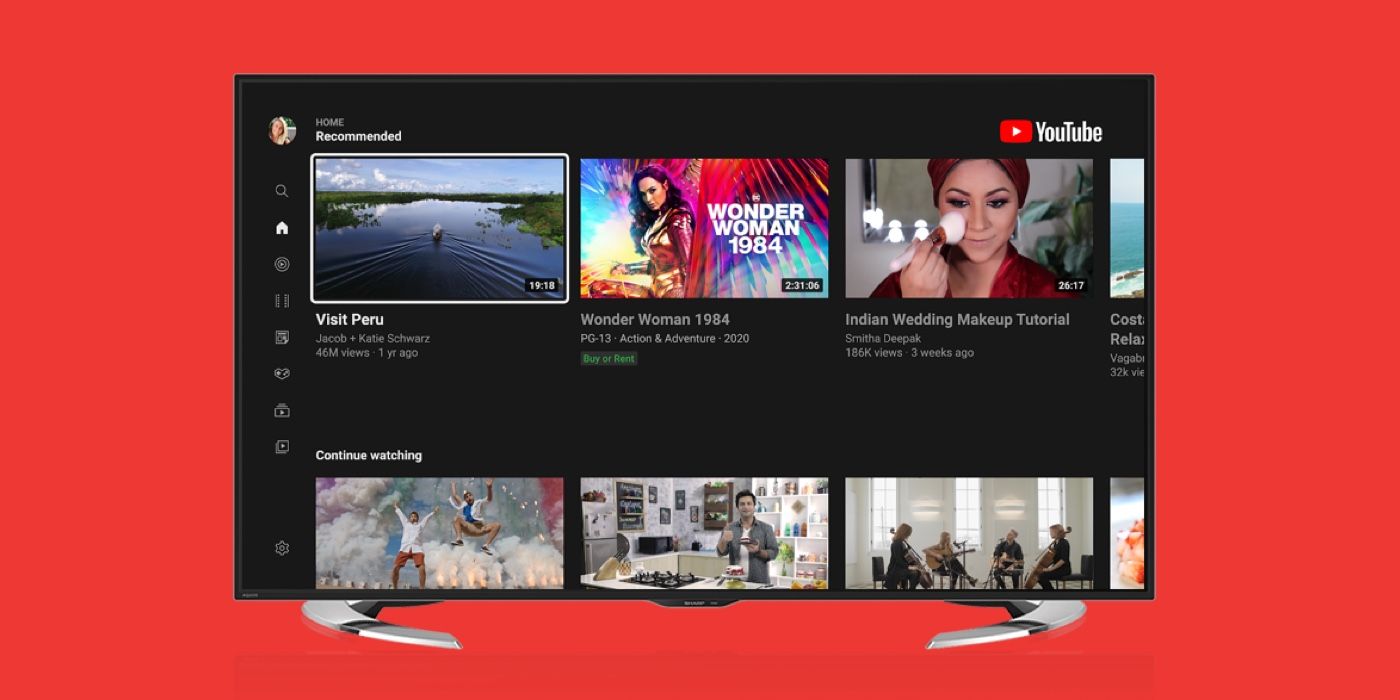
Modern YouTube TV interfaces support multiple Google profiles. This is a vital feature for households where different members have vastly different viewing habits. By signing into your Google account on the TV app, your recommendations, subscriptions, and “Watch Later” lists are synced. Tech-savvy users should note that the TV version of YouTube also supports restricted mode settings, which can be locked at the account level to ensure that younger viewers only access age-appropriate content on the main family screen.
Technical Optimization for the Best Visual Quality
Simply getting the image onto the screen is only half the battle. To truly leverage the capabilities of a modern 4K or 8K television, certain technical parameters must be met.
Bandwidth and Bitrate
YouTube utilizes adaptive bitrate streaming, meaning it adjusts the video quality in real-time based on your internet speed. For a stable 4K (Ultra HD) experience, Google recommends a sustained download speed of at least 20 Mbps. However, for 4K at 60 frames per second (fps) or with HDR enabled, a 50 Mbps connection is safer to account for network fluctuations.
Whenever possible, connecting your Smart TV or streaming box via an Ethernet (LAN) cable is superior to Wi-Fi. While Wi-Fi 6 (802.11ax) offers high theoretical speeds, it is susceptible to interference and signal degradation through walls. A wired connection ensures the lowest possible latency and the most consistent throughput for high-resolution buffers.
Video Codecs: VP9 and AV1
The technology behind the video compression is also a factor. YouTube primarily uses the VP9 codec for 4K content. Older Smart TVs that lack hardware support for VP9 decoding may be capped at 1080p, even if they have a 4K panel. More recently, YouTube has begun pushing the AV1 codec, which offers even better compression efficiency. When selecting an external streaming device, checking for AV1 hardware decoding support is a smart way to future-proof your setup.
Calibrating the Display for YouTube
Most TVs come with “Store Mode” or “Vivid” settings out of the box, which can make YouTube content look unnaturally saturated. For the most accurate “Tech” experience, users should switch their TV to “Movie” or “Filmmaker” mode. Furthermore, ensuring that “HDMI Ultra HD Deep Color” (or the equivalent setting) is enabled on the specific HDMI port being used is necessary for HDR content to trigger correctly from devices like the Fire Stick 4K or Apple TV.
Troubleshooting and Network Security
As with any networked technology, viewing YouTube on a TV can occasionally encounter friction. Understanding the underlying tech helps in quick resolution.
Common Connectivity Issues
If a TV app fails to load, the primary culprit is usually a DNS conflict or an outdated app version. Clearing the cache within the TV’s app management settings often resolves “infinite loading” screens. Furthermore, if the “Cast” icon disappears from your phone, it is often due to the phone and TV being on different Wi-Fi bands (e.g., one on 2.4GHz and the other on 5GHz). Ensuring both are on the same SSID and frequency can resolve handshake failures.
Security and Privacy
Smart TVs are often the least secure devices in a home network. When using YouTube on a TV, it is advisable to ensure the TV’s firmware is updated regularly to patch security vulnerabilities. Additionally, for those concerned about data privacy, utilizing the “Guest” mode or “Incognito” mode within the YouTube TV app prevents the viewing session from being recorded in the account’s permanent history, which is useful when viewing content in shared or public spaces.
By understanding these hardware options, wireless protocols, and technical optimizations, you can transform your YouTube viewing from a mere convenience into a high-performance home cinema experience. The synergy between mobile control and large-screen display remains one of the most effective examples of the modern connected ecosystem.
aViewFromTheCave is a participant in the Amazon Services LLC Associates Program, an affiliate advertising program designed to provide a means for sites to earn advertising fees by advertising and linking to Amazon.com. Amazon, the Amazon logo, AmazonSupply, and the AmazonSupply logo are trademarks of Amazon.com, Inc. or its affiliates. As an Amazon Associate we earn affiliate commissions from qualifying purchases.