
In an increasingly data-driven world, the ability to effectively communicate numerical insights is paramount. Raw numbers, while foundational, often lack the immediate context and comparative power needed for swift comprehension. This is where percentages step in – a universally understood format that condenses complex relationships into digestible, comparable figures. Mastering the art of changing data to percentage format within various technological tools is not merely a formatting trick; it’s a critical skill for anyone involved in data analysis, reporting, development, or strategic decision-making.
The Ubiquity and Importance of Percentage Formatting
Percentages are more than just numbers; they are powerful narrative tools. They allow us to express proportions, rates of change, and relative performance, making complex datasets instantly more accessible and actionable. From financial reports to scientific research, marketing dashboards to user experience analytics, percentages provide a standardized lens through which to view and compare different aspects of data.

Why Percentages Matter in Data Analysis
The inherent value of percentages lies in their ability to contextualize. A raw number like “250 units sold” offers little insight on its own. However, stating that “250 units sold represents a 25% market share” or “a 10% increase over the previous quarter” immediately provides critical context. This allows stakeholders to understand significance, identify trends, and make informed decisions without needing to recall or calculate base figures. In technical fields, percentages are indispensable for:
-
Performance Metrics: Tracking completion rates, error rates, uptime, and conversion rates in software, systems, and campaigns.
-
Resource Allocation: Showing the proportion of CPU usage, memory consumption, or budget spent against total available resources.
-
Trend Analysis: Illustrating growth or decline over time in user engagement, data transfer, or processing efficiency.
-
Benchmarking: Comparing the performance of different algorithms, server configurations, or software versions against a baseline or competitor.
Common Scenarios for Percentage Conversion
The need to convert data to a percentage arises in countless situations across the tech landscape:
-
Spreadsheet Analysis: Calculating market share from sales figures, understanding budget allocation, or analyzing survey responses.
-
Programming & Scripting: Formatting output for reports, displaying progress indicators, or preparing data for API responses.
-
Data Visualization: Creating dashboards that show key performance indicators (KPIs) like customer churn rate, website bounce rate, or project completion percentage.
-
Business Intelligence (BI): Building interactive reports that allow users to drill down into percentage contributions of various segments.
Practical Guides: Implementing Percentage Formatting Across Key Tech Tools
The method for converting values to percentages varies significantly depending on the software or programming environment you’re using. Understanding these nuances is crucial for accurate and efficient data presentation.
In Spreadsheet Software (Excel & Google Sheets): The Everyday Essential
Spreadsheets remain the most common environment for data manipulation, and both Microsoft Excel and Google Sheets offer intuitive ways to format numbers as percentages.
Microsoft Excel
-
Select the Cells: Highlight the cells containing the numbers you wish to format.
-
Apply Percentage Style:
-
Go to the
Hometab on the ribbon. -
In the
Numbergroup, click the%(Percentage Style) button.
-
-
Customize Decimal Places:
-
To increase or decrease decimal places, use the
Increase DecimalorDecrease Decimalbuttons next to the percentage button. -
For more granular control, open the
Format Cellsdialog box (right-click selected cells ->Format Cells, orCtrl+1). Under theNumbertab, selectPercentageand specify the desired number of decimal places.
-
-
Understanding Underlying Values: It’s critical to remember that Excel interprets numbers for percentage formatting. If you have “0.5” in a cell and apply percentage format, it will display as “50%”. If you have “50” and apply percentage format, it will display as “5000%”. If your raw data is already in a 0-1 decimal format, direct application works. If your raw data is a whole number that should be a percentage (e.g., you want
50to display as50%), you’ll need to divide it by 100 first (e.g.,=A1/100).
Google Sheets
-
Select the Cells: Highlight the cells containing the numbers.
-
Apply Percentage Format:
- Go to
Formatmenu ->Number->Percent.
- Go to
-
Customize Decimal Places:
-
Use the
Increase Decimal PlacesorDecrease Decimal Placesbuttons in the toolbar (usually looks like.0with an arrow or0.00and0.0). -
Alternatively, go to
Formatmenu ->Number->Custom number formatand type0.00%(or your desired precision).
-
-
Understanding Underlying Values: Similar to Excel, Google Sheets expects numbers between 0 and 1 for direct percentage formatting. A value of
0.75will become75%. If you enter75directly and then apply percentage format, it will become7500%. Ensure your source data is correctly represented as a decimal fraction before applying the format.
In Programming Languages (Python & JavaScript): For Developers and Data Scientists
Developers frequently need to format percentages for display in applications, reports, or APIs.
Python
Python offers robust string formatting options for percentages.
value = 0.45678


total = 200


portion = 45


# 1. Using f-strings (Python 3.6+) - Most common and readable


print(f"Percentage of value: {value:.2%}") # Output: Percentage of value: 45.68%


print(f"Portion of total: {portion/total:.1%}") # Output: Portion of total: 22.5%


# 2. Using str.format() method


print("Percentage of value: {:.2%}".format(value)) # Output: Percentage of value: 45.68%


# 3. Manual calculation and string concatenation (less ideal for precision)


manual_percent = (portion / total) * 100


print(f"Manual percentage: {manual_percent:.2f}%") # Output: Manual percentage: 22.50%


# In Pandas DataFrames (for data scientists)


import pandas as pd


data = {'Category': ['A', 'B', 'C'], 'Value': [0.15, 0.30, 0.55]}


df = pd.DataFrame(data)


# Apply percentage formatting to a column


df['Value_Percent'] = df['Value'].apply(lambda x: f"{x:.1%}")


print(df)


# Output:


#   Category  Value Value_Percent


# 0        A   0.15         15.0%


# 1        B   0.30         30.0%


# 2        C   0.55         55.0%
JavaScript
JavaScript is often used for front-end development, where displaying dynamic percentages is common.
let value = 0.12345;


let totalSales = 1500;


let currentSales = 375;


// 1. Using Intl.NumberFormat for robust localization and formatting


// This is the recommended modern approach for internationalization.


let formatter = new Intl.NumberFormat('en-US', {


  style: 'percent',


  minimumFractionDigits: 2,


  maximumFractionDigits: 2,


});


console.log(`Formatted value: ${formatter.format(value)}`); // Output: Formatted value: 12.35%


console.log(`Sales percentage: ${formatter.format(currentSales / totalSales)}`); // Output: Sales percentage: 25.00%


// 2. Manual calculation and toFixed() for simpler cases (less robust for i18n)


let manualPercent = (currentSales / totalSales) * 100;


console.log(`Manual sales percentage: ${manualPercent.toFixed(2)}%`); // Output: Manual sales percentage: 25.00%


// For display in HTML elements


// document.getElementById('myElement').textContent = formatter.format(currentSales / totalSales);
In Data Visualization & Business Intelligence Tools
Tools like Tableau, Power BI, and Looker (formerly Google Data Studio) simplify percentage formatting, often treating it as a property of the data field itself.
-
General Approach: You typically select the measure or dimension you want to format, navigate to its properties or formatting pane, and choose “Percentage” as the number format. These tools often allow you to specify decimal places, thousands separators, and even conditional formatting based on percentage values.
-
Tableau: In the
Data Pane, right-click on the measure ->Default Properties->Number Format->Percentage. You can then adjust decimal places. -
Power BI: Select the field in the
Fieldspane -> go to theModelingtab -> underFormatting, choosePercentagefrom the dropdown and set decimal places.
Best Practices for Effective Percentage Display
Beyond knowing how to change to percentage, understanding how to use them effectively is key to leveraging their analytical power.
Contextual Clarity
Always accompany a percentage with a clear label or context. “25%” is ambiguous; “25% market share,” “25% error rate,” or “25% year-over-year growth” are informative. This ensures your audience immediately grasps the significance of the number.
Decimal Precision
Choose decimal precision wisely. Too many decimals can clutter a report and imply a level of precision that isn’t necessary or even accurate. Too few might hide important nuances. For most business contexts, one or two decimal places are sufficient (e.g., 12.5%, 12.34%). Rounding should be done consistently.
Consistency
Maintain uniform percentage formatting across all reports, dashboards, and applications. Inconsistent use of decimal places or different ways of rounding can lead to confusion and erode trust in the data.
Visual Representation
Percentages are exceptionally well-suited for various data visualizations:
-
Pie charts and donut charts for showing parts of a whole (e.g., market share, budget allocation).
-
Bar charts for comparing percentages across different categories (e.g., conversion rates by channel).
-
Line charts for tracking percentage changes over time (e.g., growth rates, churn trends).
The Raw Number vs. Percentage Debate
Often, providing both the percentage and the raw number offers the most comprehensive view. For instance, “5% of users (500 users)” is more informative than just “5% of users,” especially if the base number is small or fluctuates. This provides both the relative proportion and the absolute magnitude.
Beyond Basic Formatting: Advanced Considerations and Common Pitfalls
While basic percentage formatting is straightforward, advanced scenarios and common errors require deeper technical understanding.
Handling Division by Zero
When calculating a percentage (e.g., portion / total), a common pitfall is total being zero. This results in errors like #DIV/0! in Excel, NaN (Not a Number) in Python/JavaScript, or nulls in BI tools. Implement error handling:
-
Spreadsheets: Use
IFERROR(Excel) orIFNA(Google Sheets) withIFconditions:=IFERROR(A1/B1, 0)or=IF(B1=0, 0, A1/B1). -
Programming: Use
try-exceptblocks or explicitifconditions:if total != 0:percent = portion / totalelse:
percent = 0 # Or handle as a specific error message/value -
BI Tools: Use calculated fields with
IFstatements orDIVIDEfunctions that handle zero denominators.
Aggregation of Percentages
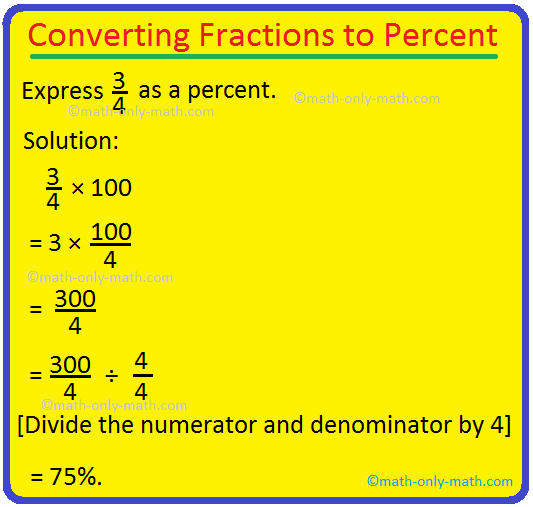
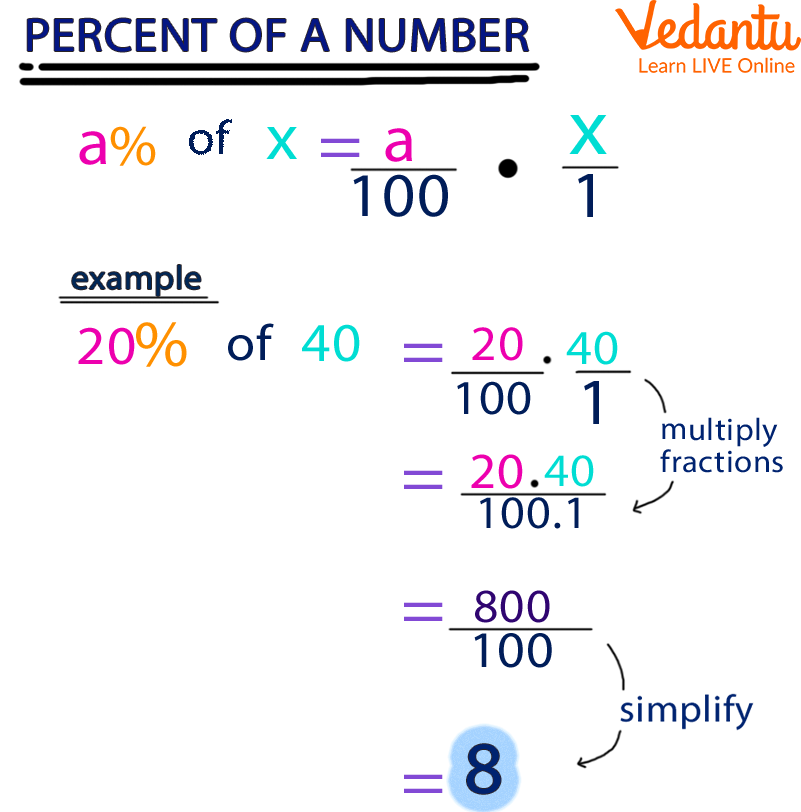
A critical mistake is to simply average percentages when aggregating data. For example, if project A has a 50% completion rate (50/100 tasks) and project B has a 100% completion rate (10/10 tasks), the average percentage (75%) is misleading if the projects are of different sizes. Instead, you should aggregate the raw numbers first and then recalculate the percentage: (total_completed_tasks / total_overall_tasks).
Localization
Percentages, like other numbers, are subject to localization rules. Different cultures use different decimal separators (e.g., comma vs. period) and might place the percent symbol before or after the number, or use different symbols entirely. Modern tech tools and programming languages (like JavaScript’s Intl.NumberFormat or Python’s locale module) offer mechanisms to format percentages according to specific cultural conventions, ensuring your data is understood universally.
Mastering percentage formatting is a fundamental skill that transcends specific applications. By understanding the underlying principles and the unique methods across various technical tools, you can transform raw data into clear, impactful, and actionable insights, driving better communication and decision-making in any tech-driven environment.
aViewFromTheCave is a participant in the Amazon Services LLC Associates Program, an affiliate advertising program designed to provide a means for sites to earn advertising fees by advertising and linking to Amazon.com. Amazon, the Amazon logo, AmazonSupply, and the AmazonSupply logo are trademarks of Amazon.com, Inc. or its affiliates. As an Amazon Associate we earn affiliate commissions from qualifying purchases.