
In an increasingly digital world, managing our online subscriptions and services has become a fundamental aspect of maintaining control over our technological footprint. Amazon Fresh, a convenient grocery delivery service, offers a streamlined way to get essentials delivered directly to your door. However, circumstances change, and users may find themselves needing to terminate this service. Whether you’re relocating, adjusting your budget, or simply no longer require the convenience, understanding the precise, digital steps to cancel your Amazon Fresh membership is crucial. This guide will walk you through the process, offering insights into Amazon’s ecosystem and best practices for managing your digital subscriptions.

Navigating the Amazon Fresh Ecosystem: Why Cancellation Matters
Amazon’s vast digital empire includes a multitude of services, each designed to integrate seamlessly into a user’s life. Amazon Fresh, an extension of the Prime membership, leverages Amazon’s logistics network to provide on-demand grocery delivery. For many, it’s an indispensable tool, but for others, it can become an unnecessary expense or a service no longer aligned with their needs. The act of cancellation, therefore, isn’t just about stopping a payment; it’s about reclaiming control over your digital commitments and optimizing your tech services.
The Allure and Integration of Amazon Fresh
Amazon Fresh stands as a prime example of how technology simplifies daily tasks. Integrated directly into the Amazon shopping experience, it allows Prime members to browse, select, and schedule delivery of groceries, often with same-day or next-day options. This convenience, powered by sophisticated logistics algorithms and a user-friendly interface, makes it incredibly appealing. Users can manage their shopping lists, track orders in real-time, and even utilize Alexa for voice-controlled grocery management. The subscription model typically involves a monthly fee, offering benefits like free delivery on eligible orders over a certain threshold, distinct from the broader Amazon Prime membership fee. Understanding this integration is key, as cancelling Fresh does not automatically cancel Prime, and vice-versa.
Common Reasons for Membership Termination
While the convenience of Amazon Fresh is undeniable, several factors often prompt users to consider cancellation. Practical reasons include relocating to an area not serviced by Fresh, changes in household size or dietary needs, or finding alternative local grocery solutions. From a tech perspective, users might be streamlining their digital subscriptions to reduce “subscription fatigue” — the overwhelm of managing too many recurring services. Others might be consolidating their online spending, opting for more cost-effective solutions or simply no longer finding the value proposition aligns with their current lifestyle. Identifying your specific reason for cancellation can also help in evaluating other digital services you subscribe to.
Understanding the Subscription Model
Before diving into the cancellation process, it’s vital to grasp how Amazon Fresh’s subscription model works. Typically, it operates on a monthly billing cycle, often tied to your Amazon Prime account. Unlike some services that lock you into annual contracts, Amazon Fresh memberships are generally month-to-month, allowing for relatively straightforward cancellation without long-term penalties. However, specific terms can vary by region or promotional offers. It’s always advisable to review the terms and conditions associated with your specific membership, usually accessible through your Amazon account’s digital subscriptions section. This understanding ensures there are no surprises regarding pro-rated refunds or the duration of service after cancellation.
A Step-by-Step Guide to Cancelling Your Amazon Fresh Membership
The process of canceling your Amazon Fresh membership is designed to be straightforward, albeit requiring navigation through several menus within the Amazon ecosystem. Whether you’re accessing your account via a web browser on a desktop or through the Amazon app on a mobile device, the core steps remain consistent. Following these instructions meticulously will ensure a smooth and successful termination of your service.
Accessing Your Amazon Account
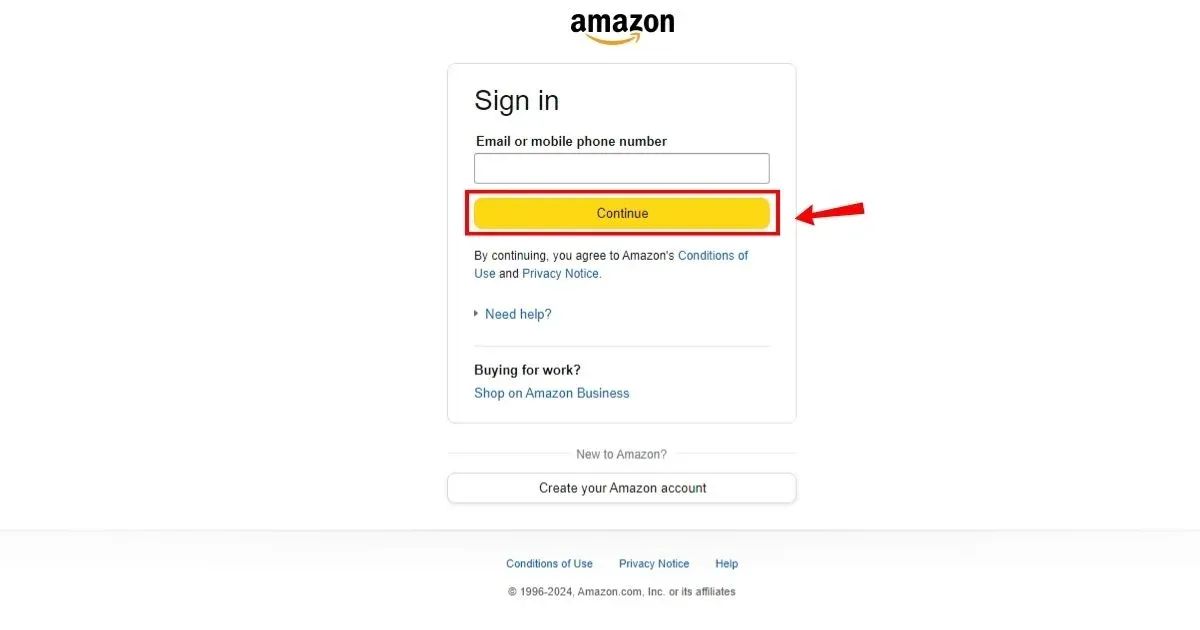
The first and most crucial step is to log into your Amazon account, which is the central hub for all your Amazon services.
-
Via Web Browser: Open your preferred web browser (Chrome, Firefox, Edge, Safari) and navigate to
amazon.com. Click “Accounts & Lists” in the top right corner, then select “Sign In.” Enter your registered email address or mobile number and password. -
Via Amazon App: Open the Amazon Shopping app on your smartphone or tablet. Tap the “Profile” icon (usually a silhouette of a person or “You”) at the bottom of the screen. If prompted, sign in with your credentials.
Ensure you are logged into the correct account associated with your Amazon Fresh membership. If you have multiple Amazon accounts, this can be a common point of confusion.
Locating Your Fresh Subscription
Once logged in, the next step is to navigate to the section where your digital memberships and subscriptions are managed. Amazon centralizes these services for user convenience.
-
Via Web Browser:
-
After signing in, hover over “Accounts & Lists” again.
-
From the dropdown menu, select “Memberships & Subscriptions.” This page lists all your active Amazon-related subscriptions, including Prime, Kindle Unlimited, Amazon Music, and crucially, Amazon Fresh.
-
Alternatively, you can go to “Your Account” and then look for the “Memberships & Subscriptions” tile.
-
-
Via Amazon App:
-
Tap the “Profile” icon at the bottom.
-
Scroll down and tap “Your Account.”
-
Under the “Account Settings” section, look for and tap “Memberships & Subscriptions.”
-
On the “Memberships & Subscriptions” page, you should see an entry for “Amazon Fresh” or a similar listing related to your grocery delivery service. It’s important to differentiate this from your core Amazon Prime membership, as they are often listed separately even if Fresh is a Prime benefit.
Executing the Cancellation
With your Amazon Fresh subscription located, you can now proceed with the cancellation.
-
For both Web Browser and App:
-
Next to the “Amazon Fresh” listing, you will typically find an option like “Manage Membership,” “Cancel Subscription,” or “End Membership.” Click or tap on this option.
-
Amazon may present you with an offer to pause your membership, modify your plan, or remind you of the benefits you’ll lose. Carefully read these prompts.
-
Look for a clear option to “Continue to cancel” or “End my membership.” Amazon sometimes uses dark patterns or multiple layers to discourage immediate cancellation, so persist in finding the definitive cancellation button.
-
You might be asked to confirm your decision, possibly with a brief survey about why you’re canceling. While optional, providing feedback can help Amazon improve its services.
-
Confirm your cancellation one last time when prompted.
-
The system will then process your request. The service will typically remain active until the end of your current billing cycle, ensuring you get the full value for the period you’ve already paid for.
Confirmation and Verification
After successfully executing the cancellation, you should receive a confirmation.
-
On-Screen Confirmation: The Amazon website or app will usually display a confirmation message immediately, indicating that your membership has been canceled or is scheduled to end.
-
Email Confirmation: Amazon typically sends an email to the address associated with your account, confirming the cancellation. This email is crucial as it serves as a digital receipt and proof of your action. Keep this email for your records.
-
Verify in Account Settings: Return to the “Memberships & Subscriptions” page in your Amazon account. The Amazon Fresh listing should now reflect its canceled status, or it might disappear entirely once the current billing cycle ends. If it still shows as active and renewing, you may need to repeat the process or contact customer support.
Post-Cancellation Implications and What to Expect
Canceling a digital service like Amazon Fresh has several immediate and long-term implications that users should be aware of. Understanding these aspects helps in managing expectations and planning for future needs.
Refunds and Service Expiration
Upon cancellation, the key question for many users revolves around refunds. Amazon’s policy generally dictates that if you cancel your Amazon Fresh membership, your benefits will typically continue until the end of the current billing period for which you’ve already paid. You will not be charged for the subsequent period. Partial refunds for periods where the service was not used may be issued in specific circumstances, such as if you cancelled immediately after an accidental renewal and haven’t used any benefits. Always refer to Amazon’s official refund policy on their website or contact customer service for specific scenarios. It’s rare to receive a pro-rated refund for a partially used month of service after voluntary cancellation.
Data Retention and Privacy Considerations
From a tech and privacy standpoint, what happens to your data after you cancel? When you cancel your Amazon Fresh membership, Amazon will typically retain your order history, shopping lists, and preferences associated with the service, as these are linked to your broader Amazon account. This data retention is often for purposes of service improvement, legal compliance, and convenience should you decide to rejoin in the future. If you wish to have your data permanently deleted, you would need to initiate a full Amazon account closure, which has far broader implications for all your Amazon services (Prime, Kindle, etc.) and is a distinct process from cancelling a single subscription. Users concerned about data privacy should be aware of Amazon’s overall privacy policy regarding data retention.
Rejoining Amazon Fresh in the Future
One of the benefits of a flexible digital subscription model is the ability to rejoin. If, in the future, your circumstances change and you wish to subscribe to Amazon Fresh again, the process is usually as simple as reactivating it through your Amazon account or signing up as a new member. Your past order history and preferences may still be available, making the transition back seamless. Amazon often provides incentives or promotional offers for returning members, so keep an eye out for those if you plan to re-engage with the service.
Troubleshooting and Best Practices for Digital Subscription Management
Even with clear instructions, technological processes can sometimes present unexpected hurdles. Knowing how to troubleshoot and adopting best practices for managing your entire suite of digital subscriptions can save time and frustration.
Addressing Common Cancellation Hurdles
-
Difficulty Locating “Memberships & Subscriptions”: Ensure you’re logged into the correct Amazon account. Sometimes, users have multiple accounts for different purposes.
-
No “Cancel” Option: This might indicate that your Amazon Fresh membership is tied directly to your Prime account in a specific way, or it has already been cancelled. Double-check your Prime membership settings as well. If Fresh is a benefit of Prime and not a separate subscription, ending Prime would end Fresh.
-
Confusing Prompts: Amazon, like many service providers, may present multiple screens attempting to retain your business (e.g., offering discounts, reminding of benefits). Be persistent in finding the “Continue to Cancel” or “End Membership” option.
-
Technical Glitches: Browser issues or app bugs can sometimes interfere. Try clearing your browser cache and cookies, using a different browser, or trying the mobile app if the desktop site isn’t working, and vice-versa.
When to Contact Amazon Customer Support
If you encounter persistent issues, cannot locate your subscription, or are unsure about a refund, contacting Amazon Customer Support is the next logical step.
-
How to Contact:
-
Go to
amazon.com/help(or “Customer Service” in the app). -
Look for options like “Contact Us,” “Need more help?”, or “Talk to an associate.”
-
You’ll typically be offered options for live chat, phone call, or email. Live chat is often the quickest for subscription-related queries.
-
-
What to Provide: Have your Amazon account details ready, including the email address associated with the account, and specific dates or transaction IDs if applicable. Clearly state your issue: “I am trying to cancel my Amazon Fresh membership and am encountering difficulties.”
Proactive Management of Your Digital Footprint
Beyond specific cancellations, adopting a proactive approach to your digital subscriptions is a tech best practice. Regularly audit your recurring payments and services.
-
Create a Subscription Tracker: A simple spreadsheet or a dedicated app can list all your subscriptions, their billing dates, costs, and renewal terms.
-
Regular Reviews: Schedule quarterly or bi-annual reviews of your subscriptions. Ask yourself: Am I still using this service? Does it still provide value? Is there a more cost-effective alternative?
-
Utilize Account Settings: Familiarize yourself with the “Memberships & Subscriptions” or similar sections in all your major online accounts (Google, Apple, Microsoft, streaming services) to quickly manage and cancel services.

The Broader Landscape of Subscription Overload
The ease of signing up for digital services has led to a phenomenon known as “subscription overload.” Many users find themselves paying for multiple services they rarely use, leading to unnecessary expenses and digital clutter. Learning how to efficiently cancel services like Amazon Fresh is not just about managing one specific account; it’s a valuable skill in maintaining a healthy, efficient, and cost-aware digital life. By mastering these tech-savvy steps, you contribute to a more mindful and controlled digital footprint.
aViewFromTheCave is a participant in the Amazon Services LLC Associates Program, an affiliate advertising program designed to provide a means for sites to earn advertising fees by advertising and linking to Amazon.com. Amazon, the Amazon logo, AmazonSupply, and the AmazonSupply logo are trademarks of Amazon.com, Inc. or its affiliates. As an Amazon Associate we earn affiliate commissions from qualifying purchases.